Resolving "Long Paths" error messages
After enabling local file syncing on your device, a "Long Paths Not Allowed" error message may appear.
By default, Windows only supports file paths less than 255 characters. This can prevent folders and files with longer path names from being synced to your computer. Longer file paths can be supported by changing a registry key or using the Group Policy tool to remove the limit.
More information is available on Microsoft's Learn site: https://learn.microsoft.com/en-us/windows/win32/fileio/naming-a-file#maximum-path-length-limitation
Important The update requires local admin rights on the computer and should only be performed by someone knowledgeable with updating the registry. It is strongly advised to make a backup of the registry prior to making any changes.
To modify the registry, complete the following steps:
-
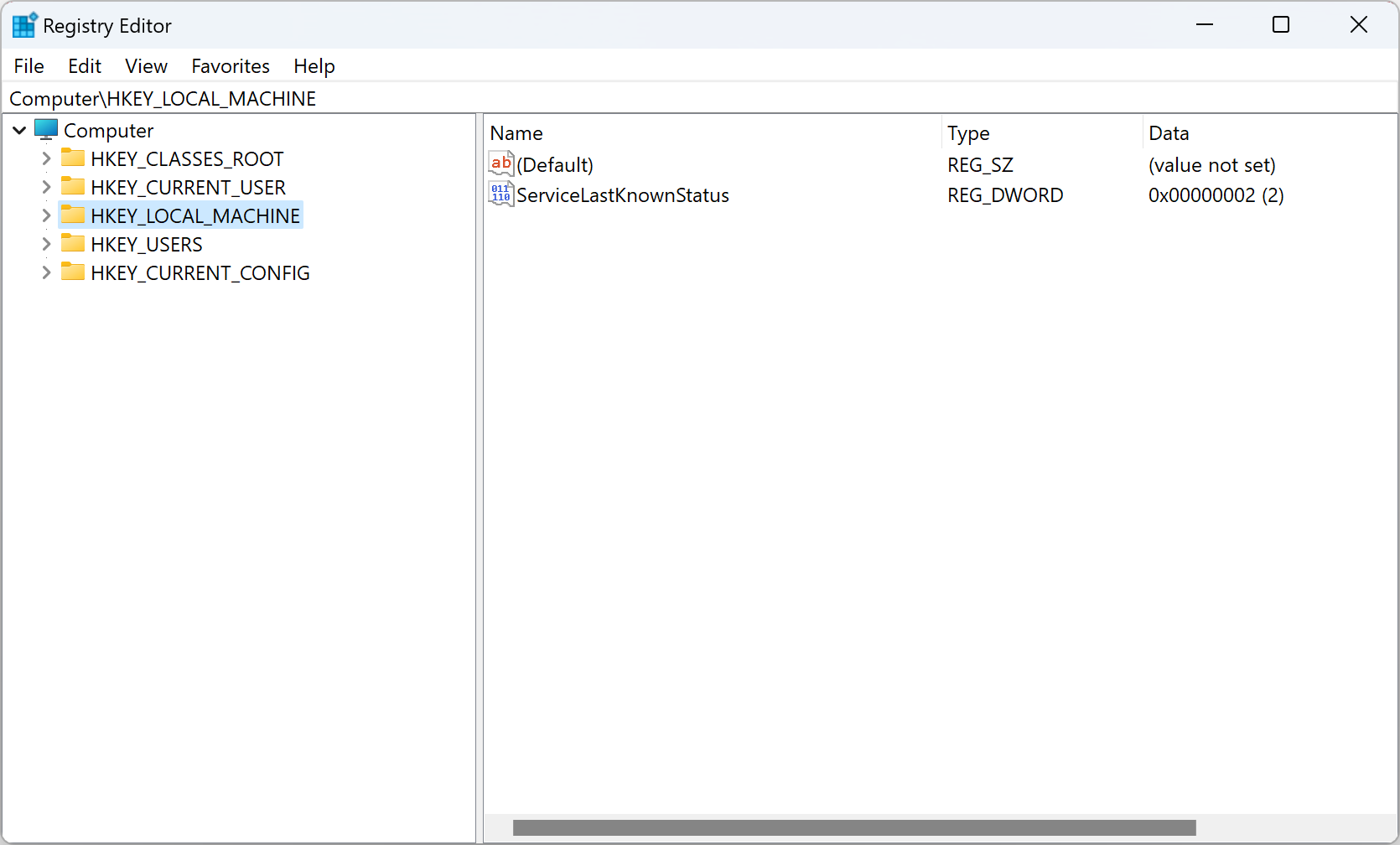
Search for the Registry Editor in the Windows search bar and select it to open it.
-
In the Registry Editor, use the left sidebar to navigate to the following level:
CopyHKEY_LOCAL_MACHINE\SYSTEM\CurrentControlSet\Control\FileSystem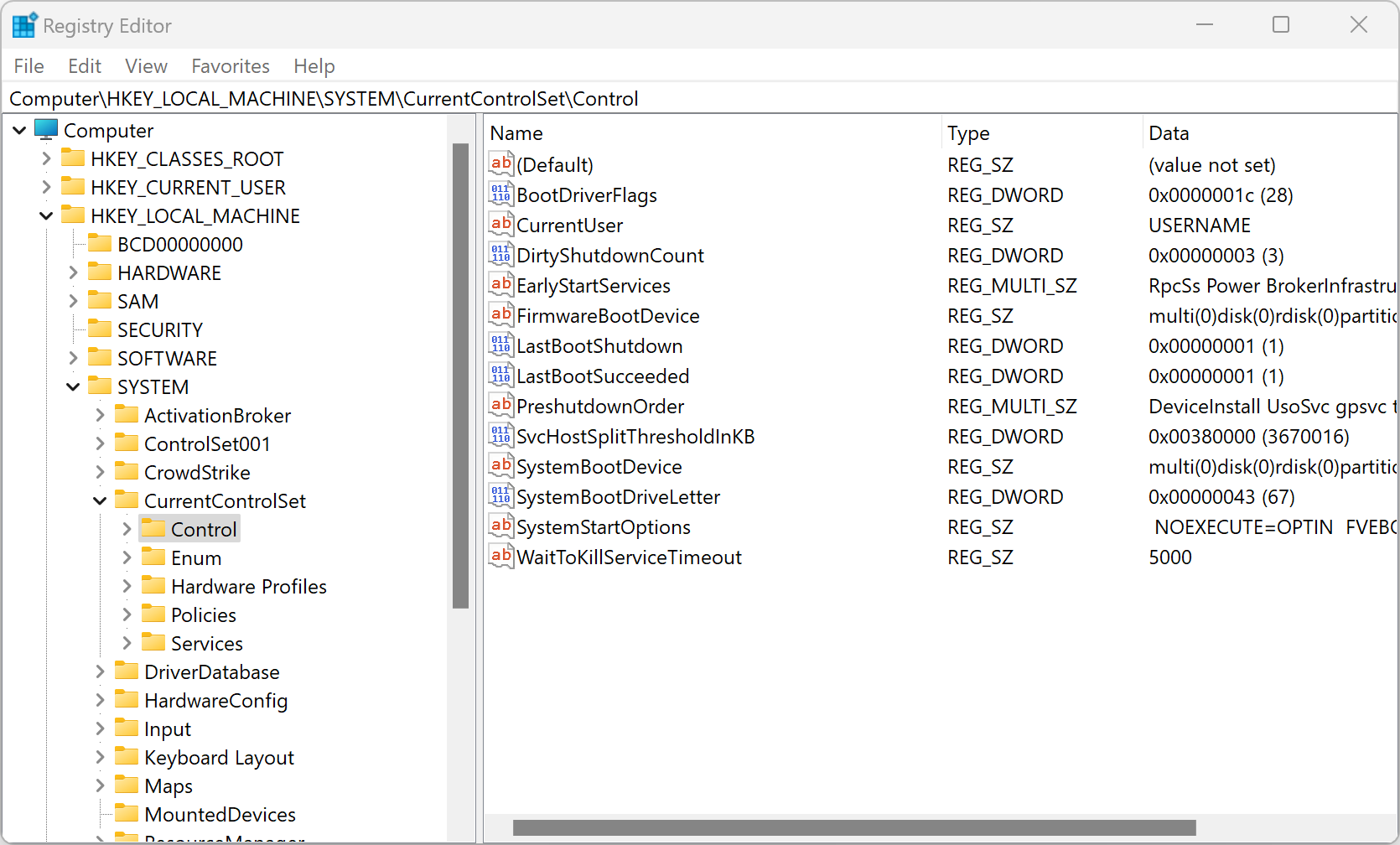
-
Locate the
LongPathsEnabledproperty on the right. Double-click to open it.Note If the
LongPathsEnabledproperty is not listed, you’ll need to create it. Right-click on FileSystem and select New > DWORD (32-bit) Value. Name the new value LongPathsEnabled and complete the remaining steps.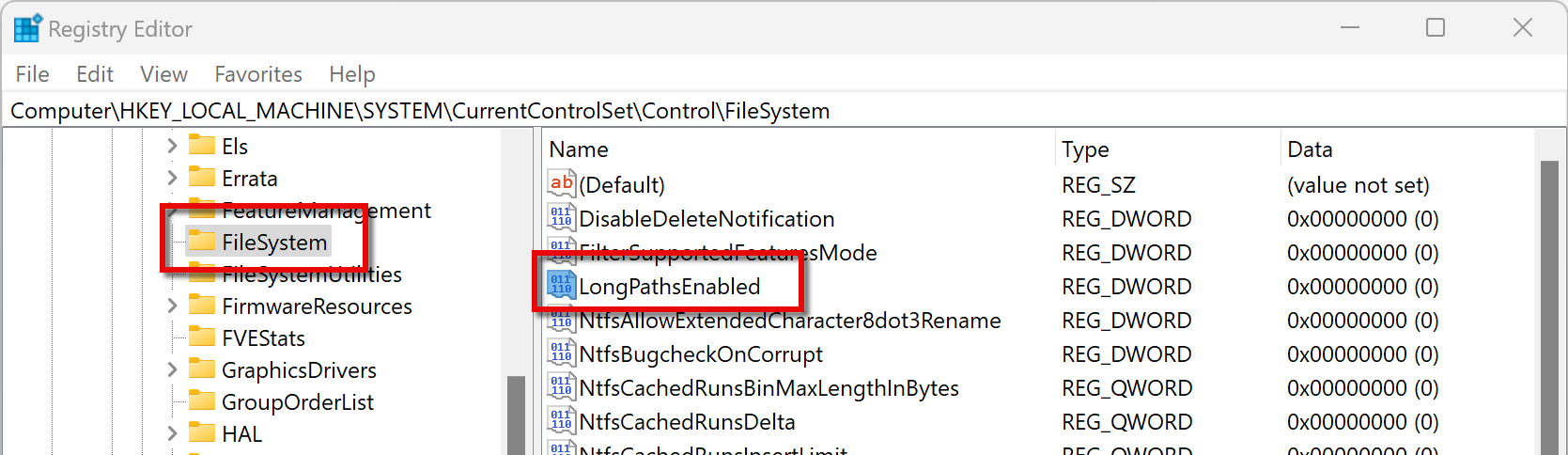
-
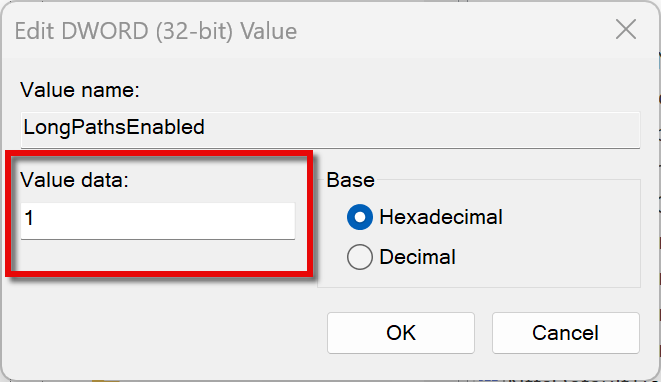
Change the Value Data to 1 and click OK.
-
Long paths are now enabled on your computer. Close the registry editor.