Managing user licenses
All your internal users require a license to work in Kahua. Internal users without a license can only receive tasks and messages and cannot create or view records in the system.
There are different licenses for different components of the Kahua platform. Domain Administrators can assign and revoke user licenses. If you are interested in purchasing additional licenses for your domain, please reach out to your account manager.
Before assigning a license to a user, the user must be created in the Users application. Licenses can be assigned during the user creation process. You can see what licenses have been assigned to each user in the Users app. Refer to View license information. For more information on creating users, refer to Adding Internal Users and Adding External Users.
How to . . .
 Assign a license to a user
To assign a license to a user, complete the following steps:
-
Navigate to the Licenses application (All Apps > Administration > Licenses).
-
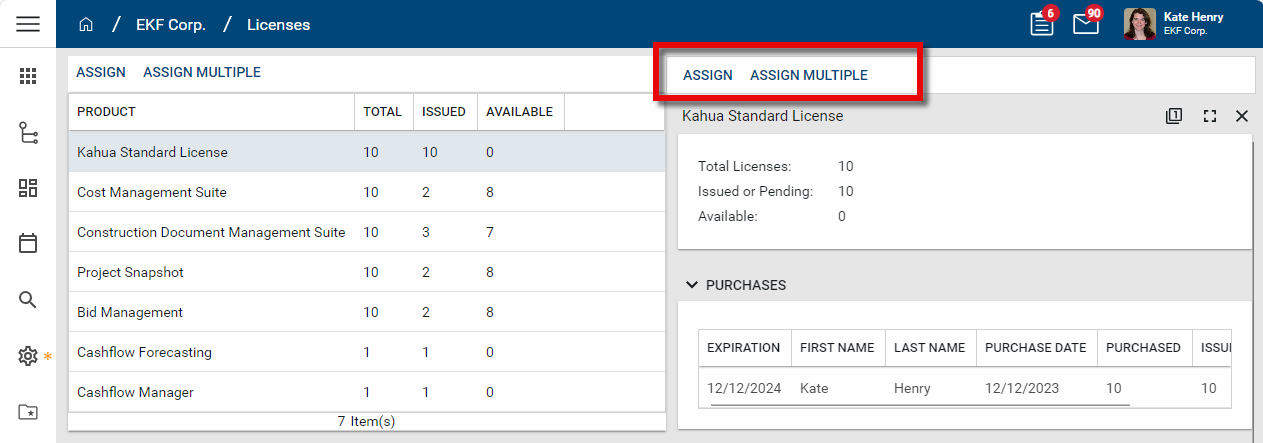
All purchased licenses will appear in a grid view. This view includes the name of the license type, the Total number purchased, the number Issued to users, and the number Available to assign to other users.
-
Select the license type to be assigned. The detail pane opens. Here you can see the license's expiration date and purchase date, and which users have been assigned a license.
-
Select Assign in the action bar to assign the selected license to a user. Select Assign Multiple to assign multiple licenses to multiple users at one time. If you attempt to assign a license to a user who already has that license, the system will ignore that request.
When the newly licensed user logs in, their app menu will now include additional applications based upon the licenses applied and the permissions granted in the Groups application. For more information on managing permissions, refer to Managing Permissions.
Note Licenses can be assigned during the user creation process. For more information on creating internal users, refer to Adding Internal Users.
Revoke a license from a user
To revoke a license from a user, complete the following steps:
-
Navigate to the Licenses app (All Apps > Administration > Licenses).
-
Select the license type to be removed.
-
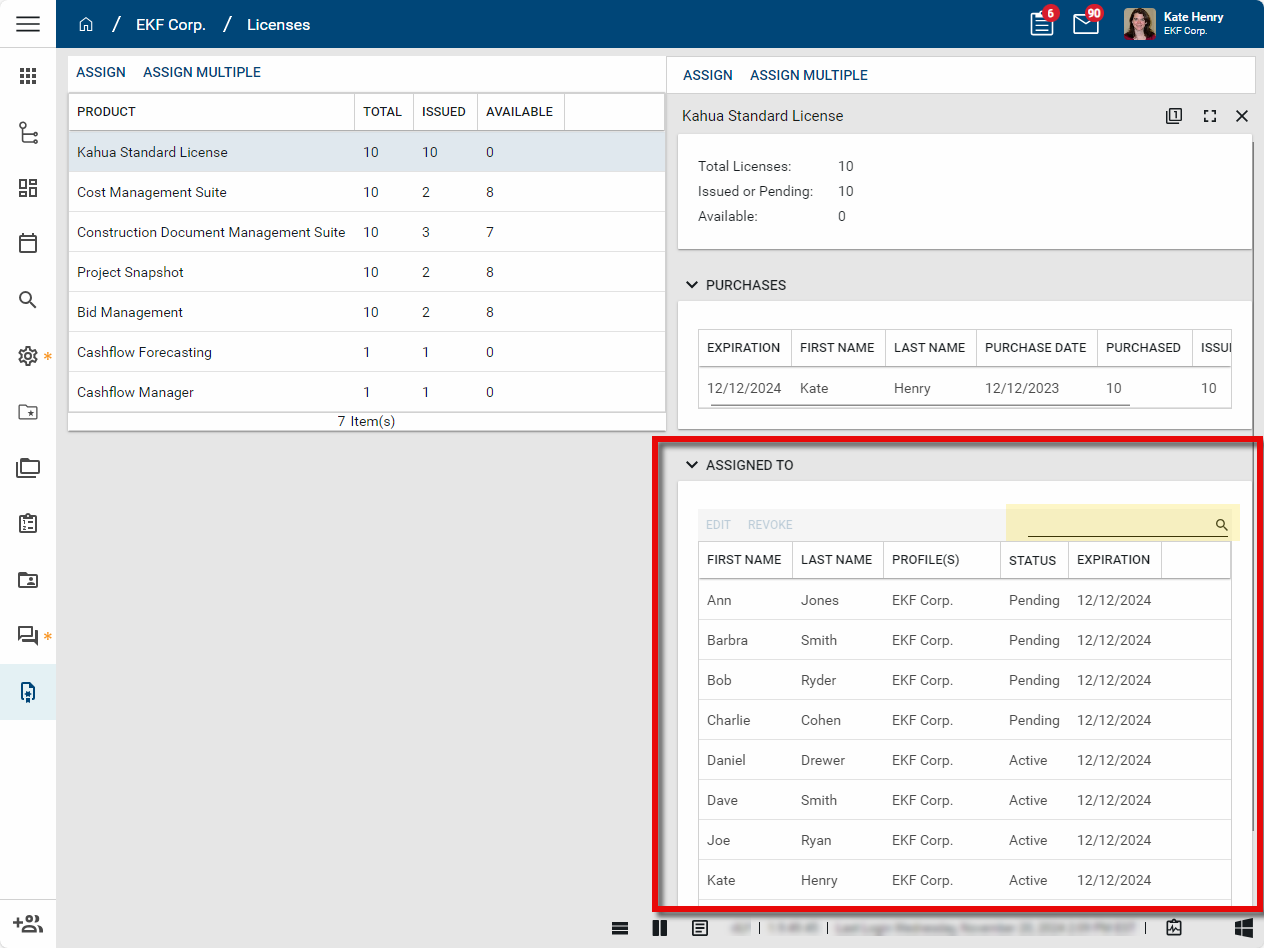
In the detail pane, select the user whose license you want to revoke. Use the search field to find a specific user by name.
-
Select Revoke. The license will be revoked from the user.
-
Unexpired licenses can be reassigned to other users.
Note To fully remove a user, we recommend that you remove their Group permissions in addition to removing their license. For more information on managing groups, refer to Setting up groups.