Building a kConnect staging app
Note: This page is still in work in progress and will be regularly updated.
Overview
kConnect uses staging apps to bring data into Kahua in its original form. After the data is loaded into the staging app, it can then be processed over to its final destination app, which is where data validation and transformation can occur. This page details the process of creating and configuring a staging app. Currently, a separate staging app is needed for each unique format of data files that will be sent to Kahua. For instance, if you will be sending different data files for contracts and pay requests, you will have two data files, as these files will have different data fields in them. If you have a single "invoice" file that will be processed into the Invoices and General Invoices apps, for example, you can have a single staging app.
When you have multiple staging apps, it is customary to create a suite/container app that contains them all. This provides a single entry in the Kahua launch menu to access all staging apps.
Use the kBuilder app wizard to create a new app
The attributes in the new app should match the columns/fields in the file that you are importing. You can create preview/edit views as you see fit to view the data. The hub definition requires a value for the Default New Step. Typically this is the same step defined in the Starts section of the hub definition.
Add kahua_Integration.IntegrationDocumentBase as a parent entity definition
Once your initial app is built, you should add a reference to the kahua_Integration app. Once this reference is added you can add a Parent Entity Definition to your main entity, which should be kahua_Integration.IntegrationDocumentBase. This entity includes several attributes used to track the time, status, and any error messages you may log when processing entities. In particular, these attributes should have visuals added for your views, and to the default log view:
-
Message: This will hold any error message you need to log when processing the entity. For instance, if processing a record that has an invalid project number, the error message should be set here so the user can see it.
-
DateImported: This will automatically be set by the Integration app when importing data into the staging app, to record the time the record was imported
-
IntegrationStatus: This holds the status of the record. It will initially be automatically set to "New" by the Integration app when loading data. When processing data, it should update the status appropriately, typically to "Processed" or "Failed". Other statuses are possible if set in the lookup list "kahua_Integration.IntegrationDocumentBase_IntegrationStatusLookup". Note that this lookup list is shared amongst all staging apps.
Example:

This is the XML code showing how to add the kahua_Integration.IntegrationDocumentBase as the parent entity.
Install kahua_Integration and staging app to your domain
Ensure the kahua_Integration apps, and your staging apps are installed to your test environment domains. Before these can be installed into DevProduction or Production environments, the staging apps must be merged to Main and the current release branch. Requests to install apps into a production domain should be made to support@kahua.com. This follows our normal App Development Process.
Configure the kahua_Integration app
You must set configuration in the kahua_Integration app in order for Kahua to understand how incoming files map to their corresponding staging apps/entities. Configuration should be done at the root (domain level) project for the Integration app.
On the Settings tab, select Override to add a new configuration. Add a line to the items grid. Here, you'll define the naming convention and type of file uploaded to Kahua, and map it to the proper staging app:
-
Entity Definition Name: This field defines the entity def name of the staging app entity that data will be loaded into
-
Source Type: This defines the type of file loaded into the staging app:
-
Excel: An Excel spreadsheet with a file extension of .xlsx
The legacy Excel file format with a .xls extension is not supported
-
CSV: A comma-separated values text file with a file extension of .csv
-
TXT: A pipe-delimited text file with a file extension of .txt
-
-
Match Pattern: This defines how a match is made with the incoming file. For the source type of Excel the match is made against a worksheet name. For the source types of CSV and TXT the match is made against the filename.
-
Match Type: This defines how the Match pattern text will be used with the incoming file:
-
Exact: The name must match the Match Pattern exactly
-
Wildcard: The name will match based on a wildcard (asterisk) pattern. For instance "invoice*" will match on any CSV file that starts with invoice or any Excel worksheet that starts with invoice.
-
Regular Expression: The name will match based on a regular expression
-
-
Automatically Process: This checkbox determines if files will be automatically processed from the staging app into the destination app. If not selected, then data loaded into the staging app will remain until a user manually initiates processing.
-
Process All Entities: If checked Kahua will only call the event found in Event Name once . If not checked Kahua will call the event found in Event Name for every record in the staging app.
-
Event Name: If Process All Entities is selected, the event should be designed to process all records from the staging app to the destination app. If Process All Entities is not selected, the event should be designed to process a single record from the staging app to the destination app.
-
Header Row #: This field indicates which row has the header information. The actual data records must begin on the next row.
-
# of columns: Read-only value on the list view displaying the number of mapping columns
The names of the fields are shortened on the list view as compared to the details view.
Once the above information is filled out, click on the Panel to expand the row for more details. In the Panel, you will be able to insert mappings. These values map column names in the input file to attributes in the staging app entity:
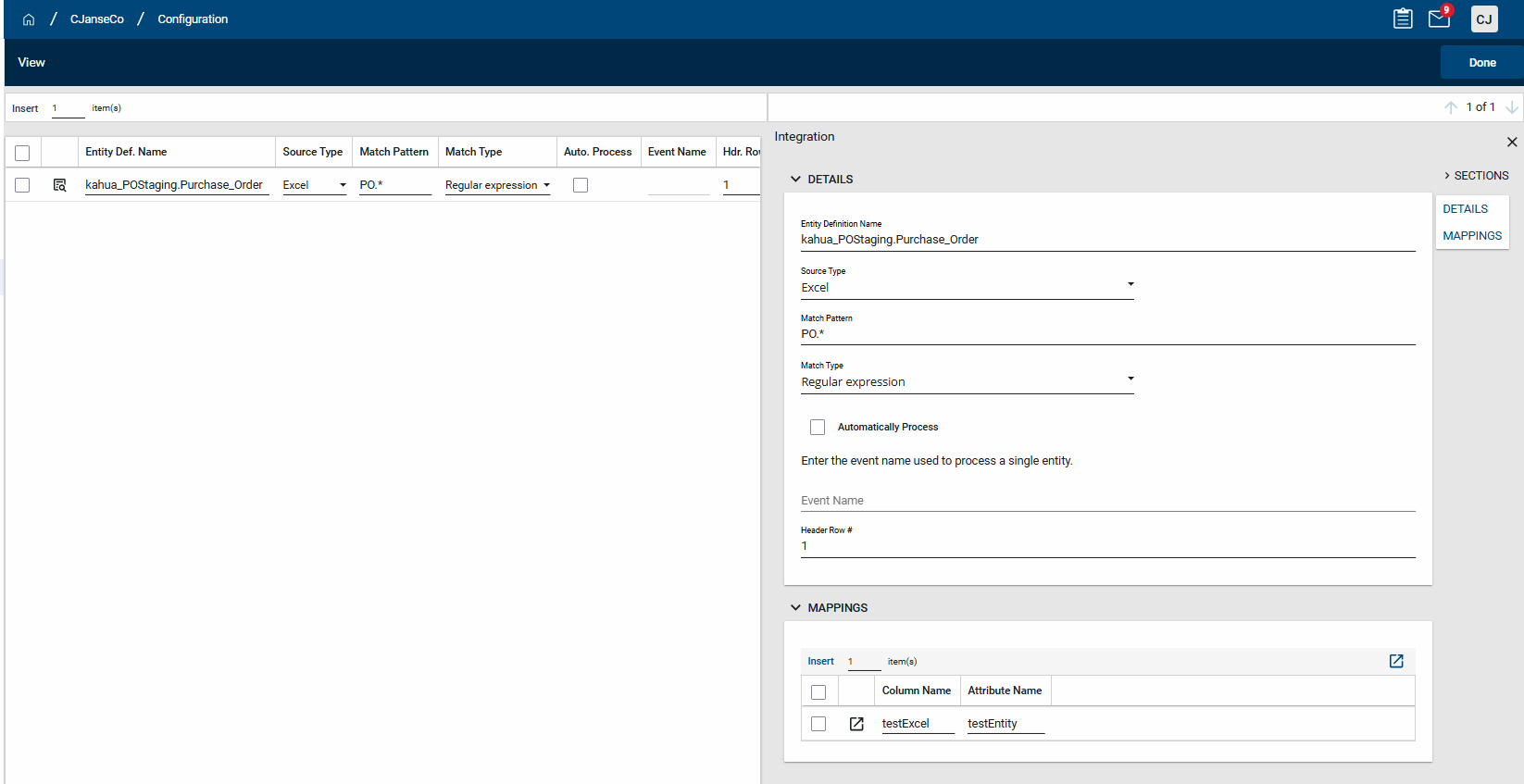
It is recommended to avoid using special characters in the values for Attribute Name.
Be sure to save your configuration when complete.
Configuring and testing SFTP
Integration files are typically delivered to Kahua's SFTP service. It is only provided for inbound integration or data migration file delivery.
SFTP is not available in the Kahua Government Network.
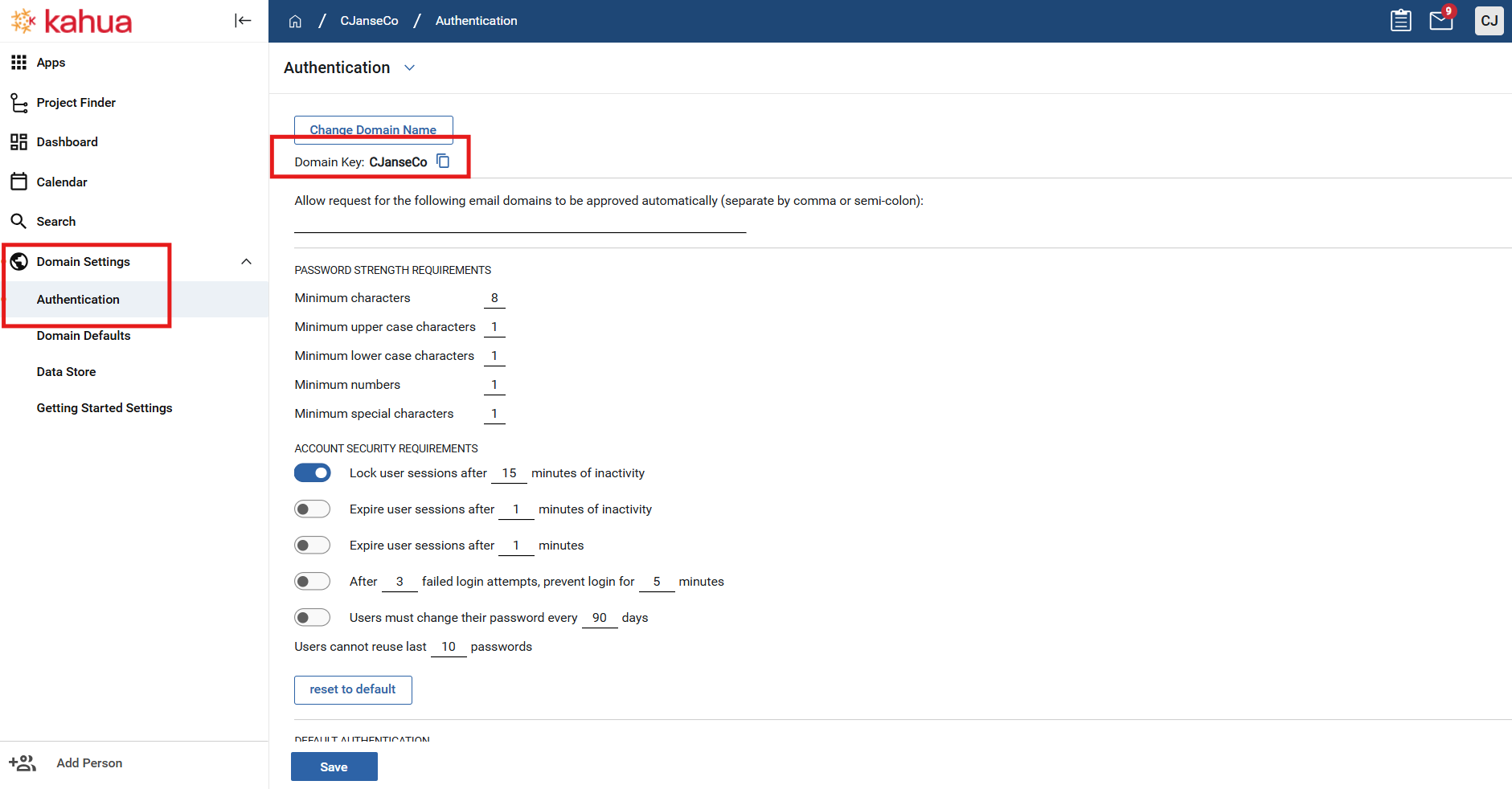
If files are being uploaded to Kahua via SFTP, then the domain must be enabled for SFTP access. A request should be sent to Kahua to enable your test and production domains for SFTP access. This can only be done by Kahua. Please provide the domain key(s) which need to be enabled. Your domain key can be found on the Authentication tab in the Domain Settings app:
Once your domain is enabled for SFTP, you can provision credentials for the SFTP service. The authentication method for SFTP can be configured to use a password or a SSH public key. Both methods require you to add a user to the API User group in the root domain. SFTP credentials will be provisioned for this user. They are separate from the user credentials, but are linked. This should be a person/account responsible for the integration upload, or a service account.
Authenticate with username and password
-
Once the user is added to the API User group, launch the Configuration app and select the Authorization tab.
-
Select the SFTP tab within the Authorization tab, then click on the user to provision SFTP credentials for
-
Click Override and Authentication Method defaults to Password
-
Use the Copy to Clipboard links to copy the Username and the Password for SFTP. Keep these in a secure location.
-
Be sure to click Save to save the credentials in Kahua.
Once the credentials are saved, the password will no longer be visible again. If the password is lost, it must be reset using the Regenerate Password link.
Authenticate with SSH public key
This feature is not yet generally available. It will be available in our next major release.
An SFTP account can authenticate with an SSH key pair instead of a password. You keep the private key; Kahua stores only the public key. An account uses one method or the other. This means saving a public key clears that account's stored password, and saving a password clears the stored public key.
1. Generate a key pair
Ed25519 is the recommended public-key algorithm:
ssh-keygen -t ed25519 -f kahua_sftpRun ssh-keygen from a Windows PowerShell prompt.
This writes the private key to kahua_sftp and the public key to kahua_sftp.pub. Keep the private key secret and never send it to Kahua.
Supported key types: ssh-ed25519, ecdsa-sha2-nistp256, ecdsa-sha2-nistp384, ecdsa-sha2-nistp521, and ssh-rsa (2048 bits or larger). OpenSSH certificates and hardware-backed FIDO/U2F security keys (sk-*) are not supported.
2. Register the public key in Kahua
Follow the same steps above to reach the user's SFTP credentials in the Configuration app.
Click Override, then set Authentication Method to SSH Public Key.
Open kahua_sftp.pub in a text editor and paste its entire contents into the SSH Public Key box. It is a single line beginning with the key type, for example:
ssh-ed25519 AAAAC3NzaC1lZDI1NTE5AAAAIBAxozHx5C387Z+ciSJDQgGjm7CYTP41DUuBwllPPLQq user@hostClick Save. The key's SHA256 fingerprint is shown beneath the box. It should match the output of ssh-keygen -lf kahua_sftp.pub. If the key is rejected, the message states the reason (private key pasted, unsupported type, RSA key too small, and so on).
Close the Configuration app.
3. Connect
Use the same user name as before, with the private key in place of the password:
sftp -P 1222 -i kahua_sftp -o IdentitiesOnly=yes <username>@service-sftp.kahua.comIn FileZilla, add the private key under Settings | Connection | SFTP | Add key file, then connect with the user name and leave the password blank.
Always pass -o IdentitiesOnly=yes with -i. Without it, an SSH client offers every key in your agent and ~/.ssh before the one you named, and the connection is closed after 3 failed attempts.
A user whose Authentication Method is SSH Public Key can no longer sign in with a password — the server offers only public key authentication for that account. Switch the method back to Password and save to regenerate a password.
Testing SFTP
You are now ready to test importing a file via SFTP. It can be tested in the following development environments:
-
sftp://devweeklyservice.kahua.com Port 1224
-
sftp://devupdateservice.kahua.com Port 1225
-
sftp://devnextservice.kahua.com Port 1226
-
sftp://devdailyservice.kahua.com Port 1227
-
sftp://devsandboxservice.kahua.com Port 1228
-
sftp://devreleaseservice.kahua.com Port 1229
Please keep files uploaded to our Dev Environments to 5,000 or less records.
You can use any SFTP client, such as FileZilla, to connect to the SFTP service and load a file for testing, using the host/port/username/password defined above.
Once a file is loaded to SFTP, you'll see it disappear from the SFTP client as it is immediately pulled for import based on the file pattern matching that was configured. If the filename does not match any configured import file, it will be discarded and a message will be displayed in the integration app. If the file matches multiple staging app patterns, it will be imported into the first one that matches.
Check the integration app and staging app to verify the file was imported to the proper staging app and ensure that all data fields mapped into the staging app correctly.
Use an allow list
For development environments, Kahua does not require an allow list of IP addresses for inbound connections. However, for production Kahua requires a static IP address that must be added to our allow list before our production SFTP service will accept a connection. This must be the IP address that Kahua will see on the incoming SFTP connection. This IP address should be submitted to support@kahua.com to request an add to the SFTP allow list.
Kahua does not accept IP ranges for adding to the allow list, it must be a static IP address. If necessary, we can add a small number of IPs (two to three), but not a large IP range.
Production SFTP connection is: sftp://service-sftp.kahua.com Port 1222
If you are having difficulties connecting to the SFTP service, it is generally due to one of two issues:
-
If you can connect to the dev SFTP services, but not production, it may be that the proper IP addresses were not were not added to the allow list. Work with your IT staff to ensure the proper IP addresses were submitted to Kahua.
-
If you cannot connect to either dev or production SFTP services, it may be that your IT blocks outgoing connections from your corporate network. If possible, try connecting from a public (non-corporate) internet connection to verify that. Your IT staff may require adding Kahua IP addresses to an allow list in order to allow outbound requests from your network. Below are the Kahua IP addresses that should be added to an allow list by your IT staff:
-
US/Commercial Production:
-
206.248.213.103
-
64.203.183.231
-
-
Canada Production:
-
52.228.105.18
-
52.228.105.18
-
20.150.31.228
-
-
UK Production:
-
20.108.193.227
-
20.108.193.227
-
52.239.231.196
-
-
Dev Environments:
-
170.55.103.74/27
-
-
Loading files via API
As an alternative to SFTP for file uploads, Kahua also provides an API that can be used to upload a file for processing. Details on the API upload can be found Upload Files for Staging Apps.
File loading via the API is supported on the Kahua Government Network.
Processing in the staging app
Processing is where the bulk of the business logic and mapping occurs. It should be added to your staging app, and occurs on a record by record basis. Before records are processed to their destination app, data validation should be done. Most commonly, that is ensuring that dependent data such as project numbers, vendor numbers, locationID and activity codes/cost codes are valid. If any records fail validation, their IntegrationStatus should be set to "Failed" and a message should be put in the Message attribute detailing the failure.
Data validation
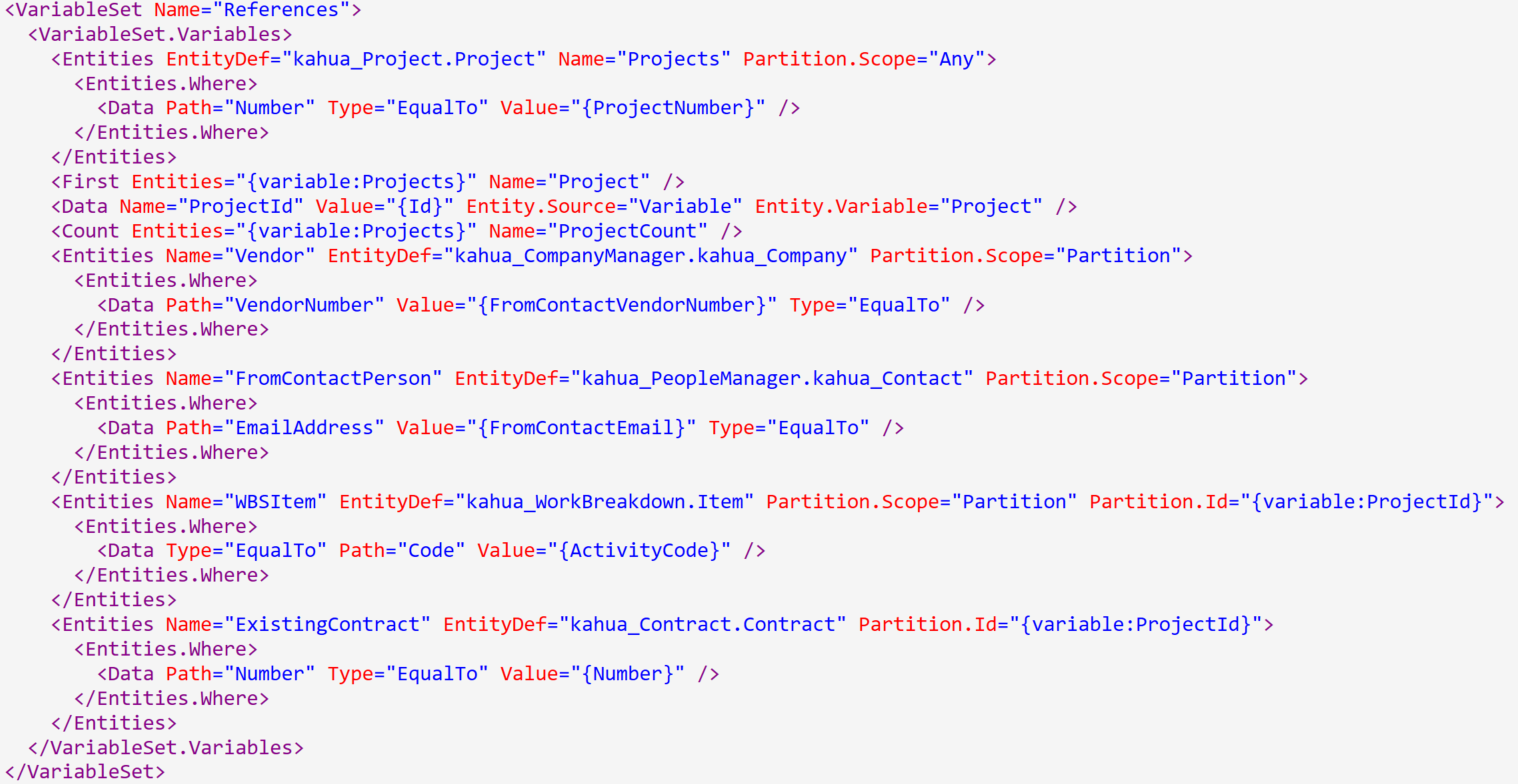
Before any record is processed over to the destination app, data validations should be completed. We recommend using a variable set that is called before processing any record. The following two code snippets below show an example of the variable set and standard process for processing a new record. This is vital to making sure that the core fields of the record are filled out correctly, and making sure that we condition out any records that should not be processed.
Variable set
- Standard variables for data validations:
Project
Count of projects
Work breakdown codes
Vendor (match through a vendor number)
Existing "Entity" for determining when to create new record, update existing record line items, etc.
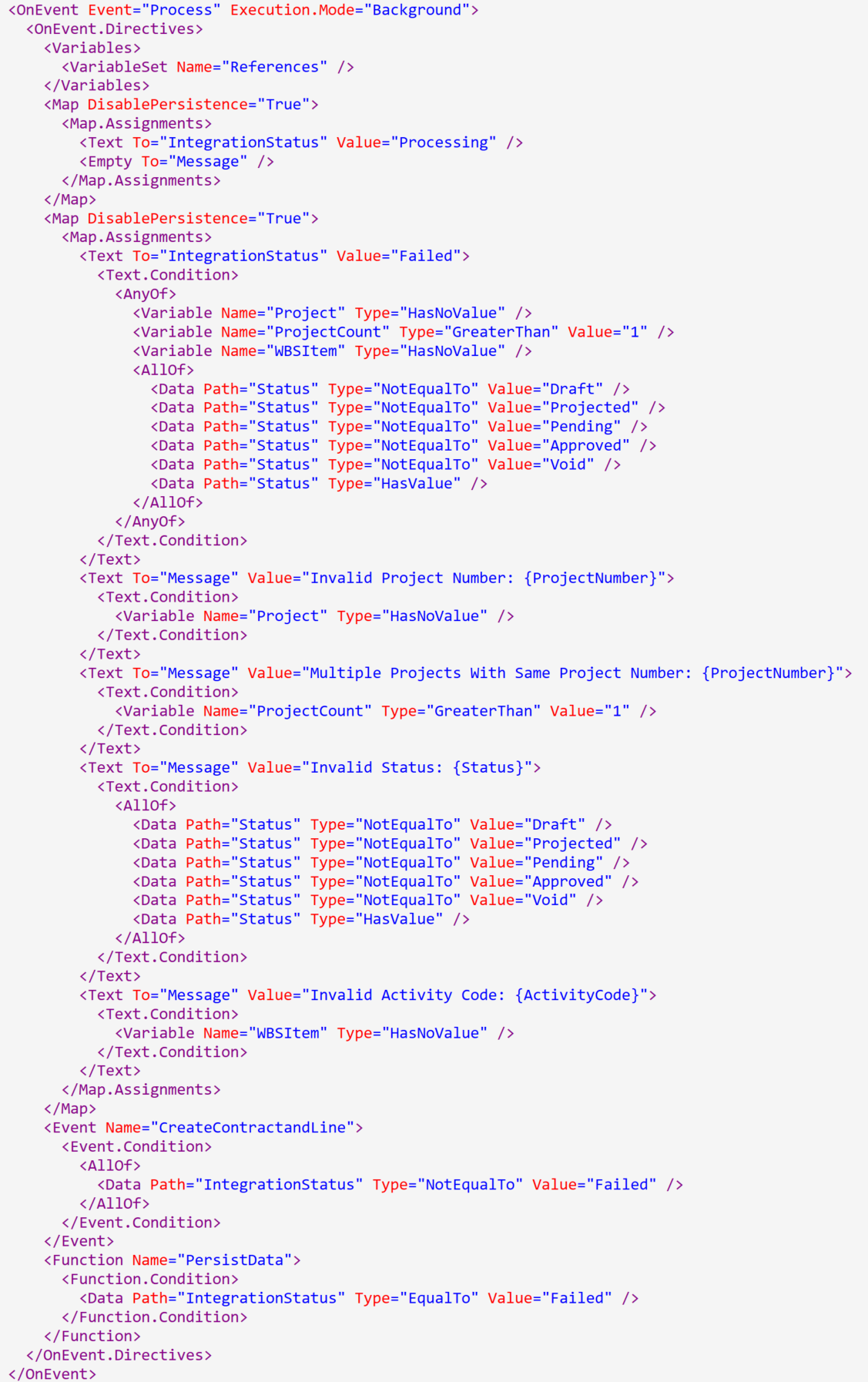
Process event
- Standards:
"Process" event for individual processing
DisablePersistence until end of logic then Persist.
Create "Entity" and Lines event name for getting record to destination app.
-
Data validation
-
It's important to include data validation to prevent errors when transforming the staging entity into its target record
-
Set the IntegrationStatus attribute to Failed whenever there's a failed data validation condition
-
Set the Message uniquely, based on which condition failed
-
Common data validations include ensuring that the project number links to a unique project, WBS item is found, purchase order/contract is found, etc.
-
Prevent the rest of the process logic to execute once the IntegrationStatus is set to Failed
-
Here's an example of these validations in a pre-existing staging app
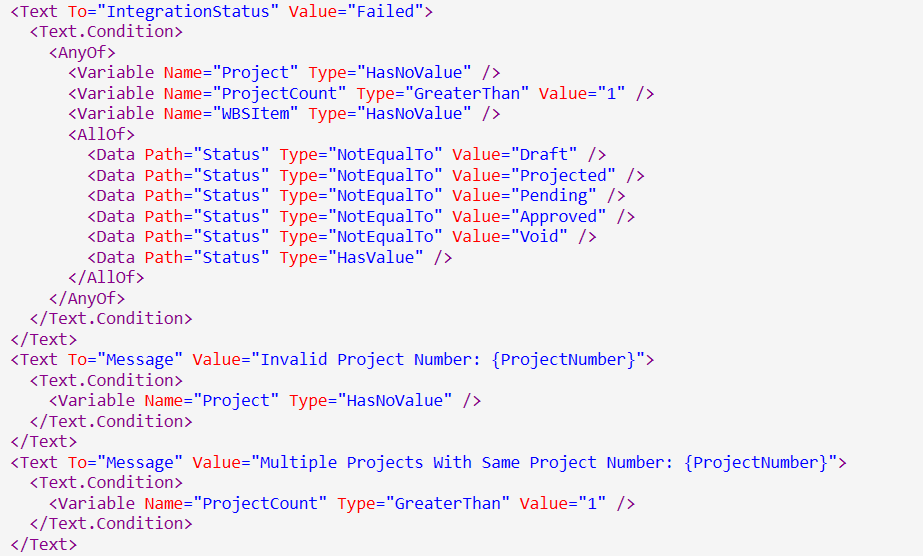
-
-
Event naming/structure
- After going through data validation, the next step is to set up an event that will handle all the logic of actually creating the target entity and/or updating it using the data in the staging entity
- Here's an example (Note how this event is conditionally called based on if data validation was successful):
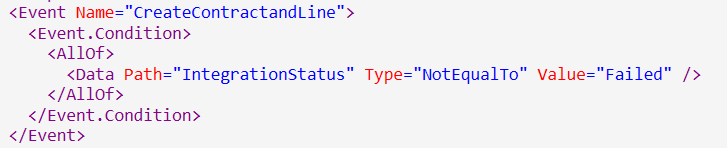
Create event
First, you need to get your variables. You can import your variable set again to use it in this event. You can also create more variables in the Variables directive.
Make sure to create the following variable for later use:

Common additional variables are a status variable, which holds the status constant through the whole event, and certain entity variables which are used in creating the record or line item.
Then you need to use a New directive to create your new entity
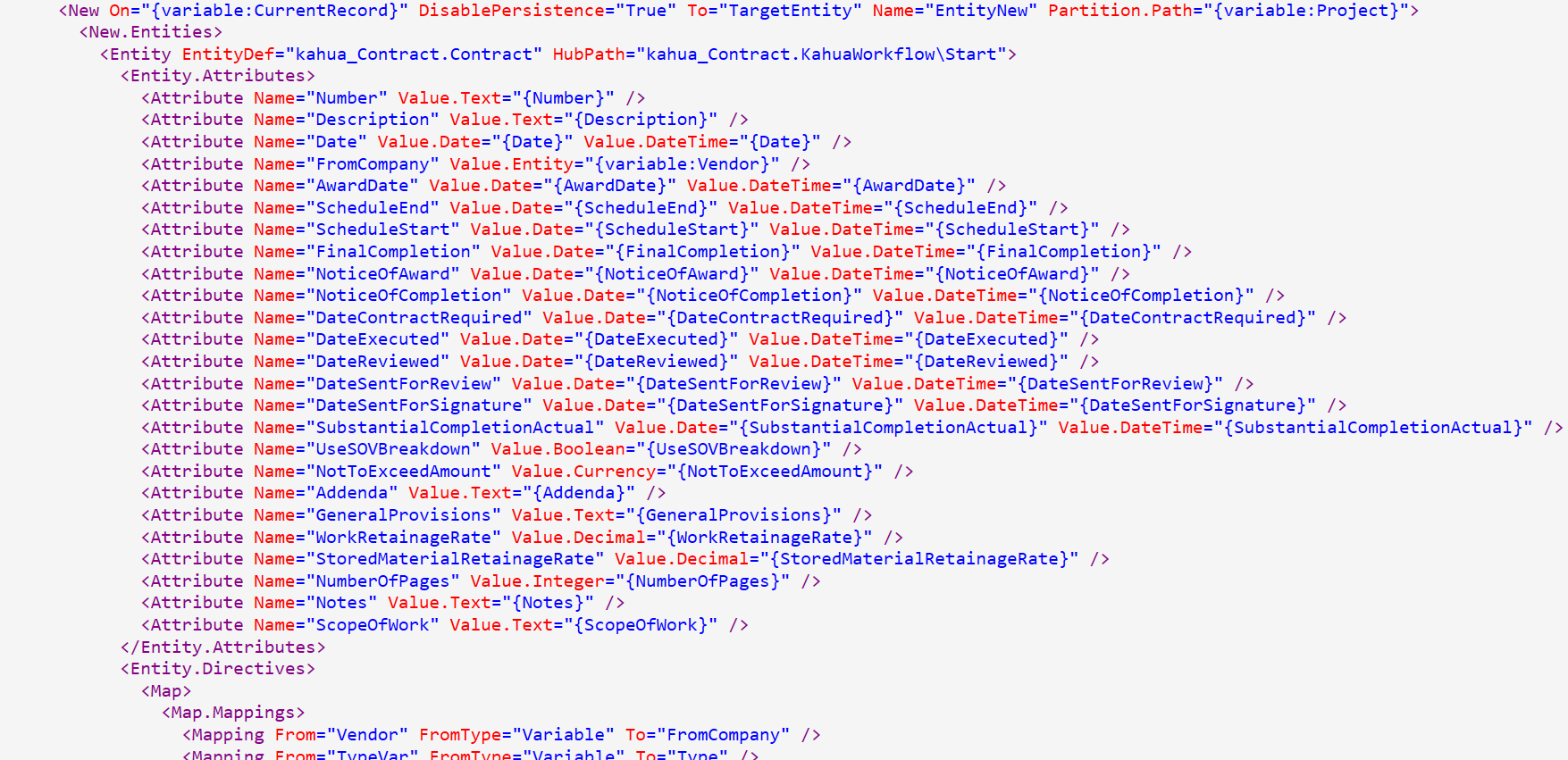
There are a couple key points about the New directive to touch on here:
-
On= “{variable:CurrentRecord}” indicates that you are using the data from the current staging record to create this new record. This is why you need the CurrentRecord variable in your create event
-
To= “TargetEntity” is indicating that this new record will be stored within the TargetEntity path. The TargetEntity path is a special staging path you can use to store and later refer to your new record
-
Partition.Path is indicating where the new record will be created. By setting the partition path to your project variable, you’re ensuring that your new record will be created in that particular project
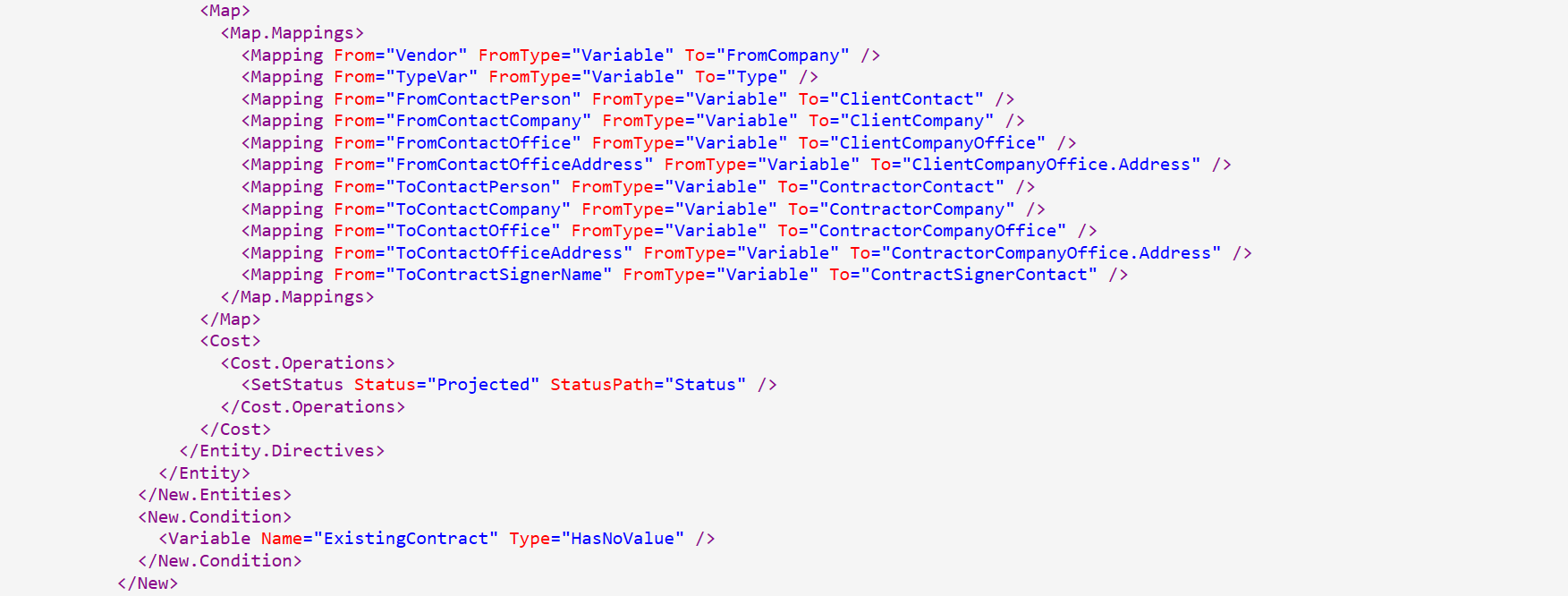
Entity.Attributes and Entity.Directives are used to set all values within the entity.
Note the New.Condition. This is used to ensure you’re not creating a duplicate contract.
You can also use the new directive again for a new item or any other additional entities that need to be created. Suppose you’re making a contract item instead of a contract. The key difference would be the EntityDef parameter in the Entity directive. You need to make sure that this EntityDef parameter exactly matches the new entity you’re making. For contracts and contract items, it changes from “kahua_Contract.Contract” to “kahua_Contract.ContractItem”.
Once a new item or other extra entity is created, you need to add it to the new record

Note here:
-
ToPath is set to TargetEntity. In this situation, the TargetEntity path already holds the new record, which is why you’re able to use it here to add in your item
-
An additional point of interest is how the Items field works in this situation. Intuition might say that this mapping would overwrite the existing items in favor of NewItem, but here this mapping adds NewItem to the existing Items. This is due to the cardinality of the entity attribute you’re working with. ContractItem is a one-to-many entity attribute in the Contract entity. Thus, this mapping will add the new entity into an entity list for this one-to-many attribute. If you were working with a one-to-one entity attribute, the mapping would replace the old entity with the new one.
The cardinality of an entity attribute can be found in the ‘Cardinality’ section of the inspector opened for that attribute
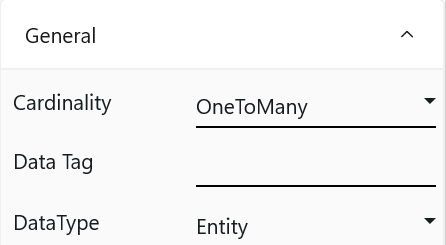
This covers the primary functionality of a create event. Typically, after you add in new entities, there may be additional logic to complete before the record is finalized.
In the case of ContractsStaging, you can see that the status needs to be updated with events.
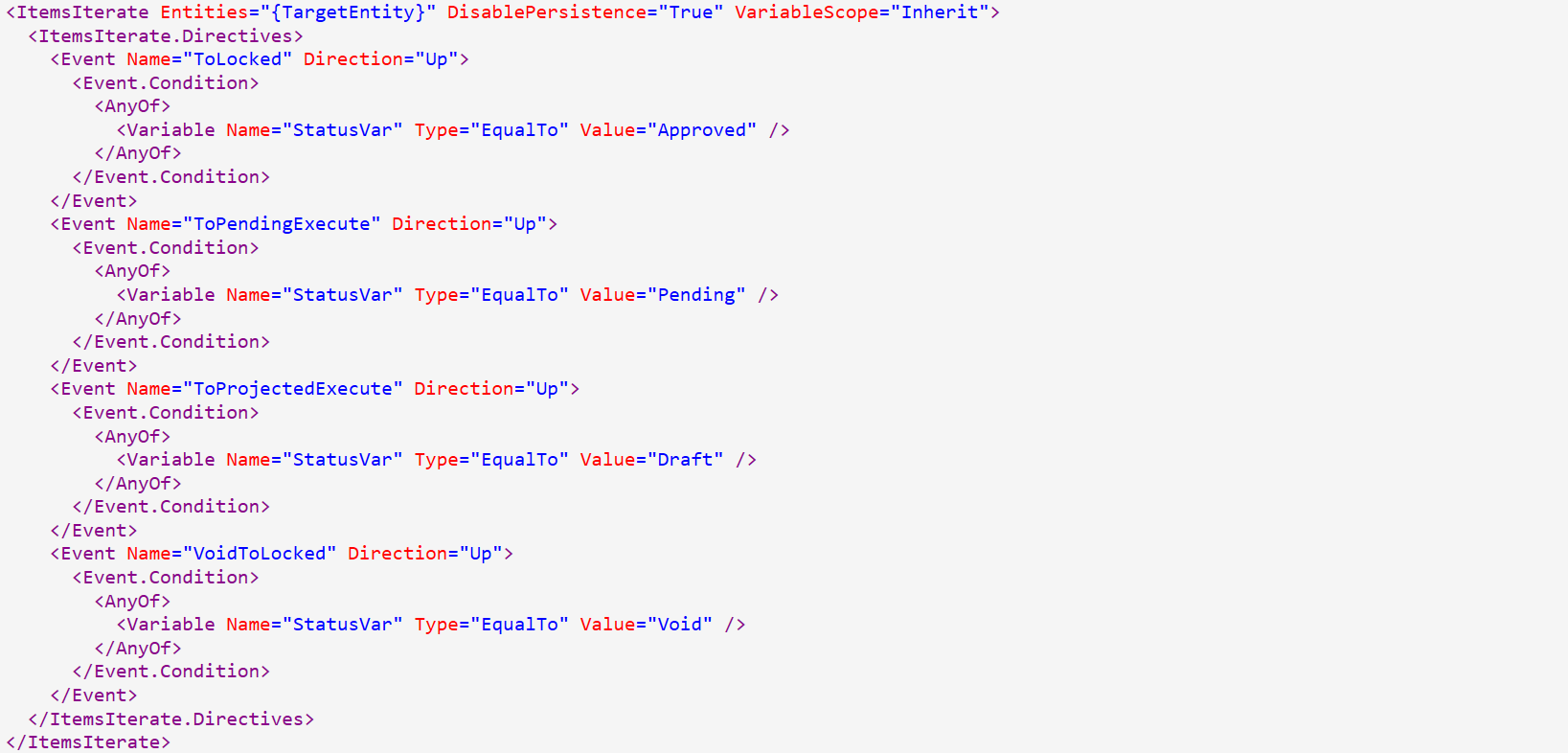
This is a great example of post-creation logic before you complete the create event. The key idea behind this snippet is that you need to update the record’s status and associated fields based on its given status. You accomplish this by using events already defined in the Contracts app, which is what this snippet is doing.
To round out your event, you need to update your IntegrationStatus and Message, and persist your data

By updating the IntegrationStatus and Message, you signal to the host user that the staging record has successfully been processed. This is an important feature to implement so that you have proper feedback mechanisms within the app.
Additionally, you must persist all of your changes. A best practice within these apps is to disable persistence for all of your directives (an example is here in this map directive), and then persist after the end of execution. This ensures that you keep your interactions with the database as efficient as possible.
Common issues and errors
Below is a list of common issues and errors that are associated with Staging apps. This will cover App Def issues, configuration settings for the Integration point, and other issues that may arise from implementing and testing a kConnect Staging app.
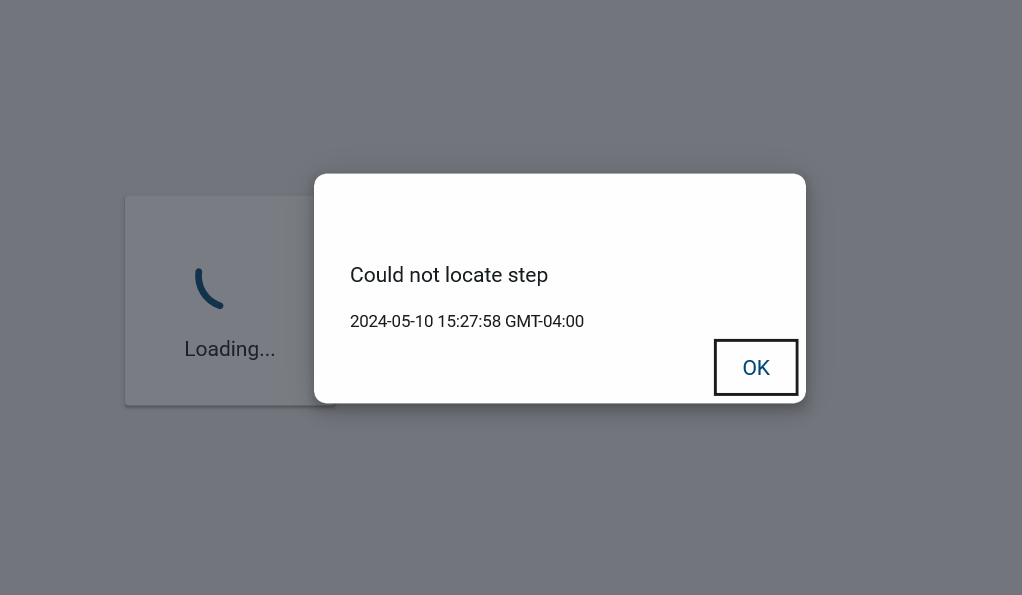
Could not locate step
The following error is because there was no default step listed in the HubDef. When the data gets imported it doesn’t have a step registered with the record - resulting in this error. The following code snippet highlights what is needed to fix the error below.

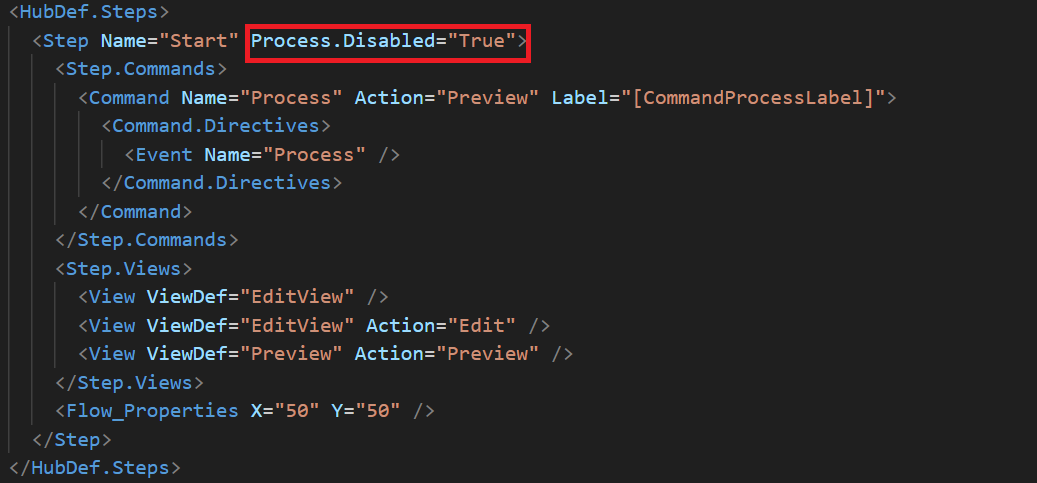
Having multiple "Process" buttons
There is a standard process button that is enabled when originally creating a new app. To disable it - make sure you are in the correct step and add the following lines of code highlighted in the red box:
Errors and warnings within the kahua_Integration app
Most of the errors and warnings tied to the kahua_Integration app (Integrations) are usually tied back to either the mapping set in configuration settings or the file that is trying to be uploaded. There are a wide range of responses but this will cover most. The following messages will be contained in the logs for issues with the Integration app.
Source of error/warning messages:
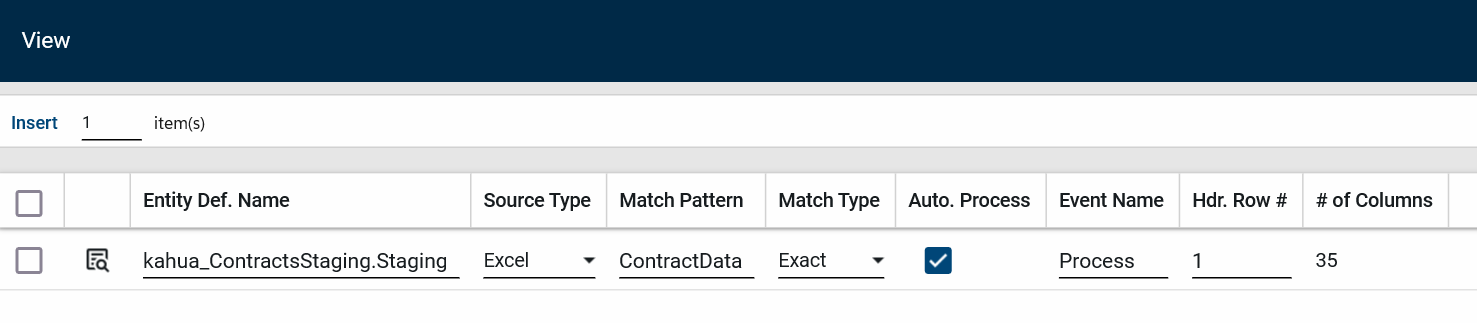
Example of error message:
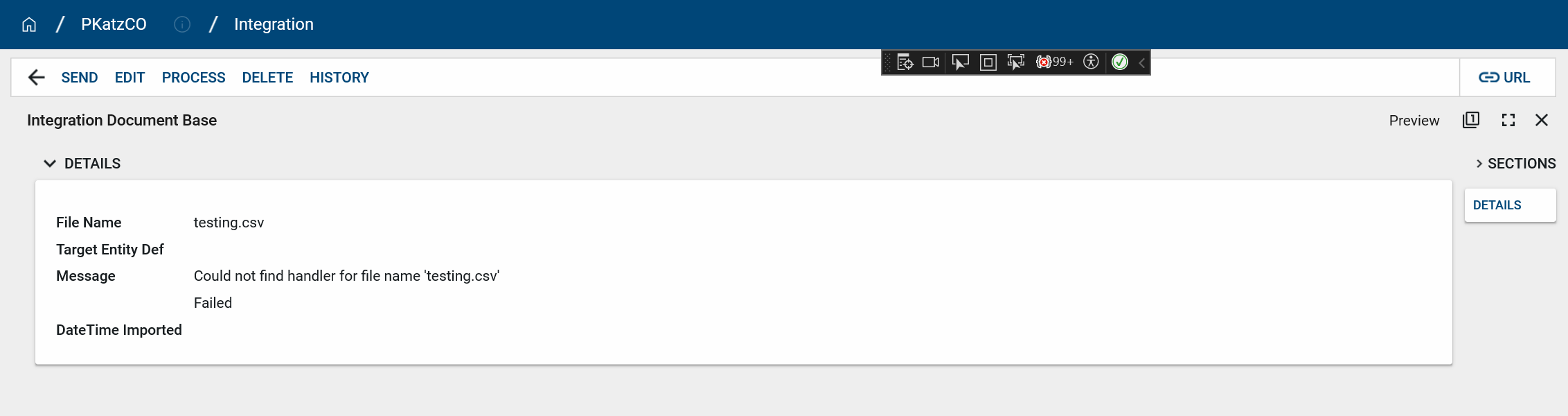
-
(Error) "Could not find handler for sheet name" and "Could not find handler for file name": This occurs when Kahua cannot find a match for the file/worksheet pattern described under "Match Pattern".
-
(Error) "Could not find entity definition": This occurs when Kahua cannot find the Entity definition defined in Entity Def. Name. This should align with the entity def defined on your HubDef.
-
(Error) "Could not find columns for sheet name": This occurs with Excel sheets when there are no header columns.
-
(Warning)"NotFoundInMap: ": This occurs when a field is not defined in the mapping but exists in the file uploaded.
-
(Warning)"NotFoundInEntityDef": This occurs when a field is defined in the mapping but does not exist in the Staging app.
-
(Warning) "MissingFromData": This occurs when there is a field (column) defined in the mapping but the data in the column doesn’t exist in one or more rows.
-
(Error) "No event name defined for autoProcessEventName": This occurs when Auto. Process is checked true without defining the event that the autoprocess will call.
-
(Error) "No event named 'autoProcessEventName' in hub def": This occurs when there is no match in the app for the event that is defined for autoprocess.
-
(Error) "Index was outside of the bounds of the array": This occurs when the data in the file doesn’t have the appropriate amount of columns. For example, you will see this if you have eight columns defined in the header row but the data on row three only has five columns. This shouldn’t be an issue with blank or empty columns but rather the count of columns for a given row.
-
(Error) "An item with the same key has already been added": This occurs when there are two of the same mappings in the configuration settings.
-
(Error) "There was a problem with bad data in row": This occurs when the file being uploaded does not follow the same standards that our file reader follows. The most common case is a double quotation mark not being properly escaped. Some other characters that need to be enclosed in double quotes (escaped) are line breaks (CRLF), double quotes, and commas.