Enabling CUI for a domain
General Information
CUI references Controlled Unclassified Information. It is a feature in Kahua that can be used to identify records that will require sensitive handling by users in your domain and records that will be redacted for users who have not been granted permission to view the data.
Enabling CUI in your customer's domain allows users to label records in one of the following ways:
-
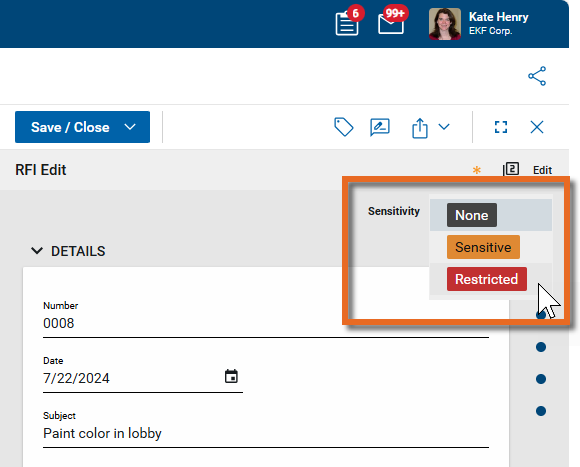
None - The content has no CUI label and there are no restrictions on its visibility in Kahua beyond the standard app permissions.
-
Sensitive - The content has been labeled as Sensitive. There are no restrictions on its visibility in Kahua beyond the standard app permissions. Flagging the content as Sensitive is intended to alert users that care should be taken in how the data is handled and distributed.
-
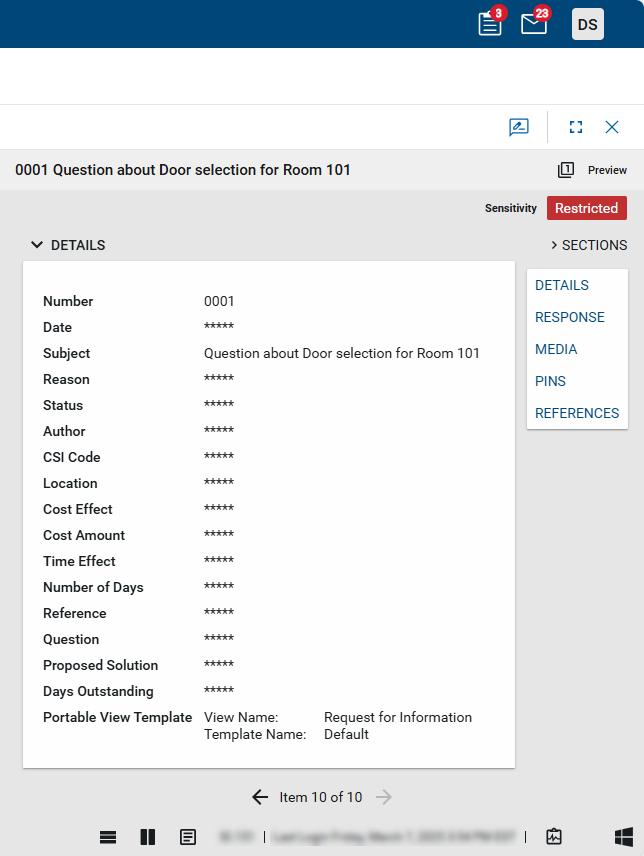
Restricted - The content has been labeled as Restricted. For each application, a pre-defined set of fields on each record will be redacted and replaced with asterisks when viewed by users who have not been granted access to restricted information.
Instructions for Professional Services/Customer Success/Partners
Support must handle enabling CUI in production environments. If you are the person responsible for determining the appropriate configuration for CUI in the client's domain, you must supply the following information to the Support team. This information is required for them to properly enable CUI in production environments for your client.
-
Provide the domain name and environment - This must be provided to Support to ensure that CUI is enabled for the correct customer.
-
Confirm that the customer wants to use both levels. By default, both the Restricted designation (record label and data redaction) and the Sensitive designation (record label only, no data redaction) will be available. Your client can choose to disable either option if they want to.
Example If the customer wants to flag records as Sensitive but never redact data, instruct Support to disable the Restricted option. If the customer wants to only redact data, and not flag records as Sensitive without redacting data, instruct Support to disable the Sensitive option.
-
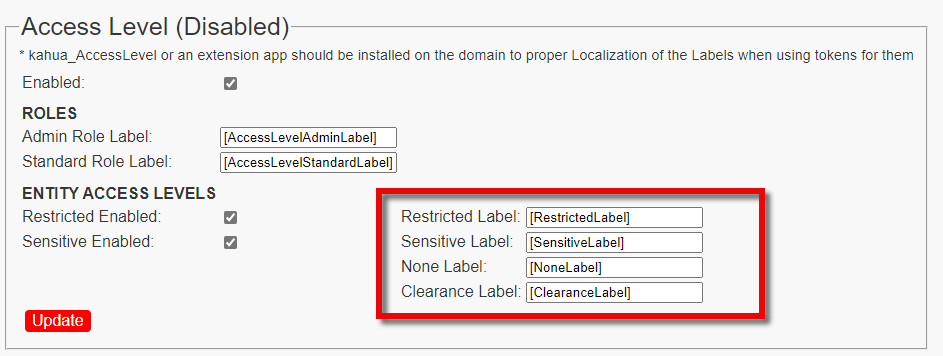
Determine if the customer wants any modifications to CUI-related labels in their UI. - The following UI labels can be modified in the backend. Your client may want to use different labels in their UI to properly reflect their business processes. If your client wants to use different terminology, include the name of the label to be changed and the term to change it to, in your request to the Support team. The labels that can be modified are as follows:
-
Restricted Label - When this label is assigned to a record, data will be redacted for users who do not have permissions to view CUI data.
-
Sensitive Label - When this label is assigned to a record, users are alerted that care should be taken when handling or distributing this data. Data is not redacted.
-
None - This is the option that can be selected to remove the Restricted or Sensitive designation from a record.
-
Clearance Label - This is the name of the column in the log view that shows which records are Sensitive or Restricted.
-
-
Permissions role names - In each app that is capable of using CUI, there are two roles that will appear on the Permissions tab in the Groups app, alongside the usual roles of Moderator, Observer, Contributor, etc. The two CUI-related roles are as follows:
-
Admin Role - Users assigned this role can do the following:
-
Modify the sensitivity setting
-
View redacted information
-
-
Standard Role - Users assigned this role can do the following:
-
View redacted information
-
By default, the roles appear in alphabetical order with the other roles, like this:
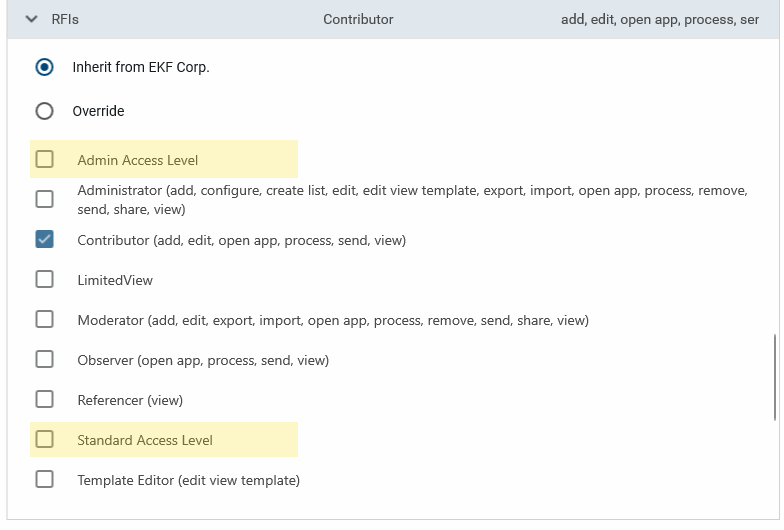
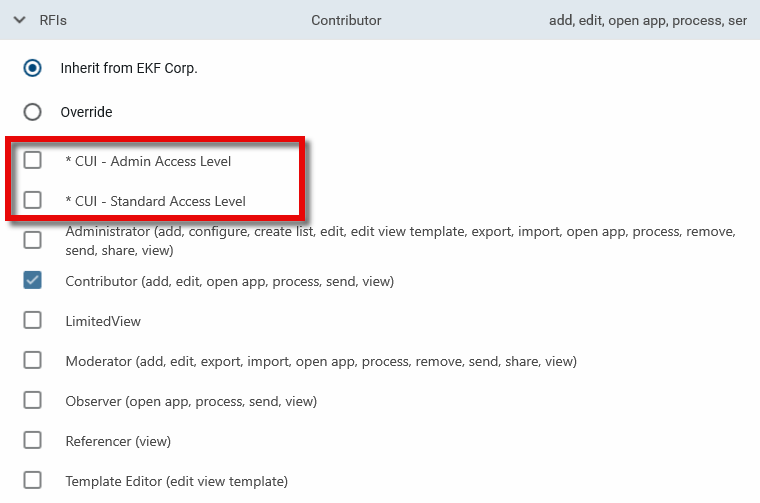
It is advisable to consider renaming the roles so that they appear together and potentially at the beginning or end of the roles list. For example, if you add a prefix of "CUI - " to each role, they will appear together in the middle of the list. If you add a prefix of "* CUI - ", they will appear in the beginning of the list.
-
Once the CUI feature is enabled on the customer's domain, you will need to work with the customer to determine which sets of users should be assigned the Admin Role and the Standard role in each application where the CUI feature is available and update their user groups accordingly.
Instructions for Support
To enable CUI for a customer's domain, follow the steps below. For more information on the CUI feature, please review the General Information section above.
-
Sign in to the backend of Kahua in the appropriate environment.
-
Navigate to Domains > Domains. Locate the appropriate domain and select it to open it.
-
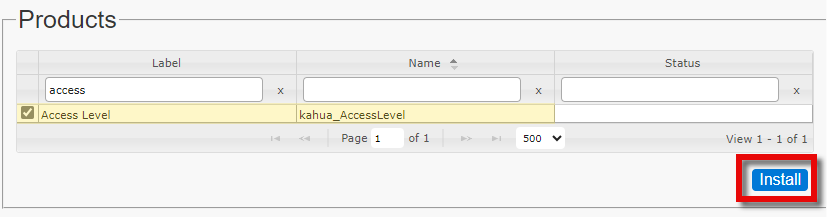
Install the kahua_AccessLevel app (or an extension app that performs the equivalent function) if it is not already installed. This app provides the values for the tokens that are used for the text that appears in the UI. To do so, navigate to the Products section. Search for "Access Level". Select the kahua_AccessLevel app. Select Install.
-
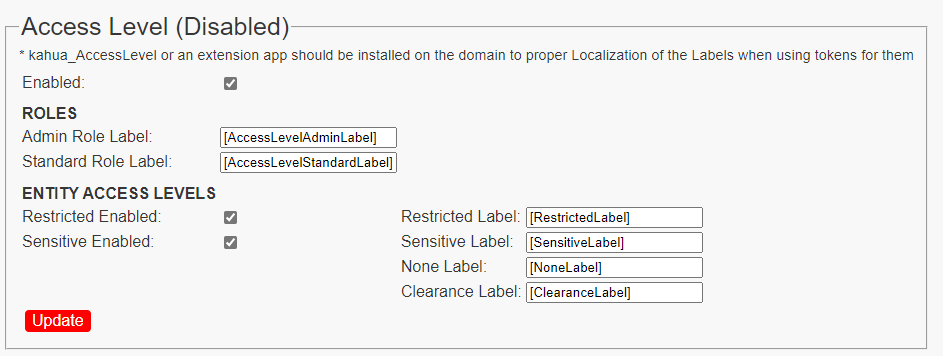
Scroll down to the Access Level section.
-
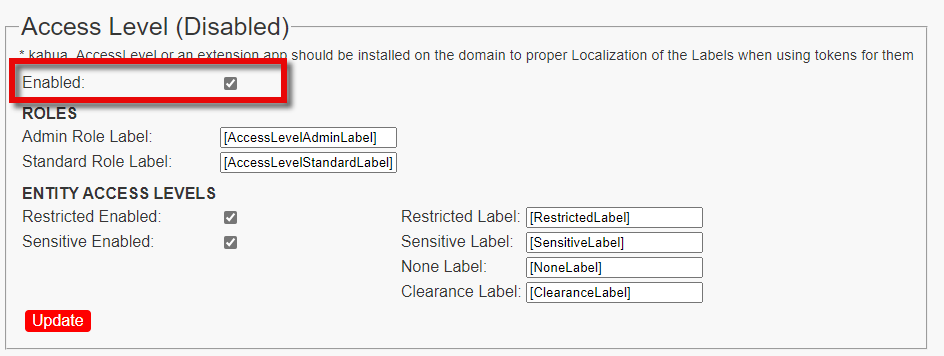
Select Enabled to turn on the CUI feature.
-
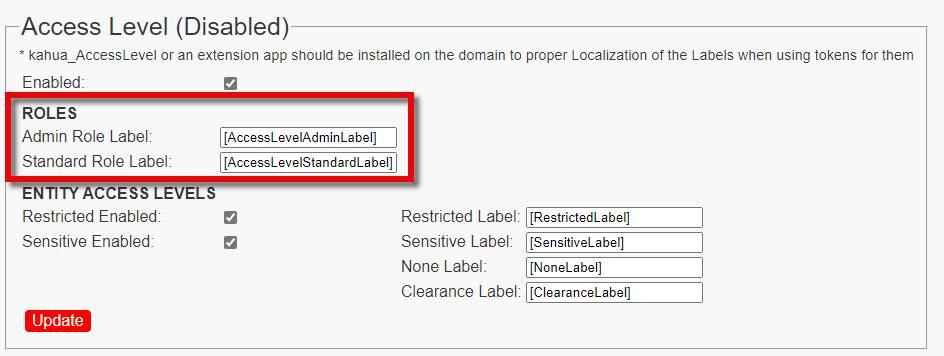
If requested, modify the Roles labels. There are two editable role labels, Admin Role Label and Standard Role Label. You can add a prefix or suffix to the existing token, or replace the token with text.
-
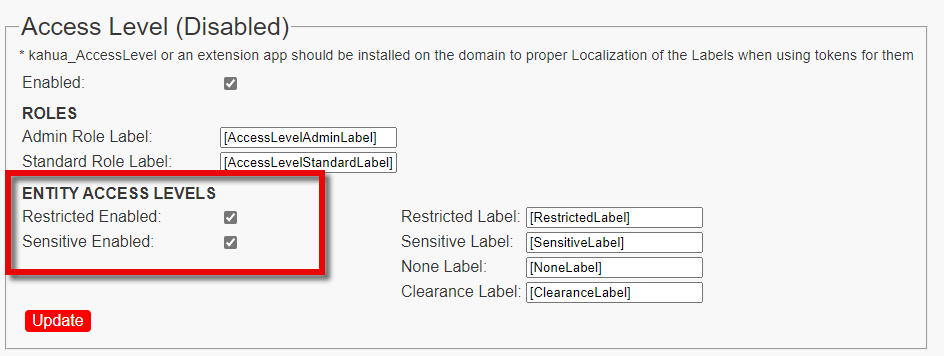
If requested, modify the Entity Access Levels. These options allow you to disable the Restricted level or the Sensitive level, per customer request. By default, both are enabled.
-
If requested, modify the field labels for Restricted, Sensitive, None, or Clearance. You can modify one, some, or all of the labels. You can add a prefix or suffix to the existing token, or replace the token with text.
-
When changes are complete, select Update.
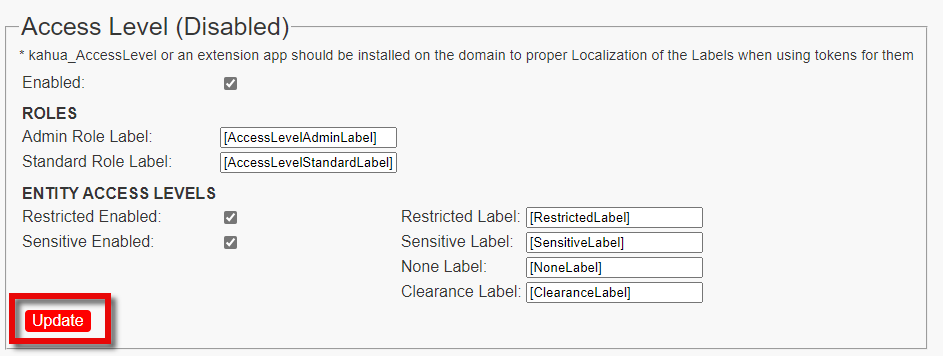
CUI is now enabled on the client's domain. The Access Level section will now be titled Access Level (Enabled). Inform the requester that the work is complete.