Installing the Kahua for Outlook Plugin
The Kahua for Outlook Plugin allows you to add sent and received email messages and attachments to the Kahua platform. With the Kahua for Outlook plugin, you can:
-
Add an email to your Messages app.
-
Add an email to the Communications app for a selected project.
-
Add the email to any other specified application like Punch List, RFIs, Change Orders and more.
This add-in is supported in the installed Outlook desktop client as well as the Outlook Office 365 web client.
For information on using the Kahua for Outlook plugin, refer to Using the Kahua for Outlook Plugin.
How to . . .
 Install the Outlook Plugin
The steps for adding the Kahua for Outlook plugin may vary, depending on the version of Outlook you are using. If the following steps do not work for you, search Microsoft help in your Outlook application for more information on how to manage add-ins.
The following steps work for Outlook 365 Desktop, classic view:
-
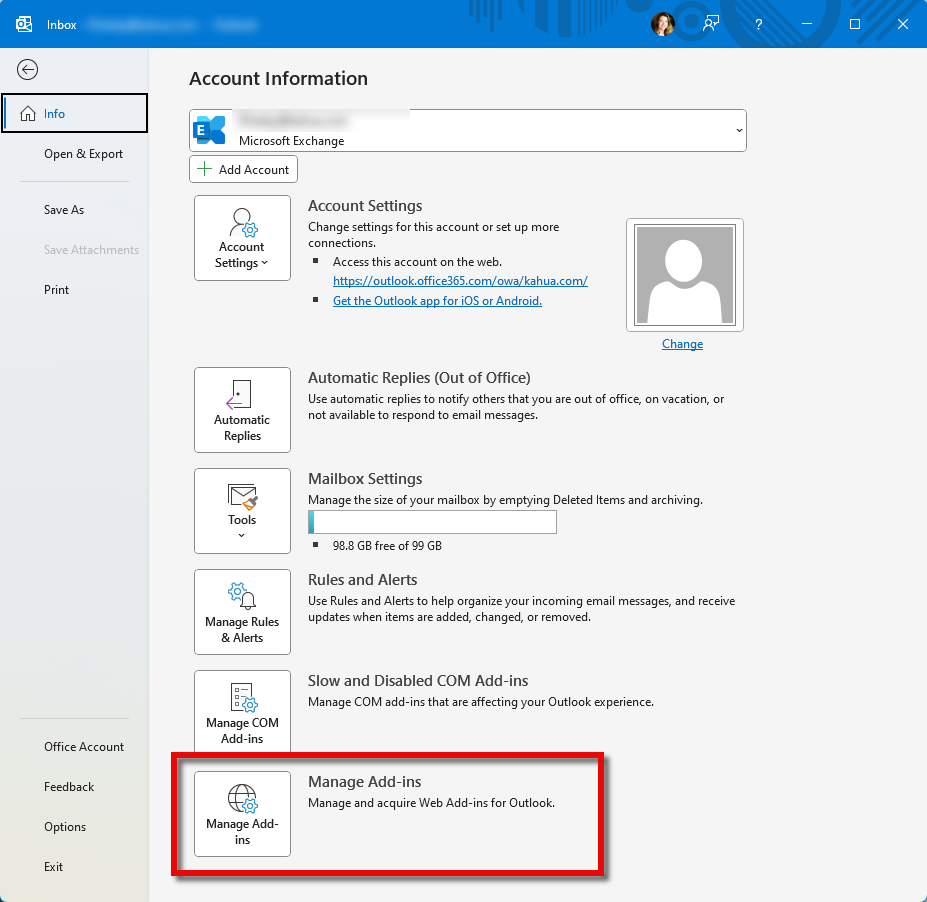
Open Outlook. Navigate to File > Info.
-
Select Manage Add-Ins.
-
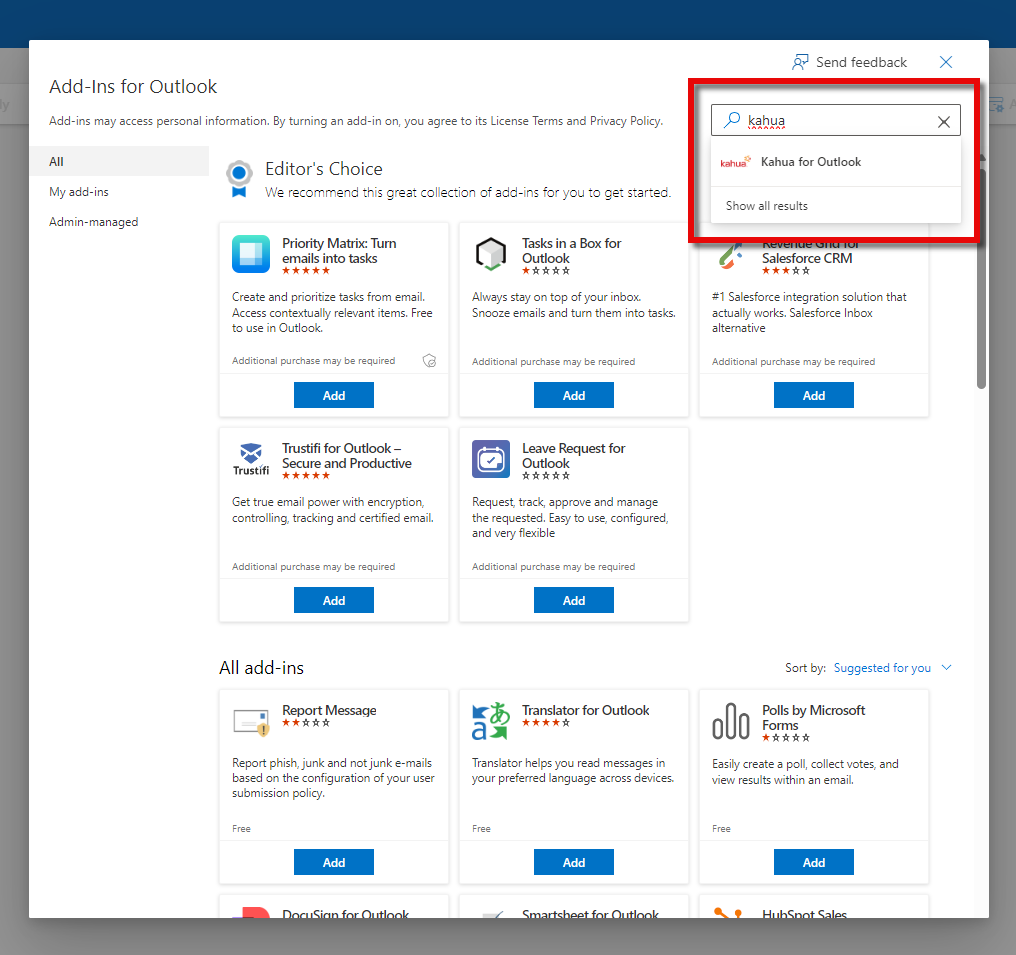
The Add-ins for Outlook page will open.
-
Enter "Kahua" in the search bar and select "Kahua for Outlook".
-
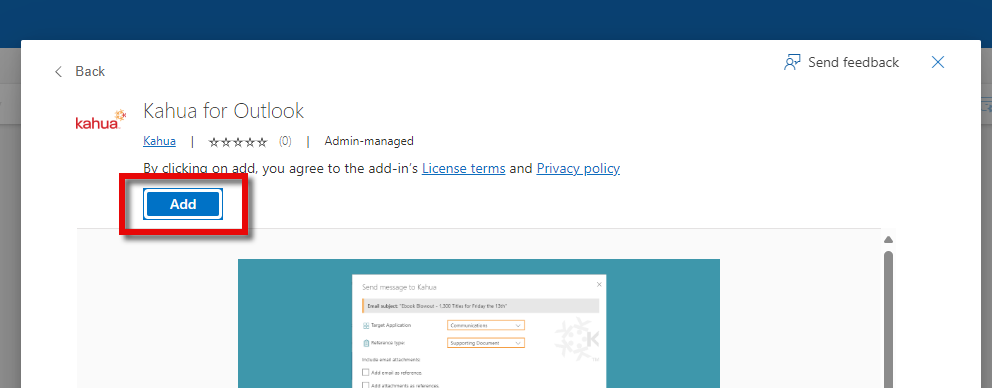
Select Add to add the plugin.
-
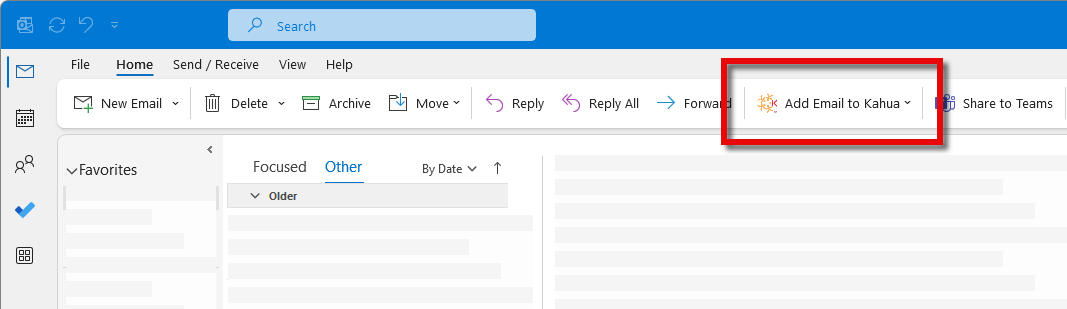
The plugin will now be available on your Microsoft Outlook Home ribbon. To modify its location on the ribbon, right-click on the ribbon and select Customize Ribbon.
The following steps work for Outlook 365 Desktop, New Outlook view:
-
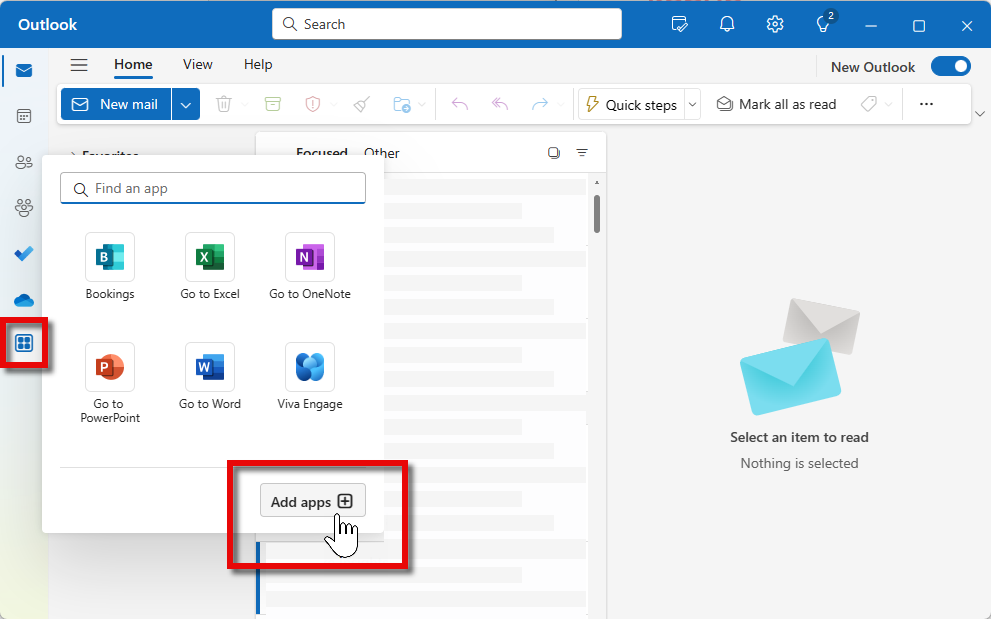
Open Outlook. Select the More Apps icon
 .
. -
Select Add Apps.
-
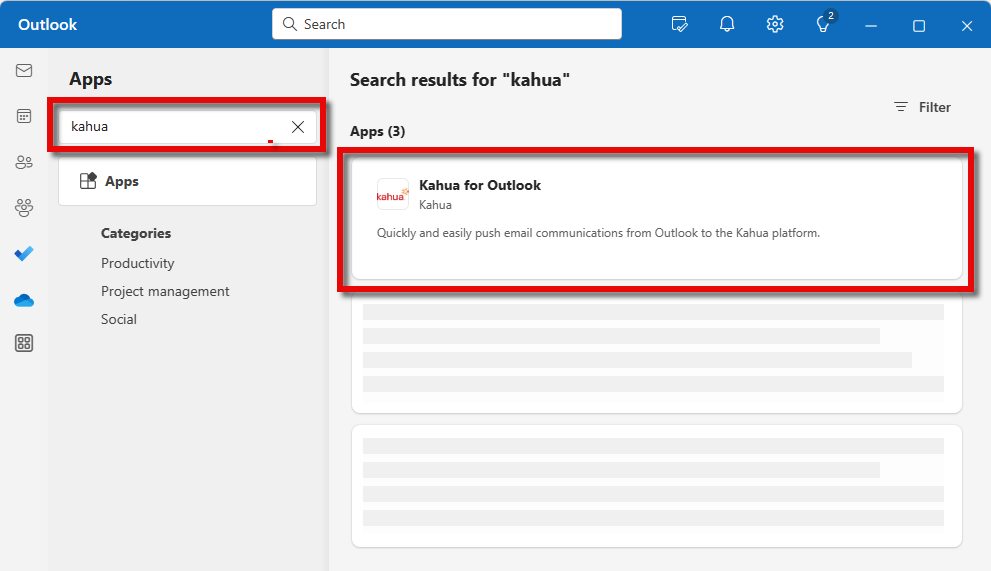
Enter "Kahua" in the search bar and select "Kahua for Outlook".
-
Select Add to add the plugin.
-
The plugin will now be available on your messages in Microsoft Outlook.
Complete the authorization process
-
To begin the authorization process, open an email message and open the Kahua for Outlook plugin. The steps to do this will vary based on the version of Outlook you are using.
-
If you are using Legacy Outlook, select Add Email to Kahua in the Home ribbon. If Add Email to Kahua is not visible, select the More commands ellipsis and locate Add Email to Kahua. You can right-click on the ribbon and select Customize the Ribbon to move Kahua for Outlook to a more accessible location.
-
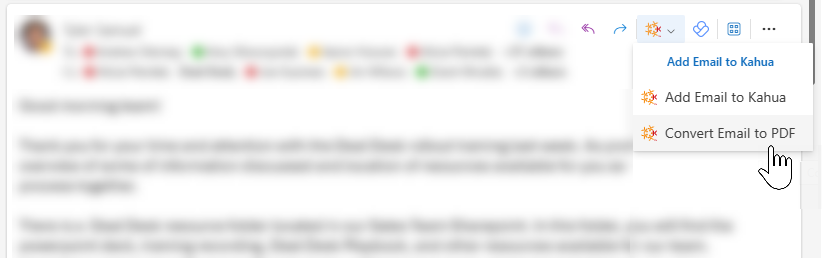
If you are using New Outlook, select the drop-down arrow next to the Kahua icon in the message header. If the Kahua icon is not present on the email message, navigate to More apps > Add apps > Manage your apps and select the Kahua for Outlook app. Click Open. Return to the email message.
-
If the above steps do not work for you, search Microsoft help in your Outlook application for more information on how to access add-ins.
-
-
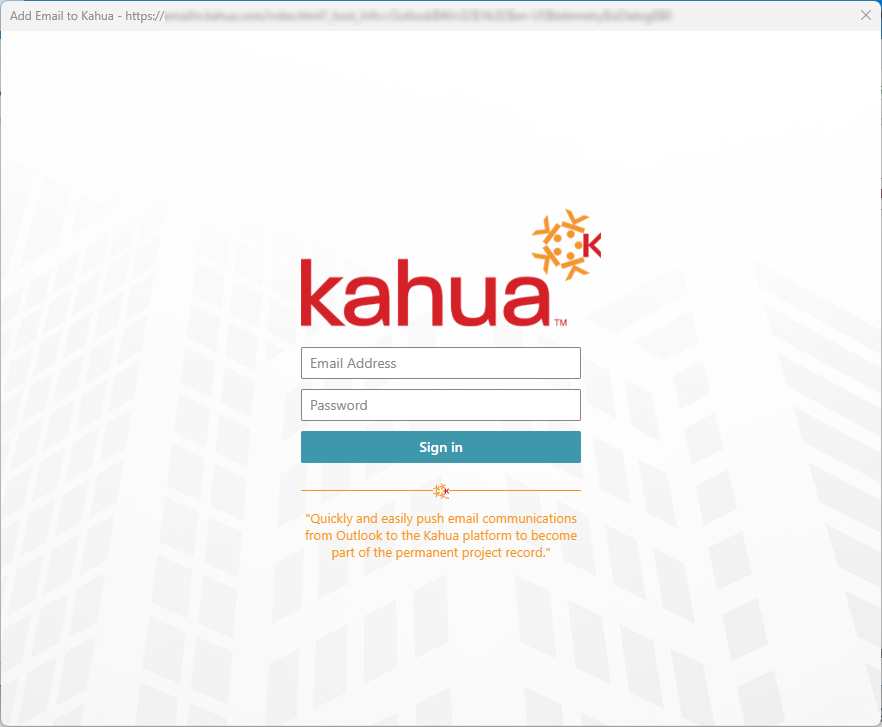
A Kahua authorization page appears. Enter your email address and password and click Sign In.
-
The plugin is now connected to your Kahua account. For more information on using the Kahua for Outlook plugin, refer to Using the Kahua for Outlook Plugin.
Remove the Outlook Plugin
The steps for removing the Kahua for Outlook Plugin may vary, depending on the version of Outlook you are using. If the following steps do not work for you, search Microsoft help in your Outlook application for more information on how to manage add-ins.
The following steps work for Outlook 365 Desktop, classic view:
-
Open Outlook. Navigate to File > Info.
-
Select Manage Add-Ins.
-
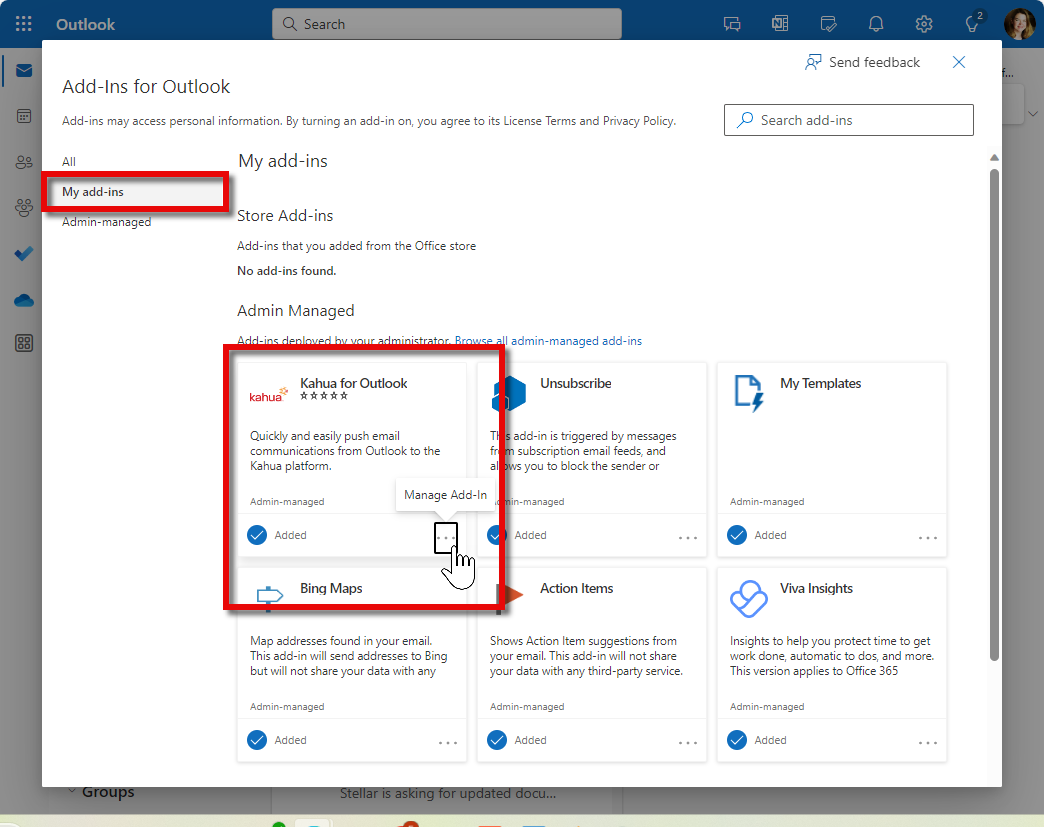
The Add-ins for Outlook page will open.
-
Select My add-ins.
-
In the lower-right corner of the Kahua for Outlook tile, hover over the Manage Add-in ellipses. Select Remove.
The following steps work for Outlook 365 Desktop, New Outlook view:
-
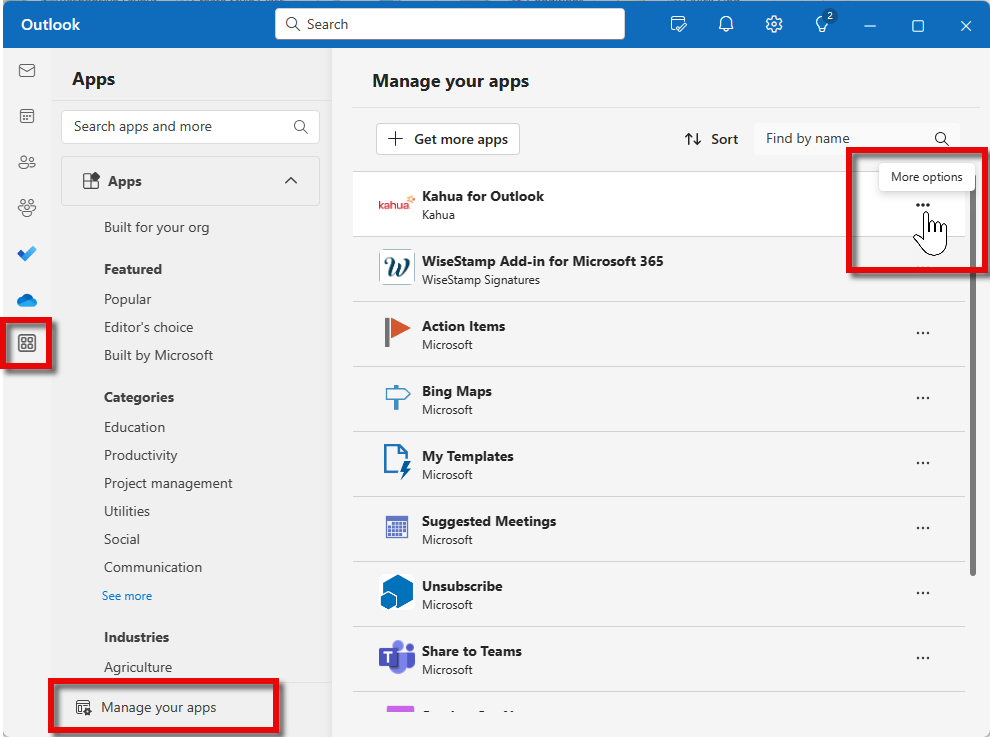
Open Outlook. Select the More Apps icon
. -
Select Add Apps.
-
Select Manage your apps.
-
Find the Kahua for Outlook add-in on the list. Select the More options ellipsis. Select Remove.