Using the Kahua for Outlook Plugin
The Kahua for Outlook Plugin allows you to add sent and received email messages and attachments to the Kahua platform. With the Kahua for Outlook plugin, you can:
-
Add an email to your Messages app.
-
Add an email to the Communications app for a selected project.
-
Add the email to any other specified application like Punch List, RFIs, Change Orders and more.
-
Add the email and its attachments to a File Manager folder.
-
Convert an email to a downloadable PDF file.
This add-in is supported in the installed Outlook desktop client as well as the Outlook Office 365 web client. It is not available for the Outlook mobile app.
For information on installing the Kahua for Outlook plugin, refer to Installing the Kahua for Outlook Plugin.
How to . . .
 Add an email from Outlook to Kahua
Email messages in your Microsoft Outlook account can be added to your Messages app in a selected Kahua domain, the Communications app for a selected project, or as a reference item on a selected record in an application in a selected project.
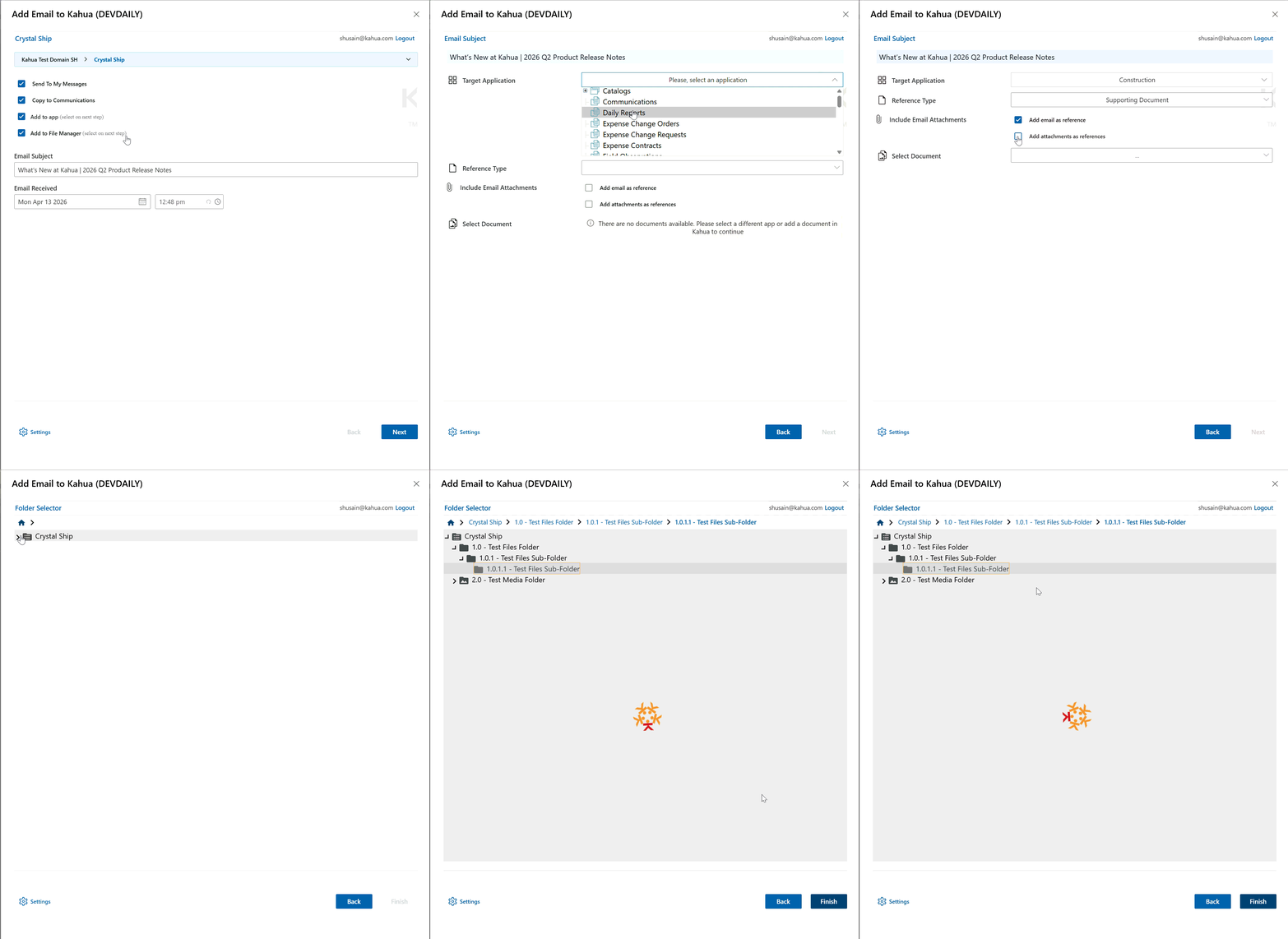
To copy a message from your Outlook account to Kahua, complete the following steps:
-
Open the email message.
-
Open the Kahua for Outlook plugin. The steps to do this will vary based on the version of Outlook you are using. If these steps do not work for you, search Microsoft help in your Outlook application for more information on how to access add-ins.
-
If you are using Legacy Outlook, select Add Email to Kahua in the Home ribbon. If Add Email to Kahua is not visible, select the More commands ellipsis and locate Add Email to Kahua. You can right-click on the ribbon and select Customize the Ribbon to move Kahua for Outlook to a more accessible location.
-
If you are using New Outlook, select the drop-down arrow next to the Kahua icon in the message header. If the Kahua icon is not present on the email message, navigate to More apps > Add apps > Manage your apps and select the Kahua for Outlook app. Click Open. Return to the email message.
-
-
Select Add Email to Kahua.
-
If necessary, complete the authorization process. For more information, refer to Complete the authorization process.
-
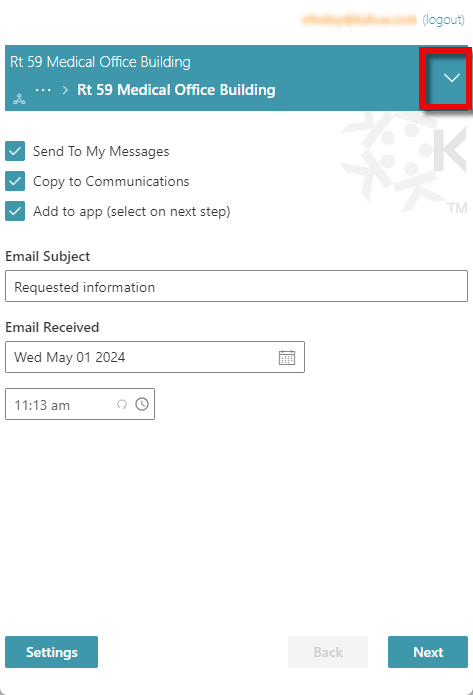
You may automatically be connected to the appropriate project or partition. If not, select the appropriate domain and navigate to the appropriate project from the project selection bar at the top of the page.
-
Select one or more of the following options:
Option Description Send To My Messages The selected email message is copied to your Kahua Messages inbox.
The body of the email is copied to the body of the Kahua message and any attachments in the original email are attached as files on the Kahua message. Embedded images in the body of the email are removed.
Copy to Communications The selected email message is copied to the Communications app in the specified project.
The body of the email is copied to the body of the Kahua message and any attachments in the original email are attached as files on the Kahua message. Embedded images in the body of the email are removed.
Add to app Select this option to add this message, its attachments, or both to a record in an app in Kahua.
In the next step, you will determine if the email message or the message attachments or both are copied to a record in an app in the specified project. You will select the app, the record, and what to copy in the next step.
Important To use this option, you must also select one or both of the previous choices.
Add to File Manager Select this option to add this message to a folder in File Manager.
In the next step, you will select the appropriate folder to add the email and its attachments to.
Important To use this option, you must also select one or both of the previous choices.
Note Emails can only be added to the File Manager folder types of "Files" and "Media". "Controlled Folders" and "Pinnable Drawings" folder types are not supported.
-
If you selected only Send To My Messages or Copy to Communications, select Finish to copy the email message or conversation to Kahua.
-
If you selected Add to app or Add to File Manager, you must click Next to select the appropriate application and record to associate the email with.
-
If you selected Add to File Manager, select the appropriate folders to add the documents to.
Note Only files that you have permissions to access and that are of type "Files" or "Media" are available for selection.
-
If you selected Add to app, complete the following fields:
Field Description Target application Select the application to attach the email or email attachments to. You must have a record in the target application to attach them to.
Reference Type Select from one of the following options:
-
Supporting Document
-
Initiating Document
-
Destination Document
Add email as reference The email is added as a PDF to the References section of the selected record in the target application. Embedded images in the body of the email are removed.
Add attachments as reference The email attachments are added to the References section of the selected record in the target application.
Select Document Select the record in the target application to attach the email or email attachments to.
-
-
Click Finish when you are done.
-
A confirmation message will appear, confirming that the email message has been added to Kahua.
Create a PDF from an Outlook message
The Kahua for Outlook plugin can be used to create a downloadable PDF file of an email message.
To create a downloadable PDF file of an email message and its attachments, complete the following steps:
-
Open the email message.
-
Open the Kahua for Outlook plugin. The steps to do this will vary based on the version of Outlook you are using. If these steps do not work for you, search Microsoft help in your Outlook application for more information on how to access add-ins.
-
If you are using Legacy Outlook, select Add Email to Kahua in the Home ribbon. If Add Email to Kahua is not visible, select the More commands ellipsis and locate Add Email to Kahua. You can right-click on the ribbon and select Customize the Ribbon to move Kahua for Outlook to a more accessible location.
-
If you are using New Outlook, select the drop-down arrow next to the Kahua icon in the message header. If the Kahua icon is not present on the email message, navigate to More apps > Add apps > Manage your apps and select the Kahua for Outlook app. Click Open. Return to the email message.
-
-
Select Convert Email to PDF.
-
If necessary, complete the authorization process. For more information, refer to Complete the authorization process.
-
Select Email body to enable creation of the PDF.
-
Click Add to PDF.
-
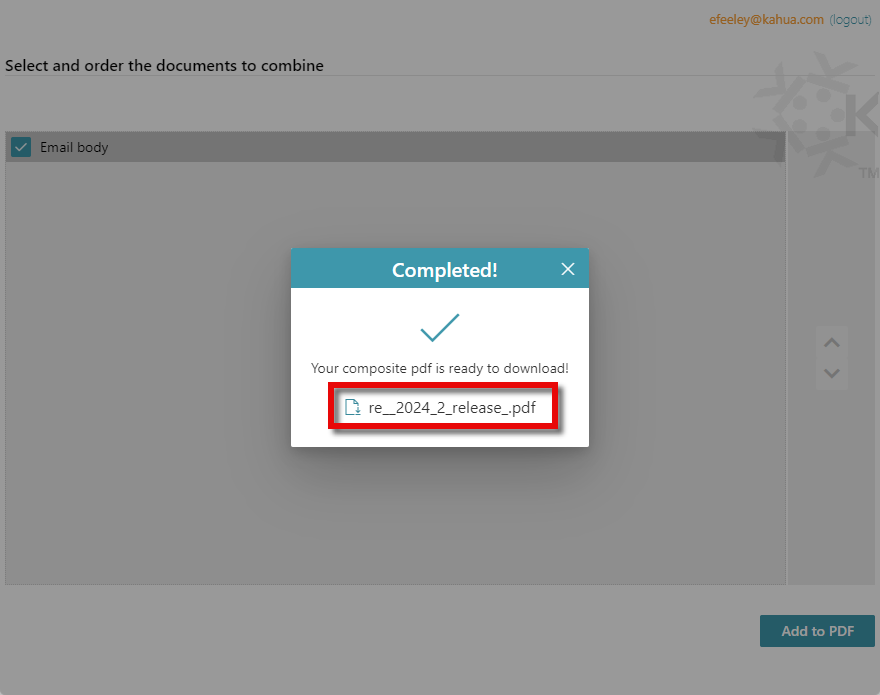
A message will appear when it is complete. Click on the file name to download the file to your computer.
-
Once downloaded, the PDF file is available for use.
Configure default settings
You can configure the default actions for messages. The defaults can be changed when you are acting on a message.
To configure message defaults, complete the following steps:
-
Open the Kahua for Outlook plugin. The steps to do this will vary based on the version of Outlook you are using. If these steps do not work for you, search Microsoft help in your Outlook application for more information on how to access add-ins.
-
If you are using Legacy Outlook, select Add Email to Kahua in the Home ribbon. If Add Email to Kahua is not visible, select the More commands ellipsis and locate Add Email to Kahua. You can right-click on the ribbon and select Customize the Ribbon to move Kahua for Outlook to a more accessible location.
-
If you are using New Outlook, select the drop-down arrow next to the Kahua icon in the message header. If the Kahua icon is not present on the email message, navigate to More apps > Add apps > Manage your apps and select the Kahua for Outlook app. Click Open. Return to the email message.
-
-
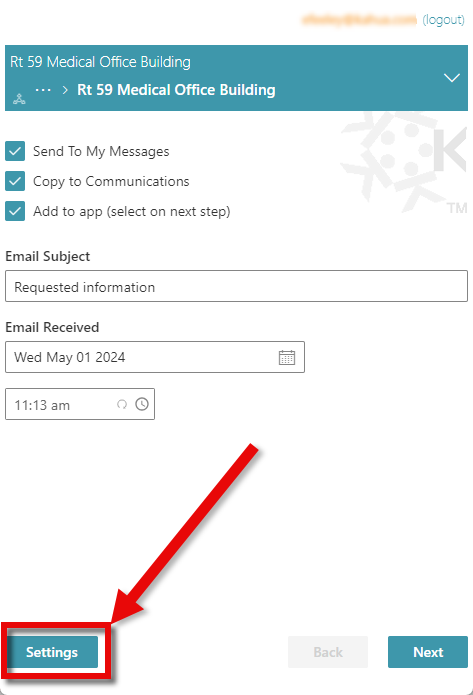
Click on Settings.
-
Select any or all of the following options to be your defaults when acting on a message:
Option Description Send To My Messages The selected email message is copied to your Kahua Messages inbox.
Copy to Communications The selected email message is copied to the specified project's Communications app.
Add to app The selected email message is copied to a selected record in the selected app in the specified project.
To use this option on a message, you must also select one or both of the previous choices. You can, however, select it alone as a default.
Add to File Manager The selected email message is copied to a selected folder in File Manager in the specified project.
Remain logged in Select this option to remain logged in to your Kahua session.
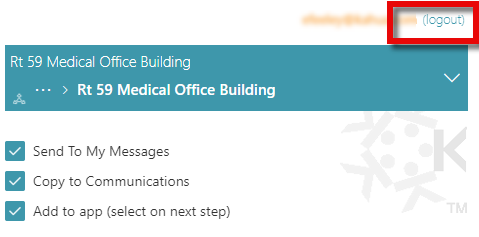
To disconnect from your Kahua account, select (logout) next to your email address in the upper right corner of the Kahua for Outlook page.
-
Click Ok to return to the plugin's main menu. You must select a new message for the new defaults to be applied.