Signing up with Kahua
When you've been invited to collaborate with a company on their Kahua domain and you do not yet have a Kahua account of your own, you will have to create an account.
Important There is no charge to have a new account on your company's domain, nor is there a charge to create a new domain for your company and register your account. You can use your account to review messages, respond to assigned tasks, and review bid solicitations and submit bids in the Bid Room, without a charge.
You may be in one of the following circumstances:
-
Your company already has a Kahua domain set up, and you need to register your email address with your company's domain.
-
Your company does not yet have a Kahua domain, and you need to create one to register your company and your email address.
Note If you've received an email letting you know that you've been added to your company's Kahua domain, refer to Responding to an invitation to your company's domain.
How to . . .
 Register your account when your company already has a Kahua domain
When your company already has a Kahua domain, you can set up your account as part of your company's domain.
Complete the following steps:
-
Launch the registration process from the invitation you received. You will be asked to verify your email address by retrieving a code sent to your email account.
-
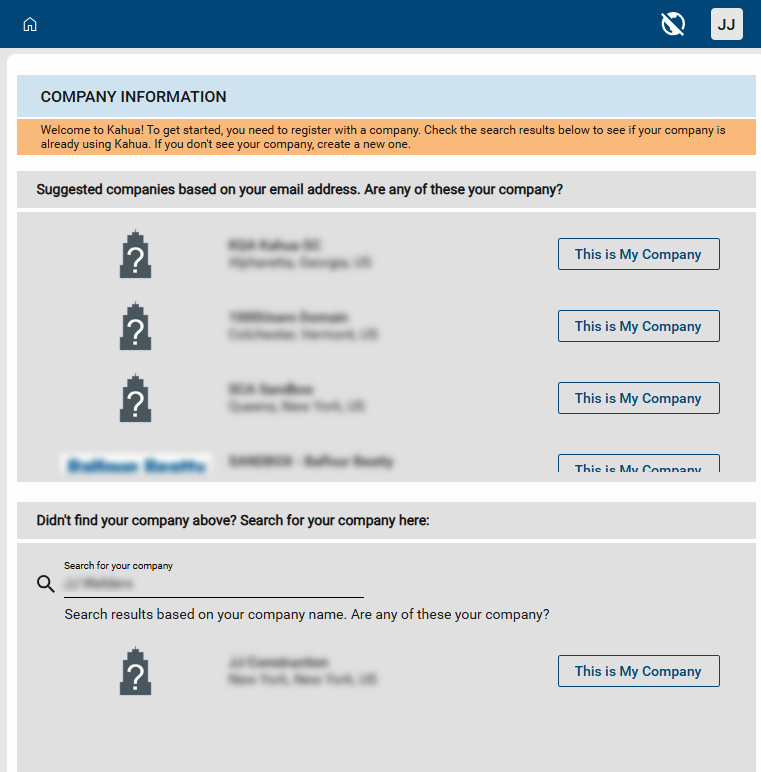
The registration page appears. Kahua will try to find a match by your email address or company name.
-
Kahua will attempt to find a match by reviewing the domain portion of your email address (the part after the "@" symbol).
-
If no match is found, Kahua will search by company name. Companies with similar names will appear for selection.
-
-
When you find your company, select This is My Company. This is the company your account will be registered with.
Note If you inadvertently select the wrong company, select Change Company to re-open the company selection section.
-
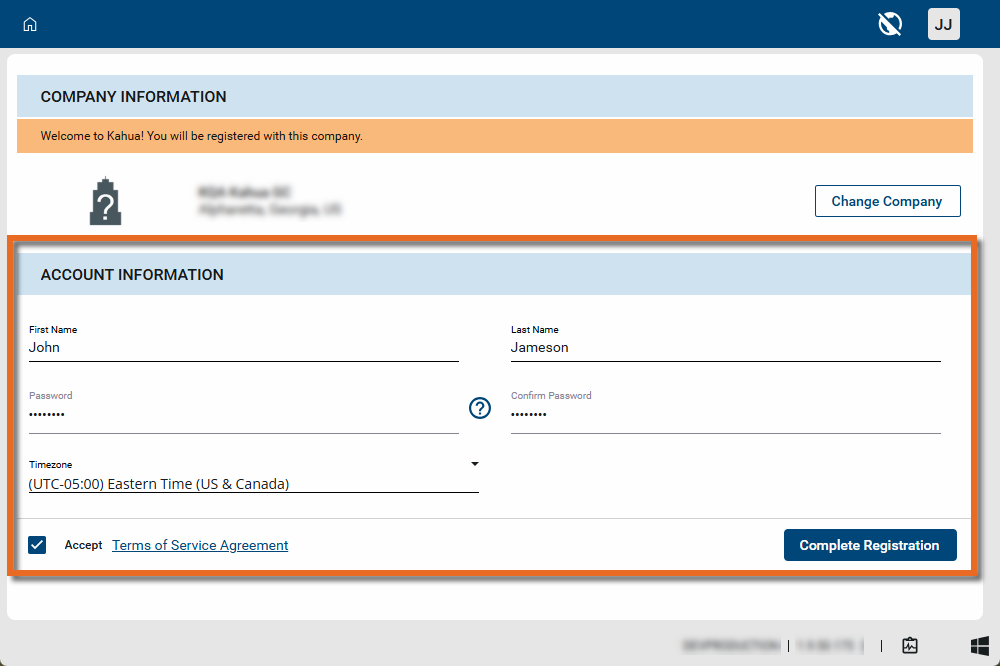
Complete the Account Information section.
-
Enter your First Name and Last Name.
-
Enter a password. Click on the question mark icon
 to review the password requirements for your company's domain.
 -
Select the appropriate Timezone.
-
Review the Terms of Service Agreement and select Accept.
-
-
Once complete, select Complete Registration.
-
Your account will be created. This may take several minutes.
-
Once the process is complete, select Sign In to open your account. Use the password created in the previous step to log in to your account.
Register your account when your company does not yet have a Kahua domain
When your company does not yet have a Kahua domain, you can set one up and register your account as part of your company's new domain.
Complete the following steps:
-
Launch the registration process from the invitation you received. You will be asked to verify your email address by retrieving a code sent to your email account.
-
The registration page appears. Kahua will try to find a match by your email address or company name.
-
Kahua will look at the domain portion of your email address (the part after the "@" symbol) and look for a match.
-
If no match is found, you can search by name. Companies with similar names will appear for selection.
-
-
If there is no match, ensure that your company name is entered correctly in the Search for your company field and select Create new Company.
Note If you entered your company name incorrectly in the Search for your company field, select Change Company to re-open the company selection section so it can be entered correctly. The name entered here will be used as your company name when your domain is created.
-
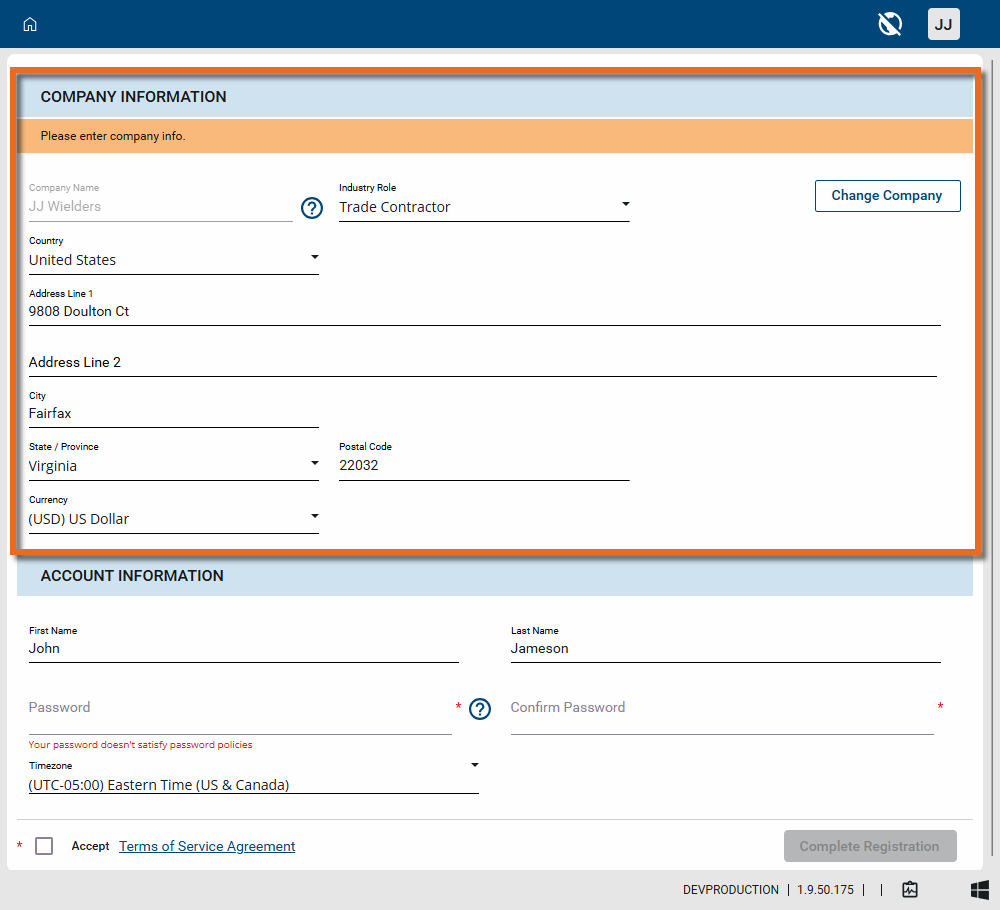
Complete the Company Information section.
-
Select the appropriate Industry Role.
-
Enter your company's address information.
-
Select the appropriate Currency.
-
-
Complete the Account Information section.
-
Enter your First Name and Last Name.
-
Enter a password. Click on the question mark icon
to review the password requirements for your company's domain. -
Select the appropriate Timezone.
-
Review the Terms of Service Agreement and select Accept.
-
-
Once complete, select Complete Registration.
-
Your account will be created. This may take several minutes.
-
Once the process is complete, select Sign In to open your account. Use the password created in the previous step to log in to your account.