Responding to an invitation to your company's domain
Congratulations! You've just been invited to join your company's Kahua domain.
You should have received an email that looks similar to this one:
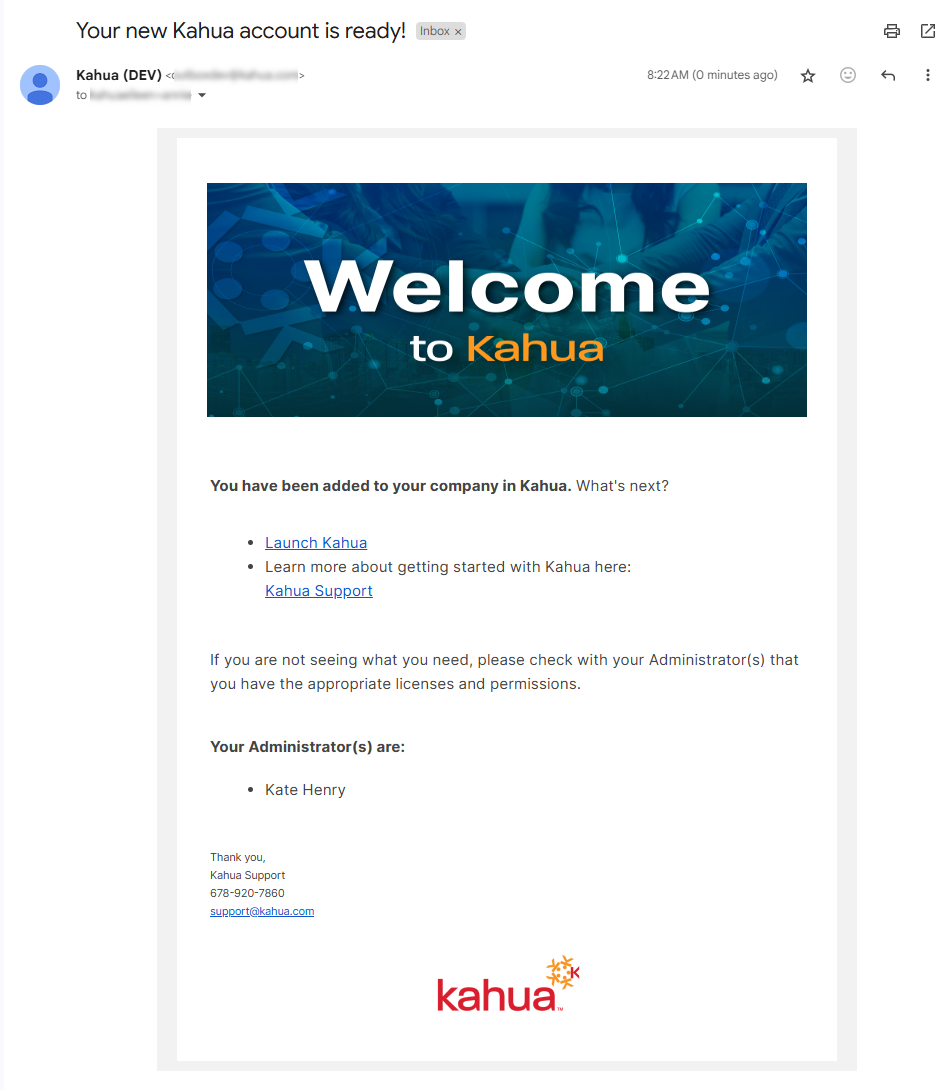
To complete your registration, continue through the following steps:
-
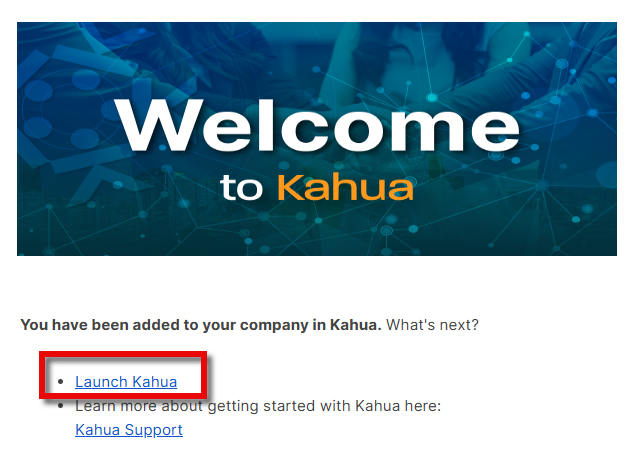
From the Welcome email, select Launch Kahua. This opens Kahua on the web for your account.
-
You will be required to verify your identity by retrieving and entering a code sent to your email address.
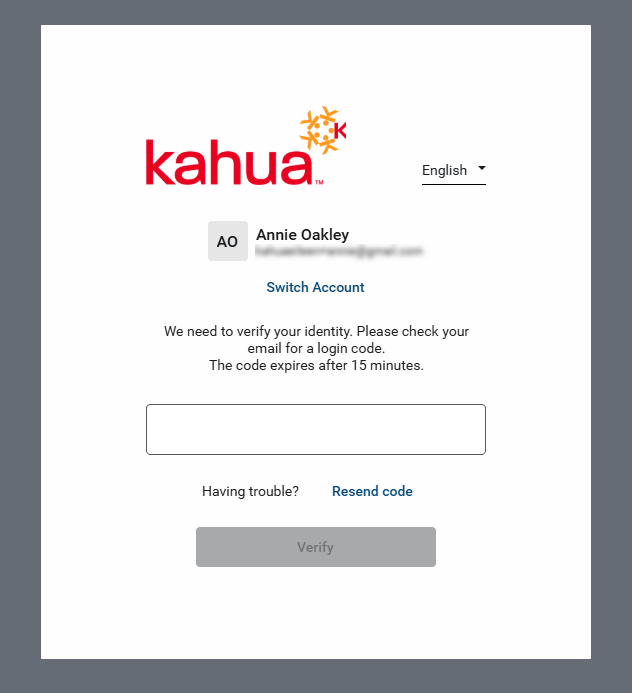
Note You can switch languages by using the language selector in the upper-right corner of the dialog.
-
Select and confirm a new password. To review your domain's password requirements, click Password Policy.
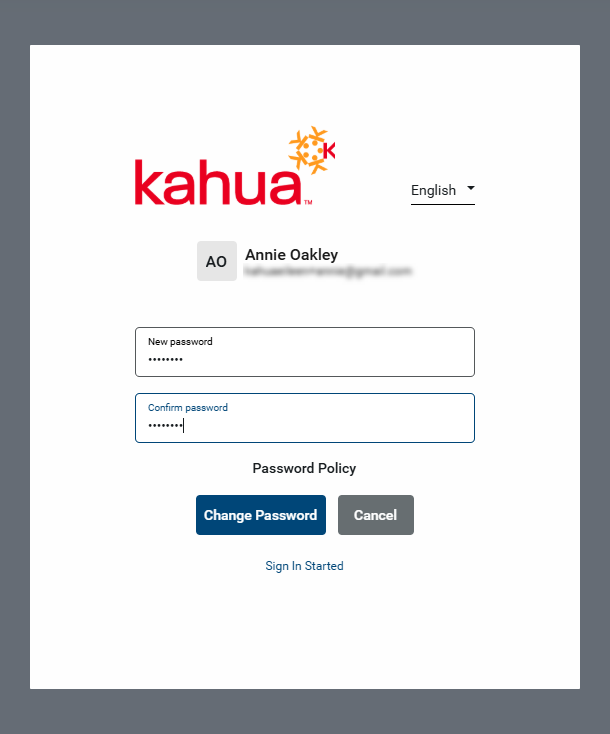
Note You can modify your password at any time from My Settings > Security tab. For more information refer to Changing your Password.
-
Once you have set your password, you will be required enter it again to log in to Kahua and accept the Terms of Service Agreement.
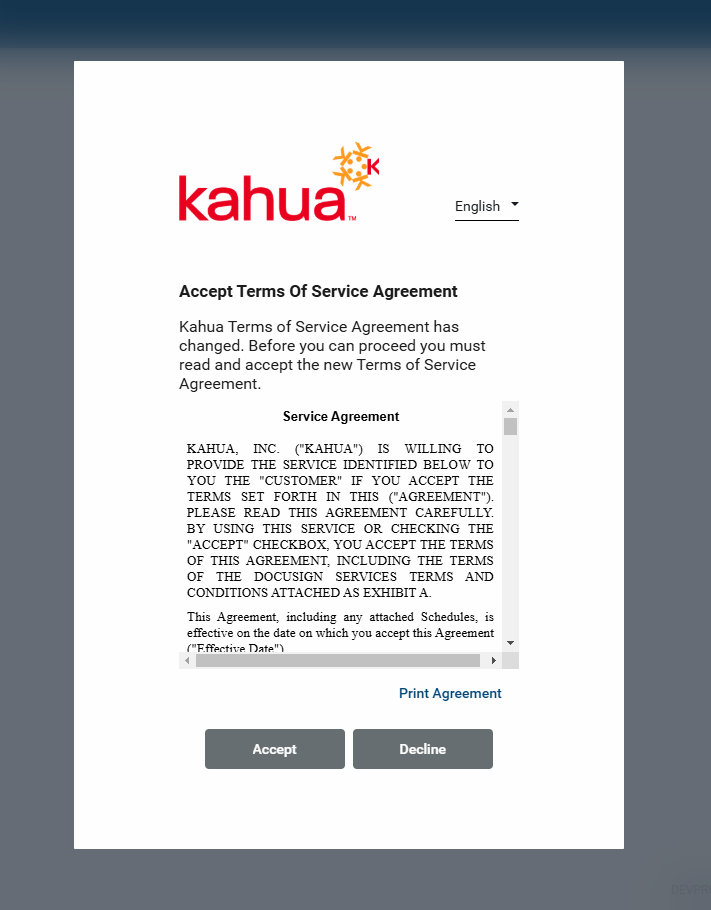
You have now completed the registration process!
For more information on where to go from here, review the following articles:
-
If you are new to Kahua, there are some fundamental concepts around its hierarchical nature that are important to understand. Refer to Understanding the hierarchical structure of Kahua.
-
The first page that appears when you open Kahua is the home page. For more information on using the home page, refer to Kahua Home Page.
-
For general information about navigating in Kahua, refer to Navigating Kahua. For more specific information about navigating apps in Kahua, refer to Navigating Apps.