Changing your Password
Note If your organization uses SSO for authentication, these options are not available to you. If you need assistance with your SSO login, contact your SSO administrator.
Kahua has a self-service password change and reset model. No administrator or Kahua employee has access to any user's password.
Domain administrators can modify their organization's password requirements through the Domain Settings app. For more information, refer to Managing Domain Settings.
How to . . .
 Reset your password
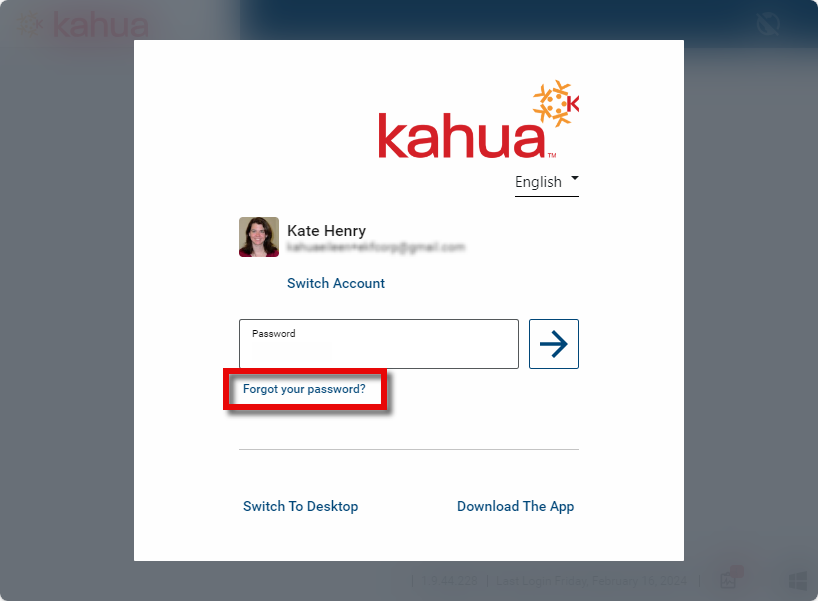
If you forget your password, you can reset it from the login page by using the "Forgot your password?" link.
Follow the steps to change your password. Select Password Policy to review your organization's password requirements.
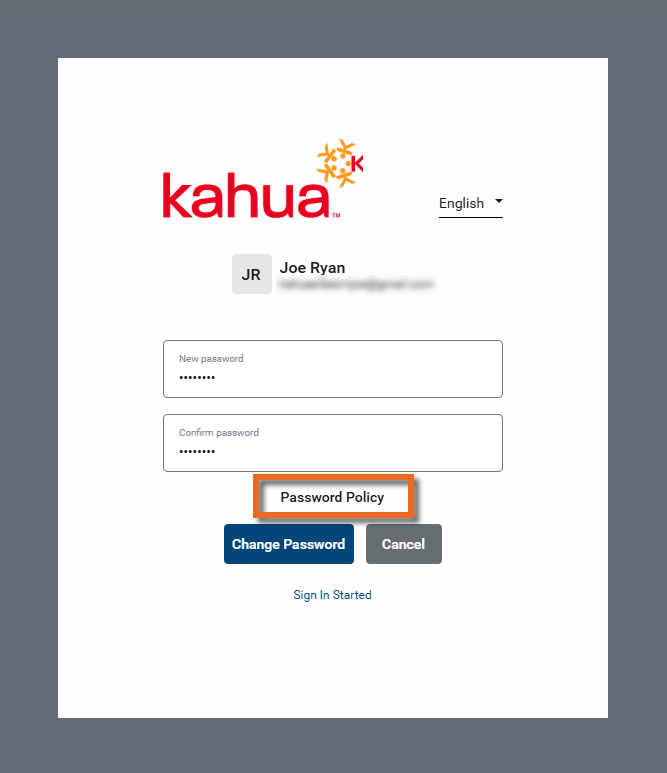
Note If you have access to multiple domains, your new password must meet the requirements of the domain with the most restrictive requirements, not just those of your primary domain.
Change your password
To change your password, complete the following steps:
-
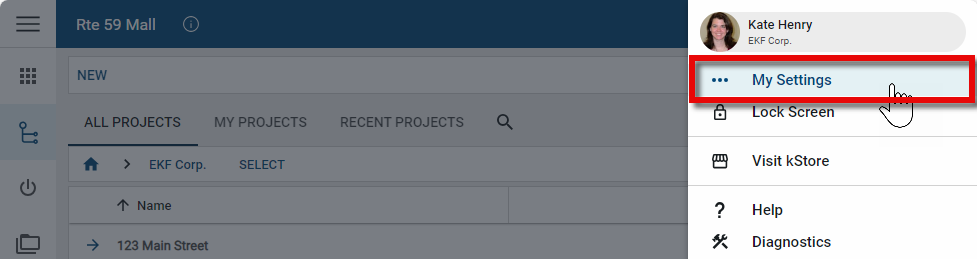
Click on your profile icon in the top right corner of Kahua and select My Settings.
-
Navigate to the Security tab and select the Password sub-tab.

-
Enter your old password and your new password with confirmation. If you need to review your organization's password requirements, click Password Policy.
Note If you have access to multiple domains, your new password must meet the requirements of the domain with the most restrictive requirements, not just those of your primary domain.
-
When you are done, select Change Password to save your changes.