Managing Domain Settings
Administrators can use the Domain Settings app to update settings for their domain such as the domain name, security settings, domain defaults, and enabling the data store (if applicable).
To open the Domain Settings app, navigate to Apps > Administration > Domain Settings.
Note Regardless of the currently selected project, any changes made in the Domain Settings app will impact the whole domain.
The following sub-applications are available:
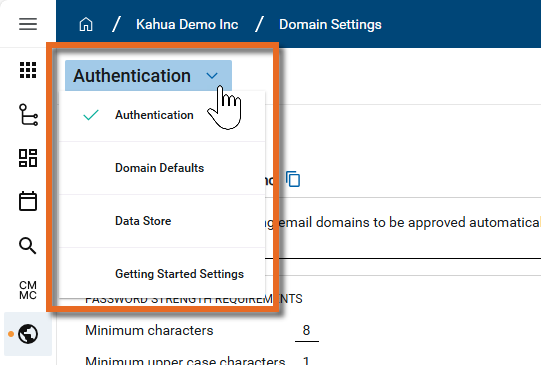
 Authentication
Modify the following sections as appropriate:
Change Domain Name
Select this option to change the name of your domain. Changing the domain name will update the company name as it appears to each user. Enter the new Domain Name and click Ok.
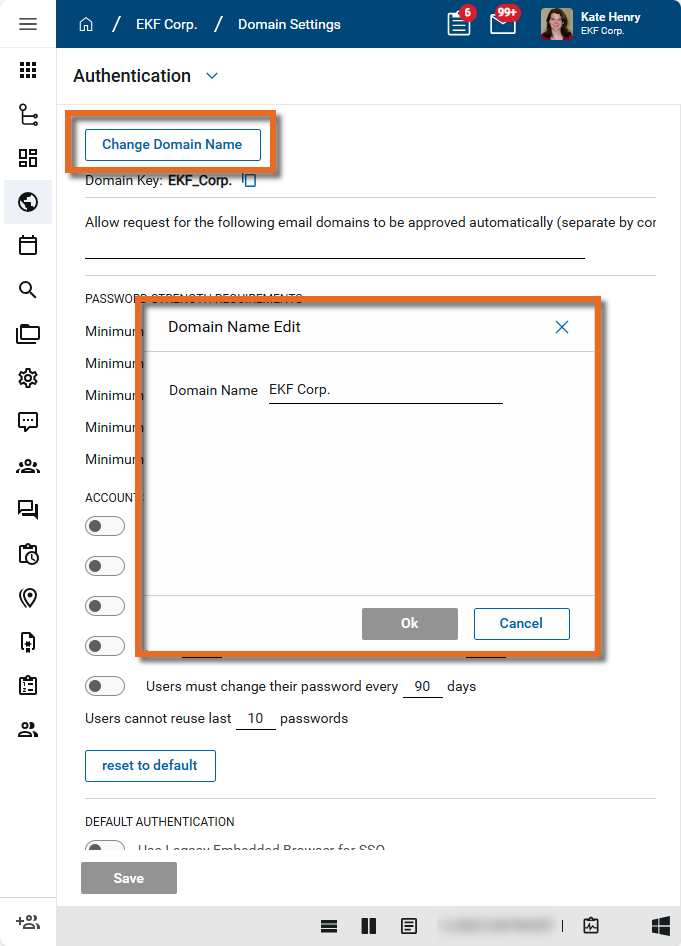
Note Your system domain name in the backend of Kahua, i.e. the Domain Key, will not change.
Important Changes made here will not appear in Kahua Community. They will only impact how the company name appears to users in your domain.
To update your company name in the Community, modify it in the Company Profiles app. Refer to Updating your company information in the Company Profiles app.
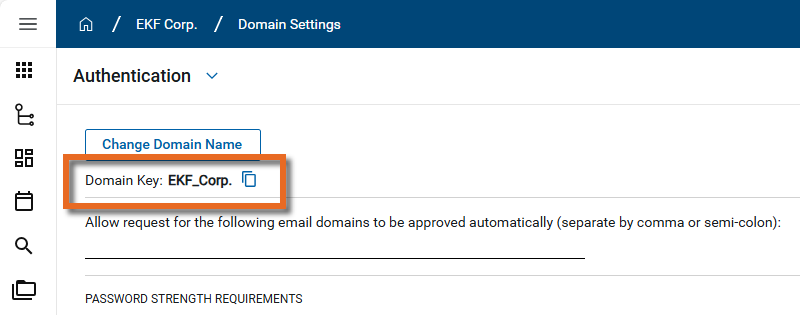
Domain Key
The Domain Key is the system name of your domain in the backend of Kahua. You may be asked to provide this information to the support team. To copy the Domain Key, click on the Copy icon  . The Domain Key is then copied to your clipboard and can be pasted in an email or chat as needed.
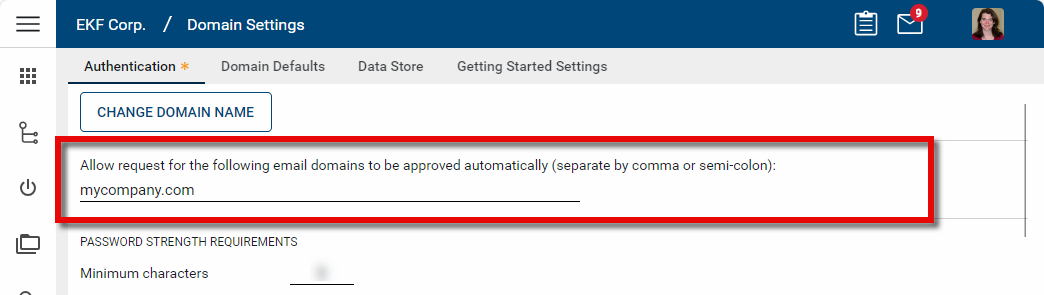
Allow request for the following email domains to be approved automatically
You can enter one or more email domains here to allow new user requests from email addresses with those domains to be automatically approved. For example, if you enter "mycompany.com" as an email domain here, a new user request from someone with an email address of "msmith@mycompany.com" will automatically be approved. Separate multiple email domains with commas or semi-colons.
Password Strength Requirements
Enter your desired minimum password strength requirements. These must be the same or greater than Kahua's minimum requirements.
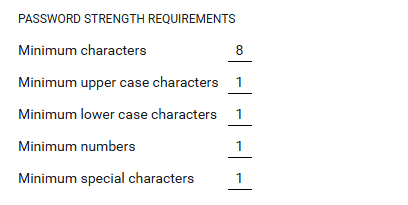
Account Security Requirements
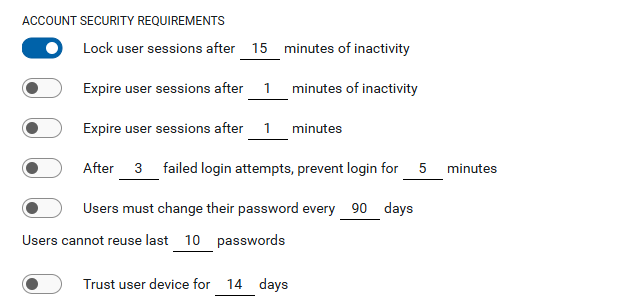
Additional security requirements can be set by clicking the toggle next to each requirement you want to apply. Here you can apply the following settings:
-
Lock user sessions after a set number of minutes of inactivity.
-
Expire user sessions after a set number of minutes of inactivity.
-
Expire user sessions after a set number of minutes.
Important When user sessions expire, the sessions are terminated and any unsaved content is lost. It is recommended that these settings only be enabled for highly secure environments that require such an action. Consider using the option to Lock users sessions instead. When a user session is locked, the user can access unsaved documents when they re-login.
-
After a set number of failed login attempts, prevent additional login attempts for a set number of minutes.
-
Require users to change their passwords after a set number of days.
Note Kahua tracks when the user last changed their password, so modifying this setting may require some users to change their password on their next login. Users who have changed their password more recently will not have to do so until the newly set number of days have passed.
-
Expire invitations after a set number of days. This setting expires invitations sent to external users after the set number of days. When enabled, you can select a value between 1 and 30.
When the setting is saved, any pending invitations that exceed the threshold expire immediately. Expired invitations appear with an "Expired" status can be re-sent. The clock resets each time an invite is re-sent. Refer to Working in the Users application.
-
Set the number of previous passwords that are not allowed for reuse. The number must be the same or greater than Kahua's minimum requirements.
-
Trust user devices for a set number of days. This option is for domains that use multifactor authentication (MFA). You can set this value to a maximum of 14 days.
Users are able to select Trust this device when using the email or authenticator code options for multifactor authentication.
If a user needs to reset their Trust this device setting, they can do so by selecting Forget All Devices on the My Settings > Security tab. Refer to Security.
Note This option is only available on Kahua's Commercial Network (KCN). It is not available on Kahua's Government Network (KGN).
Reset to default
Select Reset to Default to return both the Password Strength Requirements and the Account Security Requirements to the Kahua defaults.
Kahua Signature PIN
Enter the number of digits that users who have your domain as their primary domain are required to select when setting up their signature PIN. You can enter a minimum value of 4 and a maximum value of 10.
Note Users manage their PIN on the My Settings > Signature tab. Refer to Signature.
Default Authentication
The section only applies to domains which use SSO authentication.
Important If you want to use single sign-on (SSO) authentication, contact Kahua Support for assistance.
By default, after users enter their email address in domains that utilize SSO, a new window opens in their default browser where they can complete the authentication process.
In environments where calling a new browser window is not permitted, domain administrators can enable the Use Legacy Embedded Browser for SSO setting to permit the SSO process to be completed directly on the sign-in dialog.
Manage Authentication Groups
Multifactor authentication (MFA) is required on all domains that do not use SSO. In these domains, all users are required establish their identity by obtaining a code through their email or from an authentication app such as Microsoft Authenticator or Google Authenticator, or to establish and use a passkey.
You can use authentication groups to manage which multifactor authentication methods are available to users who access your domain, including both internal users and external users.
You are not required to setup authentication groups. If you do not set up authentication groups, users will select which MFA method to use each time they log in.
For more information, refer to Managing Multifactor Authentication in your domain.
Domain Defaults
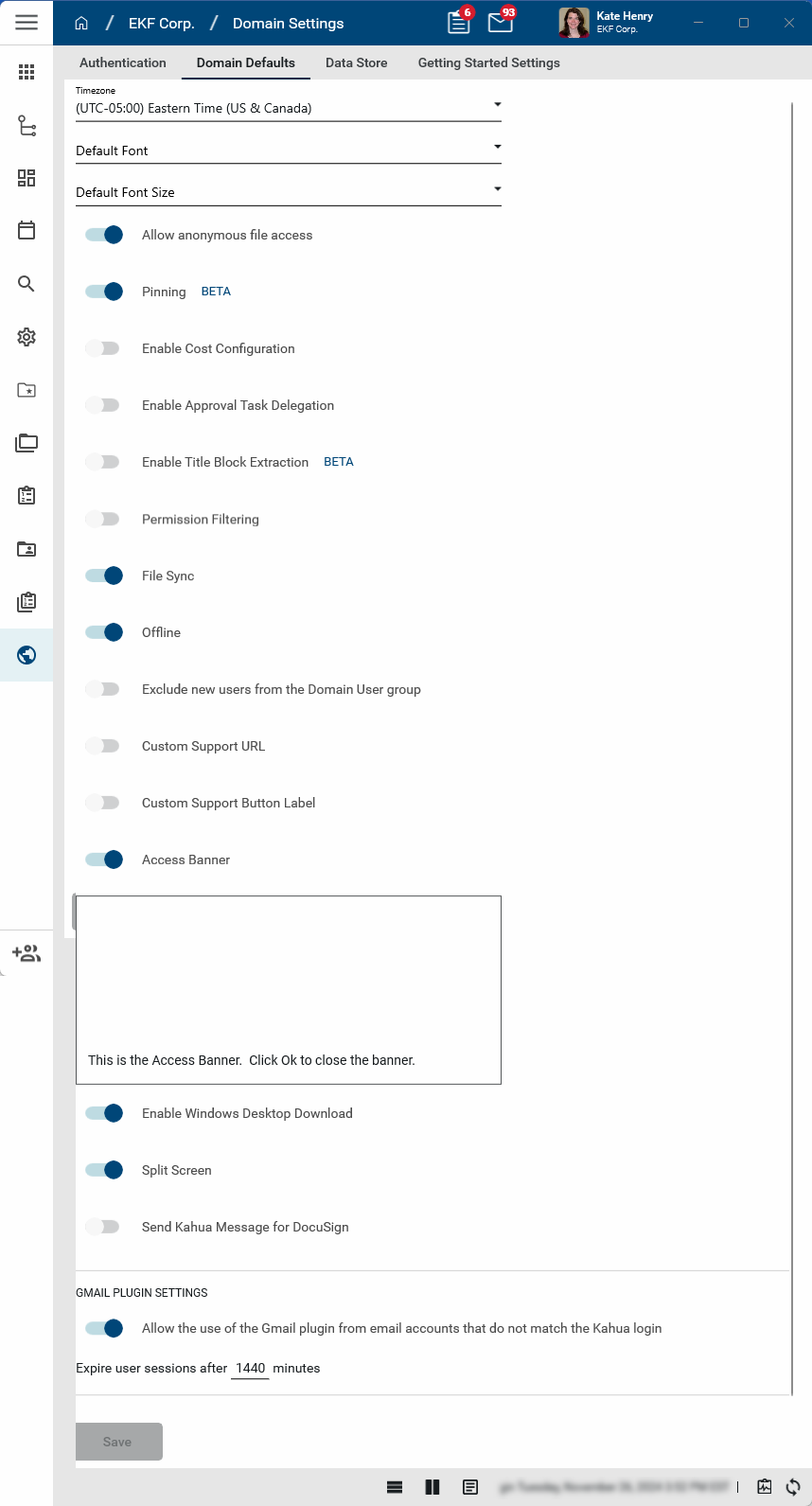
This tab contains the following settings:
Timezone
Select the appropriate time zone. This time zone is used when generating Kahua printable views. For individual users, times within apps will be converted to the time zone set in their My Settings page. Refer to My Settings.
Default Font and Default Font Size
Font and font size will only be updated in rich text fields, such as the body of a letter, meeting minutes, agenda details, etc. The font and font size selected here can be seen in the portable view PDFs for Kahua records.
This selection does NOT change your font in the user interface for standard Kahua applications.
Allow public links (previously named "Anonymous Links")
When enabled, Allow public links gives users the ability to send hyperlinks of files from File Manager to Kahua users and non-users. Permissions for public link file access can also be managed at the partition level through the Configuration app. At that level you can also set links to expire after a certain amount of time or when a new version of a shared document is uploaded. For more information on these settings, refer to Configuring Public File Links.
When this setting is disabled, links to files in the File Manager application can still be sent but the recipient will need to log into Kahua to open the files. They cannot be opened anonymously.
For more information on the public link file access feature, refer to Public File Links.
Pinning
Select this option to allow users to pin documents to drawings. For more information, refer to Pinning functionality in File Manager, Pinning functionality in Punch Lists, or Pinning functionality in Assets.
Enable cost configuration
Cost configuration gives domain administrators control over the way users interact with budgets and expenditures. For more information, refer to Cost Configuration.
Enable Multi Project Cost Documents
The multi-project cost documents feature allows you to create a cost document in one project that includes line items associated with child projects. This allows you to manage a single cost document, such as a contract or a budget, that includes work for multiple projects, while still assigning the cost values to the appropriate project. For more information on this feature, refer to Multi-Project Cost Documents.
Important If the option to enable this feature does not appear, contact Kahua support or your account representative for assistance and to determine if the option can be made available for your domain.
Enable approval task delegation
Select this option to allow users to delegate approval tasks in approval workflows. Users can automatically delegate tasks to a designated user through the Out of Office feature, found on their My Settings page. For more information on task delegation, refer to Out of Office. For more information on approvals, refer to Approval configuration.
Allow delegation to external contacts
Select this option to allow users to delegate approval tasks to external contacts.
When disabled, only users who exist in the domain’s Users application appear for selection in delegation dropdowns. External contacts are excluded and not available for selection in new delegations. Existing delegations are not impacted.
This setting applies to task delegation across both the approval engine and standard workflows, including the following:
-
Individual tasks
-
Project Tasks application
-
Out-of-office task delegation in User Settings
Enable title block extraction
Select this option to allow Title Block Extraction on drawings. For more information, refer to Title Block Extraction.
Permission filtering
Enabling this allows you to add filters to different permission groups for specific applications. Refer to Manage permissions for a group.
File Sync
Select this to allow your users to sync files from File Manager to their local computer. For more information, refer to Using Local Files Sync.
Offline
Selecting this option allows users to work offline in select applications and then sync with Kahua when they are back online. For more information, refer to Kahua Offline.
Exclude new users from the Domain User group
Select this option to prevent new users from automatically being added to the Domain User group by default.
The Domain User group allows general access to commonly used applications. Typically, when new apps are introduced to Kahua, members of the Domain User group have "Contributor" permissions by default. For more information, refer to Setting up groups.
This option is typically selected by organizations with strict security controls that prefer to manually add new users to groups.
Custom Support URL
If your organization hosts host your own Kahua support knowledge base page, you can enable this setting to direct users to your custom content from the Help Center link on the Home Page and the Help link under their profile image. After enabling this option, enter your custom URL and click Save.
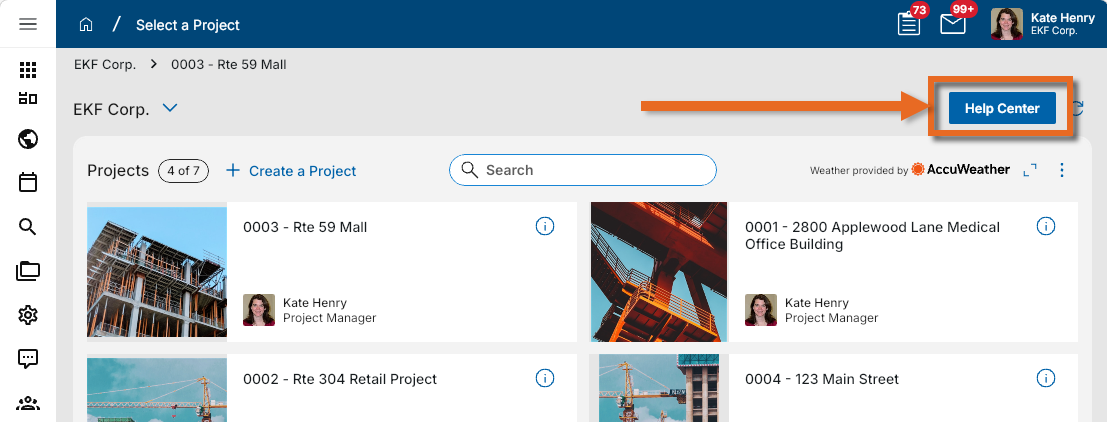
Additionally, you can modify the text that appears on the help button on the Home Page by enabling and editing the Custom Support Button Label.
Custom Support Button Label
Select this option modify the text on the Help button on the Kahua Home page for all users in your domain. After enabling this option, enter text for the label and click Save.
To have the help button open a link of your choosing, enable and modify the Custom Support URL.
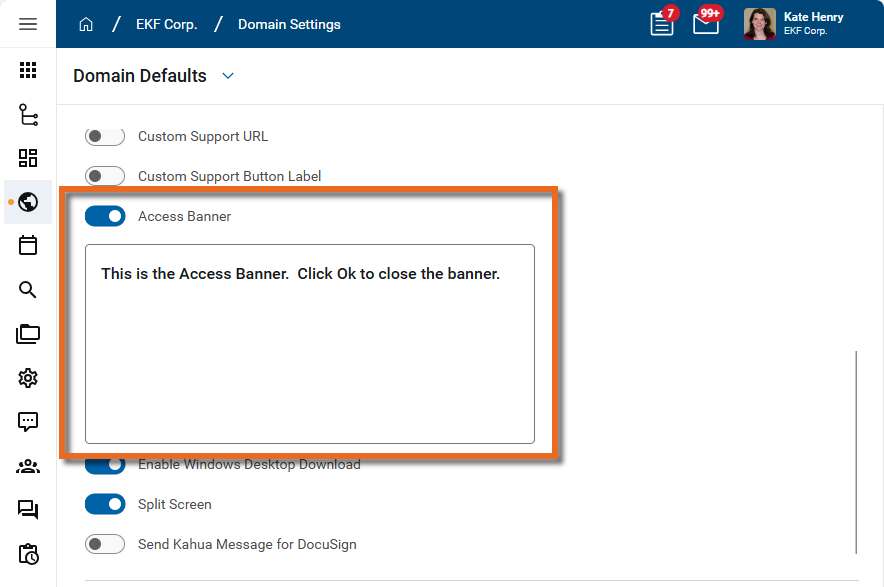
Access Banner
This option is only available on Kahua's Government Network (KGN). It is not available on Kahua's Commercial Network (KCN).
Enabling this option allows you to enter text that will appear each time a user logs into your Kahua domain. The user will click Ok to clear the message.
You can use this feature to communicate terms and conditions for access to your domain or other messages as needed. After enabling the access banner, enter your text in the text box below the toggle selector.
Enable Windows Desktop Download
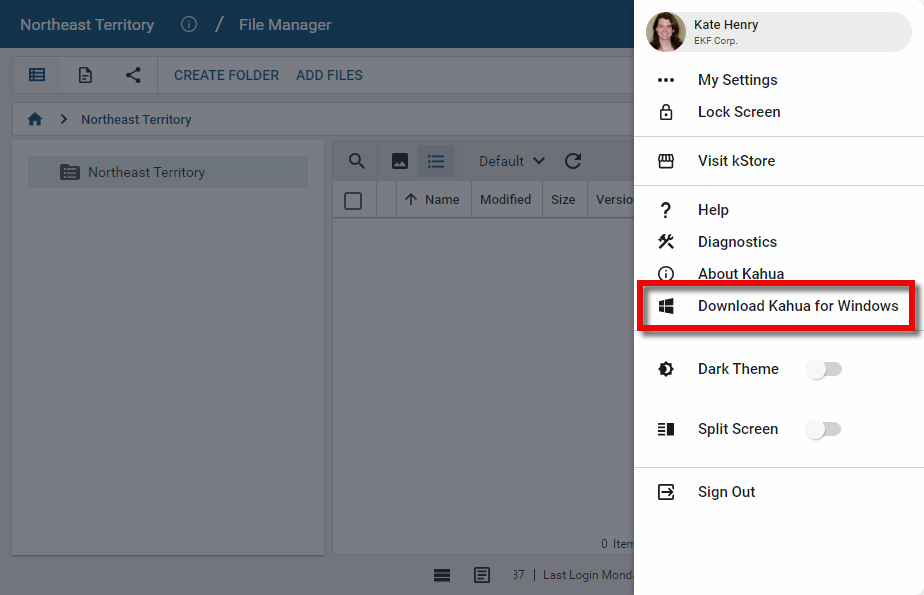
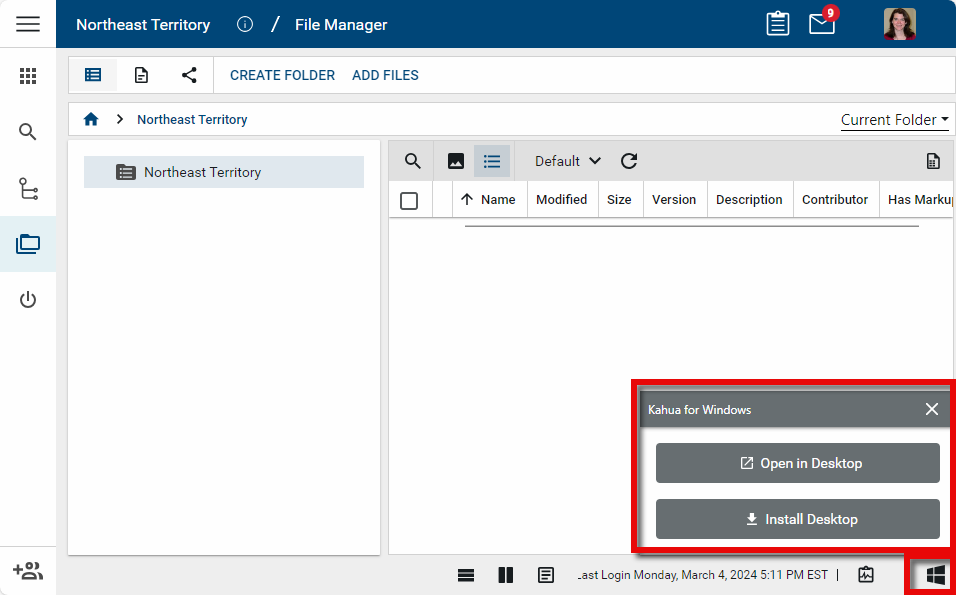
When this setting is enabled, the Download Kahua for Windows option will appear in two locations for users logged into the Web Host. It will appear when they select their user profile in the header, and as an icon in the lower right corner of the footer.
-
Selecting the option from the user profile will download the Desktop Host for installation.
-
Selecting the option from the footer will provide the choice to install or open the Desktop Host, if it is already installed.
Split Screen
This setting establishes the default for users in your domain in their preferences setting. Users can modify their setting in their user profile. For more information, refer to Your User Settings and Preferences.
Workflow progress banner and details
This setting enables the workflow progress banner in your domain. Clear it to remove the banner from record and task views for all users. For more information, refer to Workflow progress banner.
Send Kahua Message for DocuSign
When the Send Kahua Message for DocuSign setting is enabled, if a document is sent to Docusign for signature and the recipient is a Kahua user, a Kahua message will be sent to the Docusign approval recipient. This message will alert the recipient to check their email for a document that is ready for signing in Docusign.
Include .kahua File in Message Attachments
Select this option to include the .kahua file when records are shared in Kahua. The .kahua file contains technical details about the record in JSON format. It is not necessary to include this file and this option can be disabled.
Enable M365 Integration
Select this option to enable the Microsoft 365 Integration which allows collaborative editing of documents in the File Manager app.
For more information, refer to Editing files with the Microsoft 365 Integration.
Gmail Plugin Settings
There are two settings available for the Gmail Plugin:
-
Allow the use of the Gmail plugin from email accounts that do not match the Kahua login - Select this option to allow users with an email account that is different than the one they use to log in to Kahua with to use the Gmail plugin.
-
Expire user sessions after # minutes - Enter the length of time a user session should be valid for.
For more information in installing the Kahua for Gmail plugin, refer to Installing the Kahua for Gmail Plugin. For more information on using the Kahua for Gmail plugin, refer to Using the Kahua for Gmail Plugin.
Recycle Bin Retention Settings
In this section, you determine the number of days from the time a record is deleted from its original app to when it is permanently deleted from the Recycle Bin app. Enter that number of days in the Permanently delete records in Recycle Bin after # days field. The default value is 30 days. You can enter a value from one to 180.
When a record is deleted, the Recycle Delete Date is calculated based on the date of deletion and the value set here. The record remains recoverable until that date.
You can restore a deleted record within that window by opening the Recycle Bin app and selecting Restore for the record. Records can be permanently deleted prior to the Recycle Delete Date by selecting Permanently Delete. Refer to Using the Recycle Bin.
Important Changes to this value will only be applied to newly deleted records. The Recycle Delete Date is not re-calculated when this value is changed.
Data Store
The Kahua Data Store is a read-only SQL database that contains data from your domain and is kept in sync with the production database in near real-time. When enabled, it can be used for a number of purposes, including to create cross-application reports, connect to PowerBI or other analytics tools, or to replicate data to an enterprise data warehouse.
If you anticipate using custom reports, you can turn the data store on at any time to collect data. It is recommended you work with Kahua to do so. For more information, refer to Using the Data Store.
Note kBuilder training is recommended to learn to create custom reports. Please reach out to Support or your account representative to learn more about kBuilder.
Home Page Settings
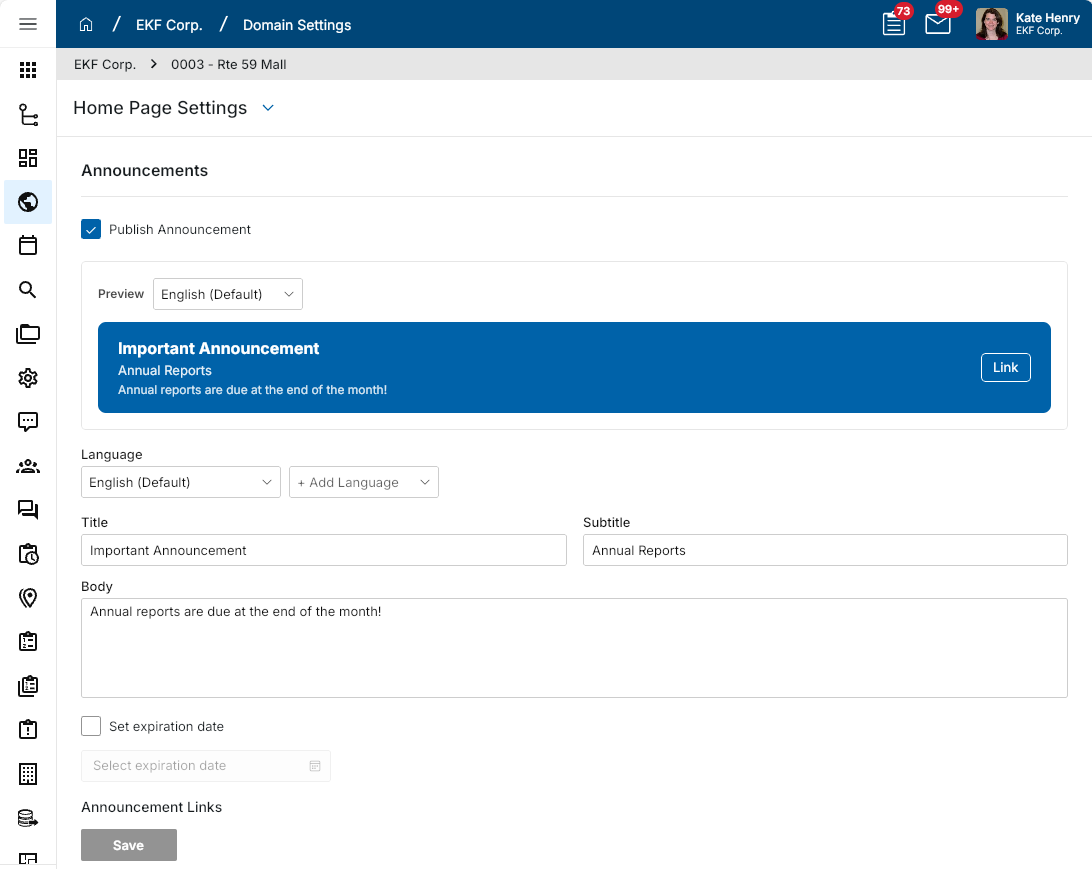
On this page you can update your branding logo and you can create and publish an announcement that appears on the home page.
Branding Information
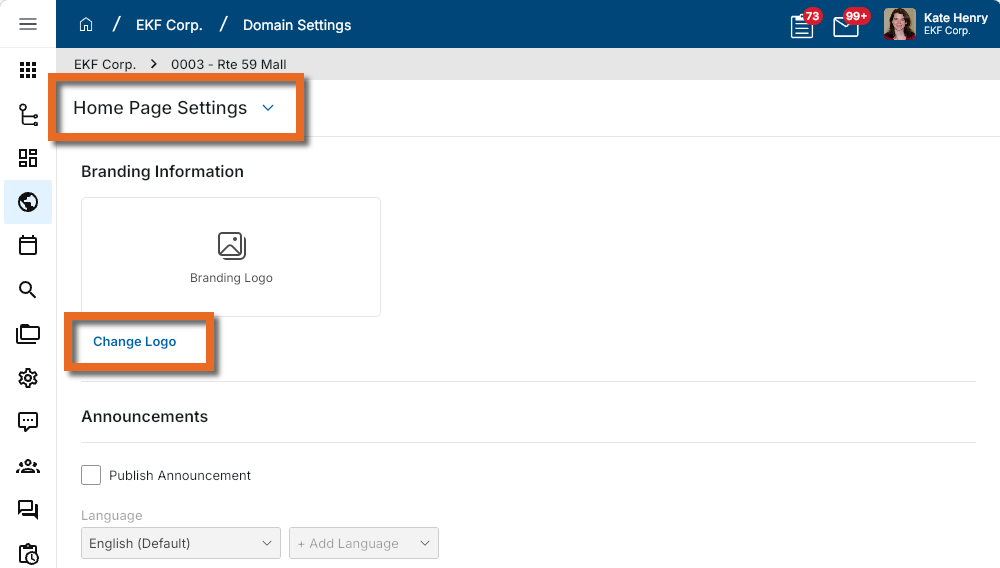
In this section you can update your branding logo. This domain-level logo appears when sharing files through public links. Refer to Public File Links.
Note For information on setting up logos for reports, refer to Managing report logos. For information on setting up a project logo, refer to Update the project logo.
To update your logo complete the following steps:
-
Navigate to Domain Settings > Home Page Settings (Apps > Administration > Domain Settings > Home Page Settings).
-
In the Branding Information section, click on Change Logo.
-
Select the logo file and click Open.
-
On the Add Files dialog, enter any Comments if appropriate and click Ok. The logo is saved.
-
Once uploaded, you can perform the following actions as needed:
-
To change to a different logo file, select Change Logo.
-
To remove the logo file, select Remove Logo.
-
Announcements
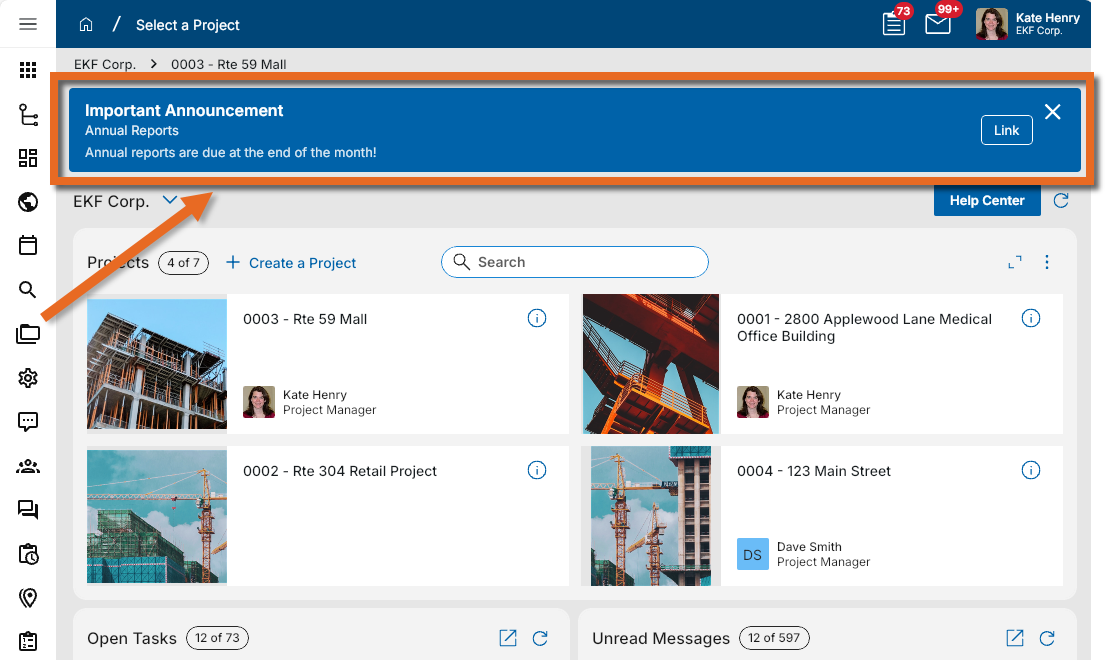
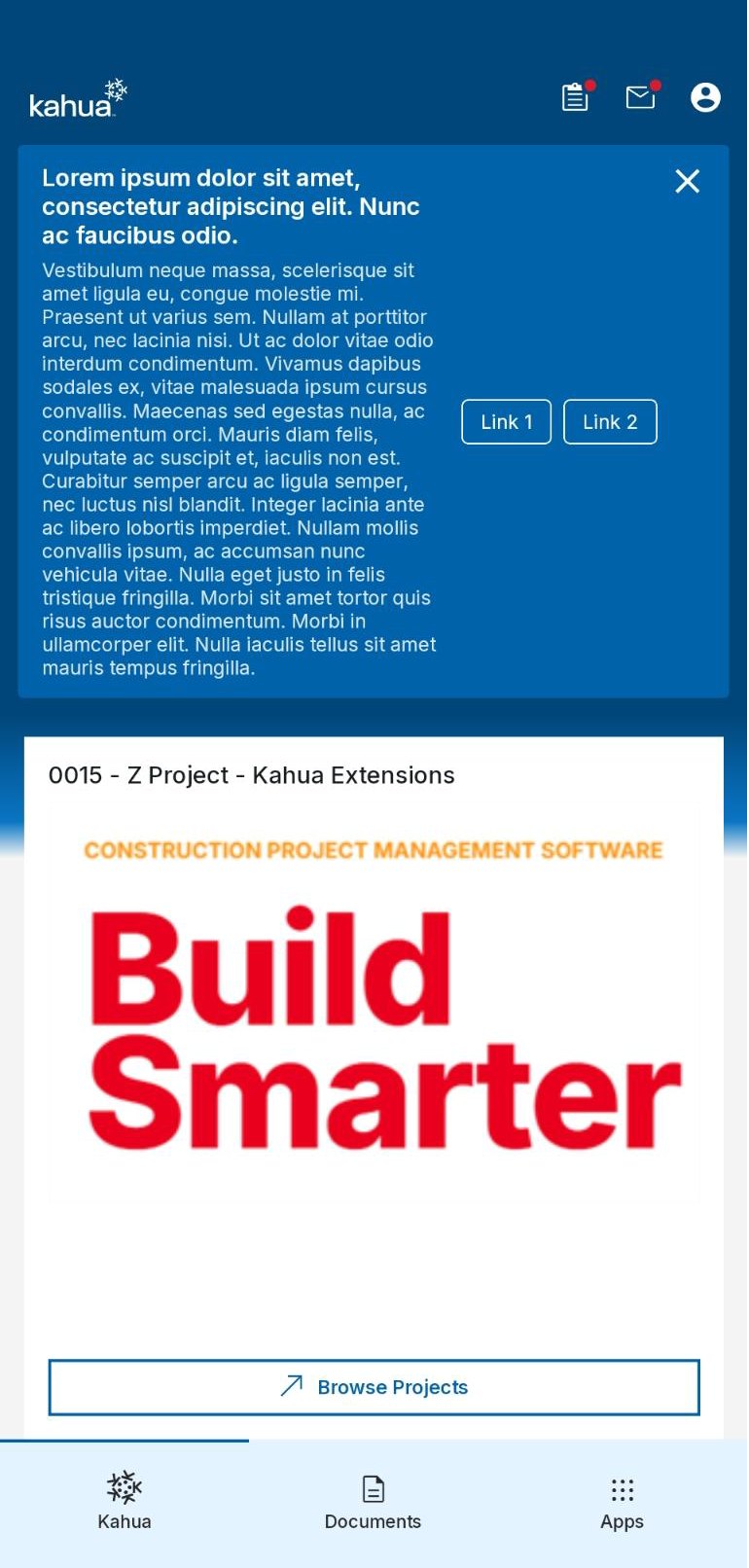
In this section you can create and publish an announcement that appears as a banner on the home page for all users when they access your domain.
Note The Kahua Home page is the page the opens when you first log in to Kahua. You can return to the home page at any time by clicking the home icon  in the Kahua header. For more information on the home page, refer to Kahua Home Page.
When the announcement is published, it appears at the top of the domain homepage for all users until you unpublish it or the expiration date is reached.
Published announcements appear on the desktop host, web host, and mobile host. You can configure homepage announcements on the desktop host or web host.
To create an announcement, complete the following steps:
-
Select Publish Announcement when you are ready for the announcement to appear.
-
Complete the following fields as appropriate:
Field Description Details Language Select the language for the announcement content.
Use Add Language to create another language version if needed. If you no longer need a language entry, select Remove Language.
Title Enter the main title for the announcement. Use a short, clear title that helps users quickly understand the purpose of the announcement.
Subtitle Enter a subtitle if you want to provide additional context below the title.
Body Enter the main announcement message. Include the details users need to know, such as the purpose, timing, required actions, or other important information.
Set expiration date / Select Expiration Date
Select Set Expiration Date to have the announcement stop appearing after a specific date. Enter the appropriate expiration date.
Announcement Links Link Title Enter the text users will select for the link.
Link URL Enter the full URL for the link, including the protocol such as https://.
Add Link Select Add Link to add another link row if you want the announcement to include more than one link.
Enter the Link Title and Link URL for all additional links.
-
Click Save when you are done.