Log Views and Log Reporting
A log view is a list of records in an app. Most applications have one or more log views. There is a built-in standard default view for each application that includes all the application records and the most common fields for that application.
Important things to know about log views include the following:
-
Depending on your permissions, you can create custom views for yourself or for everyone in your domain.
-
Log views follow the partition / project hierarchy. When you create a new view, it will be visible at the level it was created and below. If you want to use the view in multiple projects, make sure that you create it at a level above all the projects where you want it to be available.
-
While the visibility of log views follows the partition / project hierarchy, edits made to a log view will apply to all projects where the log view is available, regardless of what partition or project is open when the edits are made.
-
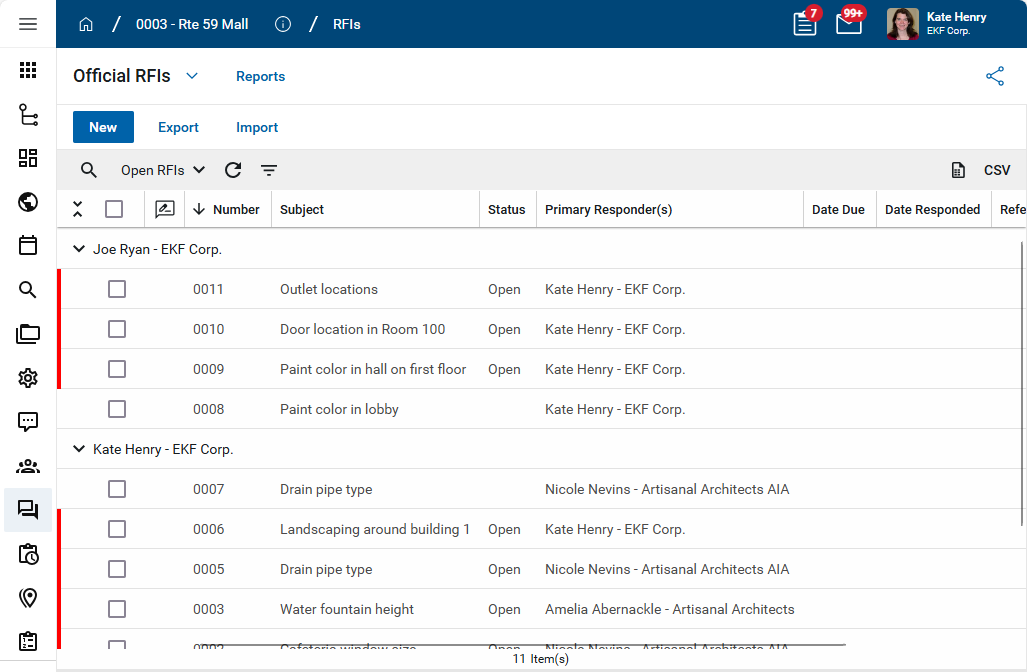
Custom views can include different fields than the default view. Custom views can be sorted, filtered, and grouped. Additionally, indicators can be applied to flag records based on certain criteria. For example, overdue items can be flagged with a red bar to visually indicate that they are overdue.
-
Domain administrators can establish a view as the default for users who have not yet selected another view. This is controlled on the Scope tab when setting up a view.
-
For each log view, you can control what fields appear when the log view is selected in the mobile app.
-
You can run reports from log views. These reports can be printed or downloaded.
How to . . .
 Select a log view
The name of the current log view appears in the header below the action bar. All apps have a "Default" log view.
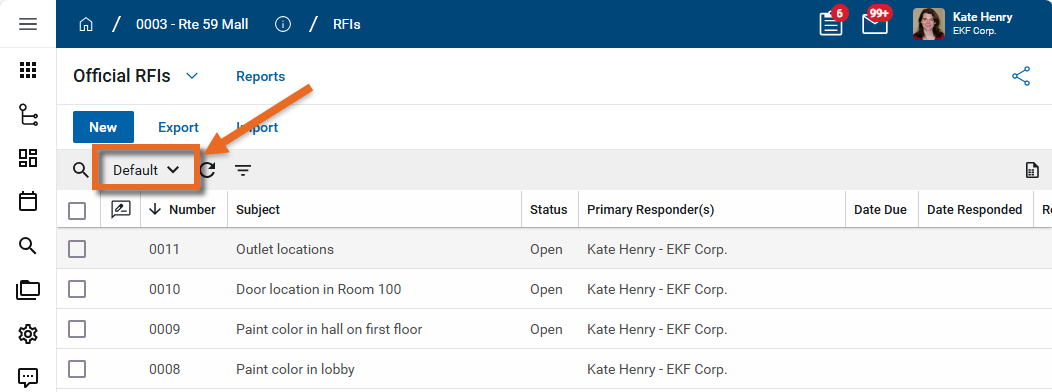
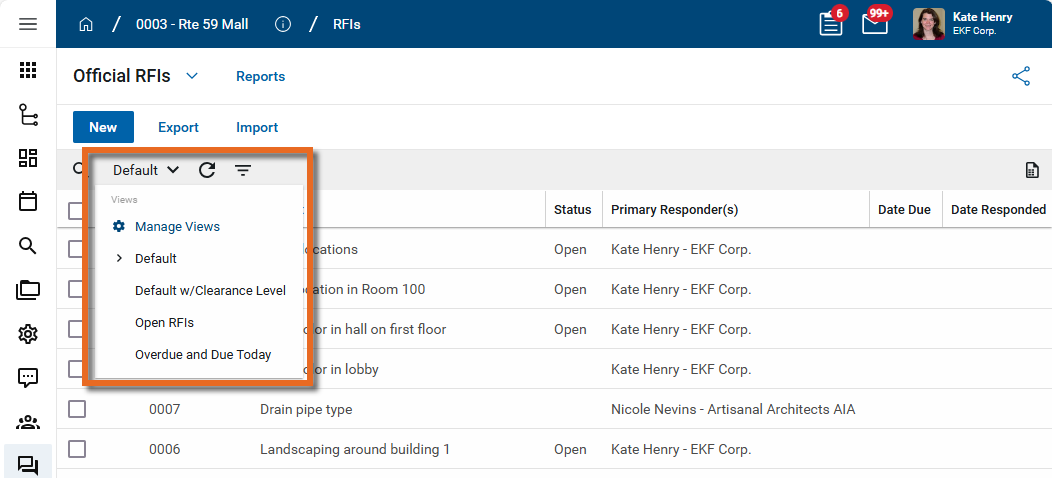
To select a different log view, click on the current view name. A list of available views appears. The currently selected view is indicated by a caret symbol  . Select the desired view.
Create or edit a log view
Each app comes with a default log view. You can create new log views for yourself or for use by others in your organization. The default log view cannot be modified, but you can make changes to it and select Save as to save it with another name.
Domain administrators can select Use as default for users who haven't chosen a view on the Scope tab to apply the changed view as the default.
To modify an existing view or create a new one, complete the following steps:
-
Review the header to ensure that you are in the correct project or partition.
Important Log views follow the partition/project hierarchy. When you create a new view, it will be visible at the level it was created and below. If you want to use the view in multiple projects, make sure that you create it at a level above all the projects where you want it to be available.
-
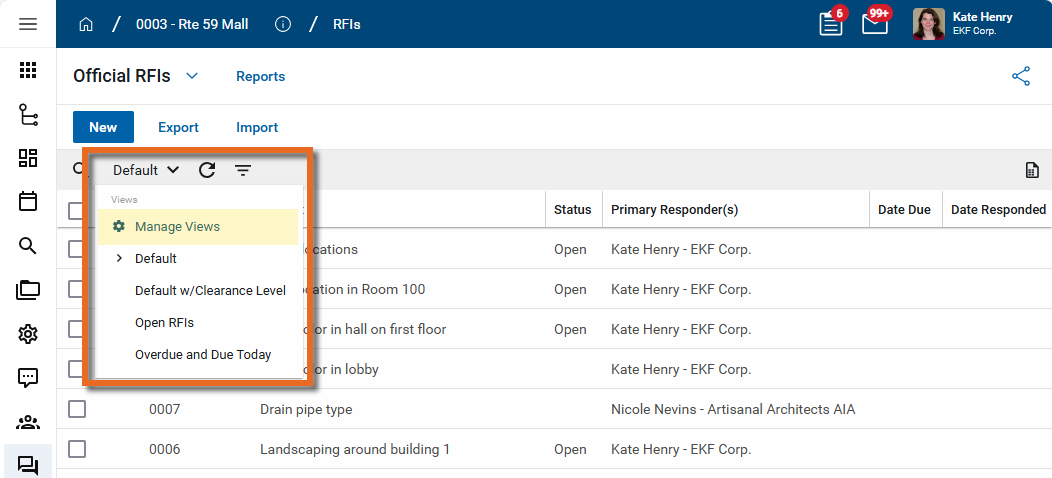
In the application, click the current view name and select Manage Views from the drop-down menu.
-
The Manage Views page opens. Select the view you want to edit from the list of views on the left. System views cannot be edited, but you can create a new view from an existing one by selecting it and clicking Save As. After clicking Save As, enter a name for the new view and click Save.
Select who should have access to the view, Everyone or Just Me. Views set to Just Me will be indicated by a Privacy icon
 .
.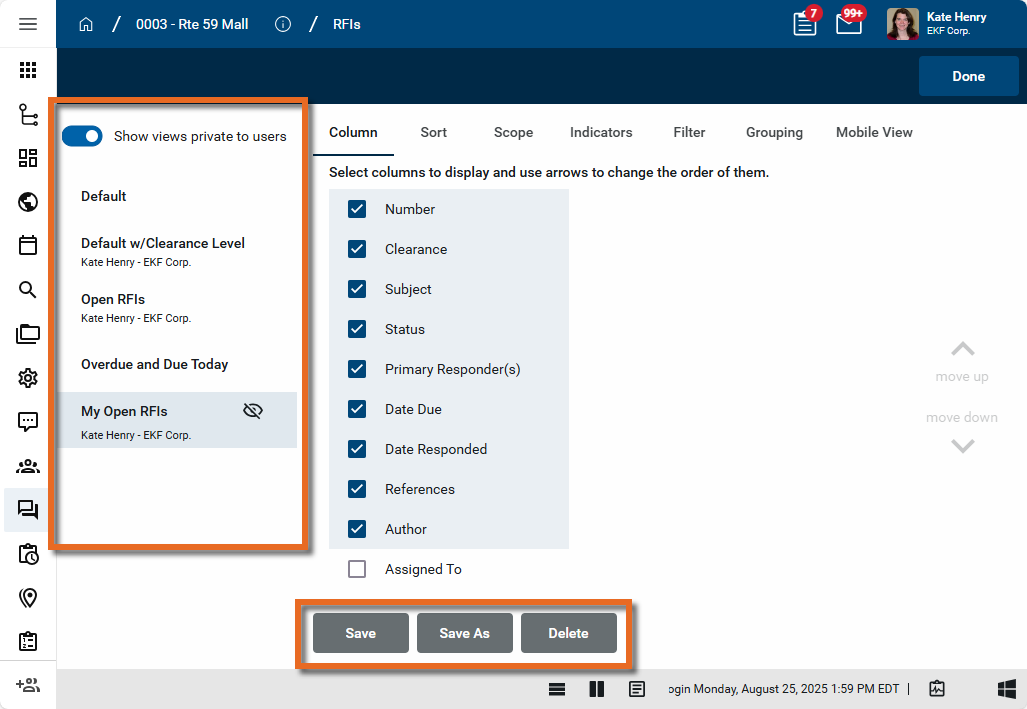
Domain Administrators can select Show views private to users. Views that other users have created will appear on the selection list with their username. The private views can be reviewed and edited by the Domain Administrator.
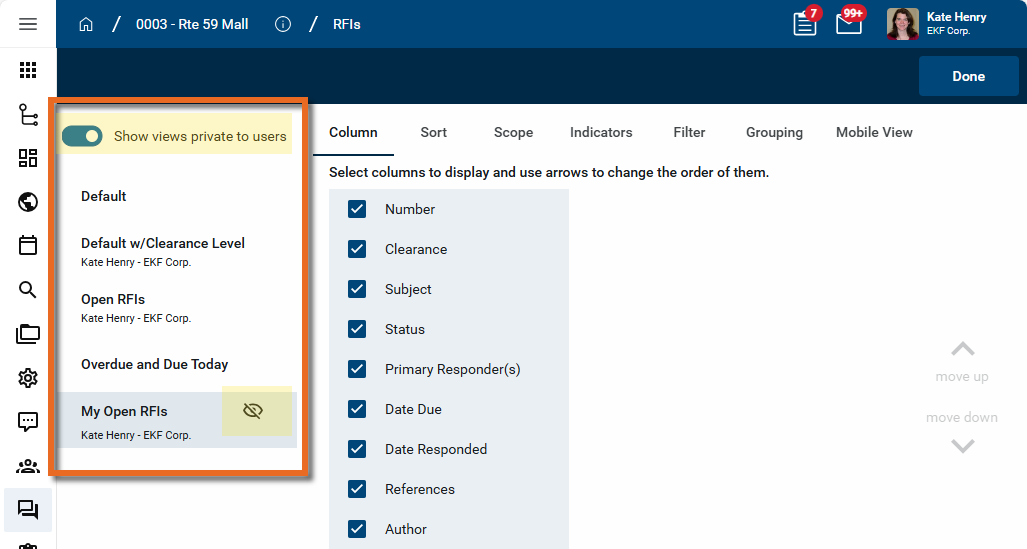
Once the view is saved, you can continue to edit it.
-
Navigate through each of the tabs to modify the view settings.
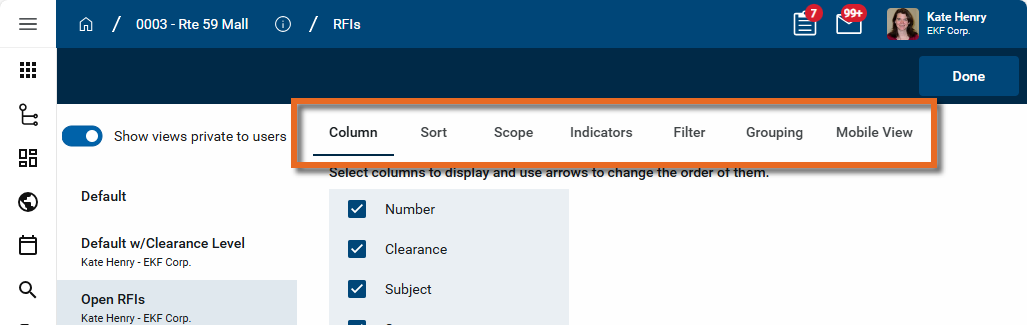
-
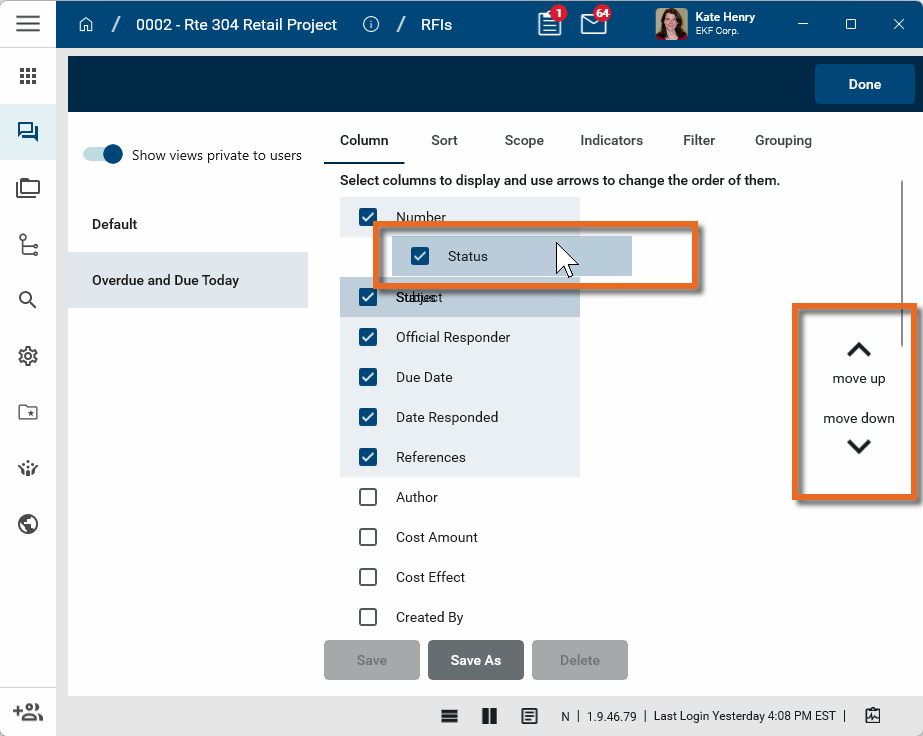
On the Column tab, select which fields should appear in the view. Use drag and drop or the arrow icons on the right to modify the display order.
-
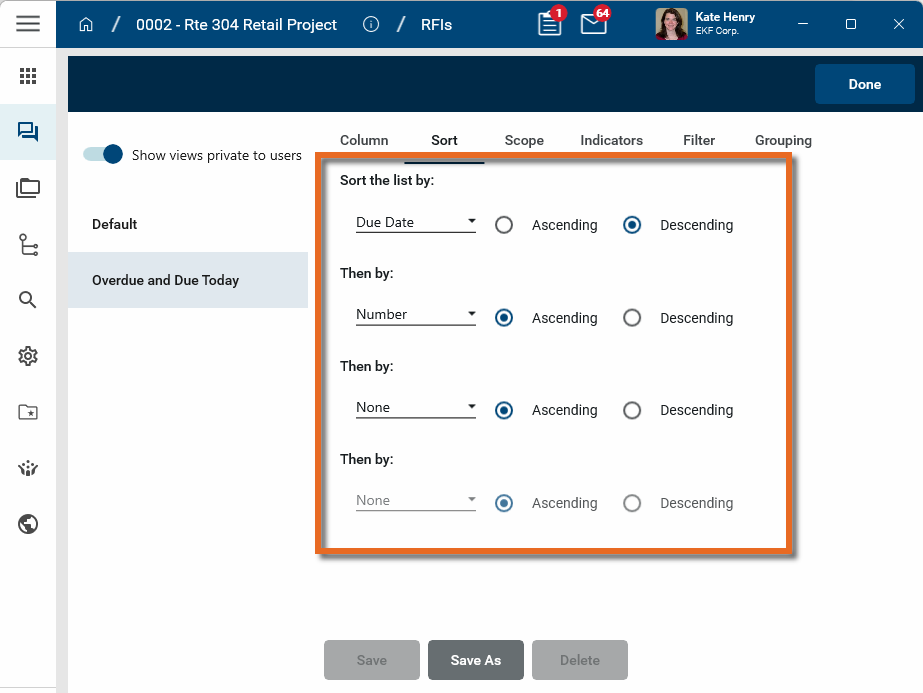
On the Sort tab, select the fields to sort by and in what order. You can sort by multiple fields.
-
On the Scope tab, you can manage the availability of the view.
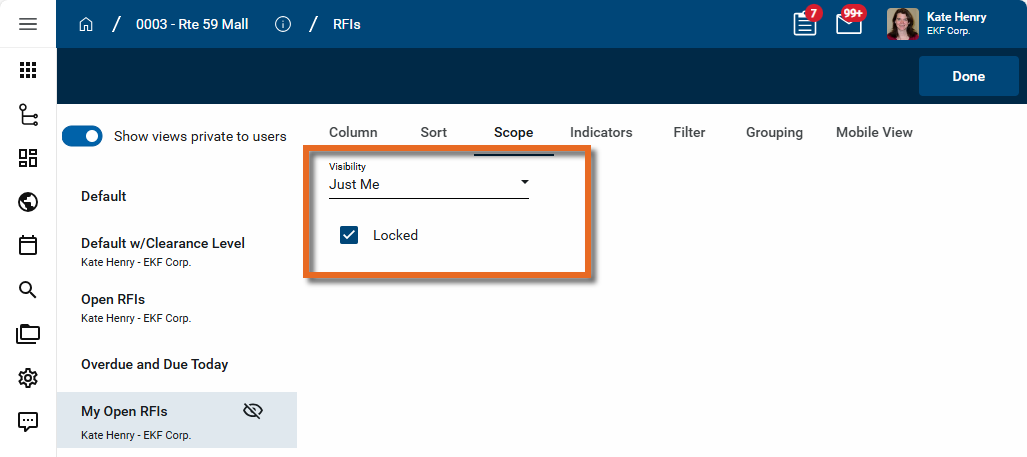
Option Description Everyone / Just Me
Determine if the log view should be visible to Everyone or Just Me.
Locked Select this option to prevent others from modifying this view.
Use as default for users who haven't chosen a view
Domain administrators can select this option to have this view appear as the default view for users who have not yet selected another view.
-
On the Indicator tab, set up indicators to flag records that meet certain criteria. For example, records where the due date is past can be marked by a red color. Select the color of the indicator and set the filter used to apply the indicator.
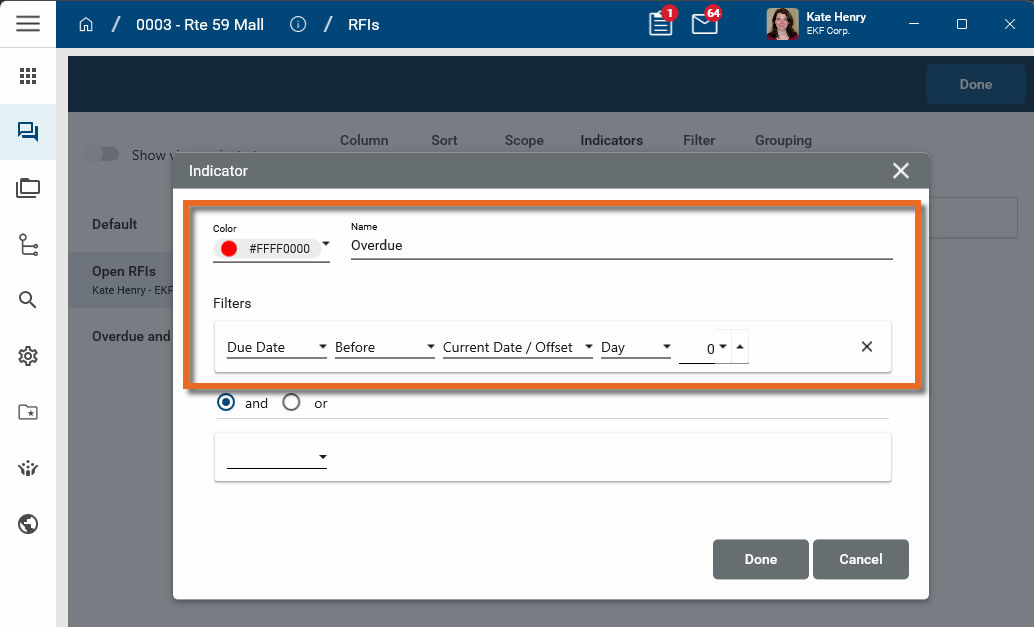
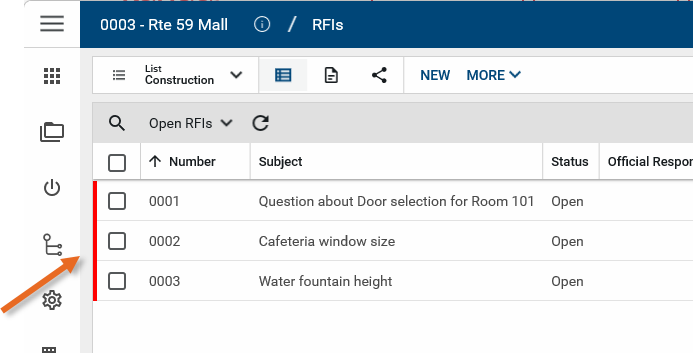
The indicator appears as a bar on the left side of the record in the log view.
-
Set up filters for the view on the Filters tab.
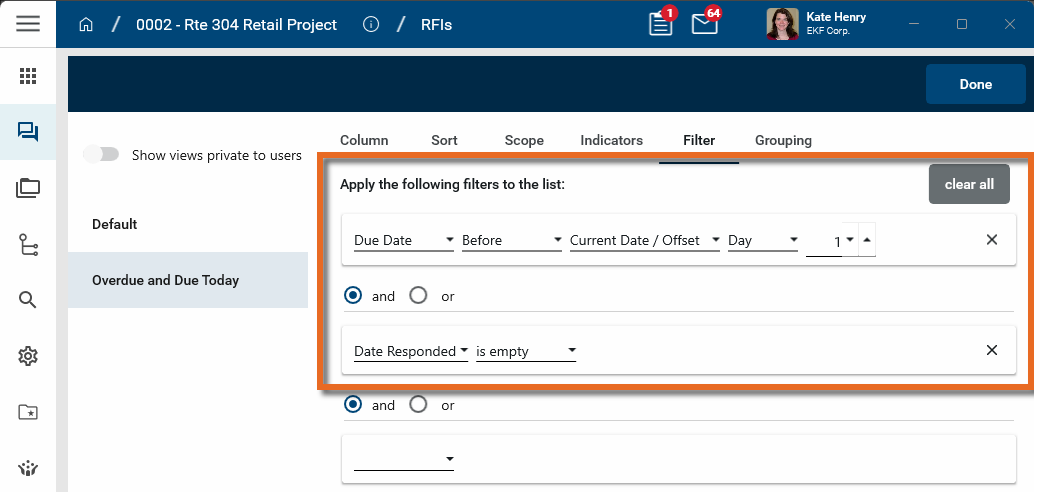
Click Add to add a filter. If you have multiple filters, you can select "And" or "Or" for each.
To modify the order of existing filters, click on the grab bar icon
 next to the filter, or click the More icon
  and select Move Up or Move Down.
To remove one of the filters, click on the More icon and select Remove filter. To remove all of the filters, select Clear all.
Note Fields associated with contacts can be filtered for "is current user" or "is current company".
Example For example, you can have a list of overdue and due today RFIs by filtering for RFIs with due dates before tomorrow's date ("Date Due" "Before" "Current Date/Offset" "Day" "1") and the Date Responded field is empty.
-
On the Grouping tab, select one or more fields to group records by. The log view will organize records by these groups.
-
On the Mobile View tab, select the fields you want to appear for each record when this log view is selected on the mobile app. Each record will appear in its own "card" in the mobile version of the log view.
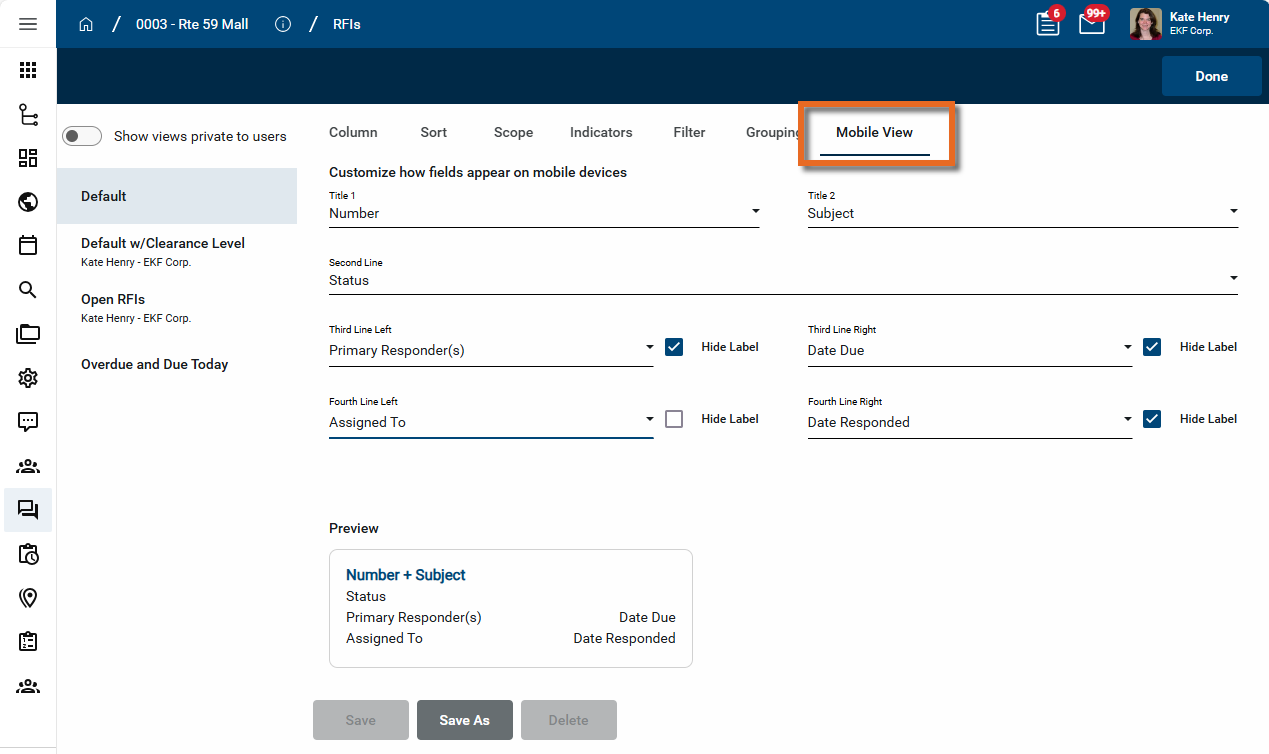
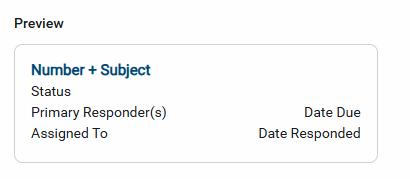
Note that a preview appears at the bottom of the tab, showing you how the card will be formatted on the mobile app.
-
Once the view settings are complete, click Save. The view will now be available for you or others to use, depending on your selection on the Scope tab.
Apply a quick filter
Some log views include a quick filter option. You can use quick filters to further refine your log view.
To apply a quick filter, complete the following steps:
-
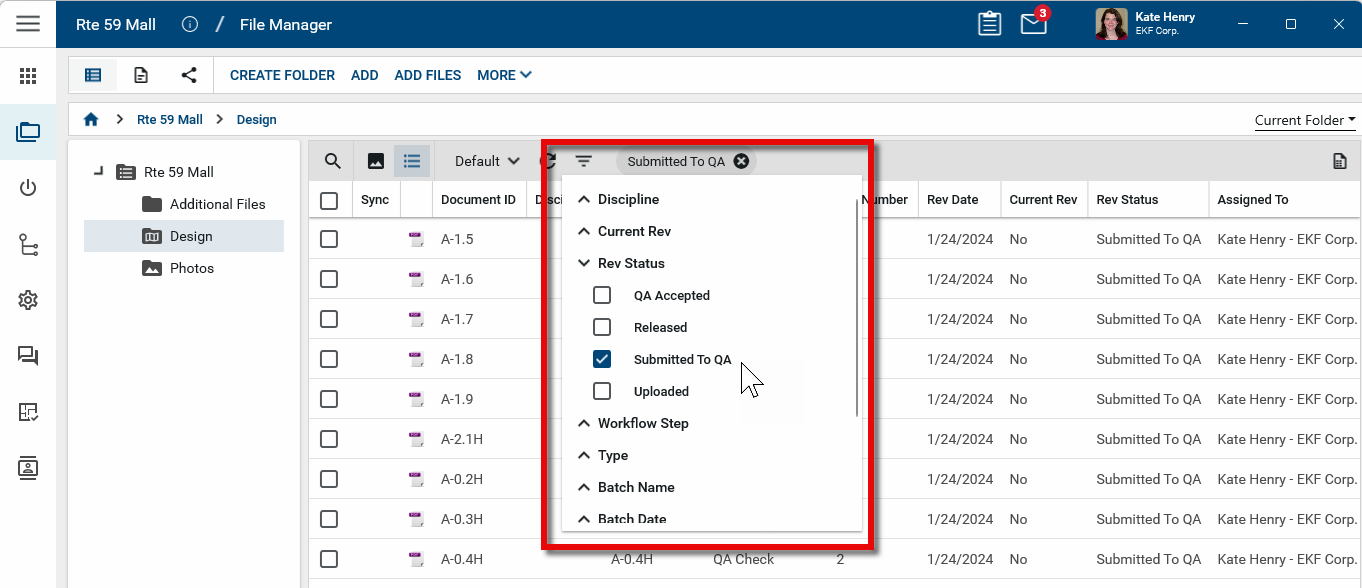
Click the Filters icon
 in the header of the log view.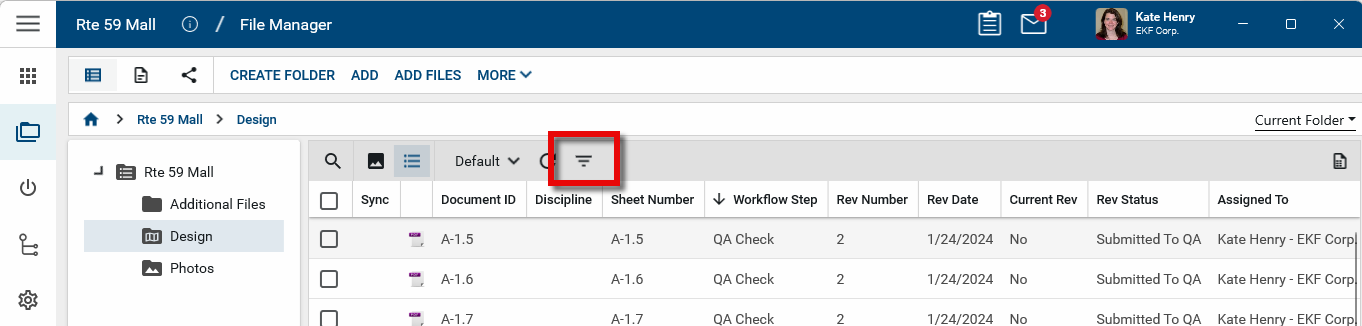
-
Select the field or fields you want to filter by and the values to include in the filter.
-
The log view will be filtered by the values you select, and those values will appear in log view header.
Important Note that this filter is applied to the currently selected log view. For example, if your current log view excludes drawings that are "Submitted to QA", you cannot use the quick filter to include them. You would need to change the log view to one that includes those drawings.
-
To remove a quick filter, click the Clear icon
 next to the value in the log view header. If you switch log views, the quick filters will be removed.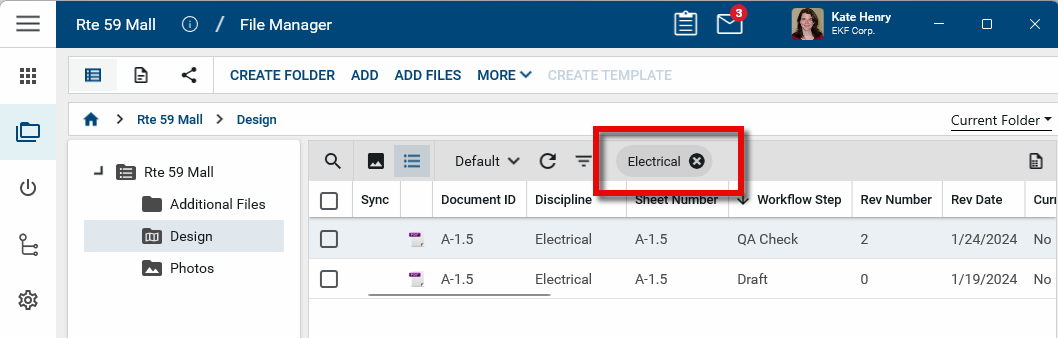
Search in a log view
You can use the log view search to search for a word, phrase, or value in a specific field or the entire log view.
To perform a search, complete the following steps:
-
Select the log view where you want to perform the search.
-
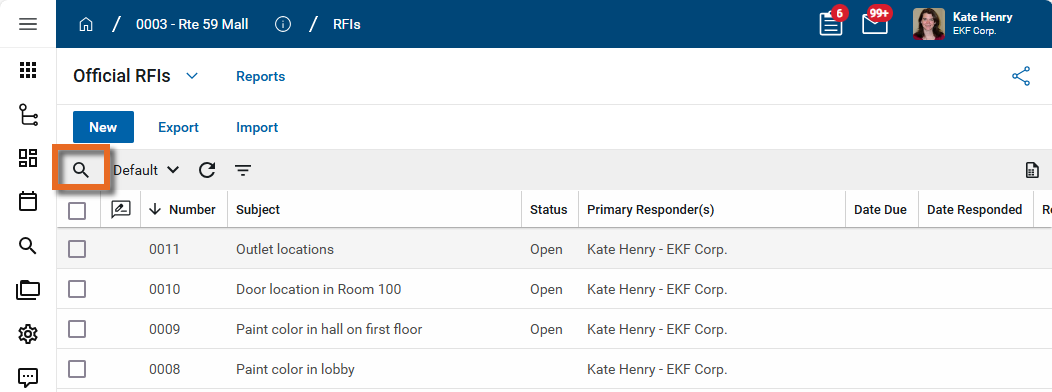
Enter the search term in the search field.
-
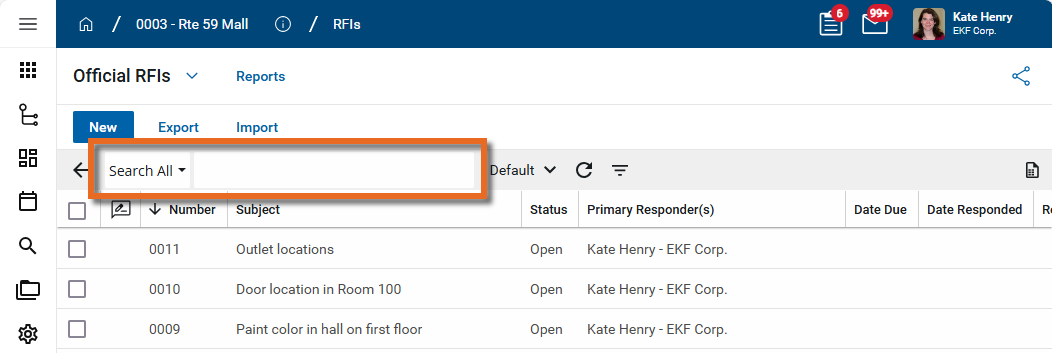
To search the whole log view, leave the search as Search All. To search in a specific field, click Search All and select the appropriate field name.
-
Enter the search term. The results will appear in the list below.
-
To clear the search, click in the search field and select the Clear icon
next to the search term.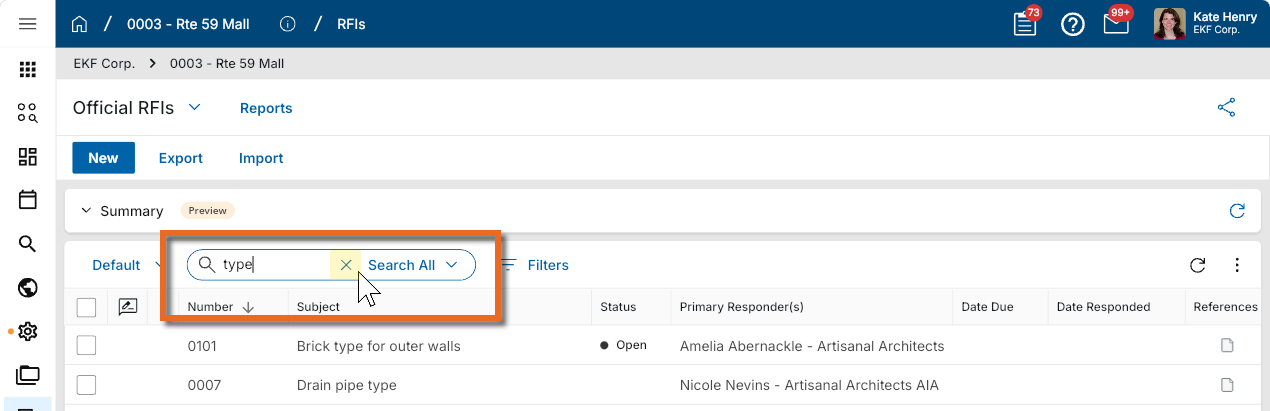
Apply an item-level log view in cost applications
Applicable Packages This feature is available in Kahua for Owner, Education, General Contractor and Subcontractors using the Kahua supplied cost management applications, excluding domains with CUI (Controlled Unclassified Information) restrictions enabled.
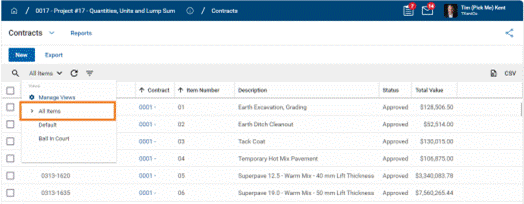
Where available in cost applications, you can apply an item-level view which shows all items from all documents. These item views can also be printed or exported to CSV using the buttons at the top right of the screen.
The item views can be searched, sorted, grouped, and filtered in the same way as the document views.
To apply the view, click the view selector and select All Items.
The item log functionality is available on the following Kahua supplied cost applications:
-
Expense and Funding Contract
-
Expense and Funding Change Order
-
Expense Change Request
-
Purchase Order
-
Purchase Order Change Order
-
Budget
-
Budget Adjustment
-
Budget Change
-
Issue App for Owner
-
Issue App for General Contractor (GC)
-
Issue App for Education (K12)
Note Item logs can be implemented on custom extensions and other apps. Users and developers with access to the Kahua Wiki can reference this page for more information.
Review an in-app Summary dashboard
In some applications, an in-app dashboard may appear in a Summary section above the log view. You can select elements in the dashboard to apply filters to the log view.
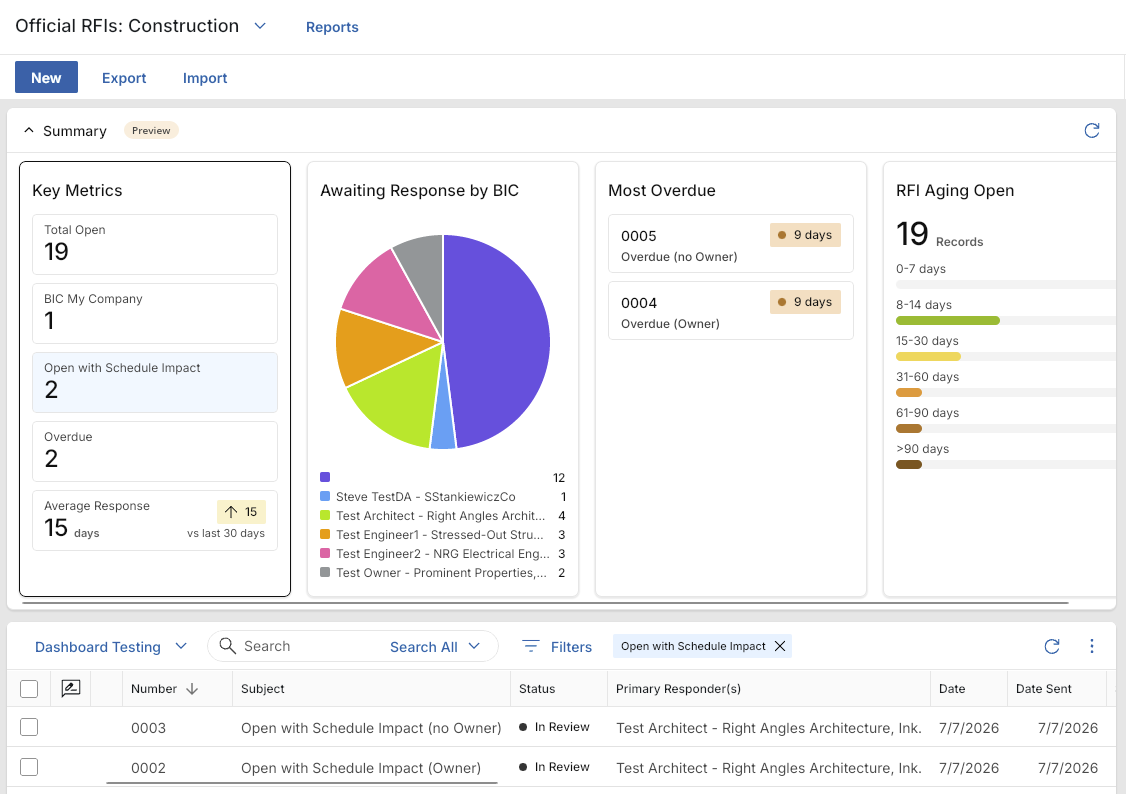
For more information on in-app Summary dashboards, refer to Using in-app summary dashboards.
Generate a report from a log view
Log views can be viewed in a report format. To generate a report from a log view with up to 10,000 records, click the More icon  and select Print. If your log view contains more than 10,000 records, the Print option will be disabled and you can select
  to download the records to a CSV file instead.
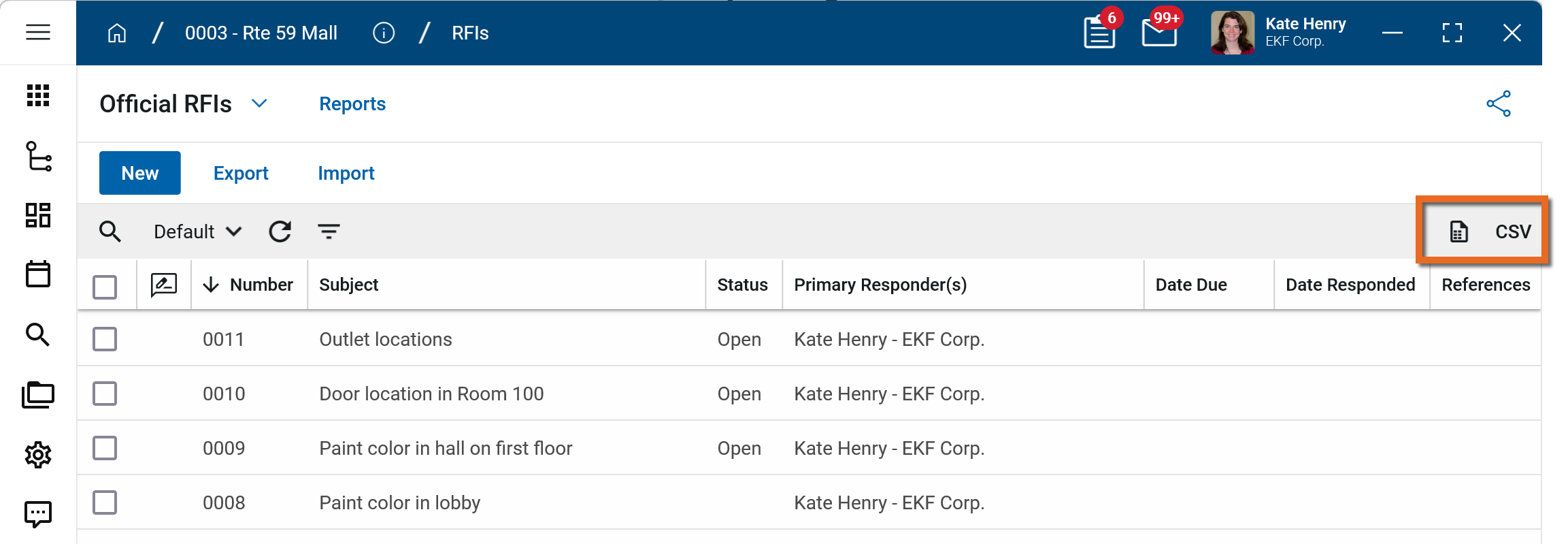
Note Only the records that appear in the log view will appear in the report view. If you perform a search or apply a quick filter to the log view, the report will include just those records.
For the CSV download from the log view using the icon, if you perform a search, the CSV will include only the records included in the search results. Quick filters are not applied to CSV download results.
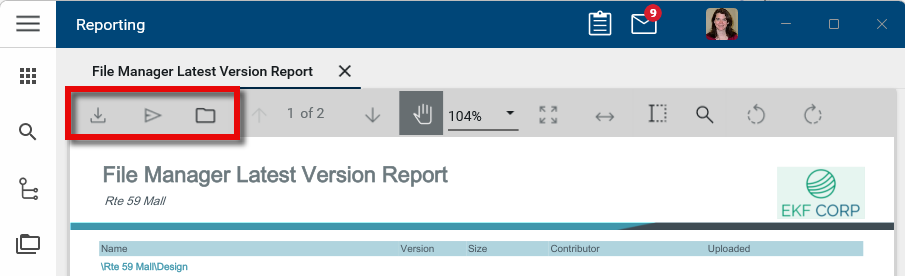
From the report view, you have several options for viewing or saving the report.
-
To open the report in PDF format or to download the report in CSV, XLSX, Data, or Data (no header row) format from this view, click the Download icon
 .
.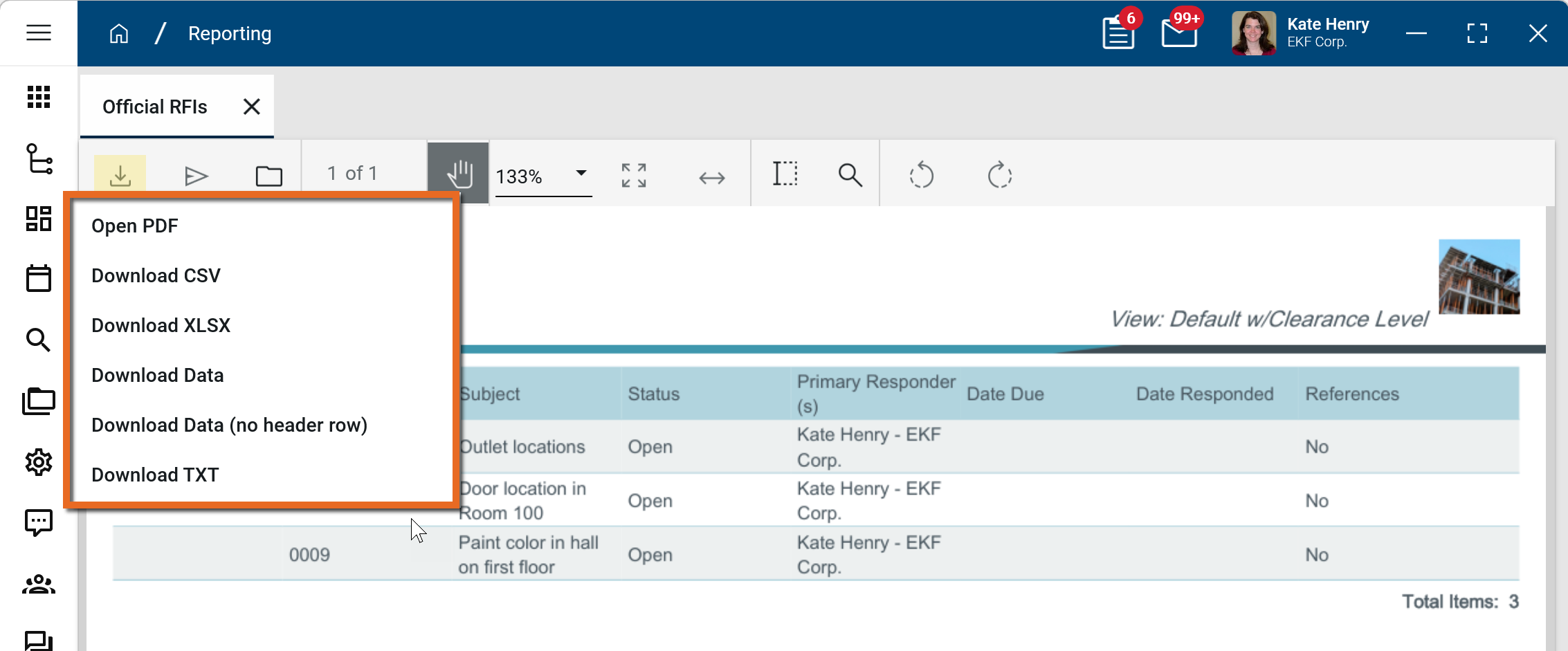
Note If Download Data and Download Data (no header row) options are present, they may be preferable when there is a large amount of data in your report. They bypass the report engine and reduce the chances of a timeout error.
-
To send the report to another Kahua user or group of Kahua users, click the Send icon
 .
. -
To save the report in Kahua, select the Save to Kahua icon
 .
.
Note For information on modifying the logo that appears on reports in your project, refer to Managing report logos.