Viewing files in File Manager
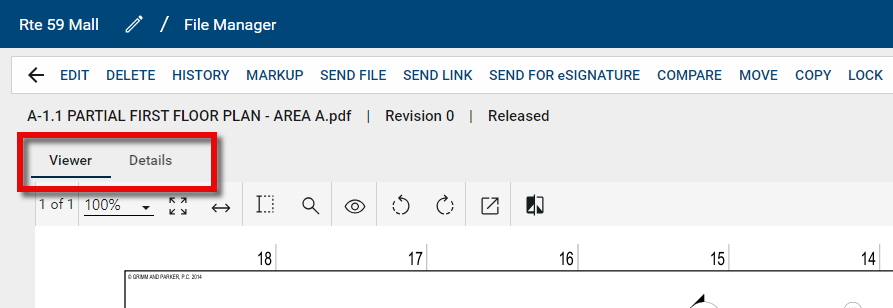
When selecting a file in a folder, the preview view displays two tabs.
-
Viewer – renders the image or document as a PDF and provides options for viewing the image, adding markups, and utilizing the compare feature.
Note For more information on adding markups, refer to Using the Markup Tool.
-
Details – displays the metadata, revision details and status, versions, and references for that file.
The Viewer Toolbar lets you manage your view of the drawing.
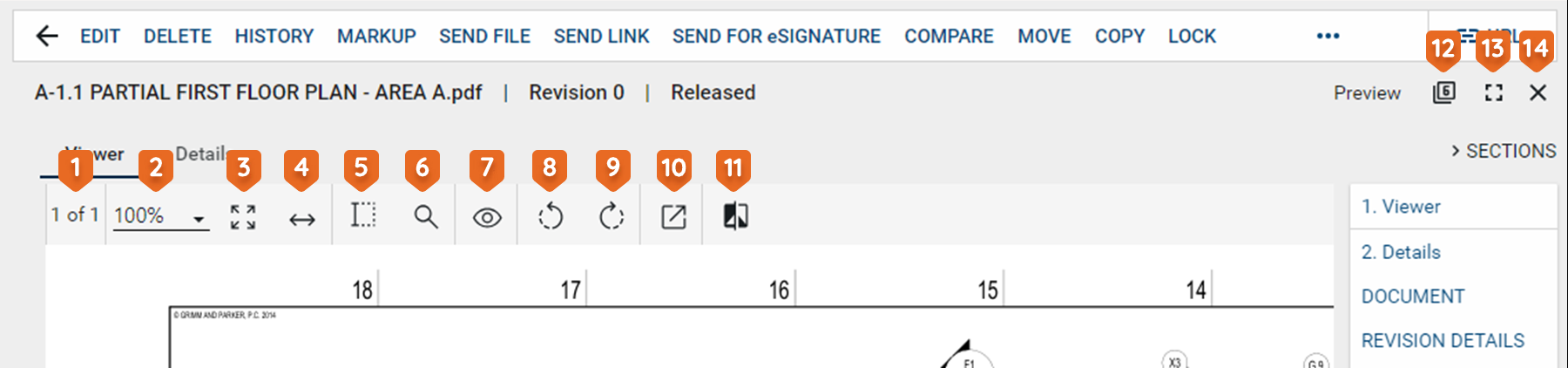
| Tool | Description |
|---|---|
Drag toolbar  |
This option appears when the toolbar is un-docked. Click on it to drag the toolbar to the desired location. |
Text Selection  |
Select this icon to enter text selection mode. In this mode, you can click and drag your mouse to select text on the image. Use Ctrl+C to copy the selected text to your clipboard. Note If you copy multiple items, you can press Windows logo key + V to access those items in your clipboard history. |
Search  |
Opens a text search window. When you enter the search criteria, the total number of search results will appear with the results highlighted in yellow on the page. You can use the arrows to scroll through the results on the image. |
Filter  |
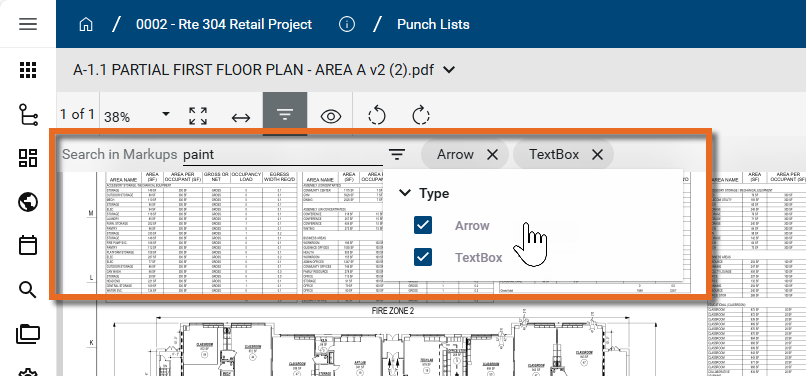
Select the Filter icon to open the search function, allowing you to search for a keyword in any markups on the drawing. You can additionally filter the results for markups of type Arrow or Textbox.
Note If no markups are present, the filter icon is disabled. |
Page # of #  |
Indicates which number page you are on of the total number of pages in the file or drawing. If there are multiple pages in the document file, you can use the arrow keys that appear to navigate through the pages. Additionally, you can click here to open a dialog box that allows you to enter a page number to jump to. Note that you can also use the keyboard shortcut Ctrl+Shift+G to open the dialog box. |
Zoom  |
Shows your current zoom level on the drawing. Select a level from the drop-down list, manually enter a level and press Enter on your keyboard, or use Ctrl + your mouse wheel to zoom in and out from the current cursor location. |
Fit Page  |
Click this icon to fit the file image to the display area. |
Fit Width  |
Click this icon to fit the file image to width of the display area. |
Open File  |
Opens a PDF file in the default browser or uses the default browser to download the PDF version of the file to the local downloads folder. |
Pan mode  |
Click this icon to switch between pan mode and selection / markup mode. In pan mode, clicking and dragging on the image will pan across the image. In selection mode, clicking and dragging on the image will select a section of the image and any markups in that selected area. |
Rotate Counter Clockwise  / Rotate Clockwise / Rotate Clockwise  |
Rotates the image counter-clockwise or clockwise. When done while in markup mode and saved, the rotation is saved with the drawing and will appear rotated to anyone viewing the drawing. |
View  |
Select any of the following options:
|
Compare  |
Opens the Compare Files dialog. Select a second file to compare with this one. To learn more about the Compare feature, refer to Using the Compare feature. |
Dock toolbar  |
Select this option to dock the toolbar outside the viewing pane. This can make it easier to view the whole document. Click the icon again to un-dock the toolbar. |
In addition to the tools listed above, you can use your mouse and your keyboard keys to navigate through the file in the following ways:
-
Click and drag with your mouse to pan through the image.
-
Press the Ctrl key and use your mouse wheel to zoom in and out at the location of the curser.
-
Press Shift and use your mouse wheel to pan left and right.
-
Press Alt and use your mouse wheel to pan up and down.
-
Use the arrow keys to pan left, right, up, and down.
-
Use the Page Up and Page Down keys to scroll through a multi-page document.