Daily Report Automation
Notice Kahua is a very flexible and customizable platform. In your domain, this application may have been modified to meet your company's needs. The online help uses default field labels for field names and describes standard workflows. Please check with your domain administrator for specific information about working in your organization's domain.
In Kahua, Daily Report Automation can be set up on each project after the creation of the project. If automation is set up appropriately, a new Daily Report will be generated on a recurring schedule (often daily). You can also optionally configure an automated task to send the daily report to third parties listed on the Daily Report.
Note For more general information on Daily Reports, refer to Daily Reports.
Key elements to know about this feature include the following:
-
Daily Report Automation is configured at the project level in Configuration > Automation.
-
The script name determines what the automation does (for example, auto-create daily reports vs. auto-send daily reports).
-
The automation runs using the Context User. The script only works for the user set as the Context User, and that user must create an initial Daily Report to start the automation going forward.
-
The scheduled time for the automation is based on Eastern Time (ET) regardless of the time zone your account is set to.
How to . . .
 Set up automated Daily Report creation
To configure an automation to create Daily Reports on a schedule, complete the following steps:
-
Review the header to ensure that you are in the correct project or partition.
-
Navigate to the project where the automation should run.
-
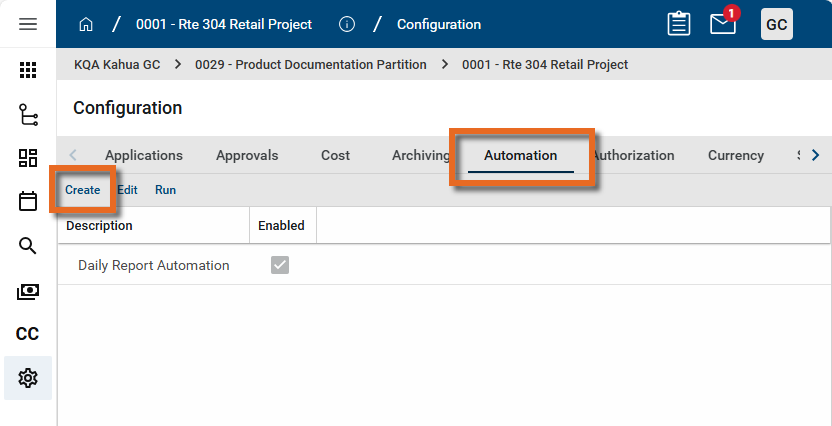
Open Configuration, then select the Automation tab.
-
Click Create.
-
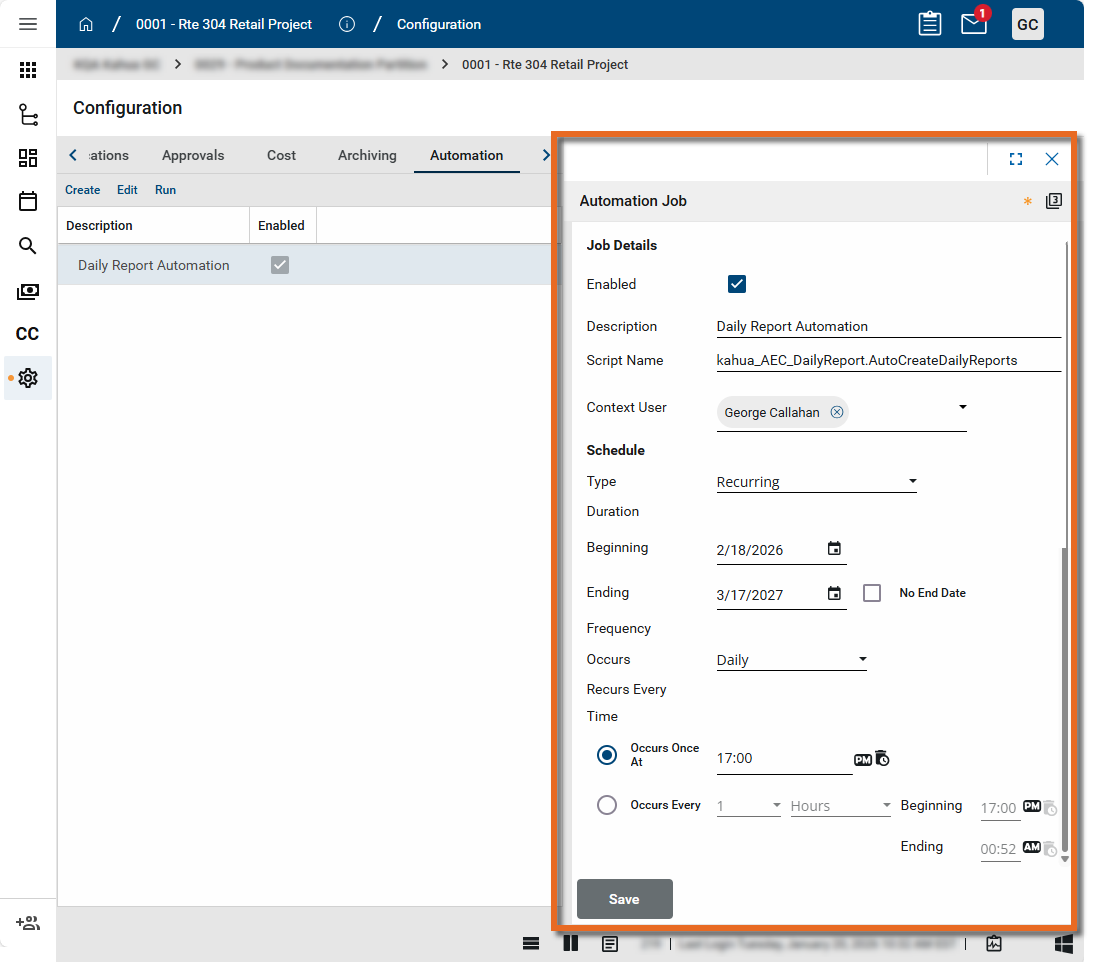
Complete the automation details as follows:
-
Select the option to Enable the automation.
-
Enter a Description (for example, Daily Report Automation).
-
In Script Name, enter:
kahua_AEC_DailyReport.AutoCreateDailyReports
-
In Context User, enter the name of the user who will be the Author of the Daily Report.
Note This script works only for the user entered as the Context User. This allows teams to create multiple automations for different users with different schedules.
-
Set the schedule:
-
Select a Type (typically "Recurring").
-
If Type is set to "Recurring", select the Beginning and Ending date, or choose No End Date.
-
Set the occurrence frequency (commonly daily).
-
If Type is set to "On Time", select the date.
-
Enter the time the automation should run.
Note This time is based on Eastern Time (ET) regardless of your account time zone settings.
-
-
-
Click Save.
-
After saving, the Context User must create a Daily Report in the Daily Report app by selecting New. This starts the automation going forward.
Note If the Context User is unavailable (for example, on vacation), another user can temporarily replace the author name on the Daily Report for that day. The next day, a Daily Report may be generated for both the Context User and the replacement user. If the additional Daily Reports remain blank, they will stop generating after a period of time and can be deleted.
Set up automated Daily Report tasks to third parties
If you need an automated task to send the Daily Report to third parties listed on the Daily Report, complete the following steps:
-
Review the header to ensure that you are in the correct project or partition.
-
Navigate to the project where the automated task should run.
-
Open Configuration, then select the Automation tab.
-
Confirm an automation exists to create the Daily Report (for example, the auto-create script).
-
Click Create to add a second automation.
-
Complete the automation details as follows:
-
Select the option to Enable the automation.
-
Enter a Label/Description (for example, Daily Report Auto Task).
-
In Script Name, enter:
kahua_AEC_DailyReport.AutoSendDailyReports
-
In Context User, enter the name of the user who will be the Author of the Daily Report.
-
Set the schedule time for sending the task.
Note Schedule this after the Daily Report creation automation. The scheduled time is based on Eastern Time (ET).
-
-
Click Save.
-
In the Daily Report app, the Context User must have created at least one Daily Report by selecting New.
-
In that Daily Report, complete the appropriate companies in the Companies section, then submit into workflow (for example, select Send to Sub) to start the automated task going forward.
Understand which fields are not copied by Daily Report Automation
The following fields are not copied over to a new report by Daily Report Automation scripts.
Note Depending on how this app is configured for your domain, there may be fields or sections listed here that do not appear for you, fields and sections that appear for you which are not listed here, or fields and sections which appear in a different order. If you have any questions, check with your domain administrator.
| Field | Description |
|---|---|
| Script: kahua_AEC_DailyReport.AutoCreateDailyReports | |
| PV Template | Not copied to the newly created Daily Report. |
| Incidents | Not copied to the newly created Daily Report. |
| Visitors | Not copied to the newly created Daily Report. |
| Company media | Not copied to the newly created Daily Report. |
| Materials (defined in config/defaults) | Not copied to the newly created Daily Report. |
| Daily Survey | Not copied to the newly created Daily Report. |
| Field observations | Not copied to the newly created Daily Report. |
| Weather notes | Not copied to the newly created Daily Report. |
| Media | Not copied to the newly created Daily Report. |
| Signatures | Not copied to the newly created Daily Report. |
| References | Not copied to the newly created Daily Report. |
| Script: kahua_AEC_DailyReport.AutoCreateDailyReportsNoDetails | |
| Notes | Not copied to the newly created Daily Report. |
| PV Template | Not copied to the newly created Daily Report. |
| Incidents | Not copied to the newly created Daily Report. |
| Visitors | Not copied to the newly created Daily Report. |
| Company media | Not copied to the newly created Daily Report. |
| Company labor | Not copied to the newly created Daily Report. |
| Company non work day | Not copied to the newly created Daily Report. |
| Company Work Locations | Not copied to the newly created Daily Report. |
| Company Work description | Not copied to the newly created Daily Report. |
| Materials (defined in config/defaults) | Not copied to the newly created Daily Report. |
| Internal labor tracking | Not copied to the newly created Daily Report. |
| Daily Survey | Not copied to the newly created Daily Report. |
| Field observations | Not copied to the newly created Daily Report. |
| Weather notes | Not copied to the newly created Daily Report. |
| Media | Not copied to the newly created Daily Report. |
| Signatures | Not copied to the newly created Daily Report. |
| References | Not copied to the newly created Daily Report. |
| Script: kahua_AEC_DailyReport.AutoCreateCleanLaborDailyReports | |
| Notes | Not copied to the newly created Daily Report. |
| PV Template | Not copied to the newly created Daily Report. |
| Incidents | Not copied to the newly created Daily Report. |
| Visitors | Not copied to the newly created Daily Report. |
| Company media | Not copied to the newly created Daily Report. |
| Company labor | Not copied to the newly created Daily Report. |
| Company non work day | Not copied to the newly created Daily Report. |
| Company Work Locations | Not copied to the newly created Daily Report. |
| Company Work description | Not copied to the newly created Daily Report. |
| Materials (defined in config/defaults) | Not copied to the newly created Daily Report. |
| Internal labor tracking | Not copied to the newly created Daily Report. |
| Daily Survey | Not copied to the newly created Daily Report. |
| Field observations | Not copied to the newly created Daily Report. |
| Weather notes | Not copied to the newly created Daily Report. |
| Media | Not copied to the newly created Daily Report. |
| Signatures | Not copied to the newly created Daily Report. |
| References | Not copied to the newly created Daily Report. |