Create an approval document
An approval document is a combination of supporting files in a single PDF document that can be routed through an approval workflow. Depending on how approvals are set up in your project, you may be required to create one as part of the approval process in an application.
Note For more information on setting up approvals, refer to Approval configuration.
To create an approval document, complete the following steps:
-
Review the header to ensure that you are in the correct project or partition.
-
Navigate to the application.
-
Select the appropriate record to open it in the detail pane and click Edit.
-
In the References section, select Add Approval Doc. You may need to click the More icon
 to access the option.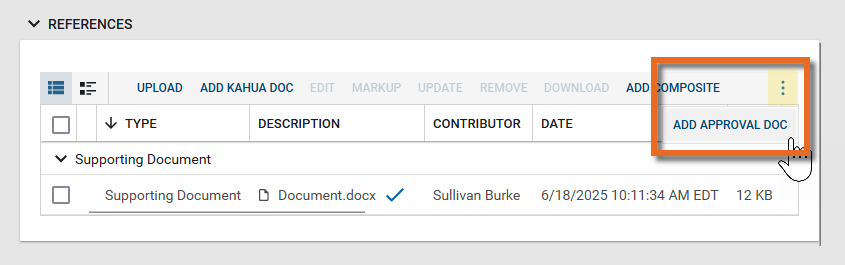
-
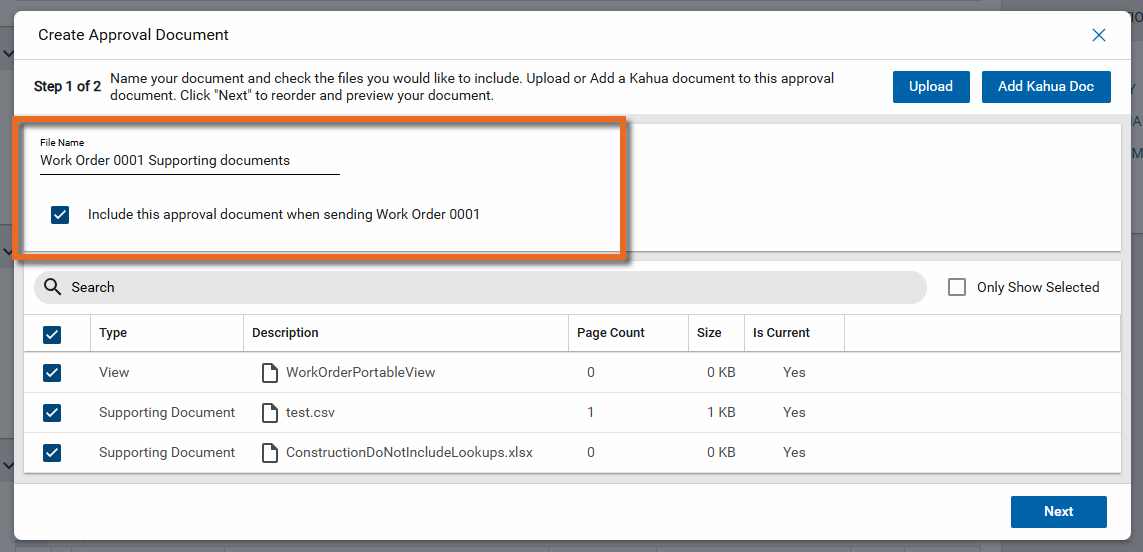
The Create Approval Document dialog appears. Enter a name for the resulting file. This is the name that will appear on the document as it routes through the approval process. Consider including information that identifies the original record, such as the item number and name. To include this approval document when routing the record for approval, select Include this approval document when sending . . . .
-
The file list includes the portable view of the record with the type "View". This is a summary PDF of the original record.
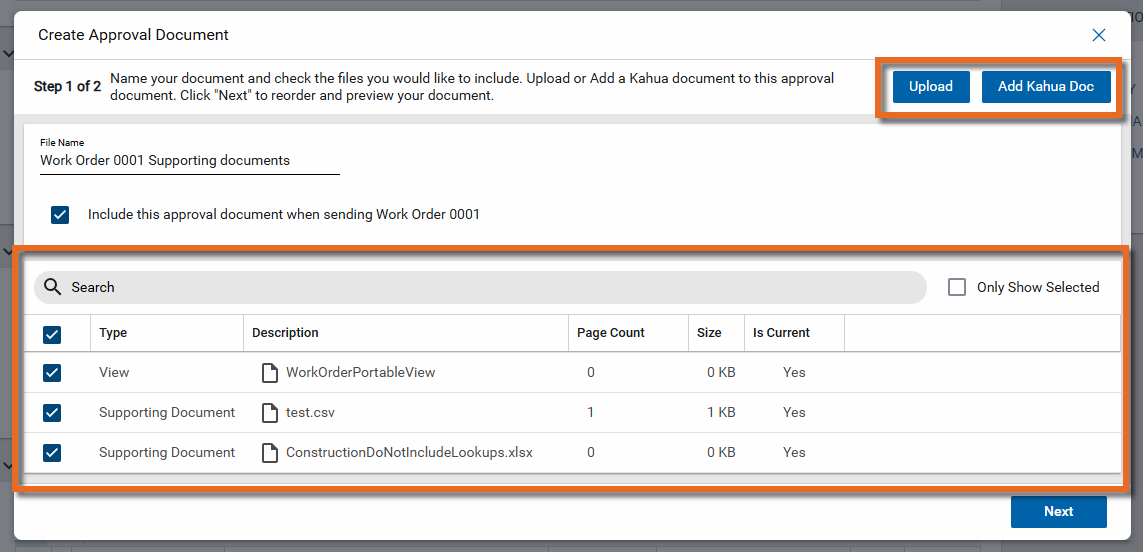
Any additional reference files from the record also appear. You can add additional files from your computer by selecting Upload, or select Add Kahua Doc to add existing documents from the File Manager app.
-
Select the files to include in the approval doc by clicking the check box next to the appropriate files. To only include the original document, select the "View" file.
Important Your organization may require specific documents be included in an approval document for records from this application. Refer to your organization's policies to determine what records to include.
-
Click Next when you have added all the appropriate files. You must enter a File Name and select at least one file to move to the next step.
-
In this next step, you can re-order documents by selecting the grabber icon
 next to an item and dragging it to the appropriate location. You can also select Move to Top or Move to Bottom, or use the
  icons. Click Remove to remove a file.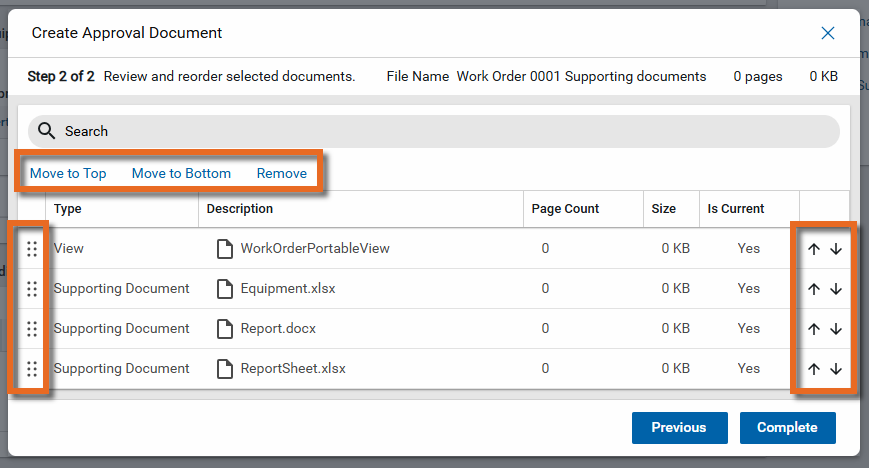
-
Once you are satisfied with the order of the included documents, click Complete. The new document with the assigned file name appears in the record's References section under the Approval Document grouping.
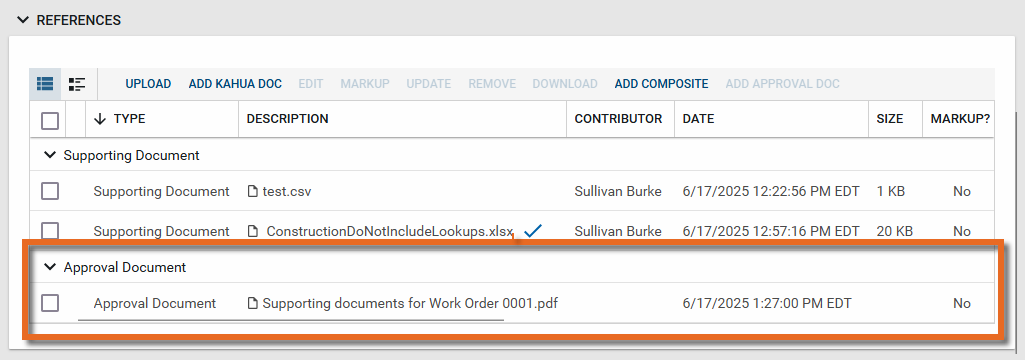
Important The approval document is included in the approval workflow if Use Approval Document is selected in the Approval configuration. If that option is not selected, the standard portable view of the record will be used in the approval process. Refer to Use Approval Document.