Multi-Currency Configuration
Applicable Packages This article applies to the Kahua for K-12 Education, Kahua for Owners, Kahua for General Contractors, and Kahua for Subcontractors packages. If you are not sure if this is relevant to you, please contact your domain administrator.
You can use multiple currencies in your Kahua domain, and manage them in projects and partitions.
Key things to know about configuring currencies in your domain include the following:
-
You can select a default currency for your domain.
-
You can add multiple additional currencies to your domain. Currencies must be added at the root domain level to be available for projects and partitions lower in the hierarchy.
-
You can select different default currencies at the partition or project level.
-
You can set up different rate types and different exchange rates for different rate types.
-
Your domain comes with an initial rate type. This initial rate type is used as the baseline rate. On the Rates tab, you can establish the baseline exchange rates using that rate type. This rate type cannot be deleted, but its name can be edited on the Rate Types tab.
-
Once cost documents are created in a project or partition using a currency, the baseline exchange rates for that currency cannot be modified.
-
Users who are not domain administrators can be granted the ability to manage Currency settings by being a member of a group with that permission. In the Groups application > Group name > Permissions tab > Configuration section, select the Currency Administrator permission. Refer to Manage permissions for a group.
How to . . .
 Add a currency to your domain
To make a currency available to a project or program, it must first be added at the root domain level.
To add a currency to your domain, complete the following steps:
-
Review the header to ensure that you are in the root domain.
-
Navigate to the Configuration application (Apps > Administration > Configuration).
-
Select the Currency tab, then the Rates sub-tab.
-
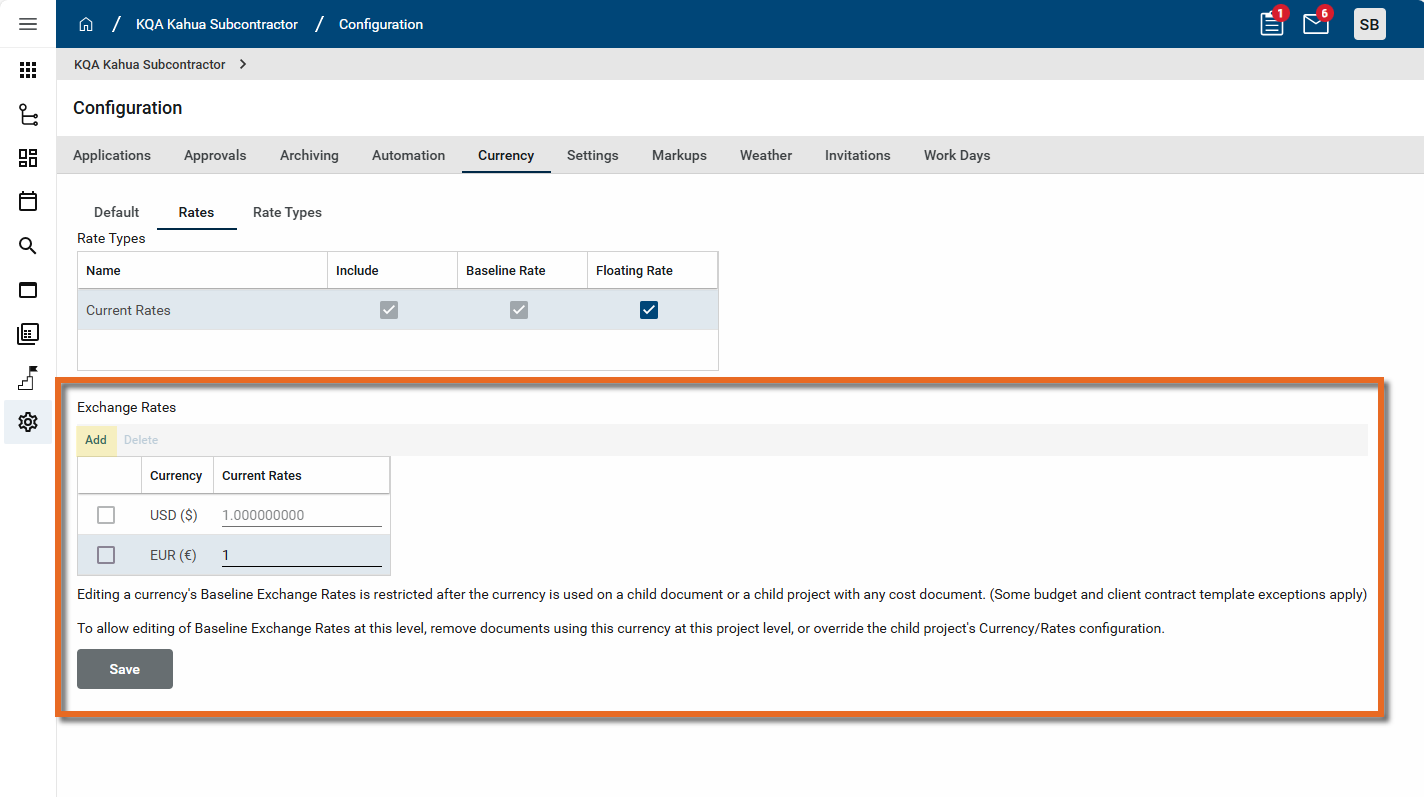
In the Exchange Rates section, click Add.
-
Select the appropriate currency from the list. Once selected, the Currency Code, Symbol, and Precision (the number of digits placed after the decimal point, used in currency transactions) values appear.
-
Click Ok to save your selection.
-
Repeat as needed. Click Save when you are done. The new currency is now available to all projects and partitions in the domain.
Note To remove a currency, select the check box next to the currency name and click Delete.
Create a rate type
You can create as many rate types as you need. Rate types can only be added at the root domain level.
Important Your domain comes with an initial rate type. This initial rate type is used as the baseline rate. This rate type cannot be deleted, but its name can be edited on the Rate Types tab.
Rate types are added on the Rate Type sub-tab. They are configured on the Rates sub-tab. The configuration can be overridden at the project or partition level.
To create a new rate type, complete the following steps:
-
Review the header to ensure that you are in the root domain.
-
Navigate to the Configuration application (Apps > Administration > Configuration).
-
Select the Currency tab, then the Rate Types sub-tab.
-
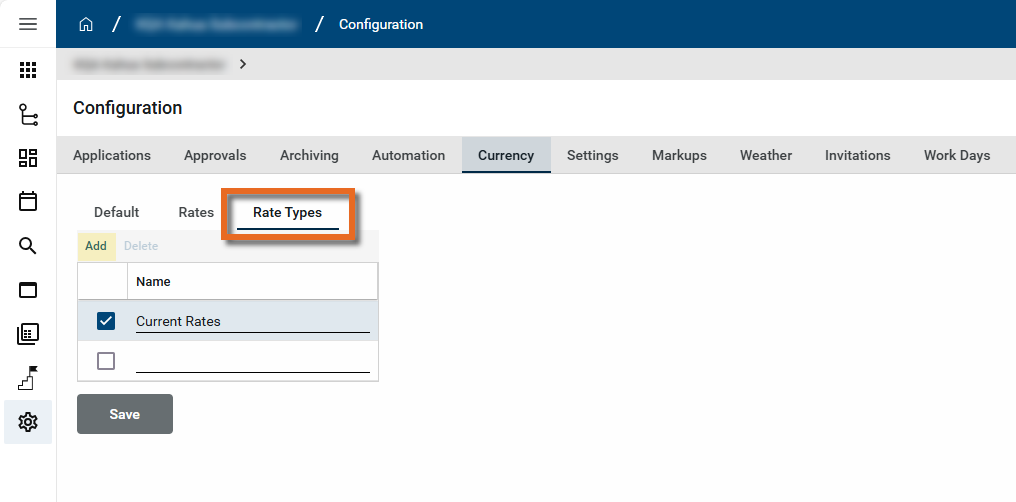
Click Add to add a new line to the Rate Types table.
-
Enter the name of the new rate type.
-
Click Save. The rate type is saved and can now be configured on the Rates sub-tab at the root domain or at a lower project or partition level.
Note You must close and re-open the Configuration app for the new rate type to appear on the Rates sub-tab.
Select a default currency for a project or partition
Once a currency has been added at the domain level, it is available for selection as the default currency at project and partition levels. For information on adding a currency at the domain level, refer to Add a currency to your domain.
To select a new default currency for a project or partition, complete the following steps:
-
Review the header to ensure that you are in the correct project or partition.
-
Navigate to the Configuration application (Apps > Administration > Configuration).
-
Select the Currency tab, then the Default sub-tab.
-
Select Override.
-
In the Default Currency field, select the appropriate currency.
Note Only currencies that were added at the domain level appear here. For information on adding a currency at the domain level, refer to Add a currency to your domain.
-
Click Save when you are done.
Add or edit a currency on a project or partition
Note Currencies must first be added at the root domain level to be available for selection on a project or partition. Refer to Add a currency to your domain.
At the project or partition level, you can add or delete currencies, establish baseline exchange rates, and manage exchange rates for other rate types.
To manage currencies in a project or partition, complete the following steps:
-
Review the header to ensure that you are in the correct project or partition.
-
Navigate to the Configuration application (Apps > Administration > Configuration).
-
Select the Currency tab, then the Rates sub-tab.
-
Select Override and navigate to the Exchange Rates section.
-
To add a currency, click Add.
-
To add a currency, click Add. Select the appropriate currency from the list of currencies established at the root domain level. Once selected, the Currency Code, Symbol, and Precision (the number of digits placed after the decimal point, used in currency transactions) values appear. Click Ok to save your selection.
-
To remove a currency, select the check box next to the currency name and click Delete.
-
To modify the exchange rate, enter the appropriate values in the appropriate rate columns. The first column is the baseline exchange rate.
Important The baseline rate for a currency in a partition is locked when a cost document using that currency is created.
-
When you are done, click Save to save your changes.
Implement the Baseline Rate method
The Kahua for K-12 Education, Kahua for Owners, Kahua for General Contractors, and Kahua for Subcontractors packages use the Baseline Rate method. This approach leverages the idea that a project’s budget is set up assuming certain exchange rates. Those rates are used for all day-to-day project cost management to simplify working with different types of numbers such as commitments, budgets, and actuals.
Note Baseline exchange rates are locked once any document is created using that currency within the current partition, or a child partition inheriting that same Rate Type configuration.
Important When a project is set up, the Configuration app > Currency tab > Rates sub-tab should be set to Override before any cost documents are created. If it is not, you will be unable to edit baseline rates at the domain or program level once cost documents are created in the project.
Kahua provides tools to capture, forecast, and review the gains and/or losses due to exchange rate movement. You can then decide how you want to account for these gains and losses as needed.
To implement this method, make the following modifications to the currency configuration:
-
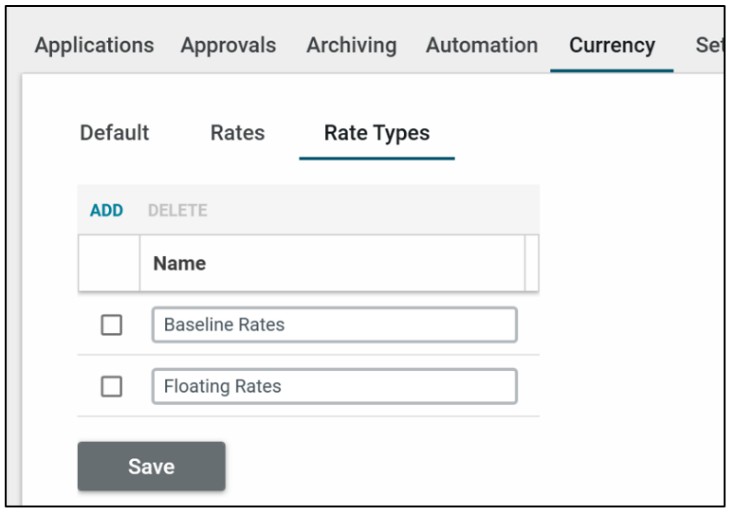
From the root domain, navigate to the Configuration app > Currency tab > Rate Types sub-tab and rename "Current Rates" to "Baseline Rates".
-
Add a new rate type called "Floating Rate". For more information on this step, refer to Create a rate type.
-
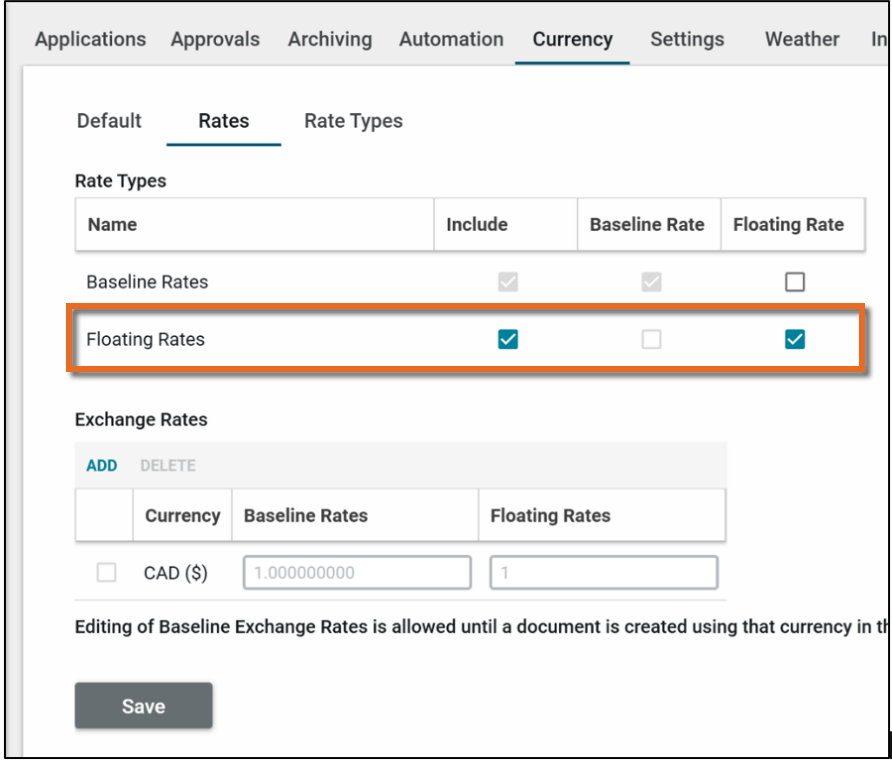
On the Rates sub-tab, navigate to the Rate Types grid. For the newly created "Floating Rates" rate type, select the check boxes for the Include and Floating Rate columns.
-
When creating a new project, select Override on the Configuration app > Currency tab > Rates sub-tab to prevent cost documents in the new project from preventing baseline rates being editable in the parent project or partition.
Note This may not be necessary if the newly created project is part of a program where you want the baseline exchange rates to be used in the child projects and not be editable.
With this method, floating rates are used in the following two locations:
-
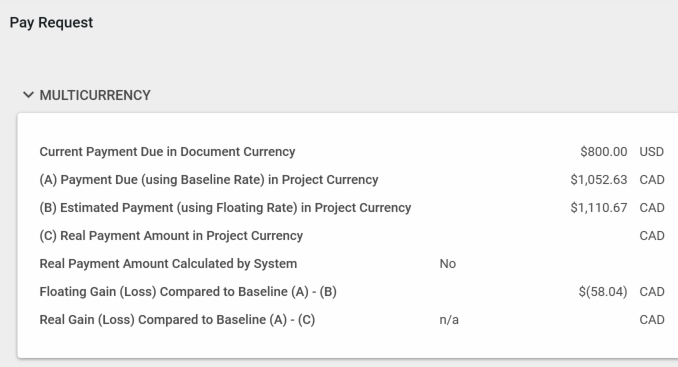
The Multicurrency section on pay applications, pay requests, and invoices when the contract is a different currency than the project.
-
The floating rate is used to calculate the Estimated Payment in project currency, allowing you to estimate the Floating Gain (loss) for the payment document. As the floating rate changes, the estimated payment changes until the user (or system) enters a Real Payment Amount in the system.
-
The floating rate provides the default value for Real Payment Amount with payment document is set to "Paid", but only if the Real Payment Amount is empty.
-
-
Forecasting gains or losses for all the yet-to-be-locked in spending in another currency. This includes unpaid payment documents, un-invoiced commitments, and open budget amounts in that currency not yet committed. These appear in the gains (loss) reports.
Note Floating rates should be updated regularly as part of the overall cost reporting process. There are no restrictions on editing floating rates.
Manage exchange rate gains and losses
When buying work in different currencies, rate fluctuation may impact the real cost of buying that work compared to baseline rates used on the projects.
To reflect that difference in a Kahua project, you can treat it the same as any charge on the project. Create appropriate WBS and activity codes and charge the project using existing cost documents. For example, you can create a contract then ‘charge’ the project each month with a simple change order to reflect the real gains/ losses.
Where does this gain/ loss information come from? Frequently, your corporate accounting system can tell you the information you need. If integrations are in place, some automation may be available.
If you capture the Real Payment costs for payment documents, the system will calculate the real gain or loss per document when it is paid.
Note If the floating rates are updated regularly, then each time a payment document is marked Paid, the system will log the Real Payment amount for you, simplifying the gain (loss) process.
To calculate the forecasted gain or loss for everything not-yet-paid, you can estimate the total planned spending in that currency, subtract value of the payment documents already created, and multiply by the difference between the baseline rate and floating rate.