Scheduling Reports
Built-in reports, custom reports, and log view reports can be scheduled to run on a set frequency over a specified date range.
Note For information on building custom reports with the report wizard, refer to Creating ad hoc reports.
Important things to know about scheduled reports include the following:
-
You can manage scheduled reports from the Report Manager app, or directly from the app that contains the report or log view you want to schedule.
-
Depending on the report, it can be generated as a PDF, Excel, CSV, or TXT file.
-
Reports can be sent to individual Kahua contacts, Kahua groups, or outside email addresses.
-
Reports can be sent as a link or a separate file.
-
Reports are also stored in a designated folder in File Manager.
-
Filters can be applied to scheduled built-in and custom reports. They cannot be applied to scheduled log view reports.
-
You can have multiple schedules applied to the same report.
How to . . .
 Schedule a report
To set up a schedule for a built-in report, custom report, or log view report, complete the following steps:
-
Ensure you are in the project where you want to schedule the report. Scheduled reports can only be run against the project where they were scheduled. You cannot schedule reports to include multiple projects.
-
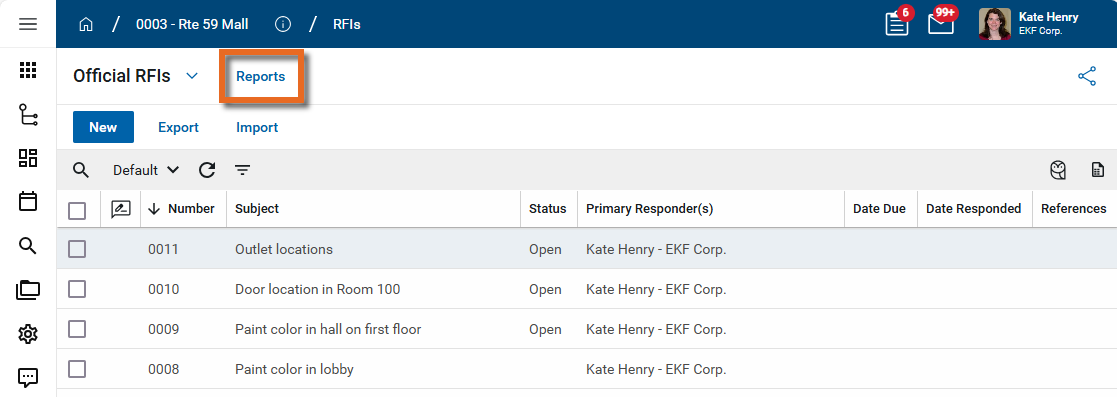
Open the application where you want to schedule the report and select Reports in the application title bar.
Alternatively, you can manage scheduled reports from the Report Manager application. Navigate to Apps > Administration > Report Manager application. Under Applications, select the application for which you want to schedule a report.
-
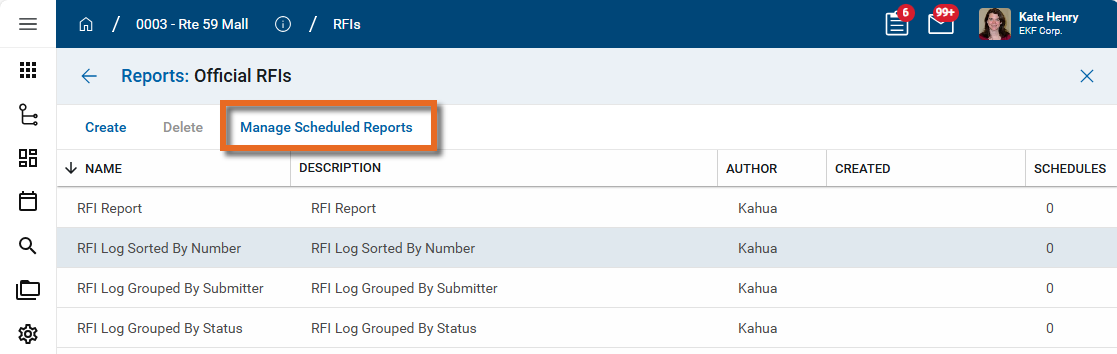
Select Manage Scheduled Reports in the action bar. The Manage Scheduled Reports window appears.
-
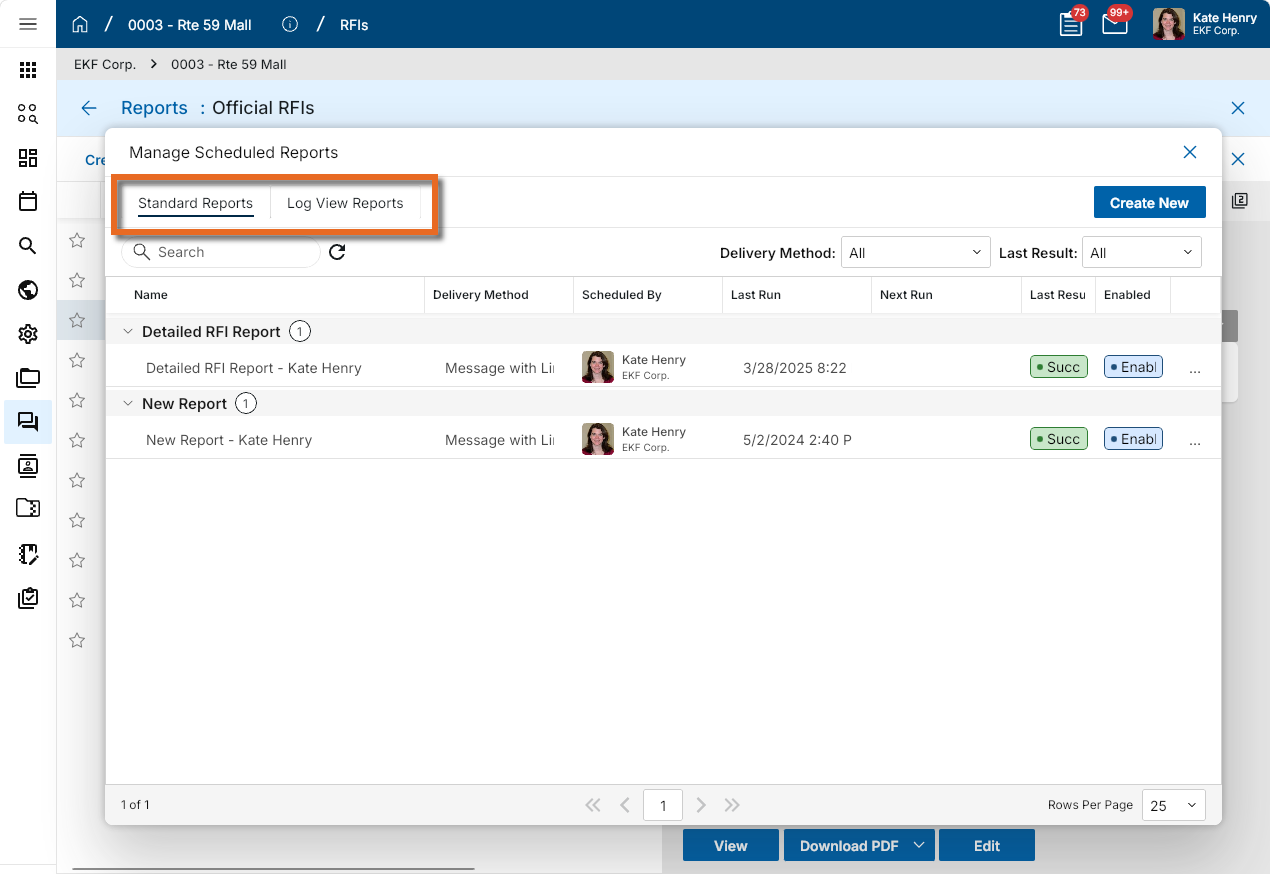
The Manage Scheduled Reports window appears. There are two tabs to choose from. Make the appropriate selection from the following options:
-
Standard Reports - These are built-in reports and any custom reports created for the app. For more information on creating your own reports, refer to Creating ad hoc reports.
-
Log View Reports - These are the available log views from the app. For more information on managing log views, refer to Log Views and Log Reporting.
-
-
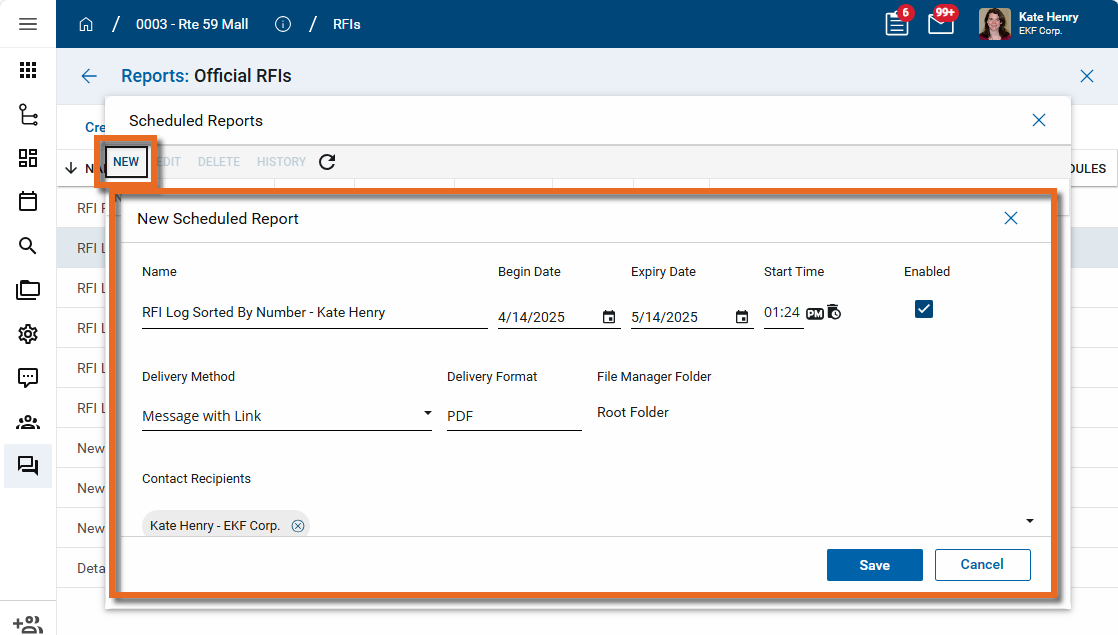
Click Create New to create a new scheduled report a standard or log view report.
-
Complete the following fields:
Field Description Report Name / Log View Name
Select the report or log view you want to use for the scheduled report.
Name Enter a name for the report. By default, the report name or log view name is used with your user name appended.
Begin Date, Expiry Date, Start Time
Enter the date range the report should be run and the time it should be run.
Enabled Select this check box to enable the scheduled report to run.
File Naming Configuration Use this section to configure the filename of the scheduled report output.
-
Specify Explicit Filename - If desired, select this option and enter a name to be used for the scheduled report output. If no value is entered, the report name will be used.
-
Append Current Date - Enable this option to append the date the report was run to the filename. Select a format for the appended date from the drop-down list.
You can review the results of your selections in the Example Filename field.
Delivery Method Select the appropriate delivery method:
-
Message with Attached File - Select this option to have the report sent as an attachment to the message.
-
Message with Link - Select this option to have the report stored in File Manager and the message include an anonymous file link from the stored report file. Click Select to select a folder other than the default of "Root Folder".
Note When sent as a link, there is only one file stored in File Manager. When the scheduled report is run, that new report becomes the current version and the older report is stored as a previous version of the same file.
Delivery Format Select the delivery format, e.g., PDF, Excel, CSV, or TXT.
Contact Recipients Select the combination of Contacts and Groups who should receive this report.
Email Recipients Enter any additional email addresses that should receive this report. Use semicolons to separate the email addresses.
Frequency, Recurrence Select the report appropriate report frequency and recurrence.
Filter Criteria Enter the appropriate filter or filters to be applied each time the report is generated.
Select Add Condition to add a filter. Select Add Group to add a set of filters that function together.
Note This option is not available for log view reports.
-
-
Click Save to save the scheduled report.
-
Click the Close icon
 to close the Scheduled Reports page.
Edit a previously scheduled report
You can edit your own previously scheduled reports. To edit a scheduled report created by another user, you must have Administrator permissions for the application associated with the report.
To edit a previously scheduled report, complete the following steps:
-
Ensure you are in the project where the report was scheduled.
-
Open the application for the report and select Reports in the application title bar to open the Reports view.
Alternatively, navigate to Apps > Administration > Report Manager application. Under Applications, select the application for which you want to manage scheduled reports.
-
Select Manage Scheduled Reports in the action bar. The Manage Scheduled Reports window appears.
-
On the scheduled report that you want to modify, click the More icon
 in the last column and select Edit.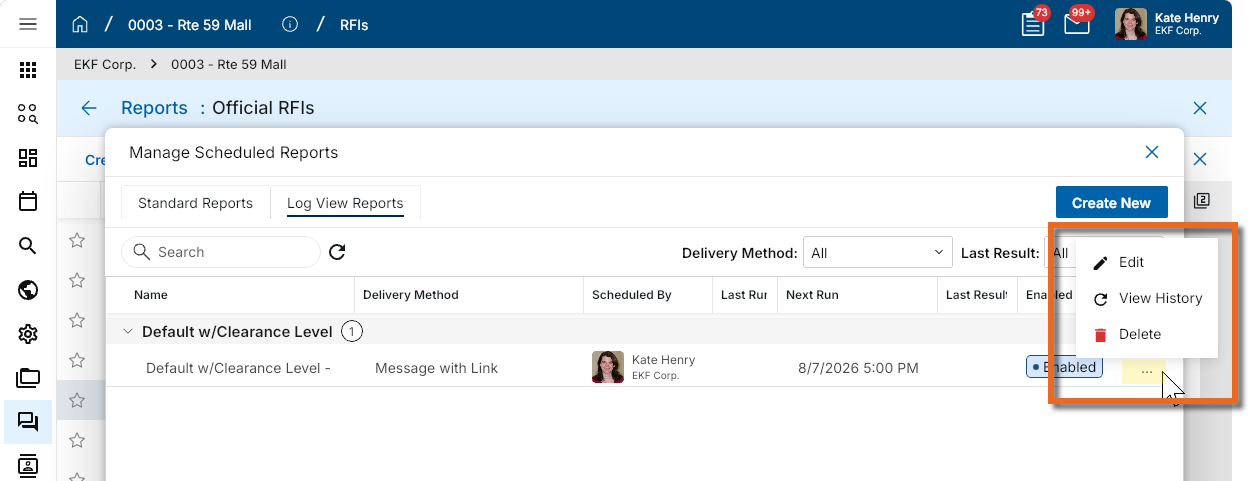
-
Make your modifications. Refer to Schedule a report for field descriptions.
-
Click Save when you are done and to return to the Scheduled Reports page.
-
To view information on when the report was run, click the More icon
in the last column again and select History.To delete the report schedule, select Delete.
-
Click the Close icon
to close the Scheduled Reports page.