Connecting the Kahua data store API to Power BI
Connecting data store API to Power BI
This guide shows the user how to connect the Kahua data store API endpoint to a Power BI file in order to load and refresh data.
Setting up Postman
- Log in to Postman - create a new collection and add a new request
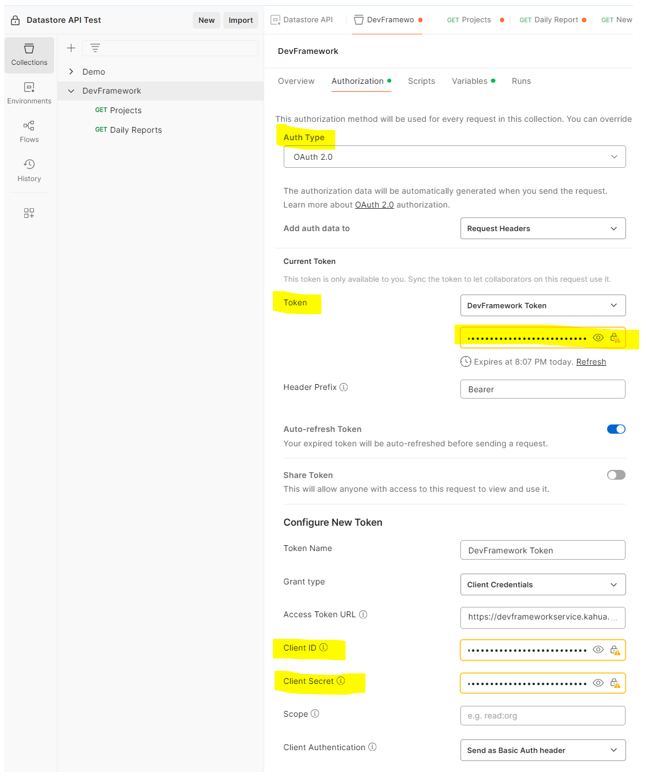
- Click on the Authorization tab of your collection
- Choose OAuth 2.0 and navigate to Kahua to obtain your client ID and client secret (More information about Kahua API authentication Kahua API Authentication)
- Enter in that information and click on Get New Access Token at bottom of the screen
- Create your bearer token and save it to your clipboard
Connecting the data store API as a data source in Power BI
-
Open a new file in Power BI
-
Click on Transform Data to open the Power Query Editor
-
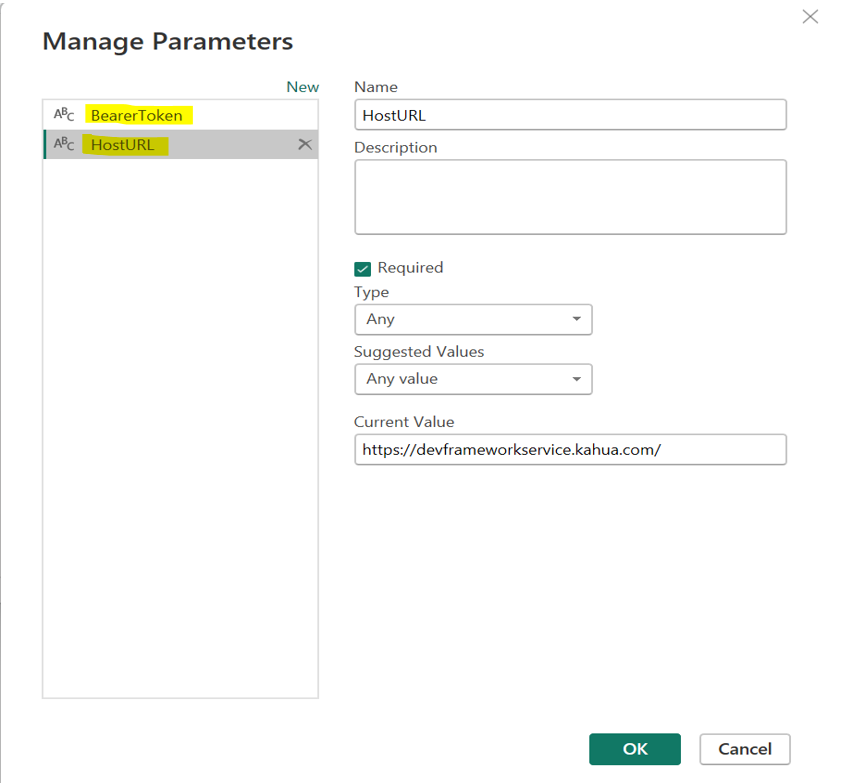
Click on Manage Parameters and add two parameters: one for the Host URL (named HostURL) and one for the bearer token (named BearerToken)
-
Click on New Source and choose Blank Query.
-
Click on the Advanced Editor.
-
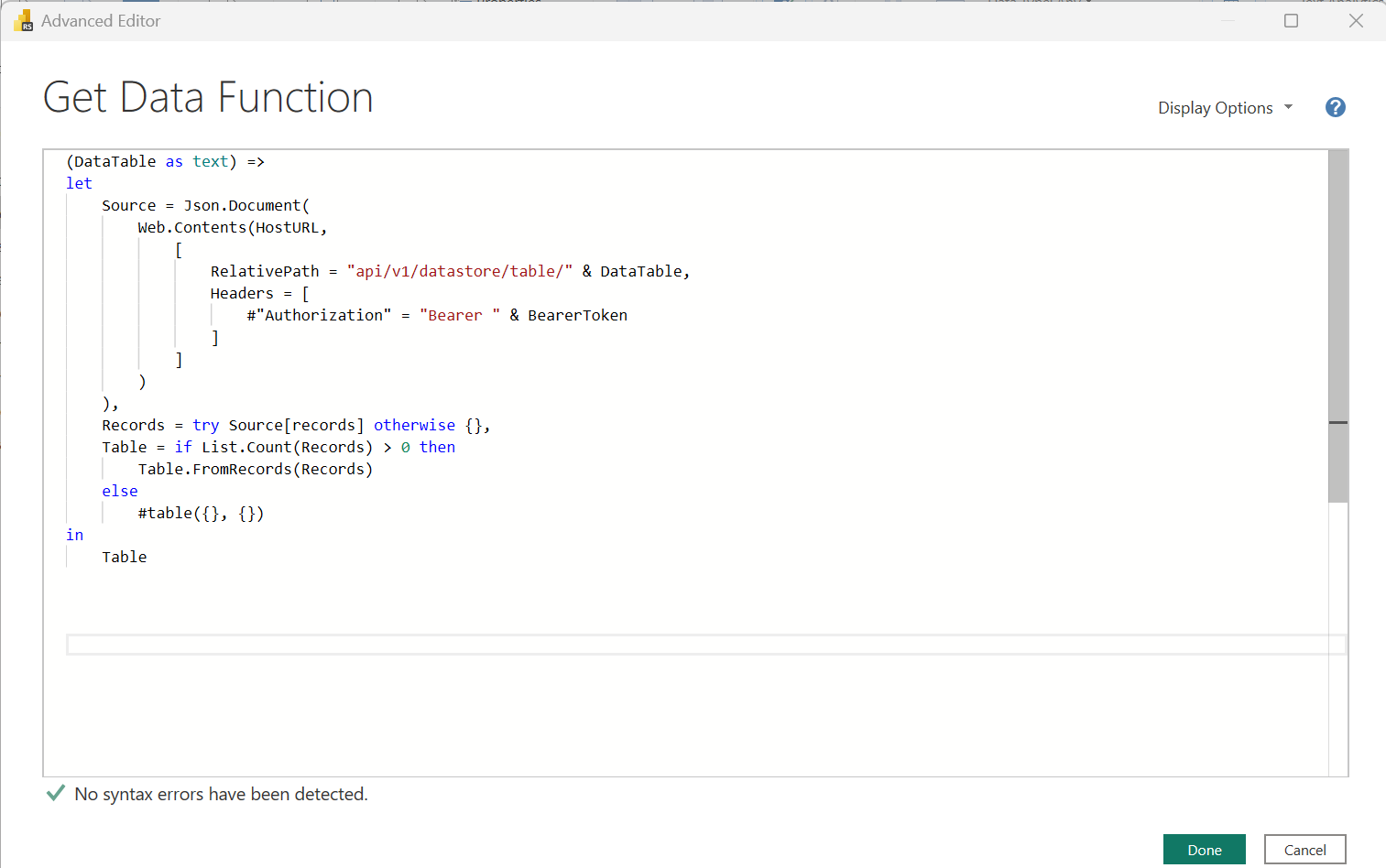
Copy and paste the following:
Copy(DataTable as text) =>
let
PageSize = 1000,
// Function to fetch a single page
GetPage = (Offset as number) =>
let
Response = Json.Document(
Web.Contents(HostURL,
[
RelativePath = "api/v1/datastore/table/" & DataTable,
Query = [
offset = Text.From(Offset),
limit = Text.From(PageSize)
],
Headers = [
#"Authorization" = "Bearer " & BearerToken,
#"Accept" = "application/json"
]
]
)
),
Records = try Response[records] otherwise {}
in
Records,
// Function to get all pages
GetAllPages = List.Generate(
() => [Offset = 0, Data = GetPage(0)],
each List.Count([Data]) > 0,
each [
Offset = [Offset] + PageSize,
Data = GetPage([Offset] + PageSize)
],
each [Data]
),
// Flatten all record lists into one
AllRecords = List.Combine(GetAllPages),
// Convert to table
Table = if List.Count(AllRecords) > 0 then
Table.FromRecords(AllRecords)
else
#table({}, {})
in
Table -
Click on your new query (shown as a function) and enter in the app_name/entity_name. Information about where to find app and entity names can be found here
It should look like the following
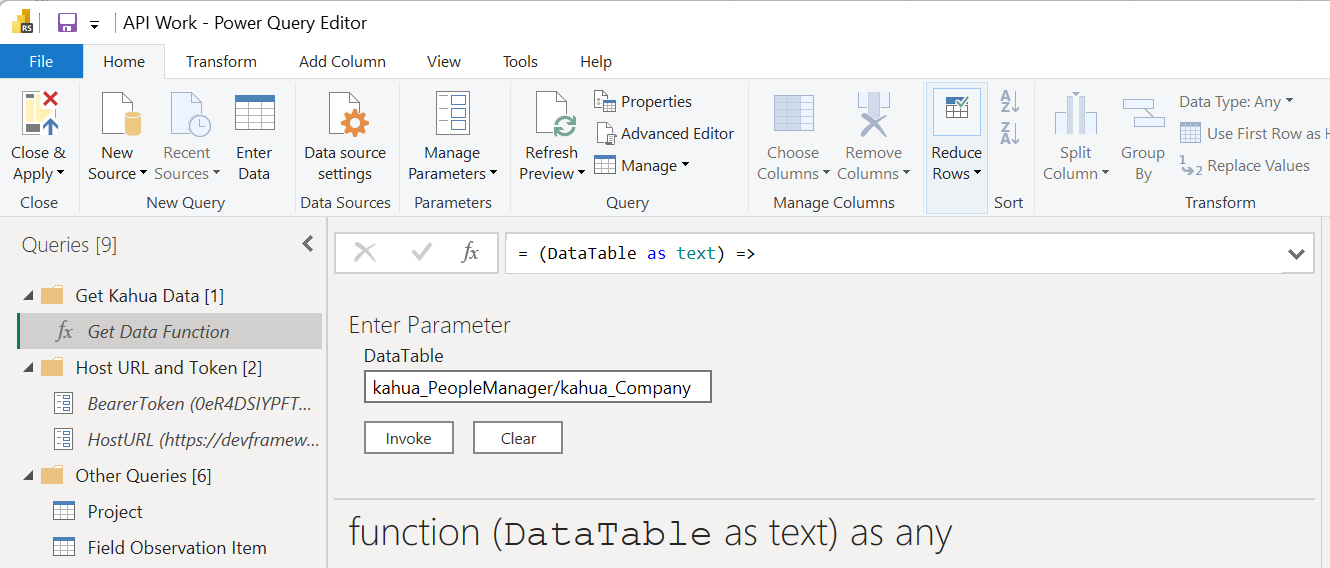
- Click Invoke to create your new query
- Rename your new data table
Troubleshooting Tips
-
Attempt to run your API call in Postman and see which HTTP Status call appears. More information can be found here
-
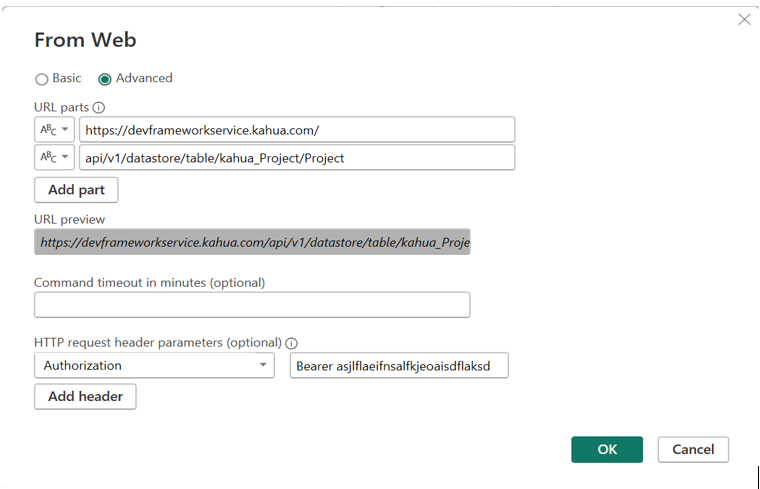
If your query runs successfully, but there are no records in your query, click on New Source and choose the Web Option. Click on Advanced and enter in your Host URL, Endpoint, and Bearer Token in the format shown below.