Search app
Kahua provides a global search application to allow you to search across your domain or within a specific project. The system will search both records and uploaded content.
Note To perform a search for a record or set of records within a single application in a single project, you can use the log view search. Log view searches allow you to search for a word or phrase, or a value in a field. For more information on log view searches, refer to Search in a log view.
Important things to know about the Search app include the following:
-
You can select one or more projects to include in your search. You can leave the Projects selection field blank to search the whole domain.
-
You can select one or more apps to include in your search. You can leave the Apps selection field blank to search all applications.
-
You can search by keyword or partial keyword.
-
You can filter your search results by when the records were created and by whom.
-
The search follows your permissions. Results will only include records your user profile has access to.
-
Your Messages and Tasks apps are not included in the search, as the content in these apps is personal to you and not available to other users. You can use a log view search to search those applications. Refer to Search in a log view.
How to . . .
 Use the Search application
To search for a word or phrase using the Search app, complete the following steps:
-
Navigate to the Search application. If it is not already in your launch bar, navigate to Apps > All Apps > Search.
-
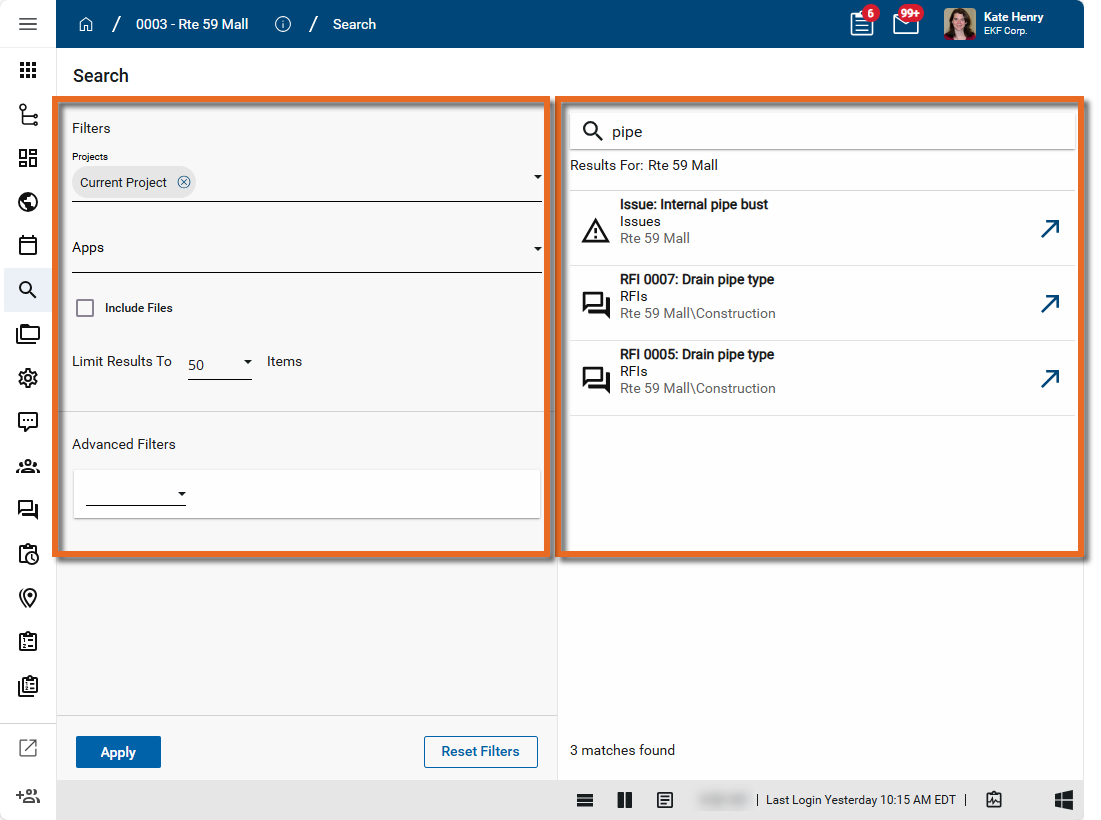
The search page opens. The filters appear on the left panel, the results are on the right panel.
-
Complete the following fields:
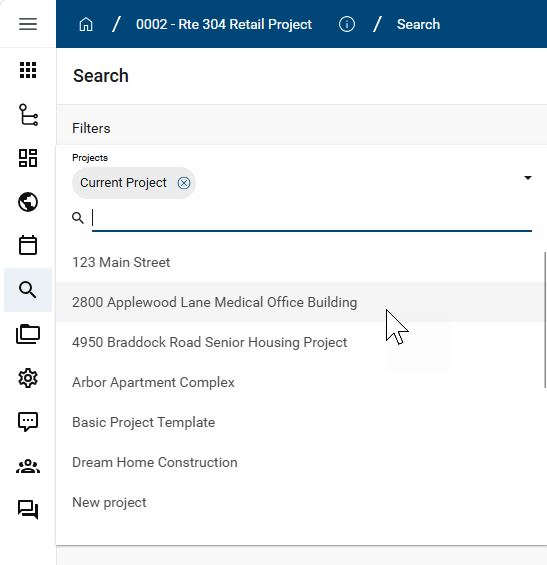
Field Description Projects By default, the Projects field includes the current project. You can clear this selection to search the whole domain, or click the drop-down icon to add more projects to include in the search.
You can search the Projects list by entering a keyword or partial keyword.
Apps Click the drop-down menu to select apps to include in the search. You can search the apps list by entering a keyword or partial keyword.
Leave this field blank to search all apps.
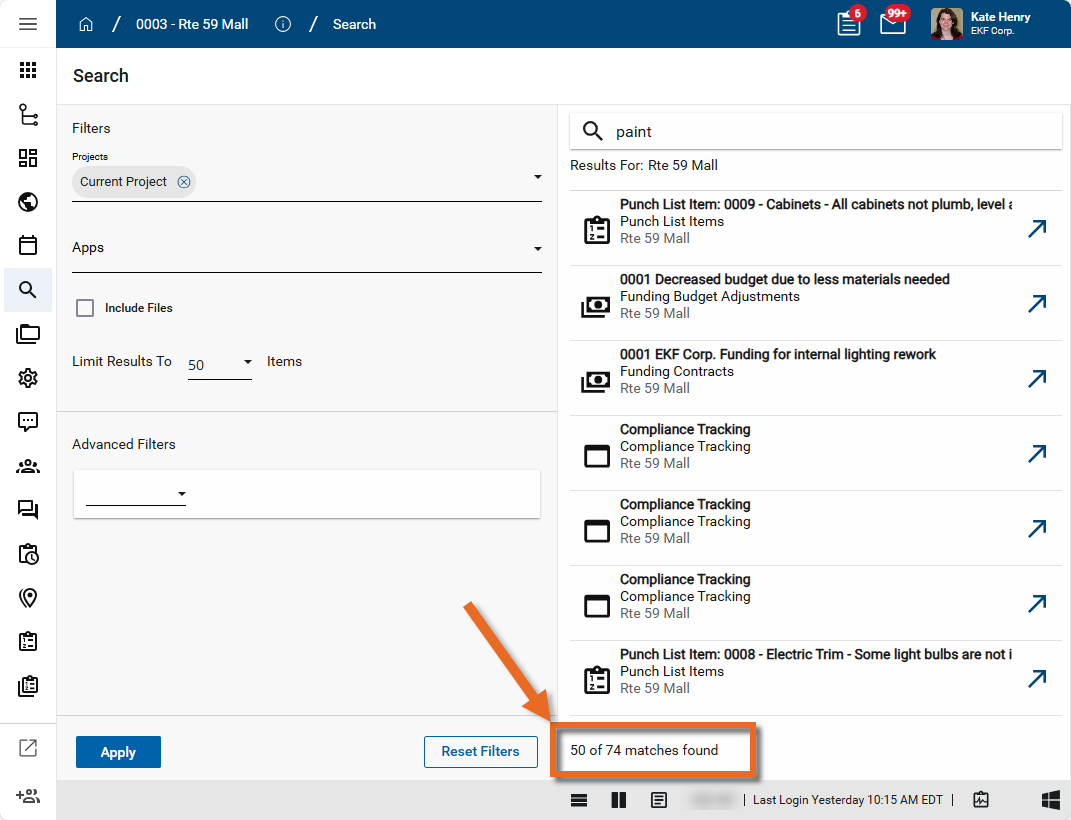
Include Files Select this option to include file attachments in the search. Refer to Supported file formats for searching. Limit Results Select the number of search results to return. The default value is 50. The remaining options are 250 and 500.
Note While the results that appear in the list is limited to this number, the total number of matches appears at the bottom of the results list. For example, if the Limit Results value selected is 50, but the number of matches is 74, the first 50 records appear in the results list and "50 of 74 matches found" appears at the bottom of the list.
Advanced Filters Use this section to apply additional filters to the search results.
Important You must also enter a search term to run the search. These filters are applied to the results from the search for the entered search term.
To add one or more filters to your search results, complete the following steps:
-
From the drop-down menu menu, select Created By or Created On.
-
Created By - Use this filter to find records created by a specific user. Select a condition from the next drop-down. The most appropriate conditions to use are "Contains" or "Equals". If you select "Equals", the value entered must exactly match the first and last name of the user searched for.
-
Created On - Use this filter to find records by the created date. Select a condition from the next drop-down. The most appropriate conditions to use are "After", "Before", or a combination of the two. The "After" condition includes the specified date, while the "Before" condition does not. You can search for a specific date or an offset of today's date by a specified number of days, weeks, months, or years.
-
Specific Date - Enter the date manually or use the calendar selector
 .
. -
Current Date / Offset - Select Day, Week, Month, or Year and the offset value. In the example below, the filter would look for any records created after Today's Date minus three Days.

Note Due to the manner in which date and time values are stored in created date fields, in order to search for records created on a specific date, it is a best practice to use the "After" condition for that date, and apply a "Before" condition for the day after the date being searched for.
For example, to perform a search for records created on 3/30/2025, you would apply two filters, one for records created after 3/30/2025 and one for records created before 3/31/2025. -
-
-
To add a second filter, select and or or, as appropriate.
Example To search for records created within a certain date range, create one filter for records created after the initial date, then select "and", and create a second filter for records created before the final date.
-
Set up the second filter as described above.
-
Repeat the process for as many filters as you want to create. To remove a filter, click the Remove icon
 .
.
-
-
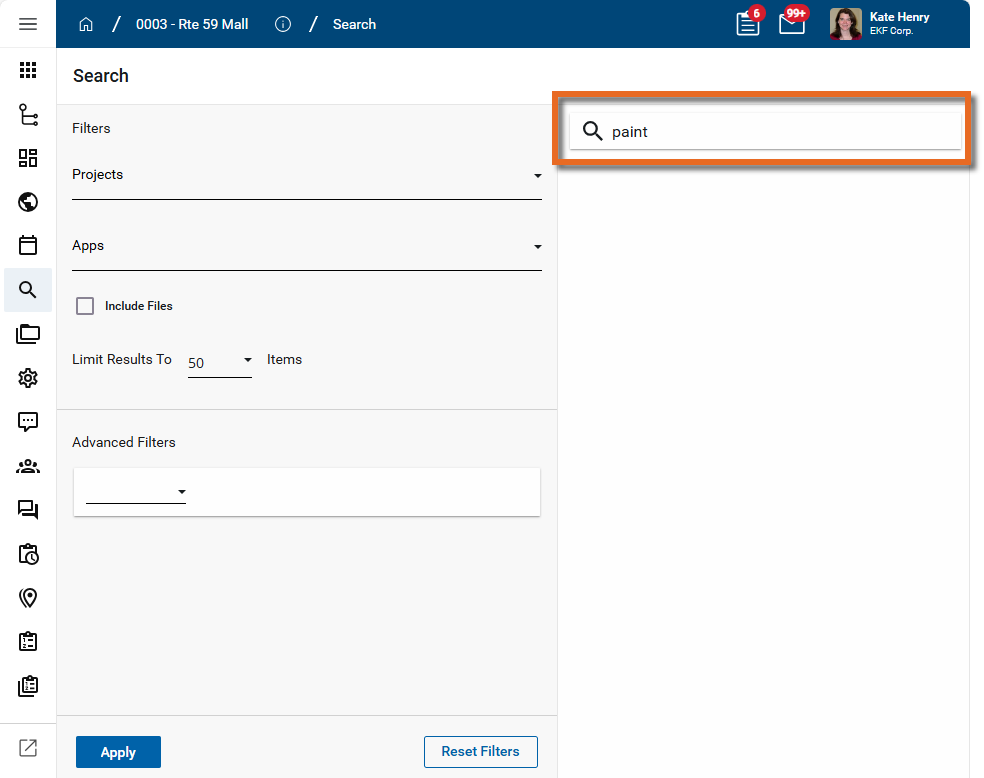
Enter the word or phrase to search for in the Search field. For information on search operators, refer to Use search operators.
Important Fields with integer, date, and currency attributes are not indexed and are not included in the search. Consider using a report to filter for fields with those attributes.
-
When you have entered the appropriate filters and search term, click Apply to perform the search. The results appear underneath the search term.
-
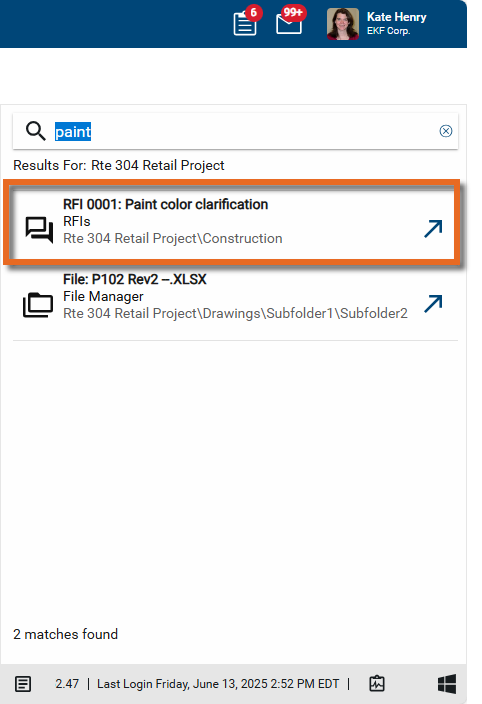
Each returned record appears on its own line. Each line contains the app icon to easily identify what app the record belongs to, the record number and title where applicable, the name of the app, and the name of the project containing the record.
-
To open the record in its native application, click on the Open arrow
 .
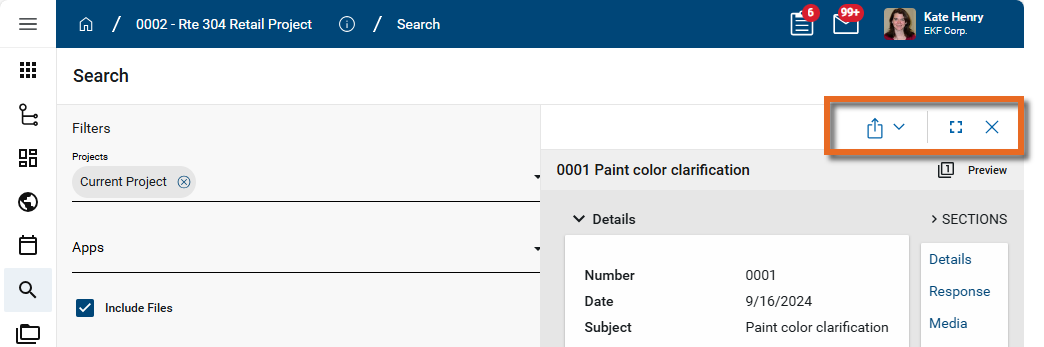
. To open a preview of the record, click on the line item. Several options to manage the preview appear at the top of the panel. For more information, refer to Detail header.
-
Select the Copy Link option
 to copy a URL link for the record to your clipboard. This link can be sent outside of Kahua. Users with the appropriate permissions will be able to open Kahua directly to that record by using the link.
 -
Select Open in a new window
 to open the current record as read-only in a new window (desktop host) or browser tab (web host). You can keep the read-only window or tab open for reference while you navigate to other records in your original instance of Kahua. Click Open on the read-only window or tab to open the record in its native app.
 -
Select Maximize
 to open the record to a full screen view. From the full screen view, select Minimize
  to return to the original view.
 -
Select the Close icon
 to close the currently open item and return to the results list.
-
-
To refine or expand the search, modify the filters and click Apply to run the search again. To return all the filters to their default values and remove any advanced filters, select Reset Filters.
Use search operators
Kahua indexes most of the attributes and data entry fields entered by end users and makes the content available in the Search application and individual list searches. Attribute types that are not searchable include Integers, Dates and Currency attributes.
Kahua search supports the following operators:
| Operators | Description |
|---|---|
| Single word |
When you search for a single word, Kahua will return results where that word appears in the record, or a word that starts with that word appears in the record. Example Searching for the word drain will return any document with a word that starts with drain, including drain, drains, drainage, etc. |
| Multiple words, implied AND |
When you search for multiple words without using quotes, there is an implied AND operator. Note that both words must be in the same field on the record. Example Searching for air quality will return documents with both the word air and quality in the same field. It will not return documents where only one of the words appear, for example, a document with only the phrase air handler, or where the word air is in the Title field and quality is in the Description field. |
| Multiple words, use of OR |
To find documents where one or more words appear on a record, use the OR operator. Kahua will return records that contain any of the words. Note that when searching for multiple words, records containing results where the search term only starts a word are not returned. To include records with those words, add an asterisk (*) as a wildcard to the end of the word. Example Searching for air quality will return documents with the word air or the word quality. This would include documents with the phrases air quality, quality assurance, air handler, etc. This would not include a record with the word airline. |
| Use quotes to search for a phrase |
Use quotes around a phrase to find that exact term. Example Searching for "exterior drains" (using the quote symbols as part of your search term) will return documents with the phrase "exterior drains" but not "exterior french drains". |
| Multiple character wildcard, * |
Use the * character to replace multiple letters in a search term. Example You will need to search for *9163 if you want it to find documents that contain KPO000009163 ATI Security. |
Supported file formats for searching
The content contained within the following file formats is indexed and will be returned within search results:
| File category | Supported formats |
|---|---|
| CAD Formats | DWF, DWFX, DGN |
| Microsoft Excel | XLSX, XLSM, XLSB, XLS |
| Microsoft PowerPoint | PPTX, PPTM, PPSX, PPT |
| Microsoft Visio | VSD, VSDX, VSDM |
| Microsoft Word | DOCX, DOCM, DOTX, DOTM, DOC, DOT |
| Other | RTF, TXT, CSV, PDF |