Kahua Offline
Kahua Offline is a feature that allows you to have certain apps within a project, along with the data for those apps, downloaded to your mobile device or computer so that you are able to continue working on those apps in the event that your connection to the internet is lost or interrupted.
The feature must first be enabled in your domain by your domain administrator. Once enabled for your domain, each user who wants to use the feature must enable offline access for their own profile. Offline access can be enabled in the mobile host and the desktop host. Once enabled for a host, you must enable it for each combination of project and application where you intend to use it within that host, with the exception of the Drawings and Specifications apps. Offline access is automatically enabled for these apps.
When a project and application combination is enabled, data from the application will be saved to your device. When the data has been downloaded, Kahua will work locally any time your connection is lost. Kahua checks for a lost or found connection approximately every 30 seconds, to avoid intermittent disconnects when working in areas of irregular connections.
The following applications can be configured for offline access:
-
Daily Reports
-
Field Observations
-
File Manager
-
Punch List Libraries
-
Punch Lists
-
RFIs
-
Tasks
The following applications are automatically synced for offline access when the app is opened in a project:
-
Drawings
-
Specifications
Note For File Manager files, also consider using Local Files Sync with the desktop host. You can work on those files on your local device in their native applications, and Kahua will synchronize the updated files back to Kahua when you save and close those files. For more information, refer to Using Local Files Sync.
How to . . .
 Enable offline application access for your domain
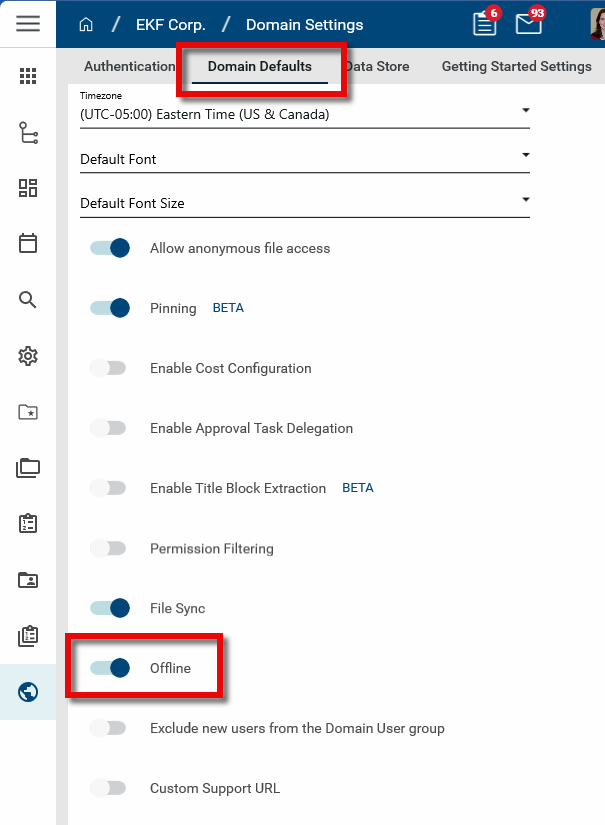
Your domain administrator must enable this feature for your domain for it to be available to individual users. This is done by selecting the Offline option on the Domain Defaults sub-app of the Domain Settings app. For more information, refer to Offline.
Enable the offline application access for your profile
Offline application access must be enabled in the host where you want it to be available. You can enable it for your account in the mobile host, the desktop host, or both.
To enable offline access in either host, complete the following steps:
-
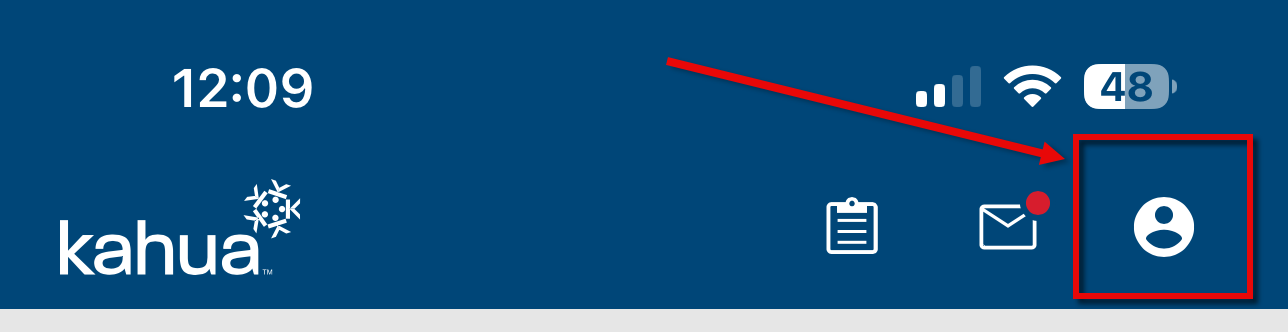
Navigate to your profile icon in the header.
-
For the mobile host
-
For the desktop host

-
-
Select My Settings.
-
Select the Offline tab.
-
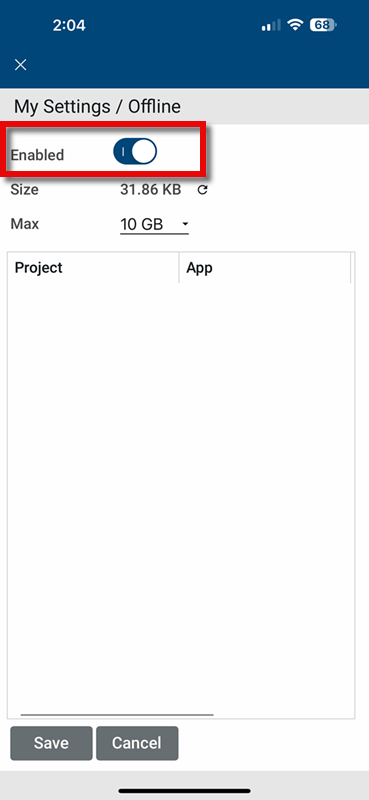
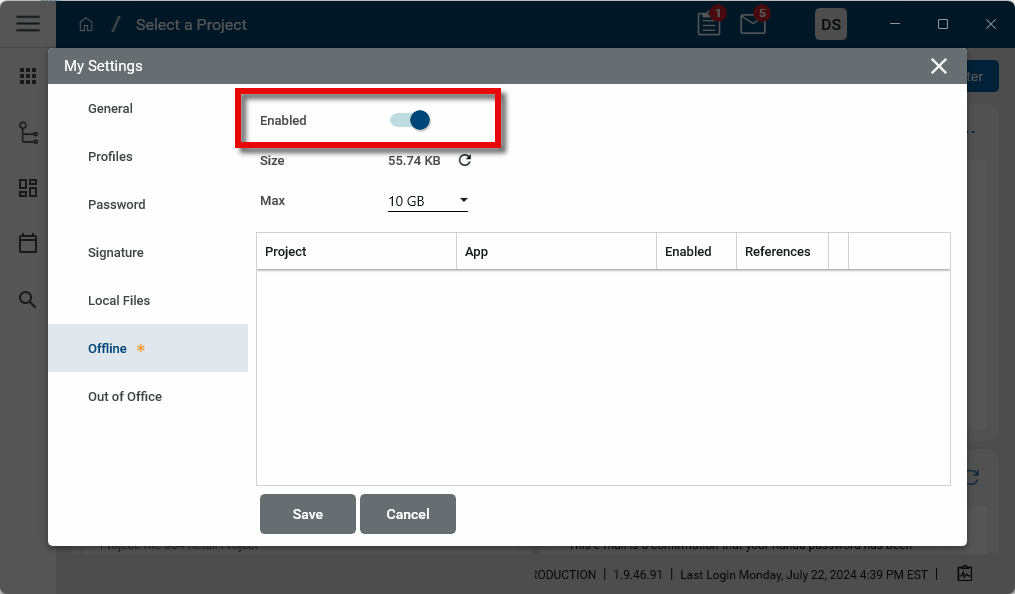
Select Enabled.
-
For the mobile host
-
For the desktop host
-
-
Click Save.
This enables the feature, but each application in each project where you want to use this feature must by enabled as well.
Enable offline access for an application
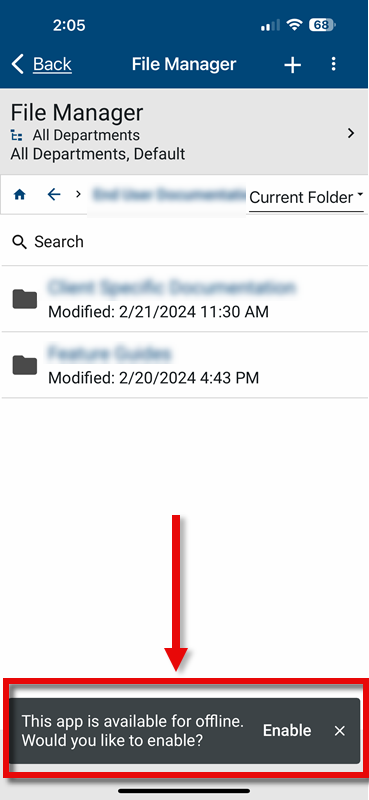
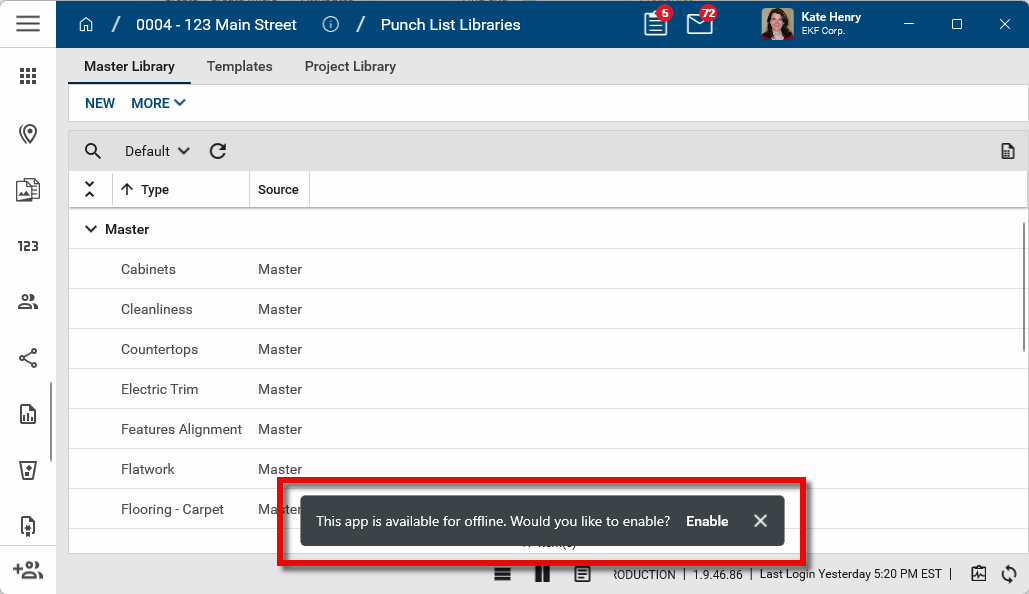
There are two options for enabling offline access for an application within a project. Once you've enabled offline access from the My Settings > Offline tab, the next time you open a project and eligible application you will receive a message informing you that the app is available for offline access and asking you to enable it. Select Enable to do so. By default, record reference files are included in offline access. You can modify that selection in the My Settings > Offline tab.
If you do not enable it at this time, you will not be asked again. Instead, you can go to the My Settings > Offline tab and enable offline access for this and other combinations of project and application. Refer to Manage your Kahua Offline settings.
Note The project and application combination will not appear on the My Settings > Offline tab until after you have opened that app in that project. Once you have opened the app and either enabled it for offline or dismissed it, it will then appear on the tab where the selection can be modified.
The message requesting to enable offline access for an application in the mobile host appears as follows:
The message requesting to enable offline access for an application in the desktop host appears as follows:
Manage your Kahua Offline settings
At any time, you can return to the My Settings > Offline tab to manage the offline access settings. You can disable or re-enable offline access for yourself and manage the amount of space allowed for it on your device.
You can enable or disable the feature for each application and project combination and select whether or not to include reference files. For the File Manager app, you can select which project folders are included in the offline access feature.
Note The project and application combination will not appear on the My Settings > Offline tab until after you have opened that app in that project. Once you have opened the app and either enabled it for offline or dismissed it, it will then appear on the tab where the selection can be modified.
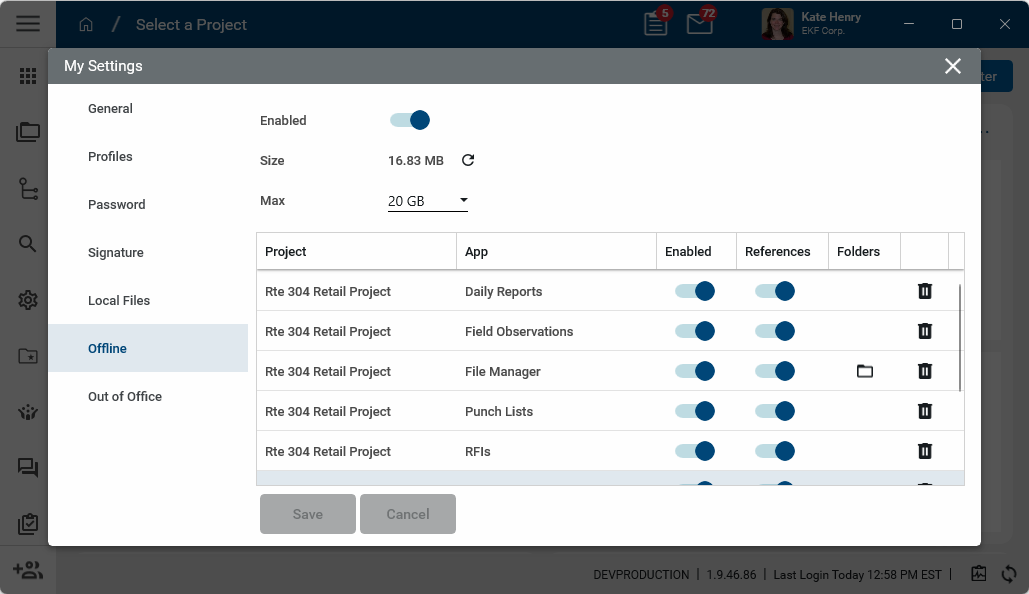
The following fields appear on the page and can be modified as appropriate:
| Field | Description |
|---|---|
| Enabled | Toggle this option on or off to enable or disable the Kahua Offline feature. |
| Size | The current amount of space used by the Kahua Offline feature appears here. Click the Refresh icon  to update the number. to update the number. |
| Max | The maximum amount of storage space allowed for the Kahua Offline feature on this device appears here. To modify this value, click on the drop-down icon and make a selection from the list. |
| Project and Application Grid | |
| Project | The name of the project. |
| App | The name of the app. |
| Enabled | Toggle this option on or off to enable or disable Kahua Offline for this project and application combination. |
| References | Toggle this option on or off to include or not include reference files with records stored offline for this project and application combination. |
Folders  |
This option only appears for the File Manager application. To manage offline access for individual file manager folders, complete the following steps:
Note Be sure to click Save on the main page to save your changes. |
Remove  |
Select this option to remove the Kahua Offline feature for this project and application combination. The next time you open the project and application combination, you will be asked if you want to enable Kahua Offline. |
 to open up a list of available folders and enable or disable offline access.
  to navigate back up the folder hierarchy.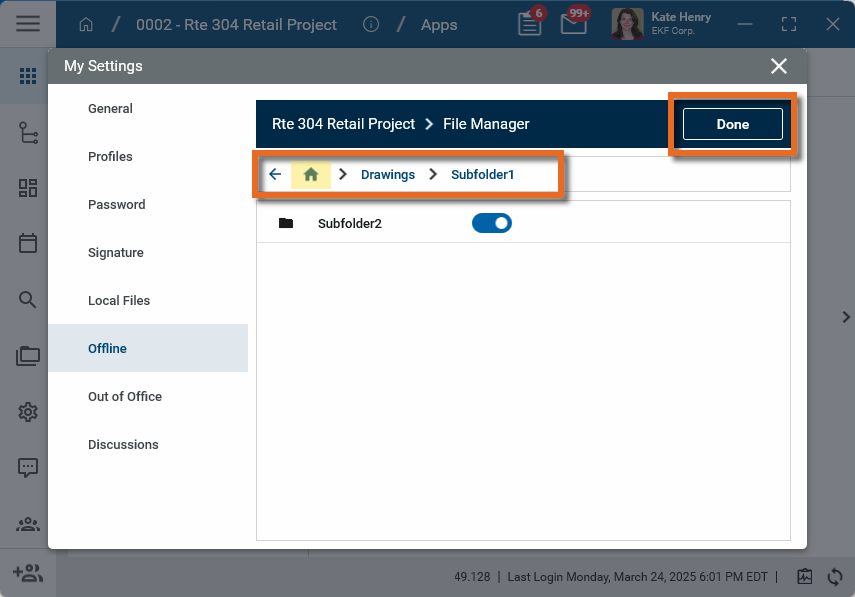
Click Save when you are done to save your changes.
Apply markups when offline
With offline access enabled for the appropriate apps, you can apply markups to files while offline. This applies to files in File Manager or in References, or other locations where the markup feature is available.
Markups can be created, edited, or deleted while offline. Different markups on the same file can be created, modified, or deleted by both online and offline users and synced without conflict.
However, if changes are made to the same markup by multiple users when one or more of them is offline, the last change synced is the one that will be saved. Note that this applies only to changes to the same markup item.
Important Each markup item is saved independently and will not be impacted by changes to other markup items on the same file.
Example An offline user goes offline at 9 am and edits a circle markup on a file, while another user who is online edits that same circle at 10 am. When the offline user comes back online at 3 pm, the changes made to that specific circle markup by the online user will be overwritten by the offline user's change when they come back online. No other changes are impacted.