Using Local Files Sync
The Local Files sync feature allows you to synchronize folders and files from the File Manager app to your local computer, through the desktop host.
Important things to know about the Local Files sync feature include the following:
-
The Local Files feature only works with the desktop host.
-
When you enable the Local Files sync feature from the desktop host, the folders and files you select will be synchronized to your user folder on your device.
-
You can work on those files on your local device in their native applications, and Kahua will synchronize the updated files back to Kahua when you save and close those files.
-
You can create new folders and add files to the synchronized file path on your computer and those folders and files will be synced back to Kahua.
-
Files can take up a significant amount of space on your computer. Ensure that you have enough room on your device to copy all the files in the selected folders.
-
The file path used by Kahua to store files locally on your device cannot be changed. If you attempt to move this folder, Kahua will simply rewrite it again to this location
-
You can temporarily pause file syncing at any time by selecting Pause from the My Settings > Local Files tab, or end it by selecting Reset from the same location.
Note The File Manager app can also be set up for offline access, allowing you to work in the app when you are offline. For more information, refer to Kahua Offline.
How to . . .
 Verify settings and permissions
To use the Local Files sync feature for any File Manager folder, the following settings must be in place:
-
Local files sync must be enabled for your domain in the Domain Settings application. Refer to File Sync.
-
You must have enabled Local Files sync for your account. Refer to Enable Local File sync and select folders.
-
You must be a member of a User Group with sync permissions for the File Manager application. Refer to File Manager Security Permissions.
-
You must be a member of a User Group with sync permissions for each of the folders you are trying to sync. Permissions can be modified at the File Manager folder level.
Important If you are unable to sync a specific folder, it is possible that sync permissions for that folder have been modified. Refer to Modify folder permissions.
Enable Local File sync and select folders
Note To be available to users, local files sync must be enabled for your domain in the Domain Settings application. Refer to File Sync.
Syncing local files to your computer is managed from the desktop host. To enable local files sync for your account and select which projects and which folders within those projects to turn on file syncing for, complete the following steps:
-
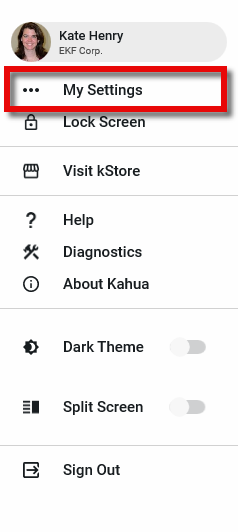
Open the desktop host and click the person icon in the upper right corner of your screen (or your image if you’ve set a picture for your user account). Select My Settings from the drop-down menu.
-
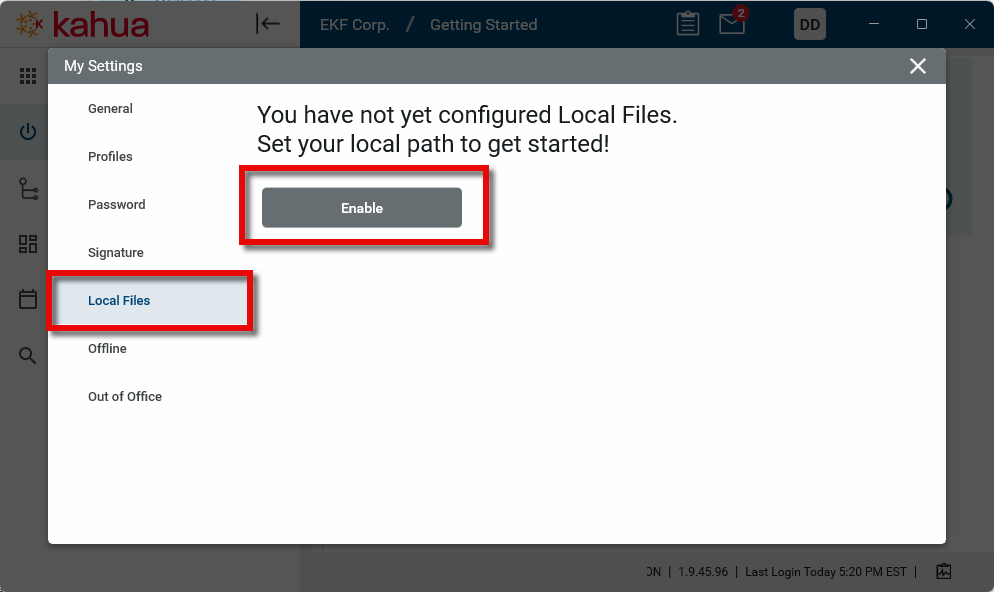
Select the Local Files tab.
If the tab is not available, it may be for one of the following reasons:
-
You may not be using the desktop host. Refer to Accessing Kahua.
-
Your domain administrator may not have enabled local files sync for your domain. Refer to File Sync.
-
You may not have the appropriate user group permissions to sync files. Refer to Sync.
-
-
Select Enable to turn on local file sync for your account. Once local file sync is enabled, you must select which projects, folders, and files to sync.
Note When you select a folder, all of the folder contents are selected and will be synced.
-
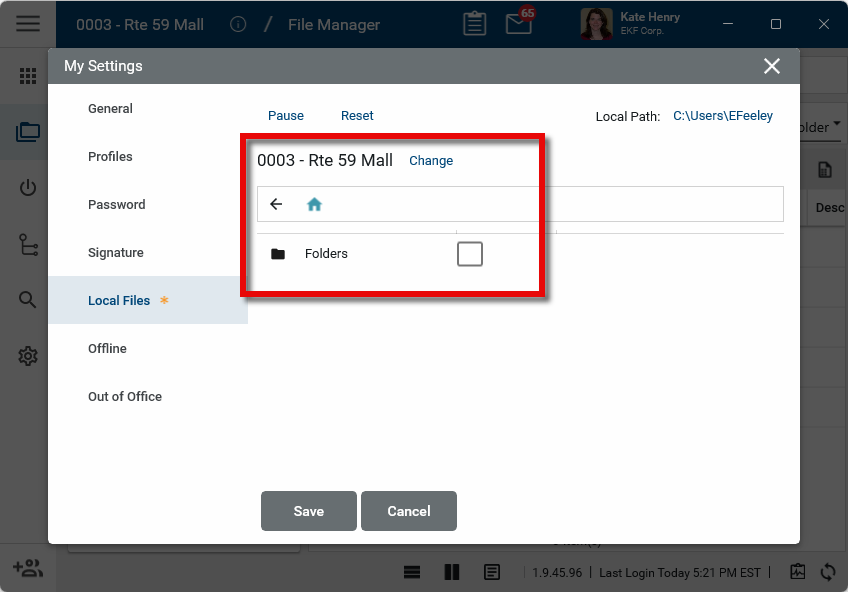
By default, you will initially see the project you are currently in. To sync all the File Manager folders in this project, select the toggle next to Folders. Click Save when you are done.
-
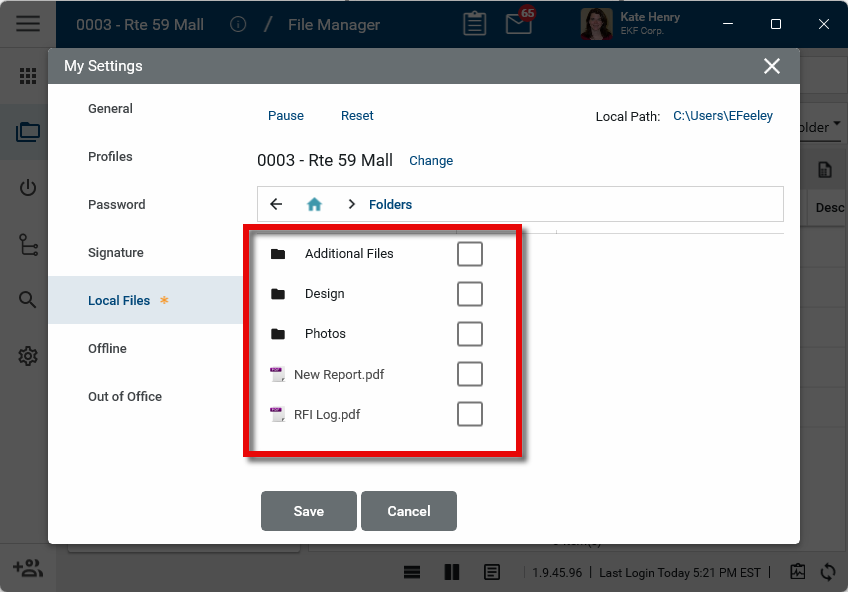
To select specific folders or files for syncing, click on Folders to drill down into the file structure. Select the toggle next to the folders and files you want to include for syncing. Select Save when you are done.
-
To select another project for syncing, click Change next to the project name.
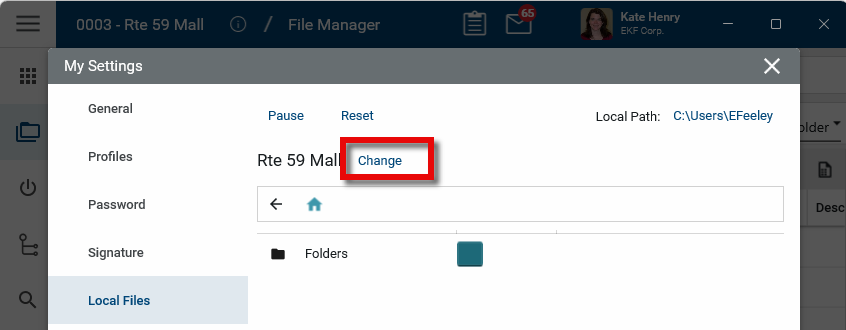
Navigate the partition and project structure to select the folders and files to include for syncing.
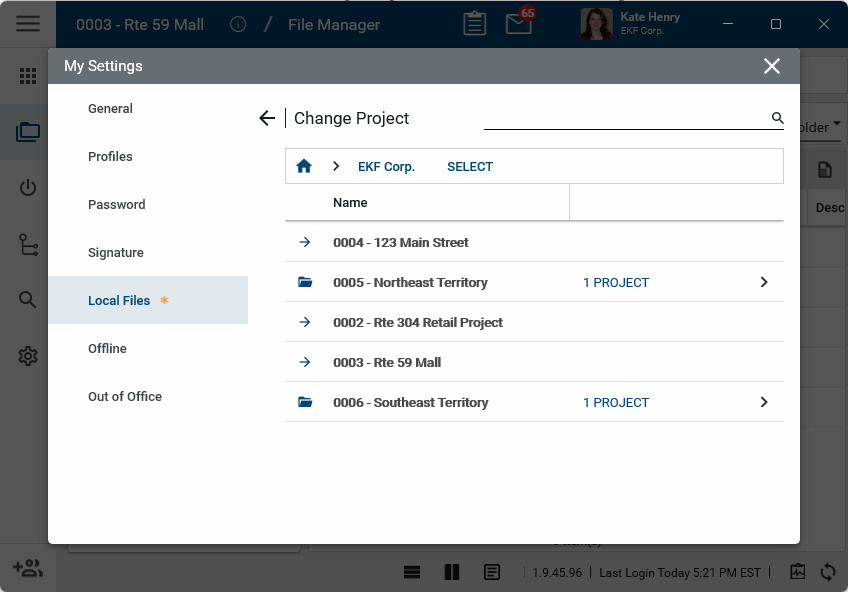
-
Click Save when you are done.
Important Syncing a large amount of data can take several minutes to a few hours depending on your connection speed. You must leave Kahua running to ensure a complete sync.
Ensure your files sync correctly
There are several steps you should take to ensure that your local files sync correctly and completely.
The steps are as follows:
-
Leave the Kahua desktop host running in the background when working locally with your files.
-
Close your files when you are done working with them. This step ensures that they are updated in Kahua and that those updates are available to other users.
-
Log in regularly to get the latest file updates.
-
When deleting or moving large numbers of files or folders, use Kahua File Manager instead of your local File Explorer. This will reduce the number of required confirmations and permissions checks when syncing occurs.
-
Use My Settings > Local Files to stop syncing specific folders and files that you no longer want to sync. Do not delete them locally. Local folder and file deletions are synced to Kahua. Instead, navigate to My Settings > Local Files and clear the check boxes next to the folders and files you no longer want to sync.
Use File Manager > Open to sync a single file
In File Manager, selecting Open to open a file while you are using the desktop host will automatically invoke the Local Files sync. If Local Files is not yet enabled for your account, selecting Open will enable it.
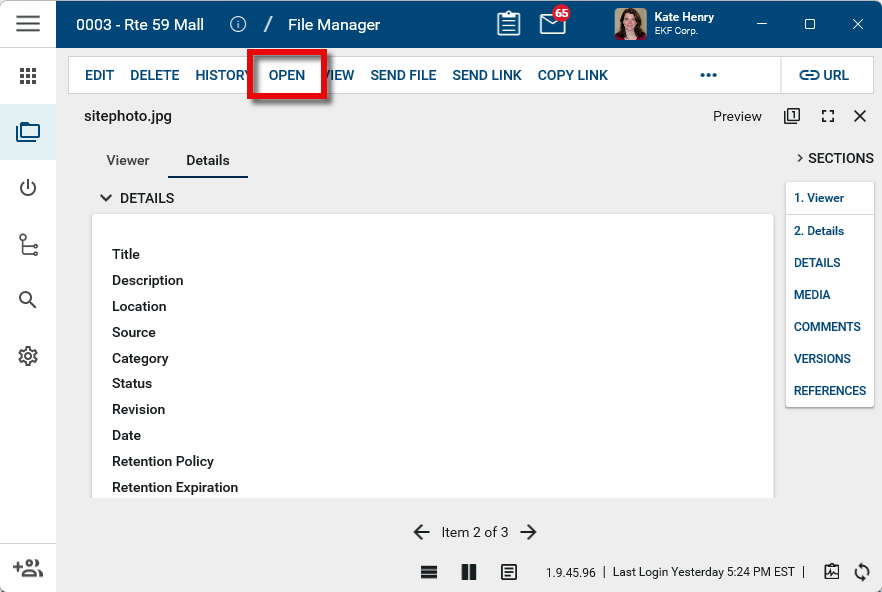
The selected file will be synchronized to your device and open locally. When you save and close the file, the file with any changes will be synced back to Kahua, just like any other synced file.
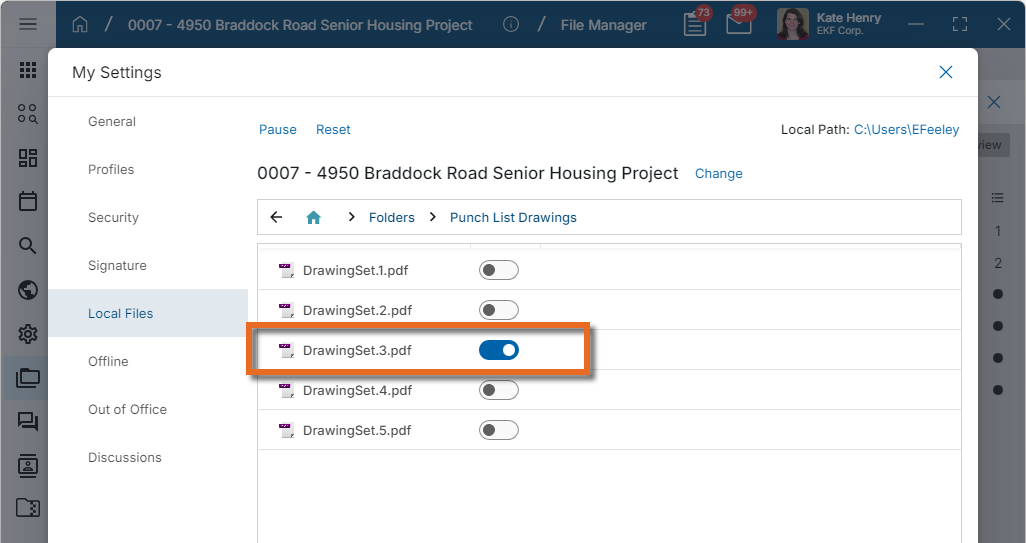
To remove the file from the Local Files sync, follow the steps for Enable Local File sync and select folders. Navigate to the file in the folder structure and and clear the toggle next to the file.
Access and manage the local files on your device
The synced folders and files are located on your device at C:\users\YourUsername\Kahua-[DomainName].
Important The file path used by Kahua to store files locally on your device cannot be changed. If you attempt to move this folder, Kahua will simply rewrite it again to this location.
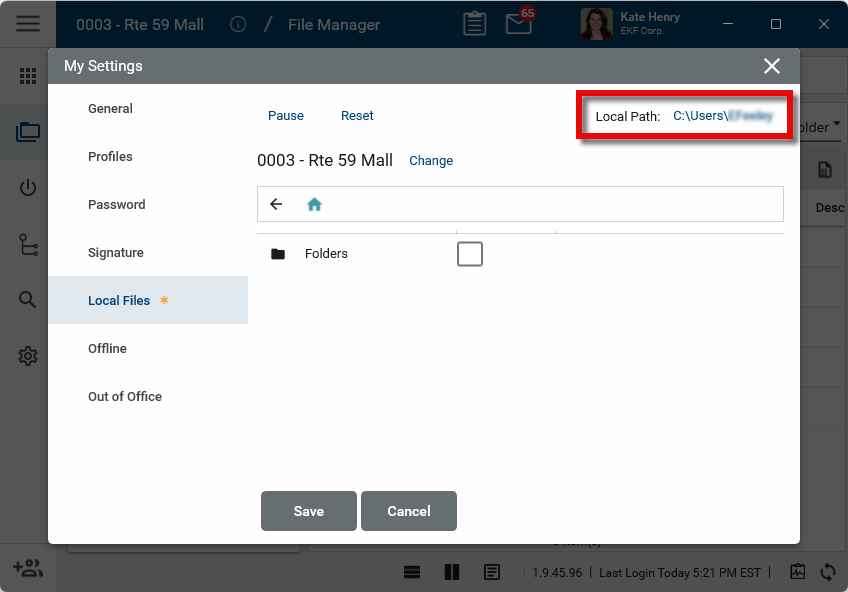
You can access the C:\users\YourUsername folder directly from the My Settings > Local Files page by clicking the Local Path name in the upper-right corner. From there, navigate to the Kahua-[DomainName] folder.
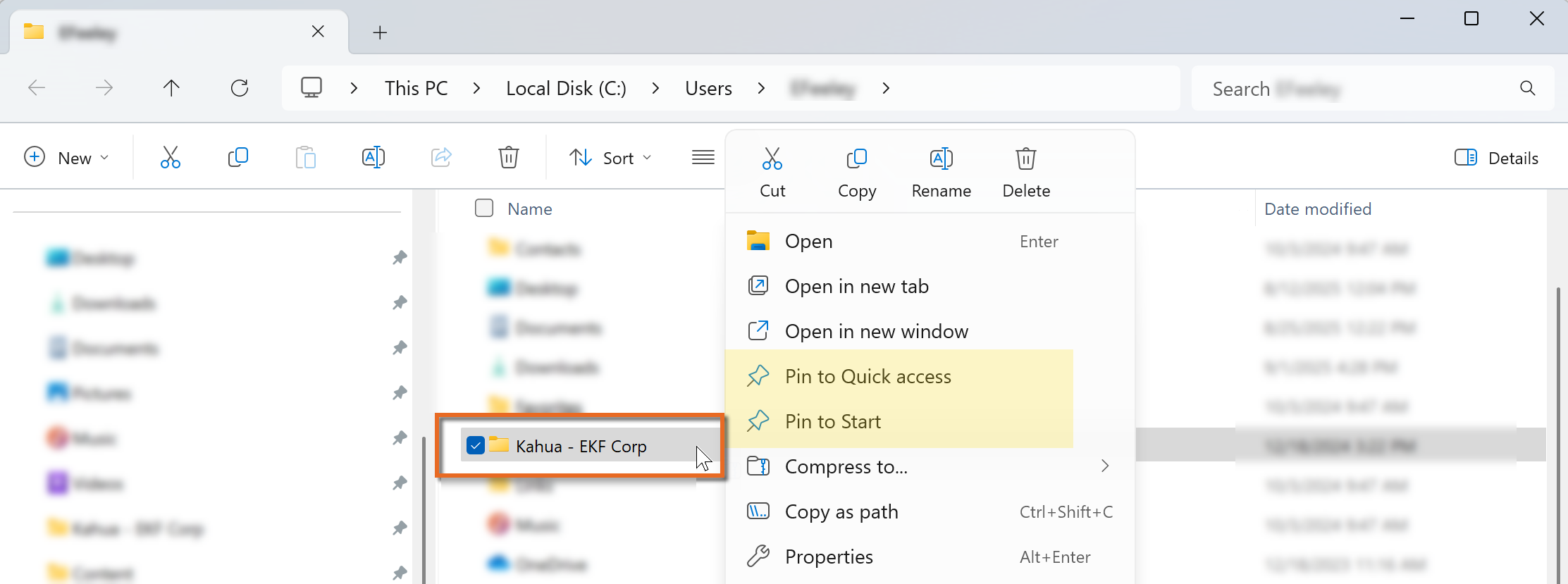
Once open, you can use the right-click menu in File Explorer to select Pin to Quick Access or Pin to Start for ease of access to the Kahua local files folder.
You can add or delete folders and files from File Explorer, and those changes will appear in File Manager.
Pause or reset file syncing
If you have a poor connection or are running data intensive processes on your device, you may want to temporarily pause the syncing of local files.
If you find it necessary to re-do the set up of your local files sync, you can use the Reset function. Selecting Reset will remove all your project, folder and file selections, and remove all the folders and files from your device. The files will remain in File Manager for the Kahua project and can continue to be accessed directly in the product.
To temporarily pause syncing or reset it completely, complete the following steps:
-
Navigate to your profile in the header and select My Settings > Local Files.
-
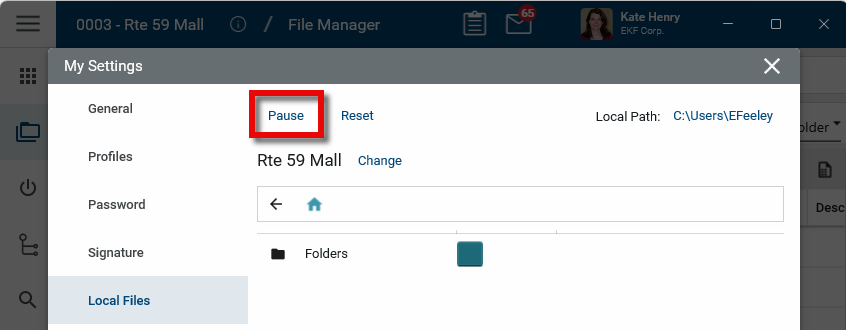
Select Pause at the top of the page. A message informing you that syncing is paused will appear.
-
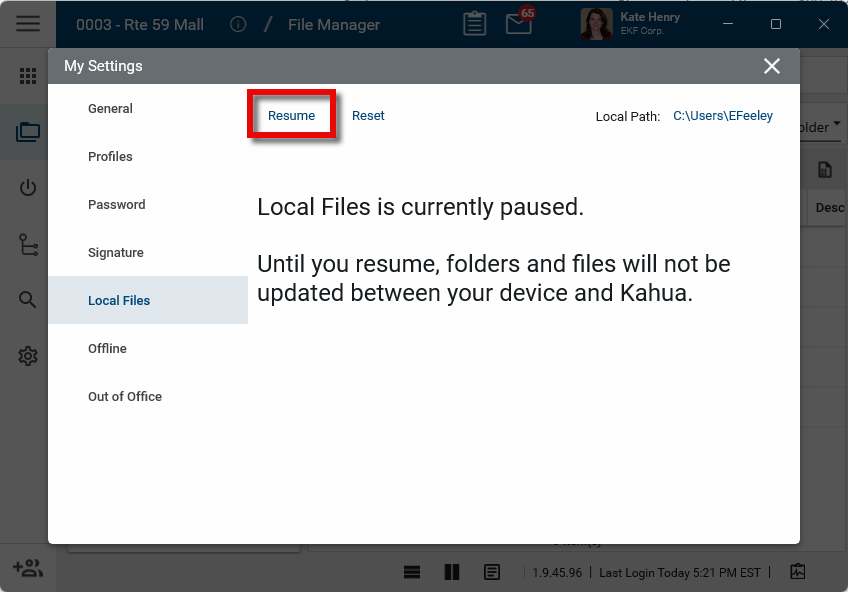
To resume syncing, return to the My Settings > Local Files page and select Resume.
-
To reset your local files selections and remove the files from your device, select Reset at the top of the page. Select Reset on the confirmation message.
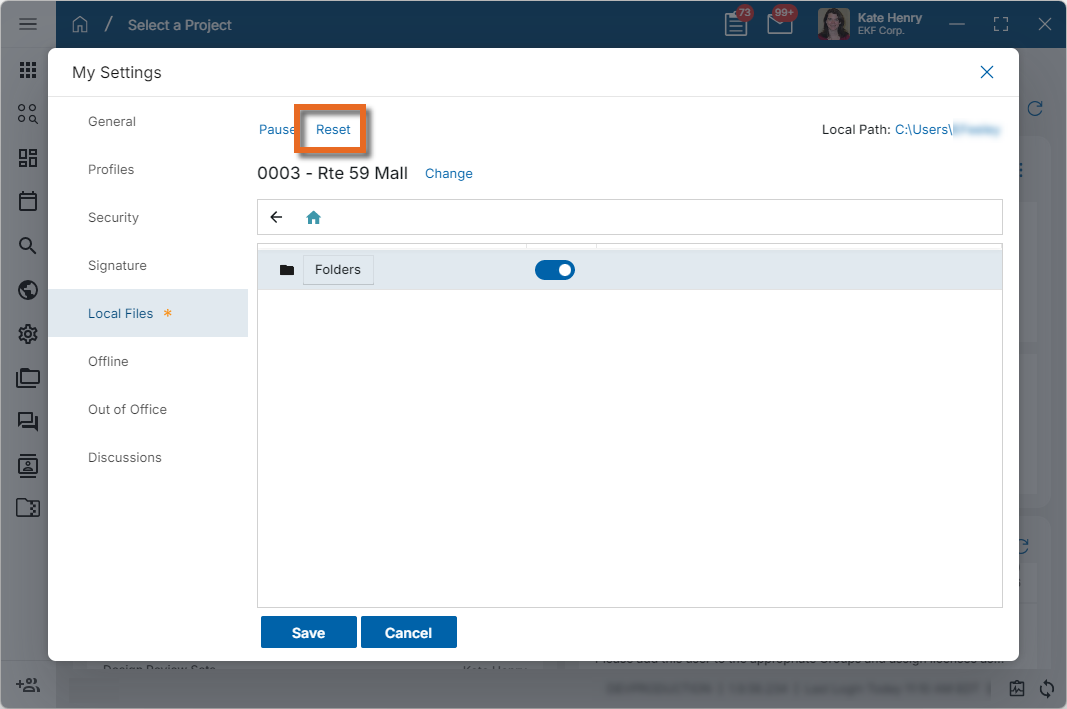
The local files will be removed from your device, your previous selections will be removed, and the local file sync will no longer be enabled. To begin syncing files again, you will need to re-enable the Local Files feature. Refer to Enable Local File sync and select folders.
Check status messages
When syncing occurs, some actions will generate status messages that can be viewed in the Status window.
To open the Status window, click on the clipboard icon  in the lower right corner. Click and drag the grabber icon
  to expand the window.
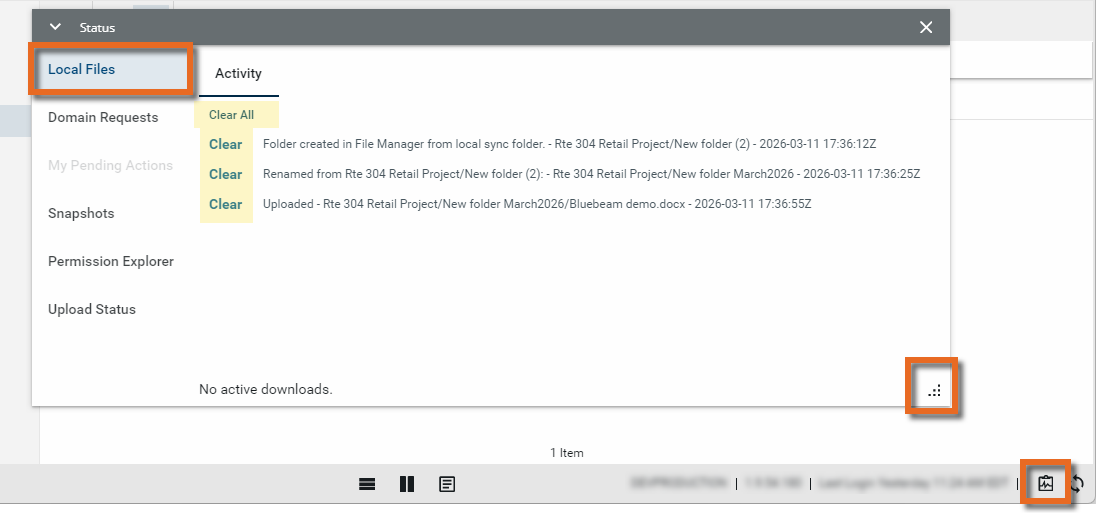
Select the Local Files tab. Any available status messages appear for your review.
Select Clear to clear an individual message. Select Clear All to clear all messages.
Resolve Long Paths Not Allowed Error message
After enabling local file syncing on your device, a "Long Paths Not Allowed" error message may appear.
By default, Windows only supports file paths less than 255 characters. This can prevent folders and files with longer path names from being synced to your computer. Longer file paths can be supported by changing a registry key or using the Group Policy tool to remove the limit.
For instructions on enabling long paths on your device and additional details, refer to Resolving "Long Paths" error messages.