Submitting into Workflow
In many applications, after a record has been created there may be several workflow options available, including Submit for Review, Submit for Signature, and Set To . . . . Depending on your company’s configuration and your permission level, you may see one or all of these options.
Note For information on configuring approvals, refer to Approval configuration.
-
Submit for Review is typically used to submit an approval document through a review process. The reviewer can ensure the record has all applicable details and is correct prior to submitting into a formal signature workflow.
Once reviewed, it can be returned to the originator to edit or modify the record prior to sending for Signature. This process is set up by your Domain Administrator.
Important The Submit for Review workflow DOES NOT increment the cost status that determines where the cost fall on the WBS. It will not increment the document to approved once reviewed since this process is not a formal signature process.
-
Submit for Signature is a workflow that routes the record to the appropriate parties to eSign the record. Often this is done through Docusign tasks that are delivered to recipients via email, rather than Kahua task, depending on how the approval workflow is configured.
Important The Submit for Signature workflow DOES increment the cost status that determines where the cost fall on the WBS. The record will be in a pending status when it is out for signature and increment to Approved (and lock) when the last signature is acquired.
-
Set To . . . is a manual increment of status that is typically used when a document has been fully executed outside of Kahua, or when an administrator needs to bypass workflow.
In this case the completed document can be added as a reference document on the record and you can manually set the status to Pending or Approved. This will ensure the value is in the correct column of the WBS. If your company does not use the Signature workflow, this is how you should increment the record to reflect appropriately on the Work Breakdown and to ensure that your records reflect appropriate status.
Below we demonstrate an example of both a Review workflow and Signature workflow.
Submit for Review Workflow
After the record has been saved and, if required, an Approval Doc created, the record can be submitted into workflow.
-
Select Submit for Review on the action bar of the record. This button will prompt a Task and Message to send to the appropriate contact as determined in configuration.
-
The reviewer will receive a task which displays the approval document at the top of the detail view. This enables the reviewer to quickly review the document and/or open in their default PDF viewer by selecting the More Details icon
 .
. -
After reviewing the document, the reviewer will provide feedback in the Comments section.
-
Lastly, if the document was downloaded and marked up outside of Kahua, the References section will allow for the document to be re-uploaded and returned with the completed task.
Note While the record is in workflow, the originator can Recall the record, make edits, then return into workflow, but may not edit without recalling the reviewer’s task. -
Once the review is complete, select the Review Complete button to submit the record back to the originator. Upon clicking Review Complete, the originator will receive a notification in the Messages application informing them that the task is complete. They will be able to see the reviewer’s comments in the Comments section on the record.
-
If any changes are necessary post-review, the originatorcanedit the record with the proper updates. After making any edits to the record, the Approval Doc will need to be rendered again. Select the Approval Doc in the References section and click Edit. After the window pops up, click OK.
-
The most up to date information will now be present in your Approval doc. Click Resubmit for Review to submit the record to the reviewer for an additional review if needed. If no further review is needed, the Review workflow is complete.
Submit for Signature Workflow
After the Approval Document meets your standards, the record can be sent for Signature to the individual determined in the configuration settings for your company.
-
Click Send for Signature.
-
The Approval document will be sent to the appropriate parties for Signature, as configured. This may be through Docusign or Kahua. For more information on using Docusign, refer to Docusign in Kahua.
-
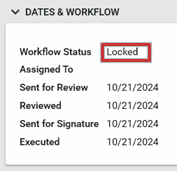
The Workflow Status will be indicated as Locked in the record and the Sent for Signature and Executed dates will be updated with the appropriate details. The record is now locked and only a domain administrator will be able to unlock the record if changes are required.
-
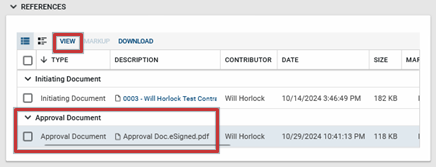
An eSigned.pdf version of the document will be saved in the References section. Select the e-signed file type and click View to see the signed document.