Compliance Tracking
Notice Kahua is a very flexible and customizable platform. In your domain, this application may have been modified to meet your company's needs. The online help uses default field labels for field names and describes standard workflows. Please check with your domain administrator for specific information about working in your organization's domain.
The Compliance Tracking app allows you to record and track documentation related to contracts and purchase orders, such as insurance policies, bonds, business licenses, permits, training certifications, supplier agreements, tax documents, etc. These documents can be requested from vendors, and vendors can return the requested information along with supporting document files. The requested documentation can be reviewed and approved at the project and corporate level through the application workflow.
Users who need to gather such documentation can create a log and request the documentation from their vendors through Kahua. Refer to Create a new compliance record.
Vendors who need to submit the documentation receive these requests and can return information about the documentation and upload supporting documents. Refer to Submit a compliance document to the contractor.
How to . . .
 Create a new compliance record
To create a new compliance record, complete the following steps:
-
Review the header to ensure that you are in the correct project or partition.
-
Navigate to the Compliance Tracking application (Apps > All Apps > Compliance Tracking).
-
Click New.
-
In the Details section, complete the following fields:
Field Description Number Allow Kahua to auto-number the record, or enter a different value.
Note The number format can be configured by your domain administrator. Refer to Number.
Parent Document Type The Compliance Record can be linked to an existing Expense Contract or Purchase Order. Select the appropriate parent document type here.
Expense Contract/ Purchase Order After a selection is made in the Parent Document Type field, a list of the available parent documents will appear. Select the correct Expense Contract or Purchase Order.
Once selected, the Vendor Contact from the contract or P.O. will appear. This contact is the person who will receive the initial request for the compliance document and any subsequent update requests when the request is made through the Kahua workflow.
Title Enter a title for the document. Description Optionally enter a description of the document. Type Select an item from the list of document types. This list can be managed in the Configuration app. Refer to Configure the app. Limit Optionally enter the specified or required policy limit amount. Policy Number
If you have the policy number on hand, enter it here. If you will be requesting it from the vendor by using the app workflow, leave this field blank. Issued By/Issued By (Text) If you have the issuing company information, select the compliance document issuing company from the list if available (Issued By) or enter the name manually (Issued By (Text)). Leave these fields blank if you will be requesting the information from the vendor through the app workflow.
Trade Manager Select the name of the project-level individual who is responsible for managing this compliance document. This person will be the project-level approver when the vendor submits the document.
Effective Date Enter the start date of the compliance document. Expiration Date Enter the end date of the compliance document. Risk Manager Optionally, select a contact to serve as a secondary approver after the document is submitted and approved by the Trade Manager. This might be someone at the corporate risk-manangement level who is required to review compliance documentation.
Approved Date This is the date that the submitted documents were approved. This will be automatically populated when the document is approved using the Kahua workflow. Status This field indicates the status of the compliance document. It is updated automatically through Kahua workflow.
The values of "Expired" and "Void" are available and must be set manually. These values will not be automatically set by the Kahua workflow.
-
Optionally enter a value in the Comment section.
-
Once complete, click Save to save the record, or click Request from Vendor to save the record and send a request for the document to the vendor contact.
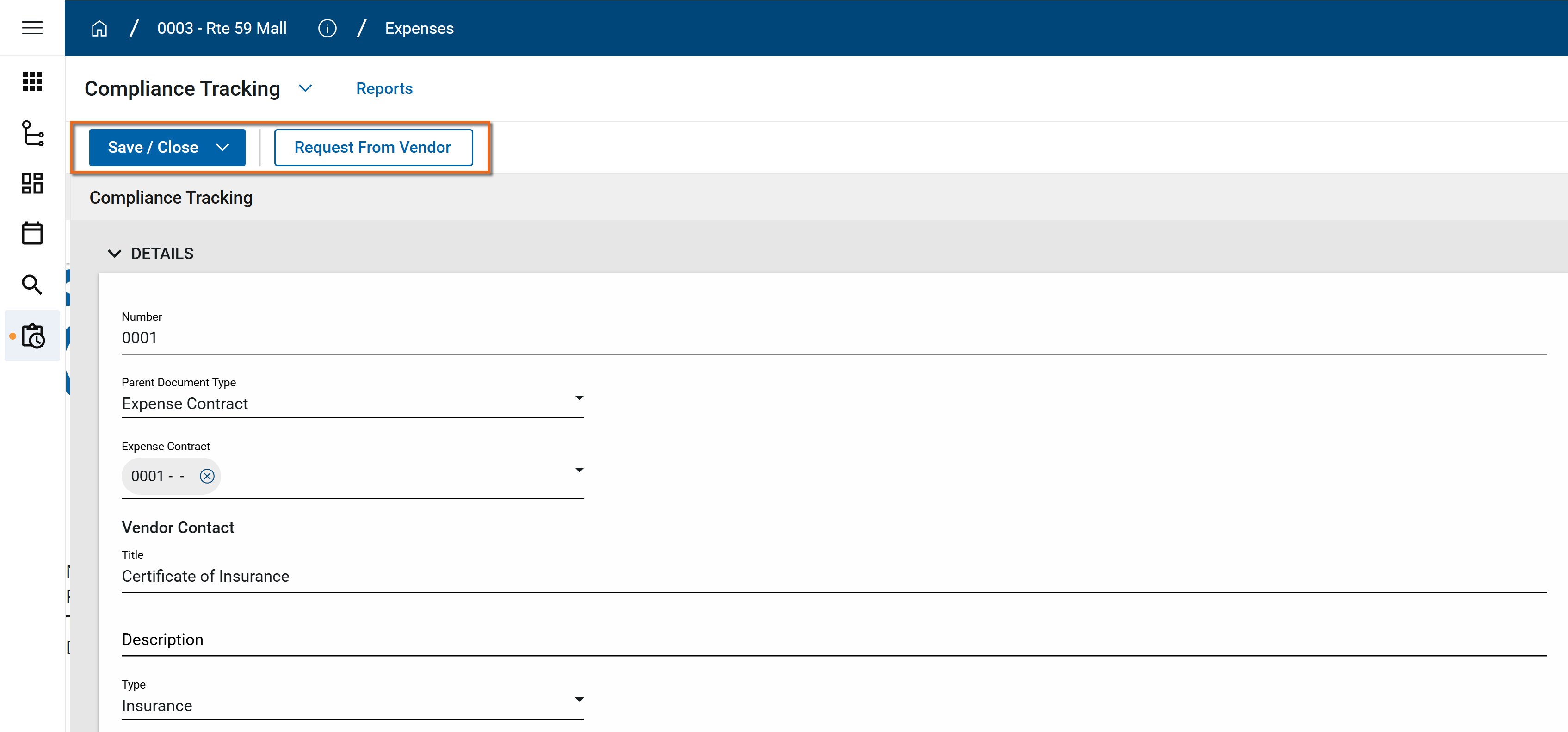
Request a compliance document from the vendor
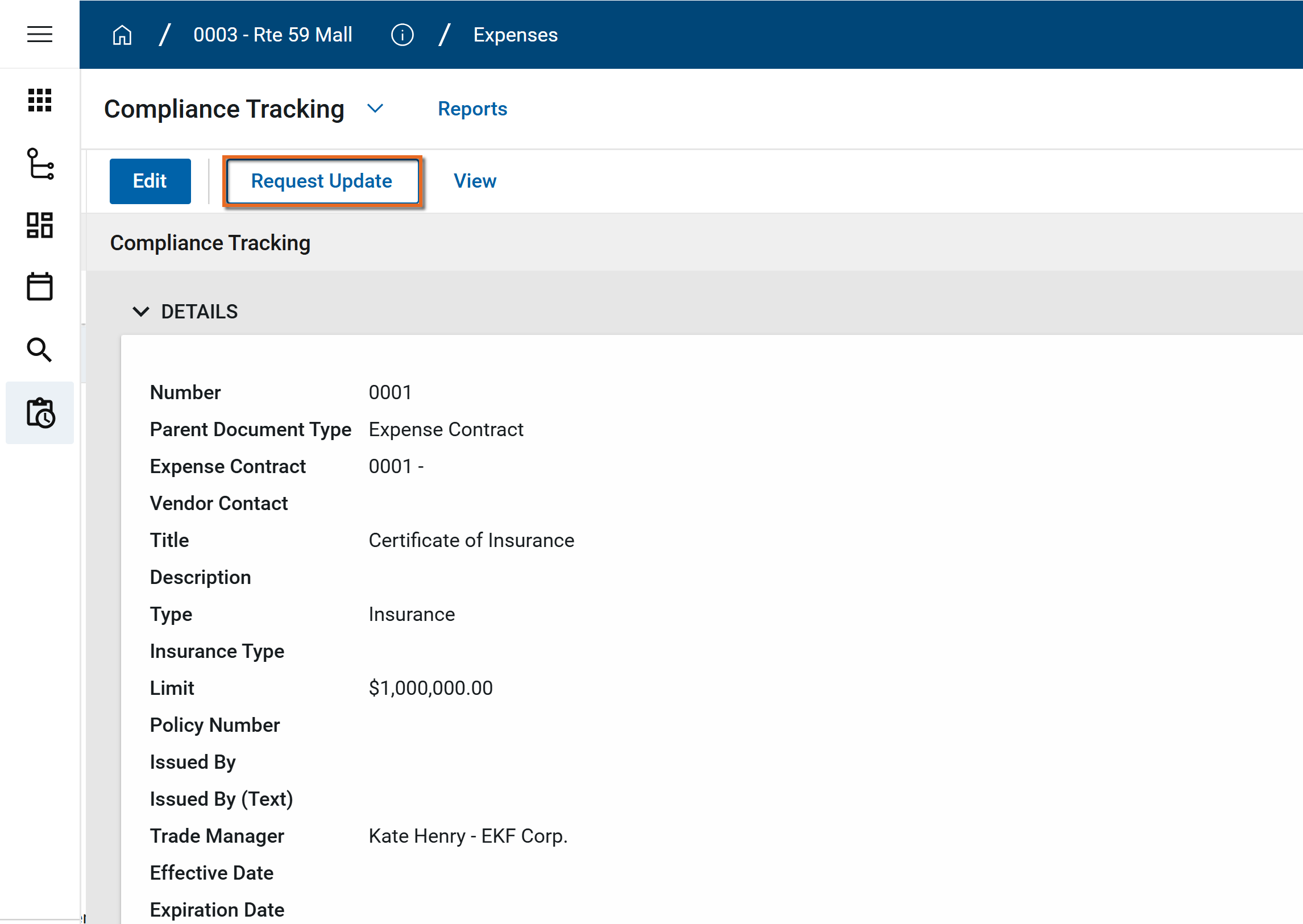
When a record is initially created, you can select Request from Vendor to save the document and request it from the vendor. If the record was instead saved initially, you can open the document at any time and select Request Update.
This will send a task through Kahua to the Vendor Contact listed on the Expense Contract or Purchase Order associated with the compliance document.
Recall a request
If at some point you have the need to recall a request for an update on a document before the vendor has submitted the requested information, complete the following steps:
-
Open the record.
-
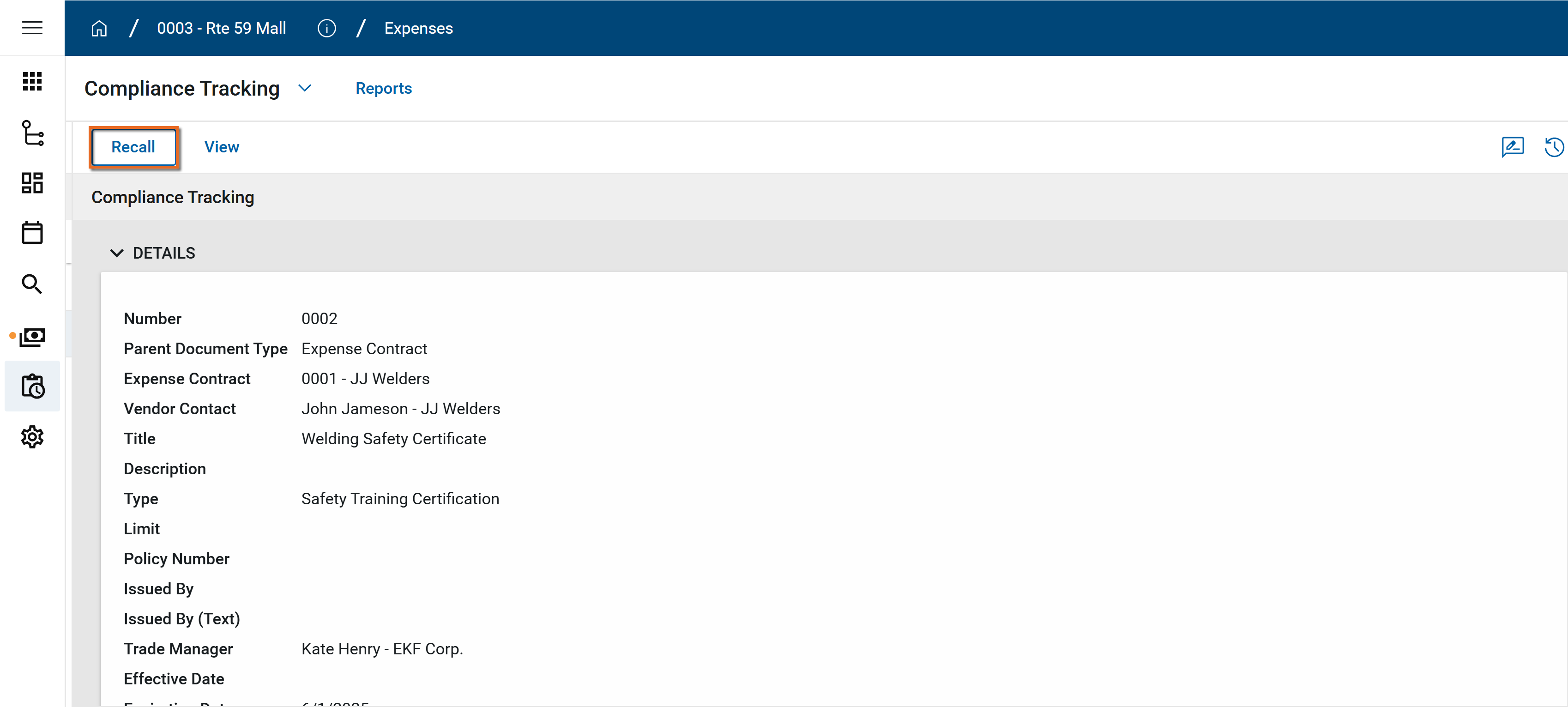
Select Recall.
-
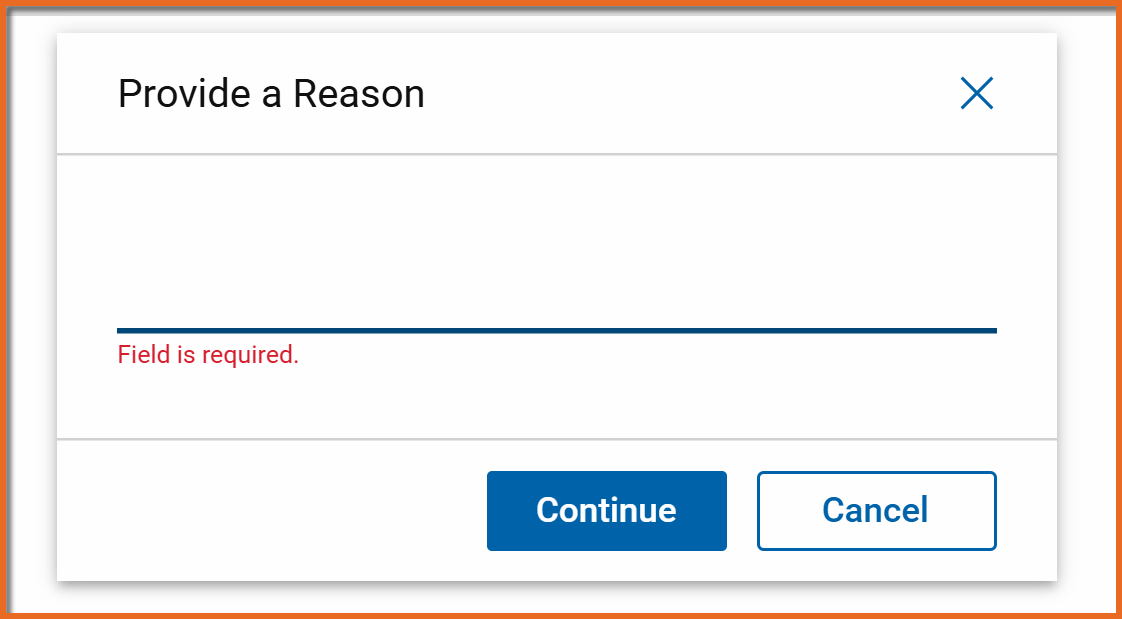
The Provide a Reason box appears. Enter a reason and select Continue.
-
The record will be returned to its original state and the task will be removed from the vendor's task list. The vendor will be notified that the request was recalled. The notification will include the reason entered above.
Submit a compliance document to the contractor
If you've received a request to submit a compliance document from the contractor, complete the following steps to submit the electronic copy of the document and supporting information:
-
From the Tasks app, open the task which will open the Compliance Tracking document.
-
Review the Details section to understand what document is being requested. In particular, note the Expense Contract or Purchase Order the requested document is associated with, as well as the Title, Description, and Type.
-
In the Submitted Details section, complete the following fields:
Field Description Submitted Policy Number Enter the policy number. Submitted Issued By/Submitted Issued By (Text) Select the compliance document issuing company from the list, if available (Issued By), or enter the name manually (Issued By (Text)). Limit Enter the policy limit amount value. Effective Date Enter the start/effective date of the compliance document. Expiration Date Enter the end/expiration date of the compliance document. -
To attach an electronic copy of the document, select Upload in the References section, or Add Kahua Doc if the document is available in Kahua.
Important You must attach a copy of the requested document in order to submit the record. You will not be able to select Submit if no documents are attached.
-
Click Save to save your work. When you are ready to submit the record including the attached document, select Submit.
Approve an updated compliance document
Once submitted, the status of the document will be "Trade Manager Review" or "Risk Review". You can open the document from the Tasks app or directly in the Compliance Tracking app. From the Tasks app, select View Source Record to open the document in theCompliance Tracking app.
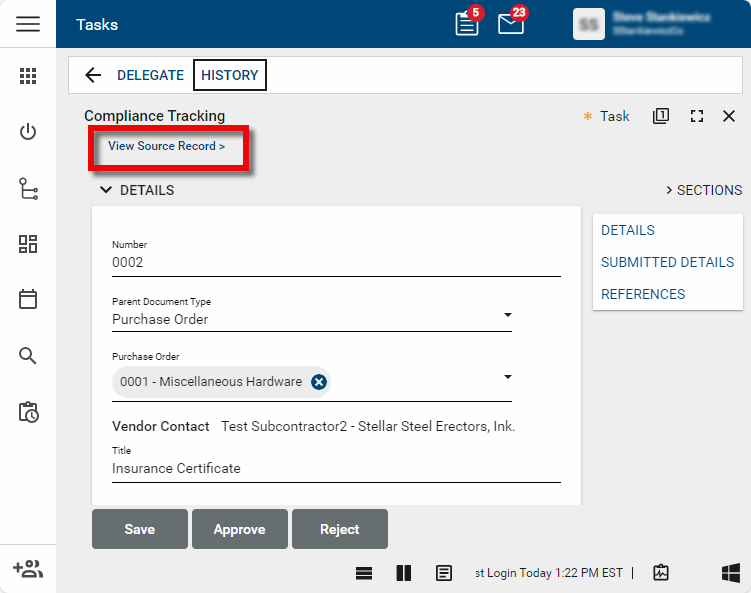
Review the content in the Submitted Details section of the record, and the content of the supporting documents in the References section.
-
If acceptable, select Approve.
-
If not acceptable, select Reject.
Once the approvals are complete, the status changes to "Active".
Track expirations and request renewals
Use the log view to track document expiration dates. At the appropriate time, you can request renewal information from a document with an "Active" status by opening the record and selecting Request Renewal.
This will send a task through Kahua to the Vendor Contact listed on the Expense Contract or Purchase Order associated with the compliance document.
Configure the app
Your domain administrator or another user with the appropriate permissions can configure the app in the Configuration application.
Important When working in the Configuration app, it is important to review the header and ensure that you are working at the correct level in the hierarchy, either the root domain or at a partition or project level.
Settings that you establish at the root domain or lower levels will inherit down the hierarchy until they are overridden. For more information on the hierarchical structure of Kahua, refer to Understanding the hierarchical structure of Kahua.
The Configuration app can be accessed directly through the apps list (Apps > Administration > Configuration), or, in some applications, by right-clicking on an application in the launch bar and selecting Configure. When you select Configure for an app from the launch bar, the detail view of the configuration page for that application opens automatically.
For general information on configuring this app in Configuration, refer to Application configuration.
Available application roles
Application roles determine which actions users can perform in the app. Roles are assigned to groups in the Groups app > Permissions tab. Members of the group then have the permissions associated with the roles assigned to the group.
The following roles are available for this application:
| Role | Details |
|---|---|
| Administrator |
Full administration, including add, configure, create lists, edit, import, export, share, view, send, process, remove, and edit view templates. |
| Contributor |
Can add, edit, open, view, send, and process records. |
| Moderator |
Can add, edit, import, export, remove, share, open, view, send, and process records. |
| Observer |
Can open, view, send, and process records. |
| Referencer |
View-only access to records. |
Note To manage these permissions, open the Groups app and assign the appropriate application role to the group. Only users with the appropriate permissions can manage application roles. For more information, refer to Managing Permissions.