Bid Proposals
Once all bidders have responded and the bid period is closed, the Bid Manager reviews and compares proposals from bidders, requests updates if needed, and awards the bid. In the bid comparison process, the Bid Manager can enter leveling numbers to create a correct comparison. These functions are performed in the Proposals sub-application, which lists proposals received across all solicitations in the project.
How to . . .
 Compare bids
In the Proposals sub-application, you can compare multiple bids to one another, and use the leveling process to ensure that you are comparing numbers appropriately.
To compare two or more proposals for the same solicitation, complete the following steps:
-
Review the header to ensure that you are in the correct project or partition.
-
Navigate to the Bid Management > Proposals app (Apps > All Apps > Bid Management > Proposals).
-
Select two or more proposals from the same solicitation and click Compare from the action bar.
Note The Compare action will only appear in the action bar when at least one item is selected, and will only open the Compare Bids wizard when two or more list items are selected.
-
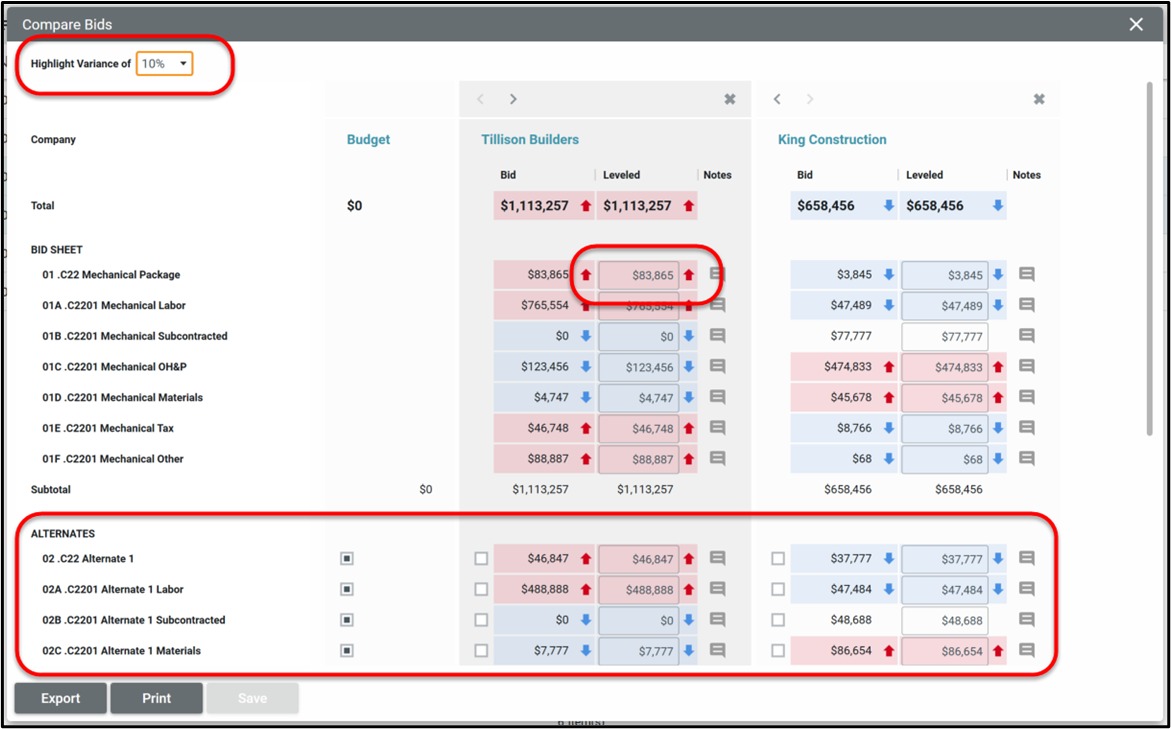
The Compare Bids wizard opens with the selected proposals listed side by side.
-
Enter any leveling amounts and notes on each proposal. Click Save when you are done.
-
To request an update from a bidder, select the proposal to open the detail pane. Click on the Adjustments & Leveling tab. The original bid amount and the leveled bid amounts as well as any notes will appear in the grid. Click Send for Update to request an updated proposal from the bidder.
Request an update from a bidder
If needed, you can request an update from a bidder.
To request an update from a bidder, complete the following steps:
-
Review the header to ensure that you are in the correct project or partition.
-
Navigate to the Bid Management > Proposals app (Apps > All Apps > Bid Management > Proposals).
-
Select the proposal to open it in the detail pane.
-
Click on the Adjustments & Leveling tab. The original Bid amount and the Leveled bid amounts as well as any notes will appear in the grid.
-
Click Send for Update to request an updated proposal from the bidder. A notification is sent to the bidder requesting the update. The bidder can edit their bid up until the Bid Due Date.
Note The leveled amounts and notes that have been entered are not shared with the bidder.
-
The status of the proposal becomes "Update Requested". Once the bidder submits the update, the status becomes "Update Submitted".
Award a bid
Once the bids have been reviewed, you can award the bid to the winner.
To award the bid to the winner, complete the following steps:
-
Review the header to ensure that you are in the correct project or partition.
-
Navigate to the Bid Management > Proposals app (Apps > All Apps > Bid Management > Proposals).
-
Select the winning proposal. Click Award Bid.
-
The status of the awarded bid changes to "Awarded", and the awarded bidder receives a notification of the award.
-
The status for all other bidders on the same solicitation changes to "Not Awarded", and those bidders all receive a notification that their bid was not awarded.
-
After the bid has been awarded, any proposal may be reopened. After being reopened, the Bid Manager may enter a Revised Bid Due date, request a proposal update, or re-award the bid.
Note If a bid is reopened and awarded, the status of other bids, including a bid in "Awarded" status, will be marked "Not Awarded". Only one bid per solicitation can be in an "Awarded" status.
Process a bid into a contract
To create a contract from the winning bid, complete the following steps:
-
Review the header to ensure that you are in the correct project or partition.
-
Navigate to the Bid Management > Proposals app (Apps > All Apps > Bid Management > Proposals).
-
Right-click on the awarded bid and select Process, or open the detail view and select Process from the action bar.
-
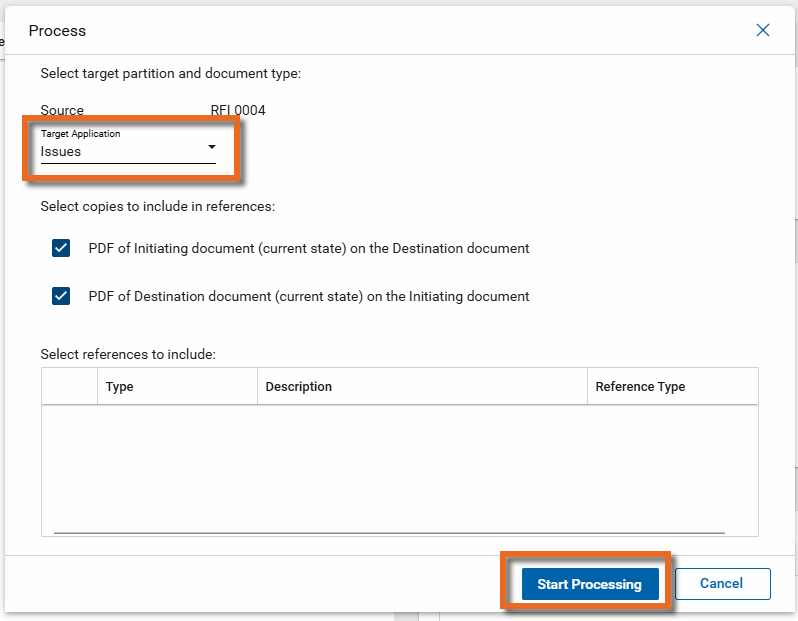
In the Target Application field, select "Expense Contracts". By default, reference files are included. Clear the check boxes for any files you do not want to include.
-
Click Start Processing to initiate the creation of the contract document.
-
The wizard will open a new contract document and populate the new contract with data from the bid proposal, including the Contracted Party company and contact, bid items and other data relevant to the type of contract. Complete any additional fields and click Save.
Configure the app
Your domain administrator or another user with the appropriate permissions can configure the app in the Configuration application.
Important When working in the Configuration app, it is important to review the header and ensure that you are working at the correct level in the hierarchy, either the root domain or at a partition or project level.
Settings that you establish at the root domain or lower levels will inherit down the hierarchy until they are overridden. For more information on the hierarchical structure of Kahua, refer to Understanding the hierarchical structure of Kahua.
The Configuration app can be accessed directly through the apps list (Apps > Administration > Configuration), or, in some applications, by right-clicking on an application in the launch bar and selecting Configure. When you select Configure for an app from the launch bar, the detail view of the configuration page for that application opens automatically.
For general information on configuring this app in Configuration, refer to Application configuration.
The following items are specific to this application:
| Options | Description |
|---|---|
| Settings tab | |
| Generate Notifications for Bid 'No Award' | |
| Require Reference to Submit / Re-submit | |
Available application roles
Application roles determine which actions users can perform in the app. Roles are assigned to groups in the Groups app > Permissions tab. Members of the group then have the permissions associated with the roles assigned to the group.
The following roles are available for this application:
| Role | Details |
|---|---|
| Administrator |
Full administration, including add, configure, create lists, edit, import, export, share, view, send, process, remove, and edit view templates. |
| Contributor |
Can add, edit, open, view, send, and process records. |
| Moderator |
Can add, edit, import, export, remove, share, open, view, send, and process records. |
| Observer |
Can open, view, send, and process records. |
| Referencer |
View-only access to records. |
Note To manage these permissions, open the Groups app and assign the appropriate application role to the group. Only users with the appropriate permissions can manage application roles. For more information, refer to Managing Permissions.