Messages app
The Messages app contains messages sent to you from other users, and messages that you have sent to other users in Kahua.
System messages to you and messages from other users to you appear in the Messages application. All your messages from all your projects appear together in the Messages application.
Messages can be created and sent directly from the Messages app or from records in applications throughout Kahua. Messages that you send from other applications in Kahua appear in your list of Sent messages in the Messages app.
The Messages app can be accessed by clicking on the messages icon  on the Kahua header, from the Unread Messages section of the Kahua home page, and from the main Apps menu.
How to . . .
 Read and act on a message
To read and act on a message, complete the following steps:
-
Open the Messages app. The Messages app can be accessed by clicking on the messages icon
on the Kahua header, from the Unread Messages section of the Kahua home page, or from the main Apps menu. -
From the log view, select a message to open it in the detail view.
-
To perform one of the following actions, select the option from the action bar:
-
Reply or Reply All to reply to a message.
-
Forward to forward the message to another Kahua user.
-
Delete to delete a message.
-
Copy to Communications to copy the message to the Communications application.
-
Mark as Unread to show the message as not yet read.
-
View to view a PDF of the message.
-
-
To open another message, select it from the log view. To close the message, click the Close icon
 .
.
Receive a copy of all Kahua messages in your email
You can choose to have a copy of Kahua messages sent to you to also be sent to the email associated with your Kahua account. This setting can be found in My Settings > General tab.
To enable this setting, complete the following steps:
-
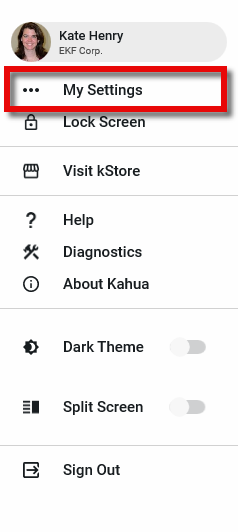
To access the My Settings page, click the person icon in the upper right corner of your screen (or your image if you’ve set a picture for your user account) and select My Settings from the drop-down menu.
-
Select the General tab.
-
Under Message Options, select Send copy of received messages to my email.
-
Click Save to save your changes. A copy of all messages sent to your Kahua Messages app will now be sent to the email address associated with your Kahua account.
Create and send a new message from the Messages application
Messages can be created and sent directly from the Messages app, or from records in applications throughout Kahua.
To create and send a message from the Messages app, complete the following steps:
-
Open the Messages app. The Messages app can be accessed by clicking on the messages icon
on the Kahua header, from the Unread Messages section of the Kahua home page, or from the main Apps menu. -
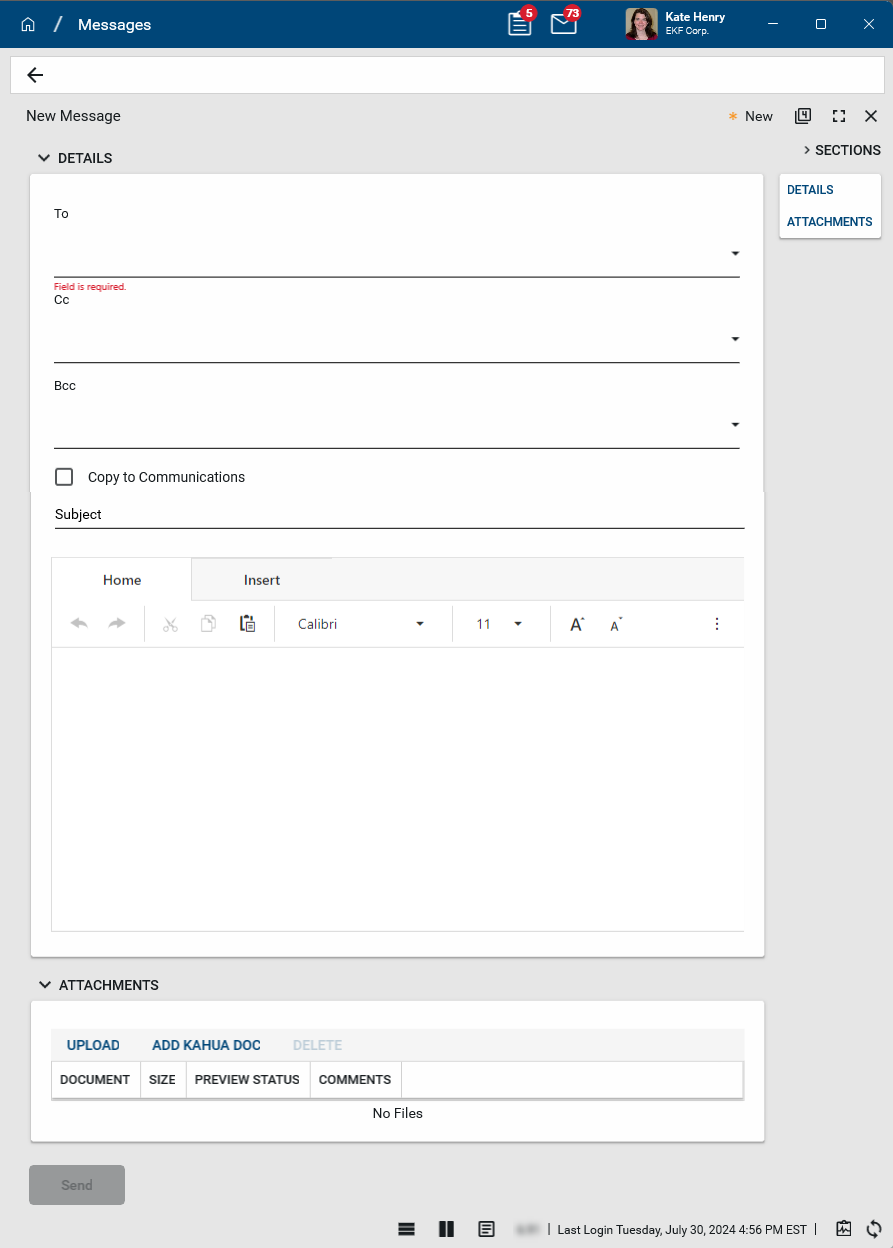
Click New in the action bar to open the new message.
-
Complete the To/CC/BCC fields. You can select names from your Kahua contacts, select a group, or, with the appropriate user permissions, enter an email address directly. To enter an email address, type the address in the appropriate line and press Enter. For more information on email permissions, refer to Manage user email activity.
Note When a group is added to the To/CC/BCC fields of a message, only contacts who are members of that group at your current level in the hierarchy are included as message recipients.
For example, if you are in the "Northeast Territory" partition and add the "Domain Users" group to the To field of a message, the users who are members of the group at that point in the hierarchy will be sent the message. Users who are members of the group at higher levels of the hierarchy but were removed from the "Northeast Territory" level and users who are added as members of the group at levels below the "Northeast Territory" level will not be sent the message.If the selected Kahua contacts are registered Kahua users, they will receive a Kahua message and, if their Message options are set to receive email copies of Kahua messages, they will also receive a copy of the message to their email address.
If the selected Kahua contacts are not registered Kahua users, they will receive a copy of the message to the email address associated with their contact record. If there is no email address on their contact record, the sender will be warned that there are recipients who will not receive a message.
-
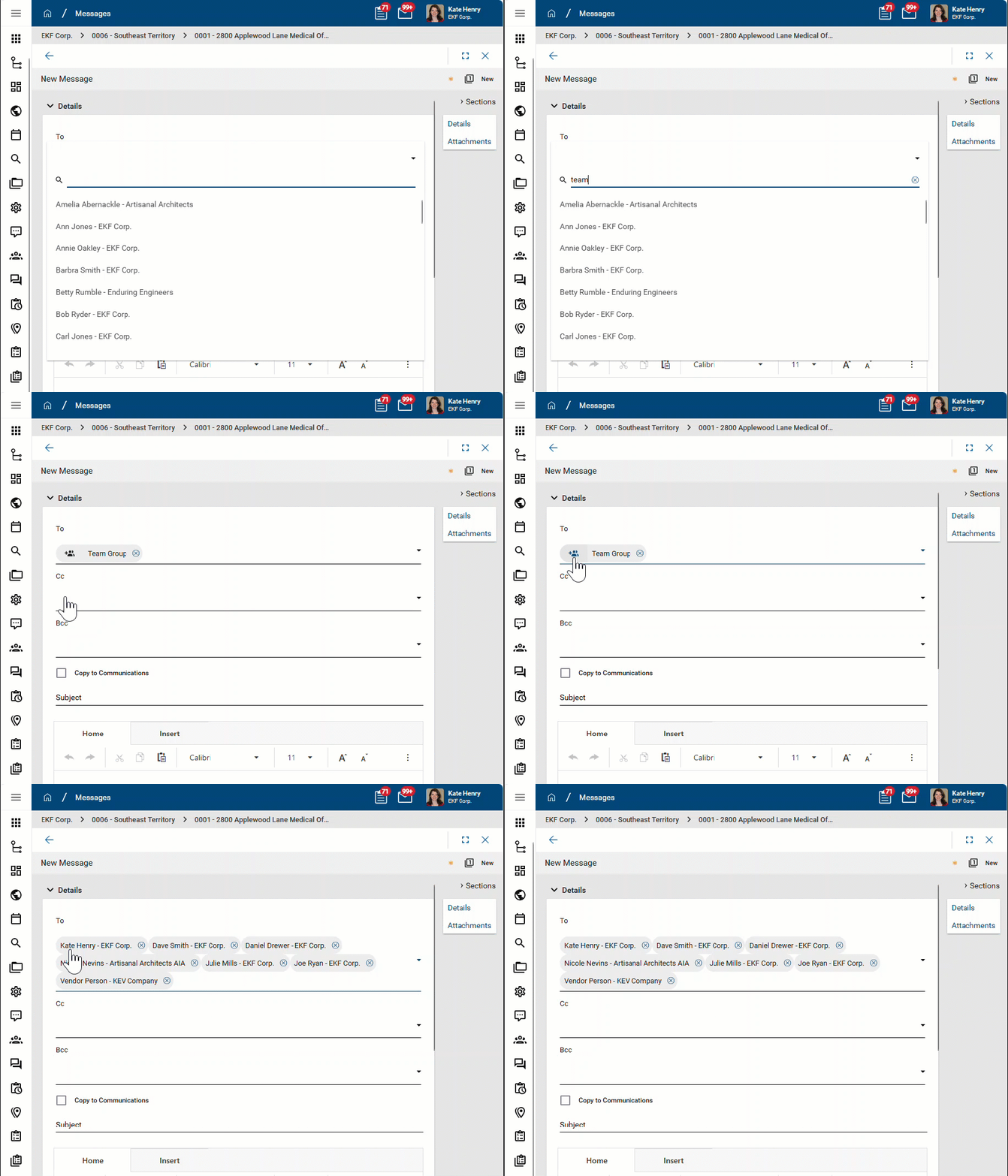
If a group is added to a To/CC/BCC field, note that you can click on the Expand List icon
 to replace the group name with the list of message recipients from that group.
-
Select Copy to Communications to send a copy of the message to the Communications application in your currently open project.
-
Enter a Subject. Be sure to include the project name and the topic of the email.
-
Enter text in the Home field and apply formatting as desired. Use Insert to add a hyperlink or table.
-
To include an attachment, scroll to the Attachments section. Select Upload to add a file from your computer or Google Drive (if you have enabled My Settings > General tab > Enable Google Drive Uploads). Select Add Kahua Doc to add a record from Kahua as an attachment. To remove an attached file, select it and click Delete.
Note When sending a message to an email address outside of Kahua, the maximum email message size including attachments is 20MB. For more information, refer to Outbound email size limits.
-
Click Send to send the message.
Create and send a new message from other applications in Kahua
Messages can be created and sent directly from the Messages app, or from records in applications throughout Kahua.
To create and send a message from other applications, complete the following steps:
-
Open the application and record you want to send the message from.
-
In the action bar, click on the Send icon
 and select Send.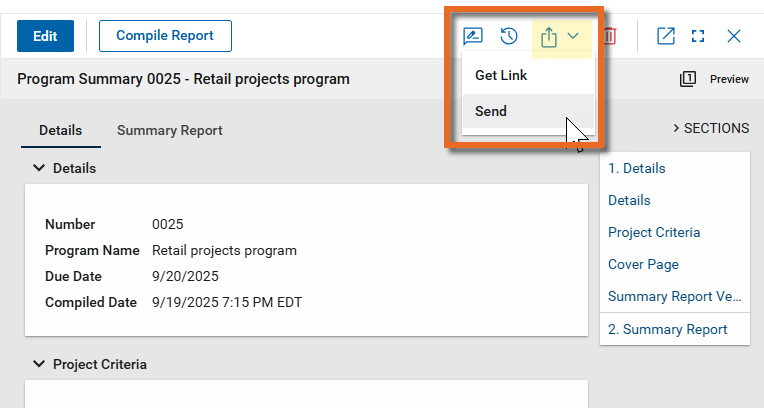
-
Complete the To/CC/BCC fields. You can select names from your Kahua contacts, select a group, or, with the appropriate user permissions, enter an email address directly. To enter an email address, type the address in the appropriate line and press Enter. For more information on email permissions, refer to Manage user email activity.
Note When a group is added to the To/CC/BCC fields of a message, only contacts who are members of that group at your current level in the hierarchy are included as message recipients.
For example, if you are in the "Northeast Territory" partition and add the "Domain Users" group to the To field of a message, the users who are members of the group at that point in the hierarchy will be sent the message. Users who are members of the group at higher levels of the hierarchy but were removed from the "Northeast Territory" level and users who are added as members of the group at levels below the "Northeast Territory" level will not be sent the message.If the selected Kahua contacts are registered Kahua users, they will receive a Kahua message and, if their Message options are set to receive email copies of Kahua messages, they will also receive a copy of the message to their email address.
If the selected Kahua contacts are not registered Kahua users, they will receive a copy of the message to the email address associated with their contact record. If there is no email address on their contact record, the sender will be warned that there are recipients who will not receive a message.
-
If a group is added to a To/CC/BCC field, note that you can click on the Expand List icon
to replace the group name with the list of message recipients from that group.
-
Select Copy to Communications to send a copy of the message to the Communications application in your currently open project.
-
Modify the Subject if necessary.
-
Enter text in the Home field and apply formatting as desired. Use Insert to add a hyperlink or table.
-
Typically, a PDF of the record you are sending the message from is included as an attachment to the message in the Attachments section, as are any other reference files associated with the record. Select Upload to add a file from your computer or Google Drive (if you have enabled My Settings > General tab > Enable Google Drive Uploads. Refer to Enable Google Drive Uploads.). Select Add Kahua Doc to add a record from Kahua as an attachment. To remove a file, select it and click Delete.
-
Click Send to send the message.
View sent and deleted messages
By default, when you open the messages app, you will see messages you have received. To see messages you have sent or deleted, complete the following steps:
-
Open the Messages app. The Messages app can be accessed by clicking on the messages icon
on the Kahua header, from the Unread Messages section of the Kahua home page, or from the main Apps menu. -
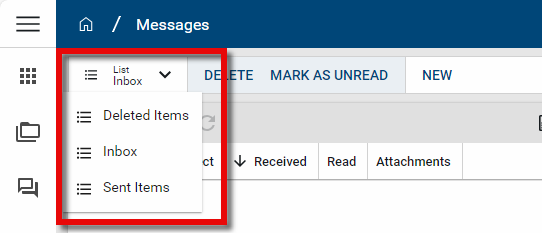
Click the list drop-down menu. Select Deleted Items, Inbox, or Sent Items. The selected view will appear.
-
Click the list drop-down menu again to change views as needed.
Mark messages as read or unread
You can mark a single message as unread from the detail view by selecting Mark as Unread from the action bar. From the log view, you can mark one or more messages as read or unread.
To mark one or more messages as read or unread from the log view, complete the following steps:
-
Select the check box next to each message you want to change the read status of. Select the check box in the header row to select all the messages.
-
Select Mark as Read or Mark as Unread from the action bar.
Note If you select messages with mixed statuses, i.e. some messages are read and some are unread, you will have the option to mark all as read.
-
To see your changes in the list view, you can wait several seconds for the auto-refresh or click the Refresh icon to see them immediately.