Using Bid Room
Congratulations! You’ve been invited to bid on a project by an owner or contractor who is using the Kahua platform. This article will describe the process to respond to that bid.
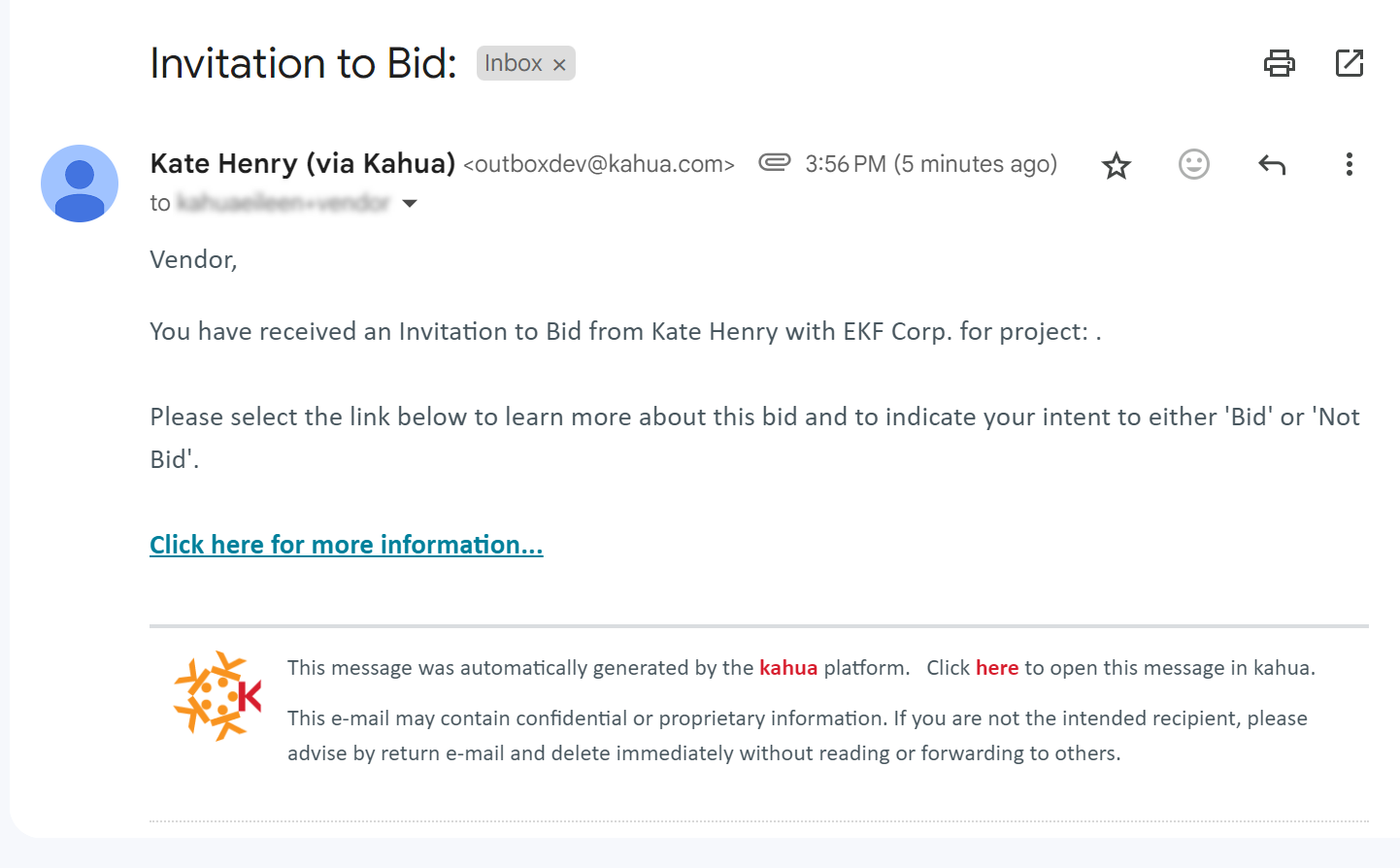
You should have received an email with information on an opportunity to bid on a project. The email will typically contain an attached Bid Solicitation form with details about the bid and a link to view the bid solicitation in Kahua.
When you click on the link, a page will open with the option to view the bid information in Kahua or to decline to bid without viewing the details. You will also be able to decline to bid after reviewing the bid solicitation in Kahua.
Let’s take a look at the steps involved in responding to the bid solicitation.
How to . . .
 Review the bid solicitation and submit intent to bid or not bid
-
Open the email that has been sent to you. Typically, there will be an attached Bid Solicitation form in PDF format that includes information about the bid, including a Response Due date, Questions Due date, Bid Due date, and other important dates and details.
-
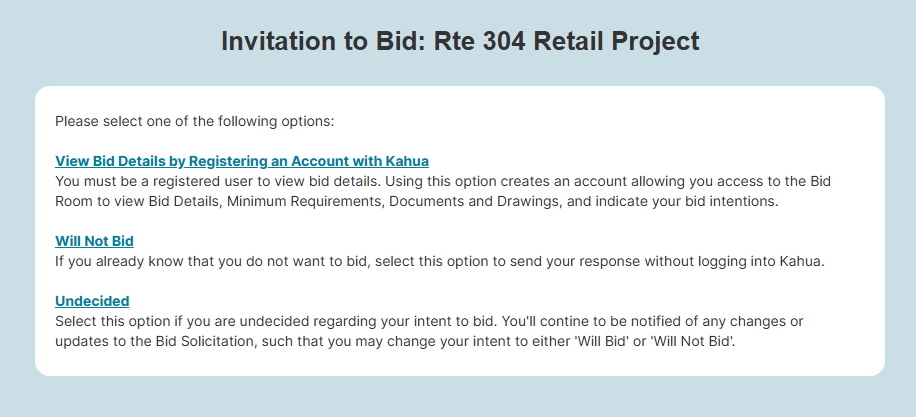
Click the link in the email to access more information. A web page with several options on it will open. Select one of the following options as available:
-
View Bid Details by Registering an Account with Kahua – Select this option to open the bid details. If you are already a Kahua user, you can log in to your account to view the bid. If you are not yet a Kahua user, you can use this link to set up a username and password. You do not need to have a Kahua license to access the bid details or submit a bid in Kahua. All you need is a username and password. For more information on setting up an account, refer to Signing up with Kahua.
-
Will Not Bid – Select this option to inform the contractor that you will not be bidding on this project. There is no account setup required to select this option.
-
Undecided – If available, select this option if you have not yet decided if you will bid or not. There is no account setup required to select this option. You will continue to be informed of any changes or updates to the bid solicitation.
-
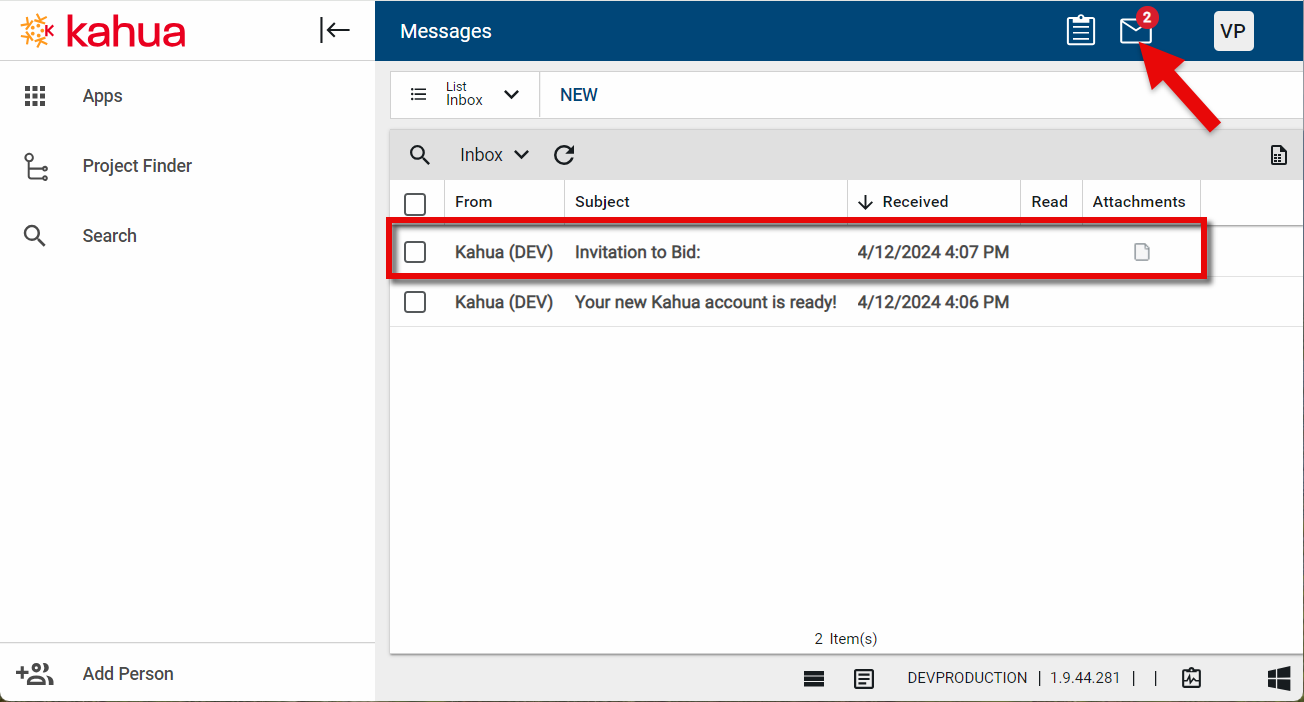
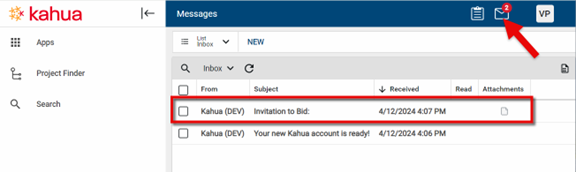
Complete the log in or registration process and open Kahua. When Kahua opens, click the messages icon in the header to access the message regarding the Invitation to Bid. Click on the Invitation to Bid message to open it.
-
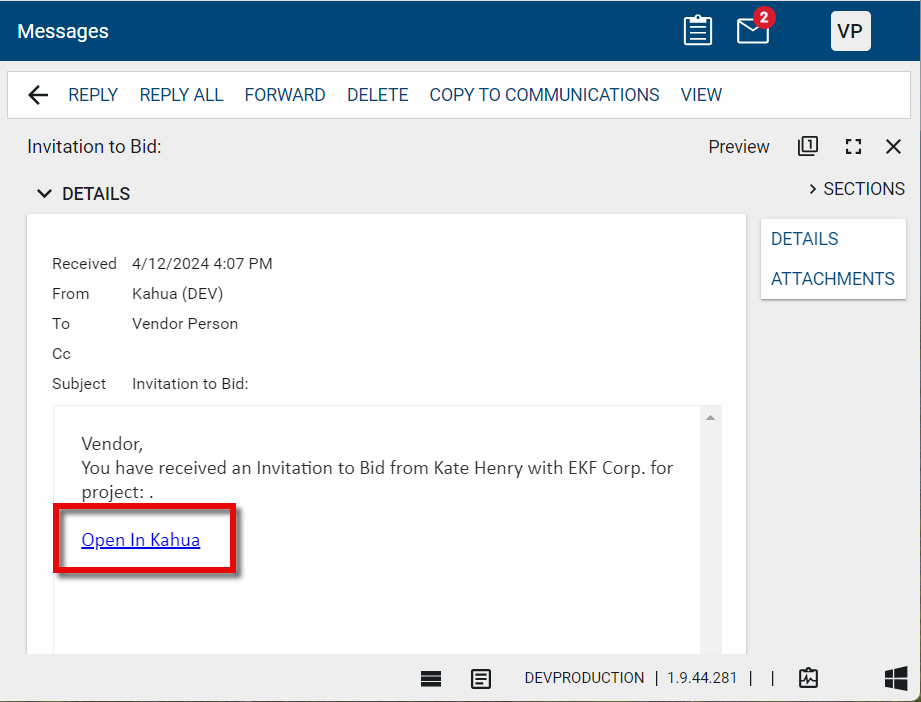
In the message, click on Open in Kahua to open the Bid Invitation in the Bid Room application.
-
Notice when you open the bid, the Bid Room application becomes active on the launch bar on the left. To collapse the launch bar, click the collapse icon
 at the top of the launch bar.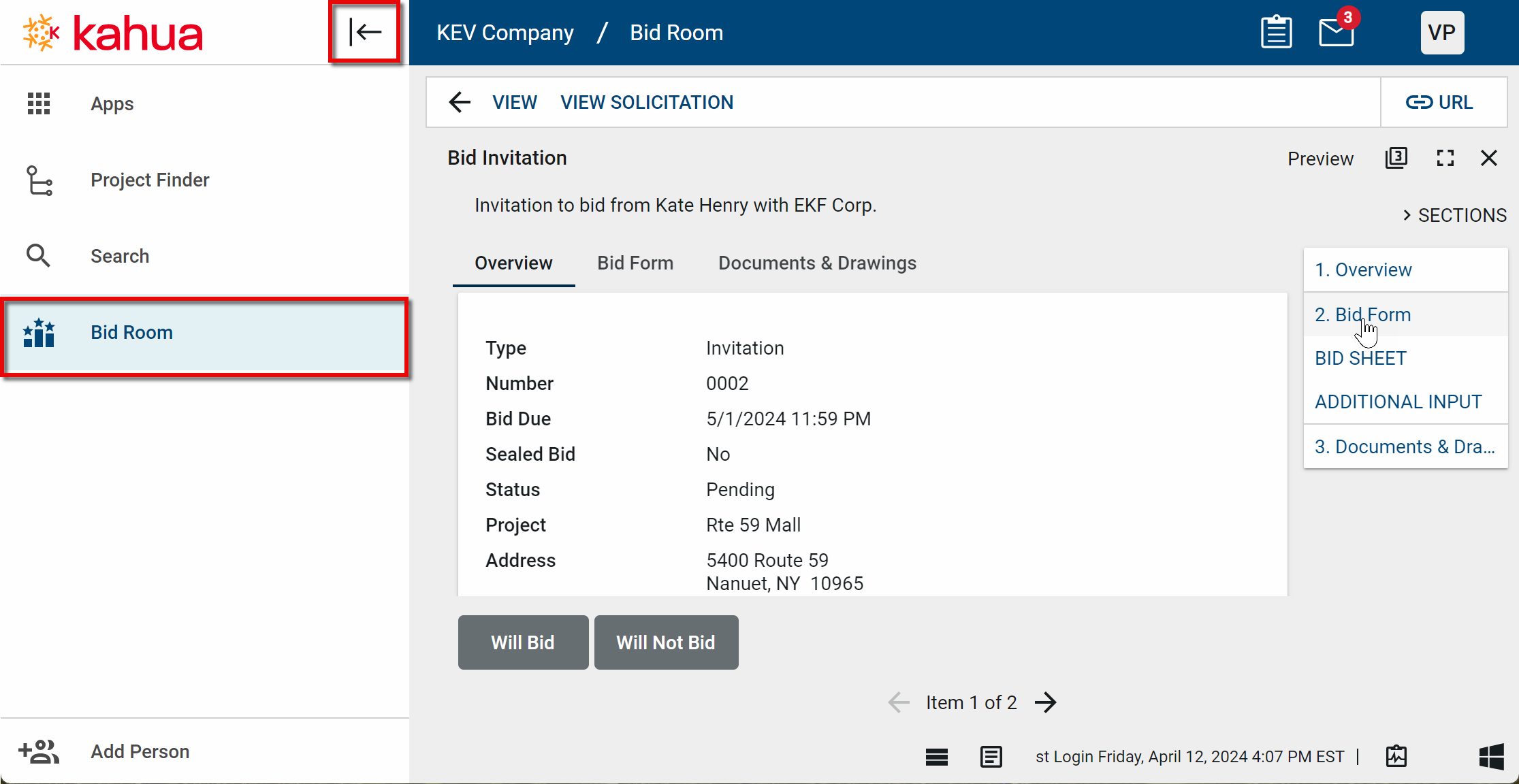
-
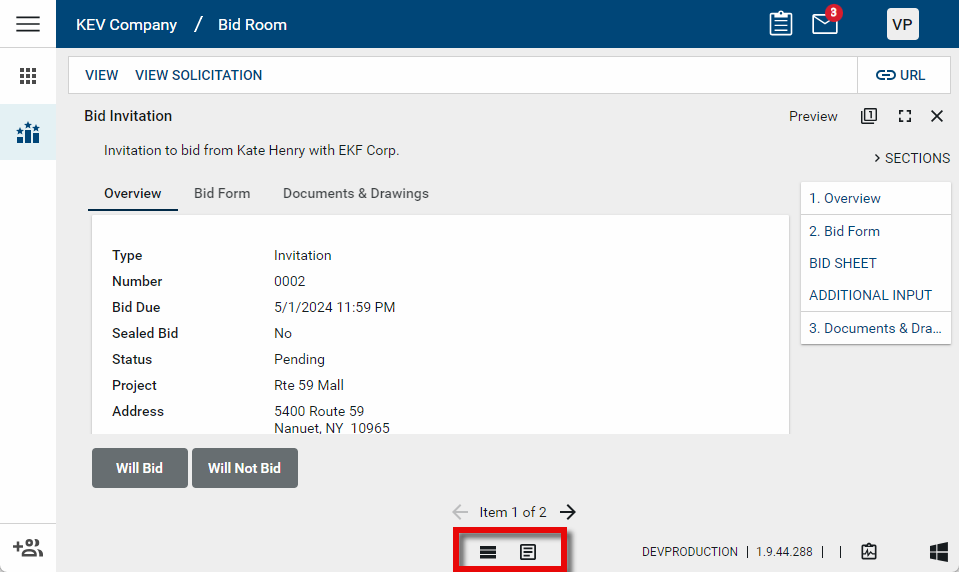
To switch between seeing a list of all your bid invitations in a list view or an individual one in detail view, click the log view icon or detail view icon at the bottom of the page.
-
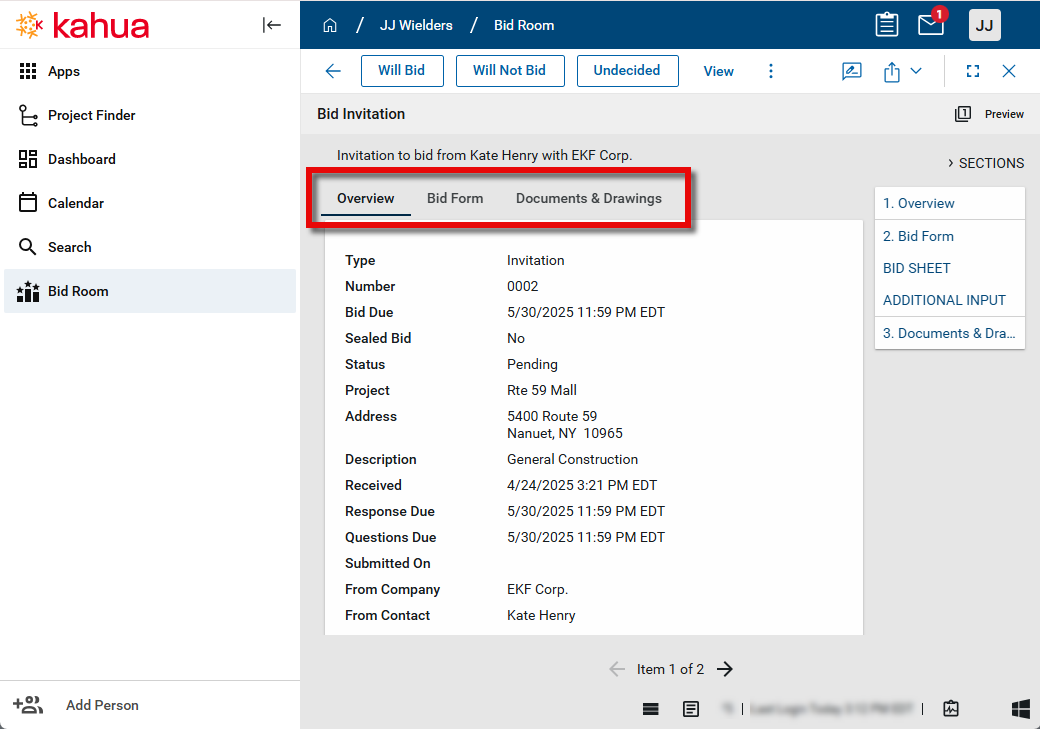
When you open the Bid Invitation, there are three tabs to review: Overview, Bid Form, and Documents & Drawings.
-
The Overview tab contacts basic information about the bid, including the project name and address, important dates such as Bid Due, Response Due, and Questions Due, and Scope and Schedule information.
-
The Bid Form tab contains any Minimum Requirements, Instructions, and the Bid Sheet.
-
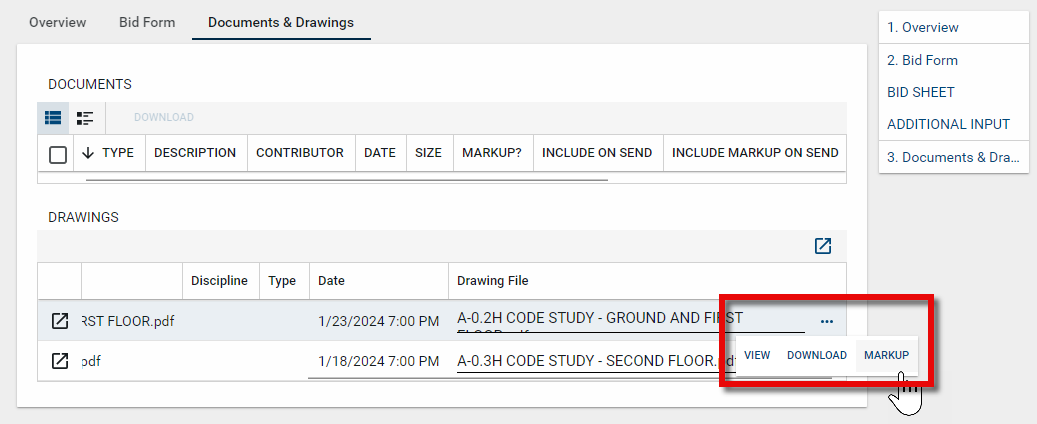
The Documents & Drawings tab contains relevant documents and drawings as attached files. Scroll to the right to select the ellipses. From here you can View, Download, or Markup the file. Any markups you make on the file will be saved to your account and will not appear to the contractor. For more information on using markups, refer to Using the Markup Tool.
-
-
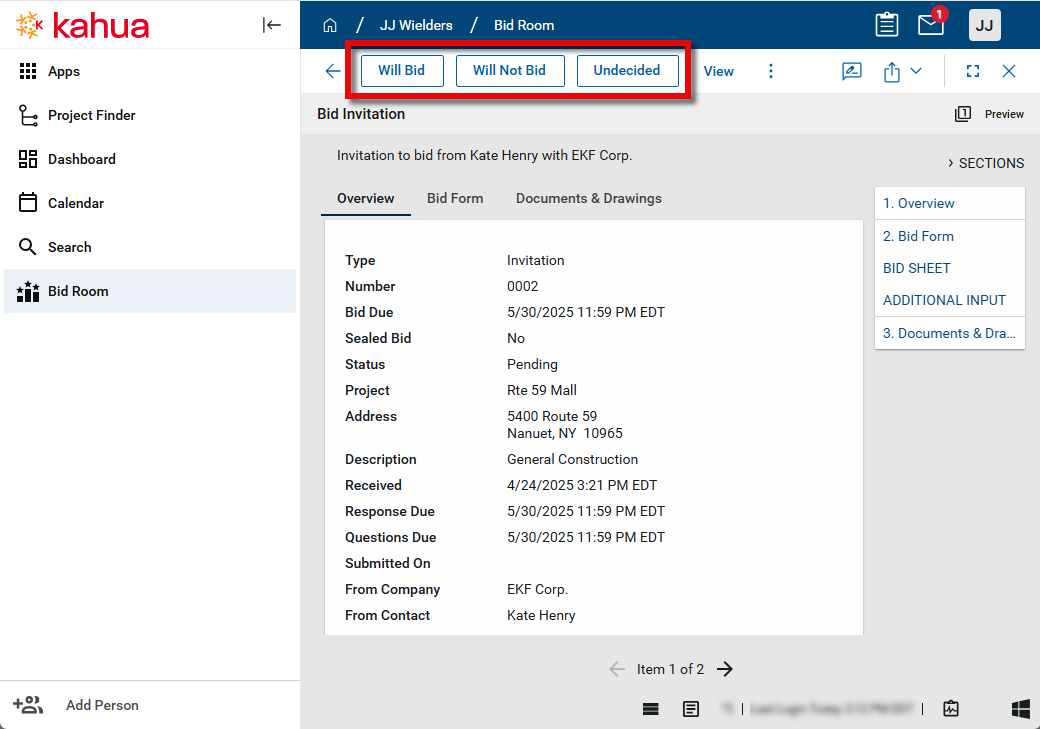
Before the Response Due date, select Will Bid or Will Not Bid to inform the contractor of your intent to bid or not bid.
If available, you can select Undecided at this time. You will continue to receive updates on the solicitation.
-
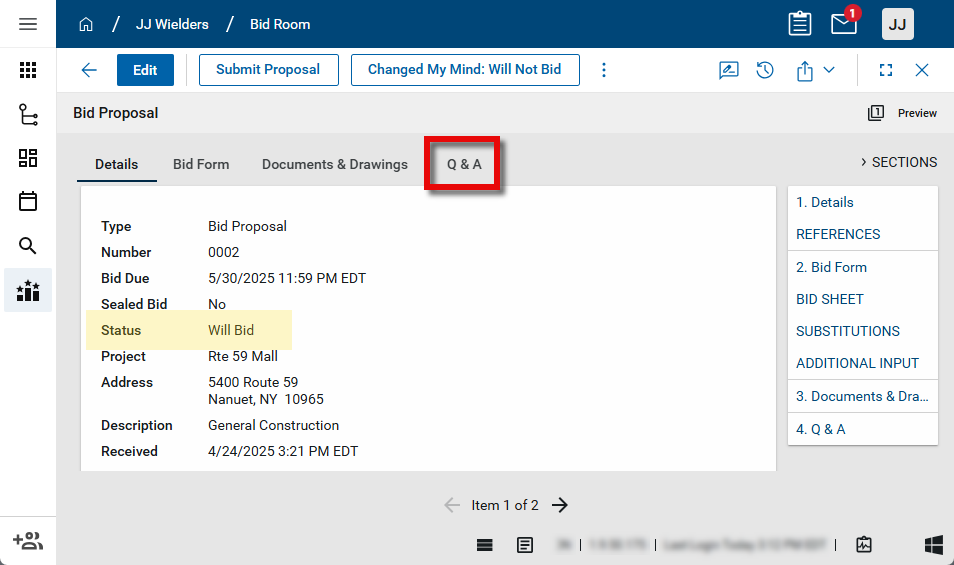
Once you select Will Bid, the Status of the solicitation will change from "Pending" to "Will Bid" and the Q & A tab will appear.
-
Depending on how the bid is set up, the Changed My Mind: Will Not Bid option may now appear. Select this option to let the owner or contractor that you are no longer planning to bid on this project.
Submit a question
-
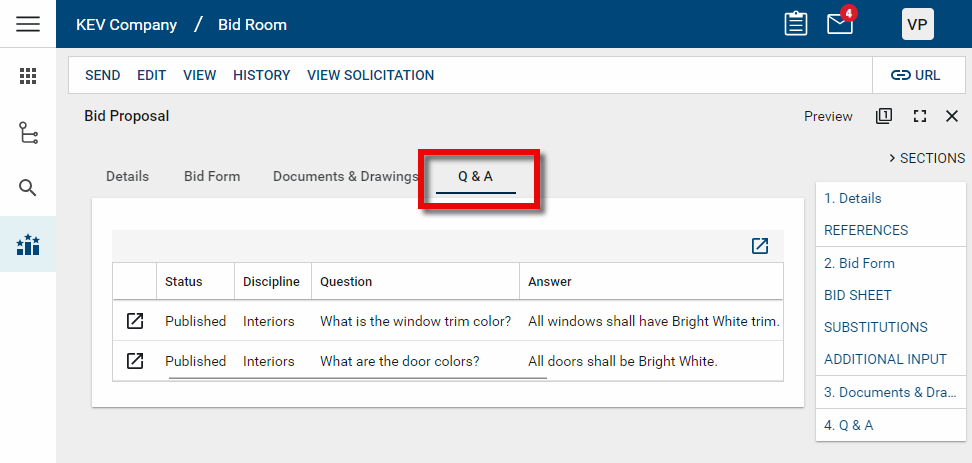
To submit a question to the contractor, or review questions and answers published to all bidders, select the Q & A tab.
-
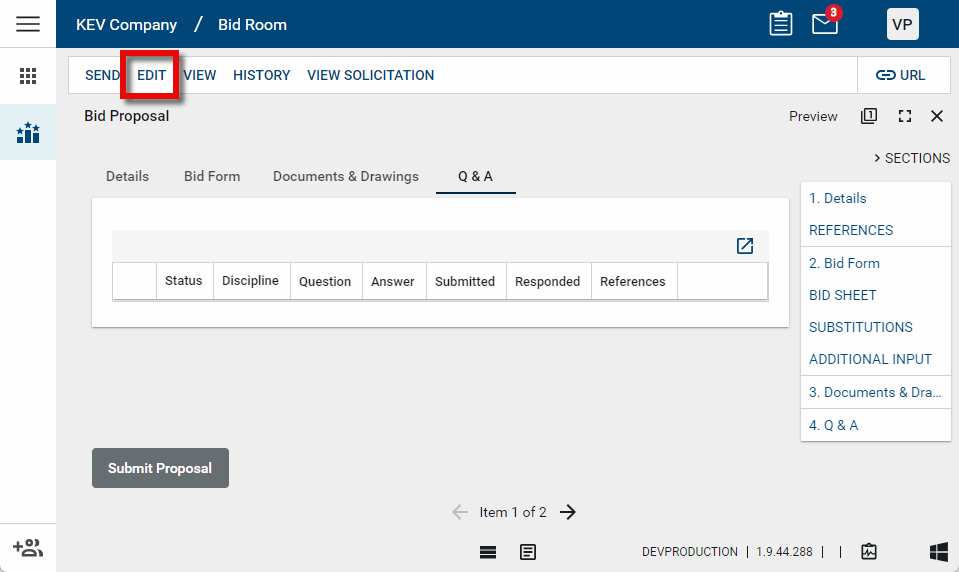
To submit your own question, click Edit in the action bar at the top of the page.
-
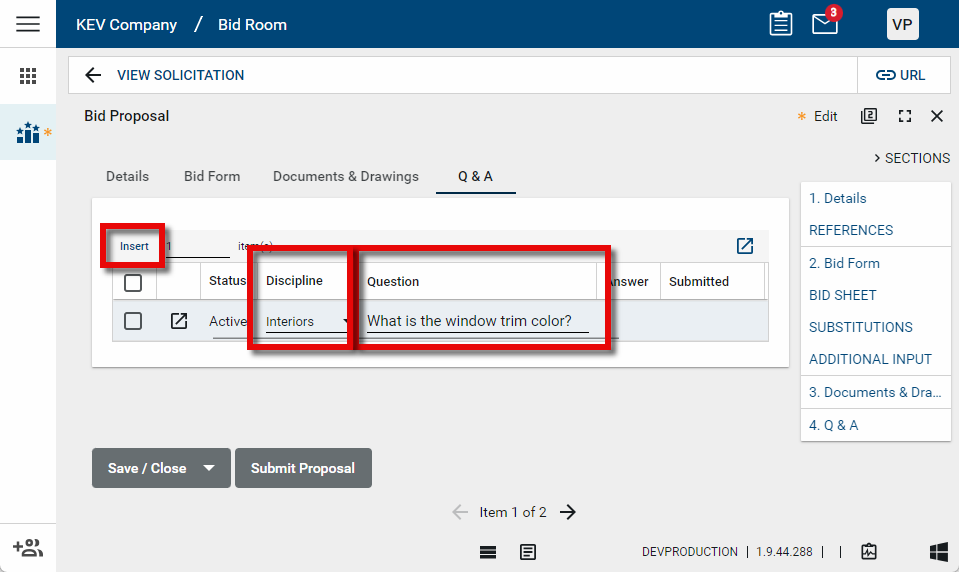
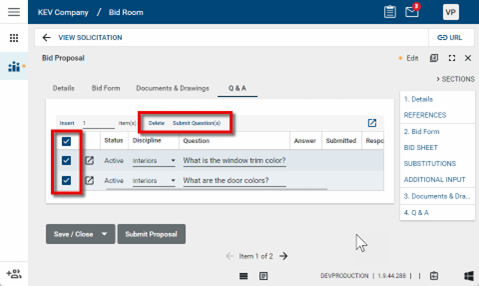
Click Insert to add a line to the Q & A grid. Select the appropriate Discipline if available and enter your Question. Repeat for as many questions as you have.
-
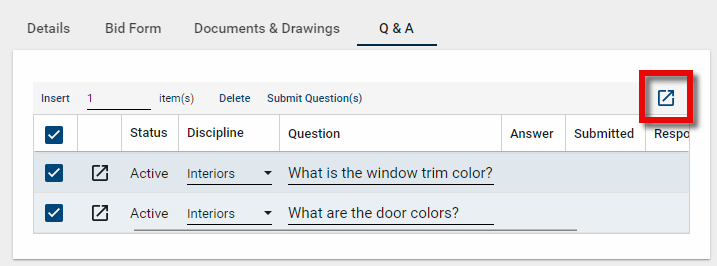
To view the grid in a larger format, click the Expand icon
 .
.
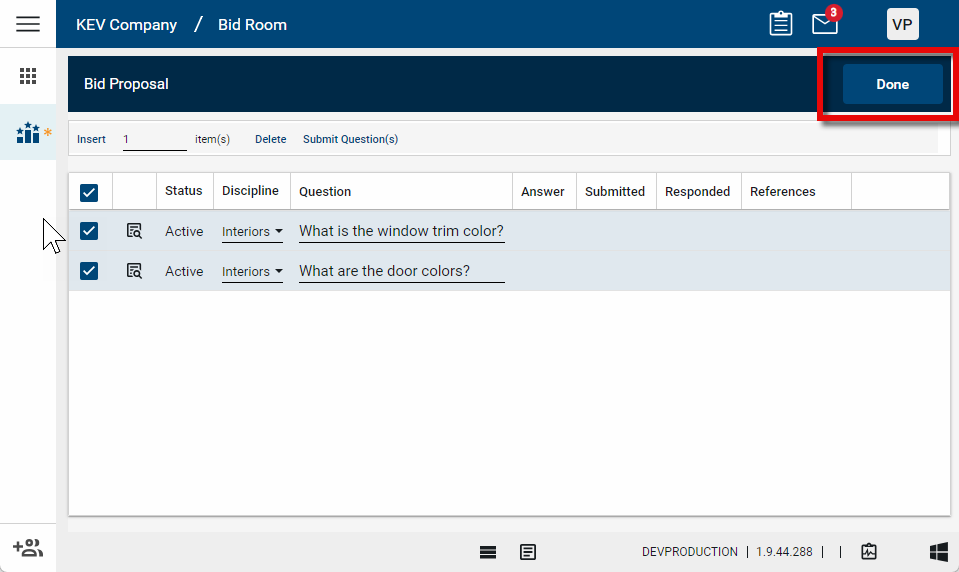
When you are done working in the larger format, click Done to return to the standard grid view.
-
To submit one or more questions to the contractor, select the appropriate check boxes in the left-hand column and click Submit Question(s).
To delete a question that has not yet been submitted, select the appropriate check box and click Delete. You cannot delete a question once it has been submitted.
Review responses to questions
-
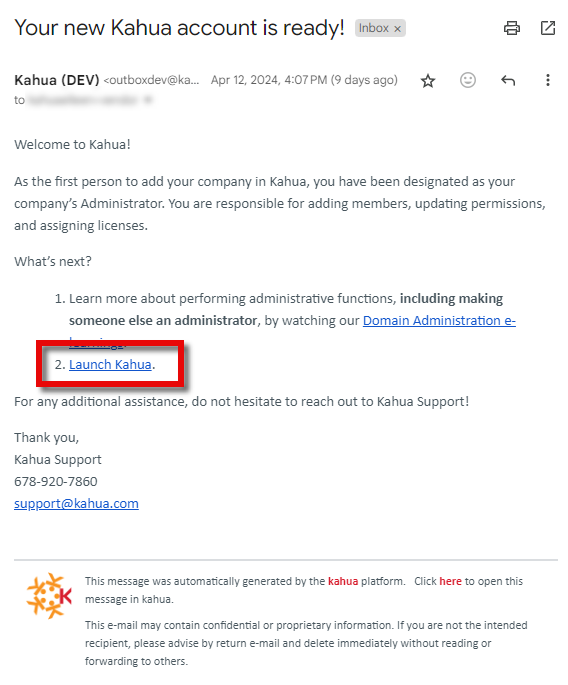
Open Kahua. If you do not have the webpage bookmarked, you can open the “Your new Kahua account is ready!” email and click Launch Kahua to open the web host and log in with your email address and password.
-
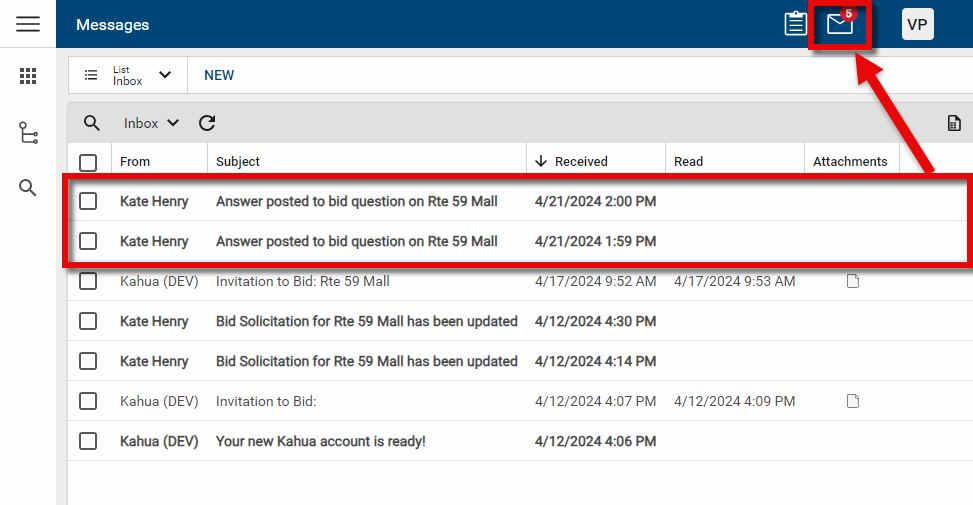
Once Kahua is open, you can click the messages icon in the header to view the responses to each question, or open the bid to see all the responses on the Q & A tab.
-
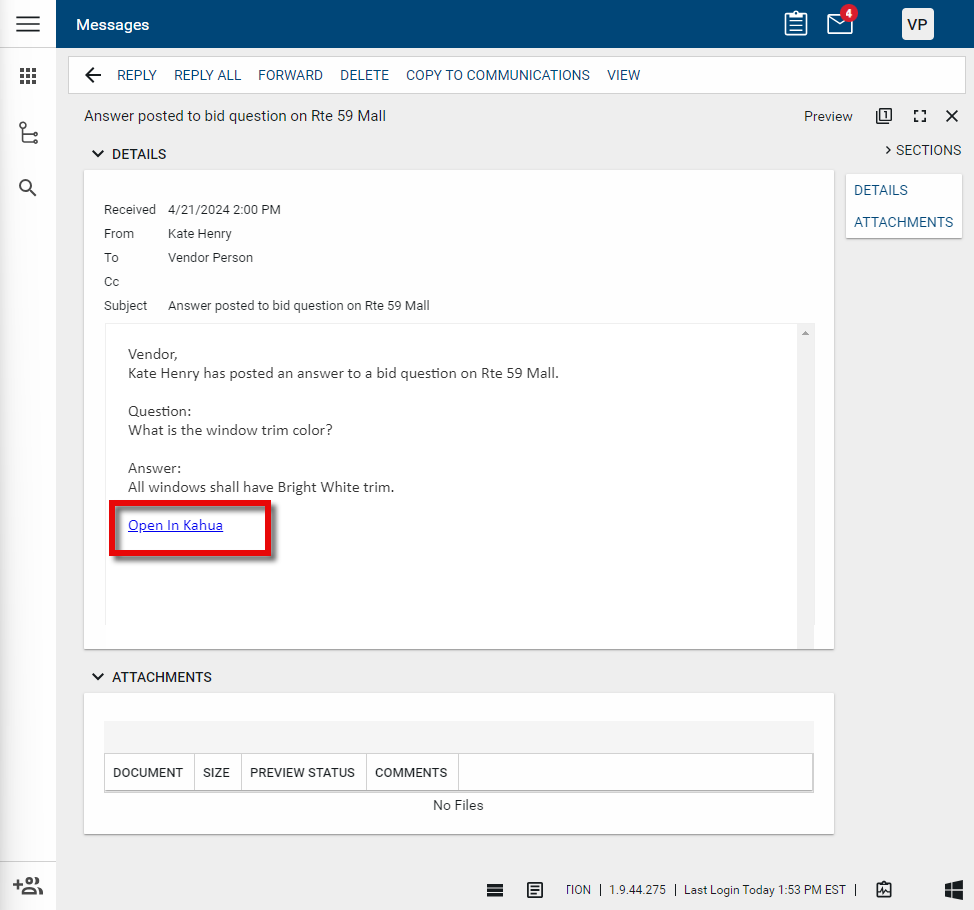
From the message, you can review the response, or select Open In Kahua to open the Q & A tab on the bid.
Submit your bid
-
Open Kahua. If you do not have the webpage bookmarked, you can open the “Your new Kahua account is ready!” email and click Launch Kahua to open the web host and log in with your email address and password.
-
If not currently open, select the Bid Room application and the project you are submitting the bid for.
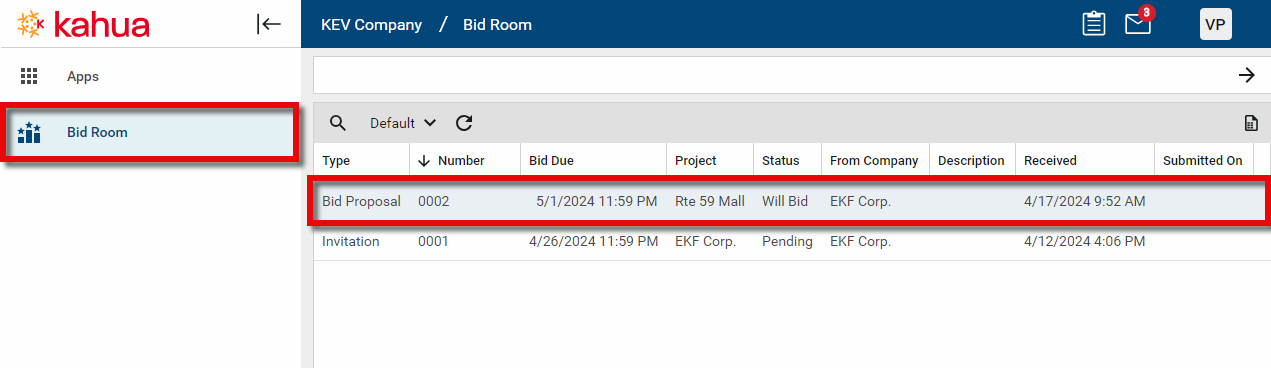
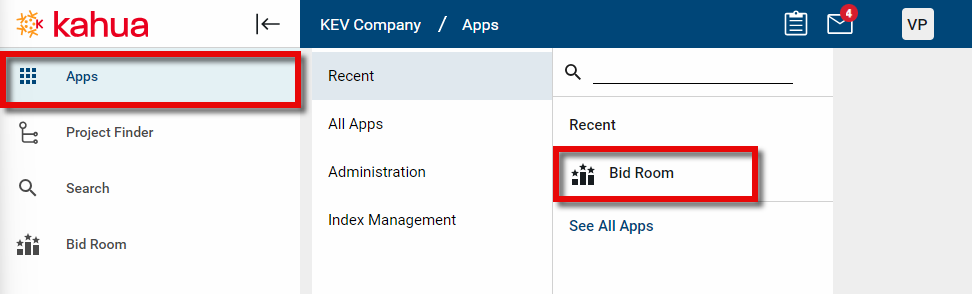
If the Bid Room application is not open, click on Apps and select it from that menu.
Alternatively, click the messages icon and open the original invitation to open the bid.
-
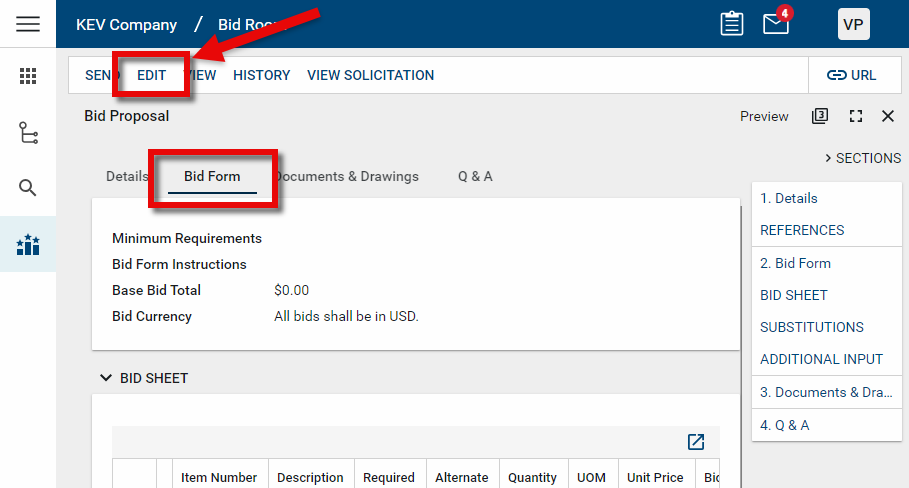
Once the bid is open, select the Bid Form tab and click Edit to enter your bid information.
-
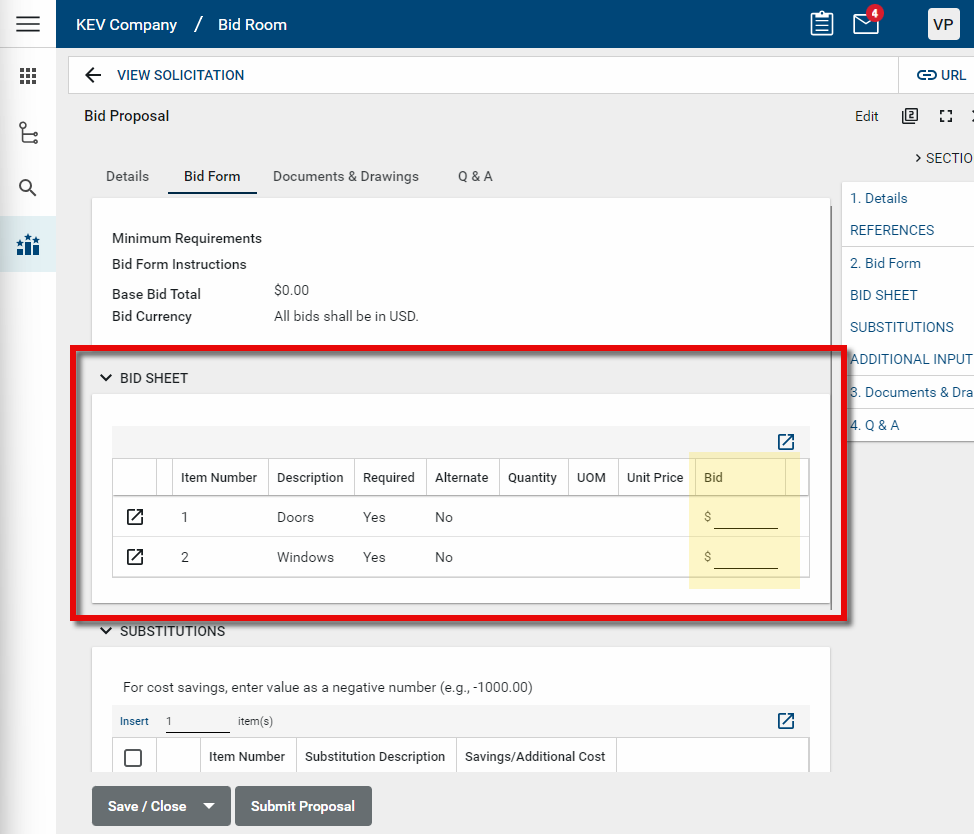
Enter the appropriate values on the Bid Sheet section of the Bid Form tab.
-
To work in the grid in a larger format, click the Expand icon
. To return to the bid proposal from the larger format grid, click Done.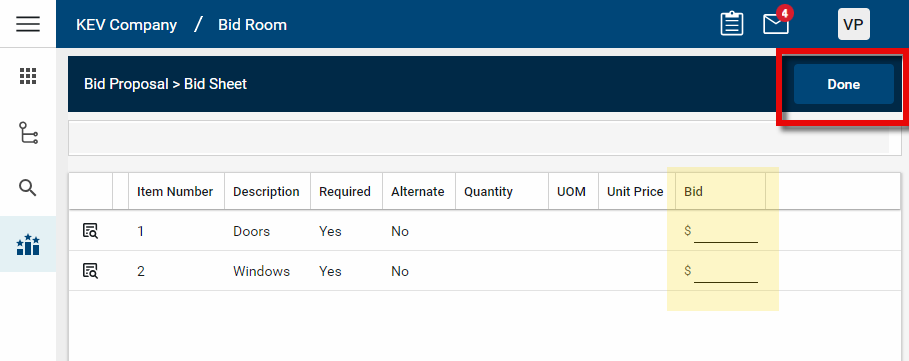
-
In the Substitutions section, enter any substitutions you have.
Click Insert to enter a number of items into the grid. To work in the grid in a larger format, click the Expand icon
. To close the larger format grid, click Done.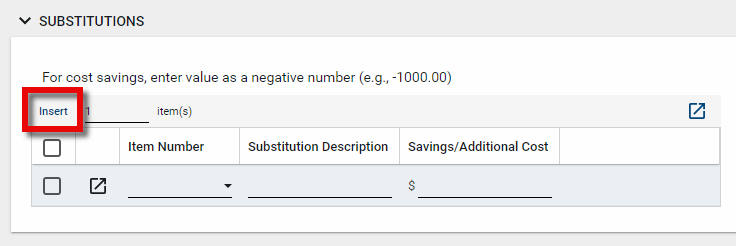
Important Cost savings should be entered as a negative number!
-
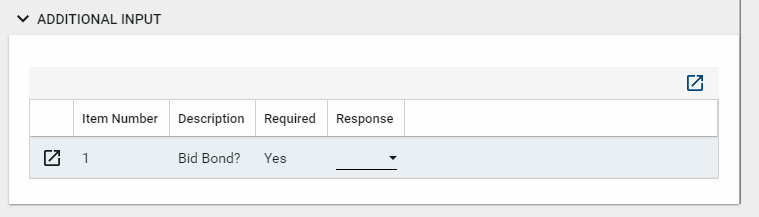
Review the Additional Input section for any additional responses required.
-
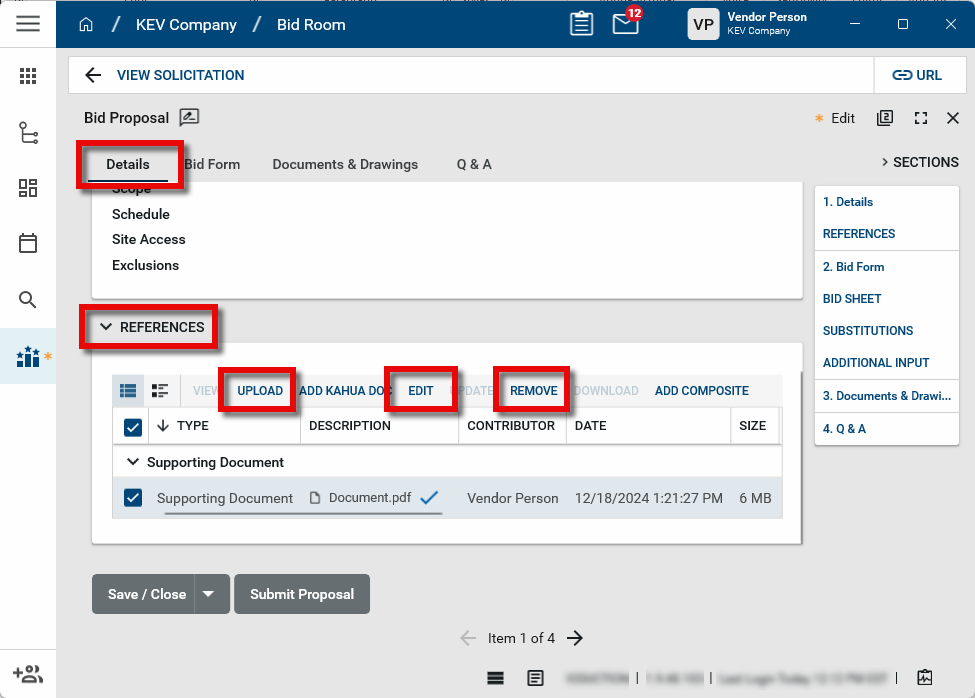
To attach one or more documents, such as a PDF or drawing file, open the Details tab and scroll down to the References section.
-
To add a document, select Upload. Locate the file in File Explorer and click Open. The file is added to the section.
-
By default, the Description is the name of the file. To modify that value, select the document and click Edit. Make your changes and click Ok.
-
To remove a document, select it and click Remove.
-
-
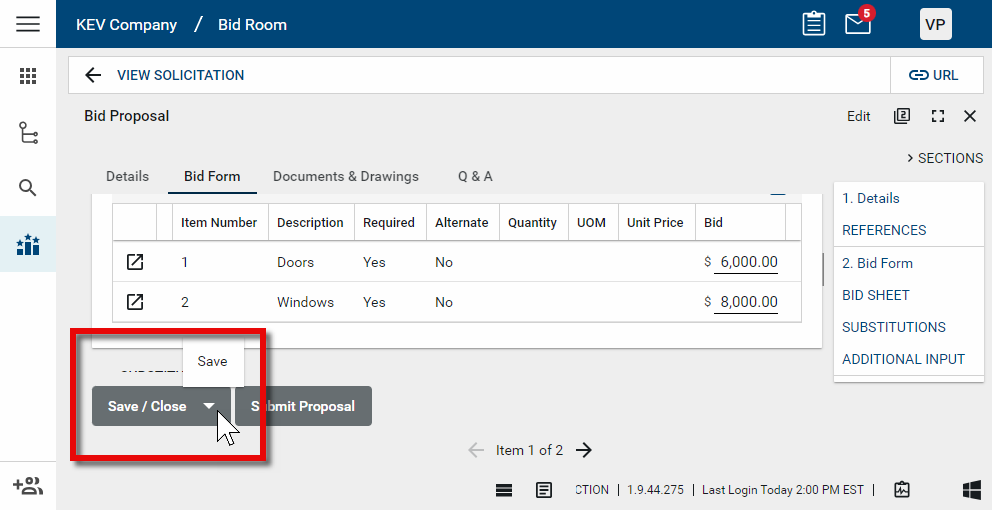
To save your work prior to submitting the proposal, select Save or Save/Close.
-
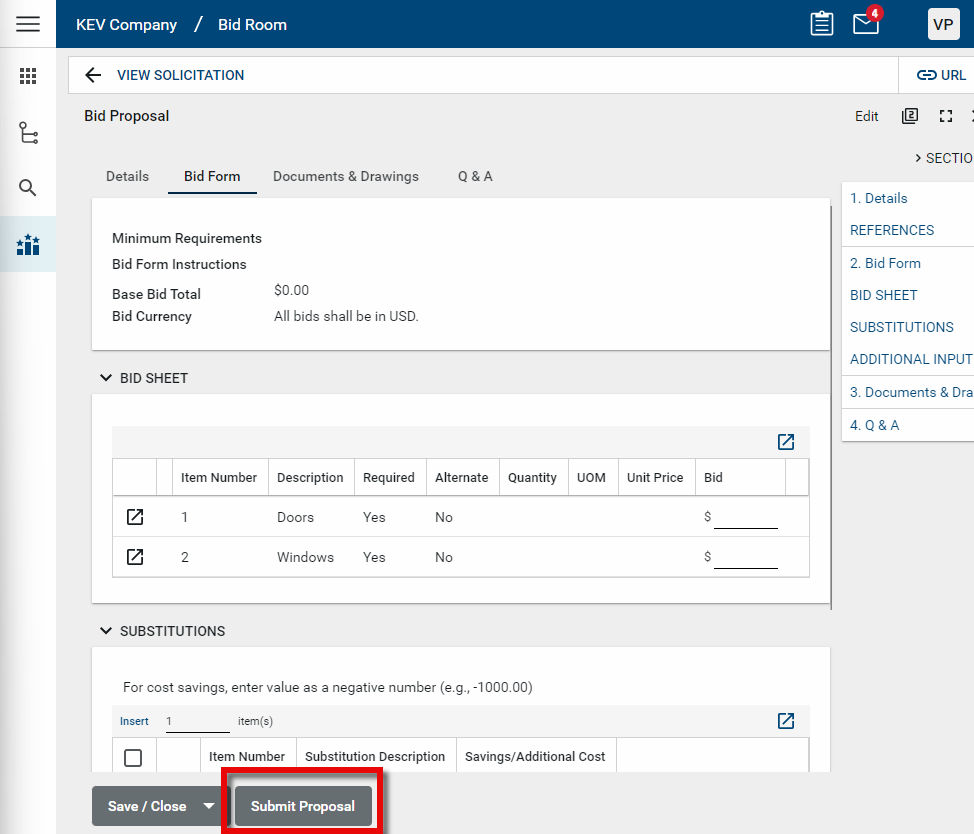
Once you have entered all your proposal information, select Submit Proposal.
-
When your bid is submitted (or re-submitted), you will receive a Kahua message confirming your submission or re-submission. You can access this message in your Messages app. To open the Messages app, click on the Messages icon
 on the header. For more information, refer to Messages app.
Note You can choose to have a copy of Kahua messages sent to you to also be sent to the email associated with your Kahua account. This setting can be found in My Settings > General tab > Send copy of received messages to my email. For more information, refer to Receive a copy of all Kahua messages in your email.
-
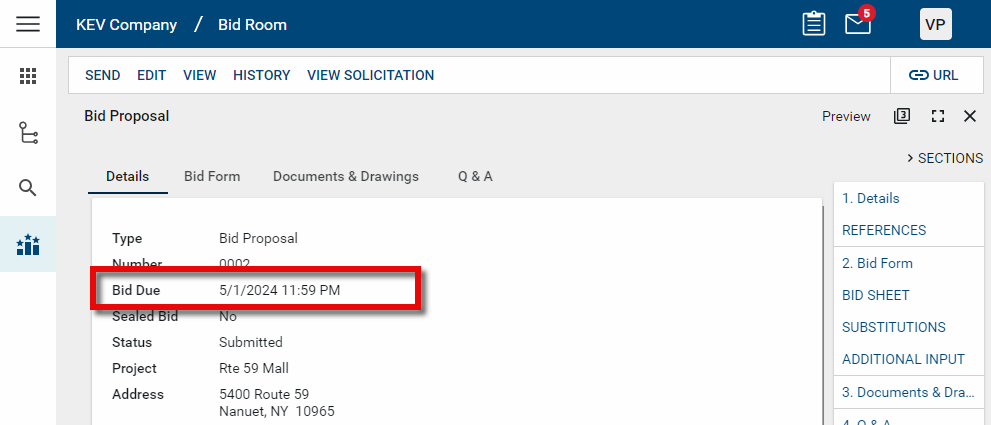
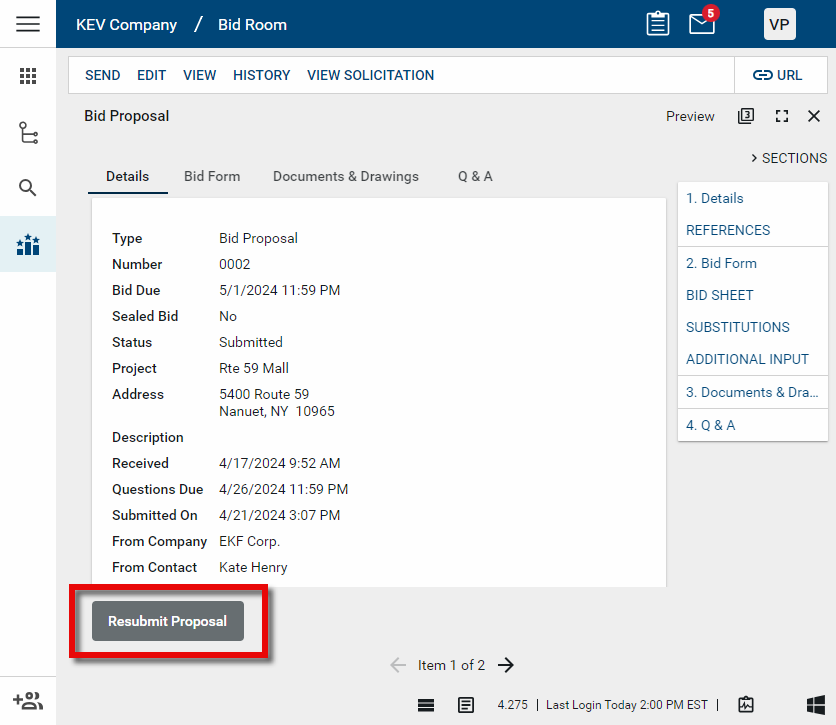
You can make changes and select Resubmit Proposal up until the Bid Due date. The Bid Due date appears on the Details tab of the Bid Proposal.