Pinning functionality in Assets
The pinning feature for the Assets app in Kahua allows you to drop a virtual "pin" on a drawing, and then link that "pin" to an existing or newly created asset record. The drawings must be added to a special "Pinnable Drawings" folder type in the File Manager app to be available for pinning in the Assets app.
Note Pinning can also be used in the File Manager app, but it requires a different configuration. For more information on pinning in File Manager, refer to Pinning functionality in File Manager.
These are some key components of the pinning feature in the Assets app:
-
Pinning functionality is available in the desktop host and web host. At this time, it is not available in the mobile host.
-
Asset pins are viewed and managed in the Assets app.
-
The pinning feature must be enabled for your domain by your domain administrator. Refer to Domain Defaults.
-
To use pinning with Assets, you must enable the "Pinnable Drawings" folder type in the File Manager configuration. This allows you to create a "Pinnable Drawings" folder. Only drawings in folders of the type "Pinnable Drawings" will appear in the Assets app.
-
You must create a Pinnable Drawings folder in the File Manager app for your project and add the appropriate drawings to the folder.
-
In the Assets log view, assets with an associated pin are indicated in the Pins column.
How to . . .
 Enable asset pinning in your project
To enable asset pinning in your project, you must complete the following steps:
Enable pinning in your domain
To use the pinning functionality, a domain administrator must enable it on the Domain Settings app > Domain Defaults page. For more information, refer to Domain Defaults.
Enable the "Pinnable Drawings" folder type
To use the pinning functionality in the Assets app, a domain administrator or user with the appropriate permissions must enable the "Pinnable Drawings" folder type in File Manager. This allows you to create a "Pinnable Drawings" folder. Only drawings in folders of the type "Pinnable Drawings" will appear in the Assets app.
To enable the "Pinnable Drawings" folder type, complete the following steps:
-
Review the header to ensure that you are in the correct project or partition.
Important If you want asset pinning to be available on all your projects, enable the "Pinnable Drawings" folder type at the root domain.
-
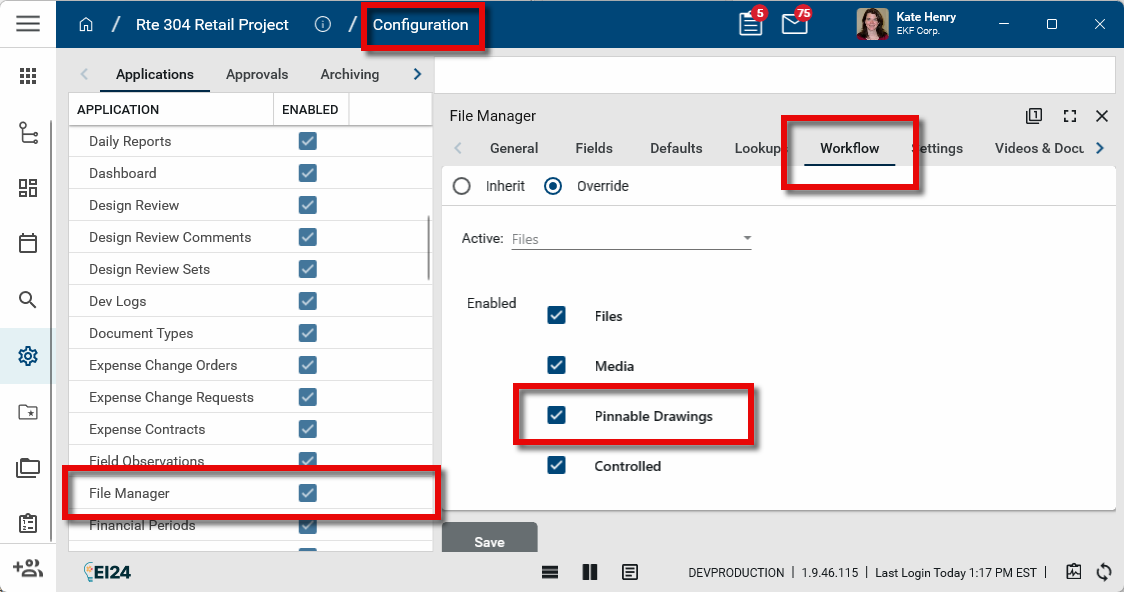
Navigate to the Configuration application (Apps > Administration > Configuration).
-
Open the Applications tab and select File Manager. The detail view appears. Alternatively, right-click on the File Manager app icon in the launch bar and select Configure.
-
Click on the Workflow tab and select Override.
-
Select the Enabled check box for Pinnable Drawings.
-
Click Save when you are done.
Add a "Pinnable Drawings" folder to your project
To use the pinning functionality in the Assets app, you must create a "Pinnable Drawings" folder in the File Manager app and add to it the drawings which you want to pin asset records to. Only drawings in folders of the type "Pinnable Drawings" will appear in the Assets app.
To add a "Pinnable Drawings" folder to File Manager, complete the following steps:
-
Review the header to ensure that you are in the correct project or partition. You should be in the project where you want to apply the asset pins.
-
Navigate to the File Manager application (Apps > Document Management > File Manager).
-
Navigate to the location on the file folder structure where you want to the Pinnable Drawings folder to appear.
-
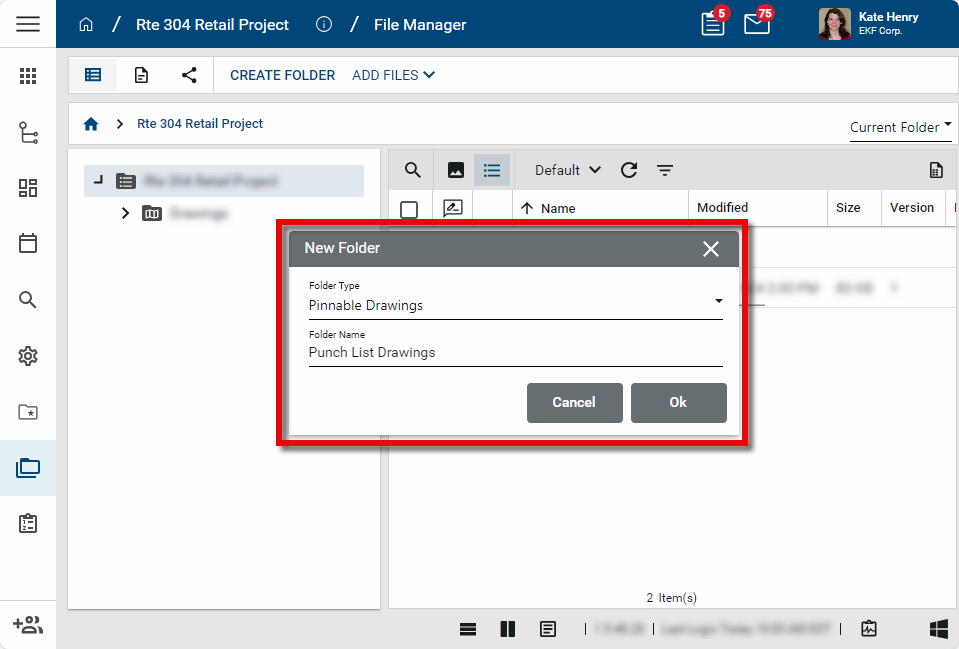
Select Create Folder from the action bar. Alternatively, right-click on the folder that you want to contain the Pinnable Drawings folder and select New Folder. The New Folder dialog appears.
-
Select "Pinnable Drawings" as the Folder Type. Enter a folder name, such as "Asset Drawings" and click Ok.
-
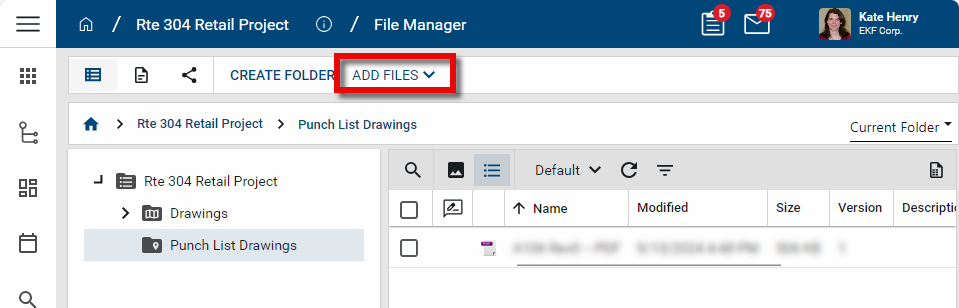
The new folder appears in the selected location. Add the appropriate drawing files to the folder. You can right-click on files in other folders and select Copy to add a copy to the pinnable drawings folder, or open the new folder and select Add Files from the action bar.
-
When you are done adding files, you can open the Assets app to pin asset records to the drawings in the folder.
Work in Drawing Mode
Using the Assets app in drawing mode allows you to view and manage pins on drawings that are associated with asset records.
Drawings must be uploaded to the File Manager app and placed in a folder with a "Pinnable Drawings" folder type to be viewable in drawing mode. For more information, refer to Enable asset pinning in your project.
To work in Drawing Mode in the Assets app, complete the following steps:
-
Review the header to ensure that you are in the correct project or partition.
-
Navigate to the Assets application (Apps > Asset Management > Asset Manager > Assets).
-
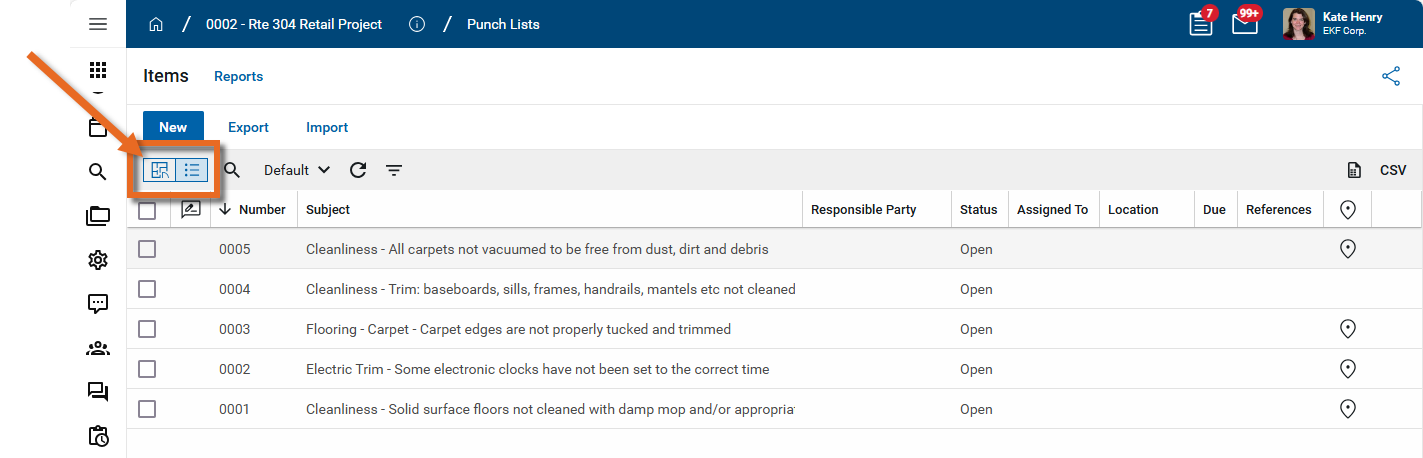
Select Drawing Mode
 .
. 
-
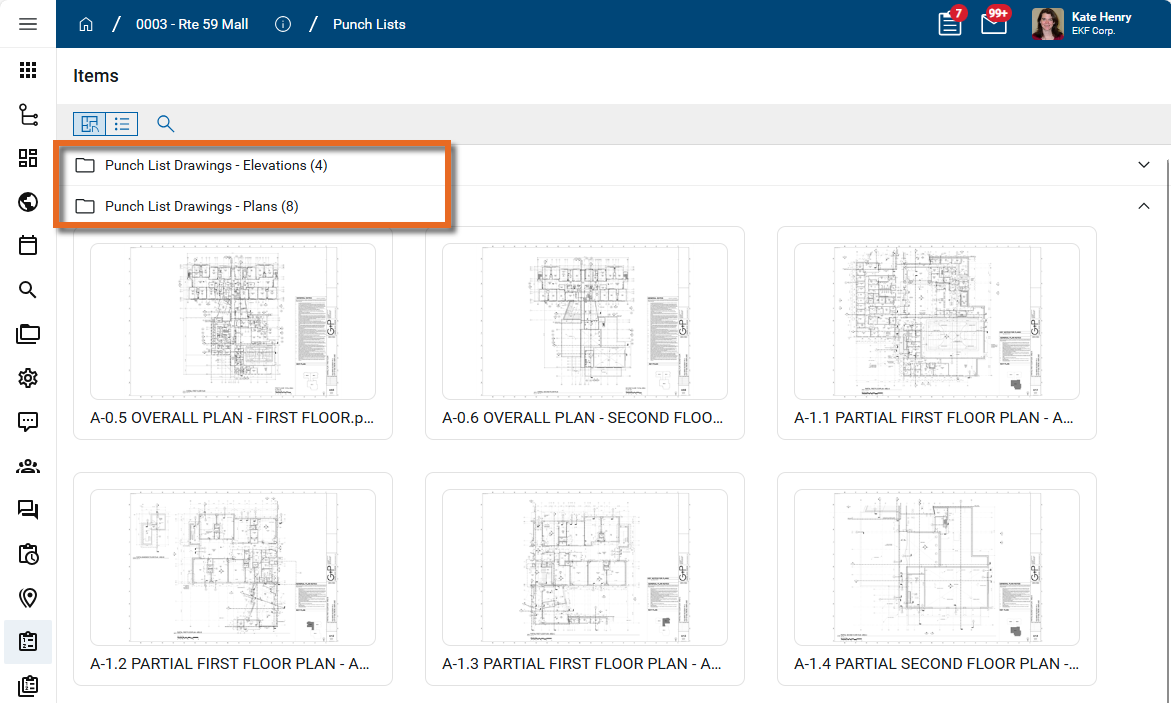
All the drawing files in folders of the type "Pinnable Drawings" in File Manager appear as thumbnails.
If there are multiple pinnable folders, the drawings are organized by those folders, in alphabetical order.
-
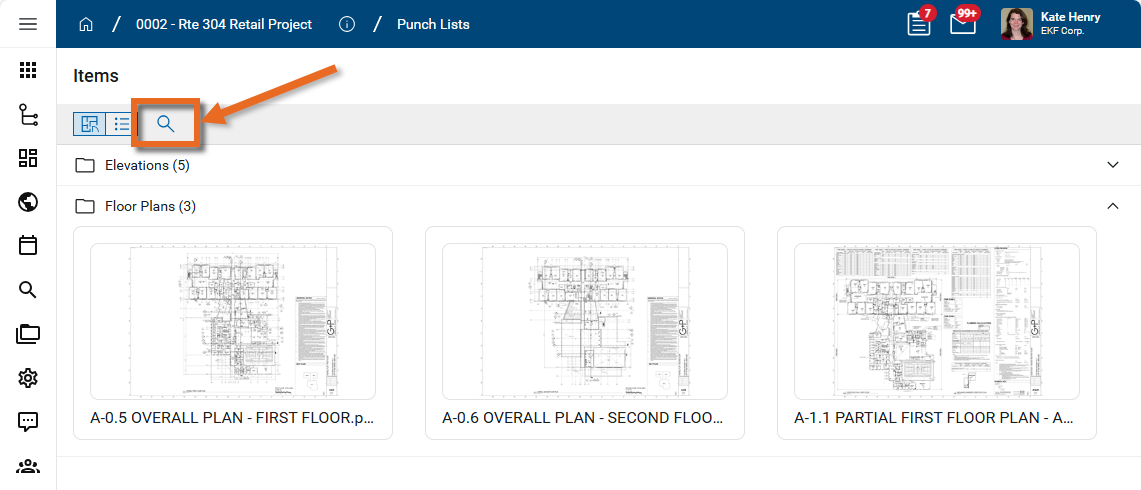
To search for a drawing or folder by name, click the Search icon
 .
. 
-
Click on the thumbnail of the drawing you want to work with.
-
The drawing appears with the Assets panel open. Click the Open icon
 in the upper right corner to open or close the Assets panel.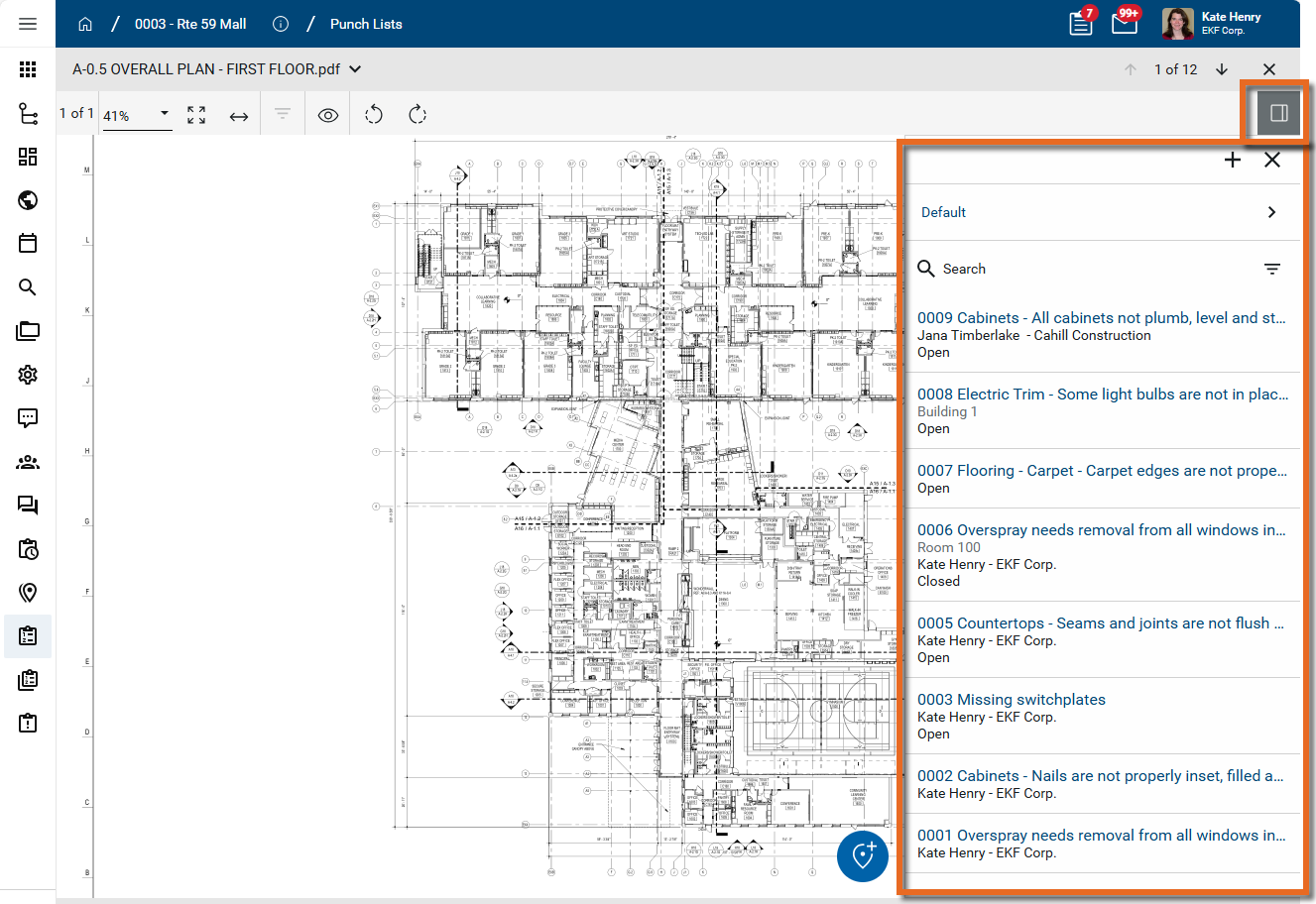
-
You can click and drag in the drawing to pan to a different area for viewing.
You can use the following tools on the Viewer Toolbar to additionally manage your view of the drawing:
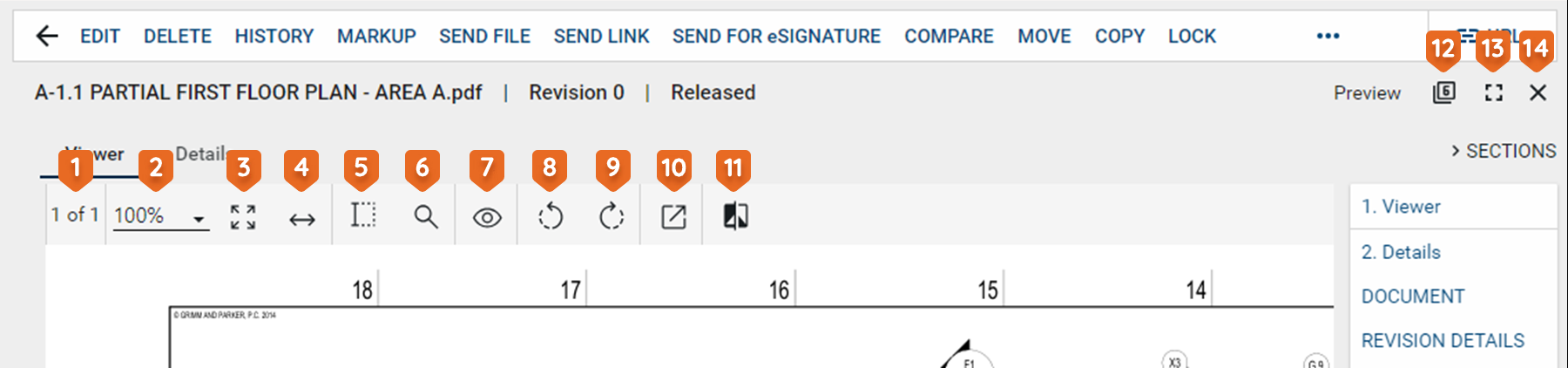
Tool Description Drag toolbar 
This option appears when the toolbar is un-docked. Click on it and drag the toolbar to the desired location. Text Selection 
Select this icon to enter text selection mode.
In this mode, you can click and drag your mouse to select text on the image.
Use Ctrl+C to copy the selected text to your clipboard.
Search 
Opens a text search window.
When you enter the search criteria, the total number of search results will appear with the results highlighted in yellow on the page. You can use the arrows to scroll through the results on the image.
Filter 
Select the Filter icon to open the search function, allowing you to search for a keyword in any markups on the drawing. You can additionally filter the results by type of markup.
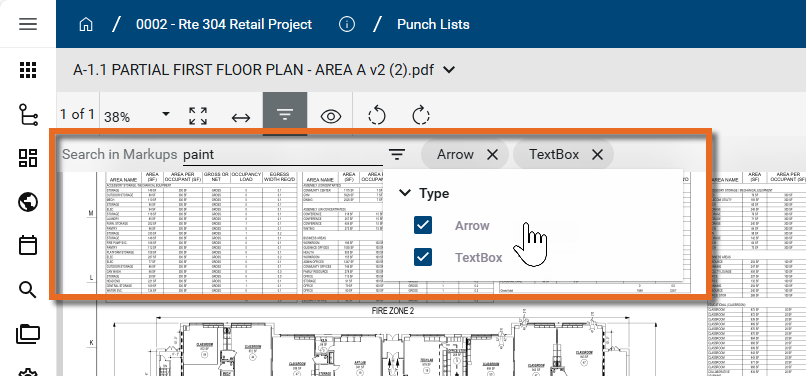
Note If no markups are present, the filter icon is disabled.
Page # of # 
Indicates which number page you are on of the total number of pages in the file or drawing.
If there are multiple pages in the document file, you can use the arrow keys that appear to navigate through the pages.
Additionally, you can click here to open a dialog box that allows you to enter a page number to jump to. Note that you can also use the keyboard shortcut Ctrl+Shift+G to open the dialog box.
Zoom 
Shows your current zoom level on the drawing.
Select a level from the drop-down list, manually enter a level and press Enter on your keyboard, use Ctrl + your mouse wheel, or press Ctrl plus the + or - key to zoom in and out from the current cursor location.
Fit Page 
Click this icon to fit the file image to the display area.
Fit Width 
Click this icon to fit the file image to width of the display area. Open File 
Opens a PDF file in the default browser or uses the default browser to download the PDF version of the file to the local downloads folder. Pan mode 
Click this icon to switch between pan mode and selection / markup mode.
In pan mode, clicking and dragging on the image will pan across the image.
In selection mode, clicking and dragging on the image will select a section of the image and any markups in that selected area.
Rotate Counter Clockwise  / Rotate Clockwise
Rotates the image counter-clockwise or clockwise.
When done while in markup mode and saved, the rotation is saved with the drawing and will appear rotated to anyone viewing the drawing.
View 
Select any of the following options:
-
Show Markups - Show or hide existing markups.
-
Show Markup Panel - Show or hide existing markups in a table at the bottom of the display area.
-
Show Hyperlinks - Show or hide existing hyperlinks.
-
Show Info - Displays file information, such as the calibration status, internal rotation, page rotation, correction rotation, page zoom, number of annotations, etc.
Bluebeam 
If you have a licensed copy of Bluebeam on your computer, you can use this to open Bluebeam and access their markup tool. Compare 
Opens the Compare Files dialog. Select a second file to compare with this one. To learn more about the Compare feature, refer to Using the Compare feature. Dock toolbar 
Select this option to dock the toolbar outside the viewing pane. This can make it easier to view the whole document. Click the icon again to un-dock the toolbar. -
-
The Assets panel lists all the asset records. The items appear by Name and other values in the selected log view. You can select a different log view
 , perform a keyword search
  , or apply a quick filter
  to narrow down the items list.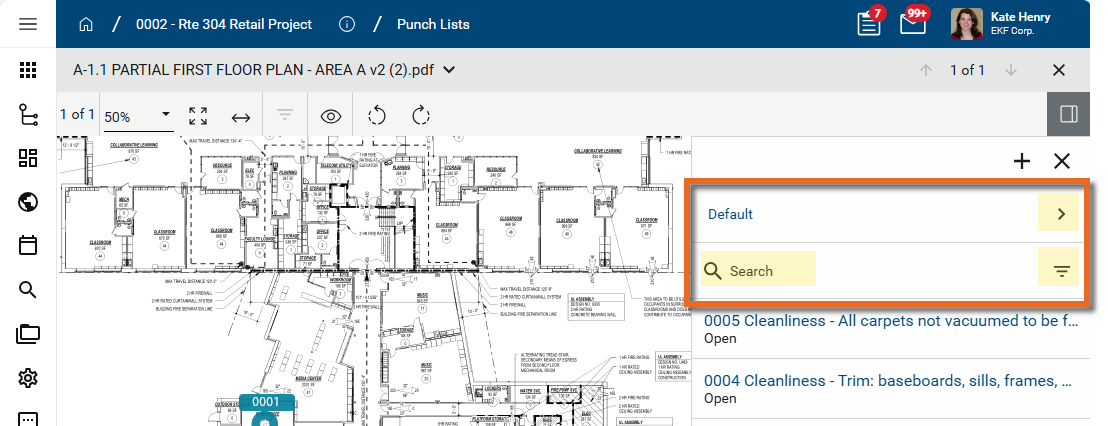
-
Select Hide Closed in the lower right corner to hide any closed markups.
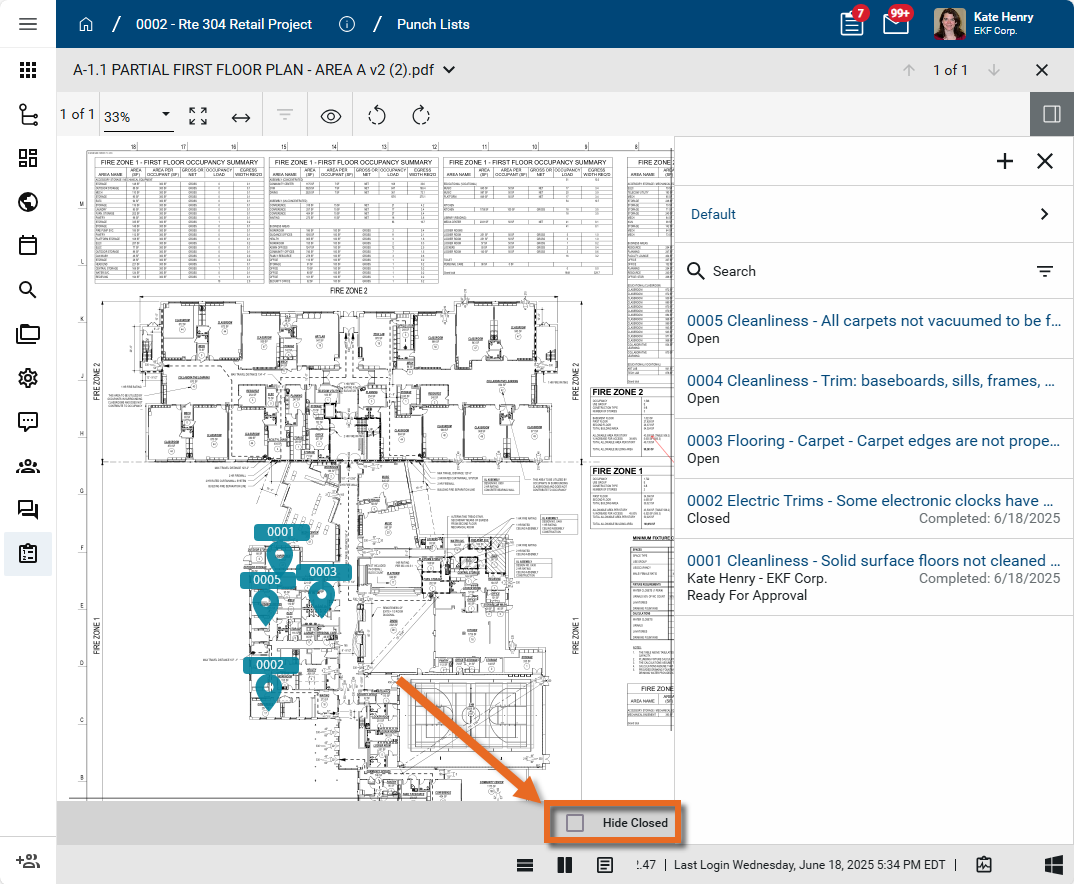
Important Hide Closed refers to drawing markups, not asset records.
-
To switch to a different drawing, click on the selector icon next to the drawing name, or click on the arrow icons next the # of # option in the header.
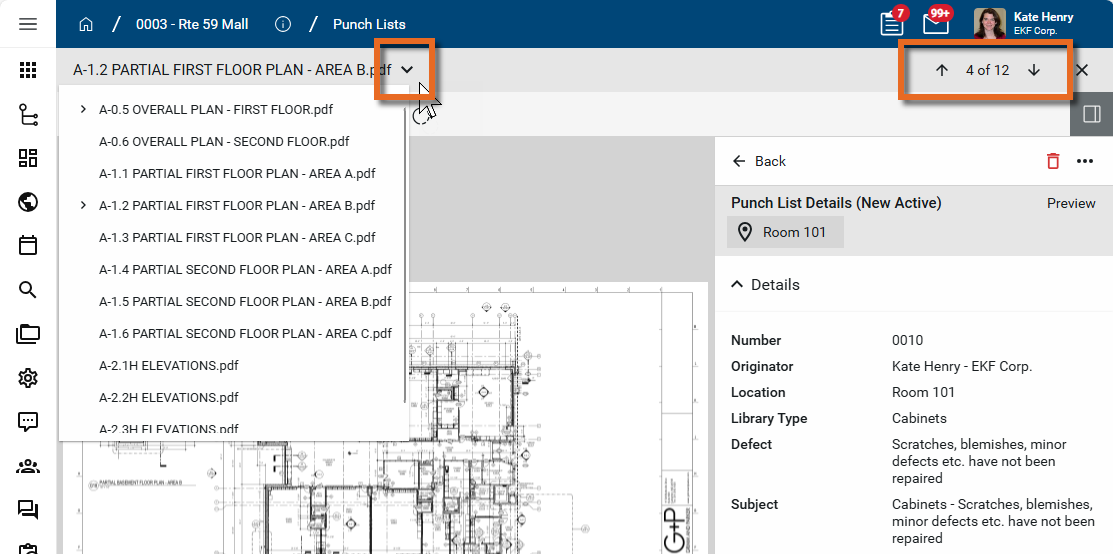
Note You can switch to a different drawing while the Assets panel is open and while an asset record is in edit mode.
-
To exit out of drawing mode, click the Close icon
 to return to the image selector.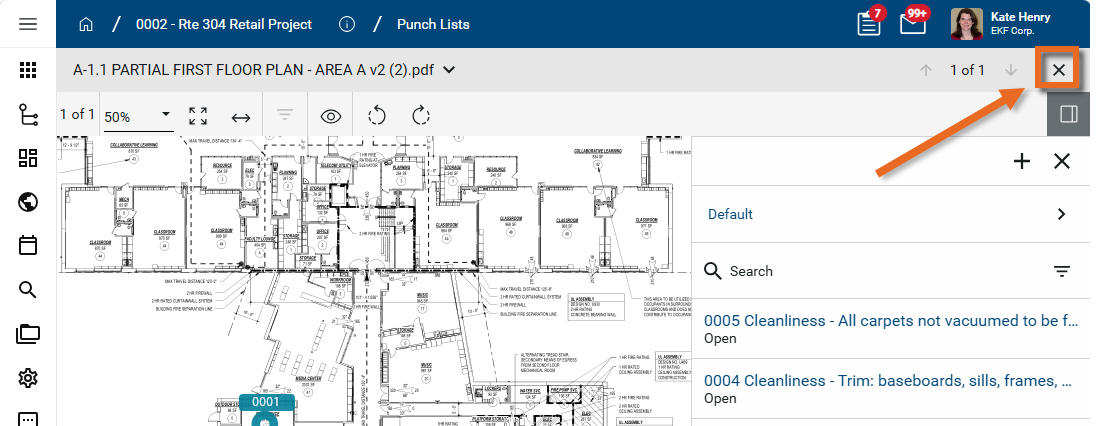
Add a new asset and pin
You can add a new asset and a pin at the same time. To do so, you must have added the appropriate drawings to a "Pinnable Drawings" folder in the File Manager app. In the Assets app, you must enter Drawing Mode and select the drawing you want to use with your asset pins.
To add a new asset and pin in the Assets app, complete the following steps:
-
Review the header to ensure that you are in the correct project or partition. You should be in the project where you want to apply the asset pins.
-
Navigate to the Assets application (Apps > Asset Management > Asset Manager > Assets).
-
Select Drawing Mode
. For more information on working in Drawing Mode, refer to Work in Drawing Mode.
-
Click on the thumbnail of the drawing you want to work with. The drawing appears with the Assets panel open.
-
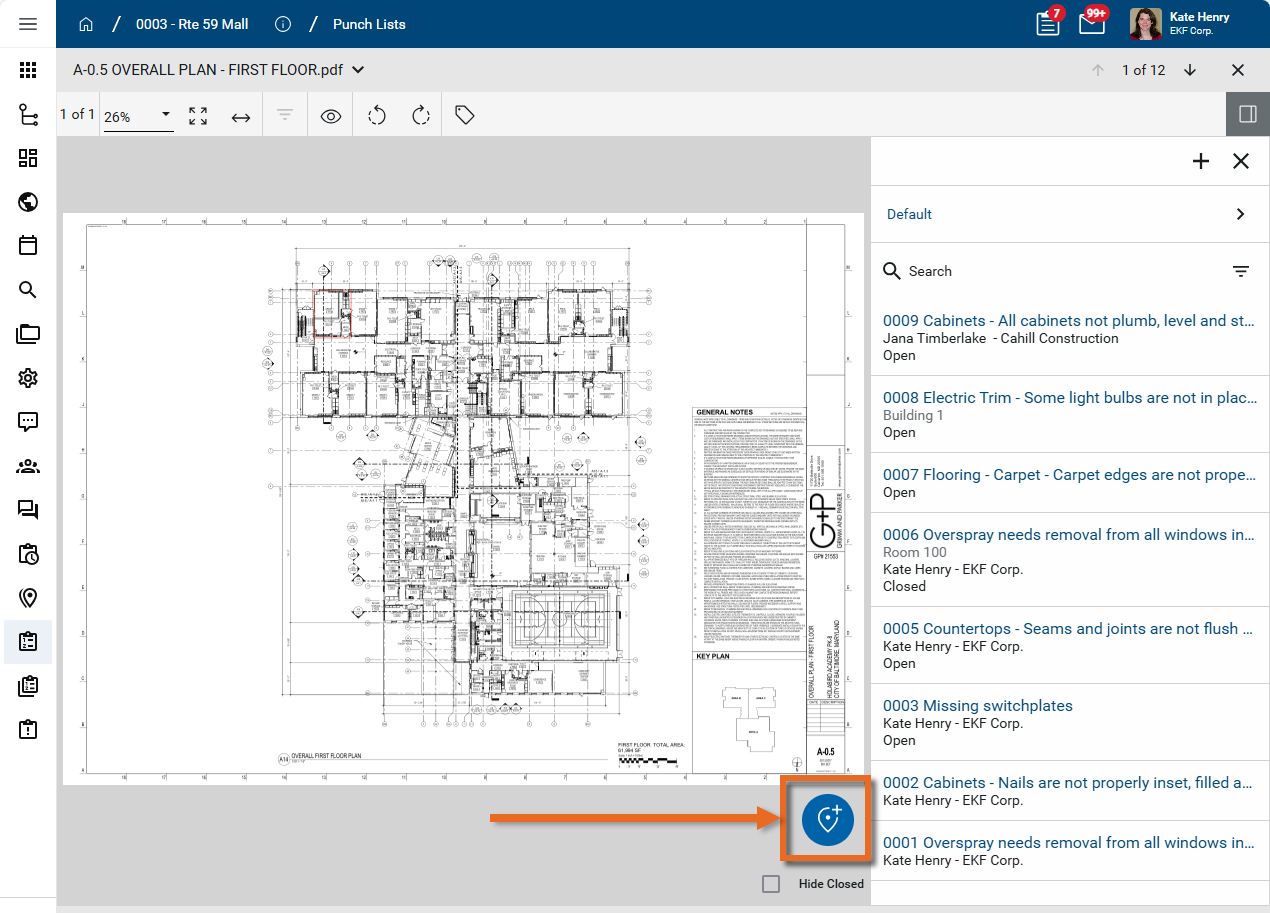
To add a new asset and its pin, click the Pinning Mode icon
 .
.
-
Click on the drawing at the appropriate location to drop the pin. Click and drag the pin to move it on the drawing.
-
On the Assets panel, enter information for the asset record associated with this new pin.
-
Click the Save icon
 on the asset record when you are done. Select More
  for additional Save options.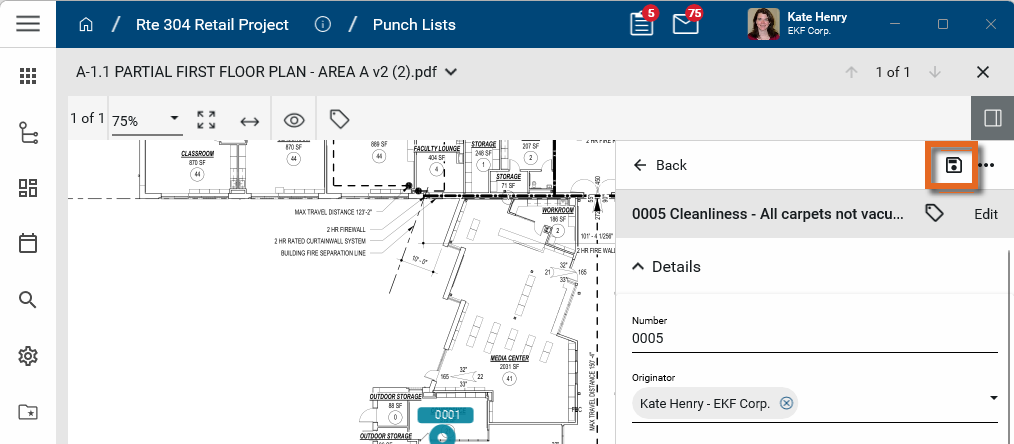
Add a pin to an existing asset
You can add a new pin to an existing asset record.
To add a pin to an existing asset, complete the following steps:
-
Review the header to ensure that you are in the correct project or partition. Navigate to the Assets application (Apps > Asset Management > Asset Manager > Assets).
-
Select Drawing Mode.
-
All the drawing files in folders of the type "Pinnable Drawings" in File Manager appear. Click on the drawing you want to work with.
-
The drawing appears with the Assets panel open. Click the Open icon
 in the upper right corner to open or close the Assets panel.
-
All available lists and log views are present above the records list. Use the search field
 or quickfilter
  to search for the correct record.
 -
Click on the asset record to open it.
-
Click the Edit icon
 in the lower right corner of the panel to enter edit mode.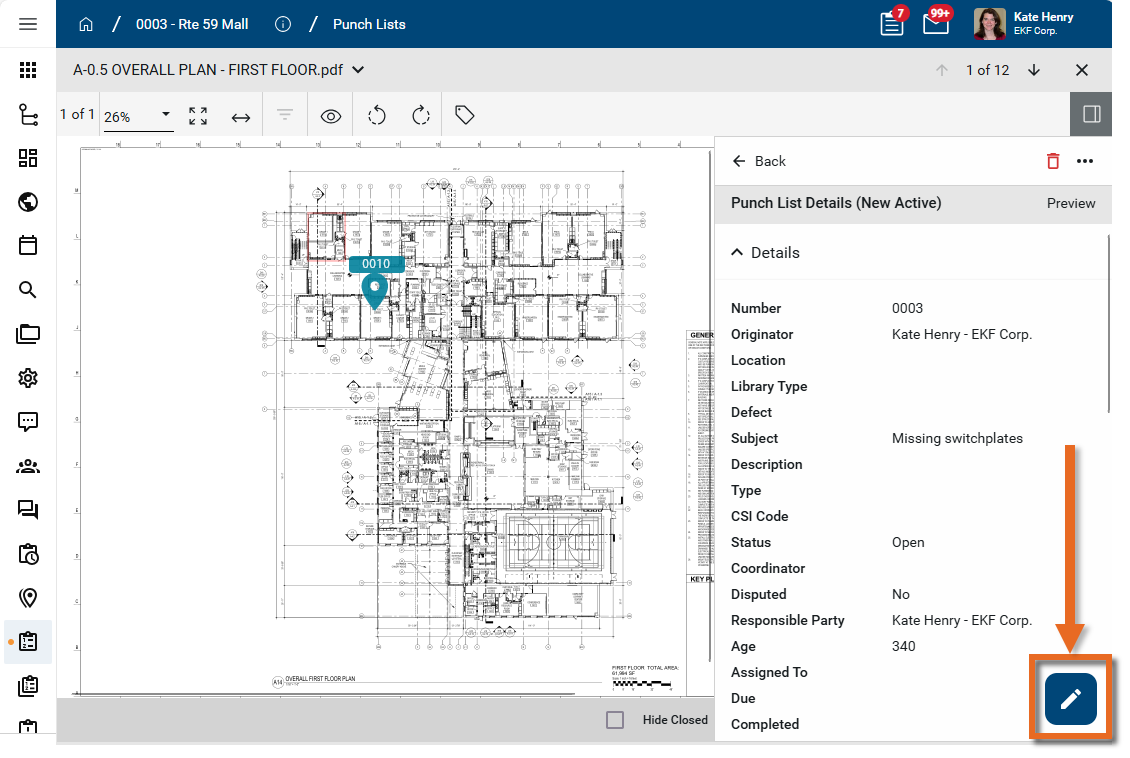
-
Click on the Pin icon
 to enter pinning mode.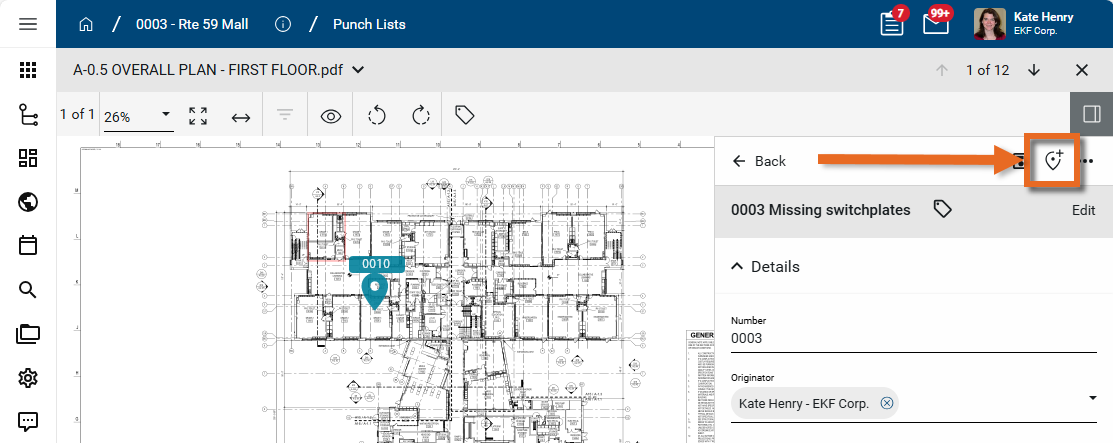
-
Click the appropriate location on the drawing to drop the associated pin. Click and drag the pin to move it on the drawing.
-
Click the Save icon
on the asset record when you are done. Select More for additional Save options.
Move or remove a pin
Pins can be relocated or removed. To move or remove a pin in the Assets app, the associated asset record must be in edit mode.
To move or remove (delete) a pin, complete the following steps:
-
Review the header to ensure that you are in the correct project or partition. Navigate to the Assets application (Apps > Asset Management > Asset Manager > Assets).
-
Select Drawing Mode.
-
Open the drawing with the pin.
-
Select the pin you want to move. The associated asset record opens in the side panel.
Alternatively, click on the asset record on the side panel to open it.
-
Click the Edit icon
 in the lower right corner of the panel to enter edit mode.
-
The pin associated with the asset record appears in red.
-
To move the pin, click and drag it to the correct location.
-
To remove the pin, click on the Unpin icon
 .
. Important Do not confuse the Unpin icon
with the Delete icon  ! The Delete icon appears when the asset record is not in edit mode. Selecting it will delete the asset record. If the asset record is incorrectly deleted, a domain administrator can restore it from the Recycle Bin. Refer to Using the Recycle Bin.
 -
Click the Save icon
 on the asset panel when you are done. Select More
  for additional options.
Note Pins can also be reviewed from the Pins section on the asset detail view. The section appears above References and shows the drawing name, the user who pinned the asset, and the date and time the pin was created.
Open the associated asset from a pin
You can open the linked asset directly from the pin on a drawing. To do so, complete the following steps:
-
Review the header to ensure that you are in the correct project or partition. Navigate to the Assets application (Apps > Asset Management > Asset Manager > Assets).
-
Select Drawing Mode from the action bar.
-
Select the drawing that contains the pin. The drawing image appears in the Viewer tab.
-
Click on the pin. The panel opens with the linked asset record. The selected pin is red to indicate it is the pin associated with the open record.
-
To modify the record, click the Edit icon
in the lower right corner of the panel to enter edit mode. Click the Save icon when you are done. -
Select More
for additional options.
View a pin from a linked asset record
Asset records that can be linked to a drawing with a pin have a Pins section on the detail view. Any pins will appear in this section. From this section, you can review the drawing name, the user who pinned the asset, and the date and time the pin was created.