Pinning functionality in File Manager
The pinning feature in Kahua allows you to drop a virtual "pin" on a drawing in the File Manager app, and then link that "pin" to a record in several apps in Kahua.
Note Pinning can also be used in the Punch List and Assets apps, but it requires additional configuration and can only occur in the "Pinnable Drawings" folder type. The general pinning process described in this article can be used in any folder type. For more information on pinning with punch lists or assets, refer to Pinning functionality in Punch Lists or Pinning functionality in Assets.
These are some key components of the pinning feature in the File Manager app:
-
File Manager pinning functionality is available in all hosts (web, desktop, mobile).
-
The pinning feature must be enabled for your domain by your domain administrator. Refer to Domain Defaults.
-
Pins can be added to any file type, but it is most common to add them to drawings to indicate the location of the linked record.
-
Pins can be used in any File Manager folder type.
-
Pins are accessed from the markup tool.
-
When adding a pin, you can create a new record in one of the following three applications:
-
Field Observations
-
Issues
-
RFIs
-
-
When adding a pin, you can link to an existing record in one of the following four applications:
-
Field Observations
-
File Manager
-
Issues
-
RFIs
-
-
From an existing pin, you can open the linked record by clicking on the document title.
-
From a record that is linked to a pin, you can open the drawing file that contains the pin from the Pins section of the record detail view.
-
Pins can be moved or deleted by users with the appropriate permissions.
How to . . .
 Enable pinning in your domain
To use the pinning functionality, a domain administrator must enable it on the Domain Settings app > Domain Defaults page. For more information, refer to Domain Defaults.
Add a pin to a drawing
Pins can be added to any file type, but it is most common to add them to drawings to indicate the location of the linked record, whether that is a Field Observation, File Manager document like a photo, an Issue, or an RFI. When you add a pin to a drawing, you can choose to link that pin to an existing record or to link it to a newly created record.
To add a pin to a drawing, complete the following steps:
-
Review the header to ensure that you are in the correct project or partition.
-
Navigate to the File Manager app (Apps > Documentation Management > File Manager).
-
Navigate to the appropriate folder and select the drawing you want to add a pin to. The drawing image appears in the Viewer tab.
-
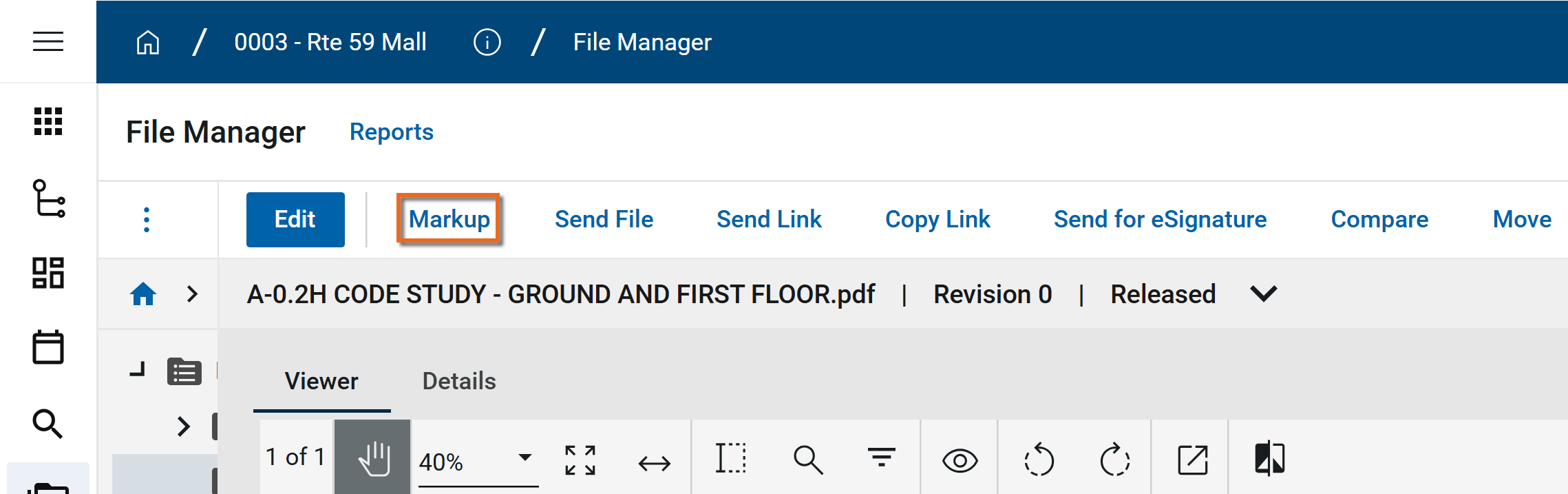
Select Markup from the action bar.
-
Navigate to the location on the drawing where you want to add a pin. You can use the tools available on the Viewer Toolbar and detail header, including the following:

-
Click the Pan icon
 to enter pan mode and move the image in the viewer. Click the markup mode icon or any markup tool to exit pan mode.
 -
Zoom shows your current zoom level on the drawing. Select a level from the drop-down list, manually enter a level and press Enter, or use Ctrl + your mouse wheel to zoom in and out from the current cursor location.
-
Select Fit Page
 to fit the file image in the display area.
 -
Select Fit Width
 to fit the file image to the width of the display area.
 -
Select Maximize
 to open the record to a full screen view. From the full screen view, select Minimize
  to return to the original view.
For more information on the tools on the viewer toolbar, refer to Viewing files in File Manager.
-
-
Select the pin icon
 from the markup toolbar .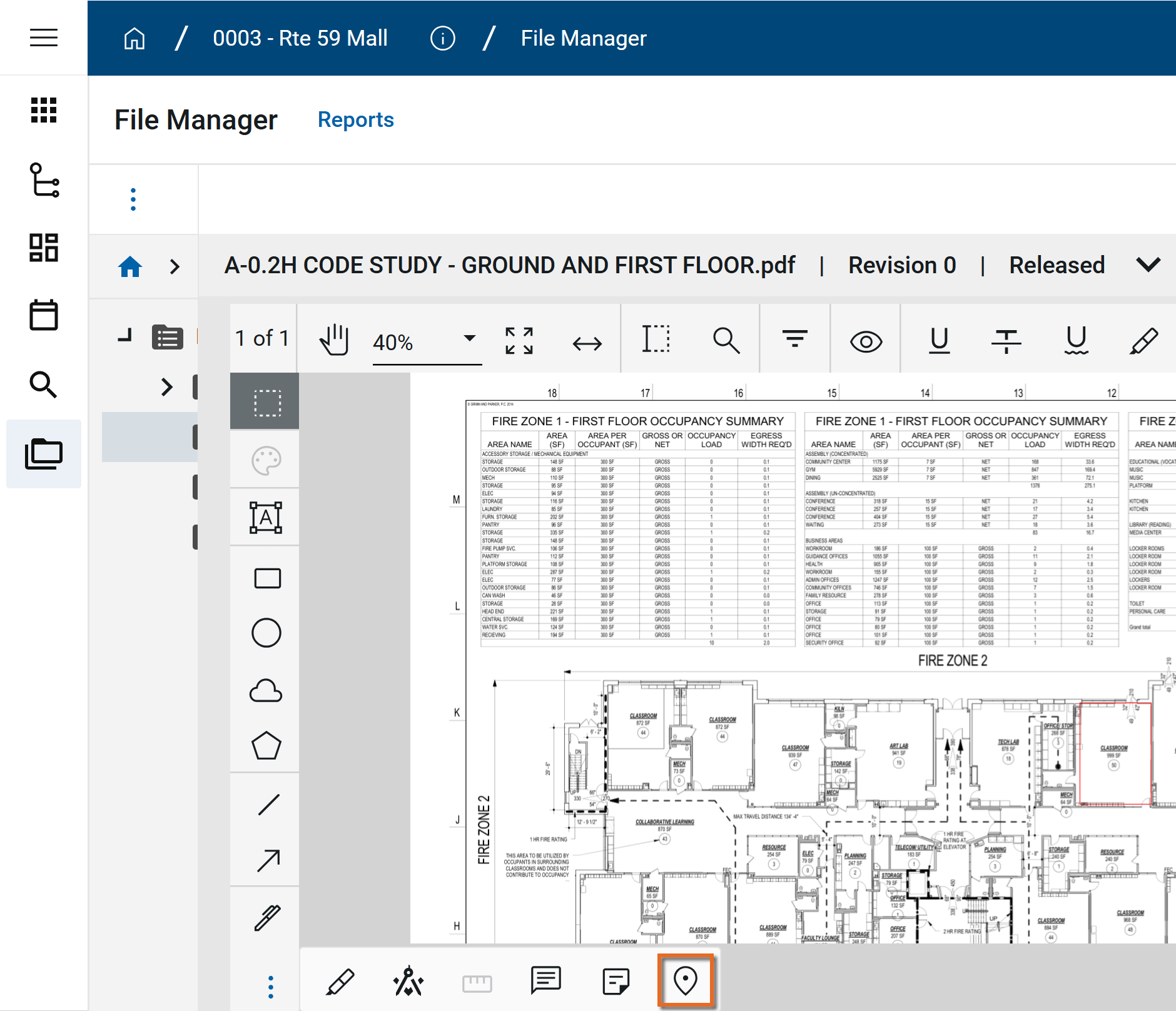
-
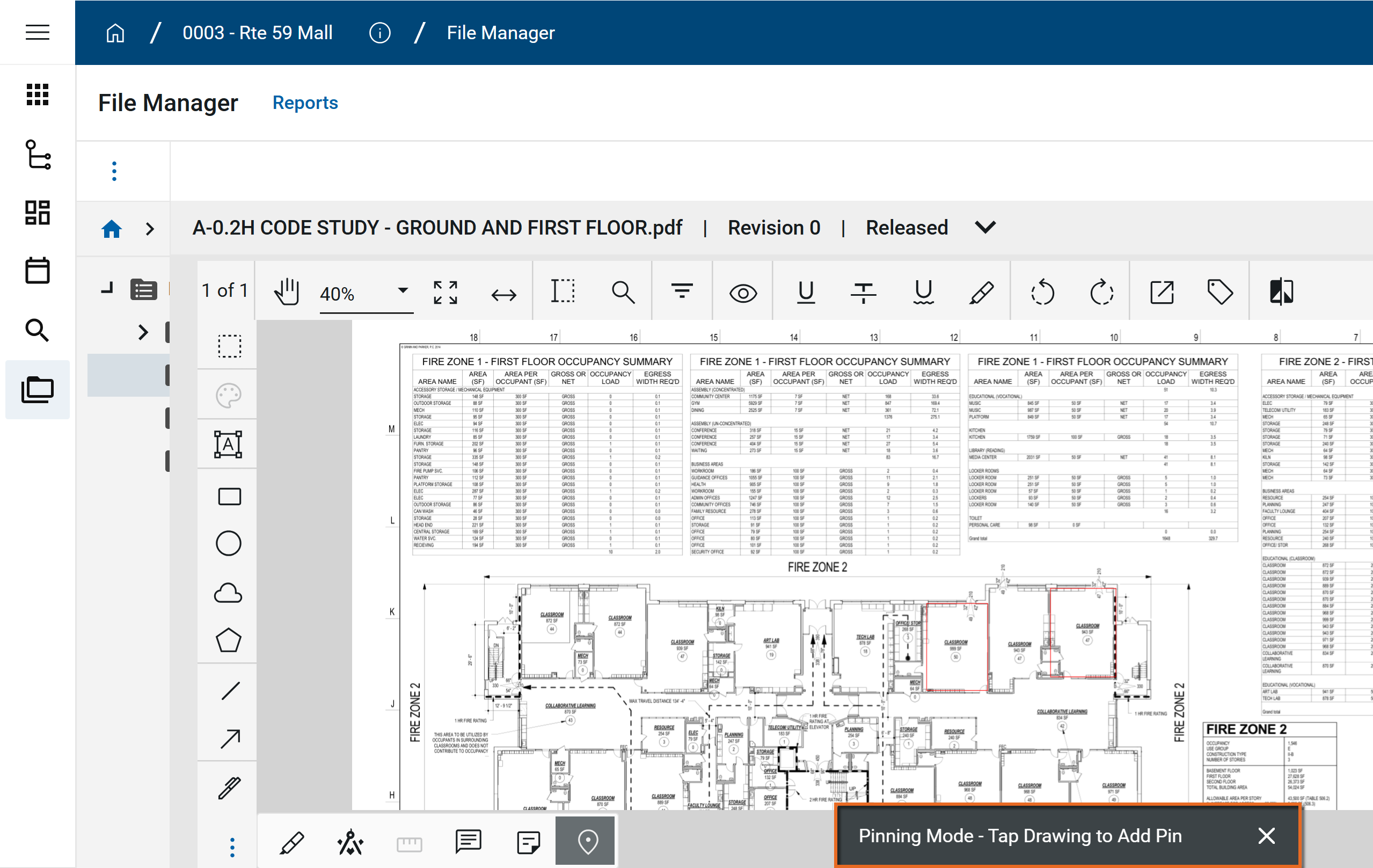
Once selected, the drawing is in Pinning Mode. Click on the drawing to drop the pin. If you drop the pin in the wrong location, click and drag the pin to the correct location.
-
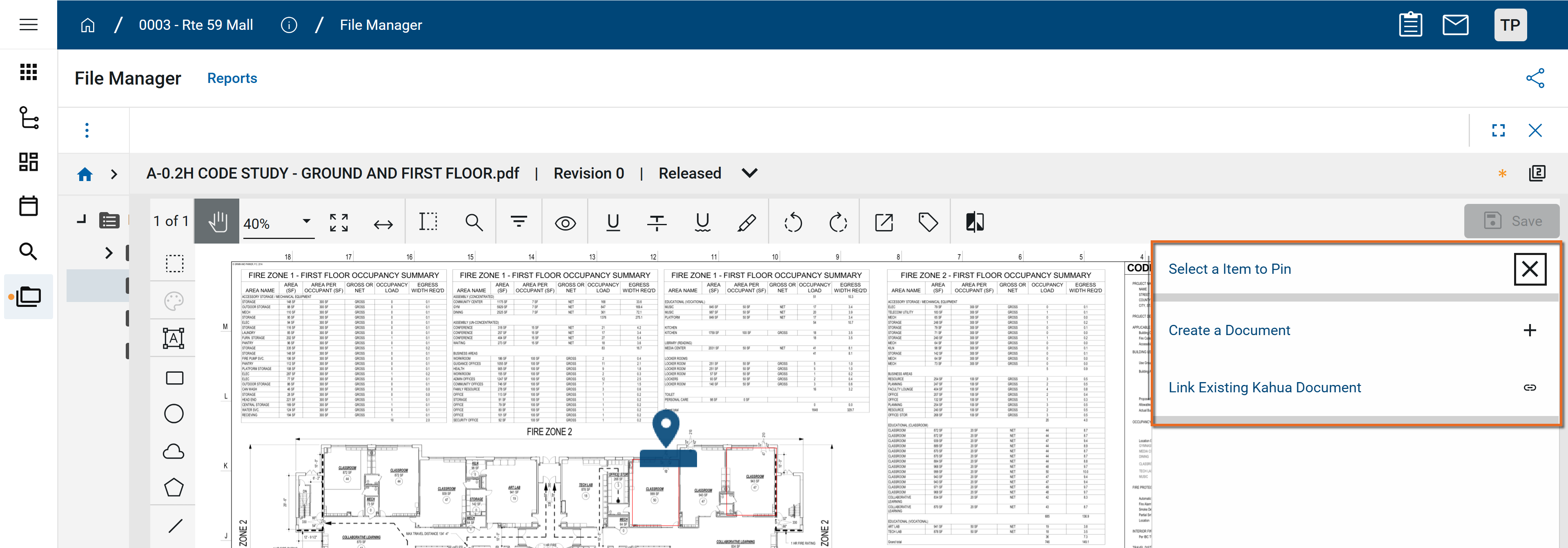
The pin selection panel opens. Make the appropriate selection:
-
Create a Document - Select this option to create a new Field Observation, Issue, or RFI to associate with this pin.
-
Link Existing Kahua Document - Select this option to link this pin to an existing Field Observation, File Manager record, Issue or RFI.
-
-
If you select Create a Document, a new record of the selected document type opens in the panel. The record is assigned the next available record number. Complete the fields as necessary.
When you have entered the appropriate information, select the Save icon to save the record. Select More
 for additional Save options.
 -
If you select Link Existing Kahua Document, a list of available apps appears. Select the appropriate app.
A list of available records in that app appears. All available lists and log views are present above the records list. Use the search field
 or quickfilter
  to search for the correct record.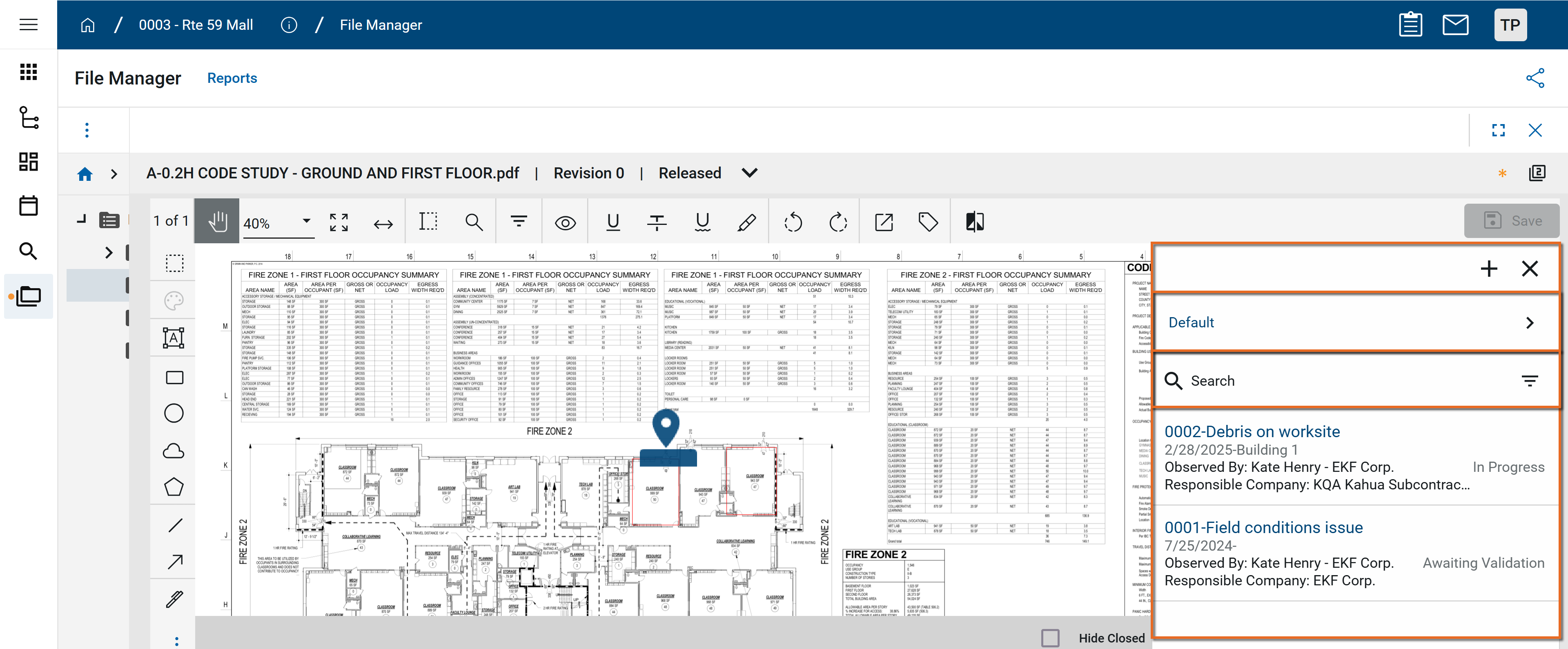
Select the correct record. Click the Save icon
 . Select More for additional Save options.
 Click Back
 to return to the records list. Click the Close icon
  to close the panel.
 -
When you are done, be sure to click Save to save your pins and any other markups.
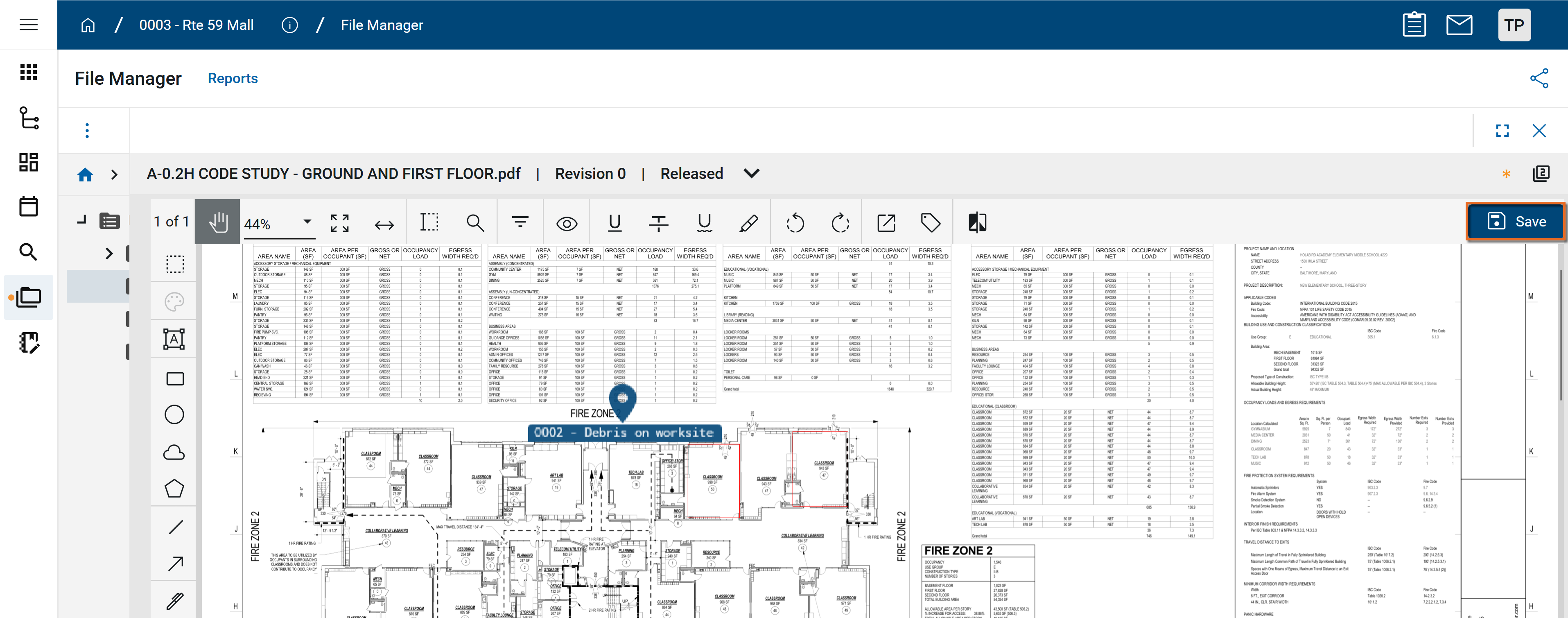
Move a pin
Pins can be relocated. To move a pin, you must be in markup mode.
To move a pin, complete the following steps:
-
Open the drawing with the pin.
-
Select Markup in the action bar to enter markup mode.
-
Click and drag the pin to the correct location.
-
Click Save when you are done.
View a linked record from a pin
You can open the linked item directly from the pin on a drawing. To do so, complete the following steps:
-
Navigate to the appropriate folder and select the drawing with the pin. The drawing image appears in the Viewer tab.
-
Click on the pin to open the linked record information.
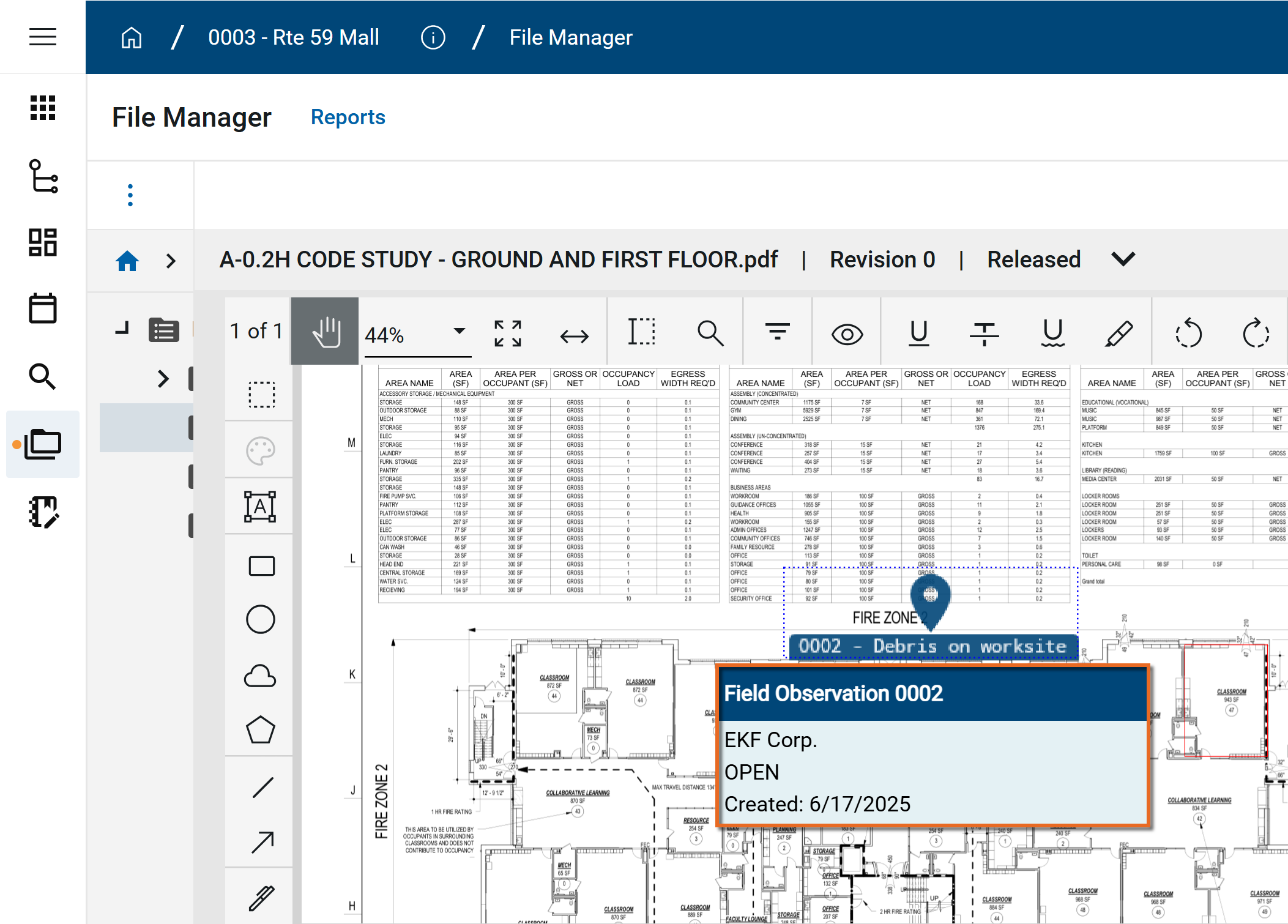
-
Click on the record number to open the linked record. The record opens in its application
-
Use the launch bar or the app selector in the header to return to File Manager.
View a pin from a linked record
Records in applications that can be linked to a drawing with a pin will have a Pins section on the detail view. Any pins will appear in this section. From this section, you can open the drawing and review the pin.
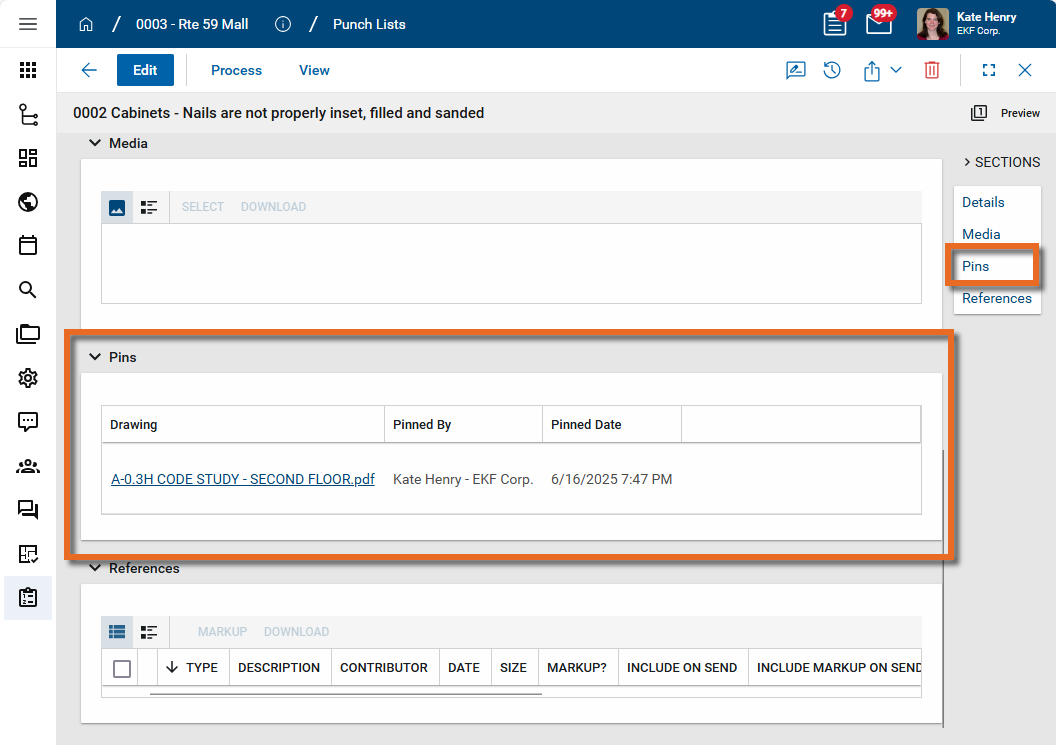
To open a drawing with an associated pin from the record detail view, complete the following steps:
-
Navigate to the appropriate app and open the record to the detail view.
-
Navigate to the Pins section. Click on the pin you want to open.
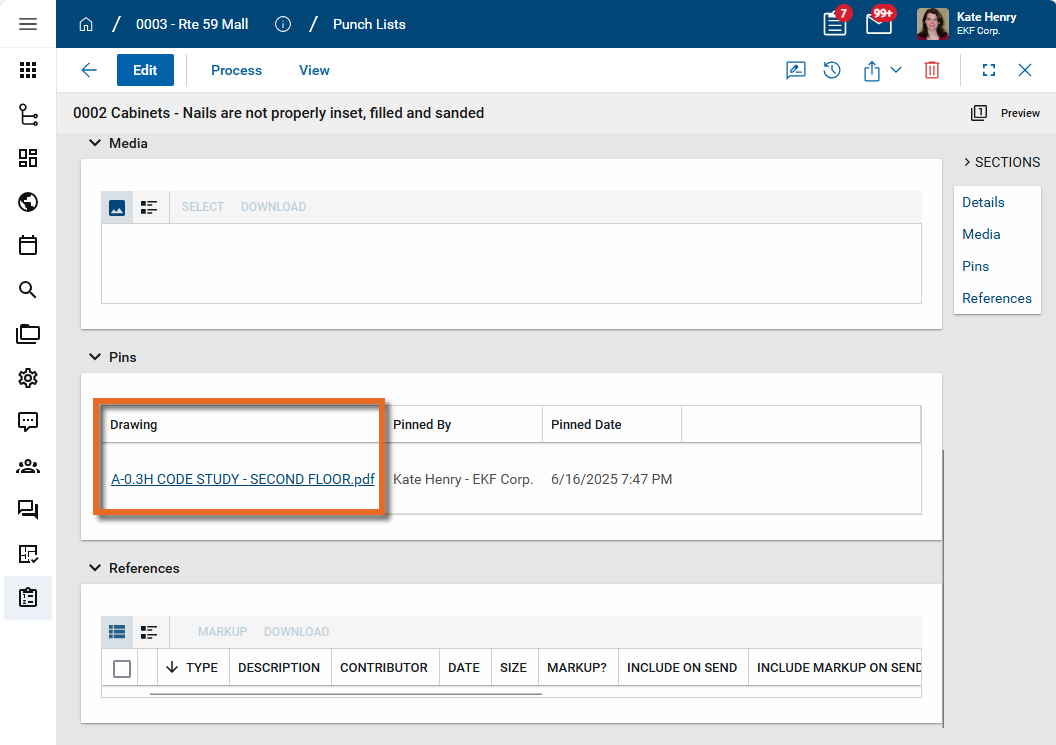
-
Select Open to open the file that contains the pin. The file opens in the File Manager app.
-
Use the launch bar or the app selector in the header to return to the original application.
Delete a pin
Pins can be deleted by users with the appropriate permissions. To delete a pin, you must be in markup mode.
To delete a pin, complete the following steps:
-
Open the drawing with the pin.
-
Select Markup in the action bar to enter markup mode.
-
Click on the pin to select it. Press the Delete key on your keyboard.
-
Click Save when you are done.