Updating your company information in the Company Profiles app
The Company Profiles app is where your company information and information for your affiliated companies, such as your subsidiaries, is stored. You can publish your information to the Kahua Community, allowing other Kahua users to collaborate with you. This is also where you can upload your logo to make it available for reports.
Important Companies are only permitted to publish or add their own information in the Company Profiles app. Please read the Kahua EULA for more information.
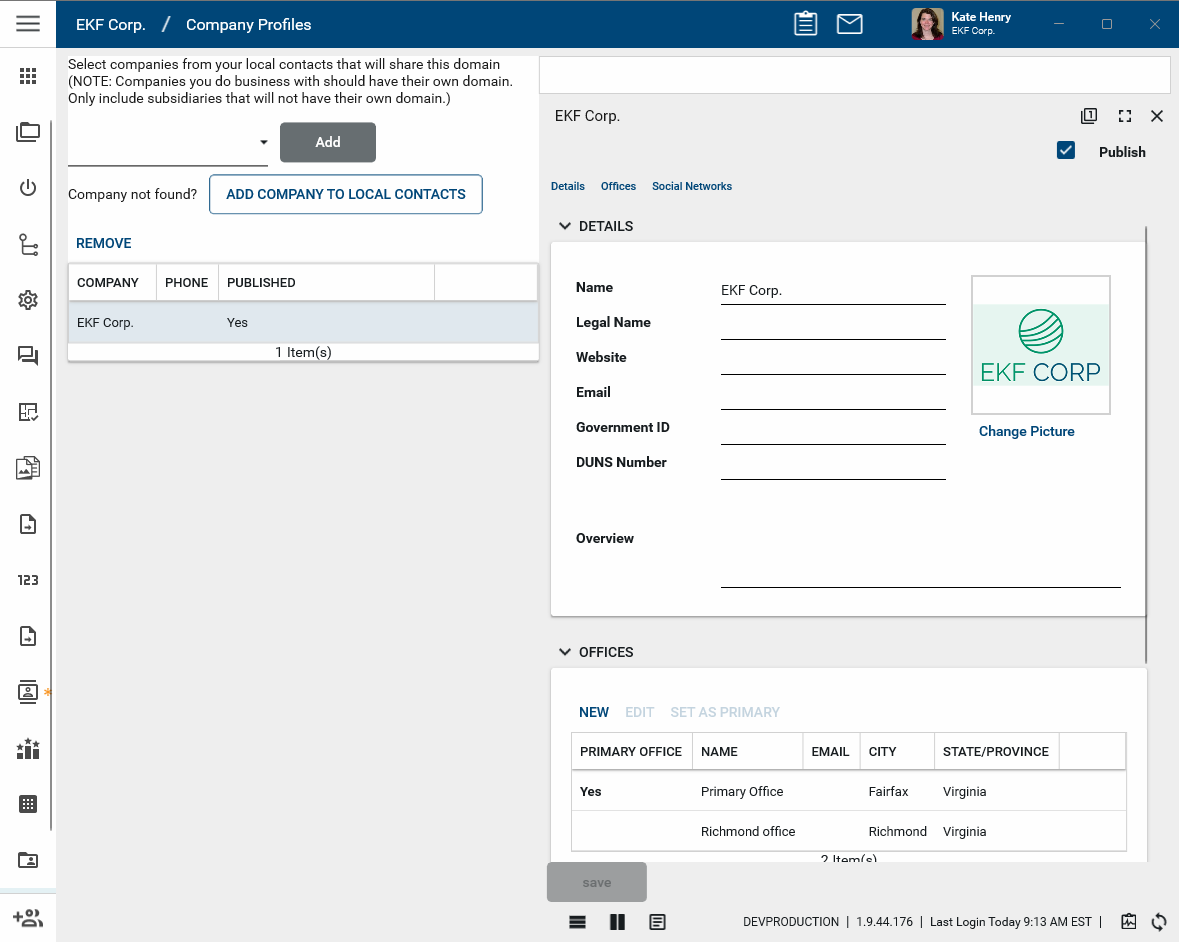
Once your company profile is available in the community, Kahua users from other sites can copy the company information to their local Kahua list of companies. Once copied, the record can stay in sync with the global profile. If you update your company profile record in the future, that information will be updated for every organization that copied the record to their Kahua domain and kept it in sync.
Note Other companies that you do business with, including those that may have their own Kahua domains, are managed in the Contacts app. For more information, refer to Using the Companies app.
How to . . .
 Review or update your company information
To review or update your company information, complete the following steps:
-
Navigate to Apps > Administration > Company Profiles.
-
Your company and company information will be present from when you initially registered with Kahua. Click on your company name to open the company record.
-
Enter your company details as appropriate. Detail fields include your company name, legal name, website, general email address, government ID, DUNS number, and a text block for an overview of your organization.
Note Changing your company name here updates it in the Community. It does not change your domain name in Kahua. To modify your Kahua domain name, you must change it in the Domain Settings app. Refer to Change Domain Name.
-
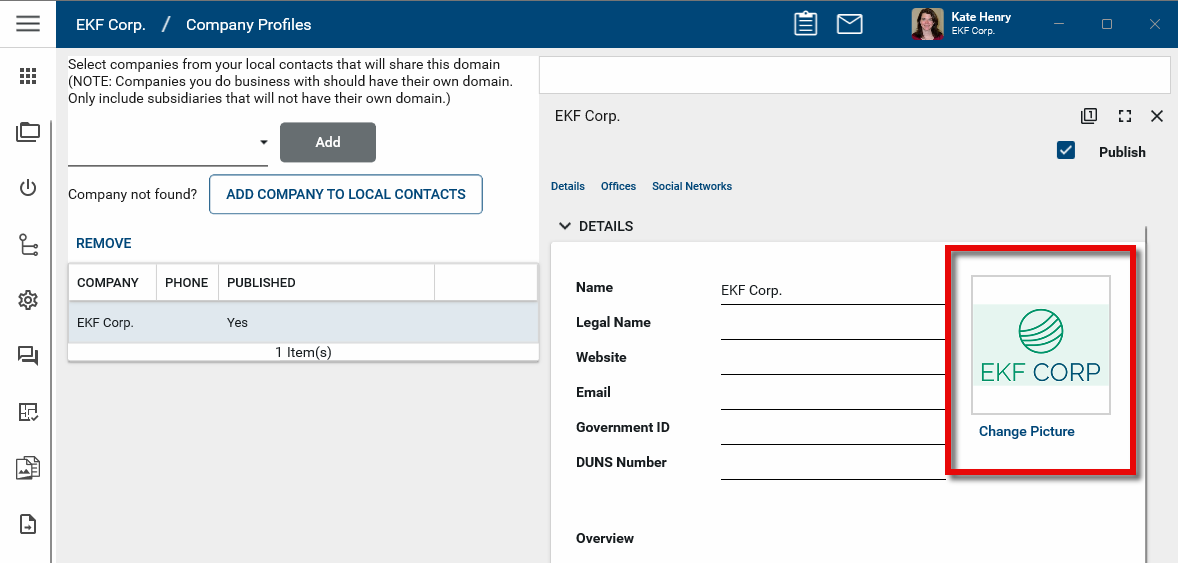
To update your logo, select Change Picture. This logo will appear on reports in Kahua. For more information on selecting a logo to use on reports in your domain, partition, or project, refer to Managing report logos.
-
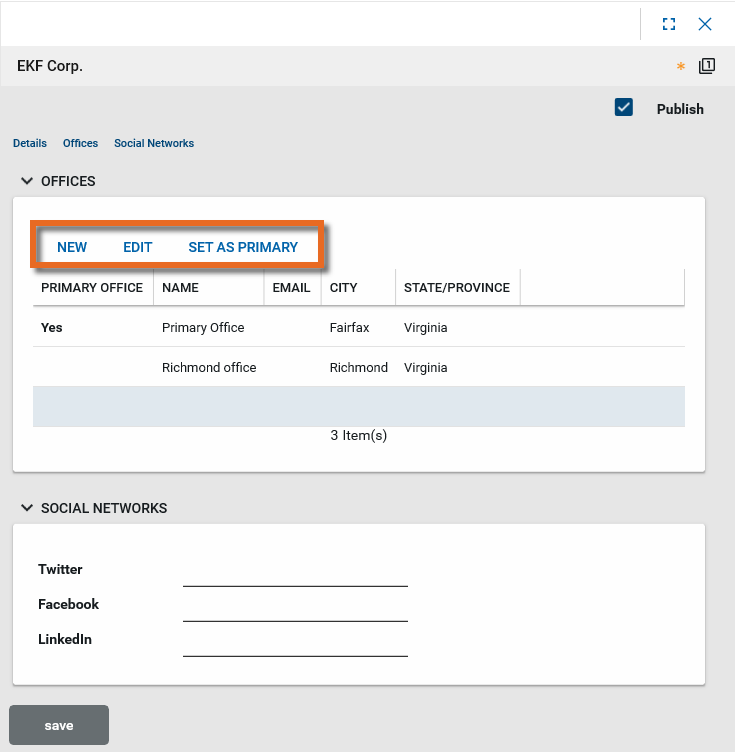
You can add information on additional offices in the Offices section. You will be able to specify which office your users are associated with. To create a new record, click New. Complete the address and other fields and click Done when you are finished. To set a new office as the primary office location, select it and click Set as Primary.
-
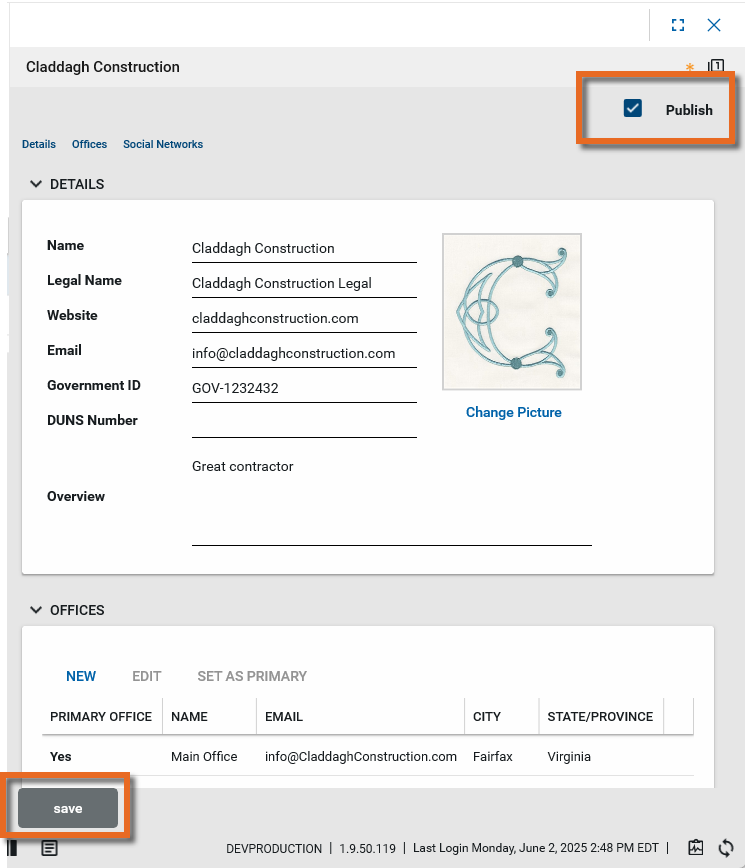
To make your company information available to the Kahua Community, select Publish. This makes your company information visible to other Kahua users in the Kahua Community. Only users with Kahua accounts can view your profile.
-
Click Save when you are done.
Add an affiliated or subsidiary company to the global Kahua Community
To add any company, such as a subsidiary or affiliated company, that is managed by your organization to the global Kahua Community, you must first create the company record in the Contacts app, then add it to the Company Profiles app. Once the record is added to the Company Profiles app, you can publish the information to the community.
Note Other companies that you do business with, including those that may have their own Kahua domains, are managed in the Contacts app. For more information, refer to Using the Companies app.
To add one of your companies to the Kahua Community, complete the following steps:
-
If you have not already done so, add the company to the Companies sub-app in the Contacts application (Apps > All Apps > Contacts). Refer to Using the Companies app.
-
Once the company is added to the Contacts app, navigate to Apps > Administration > Company Profiles.
-
Enter the company name into the search bar. Select the company from the list.
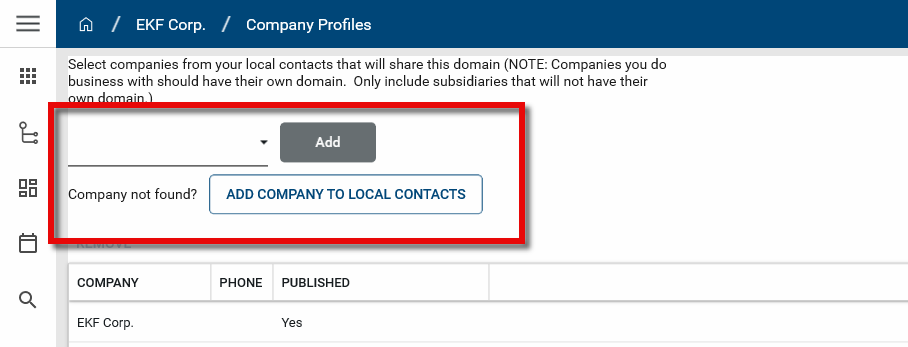
Note From this page, you can select Add Company to Local Contacts to open the Companies sub-app of the Contacts application and add the company record.
-
Click Add to add the company profile for the company.
-
Click on the company record on the list view to open the detail page. Enter the company details as appropriate. For more specific information on entering company profile details, refer to Review or update your company information.
-
To make this company information available to the Kahua Community, select Publish. This makes your company information visible to other Kahua users in the Kahua Community. Only users with Kahua accounts can view your profile.
-
Click Save when you are done.
Set your company logo for reports
Your company logo is added to your company record in the Company Profiles app. This is the logo used in reports when "Domain" is selected as the Reporting Logo Source on the Configuration app > Settings tab, and on portable views when "Domain" is selected as the Logo Source. If you have not yet uploaded a company logo, the Kahua logo will appear on reports.
To update your company logo image, complete the following steps:
-
Navigate to Apps > Administration > Company Profiles.
-
Click on your company name to open the company record.
-
To update your logo, select Change Picture. This logo will appear on reports in Kahua.
-
Select the appropriate logo file and click Open.
-
The newly-selected logo file image appears on the detail page. Click Save when you are done.
Remove a company profile record
To remove a company profile record, complete the following steps:
-
Navigate to Apps > Administration > Company Profiles.
-
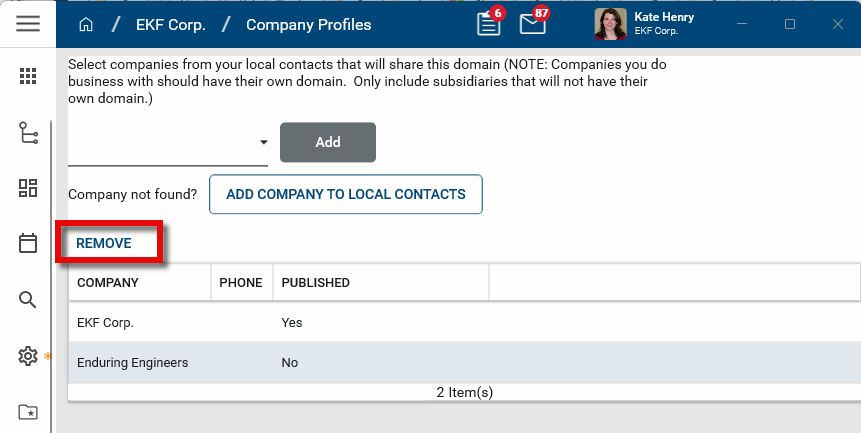
In the list view, select the record to be removed.
-
Click Remove.
-
Click OK on the confirmation message. The company profile is removed. Note that the record in the Contacts app remains and is not deleted.