Using the Companies app
The Companies sub-app in the Contacts application contains a list of all the companies you work with across your domain. It is not project-specific. For more general information on the Contacts application, refer to Understanding the Contacts app.
While your own company record will appear here, it is maintained elsewhere, in the Company Profiles application. For more information, refer to Updating your company information in the Company Profiles app.
Note A list of companies associated with a specific project can be found in the Project Directory. For more information, refer to Project Directory.
How to . . .
 Add a company record to the Companies app
To add a new company to your Contacts application, complete the following steps:
-
Navigate to the Contacts application (Apps > All Apps > Contacts).
-
Select the Companies app.
-
Select New to open the Add Company page.
-
Enter in the company name and select Search to search for the company in your Contacts app and the Kahua Community.
-
If they exist, a list of matching companies from your Contacts app and the Kahua Community will appear.
-
If the company is already in your Contacts app, select Use this Company. The detail pane for that company record will open and the record can be updated if necessary.
-
If the company exists in the Kahua Community, select Add to Contacts. This will add the company record to your Companies list in the Contacts app. The detail pane for that company record will open and the record can be updated if necessary.
Important Only fields that will not take the record out of sync from the Community record will appear for editing. To edit synced information, select Edit Synced Information.
Note that selecting Edit Synced Information will create a local copy of the company's record in your domain. If changes are made to the company's record in the Kahua Community, your domain will not receive those updates. -
-
If the company does not exist in your Contacts app or the Kahua Community, "No results found" will appear after you select Search. Select Cancel and Create New Company to create the new company record.
-
Enter the company details as appropriate. Detail fields include the company name, legal name, website, general email address, government ID, DUNS number, and a notes field for descriptive information about the company.
-
You can enter address information for multiple office locations. To create a new office record, click New. Complete the address and other fields and click Done when you are finished. To set a new office as the primary office location, select it and click Set as Primary.
-
To update the company logo, select Change Picture.
-
-
Click Save when you are done.
Import company records
Company records can be created through the import process. However, it is preferable to create a company record manually so that you can search for the company in the Kahua Community as part of the creation process. Importing company records will skip that process.
For detailed information on importing records, refer to Importing records.
The general process is as follows:
-
Navigate to the Contacts application (Apps > All Apps > Contacts).
-
Select the Companies app.
-
Select More > Export to export the existing records into an Excel file which will provide a template for the import.
-
Open the resulting Excel file. Enter the data for import and save the file.
-
Select More > Import to import the new records.
Understand the log view icons
The first column in the default log view is the Community Status column. The icons in this column indicate if the company record in your Companies sub-app is from the community  , if it is local to your domain, or if it originated in the community but has since been edited in your domain
  .
.
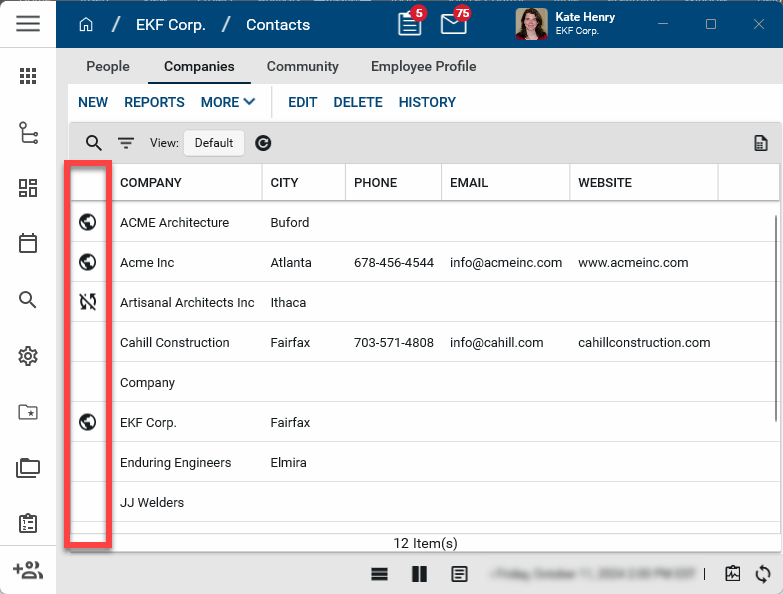
The possible icons in the Community Status column are as follows:
-
Globe icon
- The globe icon indicates that this company record is from the Kahua Community. This company has their own domain in Kahua. If edits are made to the company information in the community, such as a change to their address or name, this record will be updated automatically. -
No icon - This company record was created in your Companies sub-app and is not connected to the Kahua Community.
-
Out-of-sync icon
- This record originated from the Kahua Community, but at some point a user with the appropriate permissions selected Edit Synced Information and edited synced fields. Selecting Edit Synced Information creates a local copy of the company's record in your domain. If changes are made to the company's record in the Kahua Community, your domain does not receive those updates. For information on syncing the record again, refer to Sync an out-of-sync company record.
Edit a company record
To edit a company from the Contacts application, complete the following steps:
-
Navigate to the Contacts application (Apps > All Apps > Contacts).
-
Select the Companies app.
-
Select the company you want to edit and select Edit from the action menu.
-
Company records from the Kahua Community are denoted by the globe icon
. Only fields that will not take the record out of sync from the Community record will appear for editing. To edit synced information, select Edit Synced Information. 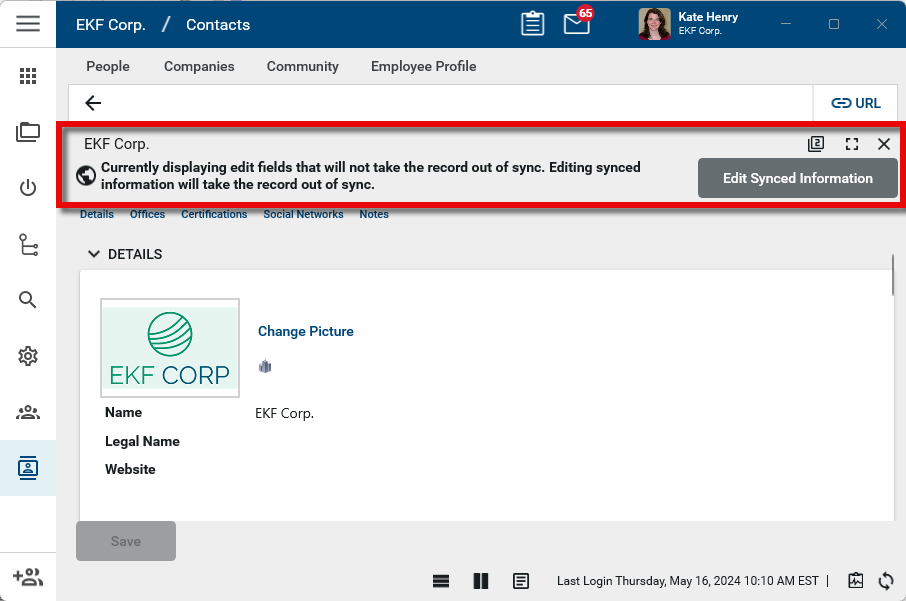
Important Selecting Edit Synced Information will create a local copy of the company's record in your domain. If changes are made to the company's record in the Kahua Community, your domain will not receive those updates.
-
Complete the following fields as appropriate:
Note Depending on how this app is configured for your domain, there may be fields or sections listed here that do not appear for you, fields and sections that appear for you which are not listed here, or fields and sections which appear in a different order. If you have any questions, check with your domain administrator.
Field Description Details Type Select the appropriate company type.
Note This lookup list is managed in the Configuration app. Refer to Lookups.
Vendor Number If used by your organization, enter a vendor number.
Prequalified / Preferred Vendor Select as appropriate. Offices You must select Edit Synced Information to add or edit office information. Certifications The Certifications section can be used for storing contractor license information and special certifications for things like handling radioactive materials, asbestos, etc. Each certification can be assigned to all offices or a specific office as desired.
Click on the Expand icon
 for the line item to enter or view more details about the certification. You can add a URL, select an office to apply the certification to, and attach or manage reference files, such as a PDF copy of the certificate. For more information on using the References section, refer to References section.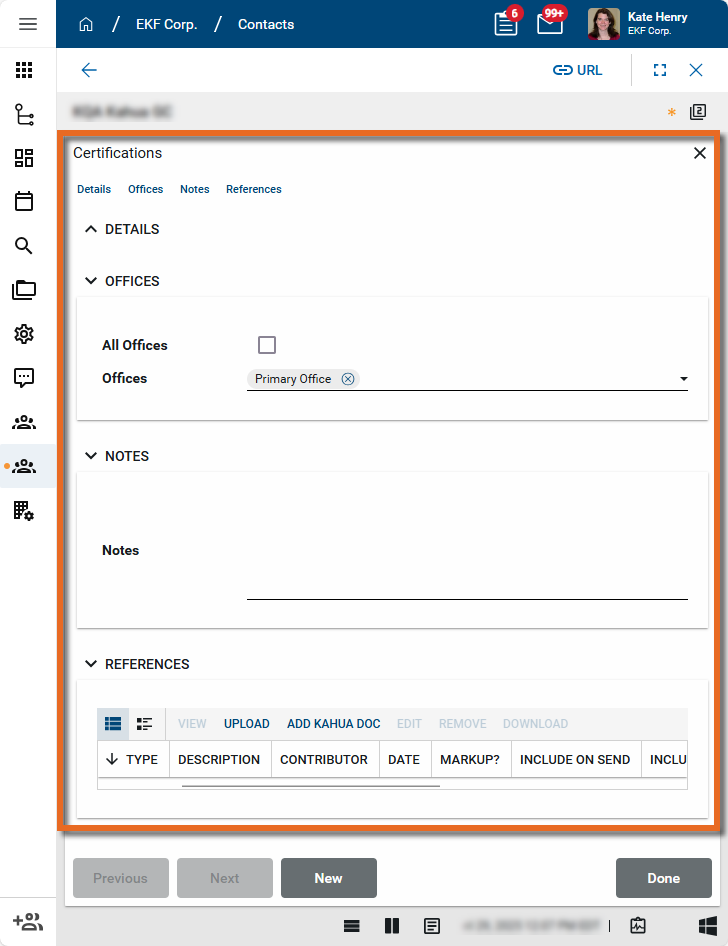
For more information on working with grids, refer to Item grids.
Issuing Agency / Reference Number / Jurisdiction / Classification / Type
Enter information in these fields as appropriate. Issued Date / Expiration Date Enter date information as appropriate. All Offices Select this option if the certification applies to all offices. Click on the Expand icon to access the section where you can select a specific office.Social Networks Twitter / Facebook / LinkedIn Enter links as appropriate. Notes Notes Enter any notes as appropriate. -
Click Save when you are done.
Sync an out-of-sync company record
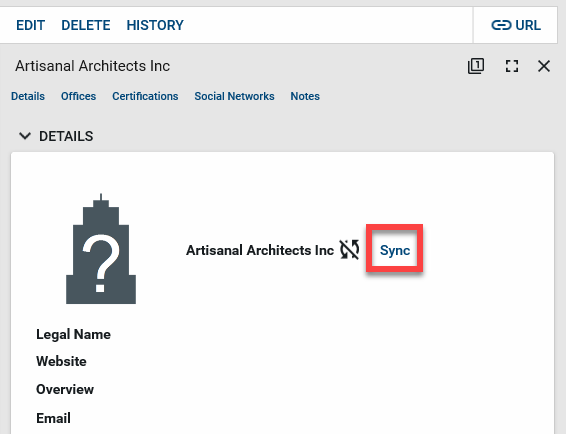
When a company record is taken out of sync from the company's record in the Kahua Community, a local copy of the company's record is created in your domain. You can sync the record again at any point by selecting Sync from the company's detail page.
To sync the record back to the Kahua Community again, complete the following steps:
-
Navigate to the Contacts application (Apps > All Apps > Contacts).
-
Select the Companies app.
-
Select the company record you want to sync. The detail page opens.
-
Select Sync next to the company name.
-
A confirmation message appears, informing you that changes previously made to the record may be overridden once the record is again synced to the Kahua Community. Click Ok to proceed.
-
The record is now synced to the Kahua Community. Any changes made to the record in the Kahua Community will appear on the record in your domain.
Delete a company record
When you delete a company record, you will also delete all the associated contact records.
To delete a company from the Contacts application, complete the following steps:
-
Navigate to the Contacts application (Apps > All Apps > Contacts).
-
Select the Companies sub-app.
-
Select the company you want to delete. Company records from the Kahua Community will be denoted by the globe icon
 . Deleting these records does not remove them from the community. They are only removed from your domain.
 -
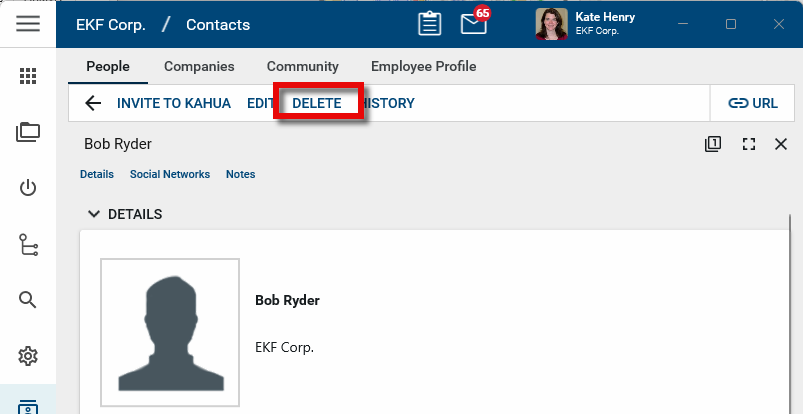
The detail panel will open. Select Delete from the action menu and click OK on the confirmation message. Note that deleting a company record will also delete all associated contact records.
Note If a record was deleted in error, it can be recovered from the Recycle Bin application by an administrator. Deleted records are available for restoration for a set number of days as configured in domain settings. For more information, refer to Using the Recycle Bin.