Managing Employee Profiles
The Employee Profile sub-application in the Contacts app is where you can build out your internal employee profiles as needed. For more general information on the Contacts app, refer to Understanding the Contacts app.
Key elements of the Employee Profiles sub-app are as follows:
-
The app fields can be configured so your organization can customize the information tracked.
-
Employee profiles are used in the Daily Reports app for tracking internal labor hours, and in the Safety Suite for tracking injuries and training.
-
Information from the Employee Profile app does not get published to the Community.
Important Before creating an employee profile, you must first set the employee up in the People sub-app of the Contacts application. Refer to Using the People application.
How to . . .
 Create an Employee Profile
Once the employee is created as a contact in the People app, you can set up their employee profile. To set up their employee profile, complete the following steps:
-
Navigate to the Contacts application (Apps > All Apps > Contacts).
-
Select the Employee Profile app.
-
Click New.
-
The Employee Profile page opens. Select the appropriate company and contact from the drop-down list. Both lists come from the other tabs in the Contacts application.
-
Fill out remaining information as needed, including any comments or reference documents.
Note The list fields including the Department field are lookup lists that your domain administrator manages in the Configuration app.
-
Click Save when you are done.
Edit an employee profile
To edit an employee profile from the Contacts application, complete the following steps:
-
Navigate to the Contacts application (Apps > All Apps > Contacts).
-
Select the Employee Profile app.
-
Select the employee profile record you want to edit and select Edit from the action menu. Note that to modify the employee's name or company association, you will need to edit their record on the People sub-app of the Contacts application.
-
Make the appropriate changes and click Save when you are done.
Send a message that includes the employee profile record
You can send a Kahua message that includes a copy of the employee profile record.
To send a Kahua message that includes a copy of the employee profile record, complete the following steps:
-
Navigate to the Contacts application (Apps > All Apps > Contacts).
-
Select the Employee Profile app.
-
Select the employee profile you want to send a message to. The detail panel will open.
-
Select Send from the action menu.
-
The New Message page will open. Note that the employee profile is attached as a document. Complete the message and select Send.
Delete an employee profile record
To delete an employee profile from the Contacts application, complete the following steps:
-
Navigate to the Contacts application (Apps > All Apps > Contacts).
-
Select the Employee Profile app.
-
Select the employee profile record you want to delete.
-
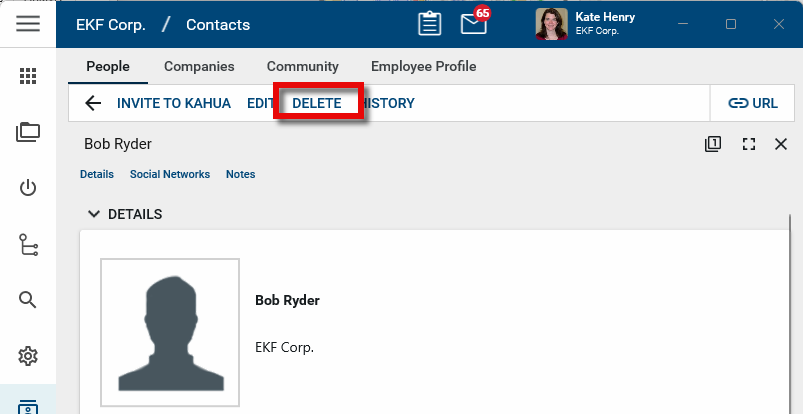
The detail panel will open. Select Delete from the action menu and click OK on the confirmation message.
Important Note that deleting the employee profile record does not remove the contact record from the People app. It only removes the employee profile.
Note If a record was deleted in error, it can be recovered from the Recycle Bin application by an administrator. Deleted records are available for restoration for a set number of days as configured in domain settings. For more information, refer to Using the Recycle Bin.