Transfer administrative rights to another user
The first individual from a company that registers as a Kahua user also sets up the Kahua domain and is, by default, the Kahua Domain Administrator (KDA) and User Administrator. The first purchased license is typically also assigned to this user.
You may want to have another user fulfill those roles. To do so, you will need to set the person up as a user in your Kahua domain, add them to the Domain Administrator group in the Groups app, and assign them the appropriate licenses.
To switch administrative rights and licenses to another user, complete the following steps:
 Add the new administrator to the Domain Administrator group
Use these steps to add another administrator to your Kahua domain.
If you have not yet set up the other user, refer to Adding Internal Users.
-
Log in to Kahua using your credentials as the current domain administrator.
-
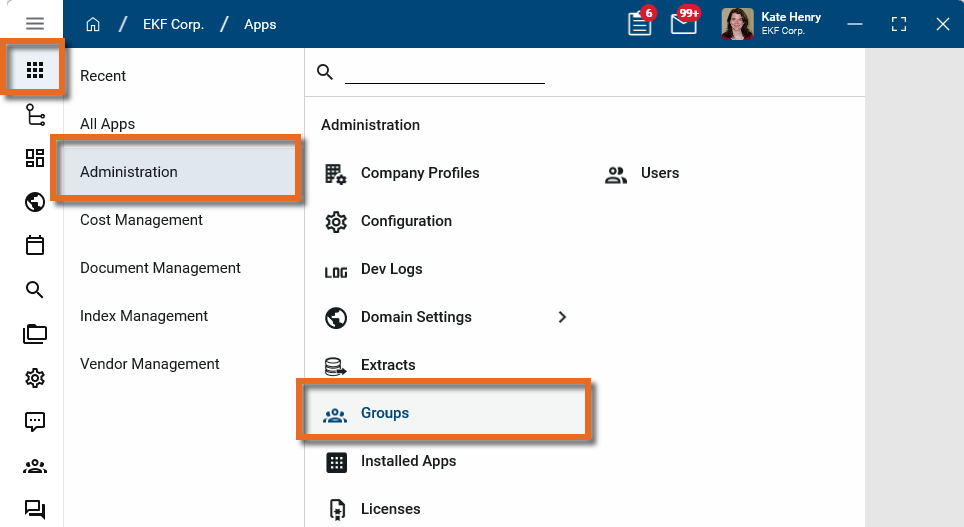
Navigate to the Groups application (Apps > Administration > Groups).
-
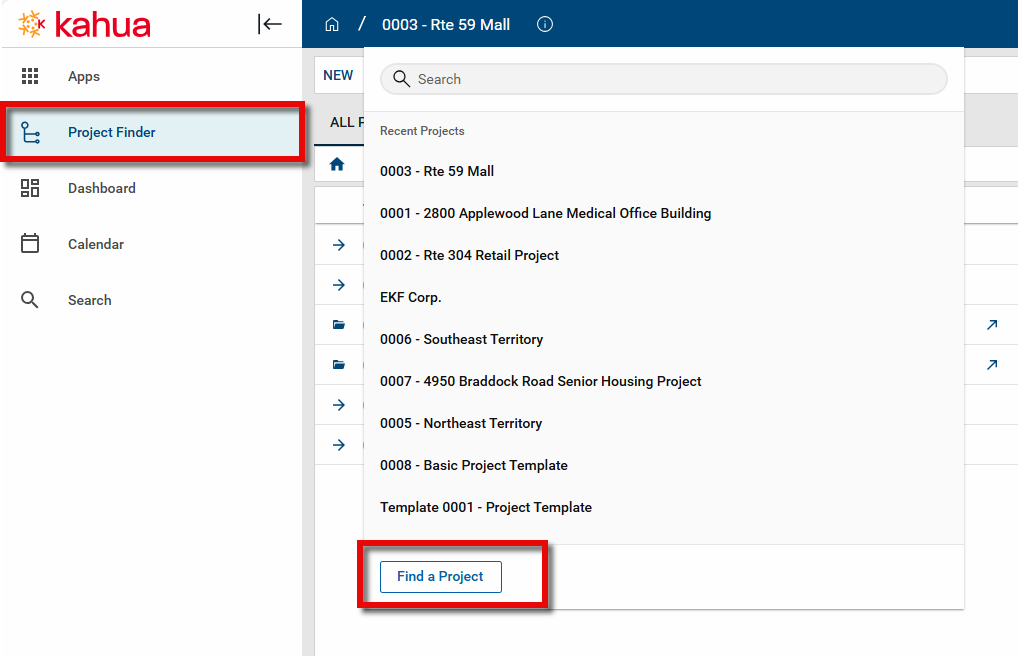
Review the header to ensure that you are in the root domain. The name of your domain should appear in the header, not a project or partition name. If a project name appears, click on it and select the root domain, or use the Project Finder app to navigate to it. Refer to Project Finder.
-
Select the Domain Administrator group.
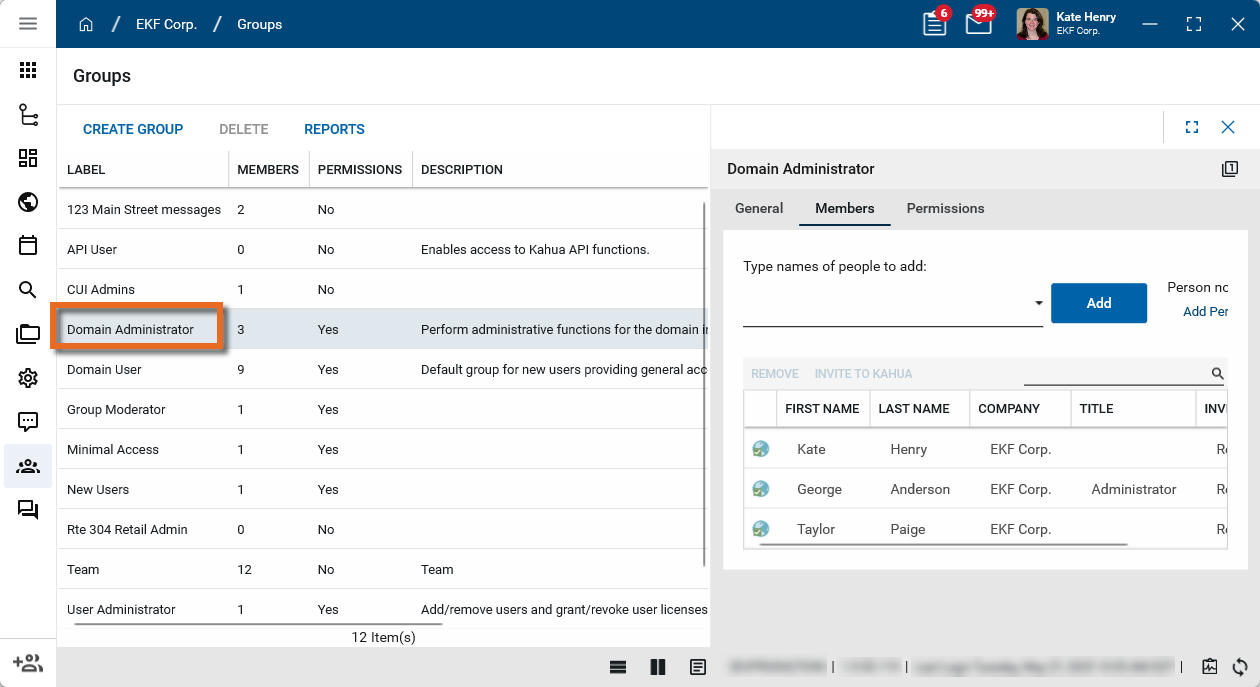
Important The Domain Administrator group is a system group that only appears when you are in the root domain level. If you do not see the Domain Administrator group, review the header to ensure that you are in the root domain. For more information, refer to Setting up groups.
-
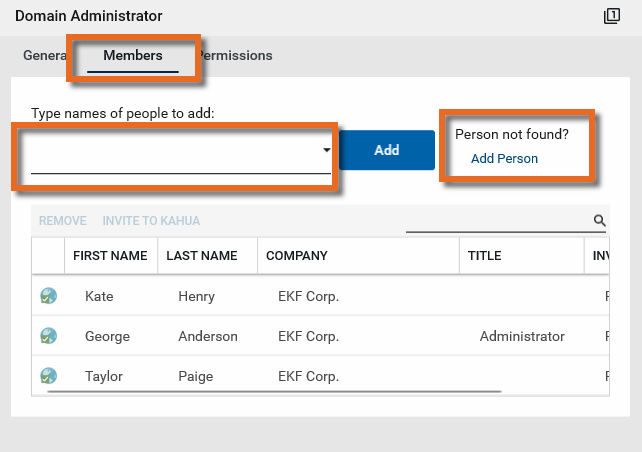
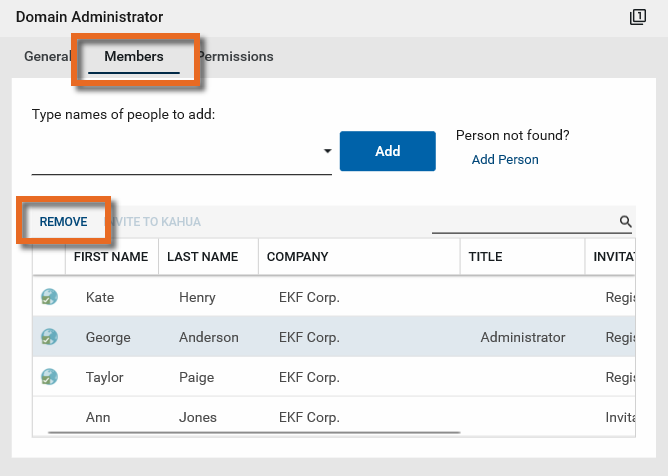
On the Members tab, click the drop-down list and select the one or more users that you want to add to the Domain Administrator group.
If the people you want to add to the group have not been set up yet, select Add Person and follow the steps.
-
Click Add when you are done. The selected users added now have domain administrator rights to your domain.
Important You should not remove yourself from the Domain Administrator group, as you will lose access to administrator rights once you are removed. The user newly assigned to the group should perform this step.
Remove the original administrator from the Domain Administrator group and transfer the license
The newly assigned domain administrator can log in to your domain, remove you from the Domain Administrator group if desired, and transfer the license. To do so, have the newly assigned domain administrator complete the following steps:
-
Using your credentials as the newly added domain administrator, log into Kahua.
-
Navigate to the Groups application (Apps > Administration > Groups).
-
Review the header to ensure that you are in the root domain. The name of your domain should appear in the header, not a project or partition name. If a project name appears, click on it and select the root domain, or use the Project Finder app to navigate to it. Refer to Project Finder.
-
Select the Domain Administrator group.
Note The Domain Administrator group is a system group that only appears when you are in the root domain level. If you do not see the Domain Administrator group, review the header to ensure that you are in the root domain. For more information, refer to Setting up groups.
-
On the Members tab, click on the former administrator's name and select Remove. This removes the user from the group.
If needed, you can now remove the license from the original administrator and apply it to yourself.
-
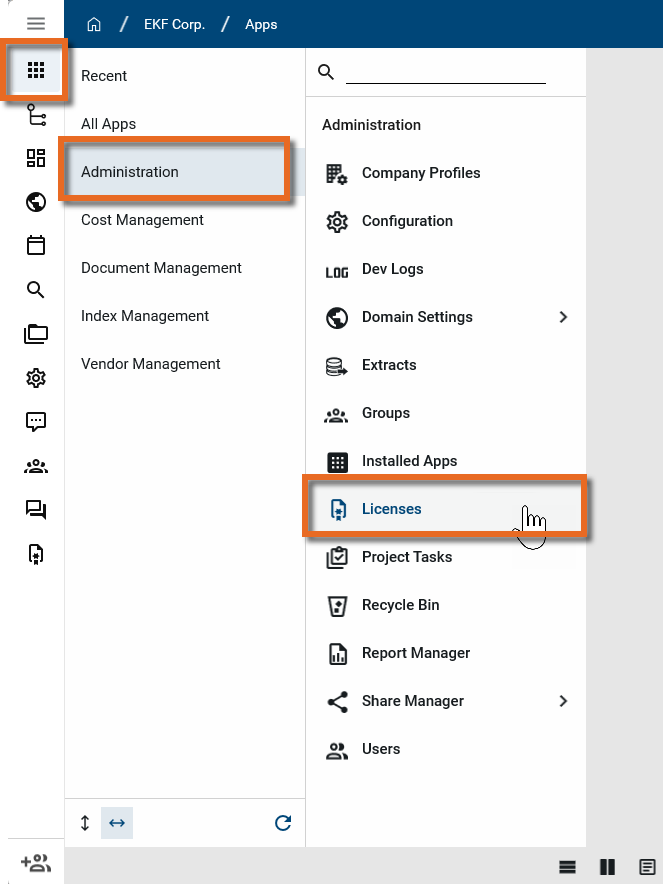
Navigate to the Licenses app (All Apps > Administration > Licenses).
-
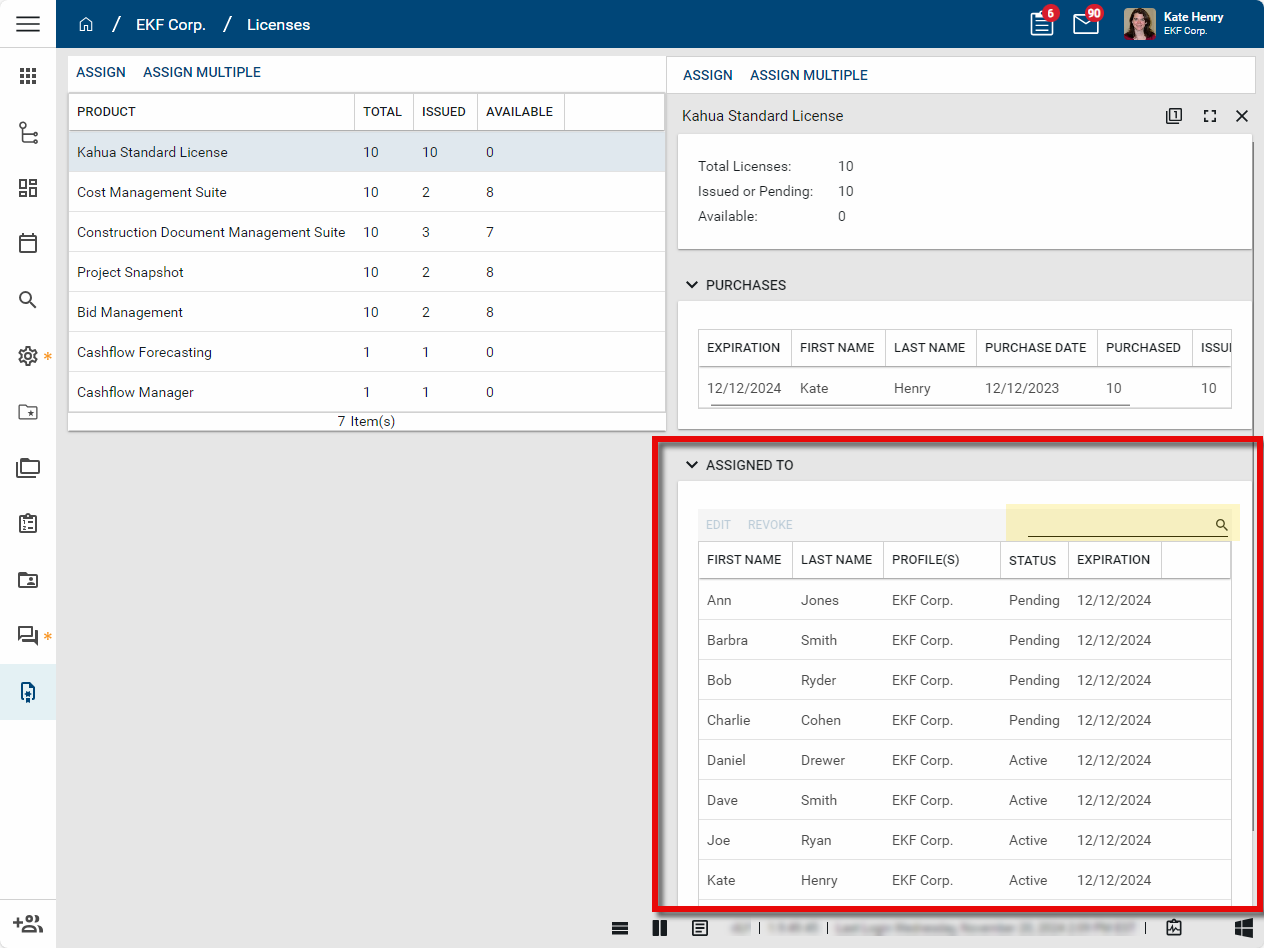
All purchased licenses appear in a grid view. This view includes the name of the license type, the Total number purchased, the number Issued to users, and the number Available to assign to other users.
-
Select the license type to be removed. This will typically be the "Kahua Standard License".
-
In the detail pane, select the user whose license you want to revoke. Use the search field to find a specific user by name.
-
Select Revoke. The license will be revoked from the user.
-
If appropriate, repeat the above steps to remove other licenses from the former administrator.
-
To assign the revoked license to yourself as the new domain administrator, click on the license type to be assigned. The detail pane opens.
-
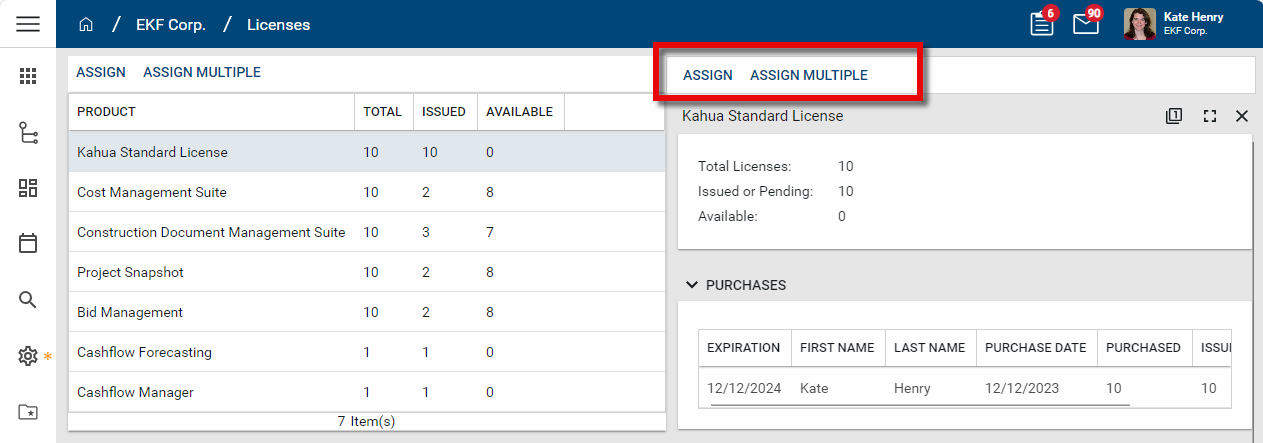
Select Assign in the action bar to assign the selected license to a user. Select Assign Multiple to assign multiple licenses to multiple users at one time. If you attempt to assign a license to a user who already has that license, the system will ignore that request.
-
Select yourself as the new domain administrator and click Assign. The license is assigned to you.
-
If appropriate, repeat the above steps to assign other licenses to yourself.