Unit of Measurement
Notice Kahua is a very flexible and customizable platform. In your domain, this application may have been modified to meet your company's needs. The online help uses default field labels for field names and describes standard workflows. Please check with your domain administrator for specific information about working in your organization's domain.
The Unit of Measurement app is an index app. Index apps contain lists of values that can be used in other applications. This app is used to define and manage units of measure (UOMs) and their values, particularly in the Asset suite of applications.
Key elements of the app include the following:
-
The Unit of Measurement app is a domain level app. The values entered here are available for use in all projects in your domain, regardless of which project or partition is open when records are added.
-
You can import both the measurement type name (e.g., Dimensions, Volume, Voltage, etc.) and the values (e.g., feet and meters, liters and cubic yards, volt and kilovolt, etc.) or enter them manually.
-
Because this is a domain level app, you must navigate to the root domain to access it in Configuration.
How to . . .
 Create unit of measurement records
To create a new set of units of measurement, complete the following steps:
-
Navigate to the Unit of Measure application.
Note Your current partition or project selection does not matter, as the app is a domain-level app and all entries are available to all projects and partitions.
-
Click New in the action bar.
-
Complete the following fields as appropriate:
Field Description Details Name Enter a name for the unit type (e.g., Dimension, Volume, Voltage, etc.).
Description Optionally, enter a description for the unit type. Values Click Insert to insert a line in the grid. For more information on working with grids, refer to Item grids.
Note To delete a line item from the grid, select the check box for the line you want to remove and select Delete from the grid header.
Name Enter the name of the value (e.g., feet and meters, liters and cubic yards, volt and kilovolt, etc.).
Abbreviation Enter the abbreviation for the value (e.g., ft and m, L and CY, V and kV, etc.).
-
Click Save when you are done.
Import existing records
If you have existing data that you want to import into this app, you can do so through the import process.
You will first generate an export of an existing record to access the correctly formatted spreadsheet file for the import. Once the exported file is available, add the appropriate values for the records you want to import to the exported spreadsheet. You can then import those records. For more detailed information on the importing process, refer to Importing records.
Important To import a list of values for a unit type, create the unit type record first and save it. The More > Import Values and Export Values menus will then be available for selection. Follow the process as described above.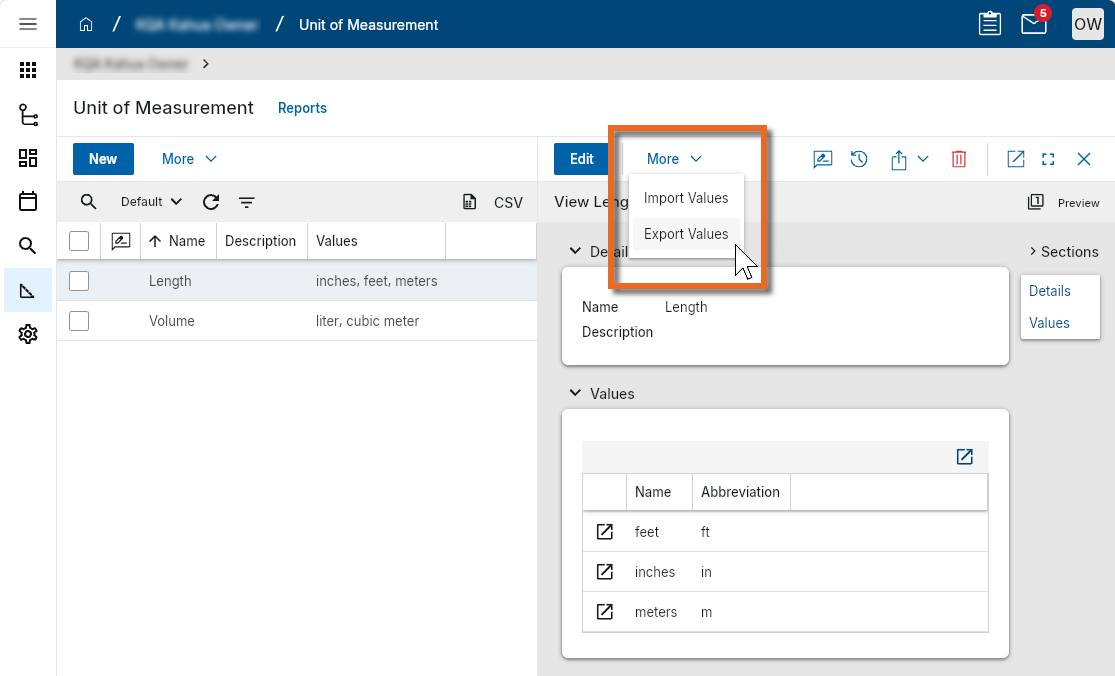
Configure the app
Your domain administrator or another user with the appropriate permissions can configure the app in the Configuration application.
Important Because this is a domain-level app, you must navigate to the root domain to access Configuration for this app.
The Configuration app can be accessed directly through the apps list (Apps > Administration > Configuration), or, in some applications, by right-clicking on an application in the launch bar and selecting Configure. When you select Configure for an app from the launch bar, the detail view of the configuration page for that application opens automatically.
For general information on configuring this app in Configuration, refer to Application configuration.
Available application roles
Application roles determine which actions users can perform in the app. Roles are assigned to groups in the Groups app > Permissions tab. Members of the group then have the permissions associated with the roles assigned to the group.
The following roles are available for this application:
| Role | Details |
|---|---|
| Administrator |
Full administration, including add, configure, create lists, edit, import, export, share, view, send, process, remove, and edit view templates. |
| Contributor |
Can add, edit, open, view, send, and process records. |
| Moderator |
Can add, edit, import, export, remove, share, open, view, send, and process records. |
| Observer |
Can open, view, send, and process records. |
| Referencer |
View-only access to records. |
Note To manage these permissions, open the Groups app and assign the appropriate application role to the group. Only users with the appropriate permissions can manage application roles. For more information, refer to Managing Permissions.