Data Store Overview
The Kahua Data Store provisions a read only SQL Database containing data for a single domain. This database is kept in sync with the Kahua production database in near real-time. Typically data in the data store is updated within seconds of a change to the production data. This update is asynchronous, however, so it is theoretically possible that updates could take longer than a few seconds, particularly if bulk data updates are made that create a large amount of data changes that need to synced to the database at once. The purpose of the data store is to allow access to Kahua data for reporting and analytical purposes without risk of long running analytics impacting the Kahua production system.
The data store can be enabled using the steps described below. Apps must be individually enabled in order for the data within those apps to be available in the data store. Also please note that each app (or extension/supplement) defines the entities and attributes that it makes available in the data store. While most all relevant data is available for most apps, it is possible that certain pieces of data may not be enabled for data store in an app, and modifications must be made to the app to make it available in the data store. Entity history and configuration data are currently not available in the data store
Please note that changes to an entity definition in an app do not
automatically appear in the data store, even if that change is enabled
in the data store. For instance, if an attribute is added to an entity,
and enabled for the data store, the table containing that attribute must
be explicitly rebuilt in order to see the new attribute in the data
store. Table rebuilds can be triggered from the Data Store app within
Kahua. Please be aware that rebuilding extremely large tables could take
some time, and contact support if you need help or have any questions
prior to rebuilding a data store table.
Also note that data
issues can prevent a data store table from rebuilding. For instance, if
the data type of an attribute is changed, and existing data is not
updated to migrate all records to the new data type, the data store
rebuild may not complete for that entity, and data must be repaired
before the table can be rebuilt.
Enabling the data store
The Kahua data store provisions the creation of a domain specific database which can be used for various reasons. Kahua apps define what entity and attribute data the app publishes to the data store. If an app, extension, or supplement does not define an entity or attribute as enabled for the data store, then it won’t appear for use in the data store.
Please refer to the data store table structure for more information on how data store table names are determined.
Enabling the data store can be done from within Kahua by a domain administrator using the following steps:
- Log in to your Kahua site as a domain administrator.
- Navigate to the Domain Settings app (Apps > Administration > Domain Settings).
- Select the Data Store tab.
- Select Yes to Enable Data Store and enter the Database Password.
- Select Save.
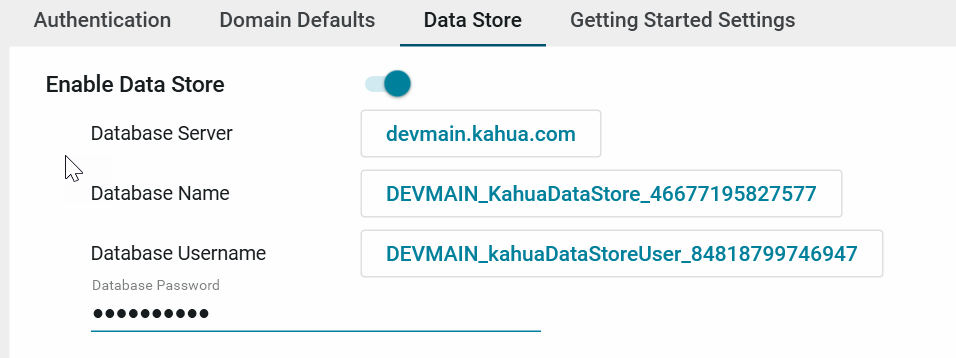
Configuring the data store
Once the data store is enabled, you’ll need to select applications in the list that contain data you wish to publish to the data store. Be sure to save after enabling applications, and data from those apps will be published to the data store. Be sure to also select applications that contain supporting data, such as Companies, People, and Projects:
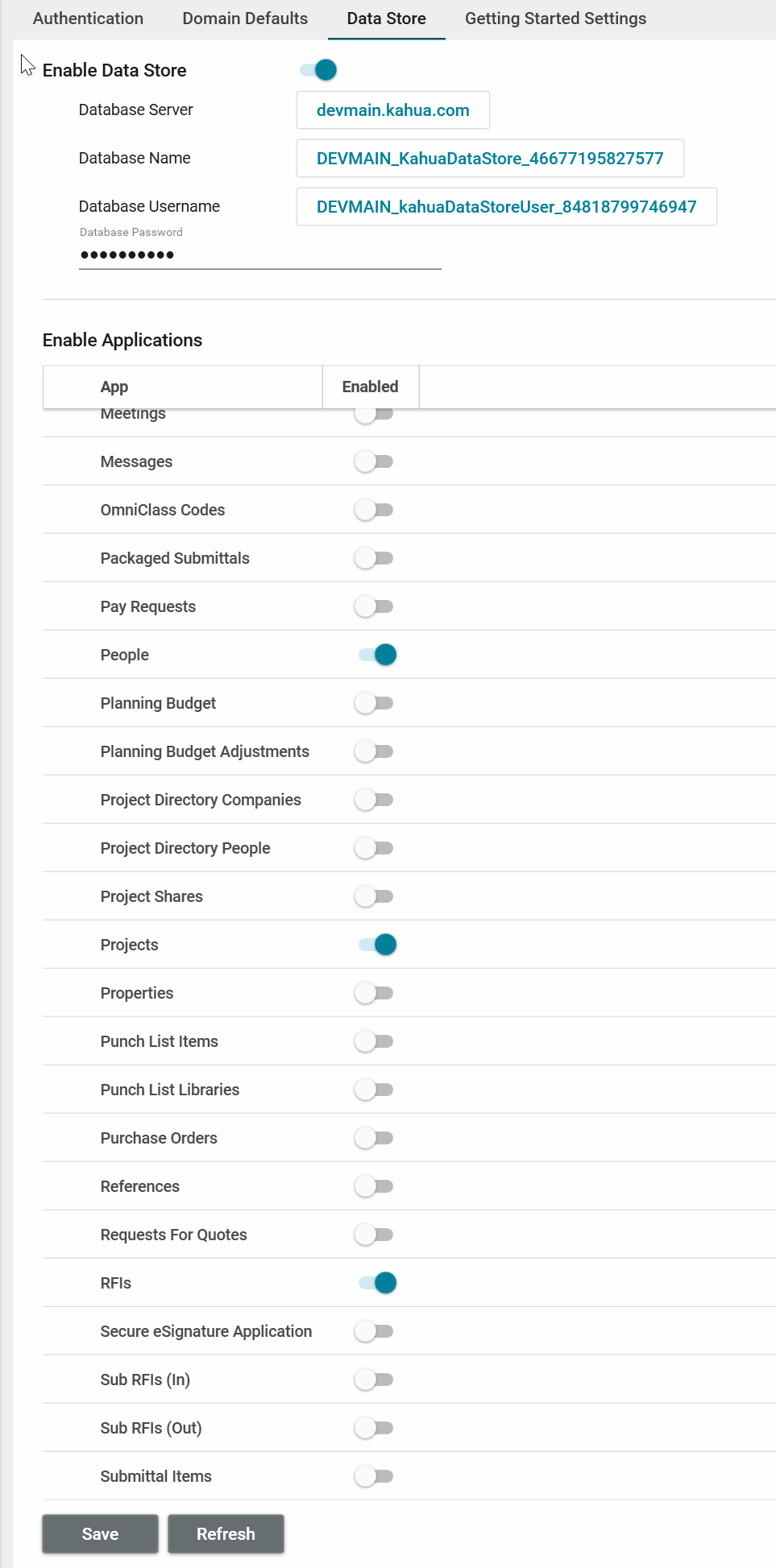
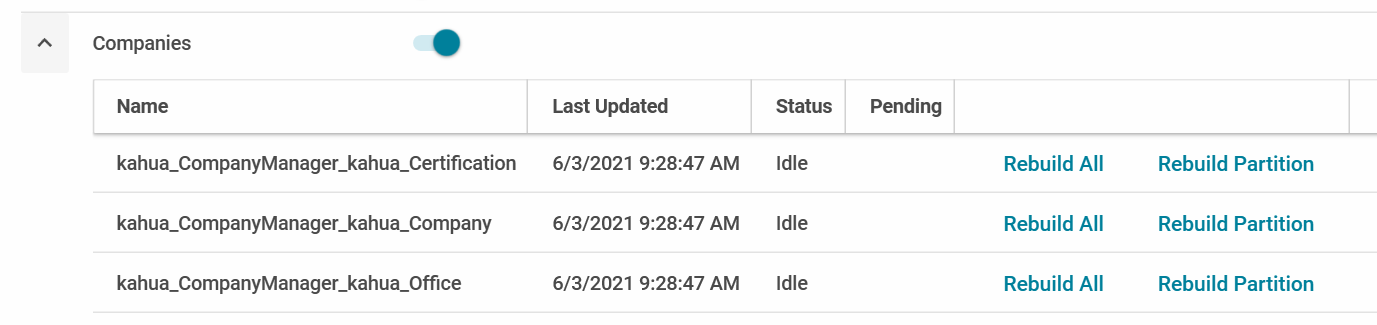
Once you’ve selected your applications, select Save. Kahua will begin creating tables in the data store for those applications and populating them with data from Kahua. Select Refresh periodically and you’ll see that you can now expand an application to see more details. This will show information on the names of the tables being created, as well as the status of data being published to each table:
It is recommended that if you are using the data store, you will want to always enable the following applications as they are almost always referenced from other applications:
-
Companies
-
People
-
Projects (often renamed to Portfolio Manager)
-
Kahua AEC Cost (if using the data store for cost related apps)
Data is published from Kahua to the data store asynchronously. This means that real-time publishing of data in not guaranteed. Under typical circumstances data appears in the data store seconds after it is changed in Kahua. However, it is possible that under heavy loads, or with large amounts of data, that it could take longer for data to appear. The record counts in the details of each application will show whether there is outstanding data in the process of being published for each application and entity.
Accessing the data store
How you interact with the data store depends on your target usage. Direct SQL connections to the data store are no longer supported for security reasons, but there are multiple tools to utilize the data store for various purposes, noted below.
Point to site (Azure) and site to site VPNs are now deprecated. For existing VPN connections there is currently no change, but new VPN accounts/connections will not be created. For those currently using VPN connections, we will work with you on a transition plan.
Designing data store reports
When designing data store reports, You can use the report designer to execute queries in the report designer using the following steps: - Create a data store data source in your application - Double click on the data source to open the query editor - Write your SQL statement in the query editor and click the “Execute SQL” button in the toolbar to run the query against the configured environment/domain
Replicating data from the data store to an enterprise data warehouse
Some users may wish to replicate data from Kahua to an enterprise data warehouse that houses data from all their enterprise systems. This can be done utilizing the data store table API. This API can be used to query data on a table by table basis in order to push the data into the customer’s data warehouse. This API supports paging, which should be used to manage data volumes, as well as sorting and filtering, allowing for filtering on ModifiedDateTime for change tracking.
The data store APIs use OAuth 2.0 for authorization. OAuth 2.0 credentials can be provisioned from within Kahua by a Kahua Domain Administrator. Please refer to Authentication for more details on using OAuth 2.0.
Connecting PowerBI or other analytics tool to the data store
The data store table API can also be used by PowerBI to pull data into PowerBI for dashboard reporting and analytics. Refer to this page for more information on how to connect PowerBI to the data store with our data store APIs. Most other tools contain similar functionality, please refer to the product’s documentation to research how to retrieve data from an API for additional information on other analytics tools.
While Kahua allows connections to the data store from third-party tools, Kahua cannot provide support for using those third-party tools. Please work with the developer of those tools for support for their respective products. Most third-party tools, as well as Stimulsoft, also require a basic understanding of data modeling in order to access data from the tools. So concepts such as joins and writing SQL statements are sometimes needed to work with these tools