Kahua 2026 Q3 Release Notes
The Kahua 2026 Q3 release will be deployed to our Production environments on August 14, 2026. A preview of this functionality can be accessed at https://earlyaccesslaunch.kahua.com beginning on July 25, 2026. Please click here for more information on the Early Access program.
The release notes below are subject to change. For any changes to these notes, please see the change log at the bottom of the article.
In addition to various bug fixes, performance improvements, and minor UI updates, this release includes the updates described below in the following functional areas:
 General
Introducing the Workflow Progress Banner
We have added a Workflow Progress banner to the preview view of records and tasks, allowing you to see the current state of a record's workflow at a glance.
The banner appears at the top of the preview and updates automatically to reflect whether the workflow is in progress, overdue, or complete, so you always have the context you need without navigating away.
-
When a workflow is active, the banner displays key information including the current step status, assigned users, and due date. You can select View Details to open a full visual representation of the workflow.
-
When a workflow becomes overdue, the banner shifts to a red indicator and displays how many days overdue it is, with a red marker shown on the avatar of the overdue assignee.
-
When a workflow reaches completion, the banner turns green to confirm the workflow is finished.
A similar banner appears on associated task views. This gives you visibility into the current workflow step and shows you which users and step will be next after you act on your task.
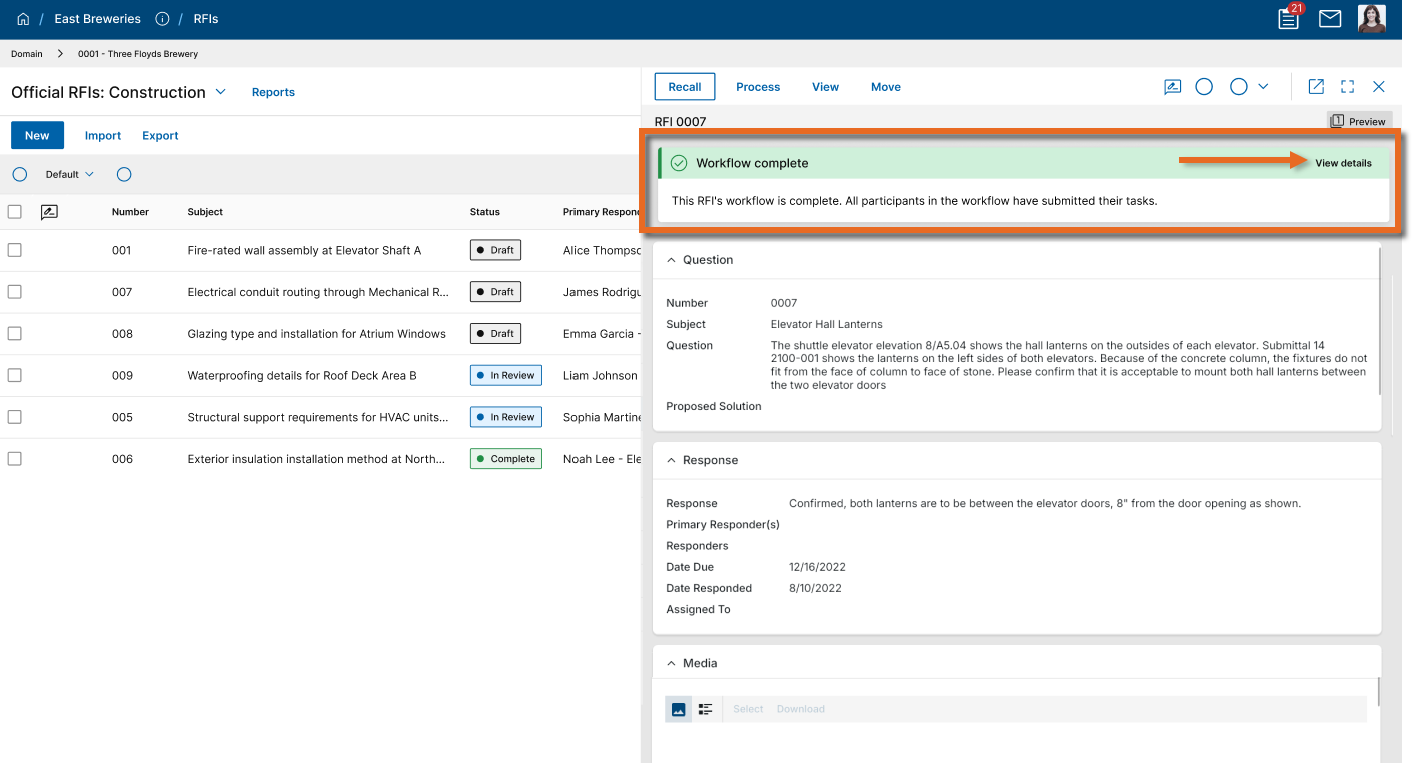
If you do not want the banner to appear in your domain, it can be disabled by clearing the Workflow progress banner and details toggle in Domain Settings > Domain Defaults.
Contacts - Added contact details in structured contact fields
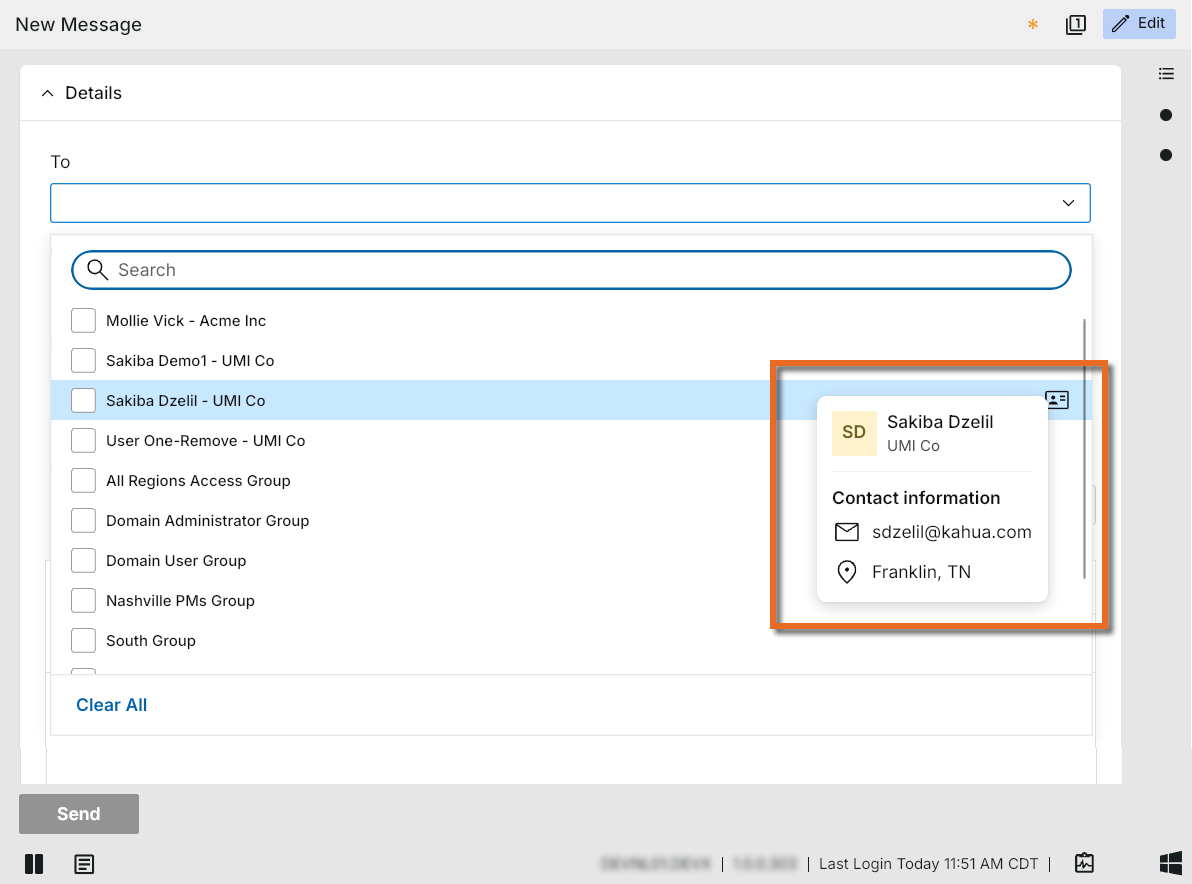
You can now see key contact details for anyone listed in a person field — right where their name appears, without leaving your current workflow.
When you hover or click a person's name in a structured field (such as To in Messages), a compact Contact Card appears with the person's available contact information.
CUI - CUI support added to multiple apps
The acronym CUI refers to Controlled Unclassified Information. Kahua offers CUI support in many apps that can be used to identify records that will require sensitive handling by users in your domain and records that will be redacted for users who have not been granted permission to view the data. We have added CUI support to the following apps:
-
Asset Manager
-
Assets
-
Types
-
Systems
-
Maintenance Plans
-
Spare Parts
-
-
Asset Definition
-
Classes - Master
-
Classes - Project
-
Classes - Templates
-
Attributes
-
-
Locations
For more information, refer to CUI (Controlled Unclassified Information).
File viewer - Smarter pin clustering
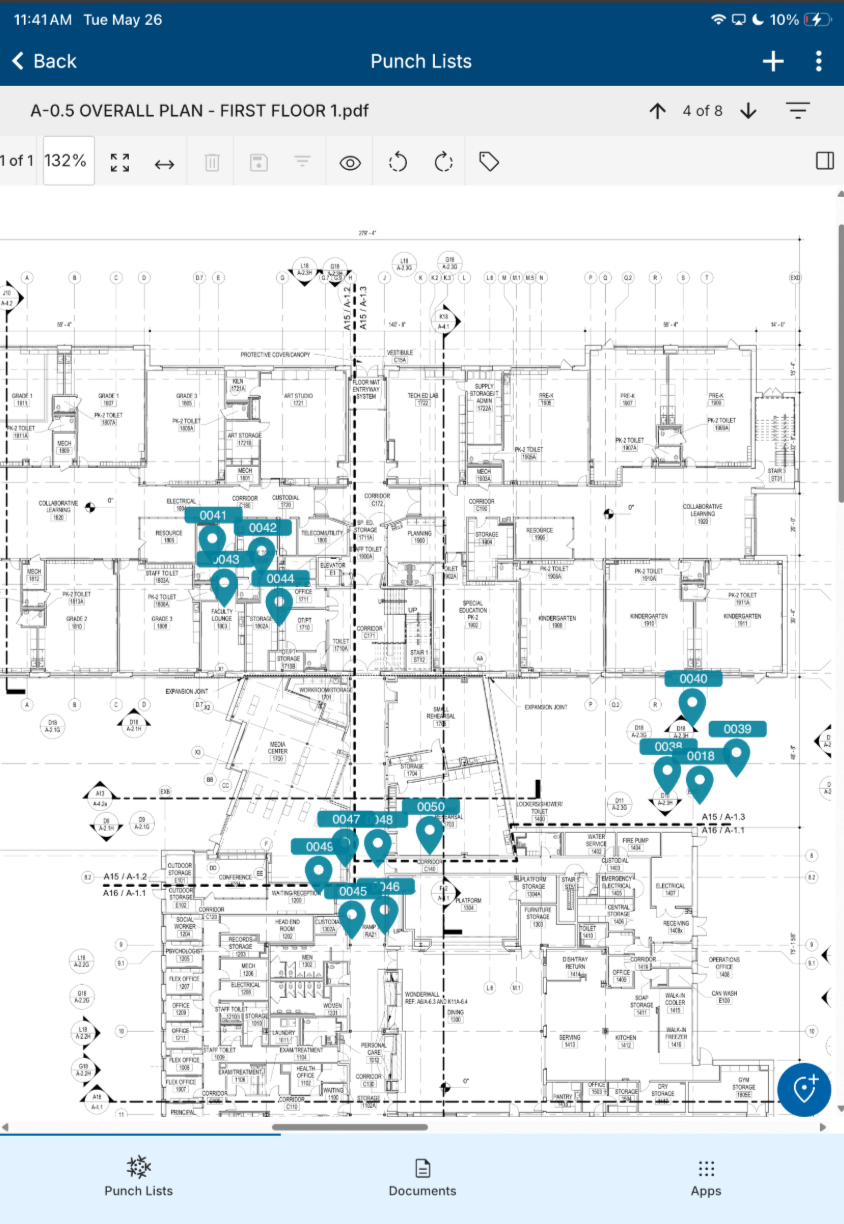
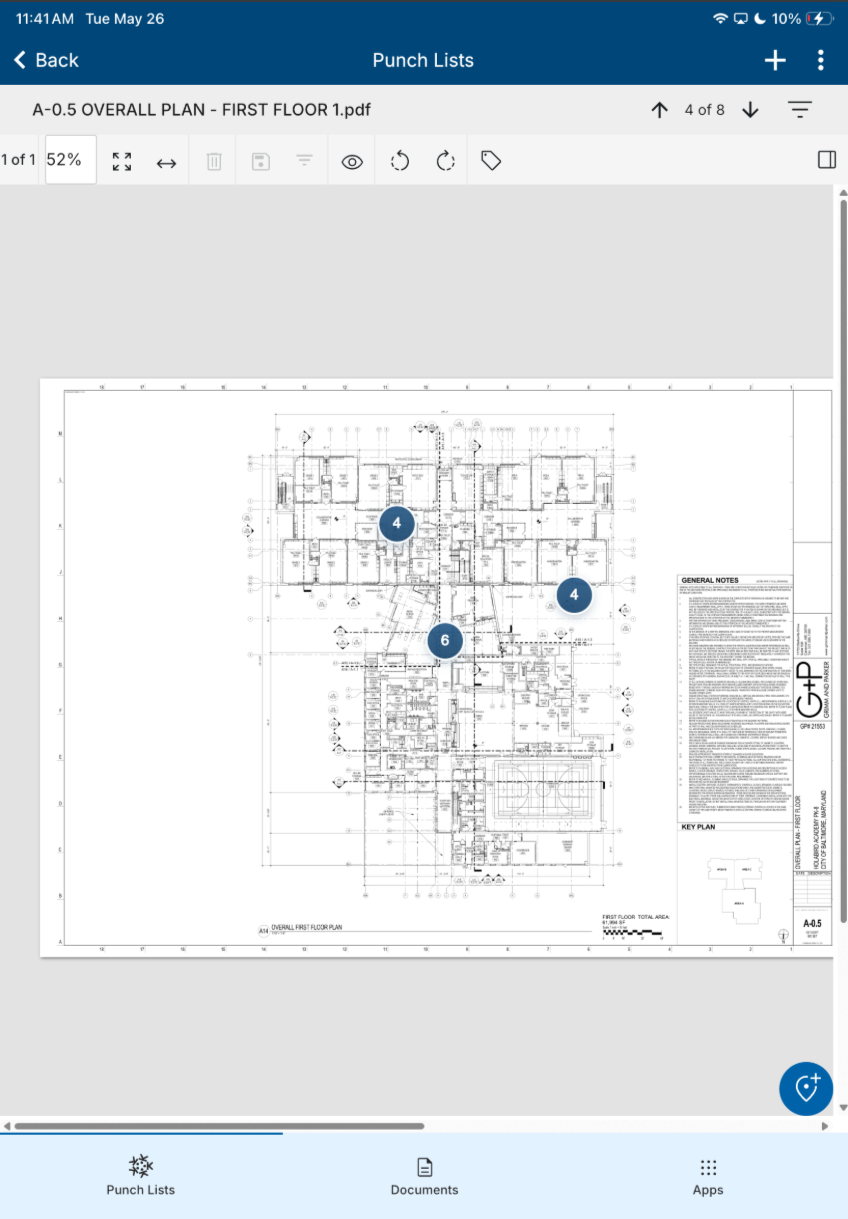
Navigating busy drawings just got easier. Our new Pin Clustering feature automatically groups nearby pins together as you zoom out, reducing visual clutter and making documents easier to review at a glance.
Clustered pins display a count of included items, and as you zoom in, the groups smoothly expand back into individual pins—helping teams quickly focus on the areas that matter without losing context on the drawing.
History page - Redesigned history page
The History page has been redesigned to provide a clearer, more consistent timeline of record activity. Events are now easier to scan and understand, with improved visibility into user actions, timestamps, status changes, comments, appr
ovals, rejections, submissions, and uploaded or removed files.
The new experience also includes expandable event details, grouped date sections, and enhanced search and filtering controls, making it easier to locate and review important activity.
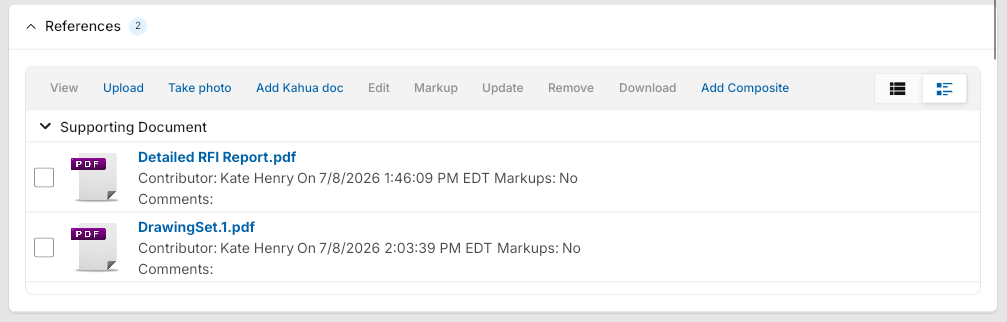
Item grids, tables and sections - Updated styling and added empty-state indicator
Items grids, full detail tables, and related section types have been updated with a refreshed visual design. The new layout improves readability and consistency across edit and read-only modes, making it easier to scan and interact with grid data throughout the application.
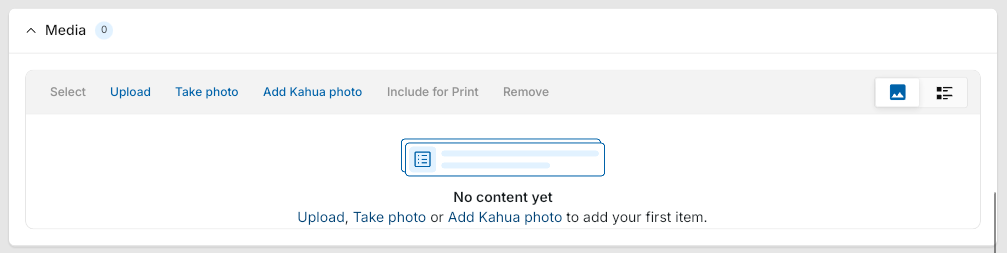
Additionally, when a section is empty, a placeholder with an icon denoting "No content yet" appears, making it easy to distinguish between intentionally empty data and a display issue, reducing confusion when reviewing records.
Kahua Wiki – Migrate Kahua Wiki content to help.kahua.com
We are moving content from the Kahua Wiki to help.kahua.com to give you a more consistent and accessible help experience. This transition brings more Kahua guidance into a centralized location, making it easier to find and use the information you need.
With this release, migrated content will be available at https://help.kahua.com/ instead of the Kahua Wiki.
Log views - Added ability for domain administrators to set default view
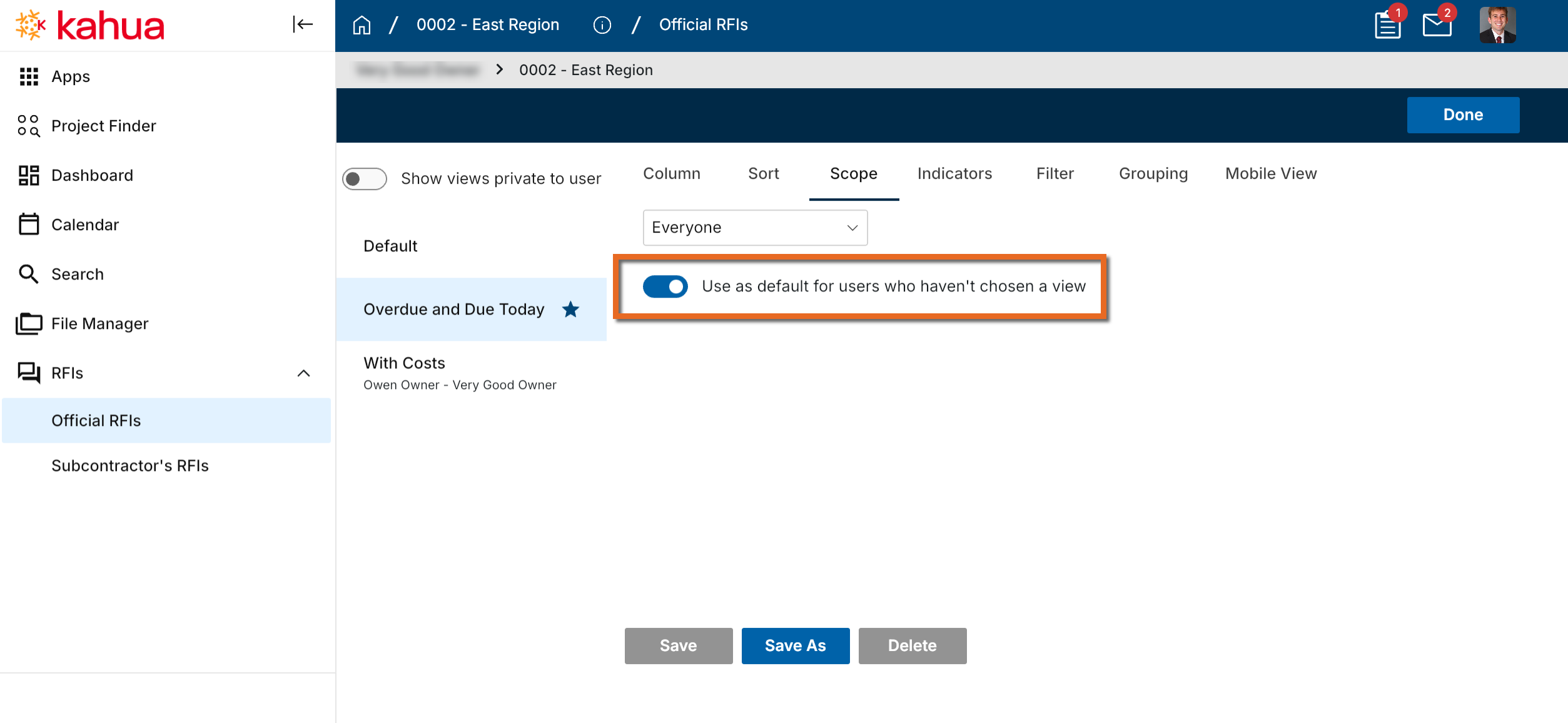
Domain Administrators can now set a custom managed view as the default log view.
The default view applies only to users who have not already selected a different log view, ensuring admins can provide a consistent starting view without disrupting individual user preferences.
Default log views can be set by opening the appropriate view in Manage views and selecting Use as default for users who haven't chosen a view on the Scope tab.
Log views - Added ability to filter a view by current user
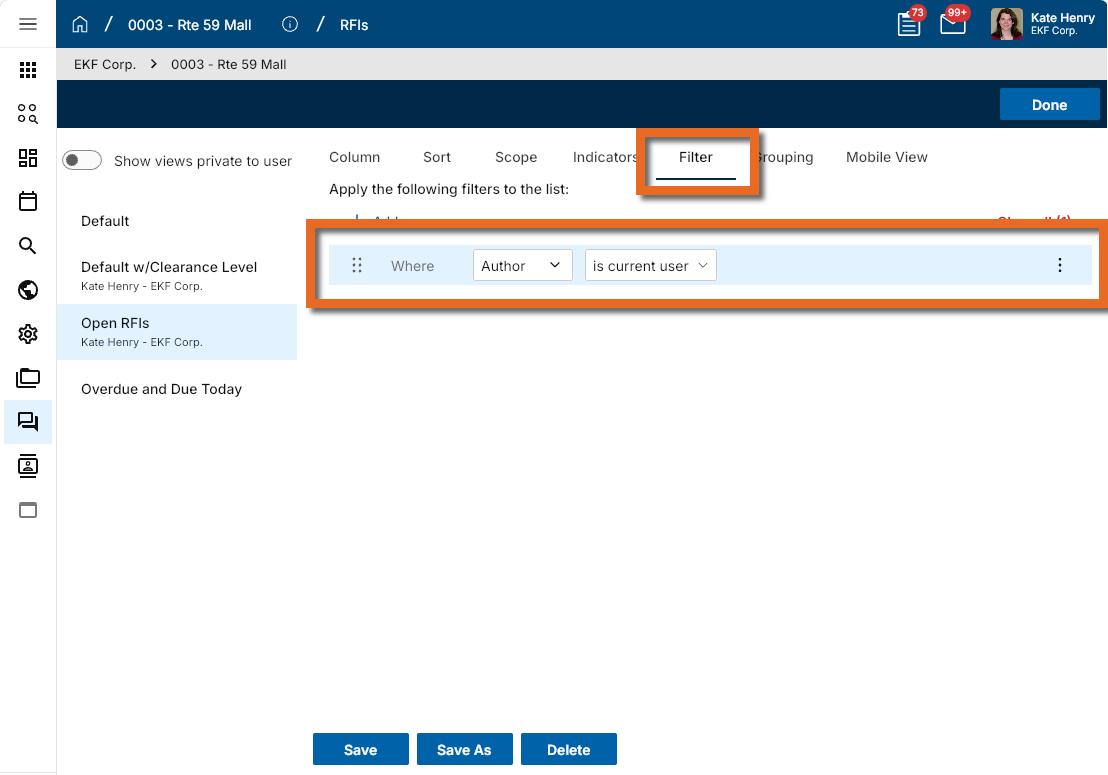
Log views can now filter records based on the current user. This makes it easier for users to see items assigned to them or records where their contact appears in a specific field, without creating separate personal views.
When Kahua returns records, it checks whether the current user is included in the selected field and only shows matching records.
To use this filter, open Manage views, select the view you want to update, and select the Filter tab. Choose the attribute you want to filter, then select "is current user". Save the view and set the Scope to "Everyone" so all users can use the same filtered view.
Log Views - Updated header styling
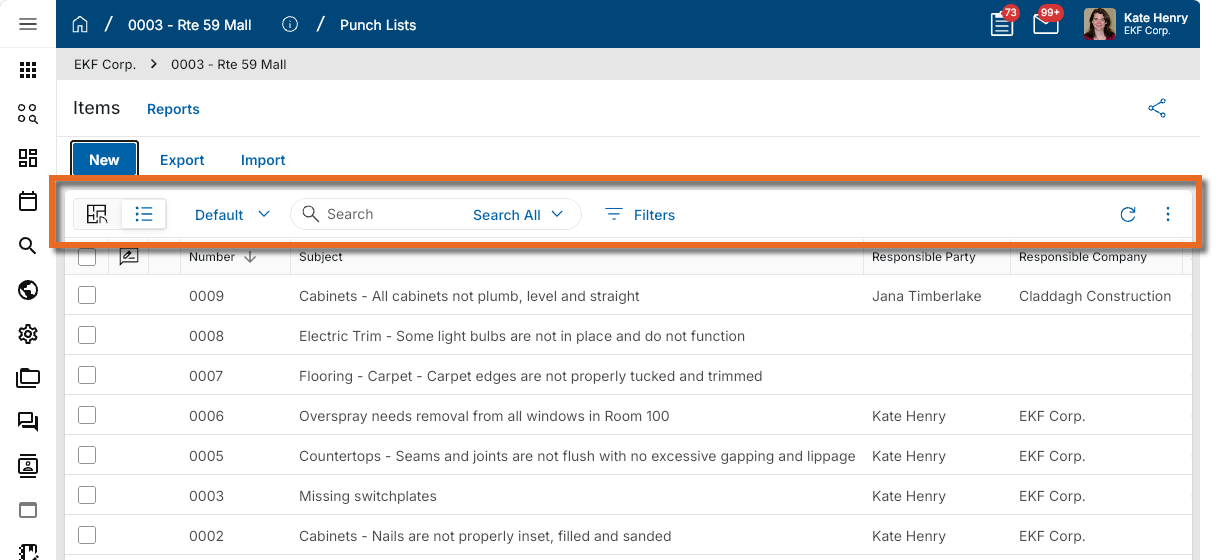
Log view headers have been updated with a refreshed visual design. The new layout reorganizes the available actions for a cleaner, more consistent experience. Print and CSV options are now available from the More menu  on the right side of the header.
Lookup lists - Added alphabetical lookup sorting
Administrators can now sort lookup values alphabetically in Configuration. This update makes long lookup lists easier to organize, reduces manual reordering, and helps keep application configurations consistent.
In the Configuration app, select the app you want to update and click on the Lookups tab. Select the lookup you want to organize, then enable Alphabetical Sort to instantly show the lookup values from A–Z.
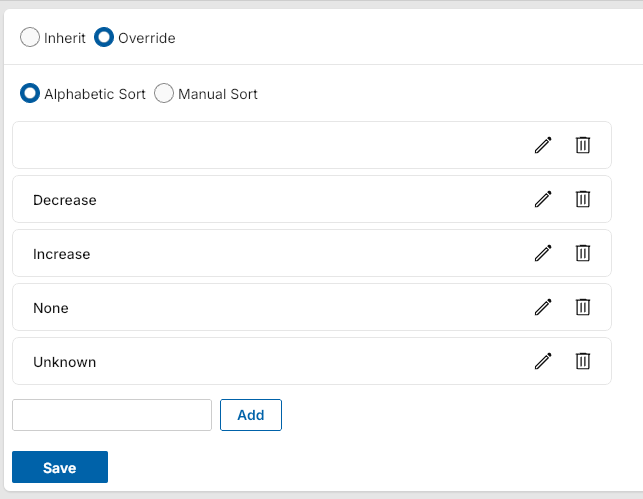
When Alphabetical Sort is selected, manual reorder arrows are hidden so the list stays in alphabetical order. You can disable it to restore the previous manual order.
Messages - Attached files automatically sent as downloadable links
This feature will not be available by default at this time. If you are interested in having this feature installed in your domain, reach out to Support or your account representative.
When you send a message that includes a file, Kahua shares a link to the document by default instead of attaching the file directly. This helps prevent delivery failures caused by email attachment size limits and makes it easier for recipients to access shared content.
The message recipient can select the link to view or download the document.
Prefix values - Added ability to have military titles and honorifics added to contacts and profile settings
These additions are available only in the Kahua Government Network (KGN). If you are interested in having them installed in your domain, reach out to Support or your account representative.
We have added the ability to select from an expanded set of military ranks and honorific titles in the Prefix dropdown in both your profile and in Contacts. This update gives you access to a broader range of recognized titles and designations.
When installed on your domain, the new values appear alongside existing options in the Prefix dropdown in two locations: My Settings under your profile, and in Contacts under People. All existing prefix selections are preserved and unchanged.
Tasks - Added Project Number as an option in the log view
You can now have the Project Number appear in the Task log, giving you immediate project context without leaving your task list. This enhancement makes it easier to distinguish between tasks from projects with similar names, especially when your organization uses project numbers as its primary project identifier.
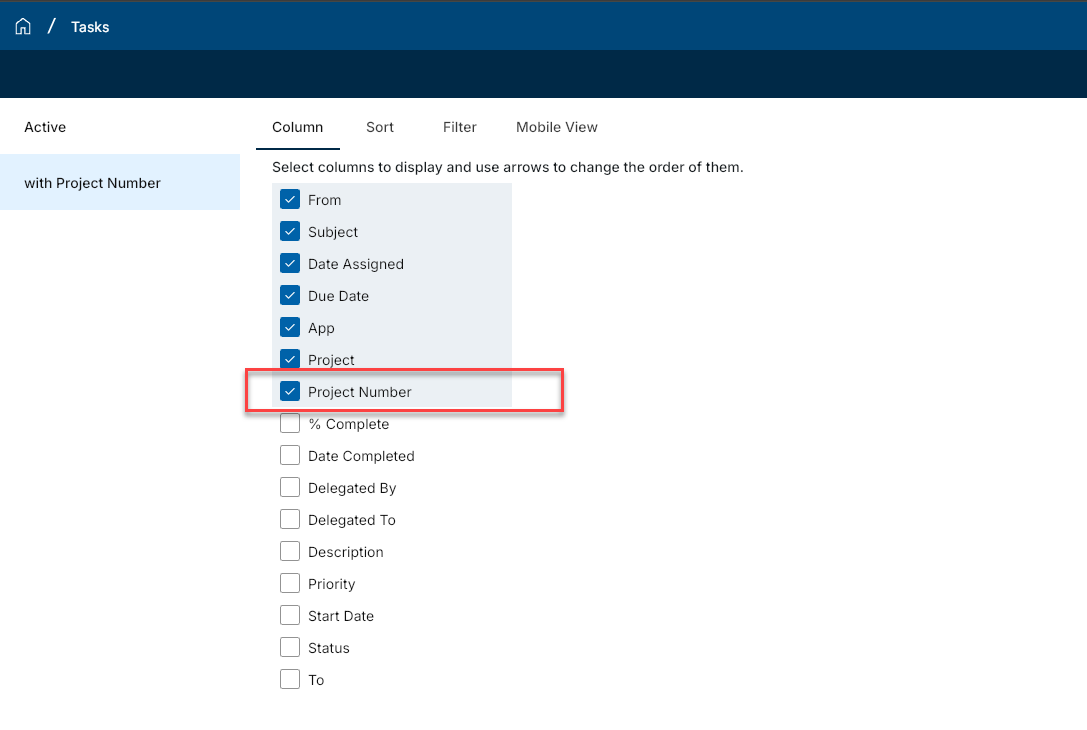
To have the project number appear in the log, modify your log view and add the Project Number column. After you add the column, the project number appears directly in the task listing for each applicable task.
"Use Domain" feature - Added list view selection
You can now select entities using any available list view when working with the Use Domain feature in Locations, Asset Manager Types, Asset Manager Assets, and Asset Manager Systems. This gives you greater flexibility in defining which records are included, whether you use a custom view or an out-of-the-box view.
Previously, Use Domain let you select all domain records or choose individual records manually. Now, the Use Domain selection interface displays all list views available to you, including both custom and out-of-the-box views.
When you choose a list view and select all entities, the selection reflects the current results of that view. We also added a new Use locations in current view option, which pulls in all records currently displayed in your active list view. This works separately from Use all locations, which continues to include all records across the entire domain. The labels on two existing options have also been updated to Use selected and Use all locations for improved clarity.
User Settings panel - Updated appearance
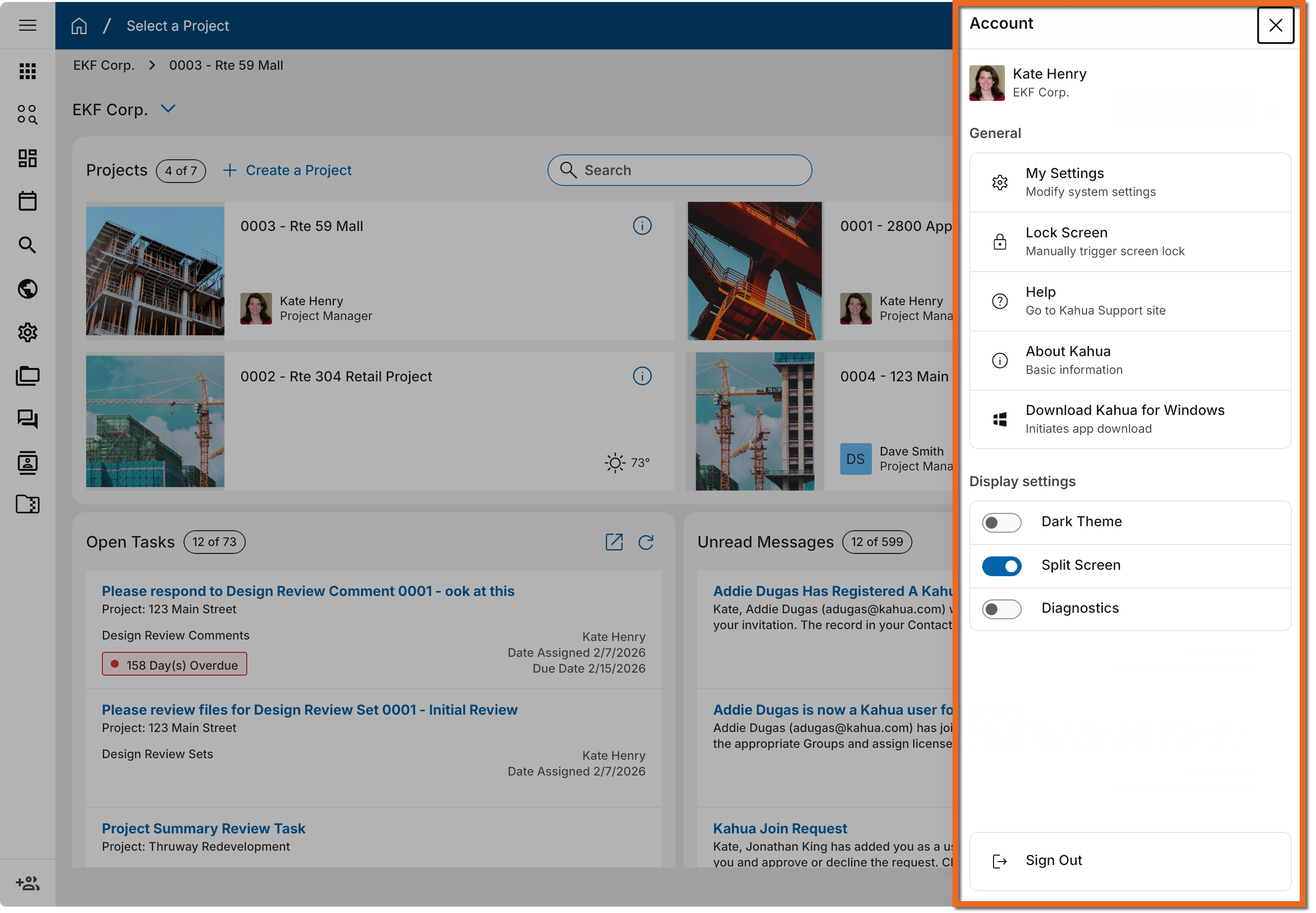
We have updated the appearance of the user settings panel. The panel is accessed by clicking on your profile icon in the upper right corner of the page in Kahua. The available options remain the same, only the appearance of the panel has changed.
Administration
API - Added validation to prevent deletion of WBS codes in use
We have added stronger validation when Work Breakdown Structure (WBS) items are deleted through APIs, preventing WBS codes from being removed while they are still in use by cost records.
API deletion is now blocked when:
-
A WBS item is referenced by one or more cost documents.
-
A parent WBS item has child items.
When deletion is blocked, the API returns a message explaining why the WBS item cannot be deleted.
Approval Configuration - Added the ability to configure roles at the project partition level
Administrators can now configure approval roles at the project partition level.
This allows projects to include only the approval roles that are relevant to that project, rather than inheriting one shared role list from the root domain partition. Administrators can add approval roles in partitions below the root, while inherited roles remain managed from the partition where they were created.
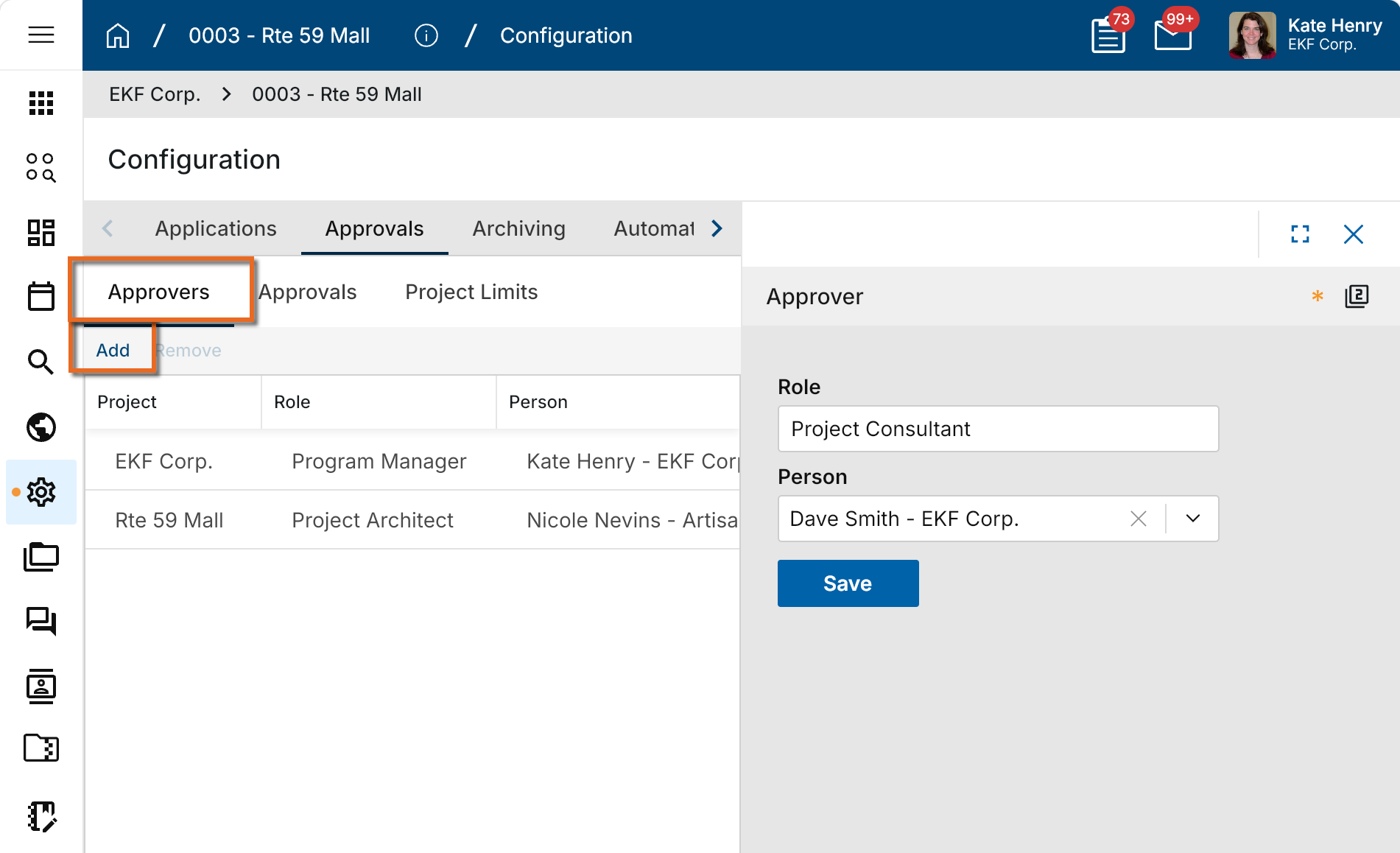
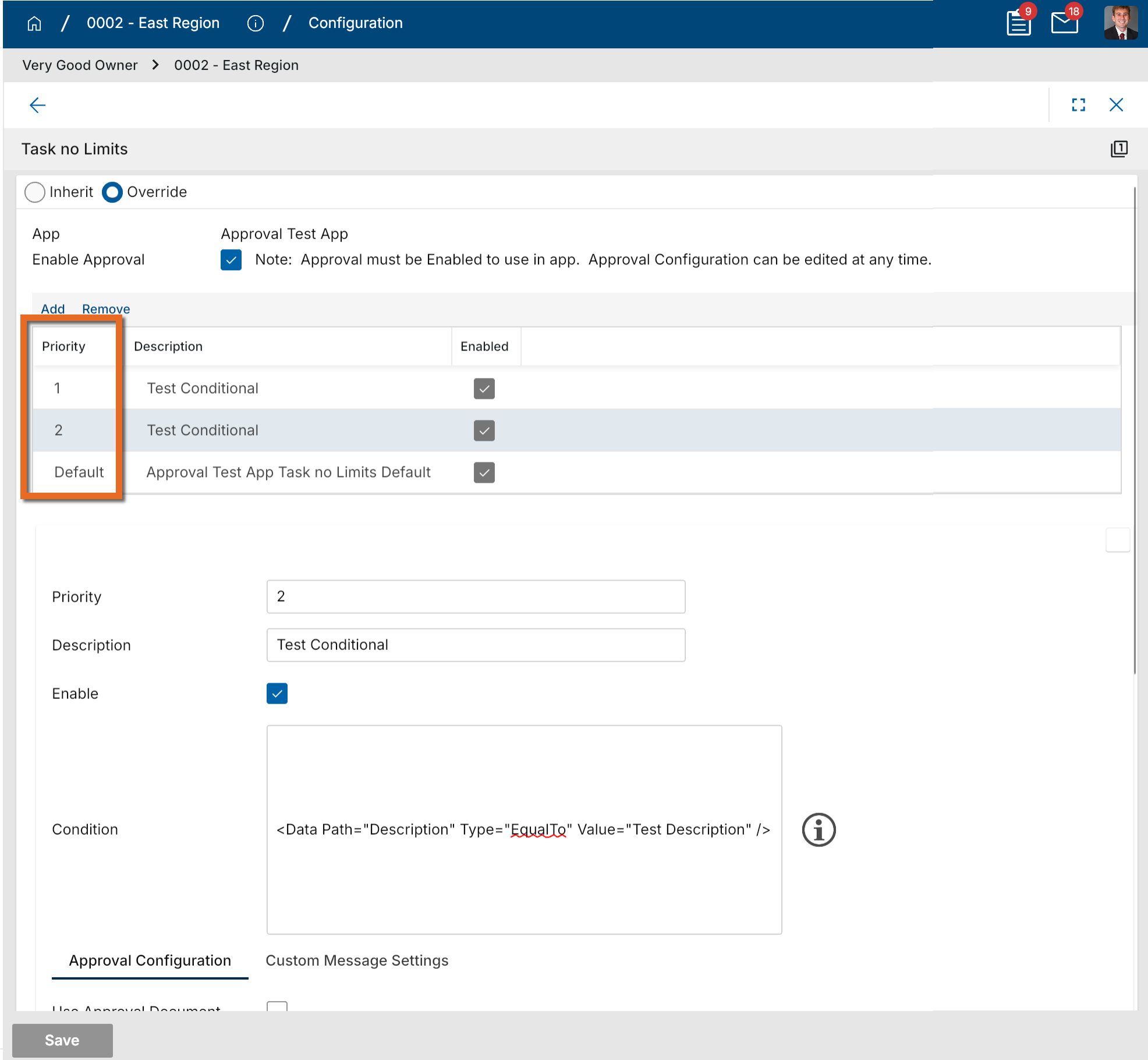
Approval Configuration - Renamed the Conditional Approvals column header from Steps to Priority.
We have renamed the Conditional Approvals column header from Steps to Priority. This update makes it clearer that conditional approvals are evaluated by priority order, where the first matching condition is used before moving to the next condition.
Approval Configuration - Added Docusign Workflow Completion Notifications
Administrators can now configure recipients for Docusign approval workflow completion notifications.
When a Docusign approval workflow is completed and Kahua closes out the approval process, Kahua can now send a configurable completion message to selected recipients. Recipients may include Kahua roles, actors, or groups.
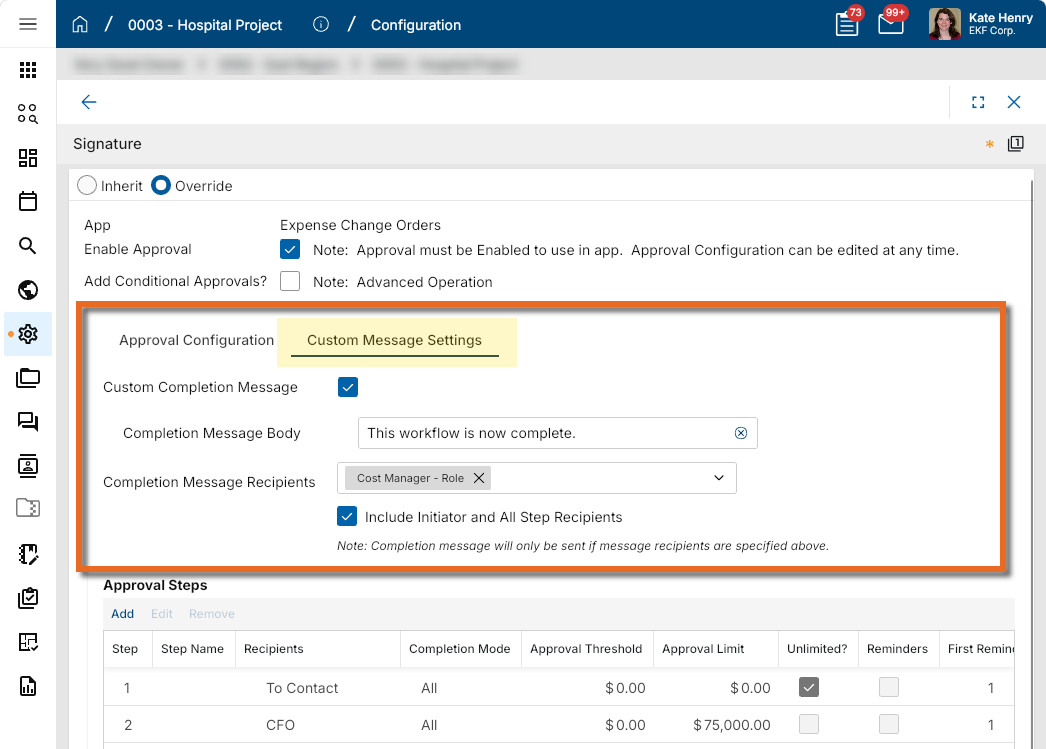
This enhancement gives workflow designers more flexibility and ensures the right stakeholders are notified when Docusign approvals are finalized in Kahua.
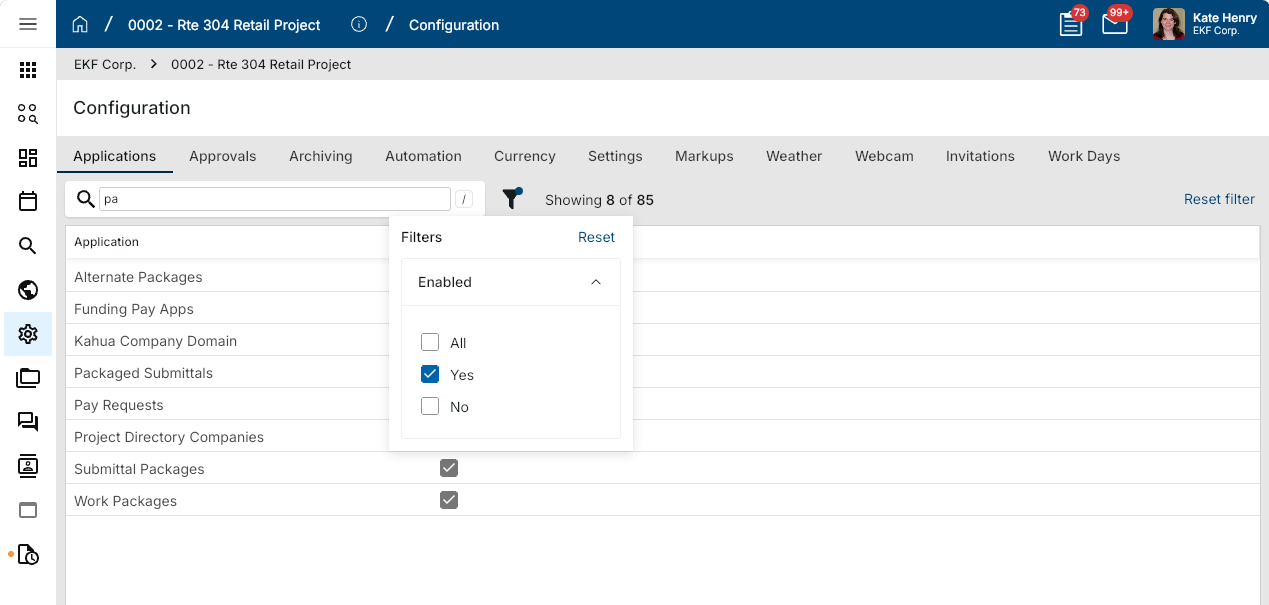
Configuration - Added search and filter functions to the Applications page
You can now search for applications by name and filter the application list by enabled status on the Configuration > Applications tab. These options make it easier to quickly locate and manage applications.
To search for an application, enter all or part of its name in the search bar. The type-ahead search automatically filters the application list as you type and returns any application whose name contains the entered text.
To filter the list by enabled status, select the filter icon, then choose whether to display enabled applications, disabled applications, or both.
Groups - Added Application Search to Permissions tab
This feature is not included in the initial Q3 release. It will be made available in a future update.
We’ve added a search box to the Permissions tab to make it easier to find applications when managing permissions and improved the general experience when editing and saving permission changes for multiple apps.
From the Permissions tab, you can now search the list of available applications by name instead of scrolling through the full list. This is especially useful for permission groups with access to a large number of applications.
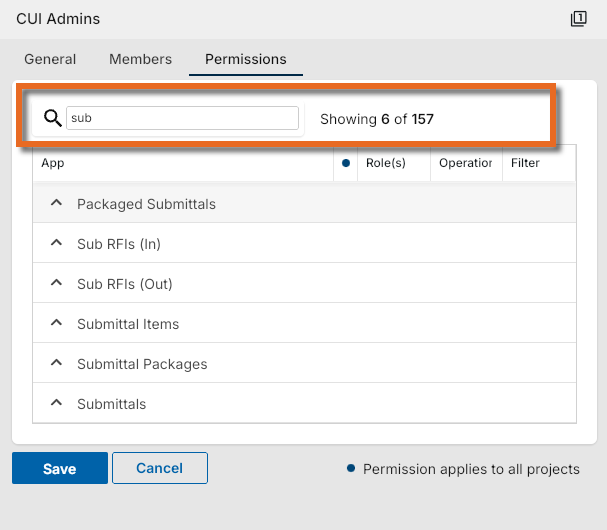
Enter a portion of the app name in the search field to reduce the list of applications to those that contain the search term in the name. After locating the appropriate app and making the desired changes, you can modify the search term and edit permissions for additional apps before saving all your changes at once.
Groups – Added Bulk Member Selection and Improved Removal Clarity
We've improved how you manage group membership from the Members tab. You can now select multiple members at once using checkboxes and remove them in a single action, and the removal button now displays a more accurate label based on how each user's membership is assigned.
A checkbox column now appears as the first column in the members grid. Select one or more members using the checkboxes to enable the Remove action. Click the checkbox in the grid header to select all visible members at once.
The action button label reflects how the selected user's membership is assigned. When you select a user who belongs to the group through a higher level in the hierarchy, the button displays Revert instead of Remove. Selecting Revert removes the direct assignment at the current level and returns the user to their inherited membership — they are not removed from the group entirely. When your selection includes members where both actions would apply, neither action is available. The Invite To Kahua action is available only when a single member is selected.
When you click Remove or Revert, a confirmation dialog appears showing the number of members affected. After you confirm, the grid refreshes and the affected members no longer appear in the list.
You must have permission to remove members from the group. If one or more selected members cannot be removed due to system rules or role restrictions, the system prevents their removal and displays a message identifying which users could not be removed.
Groups - Added Notes field to the General tab
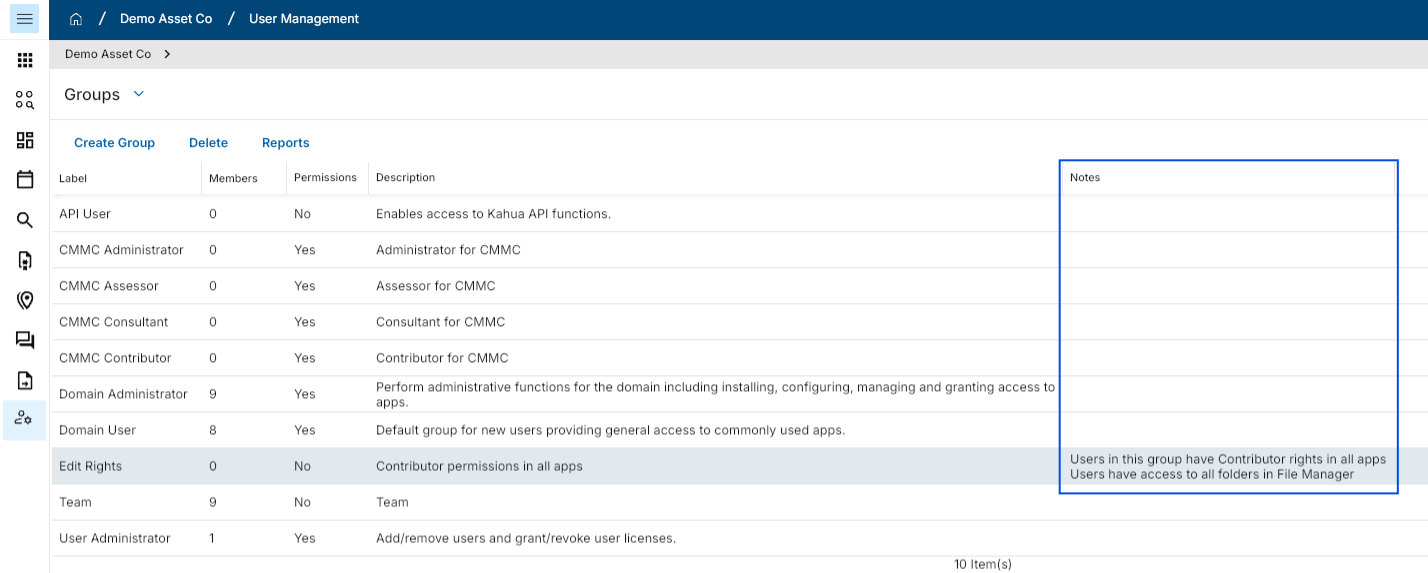
You can now capture free-form notes on a group record using the new Notes field on the General tab. The field supports unlimited text entry and saves all content without truncation.
The Notes field follows the same editability rules as other fields on the General tab — you can edit it only at the level where the group was originally created. If you do not have edit access at that level, the field is read-only.
Invitations - Require expiration setting for pending invitations
As part of the Kahua 2026 Q2 release, we introduced a setting that allowed un-accepted invitations sent to external users to automatically expire after a set number of days. By default, the setting was enabled and set to a value of 14 days.
With this release, the setting is enabled for all domains and can no longer be disabled. All un-accepted invitations sent to external users will automatically expire at the end of the selected time period. The value is set to 14 days by default, but can be modified to be between one and thirty days.
There are no changes for domains where the setting was enabled and the expiration period was changed from the default value. The modified expiration period will remain the same when this release is deployed.
Joining external domains - Access now granted automatically
This feature is not included in the initial Q3 release. It will be made available in a future update.
We have updated the workflow for joining new domains, removing the need for invited external users to manually complete a Kahua Domain Join task. This allows domain administrators to onboard external users instantly, while giving users access right away without any intermediate steps.
If you're logged in when access is granted, the new domain becomes available immediately in your session. A small notification will display on your screen.
If you're not logged in when access is granted, the new domain will be available on your next login and you'll see a one-time notification banner confirming the new access.
Either way, you'll receive a Kahua inbox message from the administrator letting you know you've been added.
When the release is deployed, any open Domain Join tasks will be processed automatically. Access to the inviting domains will be granted and the tasks will be closed.
Media - Added Configuration setting to restrict "Take Photo" action
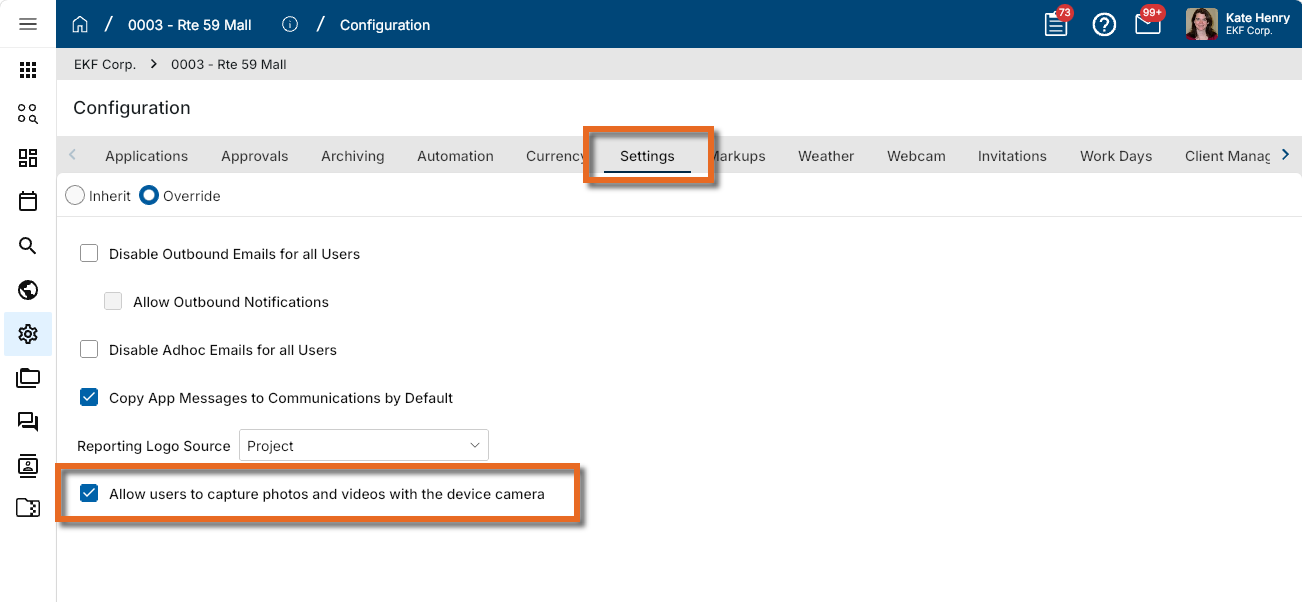
You can now control whether users in a project are allowed to use the Take Photo action to capture photos and videos directly from their device camera. This gives administrators the ability to meet security and compliance requirements — such as government site restrictions on camera use — without affecting existing media upload capabilities.
When the setting is enabled, users can select Take Photo to capture photos and videos using their device camera as they do today. When disabled, all camera capture actions are hidden or disabled in the webhost, desktop host, and Kahua Mobile. The ability to upload existing media files remains fully available.
To manage this setting, from the appropriate project or partition level, navigate to Configuration > Settings tab (or Applications tab > Project Settings) > Allow users to capture photos and videos with the device camera. The setting is enabled by default.
Project Add - Added copying of folder-level configuration
When you create a project from a Project Template or by copying an existing project, Kahua now copies supported folder-level configuration settings along with the folder structure. This reduces manual setup and helps new projects retain consistent folder behavior.
The following folder-level configurations are now copied:
-
Fields, including Is Visible, Is Required, and Label
-
Defaults
-
Lookups
-
Notifications
Project Tasks - Added bulk task delegation
The Project Tasks app now supports bulk task delegation.
Users can multi-select tasks from the Project Tasks log view and delegate them in a single action. Once one or more tasks are selected, a Delegate button appears in the log view header and opens the standard delegation dialog.
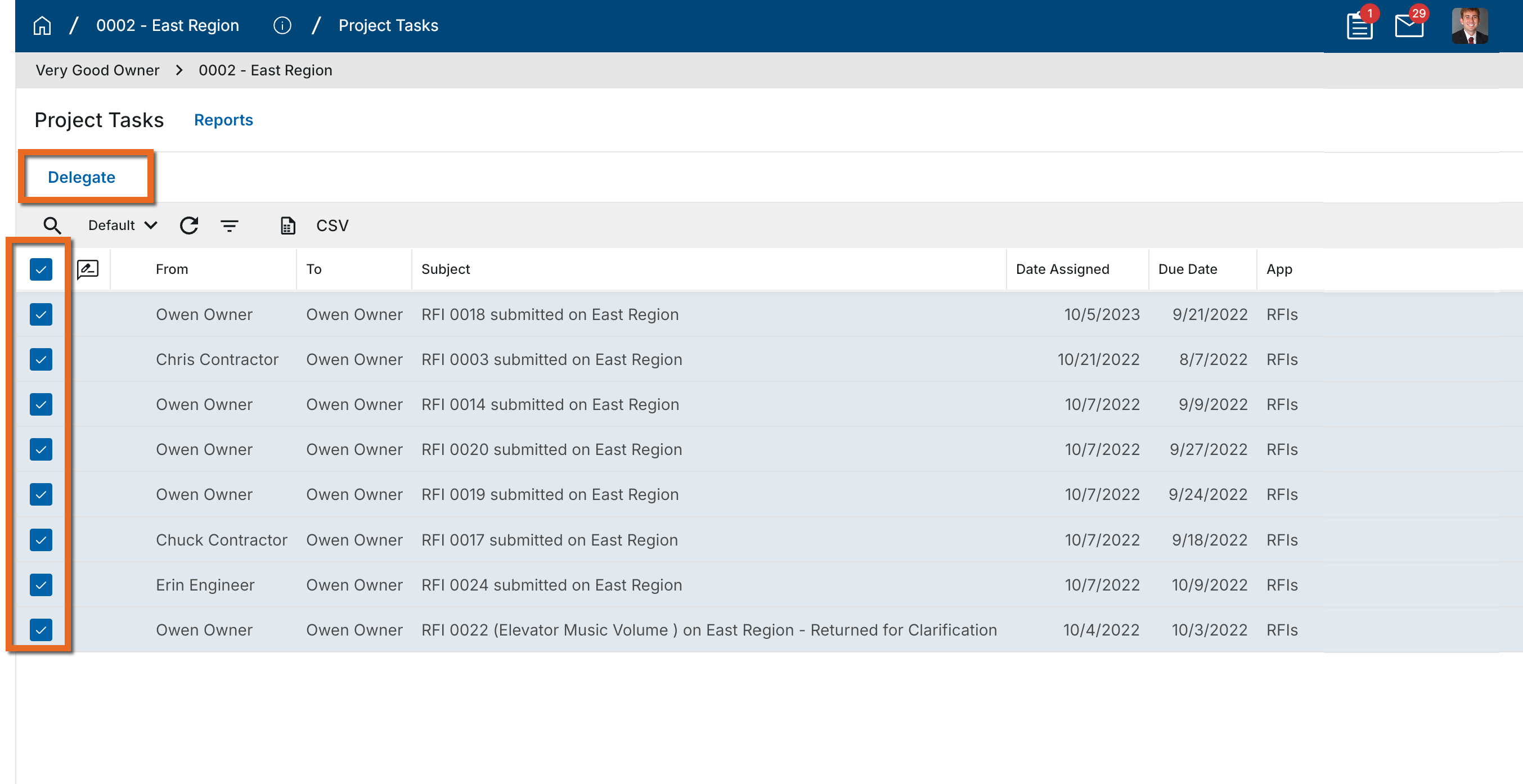
Note If the domain setting Enable approval task delegation is disabled, any approval tasks included in the bulk selection will not be delegated.
Project Tasks – Added Observer role for view-only task access
You can now assign an Observer role to users in the Project Tasks app. Observers can open and view all task records within any project they've been granted access to, but cannot delegate tasks or access the All Domain tasks view.
The Observer role is assigned through the Groups app. Note that record-level filtering based on permissions is not supported. Observers see all task records within their scoped projects.
Task Delegation - Added new control to restrict task delegation for external contacts
Domain administrators can now control whether users are permitted to delegate tasks to external contacts.
A new setting, Allow delegation to external contacts, is available in Domain Settings > Domain Defaults. When the new setting is disabled, only users who exist in the domain’s Users application appear for selection in delegation dropdowns. External contacts are excluded and not available for selection in new delegations. Existing delegations are not impacted.
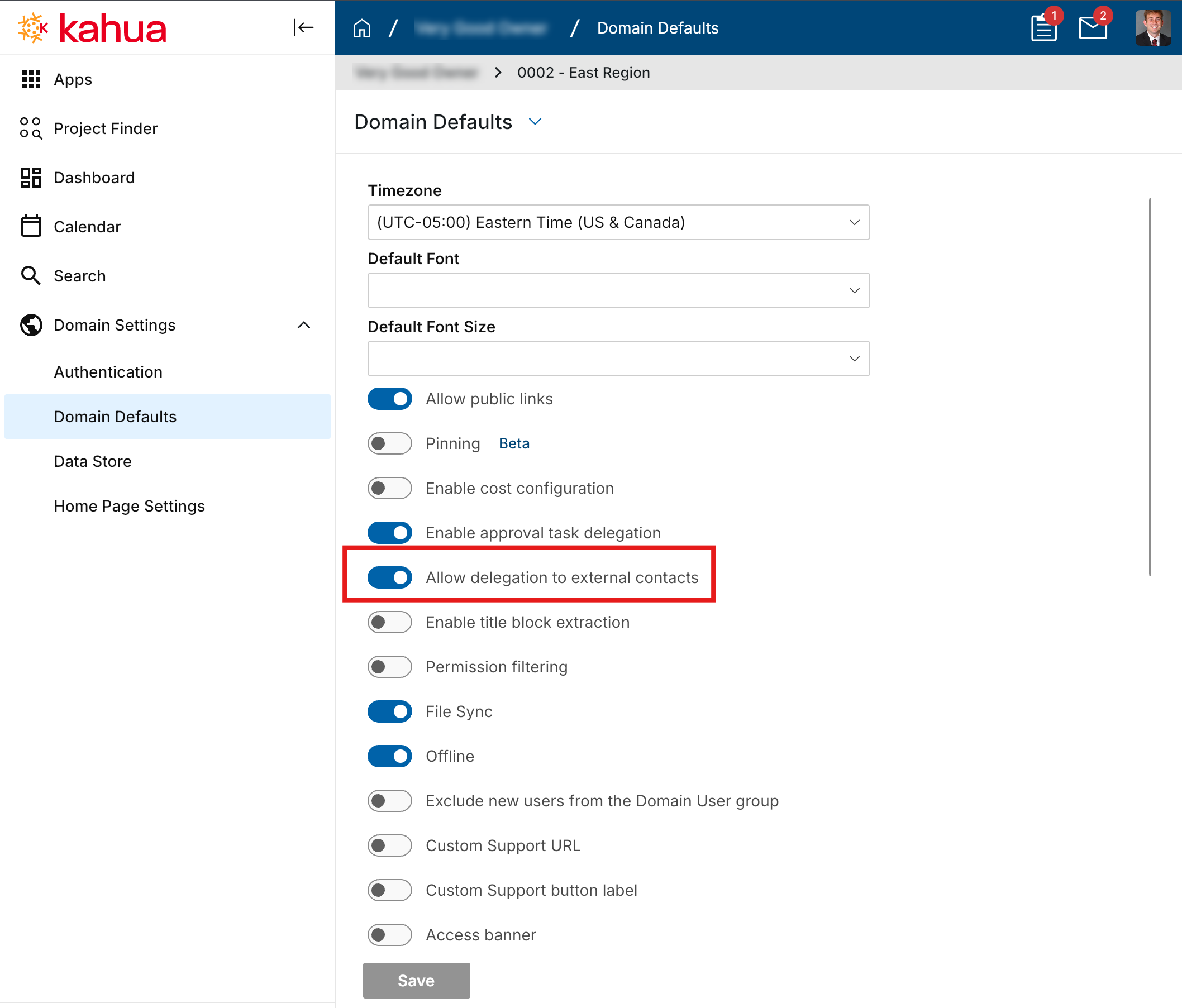
This setting applies to task delegation across both the approval engine and standard workflows, including the following:
-
Individual tasks
-
Project Tasks application
-
Out-of-office task delegation in User Settings
To preserve existing behavior for current domains, the new setting is enabled by default, allowing users to continue delegating tasks to external contacts.
User Management - Invites: A new way to manage adding users to Kahua
Domain Administrators can now invite new users faster and with fewer steps. The new User Management > Invites app lets admins invite one or multiple users at once, selecting an existing Access or creating a new one, assigning licenses, configuring groups, and setting project access — all from a single workflow.
As part of this release, all domains have been updated to support the new Group Membership functionality.
Users app - Redesign
The updated app will not be automatically available in all domains at this time. If you are interested in having the updated app installed in your domain, reach out to Support or your account representative.
The Users app has been redesigned to give Domain Administrators a faster, cleaner experience for managing users across their domain.
What's new in this release:
-
Refreshed UI - A modernized, scrollable user list built for large user populations, with key user information displayed at a glance
-
Search and filter - Find users quickly by name, email, Company, Project, or Group.
-
User record view - Open and review individual user records, including profile details, project access, group memberships, license information, authentication details, and recertification information.
-
Individual access management - Update a user's project access and group membership directly from their record.
-
Print - Print the user list from within the app.
For a preview of the new app, watch this video.
Note Adding new users continues to be handled through User Management > Invites.
Videos & Documentation - Added support for Brightcove videos
Kahua allows administrators to upload custom videos and PDFs for users to access directly within each application’s Videos & Documentation area. This material can be added and tied to a specific application through the Videos & Documentation tab in the Configuration app.
With this release, we have added support for publicly available videos from Brightcove, in addition to videos from YouTube, Wistia, and Vimeo.
Reporting
Data Store - Added Cost fields
We have added more workflow information to the shared Cost Detail data store table so you can build workflow reports from one common source instead of pulling from separate cost app tables.
New fields available in the Cost Detail document data include:
-
AssignedTo
-
DateSentForReview
-
DateSentForSignature
These fields help reporting teams see who a document is assigned to, when it was sent for review or signature, and where that information is available on the source document.
Existing Cost Detail data store reports continue to work without modification. You can update your reports to use the new fields when you want to include assignment or sent-date information.
To make these fields available, the Cost Detail data store must be enabled and rebuilt. Refer to Using the Data Store.
File Manager - Added Folder Selector to File Manager Reports Created in the Report Wizard
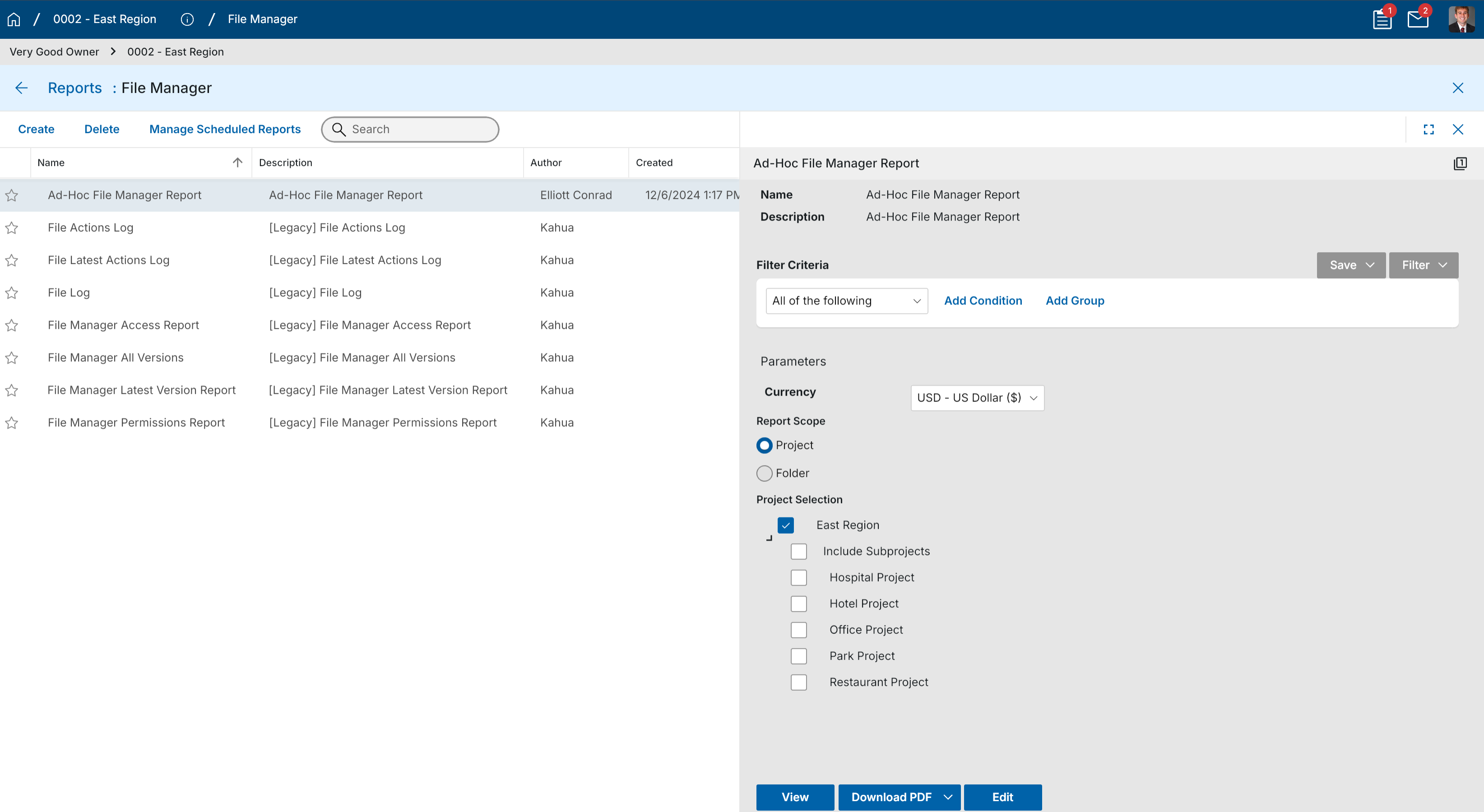
Ad-hoc reporting in File Manager now supports project folder and File Manager folder selection. Reports using the "File" entity can be configured with selectors for both the project folder and the specific File Manager folder the report should run against.
This improves reporting accuracy for nested folder structures and ensures report results align with the user’s selected project and File Manager folder context, rather than defaulting only to the root File Manager or project folder.
Project Portable Views - Added Project Budget Values
Applicable Packages The following applies to portable views that use project-level records, such as those in Portfolio Manager.
Project-level portable views can now pull Work Breakdown budget values from the current project.
This makes it possible to include project budget totals in generated project documents, such as total anticipated budget values from Funding Budgets, Budget Changes, and Budget Adjustments.
Template builders can now use the WorkBreakdown token with ProjectScope=Current to reference the current project’s WBS values, instead of resolving to the parent project.
Example token:
[WorkBreakdown(Source=Project,ProjectScope=Current,
CostUnitNames="BudgetApproved,BudgetChangeApproved,BudgetAdjustmentApproved,
BudgetProjected,BudgetChangeProjected,BudgetAdjustmentProjected,
BudgetPending,BudgetChangePending,BudgetAdjustmentPending")]
Scheduled Reports - Added ability to schedule log view reports
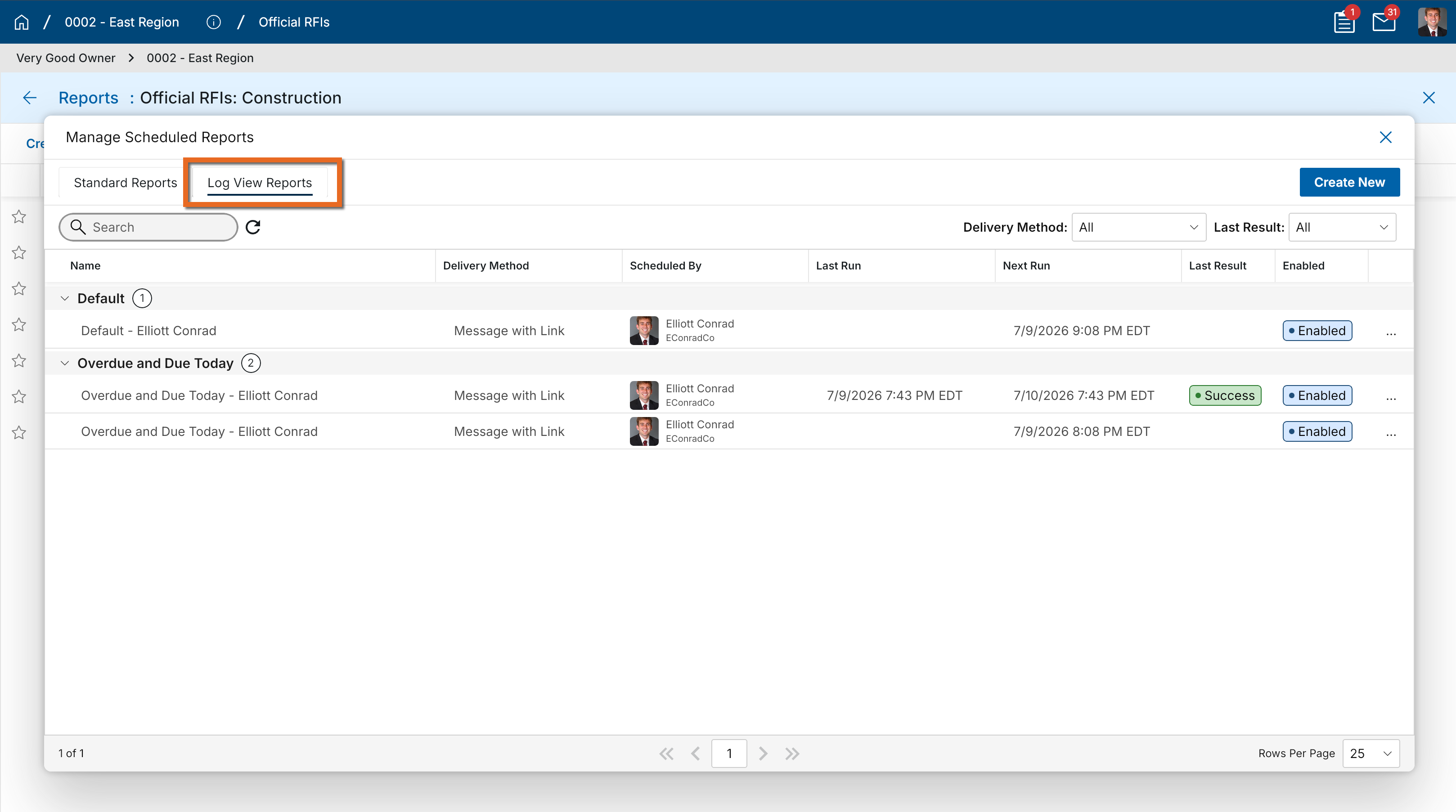
Scheduled log view reports are available in the Scheduled Report Manager in a dedicated section for log view reports.
You can create scheduled reports using the existing scheduled report workflow, with available selections filtered by context: standard reports remain available from the Standard Reports view, while application log views are available from the Log View Reports section.
Scheduled Reports - Added ability to view all scheduled iterations at once
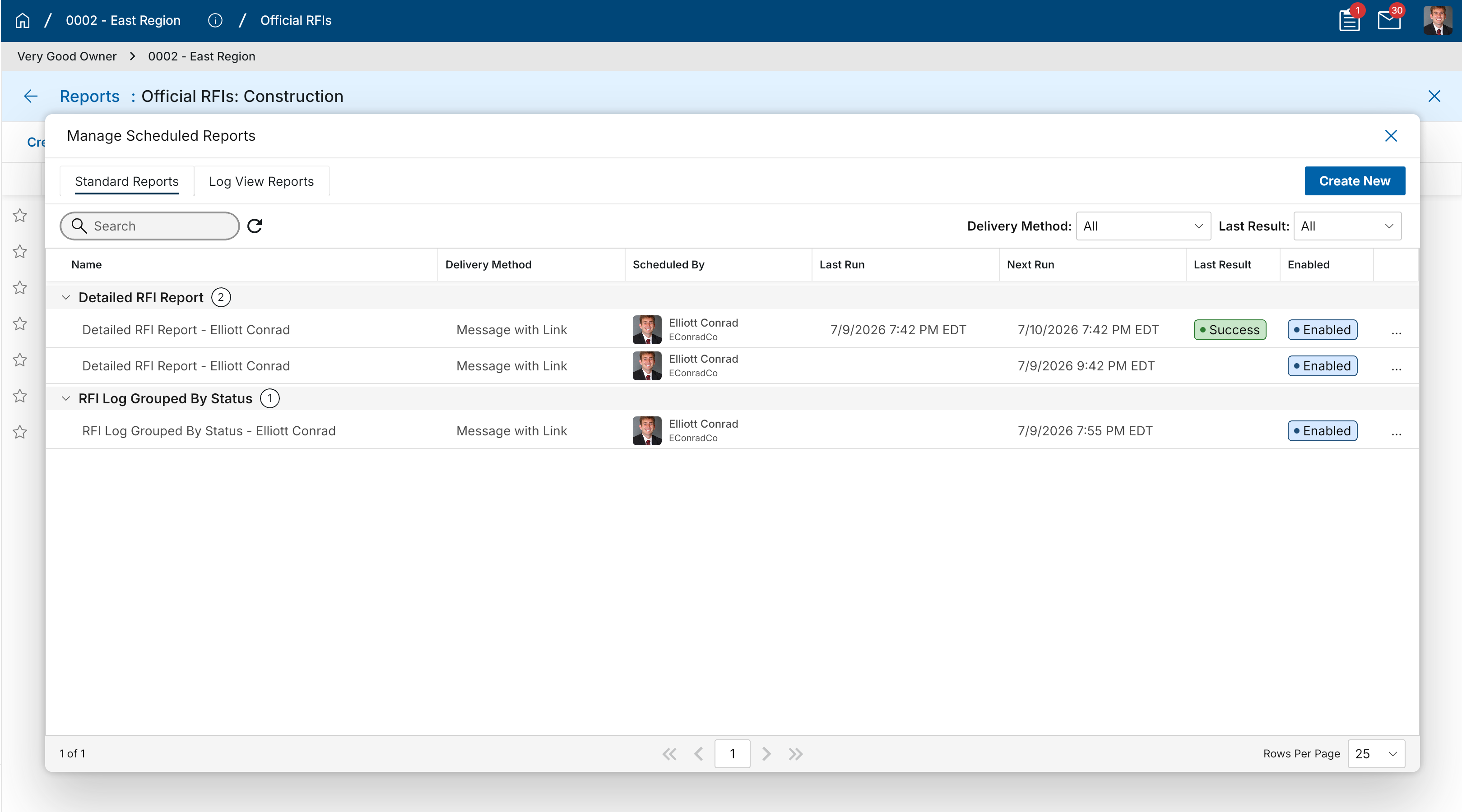
The Scheduled Report Manager has been updated to show all scheduled report iterations in one view.
You can now review scheduled reports more easily without opening each report individually, while still being able to drill into a specific report when needed. The view remains limited to scheduled reports for the currently selected app and project.
Document Management
Drawings and Specifications apps - Added ability to add files from File Manager
The Add Files button for the Drawings and Specifications apps now has two options:
-
Upload File - Select documents from your local storage and upload to Kahua.
-
Add Kahua File - Browse File Manager to choose files.
Both apps are now limited to accepting only PDF files.
In the Drawings app, if you select files from a Controlled Folder, metadata such as Number, Title, and Revision will be carried forward to the Drawings record.
Field Observations – Added Default Due Date to Configuration
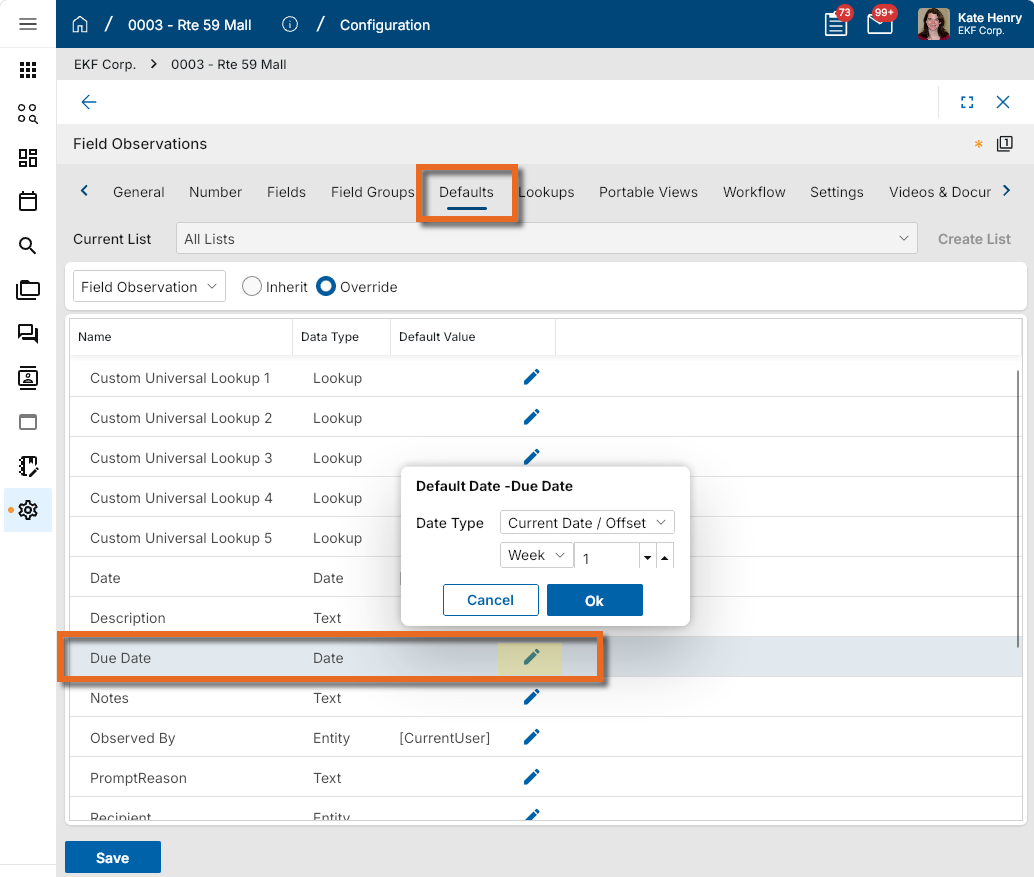
You can now configure a default Due Date for Field Observations directly from the application configuration settings. This can help teams maintain consistent timelines by automatically pre-populating the Due Date field on new field observations, reducing manual entry and improving standardization.
To set a default due date, navigate to Configuration > Applications > Field Observations > Defaults and set the Due Date field. Once saved, new field observations will automatically populate with the configured due date, which users can adjust on individual records as needed.
This setting is available to users with access to Configuration.
File Manager - Added Interactive 3D Model Viewing and Coordination to the BIM Model Viewer
This feature will not be available by default at this time. If you are interested in having this feature enabled in your domain, reach out to Support or your account representative.
You can now view, navigate, and interact with 3D building models directly within Kahua. BIM Model Viewer supports RVT and IFC models uploaded to File Manager, making model data accessible to all project stakeholders and providing visual context for construction, operations, and asset management teams throughout the project lifecycle.
Within the model viewer, you can:
-
Pan, zoom, rotate, and section the model to explore building geometry from any angle.
-
Search for and isolate specific model elements, or show and hide disciplines, floors, and categories.
-
Inspect object properties and metadata to understand building components and systems.
-
Access models from desktop without authoring software.
-
Use measuring tool to quickly verify distances, dimensions, clearance, and spatial relationships.
-
Create annotations to communicate and document issues, questions, and design feedback.
-
Adjust settings to fine-tune your controls and model visibility based on your preferred workflow.
To open a model, upload an RVT or IFC file to File Manager, then click the View button.
File Manager - Added Microsoft 365 File Lock status
We have made it easier to see why a file is locked by adding a dedicated lock status icon in File Manager log views.
The lock icon helps users tell the difference between:
-
File lock
 , when a file is locked using Kahua’s Lock or Lock and Download actions.
 -
Microsoft 365 lock
 , when a Word, Excel, or PowerPoint file is opened for editing in Microsoft 365 for the web.
 -
No lock, when the file is not currently locked.
The lock status appears as a separate icon column in File Manager views, including the All Subfolders views, so users no longer need to rely on the file icon to understand the lock state.
A new Lock State quick filter is also available so users can filter files by "File Lock", "MS365 Lock", or "No Lock".
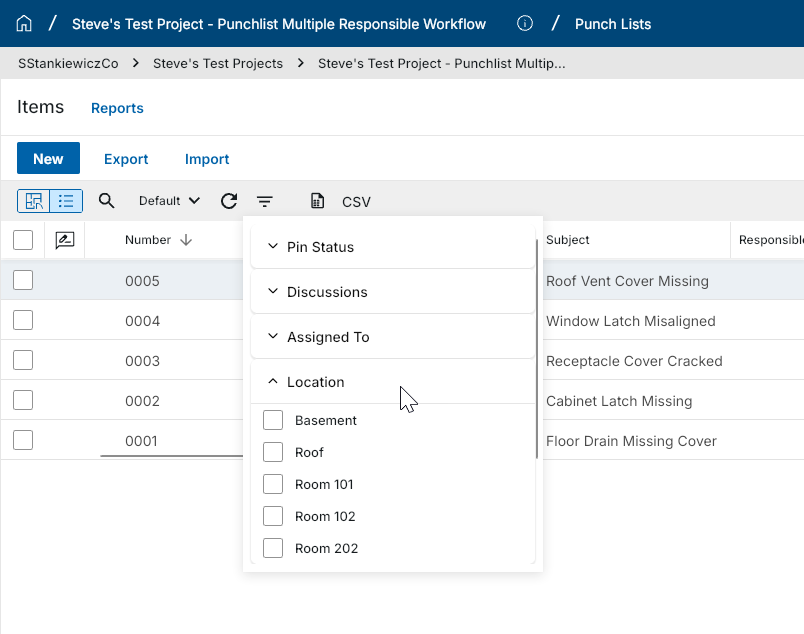
Punch List - Added "Location" to Quick Filters
You can now filter Punch List records by Location directly from the Quick Filter bar.
The Location Quick Filter works the same way as other Quick Filters in Punch List — select one or more values to instantly narrow the list to records that match the selected locations. With all Quick Filters now displayed in alphabetical order, you can quickly locate any filter without scanning through an unordered list.
RFIs – Added preview of Integrated Dashboard in in-app Summary section
This feature is being released as a preview. Similar dashboards will be added to additional applications through maintenance releases over the coming months. If an application in your domain has a custom extension, the added dashboard may not appear.
You can now view a real-time summary dashboard directly above your RFI log in the RFIs application. This gives you instant visibility into aging RFIs, overdue items, workload by Ball-In-Court (BIC) company, and schedule risk—all without manually applying filters or navigating away from the log.
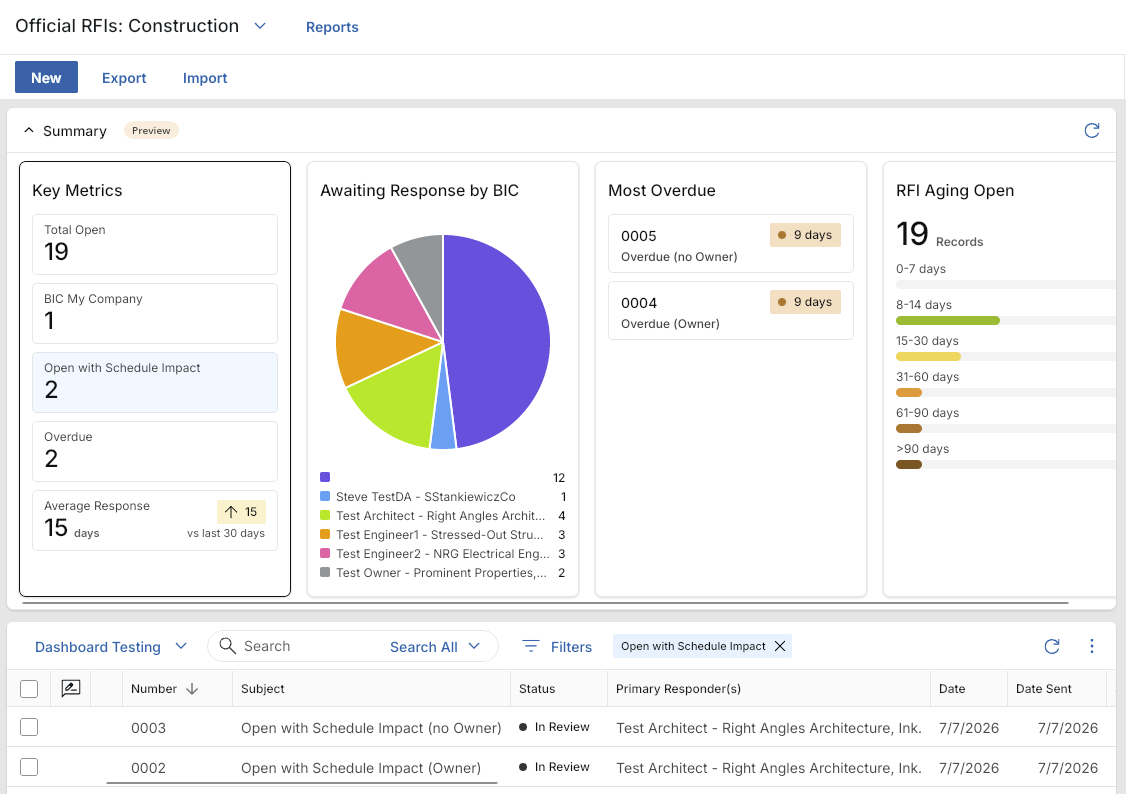
When you open the RFIs application, the dashboard appears automatically above the list view and includes eight predefined widgets: RFI Aging Open (bar chart), Awaiting Response by BIC (pie chart), Most Overdue (data table), Total Open (count), BIC My Company (count), Open with Schedule Impact (count), Overdue (count), and Average Response (trend).
You can click any element within a widget—such as an aging bucket bar, a pie slice, or a count—and the list view updates automatically to show only the records that match that selection. While a widget filter is active, a filter indicator appears at the top of the list. Click the Close icon  on the filter indicator to restore the list to its standard filter state. The dashboard also recalculates automatically whenever you switch to a different list. You can collapse the dashboard from the Summary bar, and your preference is remembered across sessions.
Desktop browsers are fully supported. Mobile phone and iPad/tablet browsers devices are not included in this initial release.
Note The dashboard is enabled by default for all domains with the Q3 release. It can be disabled by Kahua support for individual domains upon request.
Work Packages – Updated reviewer replacement behavior when switching Work Packages
When you select a different Work Package on an RFI, Submittal Package, or Submittal Item, the Secondary Reviewers and Consultant Reviewers grids now automatically update to reflect only the contacts defined in the newly selected Work Package. This keeps your reviewer list accurate and eliminates the need to manually clean up contacts after switching Work Packages.
Previously, selecting a different Work Package added the new Work Package's contacts to the existing reviewer grids without removing those from the original Work Package, which could leave outdated or unintended reviewers on the record. Now when you change the Work Package selection, all reviewers associated with the previous Work Package are automatically removed and replaced with the reviewers defined in the newly selected Work Package.
Cost Management
Cashflow Forecasting - Added Clearer Cashflow Totals for Partial Fiscal Years
Applicable Packages The following applies to Kahua-supplied Cashflow Forecasting app.
Cashflow Forecasting now handles partial fiscal years more clearly when the cashflow date range only displays part of a year.
Note If you always selected start and end dates on the cashflow window to align with fiscal years, this update will not apply to you.
Previously, year totals and future period totals could be confusing when forecast data existed outside the visible cashflow window. This update keeps visible totals focused on the periods shown, while still accounting for values before or after the displayed date range.
Users can now see:
-
Previous Periods include all values before the first displayed period.
-
Future Periods include all values after the last displayed period.
-
Year totals include only the visible periods for that year, with a (Partial) indicating the total is not the full year.
-
Partial fiscal year headers show as Partial when only part of the year is displayed.
This helps users understand where cashflow values are included when the forecast does not display full fiscal years.
Review the following example:
-
Fiscal years are calendar years.
-
The current financial period is set to Jul 2026
-
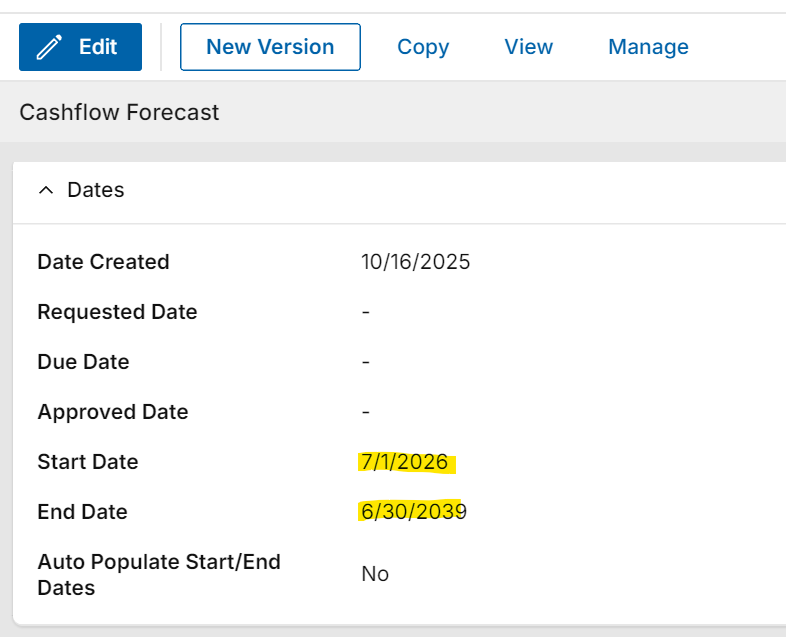
The cashflow window set from
-
Jul 01, 2026 (second half of the current fiscal year), to
-
June 30, 2039 (missing the second half of the last fiscal year).
-
A simple cashflow is applied - each project goes for 10 years, $100 per month/ $300 per quarter/ $1,200 per year.
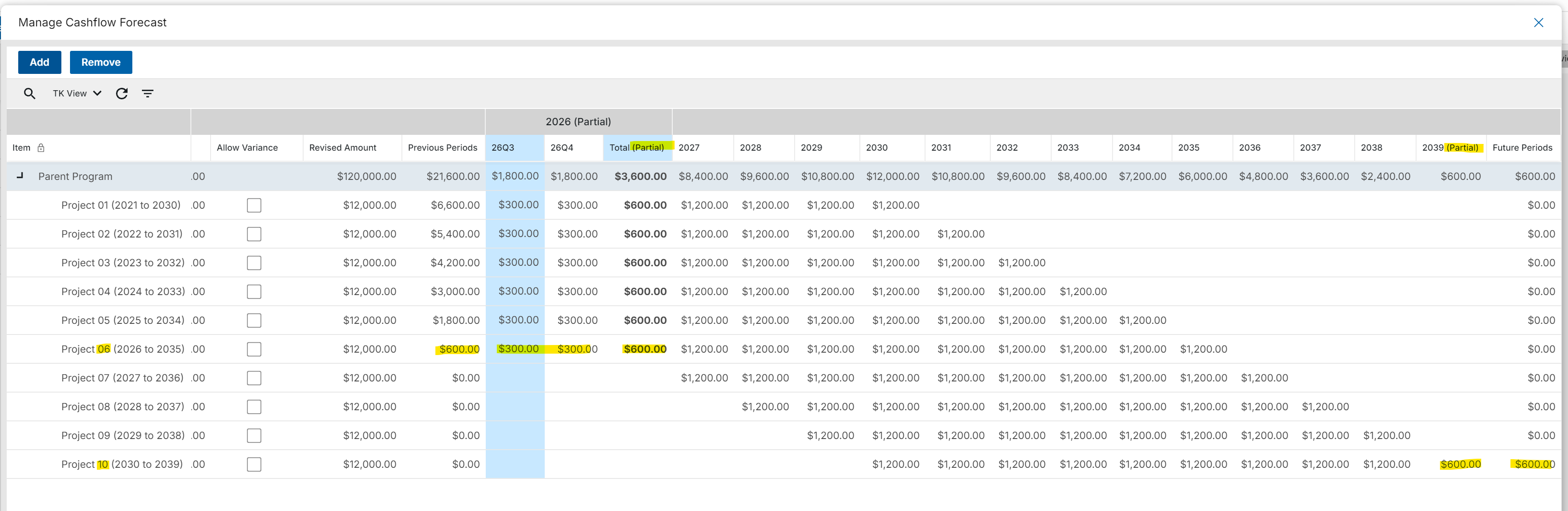
Note the following:
-
The header indicates (Partial) year for 2026 and 2039
-
Project 06 - starts Jan 1, 2026: $600 prior to start of window Jul 01, 2026, and 6 months displayed in 2026 so partial total shows $600
-
Project 10 - Ends Dec 31, 2039. 2039 (Partial) shows $600 from Jan-June 2039, and $600 in Future Periods Jul 01 - Dec 31 2039.
Cashflow Forecasting - Added support for Actuals from Multi-Project Documents
Applicable Packages The following applies to Kahua-supplied Cashflow Forecasting app with Multi-Project Documents enabled.
Cashflow Forecasting now supports Actuals from Multi-Project Document (MPD) items, helping cashflows show actual cost activity in the correct project rows.
Previously, actuals could be missed when the document was created in one project but its items belonged to child projects. Cashflow now uses the item project so Actuals can appear against the correct parent or child project in the forecast.
Users can now see Actuals from supported documents in multi-project cashflows, including:
-
Pay Requests
-
PO Invoices
-
General Invoices
This helps project and program teams review forecasted costs and actual costs together when work is spread across multiple projects.
Cashflow Forecasting - Updated Manage Cashflow view options
Applicable Packages The following applies to Kahua-supplied Cashflow Forecasting app.
Views controlling the columns available on Cashflow > Manage grid have been updated as follows:
-
When you create a view, it is available to all cashflow documents in the project where the view was created and all child projects, in the same manner as typical log views.
Views created at the root domain are available to all cashflows in all projects.
-
A limited number of project attributes are now available for display on Cashflow > Manage grid.
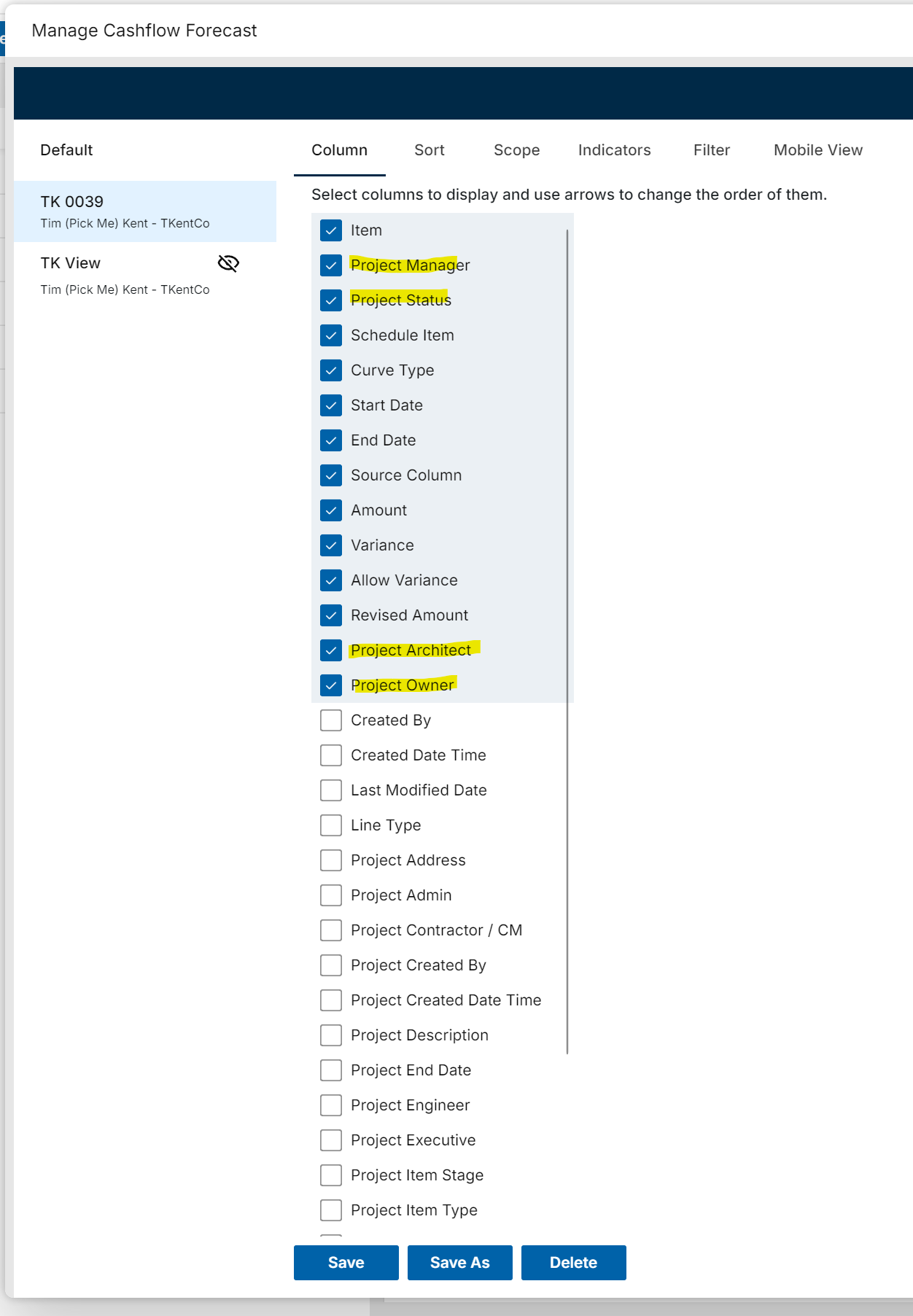
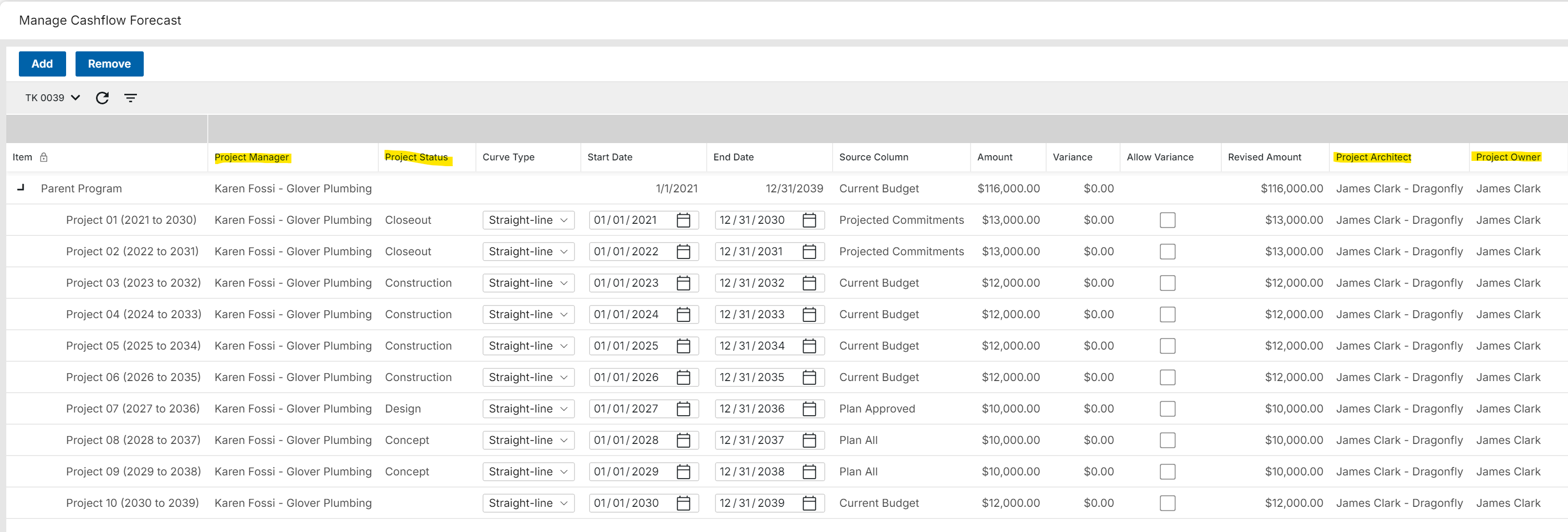
Note the following:
-
Sorting is not supported due to the hierarchical grid.
-
Depending on your implementation, additional project attributes may be able to be added for display via a Kahua Supplement.
-
Available sharing options may depend on the view settings and current Cashflow configuration.
Cashflow Forecasting - More Flexible Cashflow Forecasting Across Project Stages
Applicable Packages The following applies to Kahua-supplied Cashflow Forecasting app.
Cashflow Forecasting now supports a Conditional WBS Column value source, helping teams build one cashflow forecast across projects that are in different stages of work.
Cashflow line types can choose which source WBS column to use based on project information, such as project status equal Pre Construction. For example, future projects can use Planning Budget WBS column for the cashflow item total value, while active projects can use Current Budget WBS Columns.
Users can now:
-
Configure a Conditional WBS Column for a cashflow line type.
-
Define conditions that select the right Source Column for each project.
-
Set a default Source Column when no condition is met.
-
See the selected Source Column on the cashflow manage screen.
-
Keep the selected source until the next Get Current or refresh.
This feature requires cashflow line type configuration before users will see conditional source column behavior.
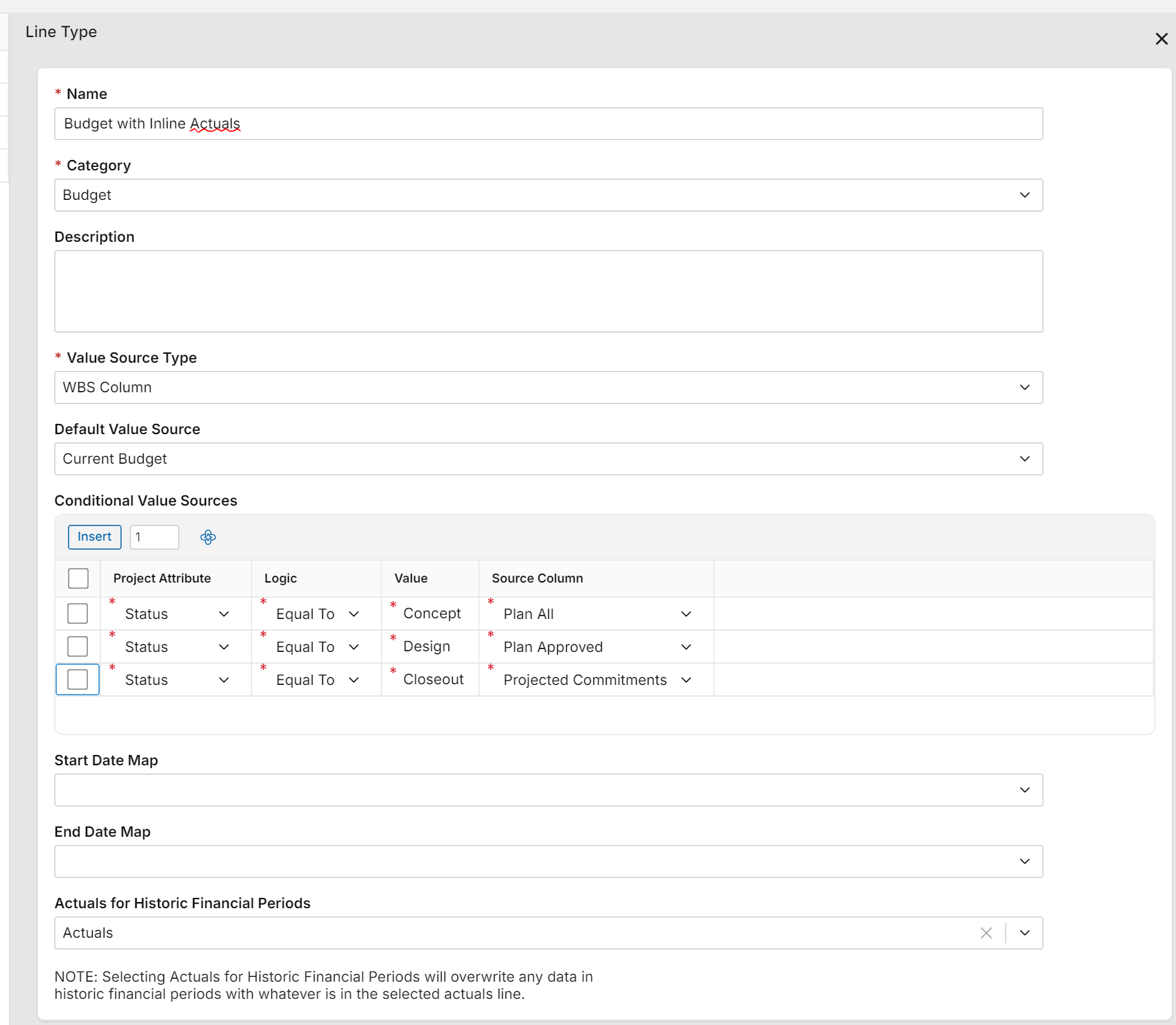
To configure this feature, in Configuration > Cashflow Forecasting > Line Types:
-
Set the Value Source to WBS Column.
-
Insert items in the Conditional Value Sources grid.
-
Select a project attribute, set the logic and value, and the Source Column to use when that condition is met.
Note If no conditions are met, the system uses the Default Value Source WBS column.
Configuration:
Cashflow Manage screen with Source Column, based on Project Status:
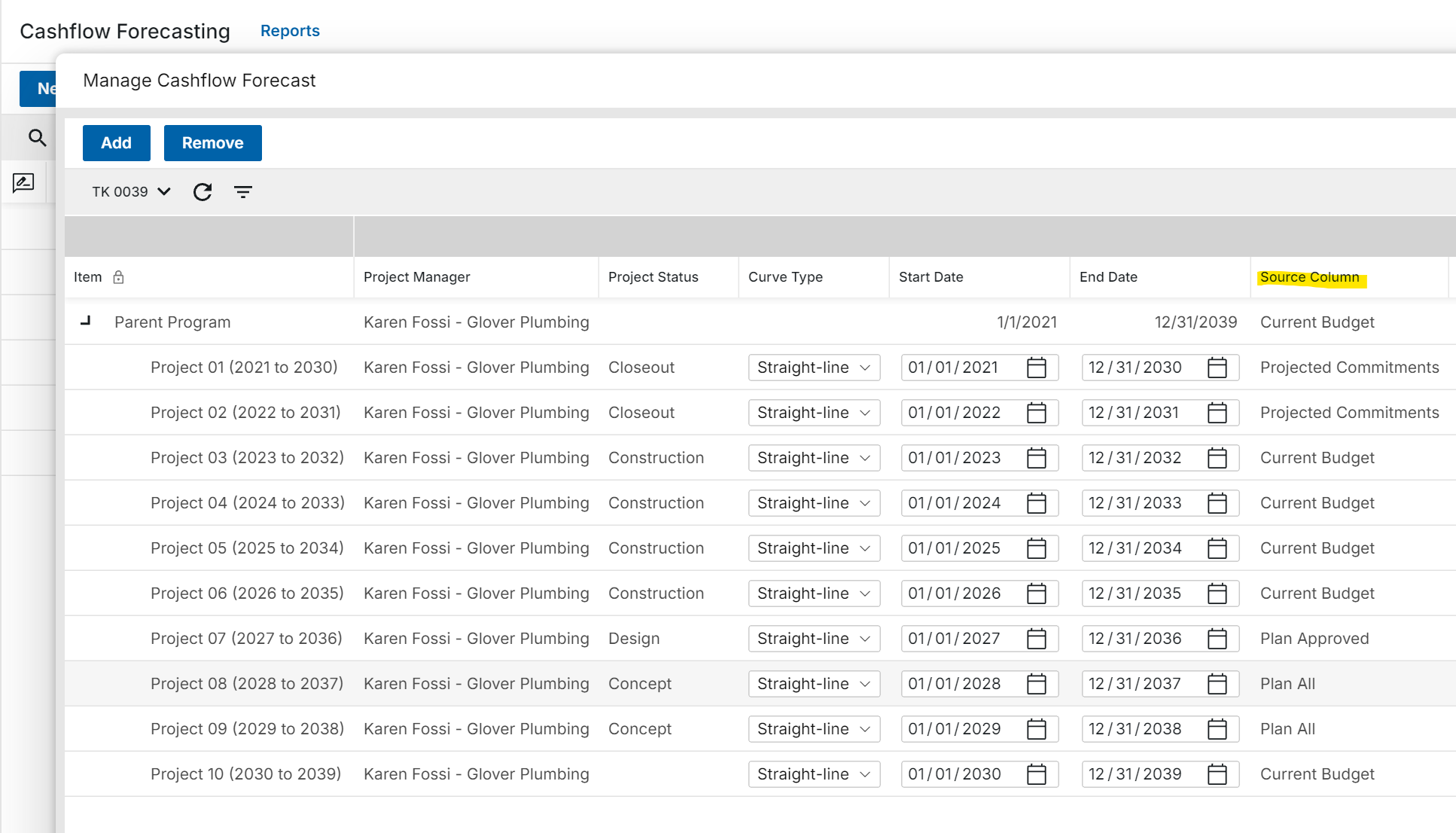
Construction Change Directive (CCD) - Added ability to process directly to a Change Request
Applicable Packages The following applies to the Kahua-supplied Construction Change Directive and Change Request apps.
You can now process a Construction Change Directive directly into a Change Request, instead of creating the change request separately or only processing the CCD into a change order.
This supports workflows where pricing needs to be requested after a CCD is issued but before a Change Order is created.
When processing a CCD to a change request, Kahua can carry forward the following fields:
-
Contract
-
Description
-
Scope of Work
-
Items, including Unit Price or Lump Sum items where applicable
The new change request also keeps the source CCD linked in References as the "Initiating Document", making it easier to trace the change back to the original directive.
Contracts, Pay Requests, and Pay Apps - Added default Company and Office values for To and From fields
Applicable Packages This update applies to the Kahua-supplied Expense Contracts, Expense Pay Requests, Funding Contracts, and Funding Pay Apps when defaults are configured.
We added user and company defaults for the To and From fields in contracts, pay requests, and pay applications. These defaults help you create new records with more complete contact, company, and office information, reducing manual data entry and improving consistency.
-
The Company field default can be set to the Current User Company or a Specific Company value.
-
When a default Contact is applied, Kahua automatically populates the Company and Office fields.
-
When a default Company is applied, Kahua automatically populates the Office field with the company’s Primary Office.
-
If both a Contact and a Company default are configured and conflict, the Contact default determines the company and office values and Kahua ignores the configured company default.
-
The Office field cannot be configured with a default.
Master Service Agreements (MSA) - Added support for MSA values in Expense Contract portable views
Applicable Packages The following applies to Kahua-supplied Master Service Agreements and Expense Contracts.
Expense Contract portable views can now include financial summary values from the linked Master Service Agreement (MSA), helping teams generate contract documents with the correct MSA totals and available amounts.
When an Expense Contract is linked to an MSA, supported portable view tokens can now show values from the MSA, including:
-
Original Approved Amount
-
Current Approved Amount
-
Included Contracts Amount
-
Current Included Contracts Amount
-
Total Current and Potential Amount
-
Current Available Amount
-
Potential Available Amount
This helps contract documents reflect the same MSA summary information users see in Kahua, instead of showing zero values for linked MSA totals.
Master Service Agreements (MSA) - Added support for Purchase Orders
Applicable Packages The following applies to Kahua-supplied Master Service Agreement, Purchase Order, Purchase Order Change Order, and PO Invoice apps.
We have added Purchase Order support for Master Service Agreements (MSA), so teams can manage POs as linked commitments under an MSA alongside contracts.
When enabled, users can create or link purchase orders to an MSA and review the related MSA from the PO when they have access.
This update adds the following:
-
A Use Master Service Agreements configuration setting for purchase orders.
-
Master Service Agreement field on purchase orders.
-
A New with MSA option when creating purchase orders.
-
A Linked Purchase Orders tab on the MSA document.
-
Purchase Order Summaries on the MSA document General tab.
-
MSA limit checks for linked purchase orders and purchase order change orders.
Purchase order change orders inherit the MSA from the related purchase order and count toward MSA commitment limits.
PO Invoices can be used for billed or remitted spend reporting, but invoice amounts do not reduce MSA commitment capacity.
MSA selection for Purchase Orders follows the same type of eligibility rules used for contracts, including vendor/company and currency matching.
This feature requires the Use Master Service Agreements setting to be enabled in the Purchase Orders app configuration before new PO/MSA links can be created.
Multiple Cost apps - Added "User's Company Named on Record" filter to permissions
Applicable Packages The following applies to selected Kahua-supplied Funding Change Requests, Funding SOV Breakdown, Expense SOV Breakdown, and Quote Requests apps where sharing is configured.
We have added standard "User's Company Named on Record" filters to several cost applications so records can be shared with companies named directly on the record or related cost document.
The "User's Company Named on Record" filter options now appear in the sharing configuration for the following apps:
-
Funding Change Requests
-
Funding SOV Breakdown
-
Expense SOV Breakdown
-
Quote Requests
Project sharing must be configured for these options to take effect. For more information, refer to Sharing in Kahua.
Multiple cost apps - Expanded import and export options
Applicable Packages The following applies to selected Kahua-supplied Cost apps where item import/export is enabled.
We have expanded Excel import and export for cost items so users can make larger item updates outside Kahua and bring those changes back into the related document.
When enabled, you can do the following:
-
Export item rows to Excel.
-
Update existing items.
-
Add new item rows.
-
Use import/export with Multi-Project Documents where enabled.
-
Review import messages when rows need correction before the update can be accepted.
Updated apps include the following:
-
Expense Change Orders
-
Expense Change Requests
-
Funding Change Orders
-
Funding Change Requests
-
Invoices
-
Planning Adjustment
-
Planning Budget
-
Purchase Orders
-
Purchase Order Change Orders
This feature requires import/export access and related app configuration before users will see the available options.
Pay Apps and Pay Requests - Added "Previous % Complete" column to items
Applicable Packages The following applies to the Kahua-supplied Pay Apps and Pay Requests apps.
Pay Request and Pay App item grids now include a read-only Previous % Complete column so reviewers can compare prior progress against the current pay request without leaving the item grid.
Reviewers can now see:
-
Previous % Complete
-
Current % To Date
-
The change being requested on the current pay request
The new column helps project teams review submitted progress values more quickly, especially when vendors submit pay requests directly in Kahua.
Existing pay requests may need to be refreshed or re-saved before the Previous % Complete value is populated. New documents will have this field calculated automatically.
Pay Apps and Pay Requests - Added current period retainage values to items
Applicable Packages The following applies to the Kahua-supplied Pay Request and Pay App apps where retainage is used.
This Period Retainage is now available on pay request items so teams can review the retainage amount for the current pay application directly from the item grid and item panel.
This update includes the following:
-
This Period Retainage added as a configurable item grid column.
-
This Period Retainage appears on the item panel.
-
Support for This Period Retainage added to portable views and reports where pay request item fields are available.
There is no change to existing Total Retainage behavior.
Note Existing records may need to be refreshed or re-saved before the This Period Retainage value is populated. New documents will have this field calculated automatically.
Planning Budget and Planning Adjustment apps - Added support for Lump Sum items
Applicable Packages The following applies to the Kahua-supplied Planning Budget and Planning Adjustment apps.
Planning Budget and Planning Budget items can now support additional item types, making it easier to enter items that are based on a total amount rather than only quantities and unit prices.
When configured, you can do the following:
-
Set items as Lump Sum items.
-
Use Unit Price for items that still need quantities and unit prices.
-
Use other configured item types, such as Total Value or Unit Price Calculated, where enabled.
-
Import and export Planning Budget items in Excel.
-
Add new items from imported rows or update existing items from an exported file.
This update helps Planning Budget and Adjustment work more consistently with other Kahua cost documents and supports the broader import/export improvements.
To enable this feature, navigate to Configuration > Applications > Planning Budget or Planning Adjustments > Settings > Cost Unit Settings. Select Allow Item Entry Type Selection? and clear the Excluded Entry Types as needed.
Planning Budget and Planning Adjustment apps - Added support for Multi-Project Documents (MPD)
Applicable Packages The following applies to the Kahua-supplied Planning Budget and Planning Adjustment apps when Multi-Project Documents are enabled.
Planning Budget and Planning Adjustment documents can now support items assigned to different projects, making it easier to prepare planning budgets that span more than one project.
When Multi-Project Documents are enabled, the following applies:
-
Users can assign planning budget items to different projects.
-
New items default to the current project.
-
The item project can be changed before the first save.
-
After the item is saved, the assigned project is locked.
-
Item WBS and activity values are based on the assigned project.
-
Item values count toward the assigned project for cost tracking and reporting.
Note This feature requires Multi-Project Documents to be configured for project selection to be available on planning budget items. Refer to Multi-Project Cost Documents.
Purchase Orders and Invoices - Added ability to assign and share with Managing Agent
Applicable Packages The following applies to Kahua-supplied Purchase Order, Purchase Order Change Order, and PO Invoice apps.
We have added a Managing Agent field to Purchase Orders so teams can share PO records with consultants, owner representatives, or other managing companies that need visibility into the work.
When a Managing Agent is set on a purchase order, users from that company can see the shared PO when project sharing uses the User’s Company is Named on Record share option.
This same visibility applies to related documents when those apps are also shared:
-
Purchase Order Change Orders
-
PO Invoices
Purchase Orders and Invoices - Added support for Lump Sum values
Applicable Packages The following applies to the Kahua-supplied Purchase Order (PO), Purchase Order Change Order (POCO), and Invoice apps.
Purchase Order, Purchase Order Change Order, and Invoice items can now support Lump Sum values, making it easier to manage commitments and invoices that are based on a total amount rather than quantities and unit prices.
When configured, you can do the following:
-
Set the Entry Type of Purchase Order and PO Change Order items as Lump Sum.
-
Keep unit price behavior for items that still need quantities and unit prices.
-
Carry the item type through to related invoices so billing stays aligned with the commitment.
To enable this feature, navigate to Configuration > Applications > Purchase Orders or Invoices > Settings > Cost Unit Settings. Select Allow Item Entry Type Selection? and clear Excluded Entry Types as needed.
Assets
Introducing Barcode Management for Assets and Locations
We're introducing the new Barcode app, making it easier to associate physical barcodes with your Asset and Location records.
With Barcode Management, you can:
-
Link barcodes to Asset or Location records for quick identification and access.
-
Create barcode record associations by scanning a barcode or uploading an image containing a barcode.
-
Search for and view barcode records from both desktop and mobile devices.
-
View barcode history and manage barcode assignments.
Barcode values must be unique and can be linked to only one Asset or Location record at a time.
For more information, refer to Barcodes.
Asset Manager – Added Maintenance Plans and Spare Parts Catalog
You can now author preventive-maintenance strategies in the new Maintenance Plans app and manage the parts they reference in the new Spare Parts catalog.
In Maintenance Plans, create a plan using one of three strategies: Time-Based (frequency-driven), Meter-Based (interval and usage-driven), or Condition-Based (inspection-driven). Add ordered procedures with the spare parts each step requires, then link the plan to an asset type. Click Update Linked Assets to push procedures and parts to all existing assets; new assets inherit automatically on creation.
Asset Types support multiple linked plans; each stays distinct with its own procedures, spare parts, and service tracking. In the Spare Parts catalog, each record stores a unique Part Number, Name, Description, Manufacturer, and up to ten custom fields. Linked Plans and Linked Assets panels show everywhere each part is consumed, including quantities, costs, and storage locations.
Assets and Types – Added Maintenance Tracking and Spare Parts
You can link one or more Maintenance Plans to an Asset Type from the new Maintenance tab, which adapts its panel to each plan’s strategy. A Create New Plan link opens the Plans app with the asset type pre-filled. The Spare Parts tab shows a read-only rollup of all required parts from linked plans, grouped by plan and procedure step. Reassigning a plan is blocked if assets have already inherited parts from a different plan; run Update Linked Assets first.
On each Asset, the Maintenance tab tracks Startup Date, Last/Next Service Date, Condition Rating, Failing Observation, Deferred flag, and Current Reading. Next Service Date is computed automatically: Time-Based adds the plan frequency to the Last Service Date (or Startup Date if no service has occurred); Meter-Based projects from current reading and daily usage; Condition-Based clears it in favor of the Failing Observation flag.
The Spare Parts tab manages per-asset inventory (quantities, unit cost, total cost, lead time, receipt date, and storage location), with rows auto-inherited from all linked plans on create. The Maintenance Overview log, accessible from the Asset log, lists all assets sorted by Next Service Date.
Assets – Added Spare Parts Import and Export
You can now import and export Asset Spare Parts in bulk from the Asset log or from an individual Asset record. Imports can create new Spare Parts catalog records or link to existing ones by Part Number.
Utilizing this functionality requires an Asset Management Suite license, as part of the Asset Centric Project Management offering. The Show Maintenance setting in Configuration in the Asset Manager Assets application controls visibility of this functionality.
Asset Definition Attributes - Added Attribute Group Classification for Asset Attributes
You can now assign an Attribute Group to each attribute in Asset Definition Attributes, giving every attribute a clear organizational category. This improves consistency across asset setup and makes attribute data easier to manage and find.
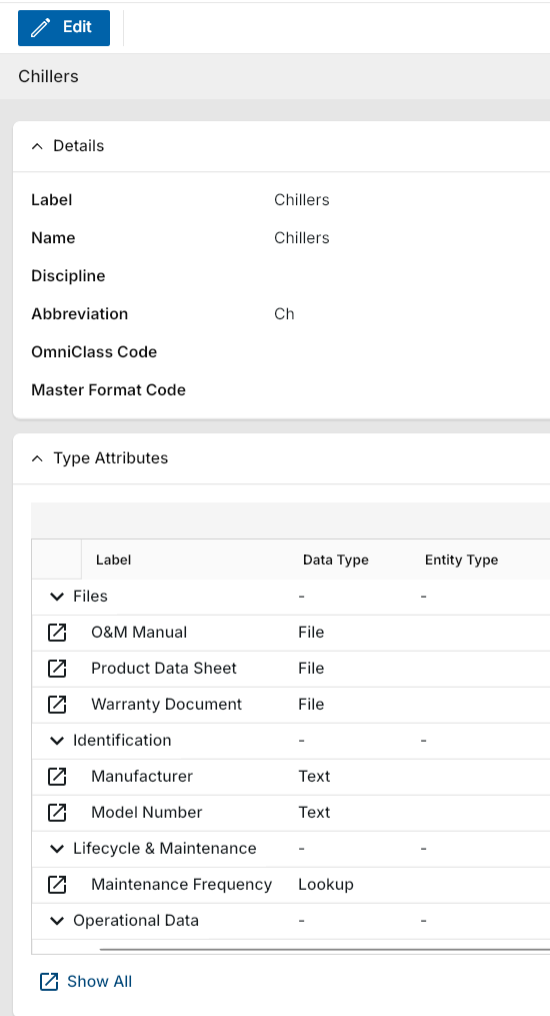
When creating or editing an attribute, select an Attribute Group from the Attribute Group field: Identification, Technical Specifications, Operational Data, Lifecycle & Maintenance, Financial & Contractual, Risk & Compliance, Digital/Integration, and Files. Non-file attributes that are created without an assigned group default to Identification automatically. For file-type attributes, the Attribute Group is automatically set to Files and the field is read-only.
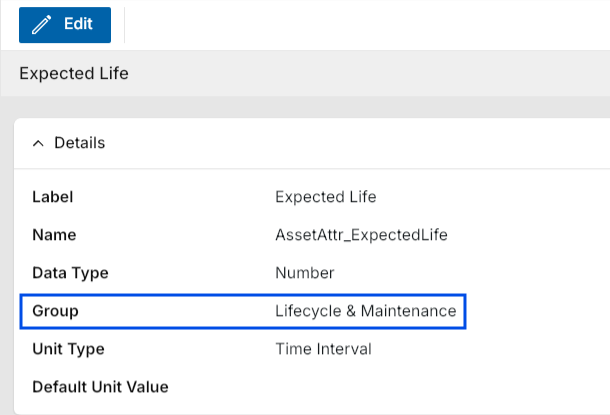
Type and Asset attribute lists in Classes-Master now display attributes organized by Attribute Group when viewing a selected class.
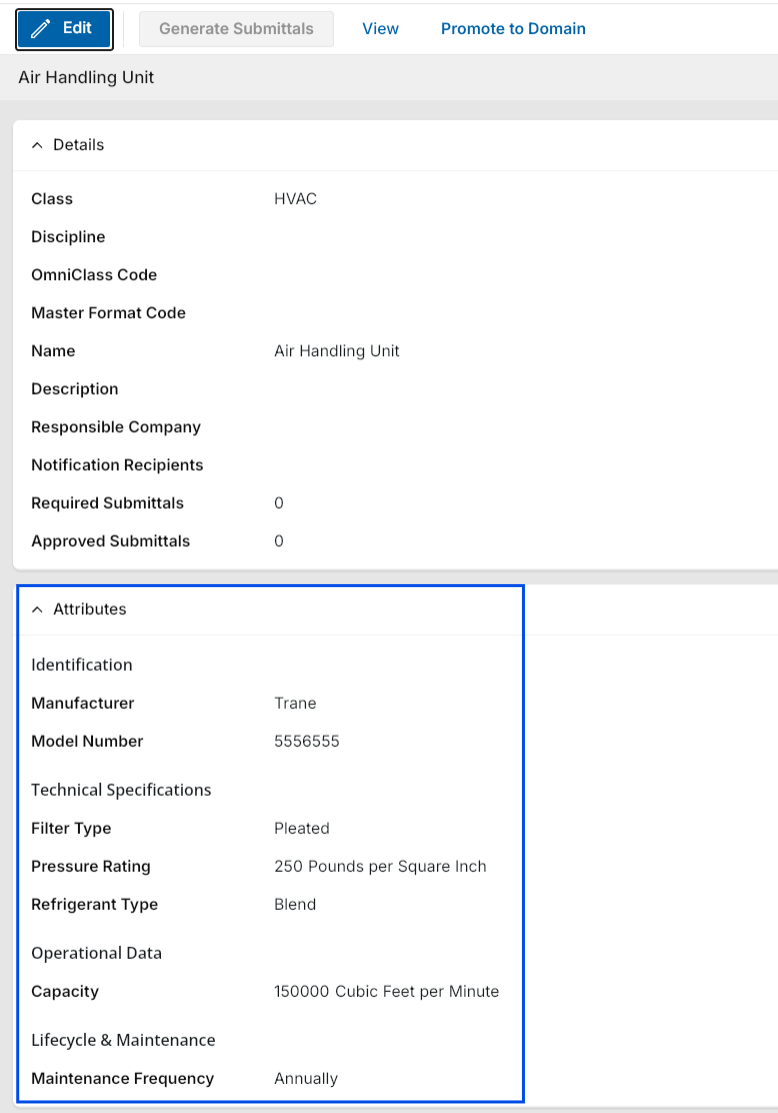
Attribute lists in Types and Assets are now organized into labeled sections under the Attributes area when viewing records.
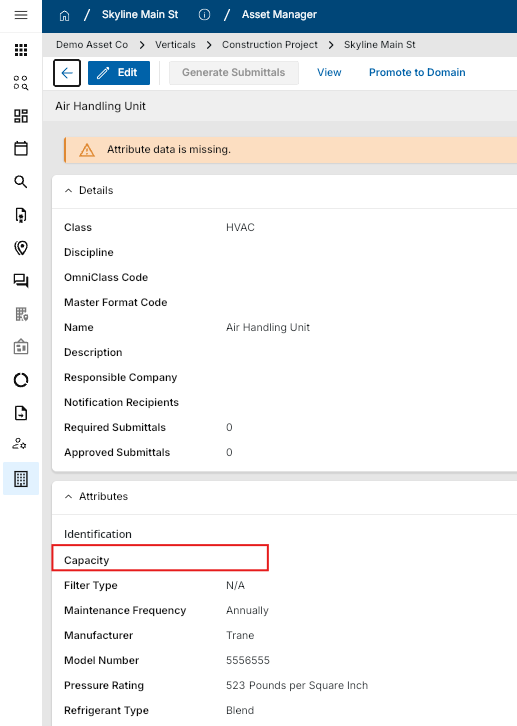
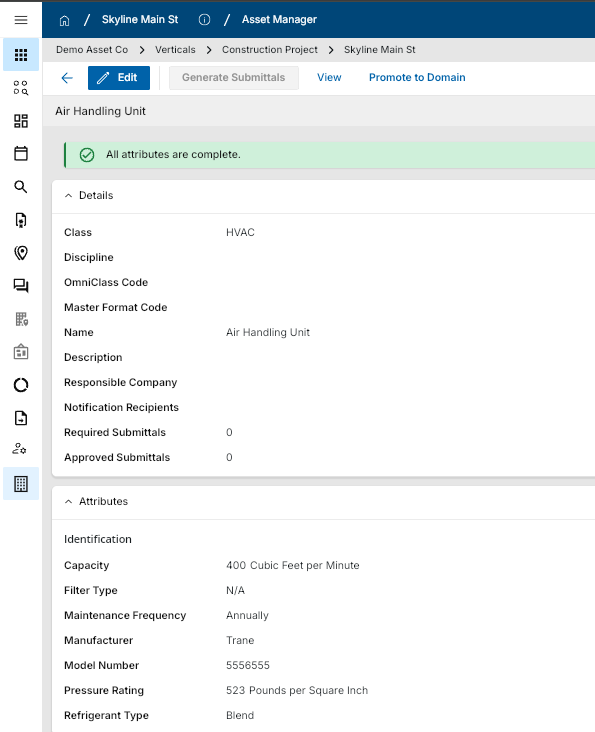
Asset Types – Added data collection completion banner
You can now see at a glance whether all required attribute data has been collected for an Asset Type. A color-coded banner displays directly on the Type record and updates in real time, helping you quickly identify missing data without manually reviewing each attribute.
The banner reflects the current state of attribute completion on the Type record. When one or more attributes are missing data, the banner appears in light orange with the message "Attribute data is missing". When all attributes have been filled, the banner turns green and displays "Attribute data is complete".
You can also open a side-by-side pop-out panel directly from the banner to complete any missing attributes using linked record previews and reference files without leaving the current record.
Asset media - Added storage of asset media in Media Manager
You can now find photos added in the Assets application automatically in Media Manager, keeping all your project media organized in one place. When you add a photo to an asset's Media section, a corresponding Media Manager record is created in the same project without any extra steps. In Media Manager, a new source called "Assets" is now available. The Location field on the new record defaults to the location of the originating asset.
Note The "Assets" source in Media Manager is only visible when the Asset Management Suite license is installed in your domain.
If you capture a nameplate image through the nameplate scanning flow, the image is added to both the asset Media section and Media Manager at the same time.
Kahua Analytics
Kahua Analytics - Infrastructure Updates
We have upgraded our Power BI Report Server infrastructure to the 2026 Q3 release. This update ensures continued alignment with Microsoft’s latest updates, improving stability and performance across the Kahua Analytics offering.
Key Customer Impact - Self-servicing customers can now use the latest Power BI Desktop - Optimized for Report Server version. This allows users to use an application that is widely available and is no longer tied to old desktop versioning.
Action Required (For self-servicing customers) - While Power BI Report Server, in most cases, is backwards compatible to older versions of Power BI Desktop - Optimized for Report Server, it is recommended to upgrade to the latest version of the Desktop application to ensure there are no versioning bugs.
Continuous Improvement - The Kahua Analytics team is dedicated to ensuring our infrastructure is the latest offered by Microsoft and will continue to upgrade with every Microsoft release for the foreseeable future.
Asset-Centric Analytics Offering – Work Orders Dashboard
We are excited to introduce a new Work Orders dashboard within the Asset-Centric Analytics package. This dashboard provides a centralized view of work order activity, enabling facility and maintenance teams to monitor operational performance, manage maintenance backlogs, and identify work requiring attention.
The dashboard consolidates key work order information into a single view, providing visibility into operational workload, work order lifecycle, maintenance performance, and associated asset information. Users can analyze work order trends over time, evaluate current backlog, monitor status and priority distributions, and review detailed work order information within the Work Order Detail comprehensive record-level table.
General Contractors Analytics Offering – Reimagined Analytics Experience
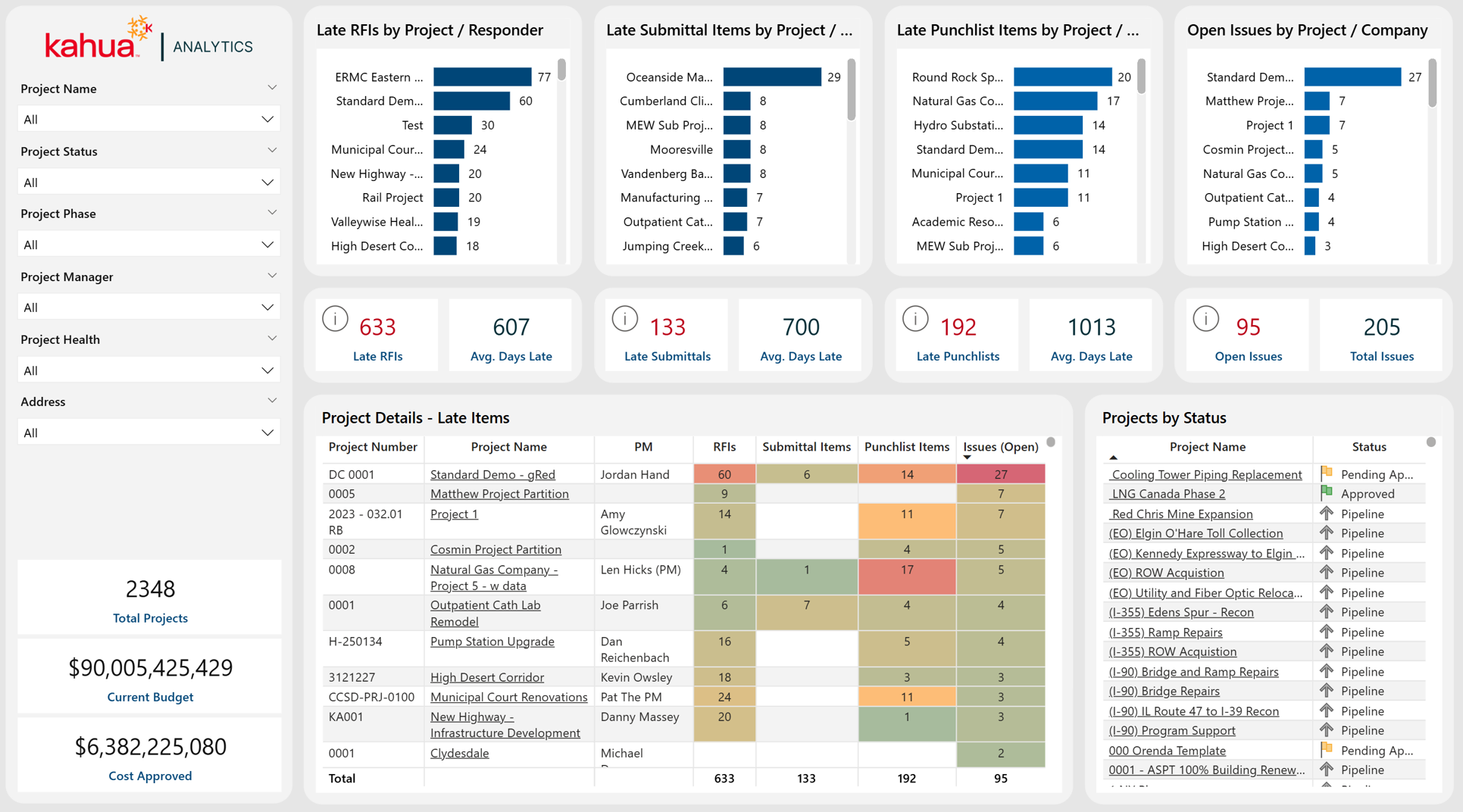
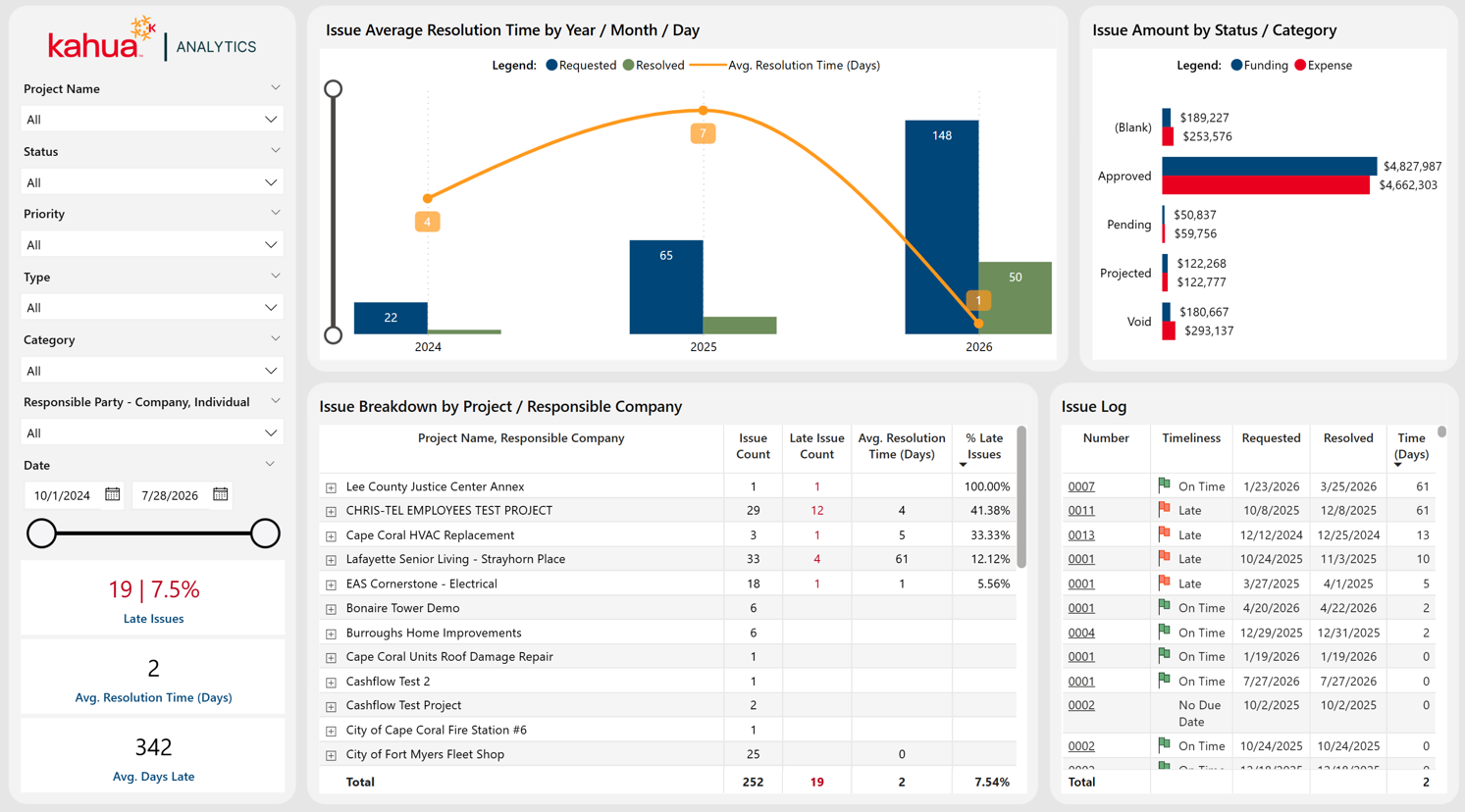
The Kahua Analytics for General Contractors package has been reorganized into two analytics experiences – Portfolio Analysis and Project Snapshot – to better support portfolio-wide project health, financial performance, operational oversight, and daily project execution.
Portfolio Analysis
Portfolio Analysis dashboards provide historical analysis across one or more projects, helping teams evaluate project health, monitor financial performance, identify trends, and provide portfolio oversight.
The following dashboards are included:
-
Portfolio
-
Project Performance (New)
-
Budget Insights
-
RFI Trend Analysis
-
Submittal Trend Analysis
-
Issue Trend Analysis (New)
-
Punch List Trend Analysis (New)
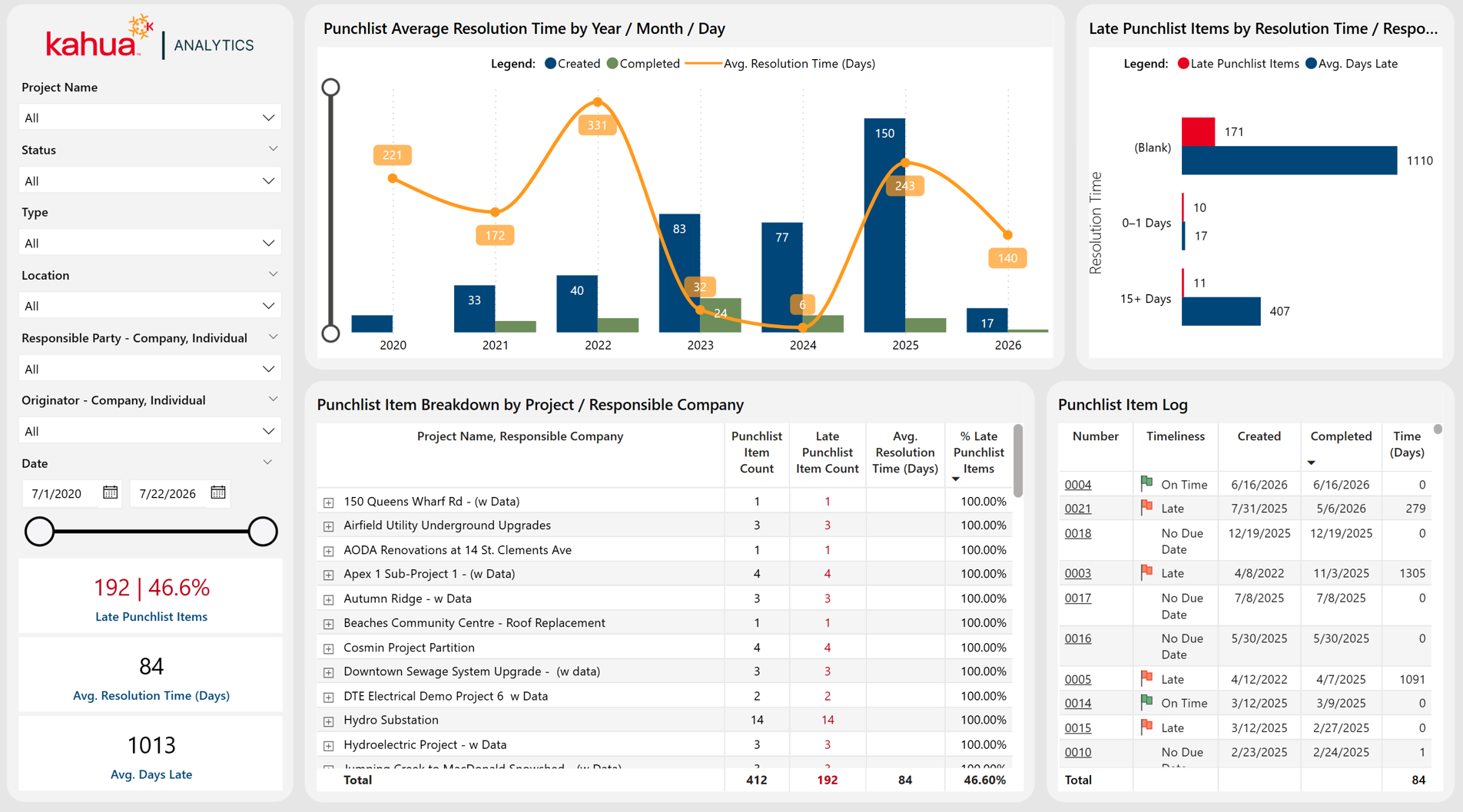
Project Snapshot
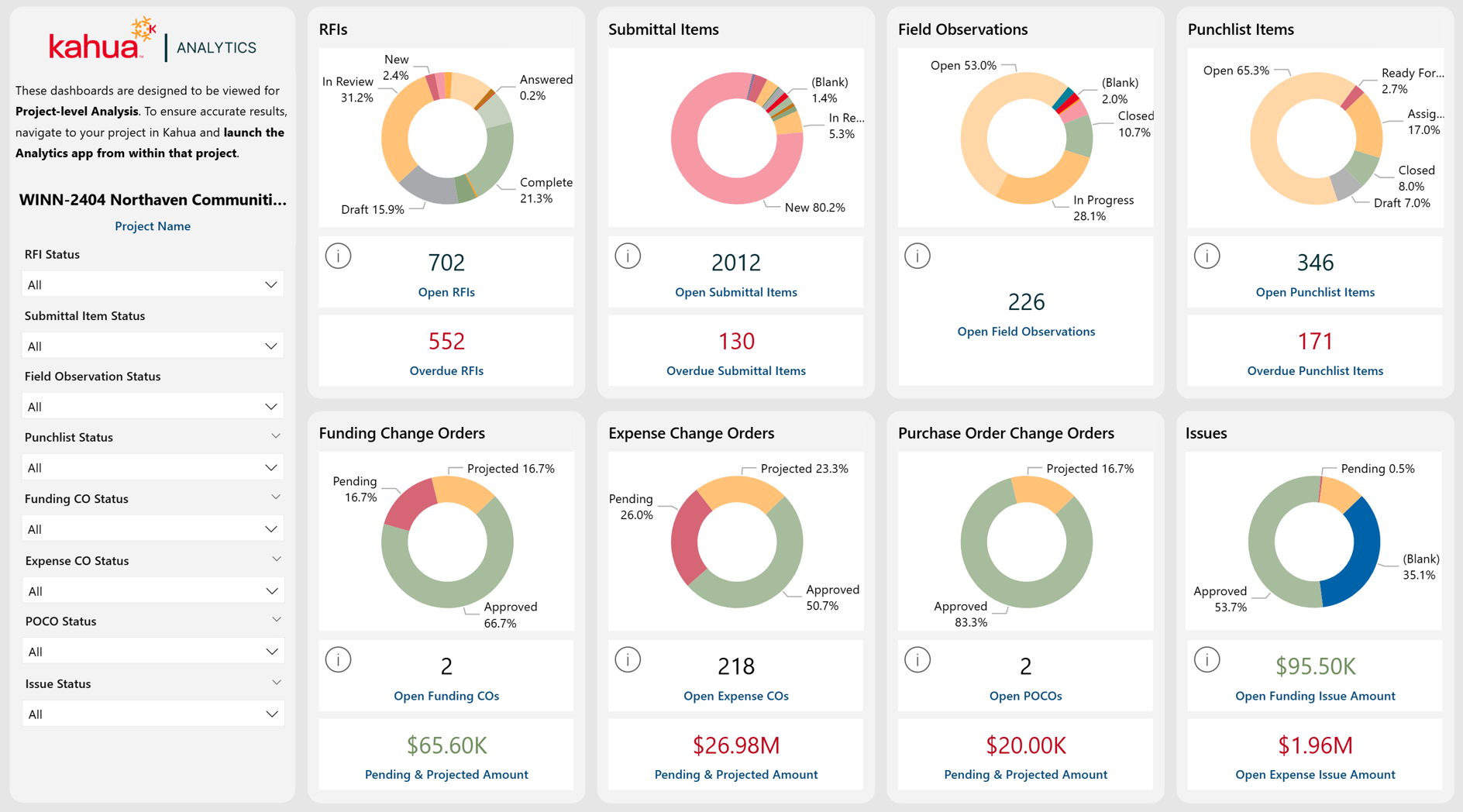
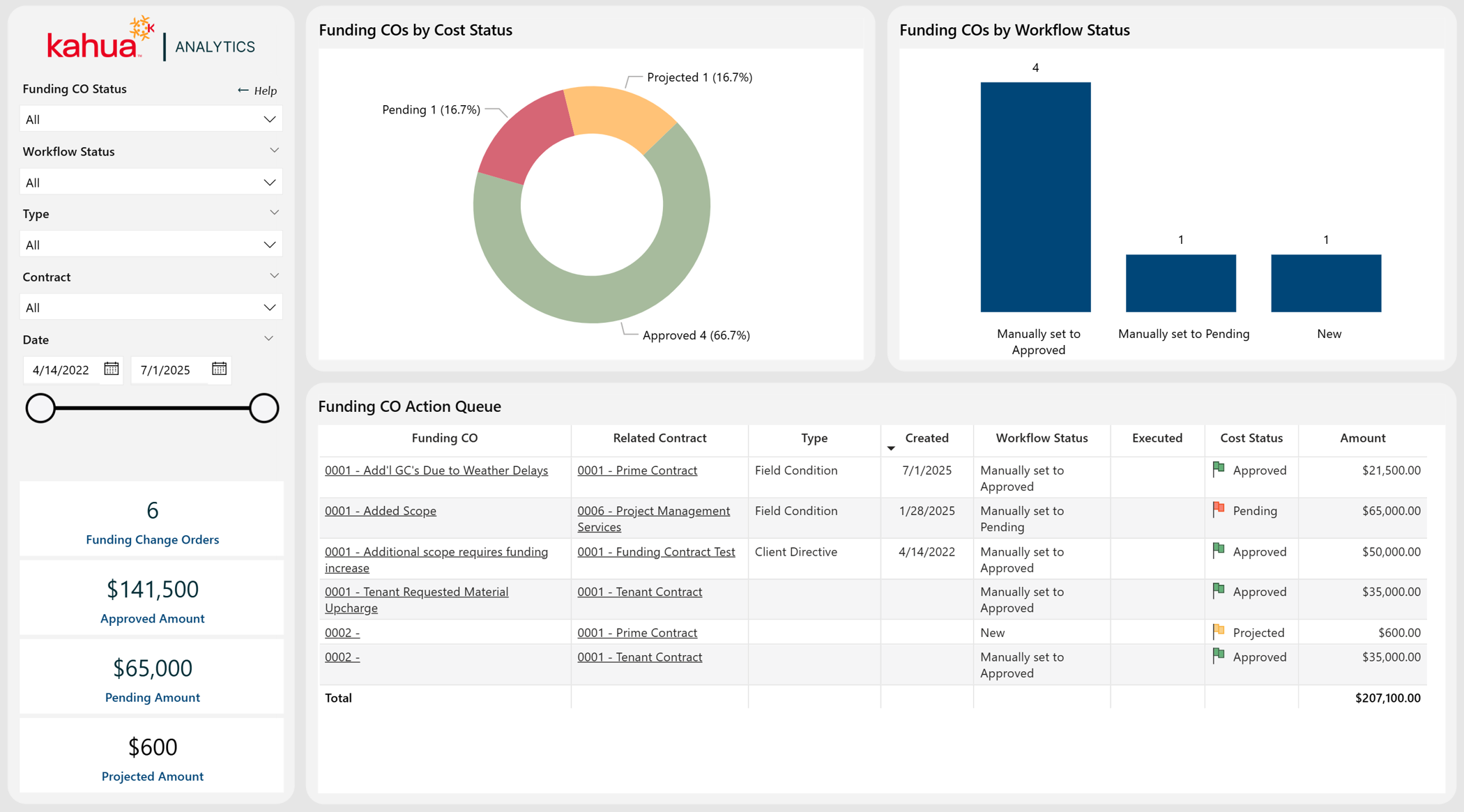
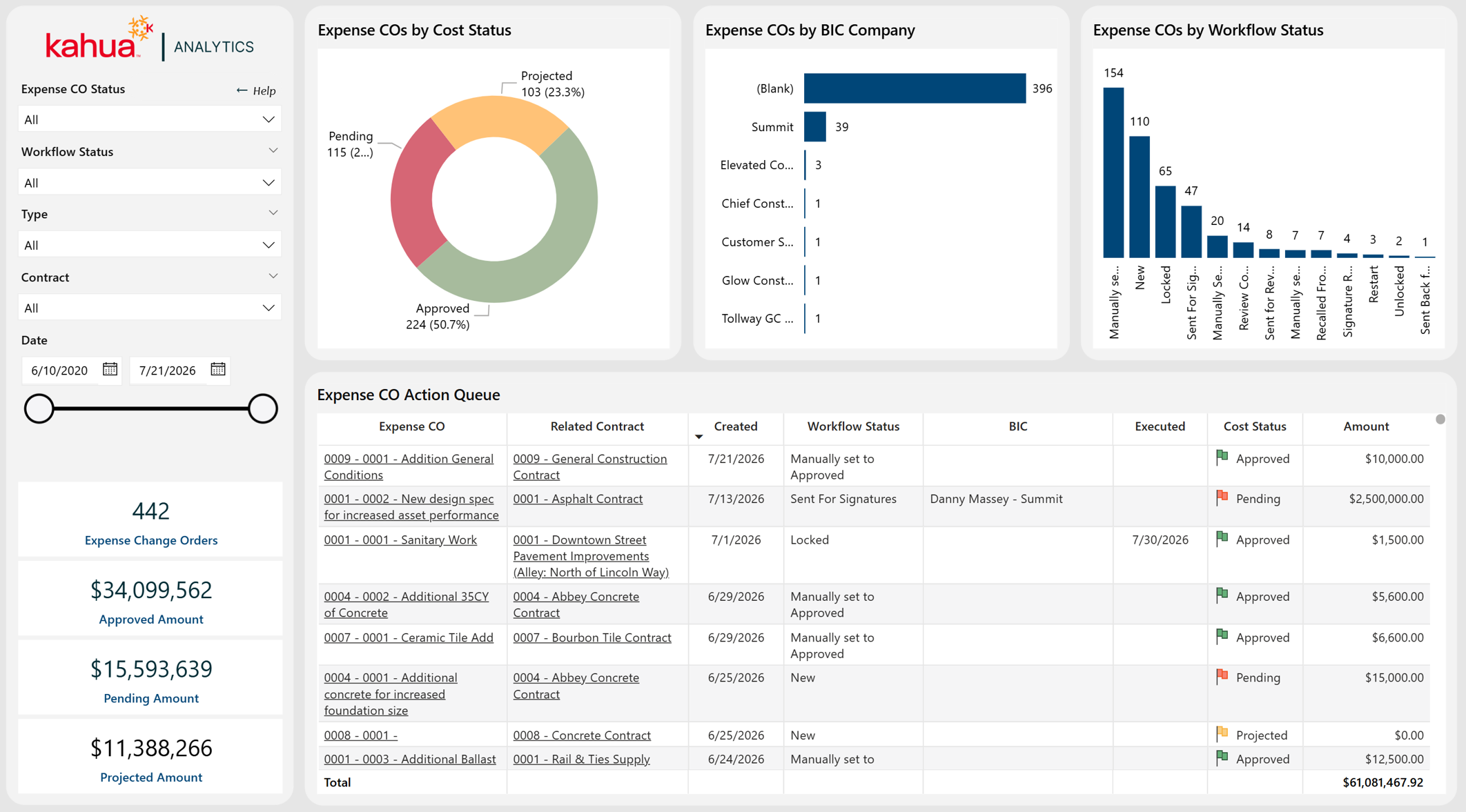
Project Snapshot dashboards provide a real-time operational view of an individual project, helping teams prioritize work and monitor active project records.
The following dashboards are included:
-
Project Action Center (New)
-
Funding Change Orders (New)
-
Expense Change Orders (New)
-
RFIs
-
Submittals
-
Issues
-
Punch Lists
-
Field Observations
-
Daily Reports
Healthcare Owners Analytics Offering – Initial Package Release
Kahua is excited to introduce the Healthcare Owner Analytics package, a focused suite of dashboards designed to give healthcare owner organizations high-level visibility into cost, schedule, risk, and overall portfolio performance.
The package is designed for organizations that need clear portfolio-level insight without requiring teams to manage every project detail directly. By bringing together financial indicators, schedule status, vendor activity, payment information, audit readiness, and healthcare-specific risk considerations, the package helps owners monitor performance, identify areas requiring attention, and make informed decisions across their capital programs.
The Healthcare Owner Analytics package includes the following dashboards:
-
Project Pipeline Dashboard: Tracks project requests before they become active projects, including scoring, budget information, and other pipeline details.
-
Project General Portfolio Dashboard: Summarizes project status, health, and key project information to support portfolio-level monitoring.
-
Project Financial Portfolio Dashboard: Summarizes budget, commitment, and payment activity from the Work Breakdown application to support financial oversight across projects.
-
Fund Sources Dashboard: Highlights project funding sources and allocations across the capital program.
-
Project Schedule Details Dashboard: Summarizes project status, key dates, and milestone activity, including milestones with missing dates, overdue dates, or upcoming deadlines.
-
Milestones Dashboard: Presents Gantt-style views of project and milestone timelines, helping owners compare schedule progress with payment activity.
-
Risk Management Dashboard: Consolidates healthcare-specific and project risk information, including ICRA, PCRA, ILSM, and general project risks.
-
Vendor Workload Portfolio Dashboard: Summarizes vendor workload and allocation across the portfolio to support vendor capacity and commitment oversight.
-
Expense Activity and Vendor Hierarchy Dashboard: Summarizes commitment and payment activity by project and vendor, with drill-through access to supporting document details.
-
Payments Dashboard: Summarizes payment activity by project and vendor, with drill-through access to individual payment documents.
-
JCAHO Audit Dashboard: Combines information from issues, punch lists, and field observations to support audit readiness and visibility into compliance-related project activity.
Together, these dashboards give healthcare owners a clearer view of portfolio health and help teams stay aligned on financial performance, schedule progress, vendor activity, compliance readiness, and risk exposure across projects.
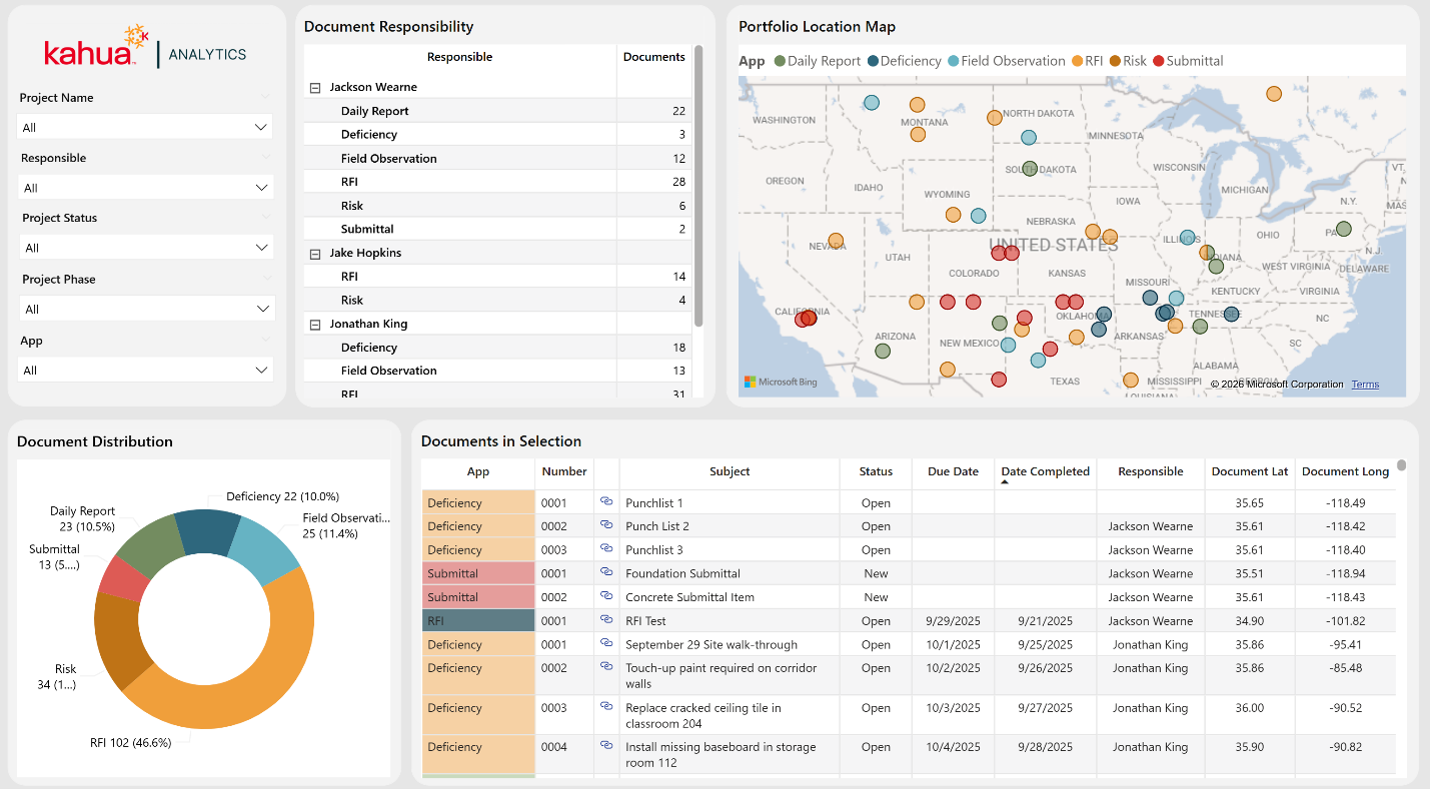
Owner Analytics Offering - GPS Coordinate Tracking
We are excited to introduce a new GPS Coordinate Tracking dashboard within the Owner Analytics package. This dashboard displays the locations of different field app records across the project portfolio.
The map can be drilled up or down to view field app records at different levels of geographic detail, from broad portfolio-wide patterns to specific project locations. This dashboard goes hand in hand with the GPS coordinate supplement that automatically tracks the latitude and longitude of a record created with a mobile device in the field.
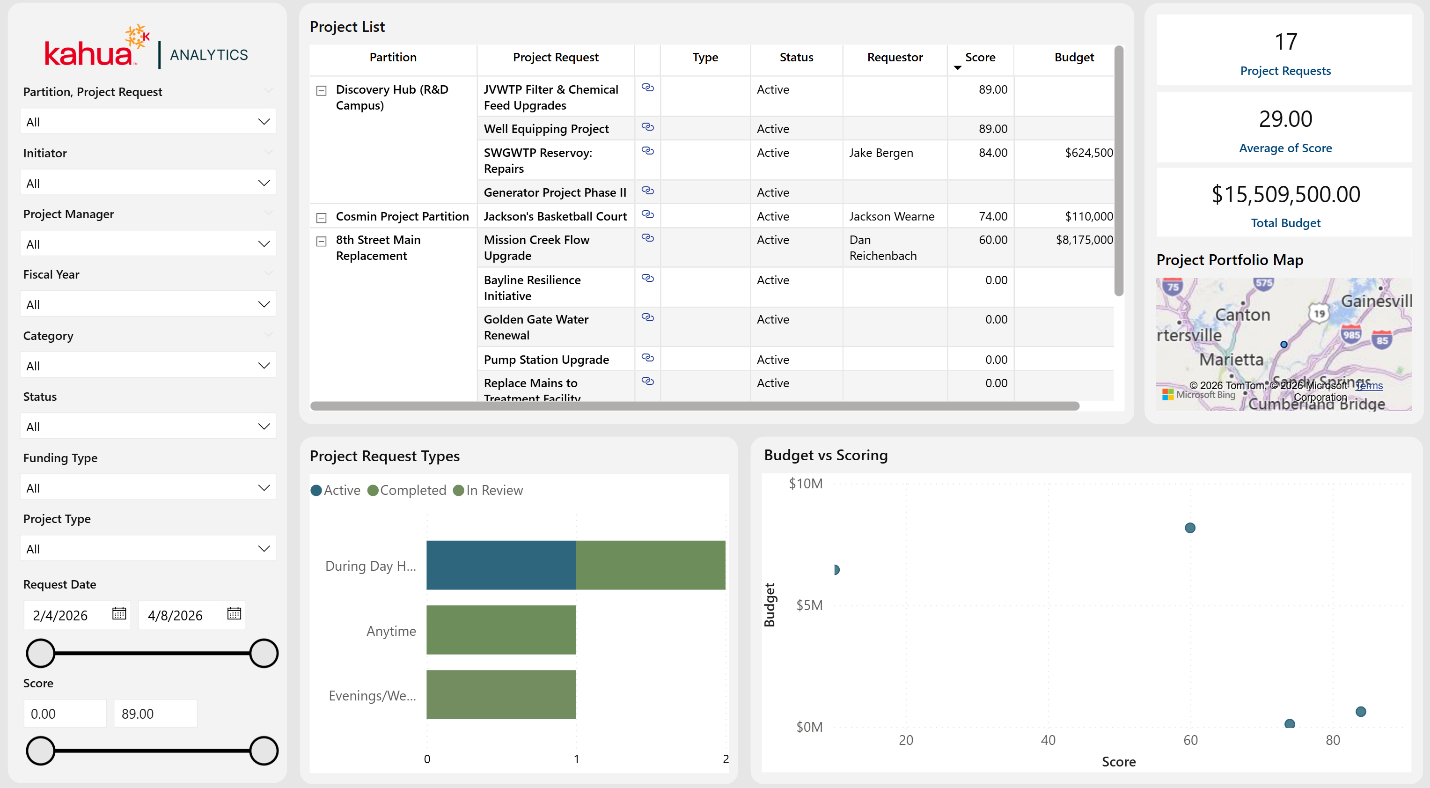
Owner Analytics Offering - Project Requests Dashboard
We are excited to introduce a new Project Requests dashboard within the Owner Analytics package. This dashboard provides users with visibility into Project Request records within a selected program or partition.
Its primary purpose is to give stakeholders a clear view of potential upcoming projects, enabling better prioritization and planning across the project pipeline. This dashboard is designed to complement the new Project Pipeline application, providing a centralized view of projects as they progress from request through execution.
Subcontractors Analytics Offering – Reimagined Analytics Experience
The Kahua Analytics for Subcontractors package has been reorganized into two analytics experiences - Project Management and Executive - to better support project-level operations and organization-wide performance monitoring.
Project Management
Project Management dashboards provide an operational view of an individual project, helping teams monitor project activity and understand the status of key project management records.
The following dashboards are included:
-
Project Management Summary (New)
-
Change Order Requests
-
Submittals
-
RFIs
-
Monthly Project Status
-
Service Quotes
-
Daily Work Reports
-
Punch Lists (New)
Executive
Executive dashboards provide organization-level visibility across projects, helping leadership monitor financial, operational, estimating, and safety performance.
The following dashboards are included:
-
Portfolio Project Summary
-
Project Financials
-
Projects by Marketing Type
-
Bid Status Report
-
Estimator Metrics
-
Safety – Injury/GL/Auto
-
Safety – Toolbox Talks and Training Register
Integrations
Introducing Esri ArcGIS Online Integration
We added a one-way integration that sends Kahua project and asset information to ArcGIS Online. You can use this information in ArcGIS Online to view projects and assets geographically and access key Kahua data from a map.
For projects, the integration sends the project ID, project number, project name, funding budget, funding budget changes, and the most recent synchronization date. For assets, the integration sends configured asset attributes. Updated information is sent to ArcGIS Online according to a scheduled daily recurrence.
Your organization must have separate Kahua and ArcGIS Online licenses. The integration requires manual configuration, including matching the fields in ArcGIS Online to the asset attributes that Kahua sends.
This integration is currently intended for early adoption and pilot use. Contact Kahua Support or your account representative for more information.
Configuration > Authorizations tab – Improved user interface
We improved the Inbound and SFTP credential configuration pages to make account details and available actions clearer. Updates include simplified labels, Copy icons with “Copy to Clipboard” tooltips, clearer regenerate actions, and masked password values after credentials are saved. We also added an Override column to the lists for the Inbound, Outbound, and SFTP tabs to make it clear when Override is selected for a record.
Data Dictionary – Changed Export Format to XLSX
We changed the generated data dictionary file format from XLS to XLSX. The newer format provides improved compatibility with current spreadsheet applications.
When you generate a data dictionary, Kahua now creates an XLSX file containing the standard and custom data definitions available in your environment.
Any integrations, scripts, or automated processes that expect an XLS file may need to be updated to accept the XLSX format.
KConnect – Improved File Batch Display
We improved how KConnect displays files that contain multiple processing batches. This change makes it easier to monitor an uploaded file as a single transaction.
Previously, a large file could appear multiple times in KConnect—once for each batch processed. You now see one entry for the uploaded file, even when Kahua divides its records into multiple batches during processing.
This change only affects the display of processing activity and does not change the contents of the uploaded file.
PGP Encryption – Added support for PGP Encryption in Incoming Files
We added support for PGP-encrypted files sent to Kahua through SFTP integrations. You can now protect files while they are transferred to Kahua and have Kahua decrypt them before they are processed.
When you enable PGP encryption, Kahua generates and securely manages the required keypair. You can then provide the public key to your trading partner so they can encrypt files before sending them to Kahua.
PGP encryption is optional. It is enabled and managed on the Configuration > Authorization > SFTP page.
Sage Integration – Added Employee Title Mapping
We added employee title mapping to the Sage integration. When the employee integration processes Sage employee data, the employee’s title from Sage now populates the Title field on the corresponding Kahua contact.
Mobile app
Mobile app - Added Multi-Photo capture for Take Photo actions
You can now take multiple photos in a single camera session anywhere the Take Photo action appears in the mobile app. This applies to the File Manager app, the Media Manager app, Media and References sections of records, and other areas that support Take Photo, reducing the friction of capturing and uploading one photo at a time.
Previously, taking multiple photos required starting a new camera session after each individual capture. Now when you tap Take Photo, the camera stays open so you can capture as many photos as you need. When you're finished, you confirm your selection and all photos upload or attach to the destination in one step.
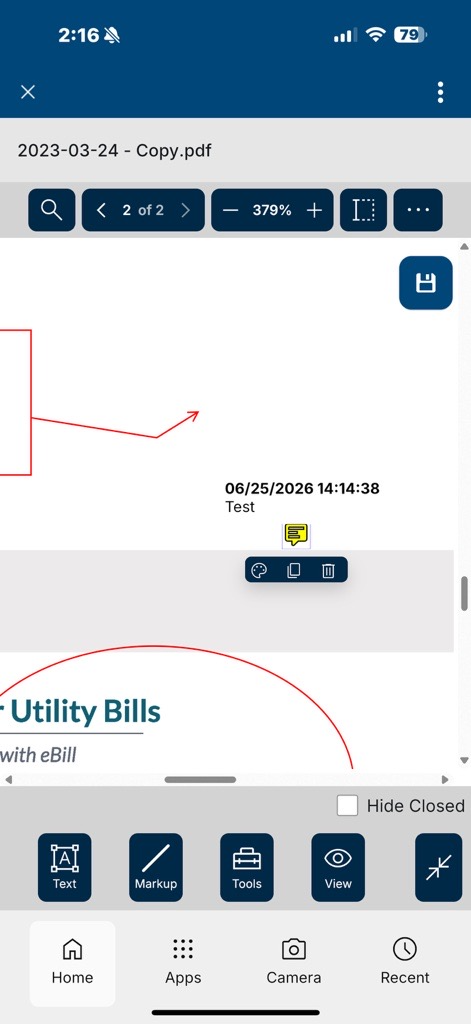
Mobile viewer - Improved the PDF viewer
You can now access PDF viewer tools through a redesigned bottom toolbar on iOS and Android. The updated layout is built for phone and tablet screens, with larger tap targets and a cleaner tool organization that keeps the drawing area as open as possible while you work in the field.
We have added a bottom tool launcher that provides quick access to four tool groups: Text, Markup, Tools, and View. Selecting a tool group opens a focused panel for the actions in that group. When a tool list is longer than the available screen width, you can scroll horizontally to reach additional options. While you are actively in markup mode, the main bottom navigation bar moves out of the way so the drawing area is not obstructed.
When you tap a markup on the PDF, a context action bar appears with relevant actions for that selection — such as changing color, copying, or deleting the markup. The context bar disappears automatically when no markup is selected, keeping the view clean when you are not editing.
This experience applies to iOS and Android on both phone and tablet screen sizes.
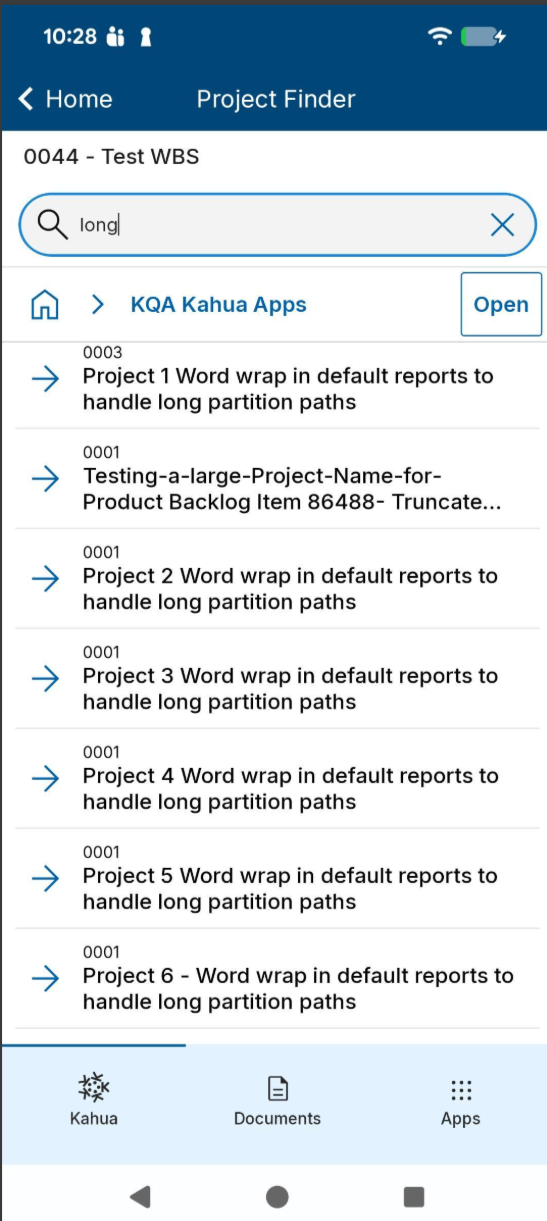
Mobile app - Improved readability for long project names
We have updated Project Finder on mobile to display long project names in two rows before truncation.
This makes it easier for customers with large project names to navigate between Kahua projects on mobile devices.
The following features will not be included in the initial Q3 release. They will be made available in a subsequent update.
Mobile app - Added Global Camera feature
The new Global Camera feature allows you to capture photos from anywhere in the app without interrupting your workflow, then save those photos to Media Manager for permanent photo storage. You can decide which images you want to keep or delete, and you can add markups to individual photos as desired.
During an active camera session, all captured photos are stored together in a temporary workspace where you can review images, view metadata, add markups, and perform additional actions before saving them to Media Manager.
To launch the Global Camera, tap Camera in the bottom navigation bar from anywhere in the app. This starts a camera session, which serves as a temporary workspace for all photos captured during that session. You can continue taking photos, review previously captured images, and organize them without leaving the camera experience.
If you need to return to another area of the application, simply minimize the camera by tapping the minimize chevron or swiping down on the camera. Your session remains active in the background, allowing you to resume capturing photos later without losing any images.
When you finish capturing photos, tap Finish in the top navigation bar. Ending the session automatically transfers all captured photos to Media Manager, where they are stored for long-term use. From there, photos can be reviewed, organized, and associated with records throughout the application.
While a camera session is active, you can review and organize your captured photos before ending the session. Available actions include:
-
Add markups to an individual photo.
-
Delete unwanted photos individually or in bulk.
To manage multiple photos at once, tap View All to open the bulk management workspace.
Camera sessions are limited to a single project. If you switch to another project while a camera session is active, you will be prompted to tap Finish to save the session to Media Manager before changing projects.
Note Some organizations disable camera functionality because of site security or confidentiality requirements. If the Global Camera is unavailable for your organization, a message will appear to explain that camera access has been restricted.
Mobile app - Improved app list and record views
This release introduces several enhancements to the app list and record pages within the mobile experience. These updates are focused solely on visual and organizational improvements aimed at improving consistency, reducing taps, and making common actions easier to find. There is no change to existing functionality in this update.
Smarter Scrolling
App headers now collapse as you scroll to maximize the visible list area and automatically expand when you return to the top. All primary actions remain available at any time by tapping the page title or action icons.
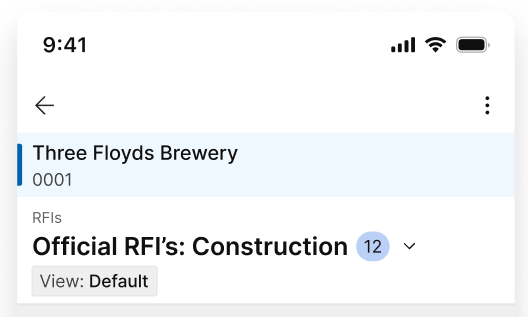
Updated app navigation and project selector capabilities
The app header has been refreshed with improved action menus and a new project selector, allowing you to switch projects without leaving the current app. All existing tappable areas continue to function as before. Aside from the new project selector, no existing functionality has changed.
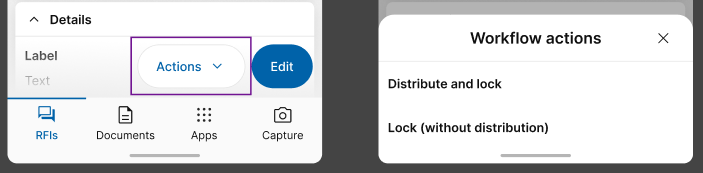
Dedicated workflow actions menu
Workflow-enabled records now include a dedicated Workflow Actions menu. This provides quick access to all available workflow actions directly from the record, making workflow tasks easier to locate and complete.
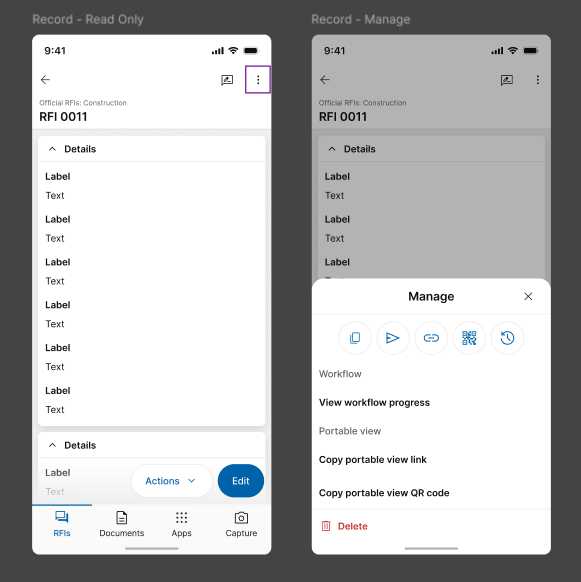
Dedicated record management menu
Record management actions have been consolidated into a dedicated Manage menu. Workflow actions have been removed from this menu so that it now contains only record management functions, including but not limited to:
-
View workflow progress
-
Copy a shareable link
-
Generate a QR code
-
Delete a record (when permitted)
Add Records Faster
The Add action has moved to a floating action button in the lower-right corner of the screen, making it easier to create new records from anywhere in the list.

Improved Editing and Saving experience
The Edit button has been moved to a persistent floating action button in the bottom right of the screen. Once in edit mode, the button will change to a Save action.
Kahua Host Updates
All Kahua hosts have been updated with various enhancements and bug fixes. The Windows host will automatically update upon first launch after the release.
Download the appropriate app for your device:
Release Note Changes
| Date | Revision | Section | Change Description |
|---|---|---|---|
| July 13, 2026 | 0 | All sections | Initial publication |
| July 15, 2026 | 1 | General | Added "Log Views - Updated header styling" |
| July 15, 2026 | 1 | Administration | Added "Project Add - Added copying of folder-level configuration" and "Configuration - Added search and filter functions to the Applications page" |
| July 15, 2026 | 1 | Document Management | Added "RFIs – Added Integrated Dashboard" |
| July 15, 2026 | 1 | Kahua Analytics | Added section |
| July 21, 2026 | 2 | Administration | Added "Videos & Documentation - Added support for Brightcove videos" |
| July 21, 2026 | 2 | Document Management | In "RFIs – Added preview of integrated dashboard in in-app Summary section", clarified that the feature is being released as a preview item. |
| July 22, 2026 | 3 | Administration | Added "Task Delegation - Added new control to restrict task delegation for external contacts" |
| July 23, 2026 | 4 | General | Added "User Settings panel - Updated appearance" |
| July 23, 2026 | 4 | Mobile app | Added "Mobile app - Added Global Camera feature" |
| July 24, 2026 | 5 | Document Management | Added "File Manager - Added Interactive 3D Model Viewing and Coordination to the BIM Model Viewer" |
| August 6, 2026 | 6 | General | Updated "Prefix values - Added ability to have military titles and honorifics added to contacts and profile settings" to clarify that the new prefix values can be added to KGN domains upon request. |
| August 6, 2026 | 6 | Kahua Analytics | Added "Kahua Analytics - Infrastructure Updates" |
| August 6, 2026 | 6 | Kahua Analytics |
Updated "General Contractors Analytics Offering – Reimagined Analytics Experience" as the GC Analytics offering has been further re-grouped into two experiences instead of three. The list of dashboards remain unchanged. |
| August 7, 2026 | 7 | Integrations | Section added |
| August 14, 2026 | 8 | General | In "Introducing the Workflow Progress Banner", added note about ability to disable feature at the domain level. |
| August 20, 2026 | 9 | Administration | Added "Groups - Added Application Search to Permissions tab" |
| August 20, 2026 | 9 | Administration | For "Joining external domains - Access now granted automatically", clarified that this functionality will be made available in a future update. |
| August 20, 2026 | 9 | Reporting | Removed "Project Tasks – Added Data Store reporting and Analytics support" |