Accessing Kahua
There are three ways to access Kahua. You can:
-
Log in through the web to launch the web host.
-
Open the Kahua for Windows Desktop host on your desktop.
-
Use the Kahua Mobile host application on your mobile device.
Kahua has the same functionality when accessed through the web host or the desktop host, with the exception that desktop host users also have the ability to sync files from Kahua to their computer and to work offline.
Note Mac iOS users must use the web host.
The Kahua mobile host allows you to access most of the same apps and data that you can access through the desktop host and web host. It is available for both iOS and Android devices. You log in to the mobile host using the same credentials that you use to access the desktop and web hosts. For information on using the Kahua Mobile host application, refer to The Kahua mobile host.
To use the Kahua for Windows Desktop host, you will need to download and install the Kahua for Windows Desktop application to your computer. Check with your corporate IT department for their guidance on installing the desktop host on your computer. They may provide it to you, or you may be directed to install it on your own.
If you are a domain administrator and want to provide enterprise installation for the Kahua for Windows Desktop application, refer to Enterprise Installer for Kahua's Host.
Important For information on system requirements, refer to System Requirements.
How to . . .
 Log in through the web
When you access Kahua through the web, you are using the web host. To log in using the web host, complete the following steps:
-
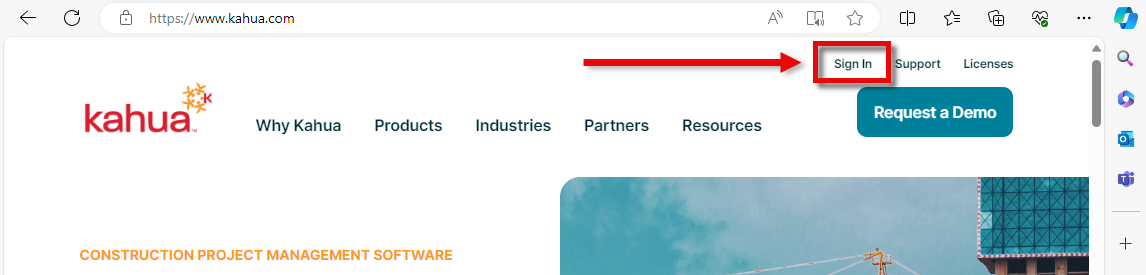
Go to https://www.kahua.com.
-
Click Sign In. This will launch the web host.
-
Enter the email address you use for Kahua and press Enter or click the arrow
 .
.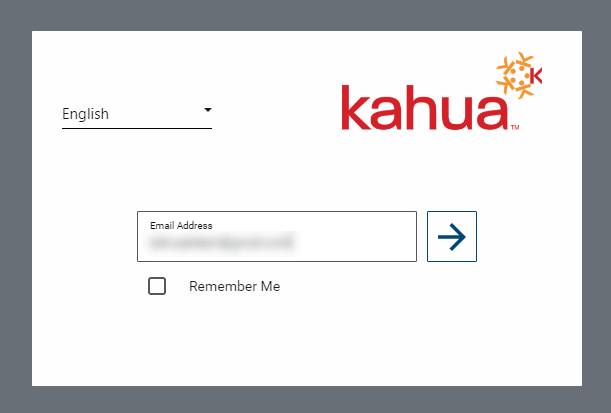
Note To change the language that appears in the user interface, click on the language selector on this page and choose the appropriate option. To modify the language used in portable views and platform notifications, once you are logged in click on your profile icon and select My Settings > General > Default Language. Refer to Default Language.
-
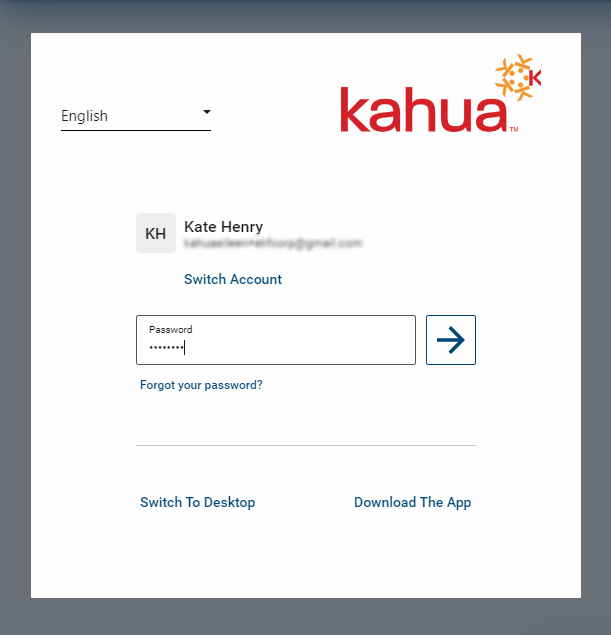
Enter your password and press Enter or click the arrow
.
Note Your organization will require you to use SSO or MFA to verify your identity when you log in to Kahua. If you have questions about your SSO credentials, contact your company's IT department. For more information on using multifactor authentication (MFA), refer to Multifactor Authentication.
Download and install the Kahua for Windows Desktop application
Check with your corporate IT department for their guidance on installing the desktop host on your computer. They may provide it to you, or you may be directed to install it on your own.
The Kahua for Windows Desktop application can be downloaded from the web host login page, or from your profile link after you have logged in to the web host.
Note Your organization will require you to use SSO or MFA to verify your identity when you log in to Kahua. If you have questions about your SSO credentials, contact your company's IT department. For more information on using multifactor authentication (MFA), refer to Multifactor Authentication.
If you are not yet logged into Kahua, complete the following steps:
-
Log in to the Kahua web host per the directions above.
-
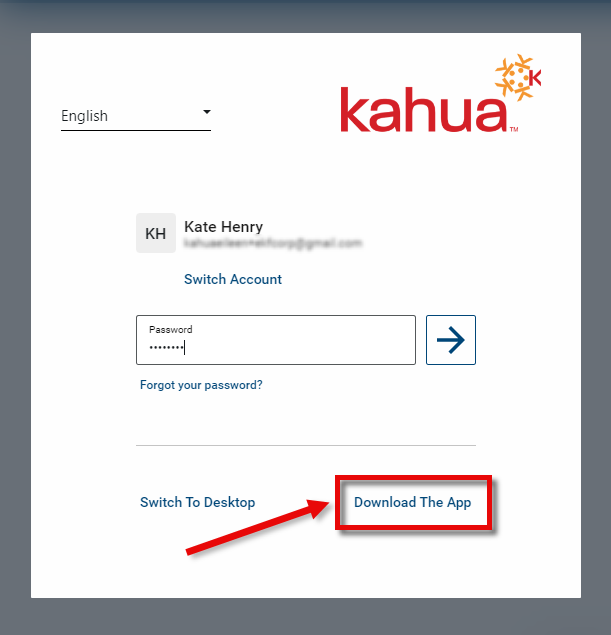
On the password page, select Download the App.
-
This will download the installation file. Open and run the installation file. When it is complete, you can search for Kahua for Windows in your Windows Taskbar to launch Kahua.
-
Once launched, enter your email address and password in the same way as for the web host as described above.
If you are currently logged into Kahua on the web, complete the following steps:
-
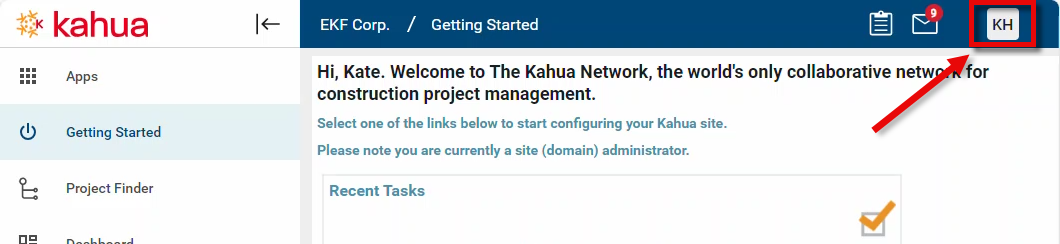
Go to your profile link in the upper right corner of the main navigation bar.
-
Click on it to open the menu and select Download Kahua for Windows. This will download the installation file.
Note: If the Download Kahua for Windows option is not available, contact your domain administrator.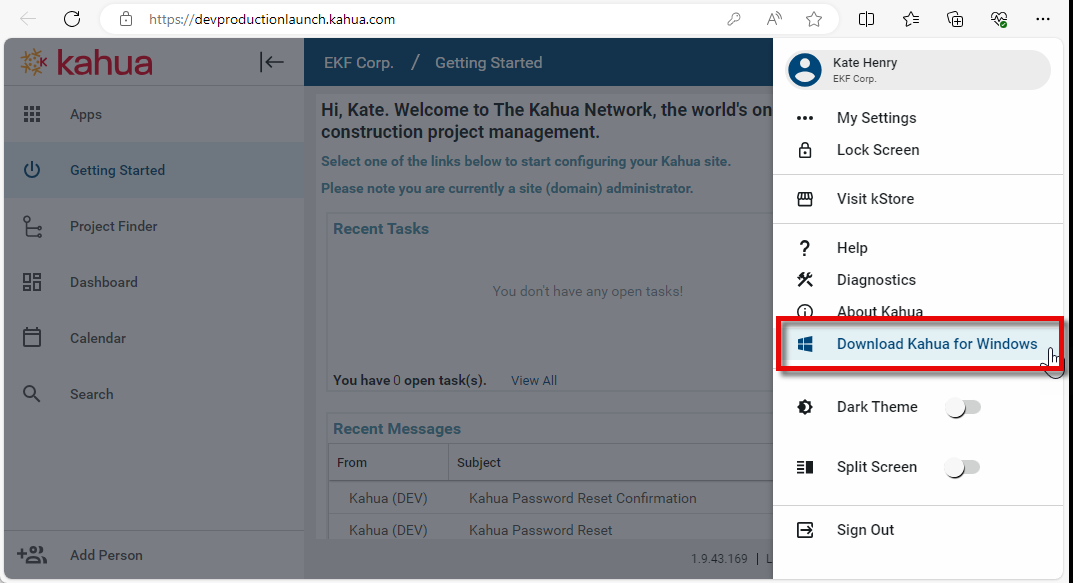
-
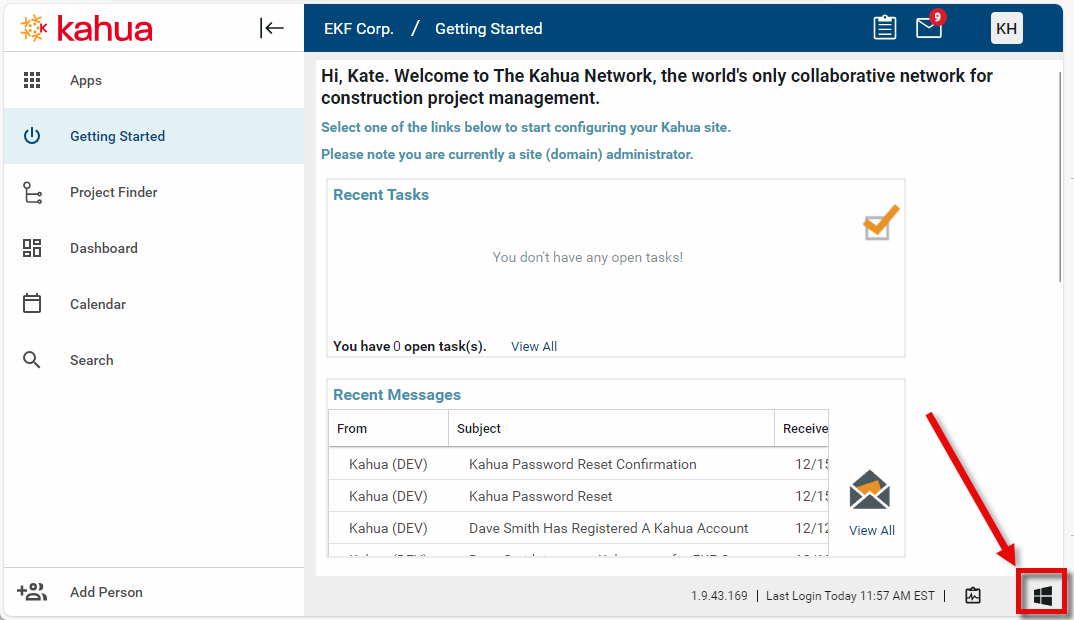
Open and run the installation file. When the installation is complete, you can search for Kahua for Windows in your Windows Taskbar to launch Kahua, or you can open the desktop app by clicking on the launch icon in the lower right corner of the web host page. Note that the installation file can be accessed from this location as well.
Download and use the mobile host
The Kahua Mobile app is available for free for iOS and Android devices. Visit our app page at the appropriate store to determine compatibility with your device:
To log in to the mobile app, you will use the same credentials that you use to log in to the desktop and web hosts. For information on using the Kahua Mobile host application, refer to The Kahua mobile host.
Note Your organization will require you to use SSO or MFA to verify your identity when you log in to Kahua. If you have questions about your SSO credentials, contact your company's IT department. For more information on using multifactor authentication (MFA), refer to Multifactor Authentication.