Delegating Tasks
Tasks can be manually delegated or automatically delegated to another user in your domain. When you delegate a task, you are reassigning it to that other user. The delegated task will appear in their tasks application.
You can manually delegate tasks assigned to you or you can set up automatic delegation for yourself for a period of time, for when you are on vacation or otherwise unable respond to tasks.
Additionally, an administrator can manually delegate tasks assigned to you by using the Project Tasks app, or they can set up automatic delegation on your behalf in the Users application.
Important information to know about delegating tasks includes the following:
-
Once a task is delegated, the original recipient of the task cannot undo the delegation.
-
If the task is part of an approval workflow, the Enable Approval Task Delegation setting in the Domain Settings application must be turned on for that task to be able to be delegated. For more information, refer to Enable approval task delegation.
-
Join requests cannot be delegated.
-
Docusign tasks cannot be delegated. Refer to Docusign in Kahua.
-
For automatic task delegation, you can select a beginning and end date for task delegation to occur. All newly received tasks during this time frame will be delegated, existing tasks will not. All delegated tasks will remain delegated when the delegation period ends or the delegation is manually disabled.
-
Tasks associated with apps that allow delegation will be delegated. The majority of apps allow delegation.
How to . . .
 Manually delegate a task assigned to yourself
You can manually delegate a task assigned to you to another user. To do so, complete the following steps:
-
Review the header to ensure that you are in the correct project or partition.
-
Open the item to be delegated. Items can be delegated when opened from the Tasks app or when the item is opened directly in the source application.
-
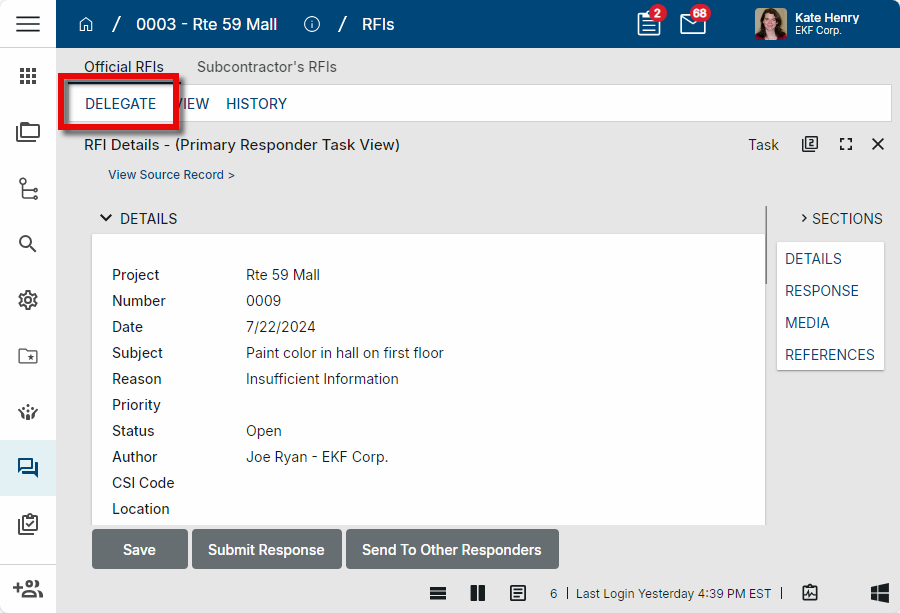
Select Delegate from the action bar.
-
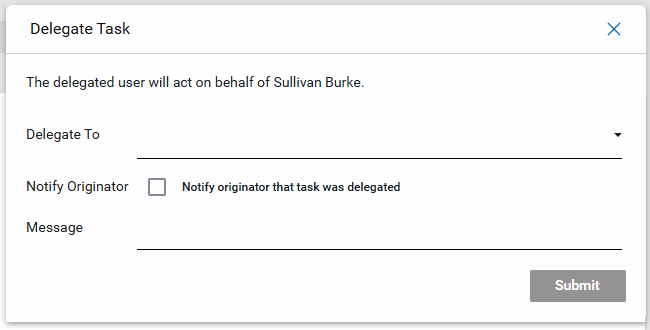
The Delegate Task window opens.
-
Complete the fields on the Delegate Task window.
-
Select the user to delegate the task to. When manually delegating a task that originated in another domain, you can only delegate it to a Kahua user in the domain the task originated from.
-
Select Notify Originator to send a message to the user who originally created or submitted the task.
-
Enter text in the Message field to be added to the message sent to the task originator.
-
-
Click Submit when you are done.
Enable automatic task delegation for yourself
To automatically delegate tasks assigned to you to another user during a set period of time, navigate to My Settings > Out of Office, enter the appropriate dates for task delegation, select the user to receive the tasks, and, if desired, create a message to send to the originator of the task. For more detailed information, refer to Out of Office.
Manually delegate tasks assigned to another user
Administrators can manually delegate tasks assigned to one user to another user in the Project Tasks application. For more information, refer to Project Tasks.
Enable automatic task delegation for another user
Users with the appropriate permissions can set up automatic task delegation for other users in the Users application. The automatic task delegation is set up in the same manner as they would do for themselves in My Settings > Out of Office. For more information, refer to Set up task delegation for a user.