Project Tasks
The Project Tasks app allows administrators to access all open tasks in the currently open project. From the app, administrators can review a list of open tasks in a project or the entire domain, determine who each task is assigned to, view the task source record, delegate that task to another user, and view the history of that task.
Note For more general information on task delegation, refer to Delegating Tasks.
How to . . .
 View and manage all the open tasks in a domain assigned to a single user
Domain administrators can select the All Domain Tasks log view to review all open tasks in your domain, regardless of what partition or project is currently open. You can perform a search to narrow down the results to tasks assigned to just one user and, if appropriate, delegate them to another user.
Note The All Domain Tasks log view is only available to users in the Domain Administrator group. Refer to Setting up groups.
To view all open tasks in your domain, complete the following steps:
-
Navigate to Apps > Administration > Project Tasks.
-
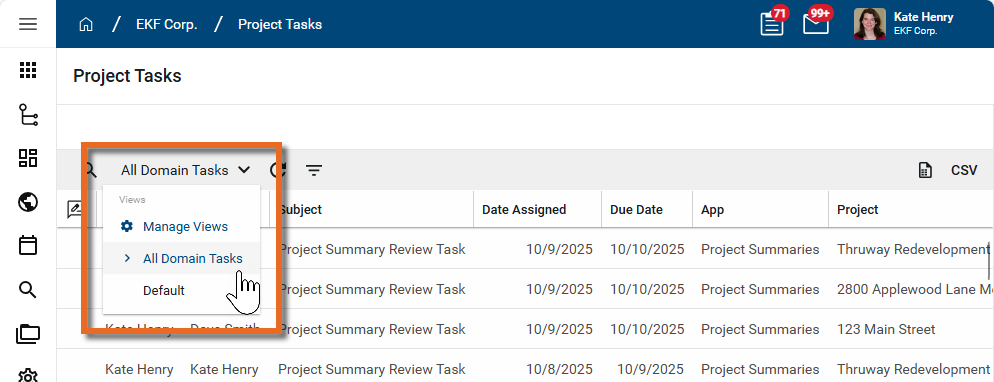
Click on the current log view and select All Domain Tasks. All open tasks in your domain appear.
-
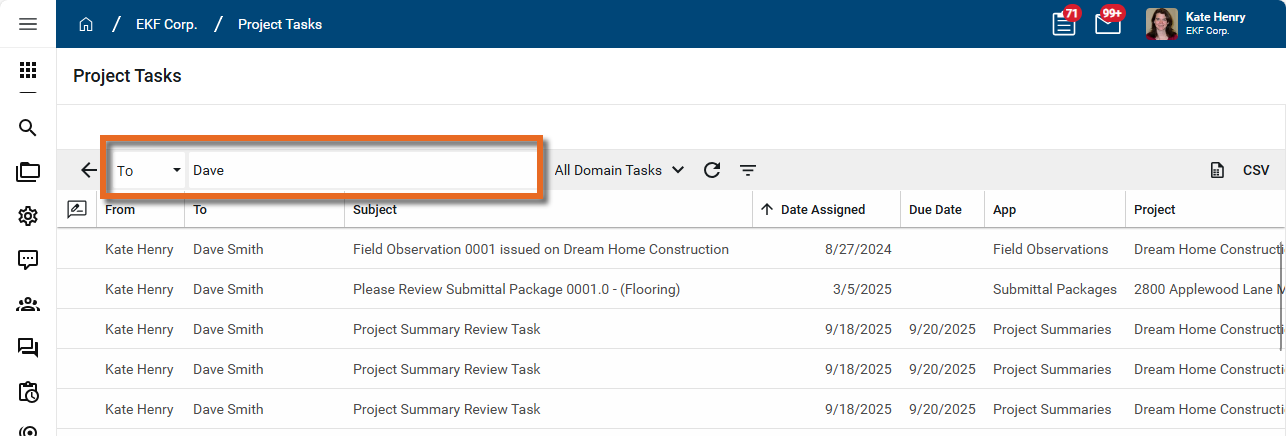
To view all open tasks in your domain assigned to a single user, click in the search bar. Click "Search All" and select the "To" field. Enter some or all of the user's name you are searching for. The list is filtered by the search term.
-
To print or download the list, click the More icon
 and select Print or CSV. For more information, refer to Log Views and Log Reporting.
To review an individual task, click on it to open the detail view. From the detail view, you can delegate it to another user, or click View Source Record to review the original item.
To delegate one or more tasks,click on the check box next to the tasks, or in the header to select all tasks, and click Delegate in the action bar to complete the process as described below.
Delegate one or more tasks
The Project Tasks app allows you, as an administrator, to delegate tasks received by a user in your domain to other users in your domain. For more general information on task delegation, refer to Delegating Tasks.
Note that not all tasks can be delegated. If the task is part of an approval workflow, the Enable Approval Task Delegation setting in the Domain Settings application must be turned on for that task to be able to be delegated. For more information, refer to Enable approval task delegation. Additionally, in some applications, task delegation may be intentionally suppressed and the Delegate action will not be available.
Note The Project Tasks app allows you to delegate existing tasks that have already been assigned to a user. Delegation of tasks that may be assigned in the future over a set period of time can be managed in the Users app. For more information, refer to Set up task delegation for a user.
To delegate one or more tasks from the Project Tasks app, complete the following steps:
-
Review the header to ensure that you are in the correct project or partition.
-
Navigate to Apps > Administration > Project Tasks.
-
From the log view, select one or more tasks for delegation. Click on the check box next to a task to select it, or click on the check box in the header to select all the tasks in the list.
To review an individual item prior to delegating it, click on it to open the detail view.
-
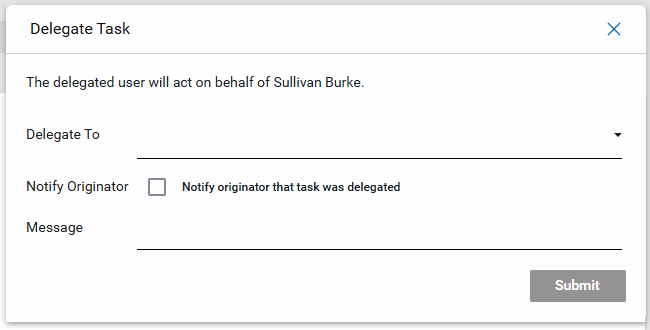
Select Delegate from the action bar. The Delegate Task window opens.
-
Complete the fields on the Delegate Task window.
-
Select the user to delegate the tasks to.
-
Select Notify Originator to send a message to the user who originally created or submitted the task.
-
Enter text in the Message field to be added to the message sent to the task originator.
-
-
Click Submit when you are done.
View the task source record
The source record of a task is the underlying document that generated the task. For example, when a user is assigned a task to respond to an RFI, the original RFI is the source record. While the task contains the information necessary to respond to the RFI, you can view the source record to see all the information contained in the original RFI record.
To view the source record of a task, complete the following steps:
-
Review the header to ensure that you are in the correct project or partition.
-
Navigate to Apps > Administration > Project Tasks.
-
From the log view, select the task to open the detail view.
-
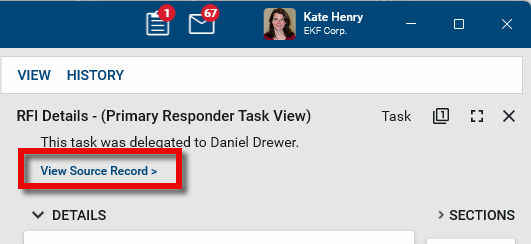
Select View Source Record.
-
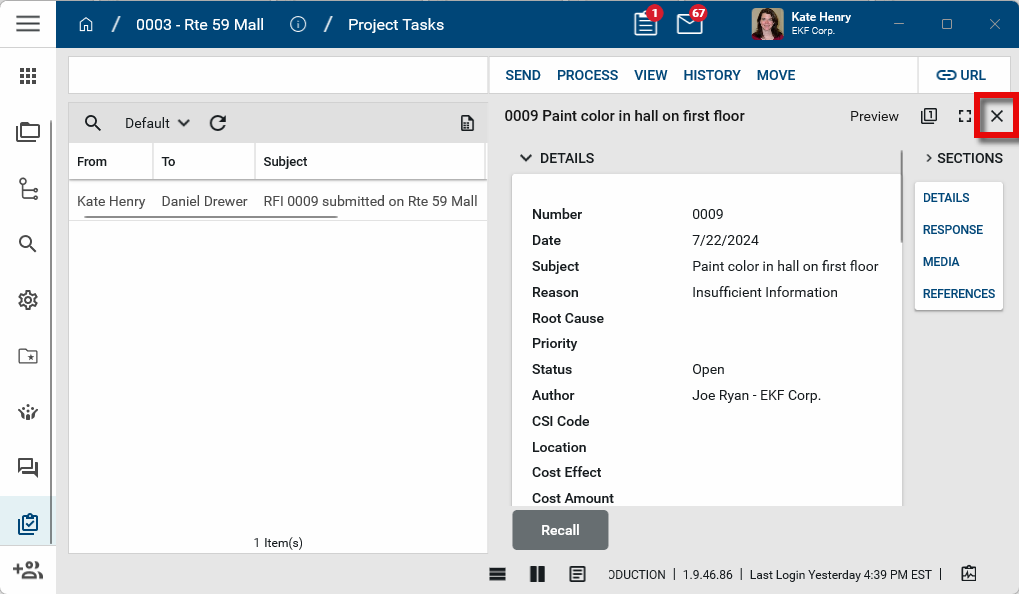
The source record opens. Depending on your permissions, you may be able to act on the open source record from this view.
-
To close the source record, click the Close icon
 .
.
Configure the app
Your domain administrator or another user with the appropriate permissions can configure the app in the Configuration application.
Important When working in the Configuration app, it is important to review the header and ensure that you are working at the correct level in the hierarchy, either the root domain or at a partition or project level.
Settings that you establish at the root domain or lower levels will inherit down the hierarchy until they are overridden. For more information on the hierarchical structure of Kahua, refer to Understanding the hierarchical structure of Kahua.
The Configuration app can be accessed directly through the apps list (Apps > Administration > Configuration), or, in some applications, by right-clicking on an application in the launch bar and selecting Configure. When you select Configure for an app from the launch bar, the detail view of the configuration page for that application opens automatically.
For general information on configuring this app in Configuration, refer to Application configuration.
Permissions
Permissions are managed in the Groups application. For detailed information on managing permissions, refer to Manage permissions for a group.
The following roles are available for this application:
| Role Name | Description |
|---|---|
| Administrator | The application administrator can perform all actions in the app, including Configugure edit, open app, view. |
| LimitedView |
This role works differently from other roles in that it does not grant access to any documents within an app. This is a restrictive role which will remove the following actions: Log, Quick Print, Send, Download, Export, Process, View PDF. |
| Observer |
Users with this role can open and view all task records within any project they've been granted access to, but they cannot delegate tasks or access the "All Domain" tasks view. Record-level filtering based on permissions is not supported. Observers see all task records within their scoped projects. |