Tasks App
You can receive tasks from other users in a number of applications in Kahua. All your assigned tasks from all your projects appear together in the Tasks app.
Because the tasks application consolidates all your tasks from all your projects, it does not matter what project is open when you are working in the Tasks application.
Note In addition to finding all your tasks in the tasks app, any active task assigned to you will appear when you open the associated record in the appropriate app and project. You can complete the task or click View Source Record to open the associated record.
How to . . .
 Open the Tasks app
The Tasks application can be accessed from any of the following three ways:
-
Tasks icon on the header
 - Click on the tasks icon on the Kahua header to open the app. The number in red on the icon is the number of open tasks you have.
-
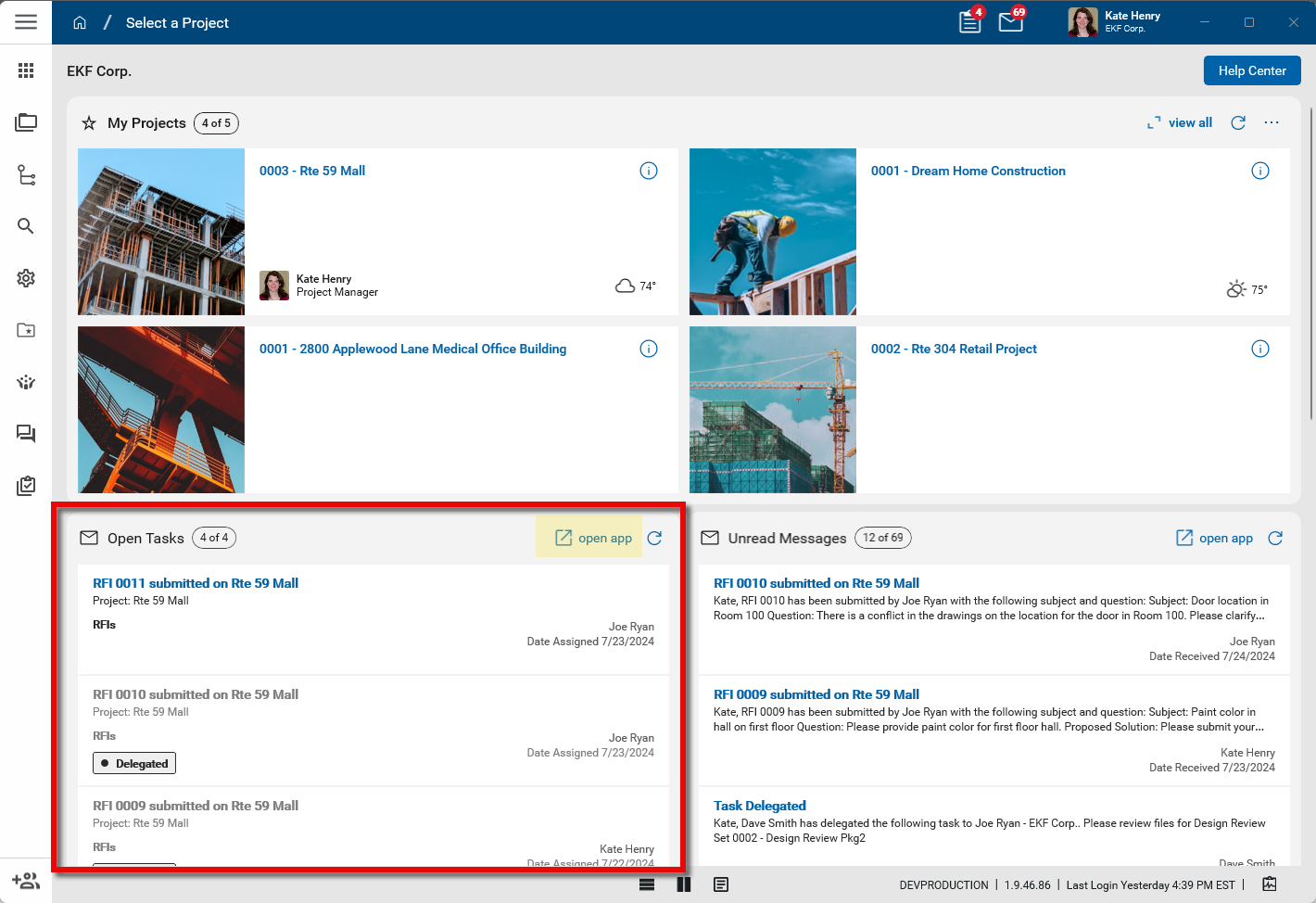
Open Tasks section of the Kahua Home page - Click on a task from the list of open tasks on the home page to open that task in the Tasks application. Alternatively, click open app from the section. For more information, refer to View Open Tasks.
-
Main Apps menu - Navigate to Apps > All Apps > Tasks to open the Tasks app.
Act on a task
To act on a task, complete the following steps:
-
Open the Tasks application. Refer to Open the Tasks app.
-
Your open tasks appear in the log view. From the log view, select a task to open the detail view.
Note You can edit the log view to add or remove fields, or re-order the columns. For example, if desired you can add the Project Number field to the log view. Refer to Log Views and Log Reporting.
-
Review the task in the detail view. If desired, select View Source Record to review the underlying document for the task.
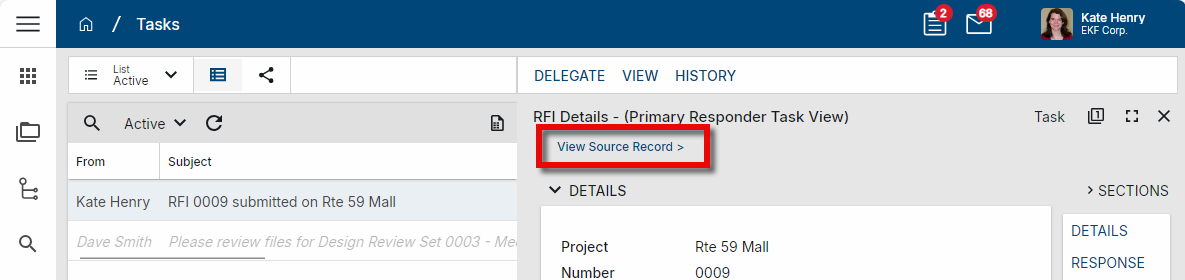
For example, if the task is requesting a response to an RFI, you can select View Source Record to open the associated RFI in the RFI application.
-
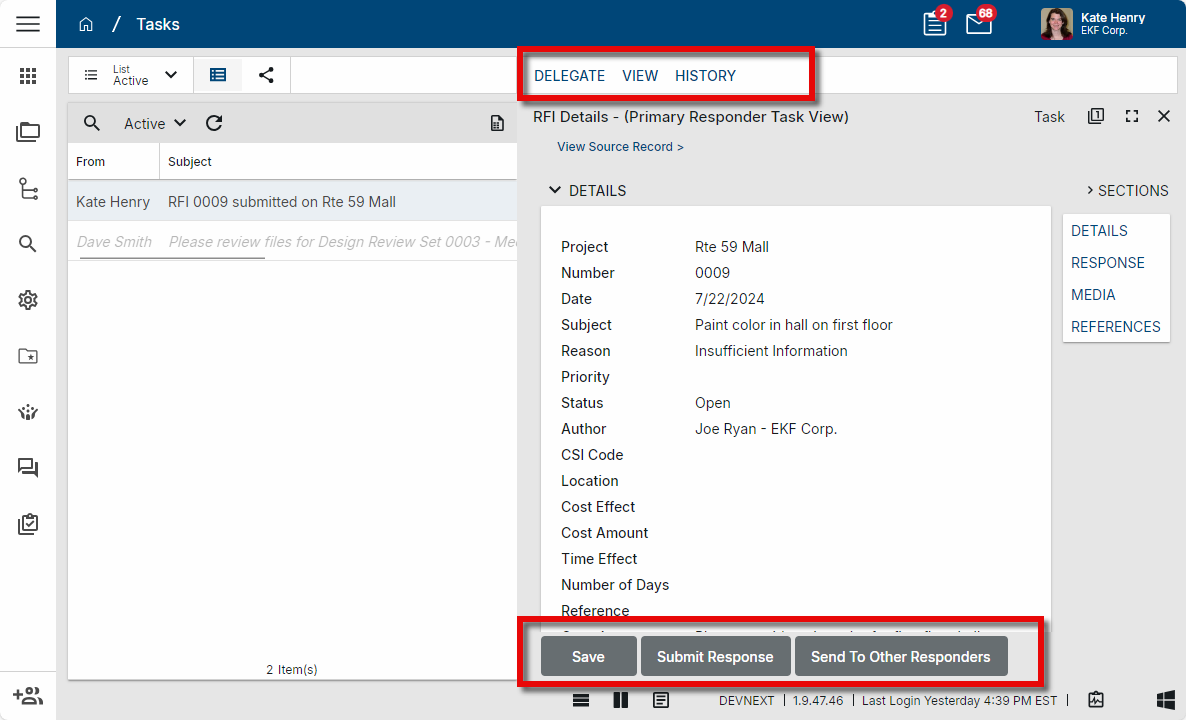
Some applications allow users to delegate, i.e. reassign, tasks to other users. If available, you can select Delegate from the action bar to reassign the tasks to another Kahua user. That user will be able to act on the task on your behalf. For more information, refer to Delegate a task to another user.
-
Depending on the task, different options will be available in the action bar. The available action buttons may include actions such as Approve, Decline, Mark Complete, Review Complete, Send Update, or Submit Response. Select the appropriate action button to complete the task.
-
If necessary, click Save when you are done.
Act on a delegated task
When a task has been delegated to you, it will appear in your tasks list like any other task assigned to you. You are able to act on it in the usual manner. For more information on acting on tasks, refer to Act on a task.
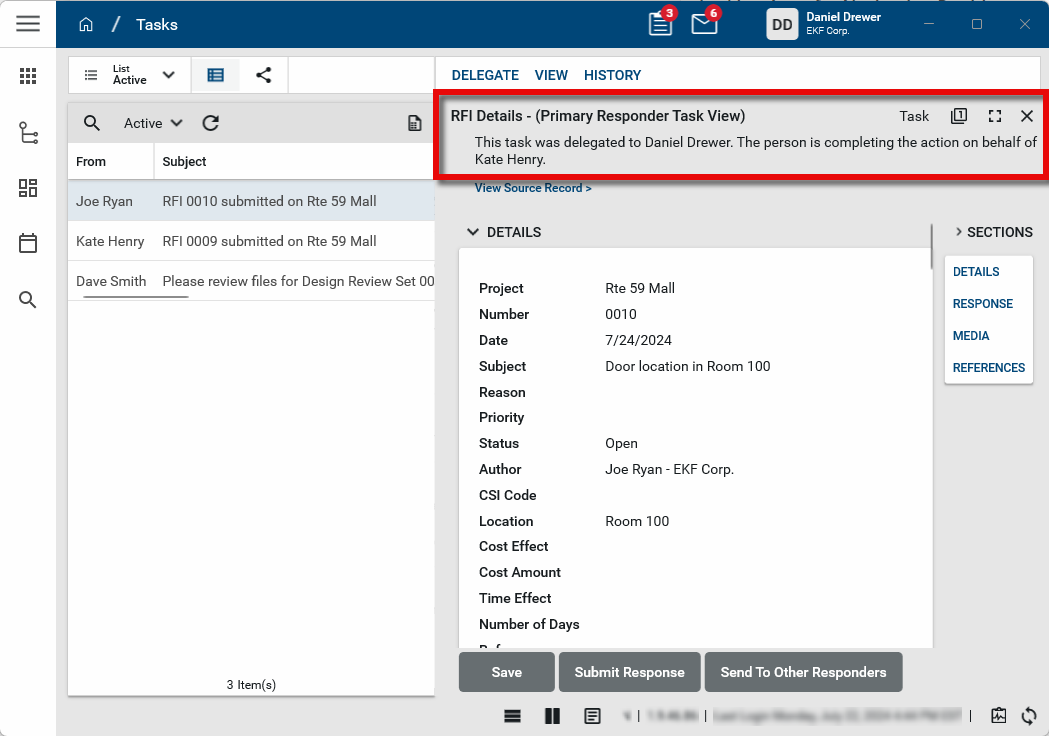
When you open the detail view of the task, information about the delegation will appear at the top of the task. It will indicate who the task was delegated to and who the task was delegated from. For more information on delegating tasks, refer to Delegating Tasks.
Use the Tasks app offline
The Tasks app is available for offline access. For more information on enabling this feature, refer to Kahua Offline.
Only tasks from updated hub apps are supported for offline access. The majority of available apps are hub apps. Tasks from legacy apps appear as disabled while you are offline.
If a task is recalled while you are offline, the actions taken while you were offline will be rejected and the updates will not sync to the affected source document.
Delegate a task to another user
For most tasks, you have the option to delegate, i.e., reassign, the task to another user in your primary domain. For more information, refer to Delegating Tasks.
Important Administrators can delegate tasks on behalf of other users through the Project Tasks app. This can be helpful when a user is not available to delegate tasks for themselves. For more information, refer to Project Tasks.
To delegate a task, complete the following steps:
-
Open the Tasks application. Refer to Open the Tasks app.
-
From the log view, select the task to be delegated to open the detail view.
-
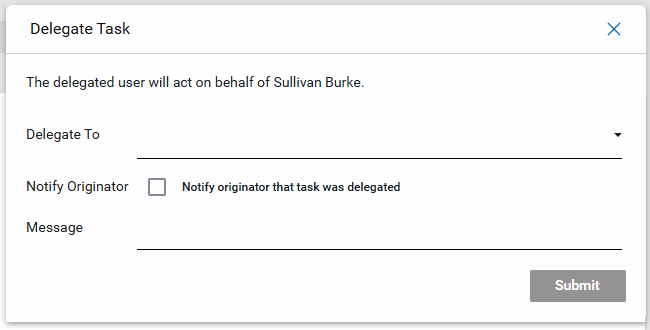
Select Delegate from the action bar. The Delegate Task window opens.
-
Complete the fields on the Delegate Task window.
-
Select the user to delegate the task to.
-
Select Notify Orginator to send a message to the user who originally created or submitted the task.
-
Enter text in the Message field to be added to the message sent to the task originator.
-
-
Click Submit when you are done.
Note Tasks that have been delegated to other users appear in your task log view, but are greyed out to indicate that they have been delegated.
View your completed tasks
To view a list of your completed tasks, complete the following steps
-
Open the Tasks application.
-
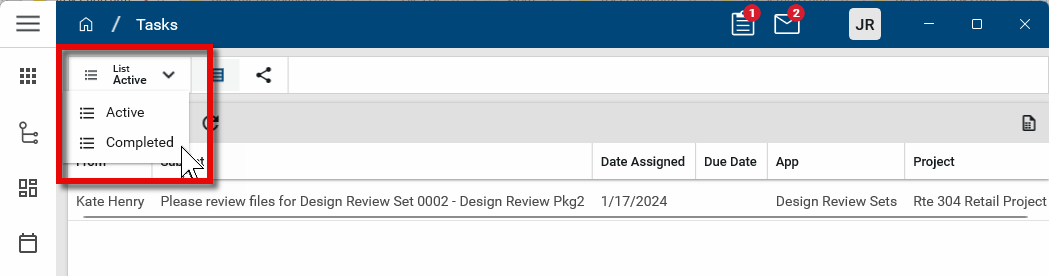
In the upper left corner, the list view defaults to Active. Click on the list and select Completed.