Kahua Home Page
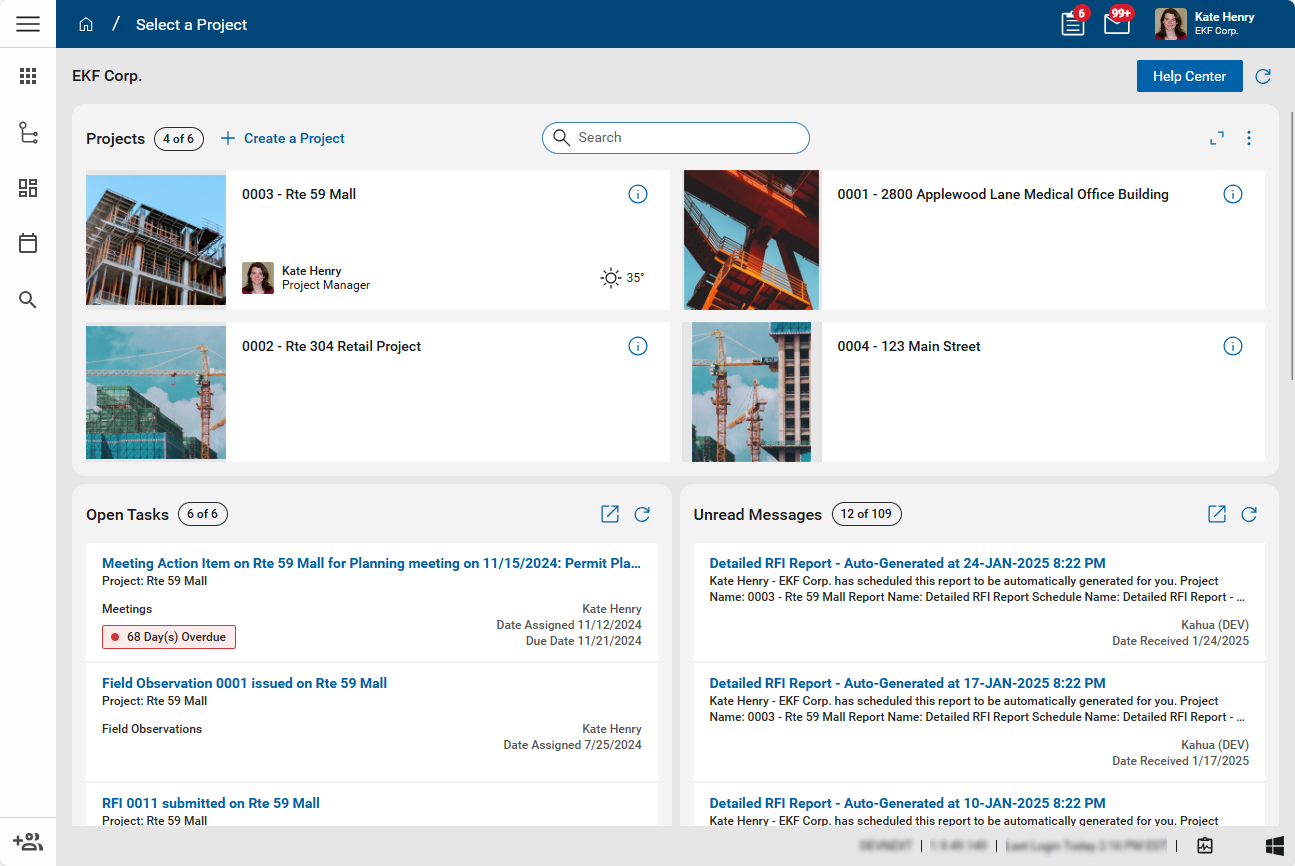
The Kahua Home page is the page the opens when you first log in to Kahua. You can return to the home page at any time by clicking the home icon  in the Kahua header.
The home page allows you to easily access your projects, tasks, and messages.
Note For more general information on navigating in Kahua, refer to Navigating Kahua.
How to . . .
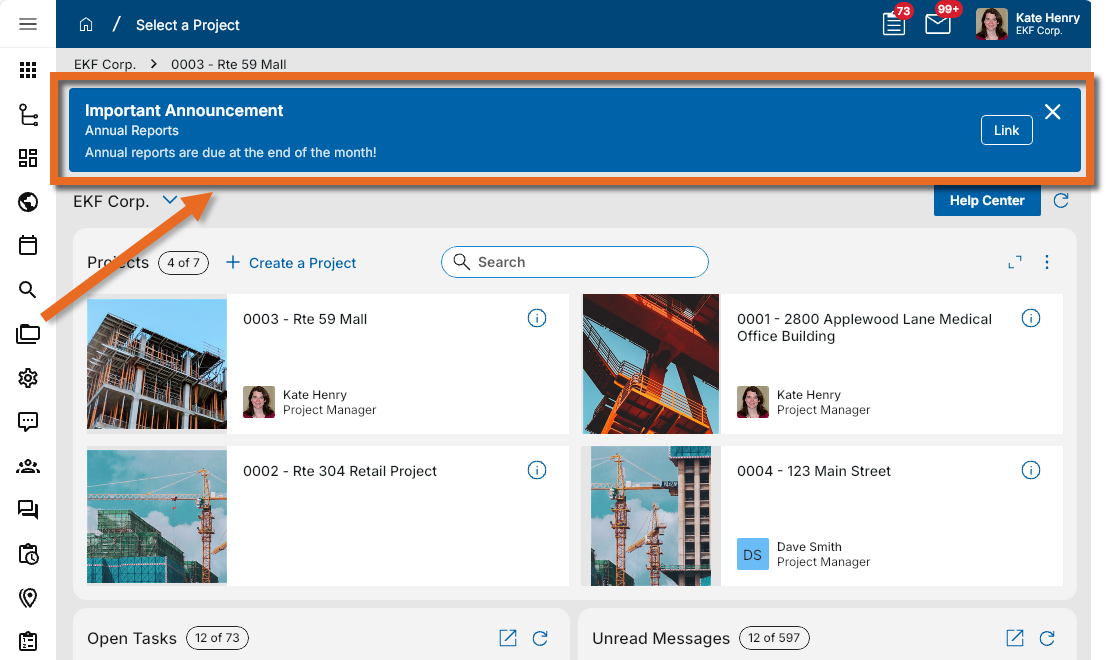
 Review Announcements
Your domain administrator can publish an announcement to your domain home page. The announcement may contain text and URL links.
For more information on setting up announcements, refer to Home Page Settings.
Switch domains
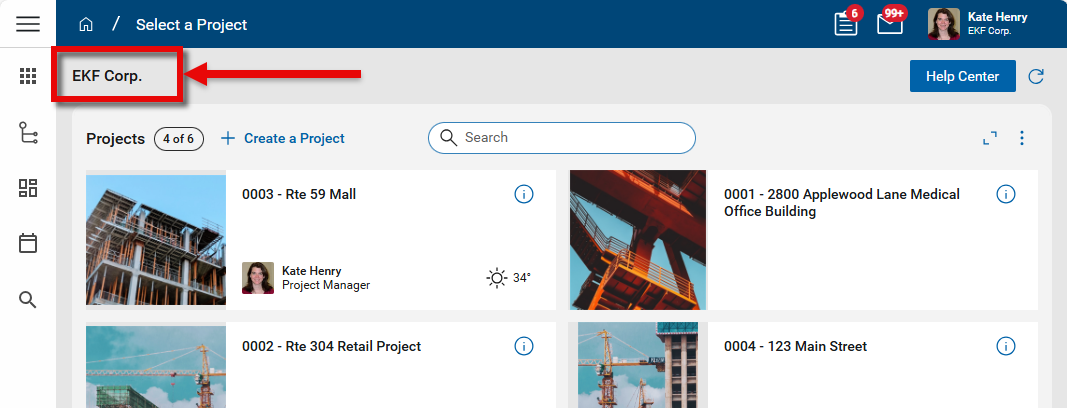
The name of your current domain appears in the upper left corner of the home page. The projects in the Projects section are filtered by the currently selected domain.
If you have access to more than one domain, you can switch domains by clicking on the Change Domain icon  next to the name of the current domain. A list of available domains appears. Select the desired domain name to switch to that domain.
Once you switch domains, projects from the newly selected domain will appear in the Projects section of the home page.
Access the Help Center
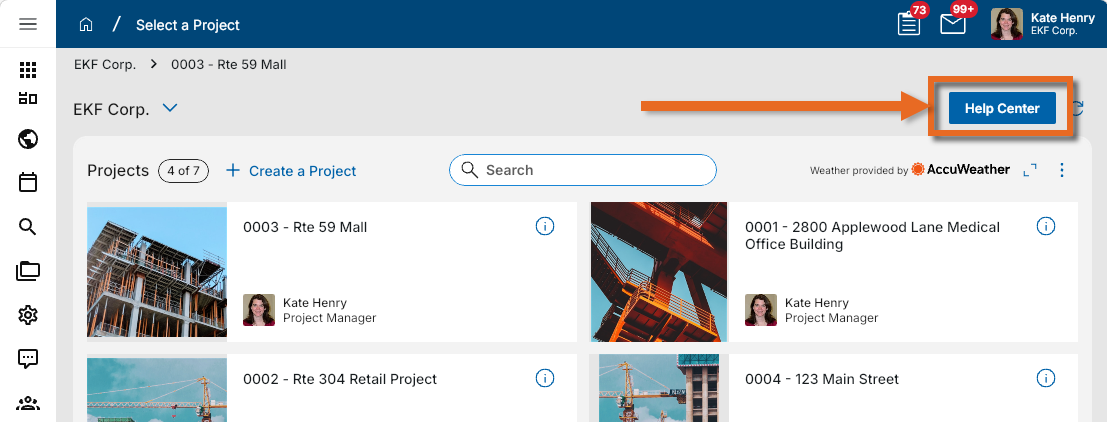
Just below the header, you'll see the name of your currently selected domain and the Help Center button. The Help Center button opens either Kahua's online help or a help page specific to your organization. Additionally, your domain administrator may have renamed the Help Center button.
Your domain administrator manages the text and the link for the Help Center button in the Domain Settings application. Refer to Custom Support URL.
View projects and manage the Projects section
In the Projects section, projects from your currently selected domain appear.
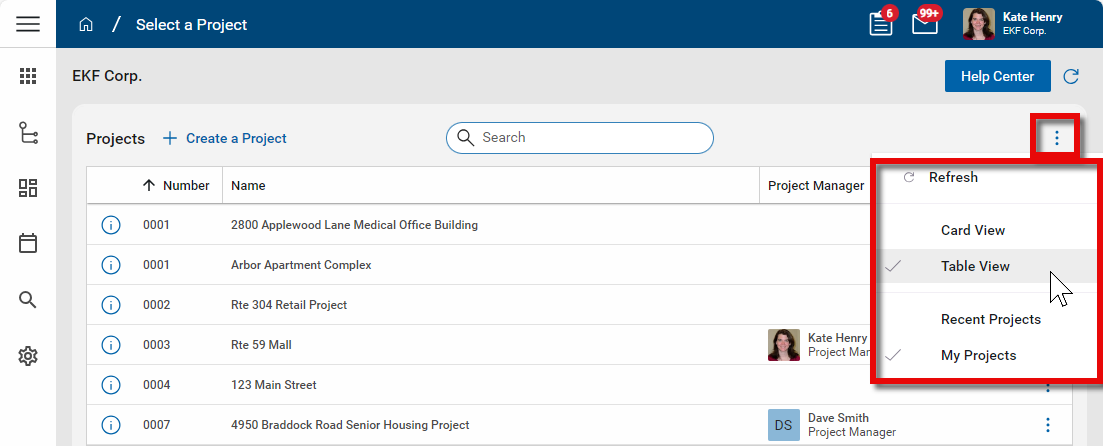
Depending on your selection, either your mostly recently accessed projects appear in this section, or projects that you've added to your My Projects list in the Project Finder app appear. To switch between viewing Recent Projects and My Projects, click on the More menu icon and make the appropriate selection.
Note For more information on using the Project Finder app to "favorite" a project so it appears on your My Projects list, refer to Favorite a Project.
The projects can appear as widgets in the card view, or in a list in the table view. To switch between views, click on the More menu icon and make the appropriate selection.
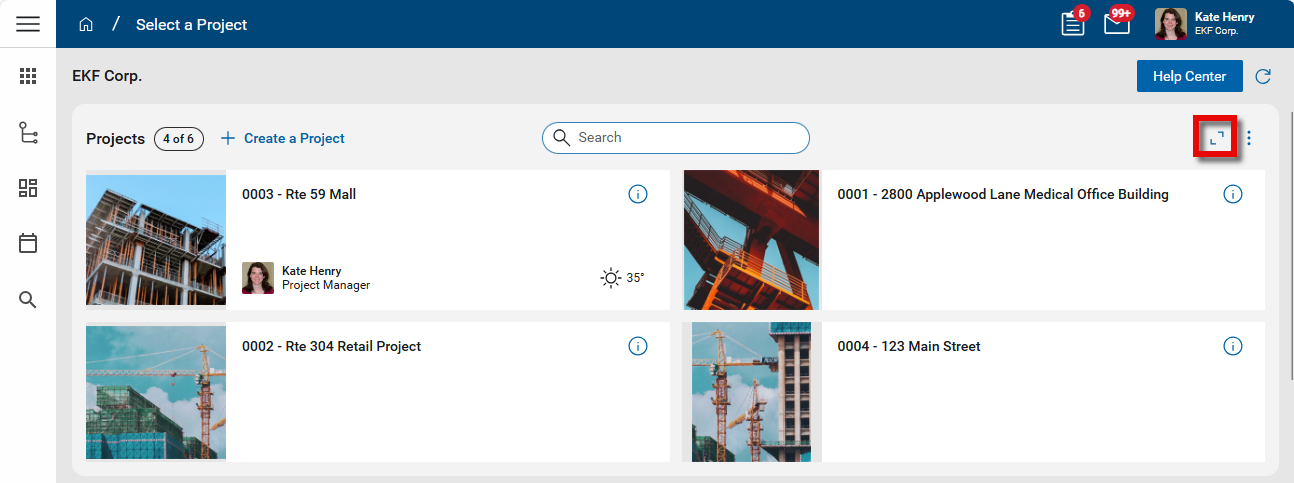
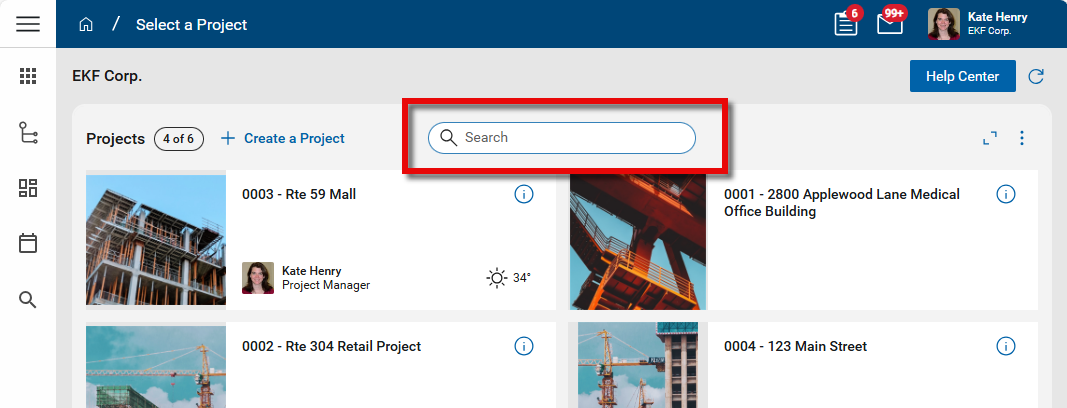
The Card View shows each project in its own widget. To view more projects, click the View All  icon.
icon.
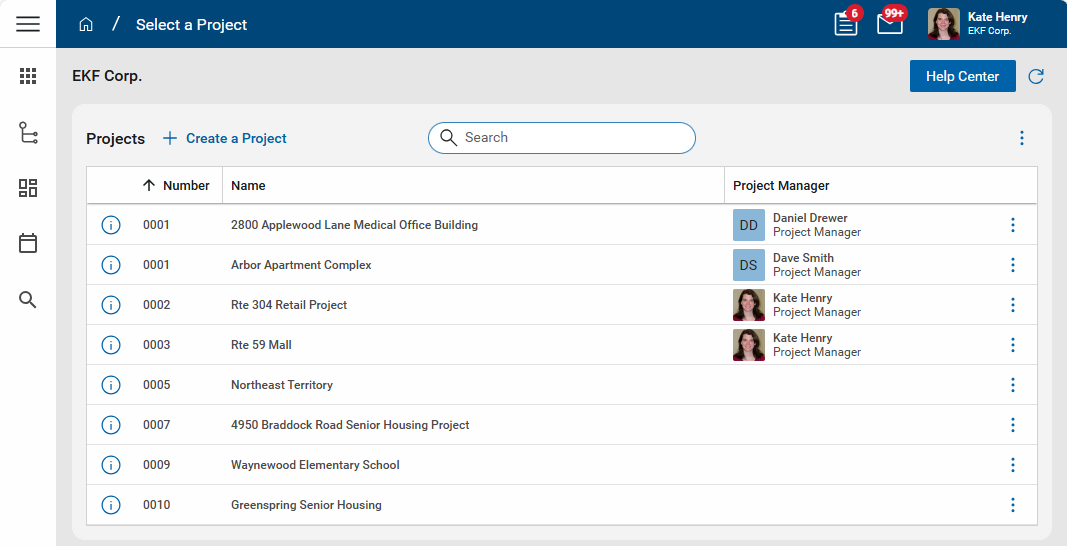
The Table View shows the projects in a list. Click on a column header to sort the list by that column.
Note Your project selections and view selections are retained when you return to the home page.
The following information appears for each project:
| Field | Description |
|---|---|
| Project Image | The project image only appears on widgets in the card view. It is from the logo field on the Project Information page. |
| Project Number | The project number always appears in the table view. It will only show in the card view if you've enabled the My Settings > General tab > Show project Number setting. Refer to Show project number. |
| Project Name | This value is stored in the Project Information page. |
| Project Manager | This value is stored in the Project Information page. |
| Current weather conditions at the site | To have weather conditions appear, you must configure weather for the project in the Configuration app > Weather tab. Refer to Configuring weather data for a project. |
To open the Project Information page, select the information icon  on the widget or table. Users with the appropriate permissions can select Edit to update the information. Refer to Project Information.
To open a project, click on the project name. The project will open with the currently open app. If you do not currently have an application open, a list of your most recently used apps will appear. Select an app to open it in the project.
In addition to modifying what projects appear and in what format, you can also complete the following actions:
-
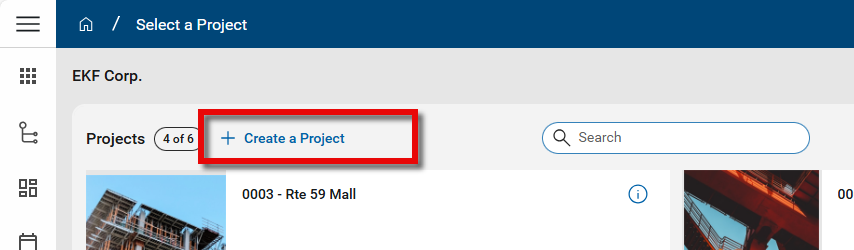
Create a Project - Users with the appropriate permissions have the option to create a new project by selecting Create a Project. For more information, refer to Creating a new project.
-
Search for a project - You can search for any project in the currently selected domain. Click in the Search bar and enter a portion of the project name (or project number if you have My Settings > Show Project Number setting enabled, refer to Show project number). The search functions in the same way as the project search in the header. Refer to Project number and name.
View Open Tasks
The twelve most recent tasks assigned to you that are not yet complete appear in the Open Tasks section. The total number of open tasks appears in the header. Overdue items are flagged with a tag.
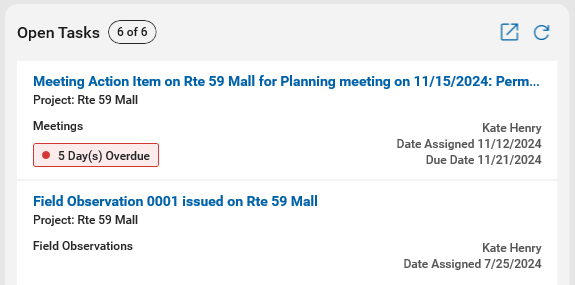
For each task, the following items appear on the task card: the Task Name, associated Project and app, who it is from, the Date Assigned and the Due Date.
In this section, you can complete the following actions:
-
To open a task in the Tasks app, click anywhere on the task card.
-
To open the Tasks app, select the Open App icon
 .
. -
To refresh the list of tasks, click the Refresh icon
 .
.
For more information on Tasks, refer to Tasks App.
View Unread Messages
The twelve most recent messages you have not yet read appear in the Unread Messages section. The total number of unread messages appears in the header.
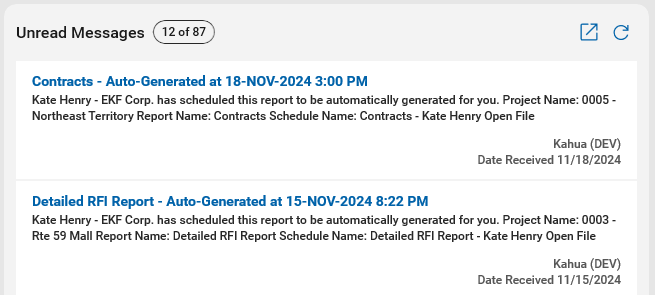
For each message, the following items appear on the message card: the subject of the message, a portion of the message text, who sent it and when you received it.
In this section, you can complete the following actions:
-
To open a message in the Messages app, click anywhere on the message card.
-
To open the Messages app, select the Open App icon
. -
To refresh the list of messages, click the Refresh icon
.
For more information on Messages, refer to Messages app.