Submittals
The submittal process in construction is where contractors on a project submit product data or samples of the materials and equipment they intend to use on the project for review by the architects and engineers. This ensures that the proper items are used and installed on the project.
In Kahua, the individual items submitted are tracked in the Submittal Items sub-application. The submittal register, a list of anticipated submittal items, can be created ahead of time.
Individual items can be submitted for review and tracked in the Submittal Items sub-application, or multiple submittal items can be grouped together into a submittal package and tracked in the Submittal Packages sub-application. Submittal packages or submittal items are routed to the appropriate parties for review and responses are returned to the contractors involved.
The following diagram outlines the general review process. It does not include all the available workflow options.
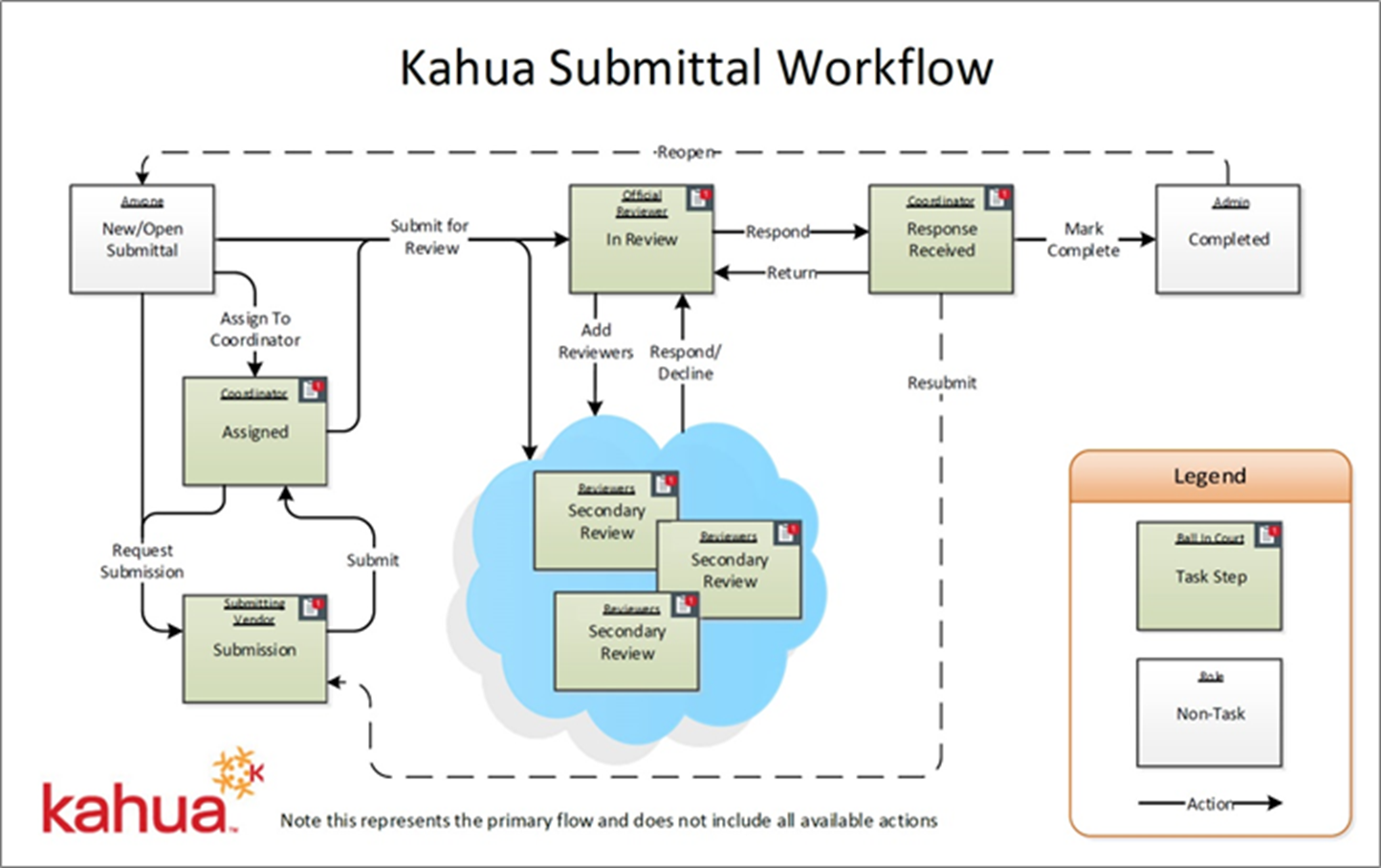
-
For information on managing submittal items and creating a submittal item register in the Submittal Items app, refer to Submittal Items.
-
For information on managing submittal packages, refer to Submittal Packages.
How to . . .
 Configure the submittal applications
Your domain administrator or another user with the appropriate permissions can configure the submittals apps in the Configuration application.
The settings that impact the submittal process, regardless whether you use Submittal Packages or Submittals Items for tracking are managed on the Packaged Submittals page (Apps > Administration > Configuration > Applications tab > Packaged Applications). These settings are described below.
For information on configuring submittal items, refer to Submittal Items. For information on configuring submittal packages, refer to Submittal Packages.
Important When working in the Configuration app, it is important to review the header and ensure that you are working at the correct level in the hierarchy, either the root domain or at a partition or project level.
Settings that you establish at the root domain or lower levels will inherit down the hierarchy until they are overridden. For more information on the hierarchical structure of Kahua, refer to Understanding the hierarchical structure of Kahua.
The Configuration app can be accessed directly through the apps list (Apps > Administration > Configuration), or, in some applications, by right-clicking on an application in the launch bar and selecting Configure. When you select Configure for an app from the launch bar, the detail view of the configuration page for that application opens automatically.
For general information on configuring this app in Configuration, refer to Application configuration.
The following items apply to the submittals process whether you are using Submittal Items or Submittal Packages to track the submittal review process:
| Options | Description |
|---|---|
| Settings tab | |
| Hide Assign to Coordinator | Some organizations have a Submittal Coordinator who manages the submittal process and is a different person than the user who creates the submittal packages and items. If your organization does not have anyone in this role, you can select this option to remove the Assign to Coordinator option from submittal items and packages. |
| Hide Request Register and Material Tracking |
Select this option to hide the ability to request a register of materials and from the submittal vendor. This feature is used to allow the submittal vendor to submit their list of items for submission, including fabrication time. It is available if the Owner Directed workflow is selected. Select this option to use the Owner directed workflow without register and material tracking. Note This option is only relevant if you are using the Owner Directed workflow. |
| Only Official Reviewer can Mark Complete | Select this option so that only the user designated as the Official Reviewer in the submittal item or package has the Mark Complete option available to them. If this check box is cleared, then other users in the process can mark a submittal item or package as "Complete". |
| Allow Submitter to Submit to Review | Select this option to allow the company responsible for creating the submittal to submit it directly to the reviewer for review. |
| Recalculate Submission Due from Vendor Date on Revise Action |
Select this option to allow the submission due date to be recalculated when a submittal item or package is returned for revision. If not selected, the original due date is retained. If selected, the value in the Configurations app > Applications tab > Submittal Items or Submittal Packages > Defaults > Vendor Resubmission Period field will be used to calculate the resubmission due date. The value in that field represents the number of additional days allowed for resubmission of the submittal item or package. |
Available application roles
Application roles determine which actions users can perform in the app. Roles are assigned to groups in the Groups app > Permissions tab. Members of the group then have the permissions associated with the roles assigned to the group.
The following roles are available for this application:
| Role | Details |
|---|---|
| Administrator |
Full administration, including add, configure, create lists, edit, import, export, share, view, send, process, remove, and edit view templates. |
| Contributor |
Can add, edit, open, view, send, and process records. |
| Moderator |
Can add, edit, import, export, remove, share, open, view, send, and process records. |
| Observer |
Can open, view, send, and process records. |
| Referencer |
View-only access to records. |
Note To manage these permissions, open the Groups app and assign the appropriate application role to the group. Only users with the appropriate permissions can manage application roles. For more information, refer to Managing Permissions.