Submittal Items
Submittal items can be created as line items when creating submittal packages, or they can be entered ahead of time to create a submittal register. They can be entered manually, entered through the Submittal Item Registry wizard, or imported into the Submittal Items app.
Individual items can be submitted for review and tracked in the Submittal Items sub-application, or multiple submittal items can be grouped together into a submittal package and tracked in the Submittal Packages sub-application.
Note By default, an in-app Summary dashboard appears above the submittal items log view. For more information, refer to Using in-app summary dashboards.
How to . . .
 Create a Submittal Item
To create a new submittal item, complete the following steps:
-
Review the header to ensure that you are in the correct project or partition.
-
Navigate to the Submittal Items application (Apps > Document Management > Packaged Submittals > Submittal Items).
-
Click New in the action bar.
-
Complete the following fields as appropriate:
Note Depending on how this app is configured for your domain, there may be fields or sections listed here that do not appear for you, fields and sections that appear for you which are not listed here, or fields and sections which appear in a different order. If you have any questions, check with your domain administrator.
Field Description Details Number Allow Kahua to auto-number the record, or enter a different value.
Note The number format can be configured by your domain administrator. Refer to Number.
Revision Enter a revision number. Typically, the first revision number is 0.
Subject Enter a subject. Description Enter a description.
Work Package Select a work package to establish default reviewers and distribution.
When a new work package is selected, the Secondary Reviewers and Consultant Reviewers are automatically updated to reflect only the contacts defined in the newly selected Work Package. All reviewers associated with the previous Work Package are automatically removed.
For more information, refer to Work Packages.
Priority Select the appropriate priority. Submittal Package If available, select the appropriate submittal package for this submittal item.
Note When a submittal package is selected here, the Assign to Coordinator, Mark Complete, Request Submission, and Submit to Reviewers options on the submittal item become unavailable, as these actions will be completed on the submittal package.
Track with Package Select this option to have the status of the associated submittal package determine the status of this submittal item.
Status Select the appropriate status. When the item log is initially created, the status will be "New" by default.
Submittal Coordinator Your name is selected by default. Modify if necessary.
Note This is the person who receives the submittals from vendors, sends submittals to reviewers, and returns final response to the sub.
QC Reviewer If using, select the Quality Control (QC) Reviewer. This is the user who will review the submittal for contract conformance prior to its submission to the official reviewers.
Depending on your organization's preferred workflow, the submittal can be returned back to the submittal coordinator or sent directly to the official reviewers after the QC Review.
QC Response The QC Reviewer selects the appropriate response from this list.
Note This lookup list is managed in the Configuration app. Refer to Lookups.
QC Notes The QC Reviewer enters notes here as needed. Category Select the appropriate category. Depending on how your domain or project is set up, this may reflect the CSI Divisions used on your project, or another categorization.
Type Select the appropriate type. This field may be used to describe the item being submitted, such as a sample or a shop drawing.
Note This lookup list is managed in the Configuration app. Refer to Lookups.
Reason Select the appropriate reason for the submission.
Example Typically items are submitted for review, but if an item is being submitted for information only, that can be designated here.
Location Select one or more locations from the list, as appropriate. For more information on setting up location values, refer to Setting up locations.
CSI Code Select the appropriate CSI Code.
Note For more information, refer to CSI Codes.
Page # Select the appropriate page number where the submission requirement is found in the specifications.
Omni Class If using, select the appropriate value from the list.
Note For more information, refer to OmniClass Codes.
Critical Path / Material Tracking / As Specified Only / Substitution / Include with O&M Manual / Asset Tracking
Select these items as appropriate. Selections are for informational purposes only and do not impact the workflow.
Submitting Vendor Select the vendor responsible for submitting the item. If the vendor is a Kahua user, you can use Request Submission to request the submittal through a Kahua task on their domain.
Material Copies Required / Submitted / Returned
Enter the appropriate information for the number of copies required, submitted, and returned as the submittal item goes through the review process.
Lead Time (Days) Enter the lead time information for this item. Manufacturer / Model Number / Country of Origin Enter this information as appropriate. Vendor Notes Enter any notes as appropriate. Response Distribution Select contacts who should receive of copy of the response when it is completed.
Notify Response Distribution on Submit to Review
Select this option to notify contacts in the Response Distribution field when the submittal item is submitted for review.
Default values for these fields can be selected in configuration. Refer to Defaults.
Notify Response Distribution on Completed Review
Select this option to notify contacts in the Response Distribution field when the review on the submittal item is complete.
Notes Enter any notes as appropriate.
Portable View Template If appropriate, select a portable view template other than the default here.
For more information on portable views, refer to Portable Views.
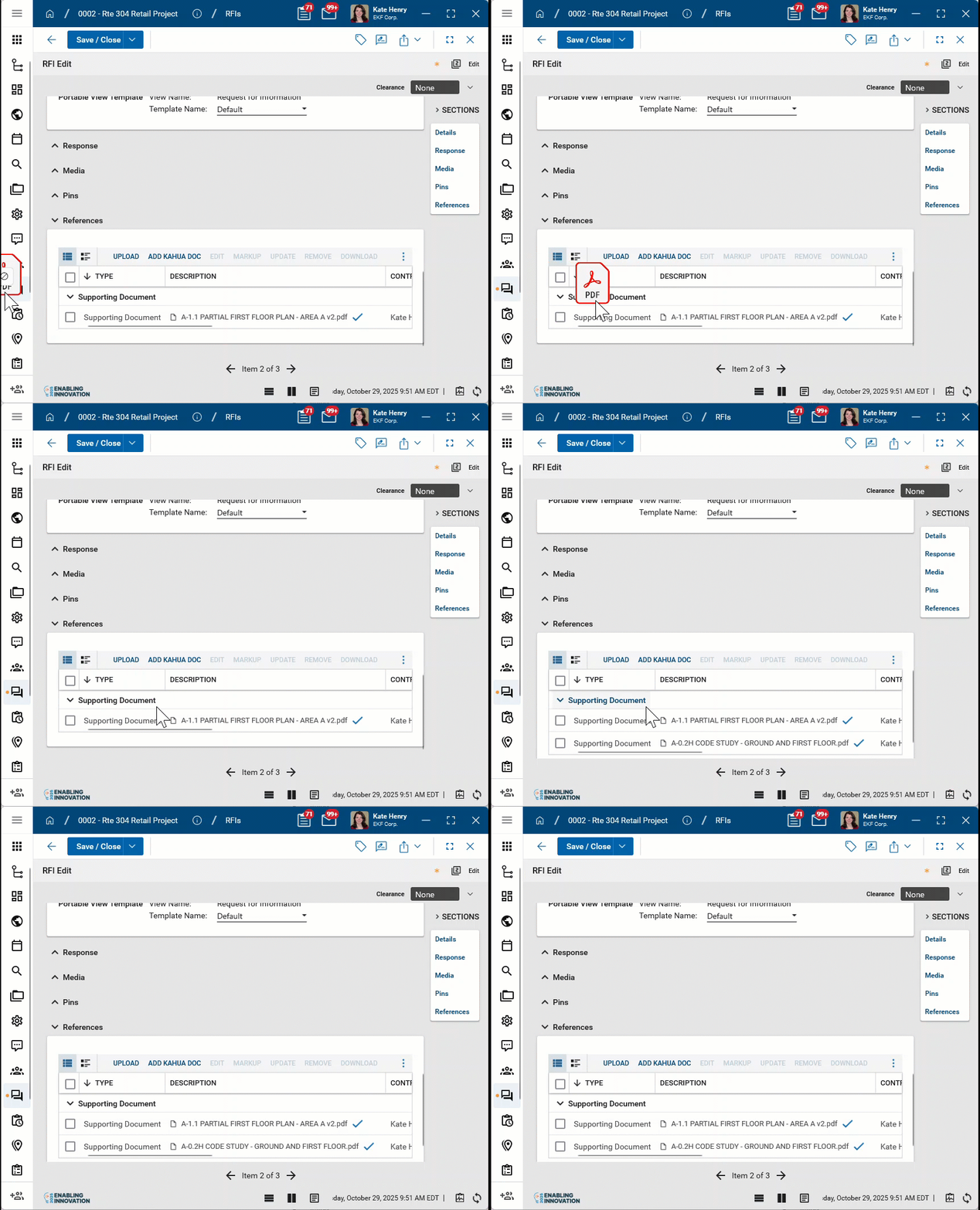
References Upload or select any relevant files or documents. You can use drag and drop to add a file to this section. For more information on using this section, refer to References section.
Response Official Reviewer Select the official reviewer. Instructions to Official Reviewer Enter any instructions to the official reviewer. Response The official response appears here. Response Notes Any notes from the response appear here. Owner's Rep If appropriate, select the Owner's Rep. Instructions to Owner's Rep Enter any instructions to the Owner's Rep. Owner's Rep Notes Any notes from the Owner's Rep appear here. Date Sent / Date Due / Date Responded These date fields will automatically be completed if you use the Kahua workflow. Otherwise you can manually enter in the information. Response / Primary Response The response to the question posed appears here. Consultant Reviewers Consultant Reviewers appear here. Click Insert to insert a number of lines in the grid and select Consultant Reviewers. Click the More icon
 to open an expanded grid view. For more information on working with grids, refer to Item grids.
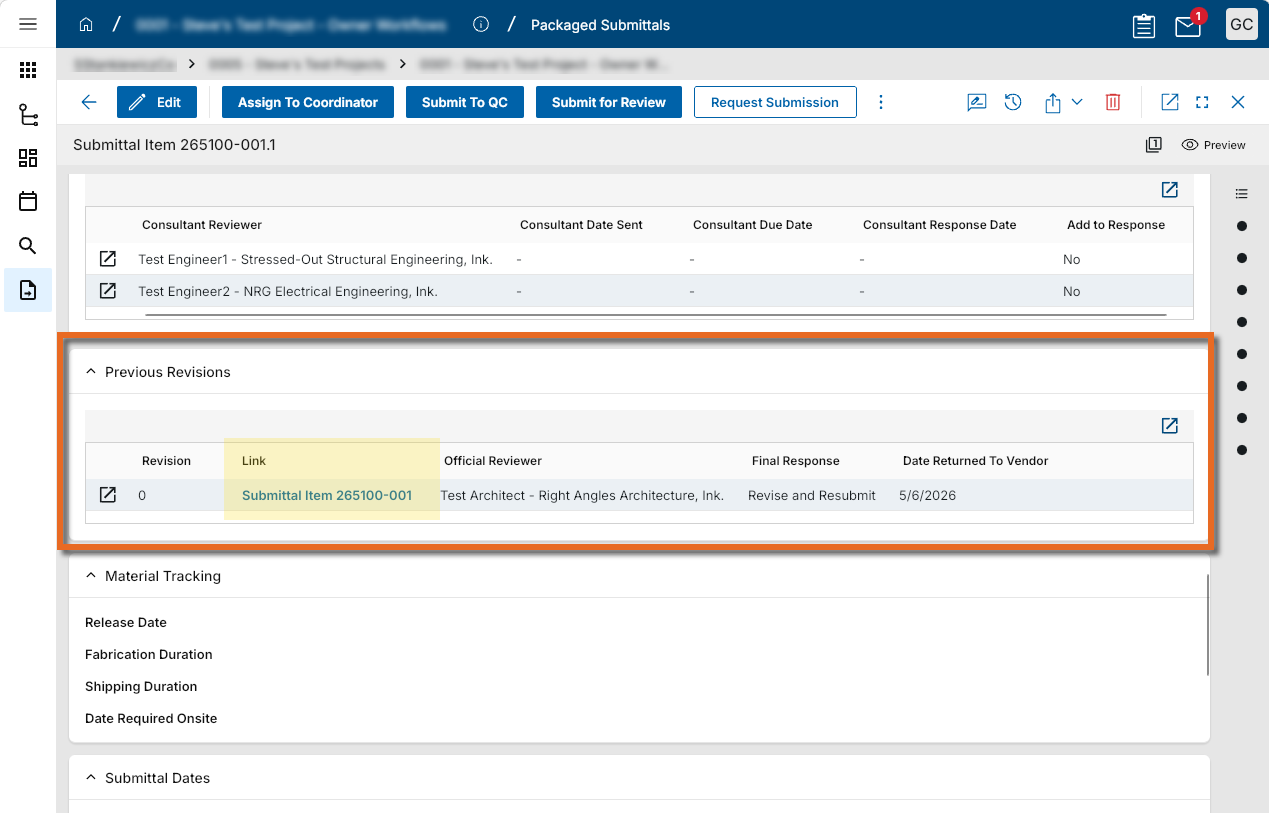
Previous Revisions Previous revisions appear here. Click on the link to open the previous version.
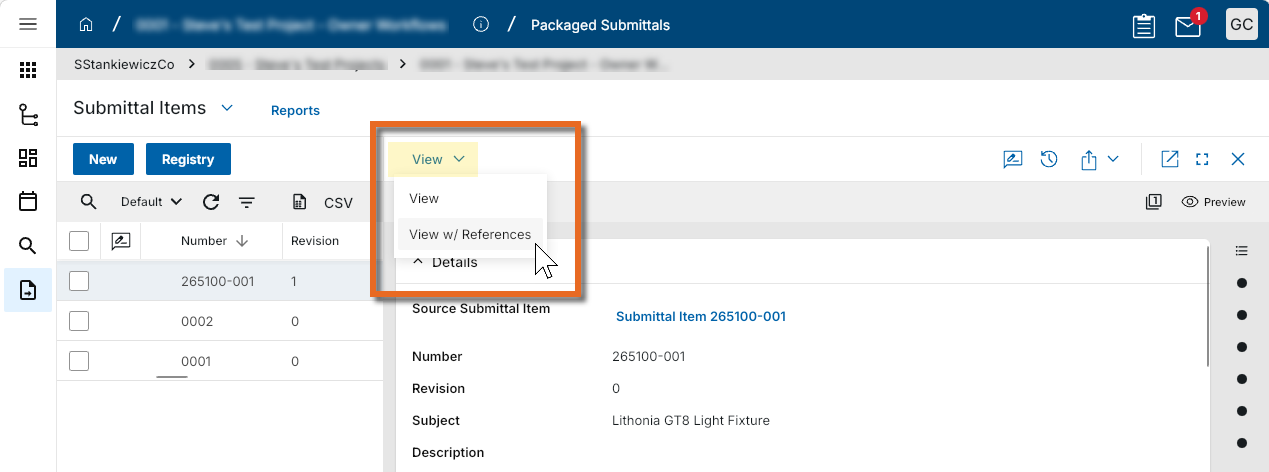
Select View or View w/References from the action bar to open the portable view of the previous revision.
Submittal Dates These dates appear automatically as the submittal item goes through the review process.
Comments Add any comments as appropriate here. -
Click Save when you are done.
Import a list of submittal items
Submittal items are imported in the same manner as other imports are completed in Kahua. For more information on the import process, refer to Importing records.
Request submittal items from a vendor
If you are gathering submittals from the Submitting Vendor to submit for review, and that vendor uses Kahua, you can select Request Submission to create a task in their Kahua domain.
This process can be done from the submittal item if you are tracking submittal items without a package, or from the submittal package if you are tracking submittal items with packages.
Once you request submission from a vendor, the submittal package or item becomes locked. If you need to edit the package or item, select Recall to remove the task from the submitting vendor's task list. The package or item can then be edited and you can again request submission.
Configure the Submittal Items app
Your domain administrator or another user with the appropriate permissions can configure the app in the Configuration application.
If you are using submittal packages, there are three applications involved in configuring the submittals process. The settings that impact the submittal process regardless whether you use Submittal Packages or Submittals items for tracking are managed on the Packaged Submittals page (Apps > Administration > Configuration > Applications tab > Packaged Applications). For more information, refer to Submittals.
For information on configuring submittal packages, refer to Submittal Packages.
Note There are many fields available for selection in the Submittal Items application. If there are fields that you know your organization will not be tracking, you can have your domain administrator clear the Is Visible check box for that field on the Configuration > Applications > Submittal Items > Fields tab to remove them. Refer to Fields.
Important When working in the Configuration app, it is important to review the header and ensure that you are working at the correct level in the hierarchy, either the root domain or at a partition or project level.
Settings that you establish at the root domain or lower levels will inherit down the hierarchy until they are overridden. For more information on the hierarchical structure of Kahua, refer to Understanding the hierarchical structure of Kahua.
The Configuration app can be accessed directly through the apps list (Apps > Administration > Configuration), or, in some applications, by right-clicking on an application in the launch bar and selecting Configure. When you select Configure for an app from the launch bar, the detail view of the configuration page for that application opens automatically.
For general information on configuring this app in Configuration, refer to Application configuration.
The following items are specific to this application:
| Options | Description |
|---|---|
| Field Groups | |
| GC Attributes / Sub Attributes w/Collaboration / Sub Attributes w/o Collaboration | These selections add or subtract fields from the user interface. Generally speaking, it is preferable to review the Fields tab and determine which fields are appropriate to include or hide for your organization's workflow. Refer to Fields. |
| Workflow | |
| Active |
Select the appropriate workflow option:
Note Workflow selections can be made in both the Submittal Packages and Submittal Items applications. |
| Settings | |
| Official Response Period / Owner Response Period / Consultant Response Period / Vendor Submission Period / Days in Review Calendar |
For each calendar period, select the appropriate calender option from the available choices:
Note Office Days, Job Site Days, Holidays, and Exceptions are managed on the Configuration app > Work Days tab. For more information, refer to Work Days. |
| Allow Submitter to Create Records | Select this option to allow the submitting vendor to create submittal item records. |
| Submittal Coordinator Must Be Domain User | Select this option to require the Submittal Coordinator to be a Kahua user. |
| Disable Submitting Vendor Workflow | Select this option to remove the option to request submittal items from a vendor and remove the associated workflow. |
| Disable Distributed Status (Kahua Submittal Item Workflow Only) | When using workflow and the reviewer returns the submittal with a response, the status of the item automatically updates to "Responded". When the submittal is subsequently returned to the vendors using workflow, the status of the item automatically updates to "Distributed". To remove that status change from your workflow and have the submittal item status remain as "Responded" after distribution, select this setting. |
| Require Consultant Item Response | If there is a consultant reviewer designated on a submittal, selecting this option requires that they select a response for the submittal items. |
| Require Consultant Item Response Notes | If there is a consultant reviewer designated on a submittal, selecting this option requires that they select add response notes for the submittal items. |
| Enable QC Workflow |
Select this option to enable the Submit to QC action option on submittal items. When clicked, the submittal package is sent as a task to the QC Reviewer. Note You can clear this selection if you are not using a Quality Control reviewer as part of your submittal review process. |
| Allow QC Reviewer to Submit to Reviewers |
Select this option to enable the Submit to Reviewers action option on submittal items.
Note You can clear this selection if you are not using a Quality Control reviewer as part of your submittal review process. |
| Responses to Count as "Approved" |
Select which reviewer responses should be considered as an approval for submittal items. When values are entered here, the Count as Approved field is automatically selected when one of the designated responses is applied to a submittal item. The Count as Approved field is available for selection in log views, custom reports, and the data store. Note The Count as Approved field will automatically be selected based on your selections here, regardless of its visibility setting. Note that it should be set to Is Visible to be available for use in log views. Important The Count as Approved field is not selected retroactively when responses are added to this setting. To have this field selected for previously approved submittal items, make the field visible and manually select it for the appropriate items. |
Available application roles
Application roles determine which actions users can perform in the app. Roles are assigned to groups in the Groups app > Permissions tab. Members of the group then have the permissions associated with the roles assigned to the group.
The following roles are available for this application:
| Role | Details |
|---|---|
| Administrator |
Full administration, including add, configure, create lists, edit, import, export, share, view, send, process, remove, and edit view templates. |
| Contributor |
Can add, edit, open, view, send, and process records. |
| Moderator |
Can add, edit, import, export, remove, share, open, view, send, and process records. |
| Observer |
Can open, view, send, and process records. |
| Referencer |
View-only access to records. |
| TemplateEditor |
Can edit view templates. |
| Reviewer |
Can open, view, and send records. |
| Submitter |
Can add, edit, open, view, and send records. |
Note To manage these permissions, open the Groups app and assign the appropriate application role to the group. Only users with the appropriate permissions can manage application roles. For more information, refer to Managing Permissions.