Kahua 2026 Q4 Release Notes
The Kahua 2026 Q4 release will be deployed to our Production environments on November 13, 2026. A preview of this functionality can be accessed at https://earlyaccesslaunch.kahua.com beginning on October 24, 2026. Please click here for more information on the Early Access program.
The release notes below are subject to change. For any changes to these notes, please see the change log at the bottom of the article.
In addition to various bug fixes, performance improvements, and minor UI updates, this release includes the updates described below in the following functional areas:
 Introducing Noa
Noa is not automatically enabled for your domain. To enable Noa, your organization is required to complete the Kahua AI opt-in agreement. Contact your Kahua account representative for more information.
Note Due to technical limitations, Noa is not available for preview in the Early Access environment.
With this release, we are excited to introduce you to Noa, Kahua's AI experience. Noa brings construction-focused intelligence into the way teams work in Kahua.
Noa is available at two levels. Noa Essentials provides foundational assistance to users in Kahua and is included with all Kahua licenses. Noa Premium adds advanced capabilities to help you create and manage project records, build workflows, and extend AI across more Kahua apps.
You can work with Noa through the Noa Assistant, a conversational experience where you can ask questions, find information, get guidance, or ask for help with your work. You can also use its AI-enhanced app capabilities, which bring AI into Kahua apps to assist with everyday tasks as you work.
Noa Assistant
The Noa Assistant is a conversational way to work with Kahua. Ask questions, find project information, get guidance, or ask Noa to help prepare work such as records and reports. It brings these capabilities together so you can move efficiently from a question to a next step in your Kahua workflow.
The Noa Assistant icon  appears in the Kahua header. Click on it to open the Noa Assistant panel.
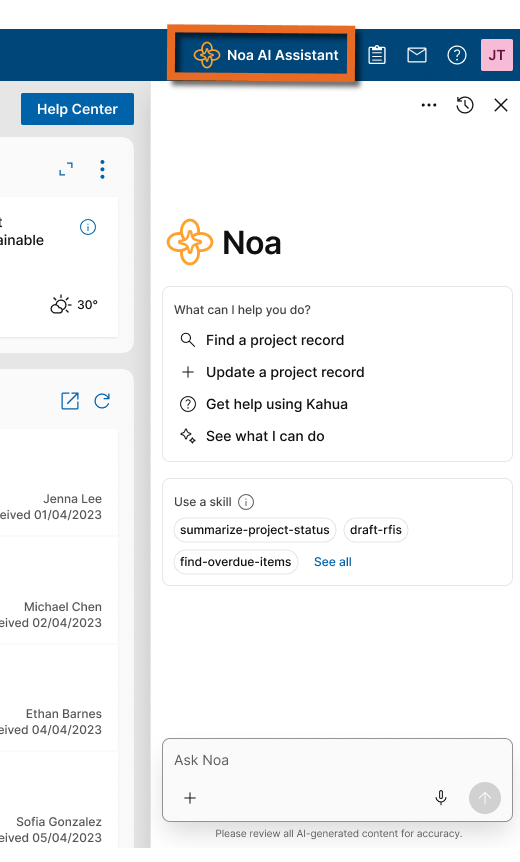
Noa Assistant can help you in the following ways:
-
Smart Project & Portfolio Search (Essentials)
Find records and documents across your projects without searching app by app. Ask Noa in natural language from either your project or the portfolio level to search that location and its accessible descendants. Results show the source project or portfolio and link to the record. Search respects your Kahua permissions.
-
Fast Navigation (Essentials)
Get to the Kahua page you need more quickly by asking Noa to open a known destination, such as an app, project, record, file, folder, task, message, or configuration page. If a request could match more than one destination, Noa may ask you to clarify. If it cannot find a match, it will let you know.
-
Task & Message Insights (Essentials)
See which tasks and messages need your attention across your projects. Ask Noa to find and prioritize them; results include project context and direct links, and respect your Kahua permissions. Refine results with follow-up requests, such as filtering for overdue tasks or sorting by assignee.
-
Record Q&A & Summaries (Essentials)
Ask questions or request a summary of a Kahua record, including fields, linked records, comments, attachments, grids, references, and change history. Noa answers follow-up questions about the record and uses information you are authorized to view. Record Insights is read-only and summarizes one record at a time.
-
File Content Search (Essentials)
Find answers in a file without searching through it manually. Ask Noa questions about an individual file from the open file or by referencing it directly in the Noa Assistant. Answers are grounded in that file and link to the source.
-
24/7 Help & Guidance (Essentials)
Get answers to Kahua how-to questions with guidance informed by your specific configuration. Ask in plain language and Noa responds based on Kahua’s official help documentation, taking your required fields and workflows into account. Noa can also provide answers specific to how you run your projects by using published content in the new Knowledge Center app, such as your organization’s policies, procedures, and process guides. Responses cite relevant sources and respect Knowledge Center permissions and partition scope.
-
Smart Record Creation (Premium)
Save time creating records by asking Noa to prepare them from context you provide such as a PDF, image, or spreadsheet. In supported workflows, Noa creates a draft or prepares a record for your review in Kahua.
-
Record Updates via Noa (Premium)
Update Kahua records more efficiently by asking Noa to prepare changes using information and context you provide. Review the result in Kahua and complete any required steps there.
-
Report Authoring via Noa (Premium)
Creating reports in Kahua is easier than ever with Noa Assistant. Simply tell Noa what information you need, including specific records, projects, or filters, and Noa will generate a report that you can quickly download and export in multiple formats. For more customized reports, Noa can also help you build reports directly within the Report Wizard, where you can easily adjust fields, organize data, and preview your results. Whether you need a quick export or a report to save and use again, Noa helps simplify the reporting process.
-
Portable View Generation (Premium)
Upload your organization's Word template and request Noa to generate a portable view. Let Noa help populate it with the appropriate Kahua fields, then make adjustments through conversation to get the layout and information just right. You can also ask Noa to generate a Portable View from scratch by specifying the application, projects, and information you want to include. Whether you're creating a quick Portable View or designing a reusable template that follows your organization's formatting standards, Noa helps simplify the entire process.
-
Kahua-Defined Advanced Assistant Skills (Premium)
Get a focused starting point for specific work with Kahua-defined skills. Select a skill in Noa Assistant to start a conversation, and Noa returns a summary or view tailored to that skill. Custom Assistant Skills are planned for a future release.
AI-enhanced app capabilities
AI-enhanced app capabilities bring AI directly into Kahua apps to help with everyday work. These capabilities provide task-focused assistance within the app workflows you already use, helping you work with information and move tasks forward.
Here are some of the ways Noa can help with everyday work in Kahua apps:
-
Drawings Title Block Extraction (Essentials)
Reduce manual entry when transferring drawing information into Kahua. Use Noa to extract title block information from drawing sheets into drawing records.
-
Automated Spec Splitting (Essentials)
Turn lengthy specifications into organized records with less manual setup. Use Noa to split a specification into sections and create the corresponding specification section records.
-
Asset Nameplate Scanning (Essentials)
Capture asset attributes from nameplate photos without manual transcription. Use Noa to read asset nameplate information from uploaded photos or mobile captures and populate attribute information on the asset record.
-
Auto-tagging Assets in Drawings (Premium)
Connect drawing tags to assets more efficiently. Use Noa to analyze drawings and suggest tags to link to existing assets or help populate the asset registry.
-
Submittal Register from Specs (Premium)
Build a draft submittal register from specifications with less manual setup. Noa identifies submittal information from selected spec sections and creates proposed submittal item records for you to manage.
Knowledge Center – Added new application for centralized knowledge management
Many organizations rely on sophisticated policies and procedures to guide how they operate. The new Knowledge Center application lets you upload your organization’s SOPs, policies, process guides, training materials, and best-practice guidance to a centralized location in Kahua. You can make this content available directly to users or through Noa Assistant in response to their questions.
Knowledge can be associated with partitions and follows Kahua’s inheritance model. Content published at a higher-level partition flows to the partitions beneath it, allowing you to scope information to certain areas of your business. Group-level controls allow you to restrict sensitive or role-specific content to selected users.
Most organizations have many procedures that currently live outside of Kahua. To streamline uploading these policies, we’ve implemented a bulk-upload feature that lets you drag in multiple documents at a time. If AI is enabled in your domain, Noa will take an initial pass at filling out the title, summary, tags, and other fields on each document.
We wanted access to information in the Knowledge Center to be effortless and instant. To achieve this, we’ve integrated the Knowledge Center with Noa. No matter where you are in Kahua, when AI is enabled, Noa’s responses are augmented by content uploaded to the Knowledge Center. You also have the option to prevent Noa from referencing an individual article. Noa honors all permissions and partition scoping configured in the Knowledge Center.
General
Introducing the Project Home Page
We've added a new Project Home Page that provides a centralized, configurable landing page for each project in Kahua. You can quickly review project information, access your tasks and discussions, navigate to frequently used applications, and connect with project contacts—all from one location. Project administrators can customize the page with widgets and reusable layouts to meet their team's needs.
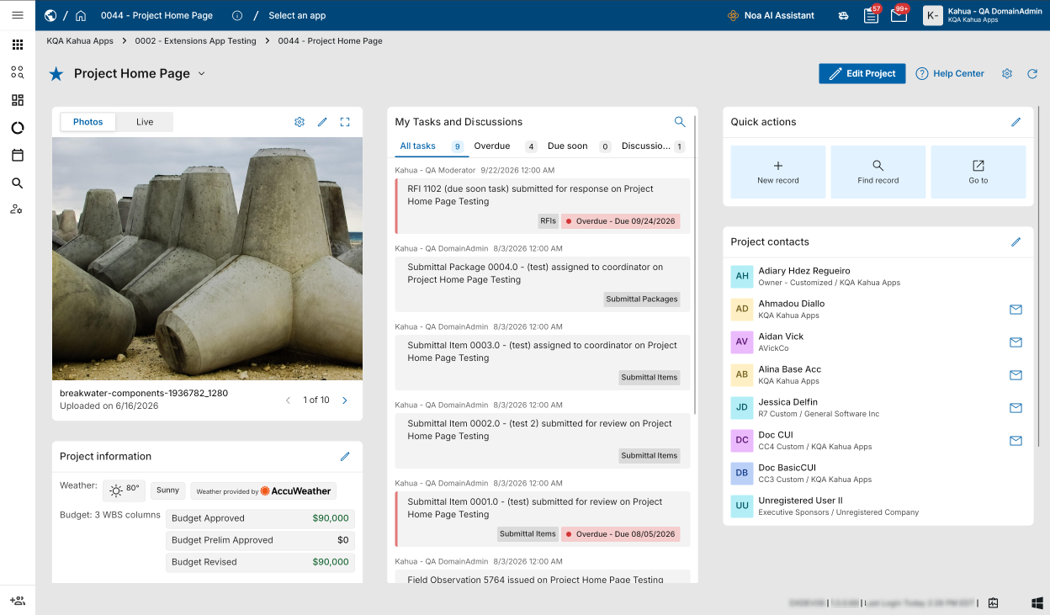
Navigation
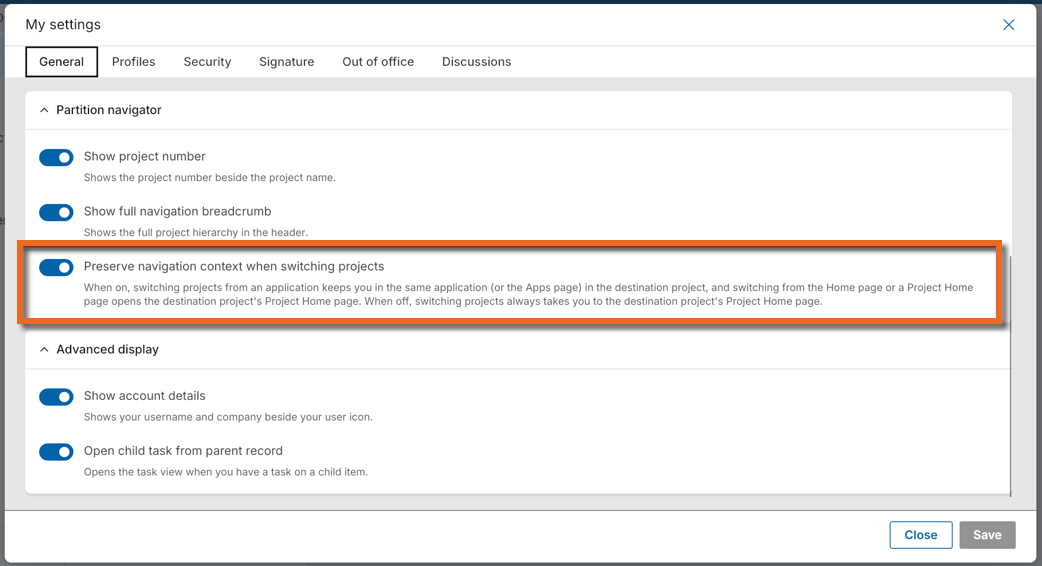
By default, the Project Home Page opens when you navigate to a project from the global Kahua Home Page or another Project Home Page. To open the Project Home Page whenever you switch projects, regardless of your current location in Kahua, navigate to the My Settings > General tab and disable Preserve navigation context when switching projects.
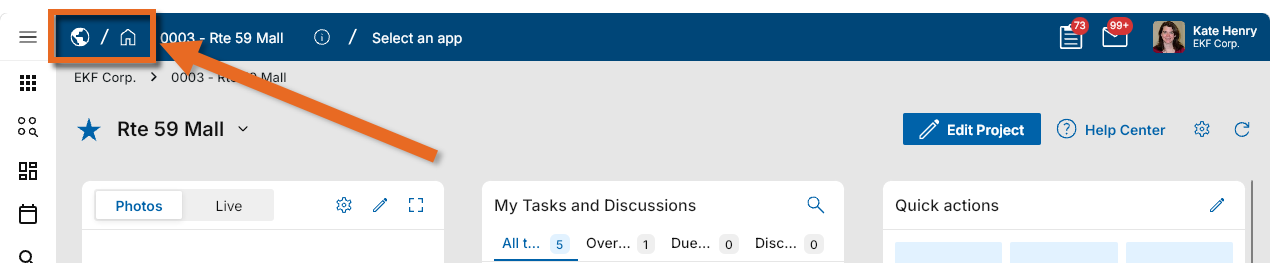
When working in a project, you can select the house icon  in the header to open that project's Home Page. Select the globe icon
  to return to the global Kahua Home Page.
Permissions
All users can view the Project Home Page for projects they can access and configure their own Quick Actions. Users with the Project Home Page Administrator permission can configure shared widgets and page layouts. This permission is enabled for Domain Administrators by default and can be assigned to other groups.
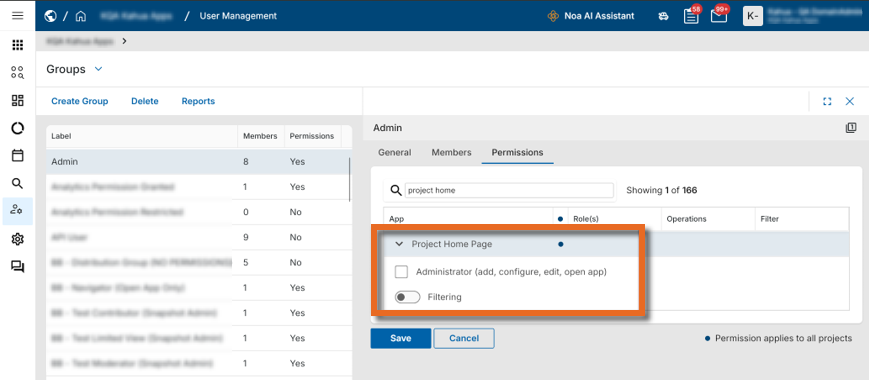
Project Home Page Widgets
The initial release includes five widgets that provide quick access to project information and common actions:
-
Gallery (Photos and Live)
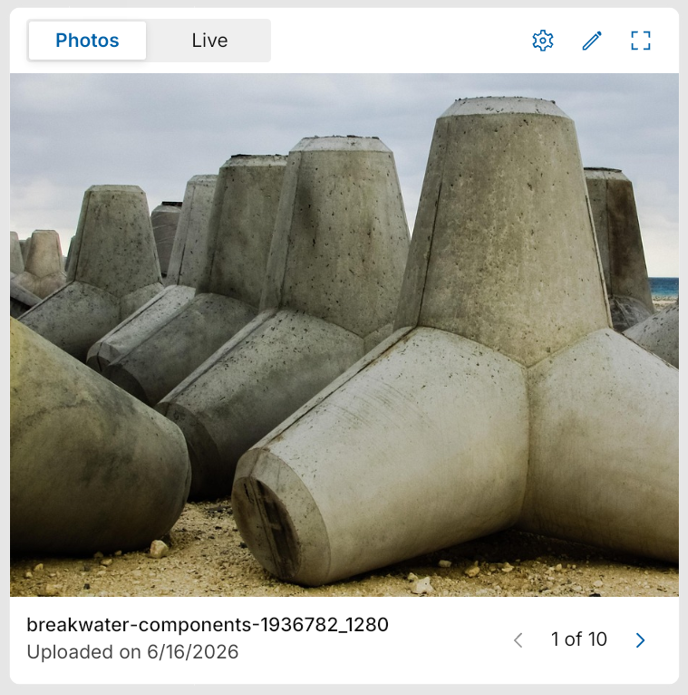
The Gallery widget includes a Photos tab and a Live tab. You can view up to ten project photos and, if configured, up to ten live webcam feeds.

Select the gear icon to control which tabs (Photos and Live) appear on the widget and in what order.
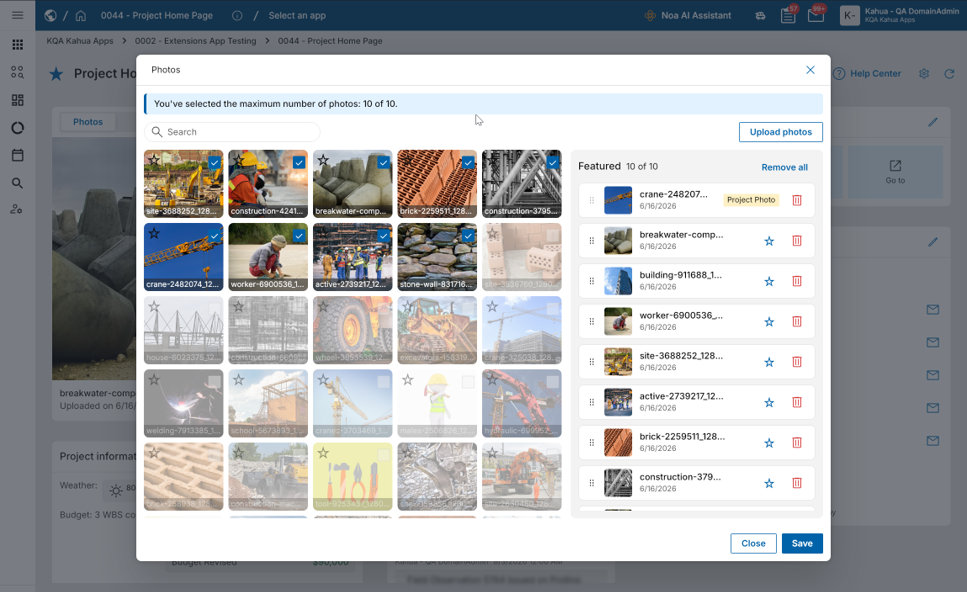
Select the pencil icon to manage the photos that appear on the Photos tab and which webcams appear on the Live tab. You can upload photos to Media Manager or select existing ones. Users with permission to edit the Project record can set one of the photos as the project icon by selecting the star icon
 .
.
Select the Expand icon to view the photos or webcam feeds in full screen.
Note Webcam functionality is available only on the Kahua Commercial Network (KCN).
-
Project Information
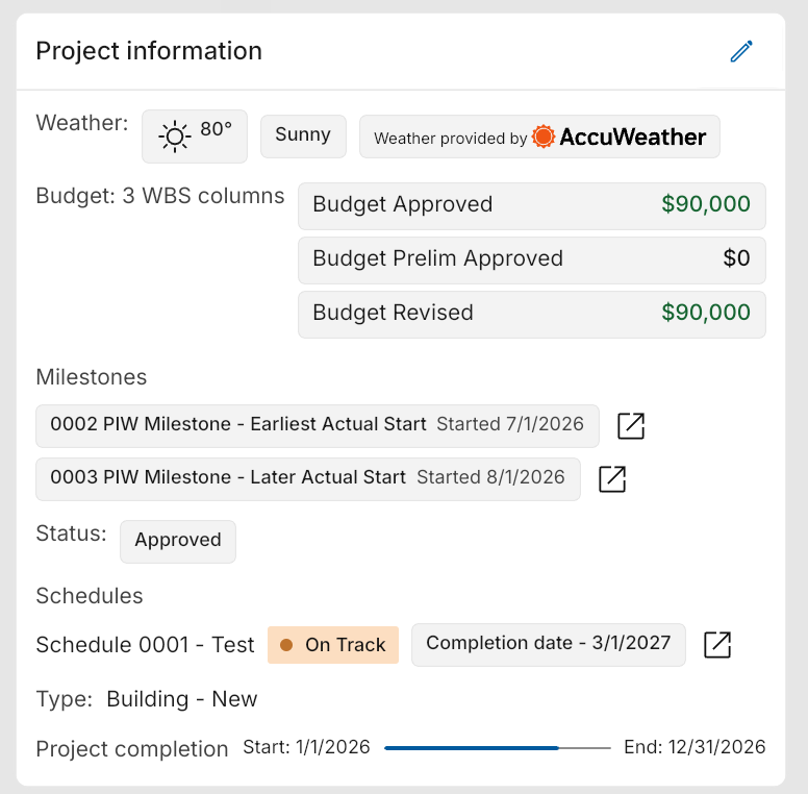
View important project details in one location. Administrators can select the pencil icon to configure six built-in widget options (Status, Milestones, Project Completion, Budget, Schedules, and Weather) and select additional fields from the Project record to appear on the widget.
Administrators can control who views budget information by selecting Enforce WBS Permissions. When enabled, budget information only appears to users with access to the WBS application.
The project status can be updated directly from the widget if you have permission to edit the Project record.
-
My Tasks and Discussions
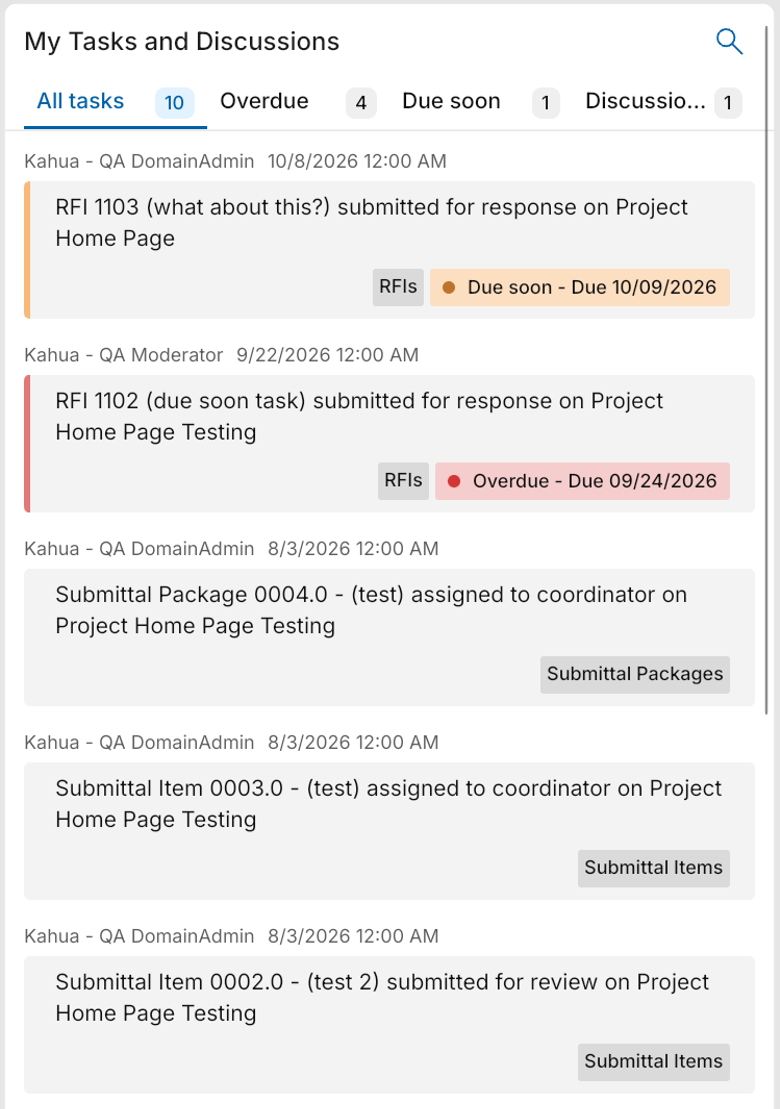
View your open project tasks and unread discussion posts. Overdue tasks are identified, and tasks due within the next seven days are marked as due soon, helping you prioritize your work.
-
Quick Actions
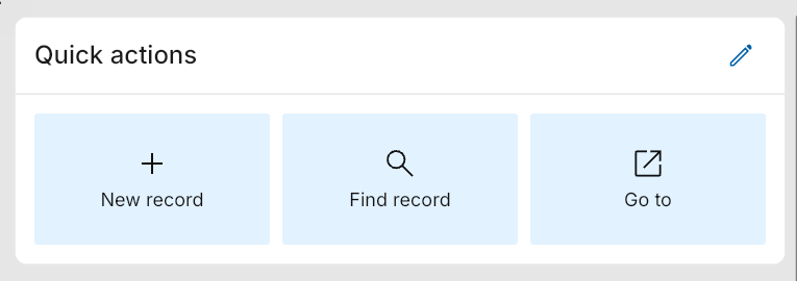
Create personalized shortcuts to frequently used applications and actions. You can configure up to six actions of each type:
-
New Record – Create a record in a selected application.
-
Find Record – Search for a record in a selected application.
-
Go To – Navigate to a selected application, list, and view.
By default, Quick Actions are available across all projects. Enable Project-specific Quick Actions to configure a different set for the current project.
-
-
Project Contacts
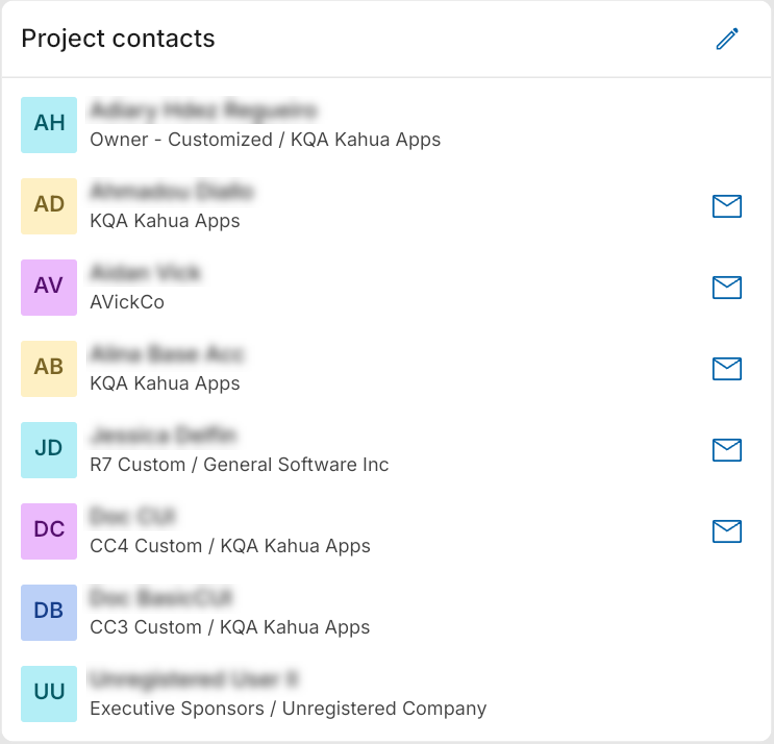
View up to eight key contacts from the Project record or Project Directory. Administrators can select and reorder the displayed contacts.
For contacts registered in Kahua, select the message icon to send a Kahua message directly from the widget.
Configuring the Project Home Page Layout
Administrators can customize the Project Home Page by moving widgets between three layout lanes, grouping widgets into tabs, and hiding widgets that are not needed.
Select the gear icon to enter layout editing mode. You can drag and drop widgets or use their overflow menus to move, group, or ungroup them. Hidden widgets can be restored from the Configure Layout panel.
Kahua provides a default layout template for all domains. Administrators can save changes for the current project or create reusable templates for other projects. Domain administrators can also establish a template as the domain default.
Introducing inline preview for linked records
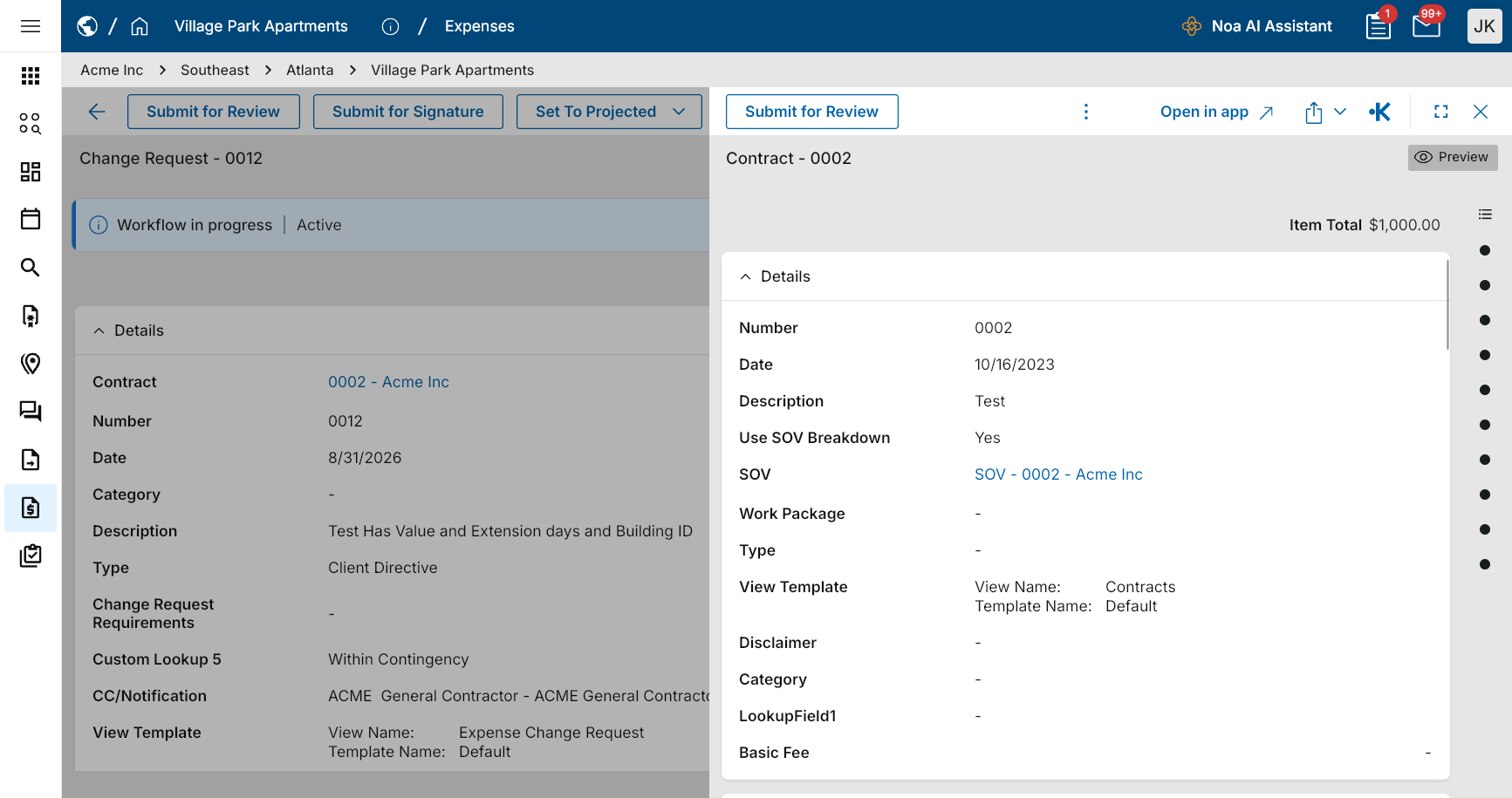
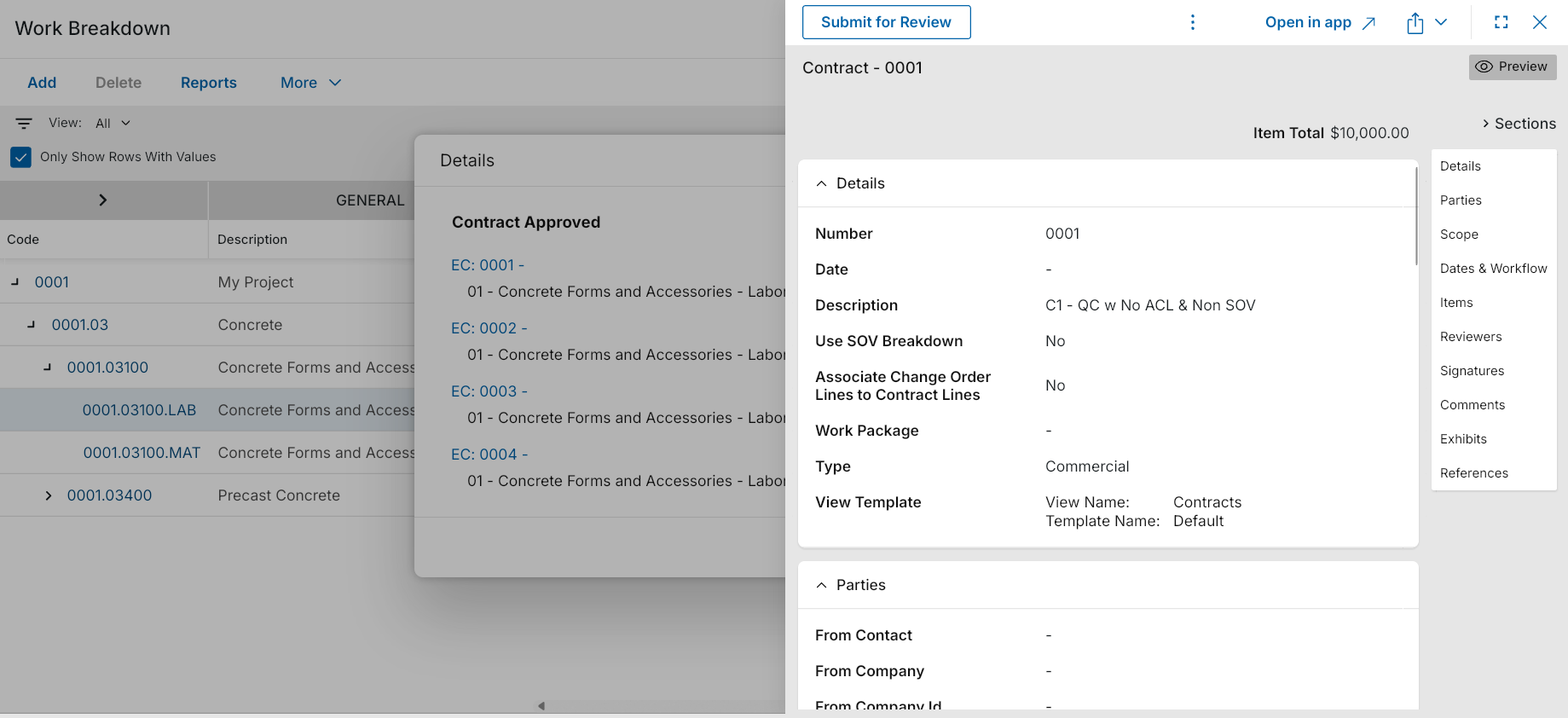
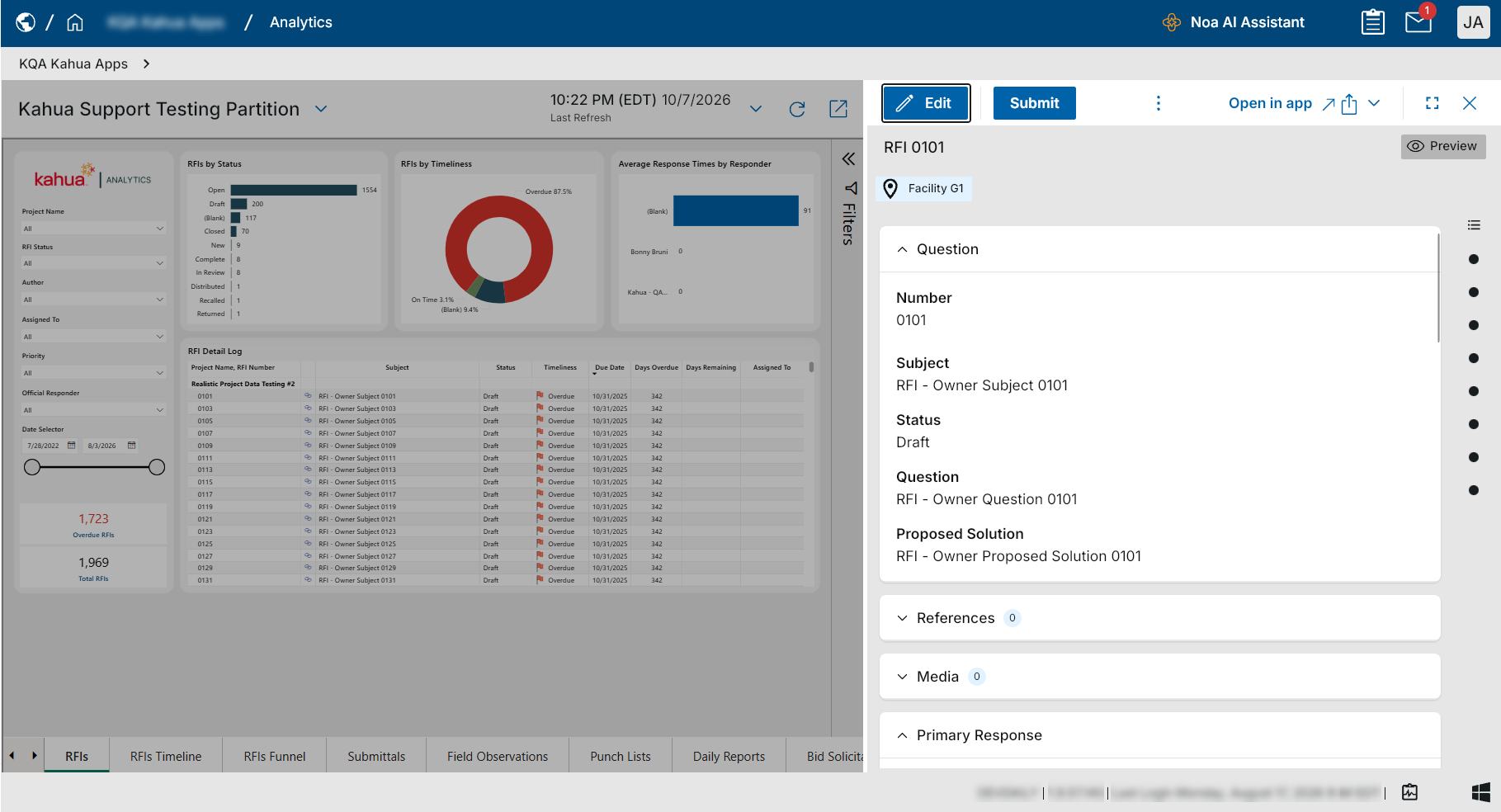
We have added Inline Preview so you can open and work with related records without leaving your current record. Clicking on a record link now open that linked record in a panel on the right side of your screen, making it easier to review information, make updates, and return to your work without losing your place in your original record view.
Inline Preview opens automatically when you select a related record from any of the following locations:
-
A linked record name in a field on a record's form. Previously, some linked record names could not be selected. These records can now be opened for viewing or editing, depending on your permissions.
-
A linked record in a Kahua Analytics dashboard.
-
A linked record in Work Breakdown item details.
-
A linked record in the References section (i.e., a record added through Add Kahua Doc).
-
A document in the Linked Documents section in the Assets, Types, or Locations apps.
-
A location, asset type, or asset tag at the top of a record.
While working in Inline Preview, you can drag the left edge of the panel to re-size it, select Maximize to expand it to full screen, or select Open in app to open the record in its own application. When you close Inline Preview, your original record remains open where you left off.
Each time you open a linked record, Kahua loads the latest information and applies your existing viewing and editing permissions. If you have unsaved changes when closing the preview, Kahua prompts you before discarding them.
Inline Preview is enabled automatically, with no additional configuration required. You can use it in Kahua on the web and in the Kahua desktop app for Windows.
Examples:
Connected Records – Added interactive map of related records
This feature is not enabled by default and is currently available to pilot customers. If you are interested in enabling Connected Records for your domain, contact Kahua Support or your account representative.
We are introducing Connected Records, a new feature that lets you visualize and explore relationships between records across Kahua applications. With an interactive map of connected records, you can quickly understand how information is related without having to open and navigate between individual records.
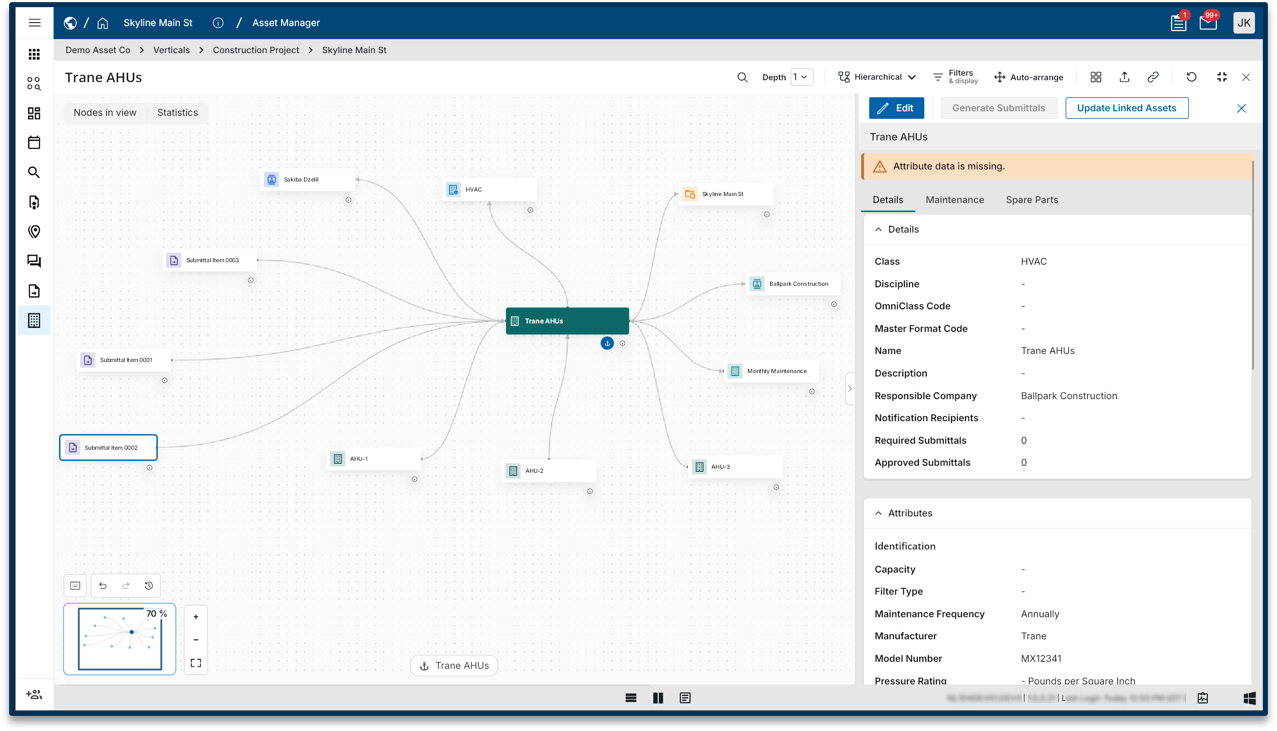
To use this feature, open a record and select the Connected Records icon in the record header, next to the Discussions icon. An interactive map opens with the selected record at the center and its related records displayed around it, including records from other applications.
You can explore and customize the map using the following options:
-
Depth – Display up to three layers of related records. You can also double-click a record to expand its connections.
-
Search – Find and highlight specific records currently displayed on the map.
-
Filters & display – Control which record types and relationships appear on the map.
-
Layout – Choose between radial, hierarchical, and force-directed layouts to organize the map.
-
Views – Save your preferred map arrangement for future use. If you have the Configure permission, you can also share saved views with everyone in your domain.
-
Export – Download the map as a PNG, SVG, or PDF file, or export the underlying record and relationship data in CSV or JSON format.
While Connected Records is open, the map automatically updates when records directly linked to the original record are added or removed. A notification indicates how many records have changed. The map respects your existing Kahua permissions, so you only see records you have access to, and details of restricted records are masked when you do not have the appropriate permissions.
Connected Records is available in Kahua web and the Kahua desktop application. It is not supported on mobile devices. Maps can display up to 500 records at a time. You can use filters or explore individual records to refine larger maps.
CUI - CUI support added to Media Manager
The acronym CUI refers to Controlled Unclassified Information. Kahua offers CUI support in many apps that can be used to identify records that will require sensitive handling by users in your domain and records that will be redacted for users who have not been granted permission to view the data. For more information on CUI, refer to CUI (Controlled Unclassified Information).
In this release, we have added CUI support to the Media Manager app.
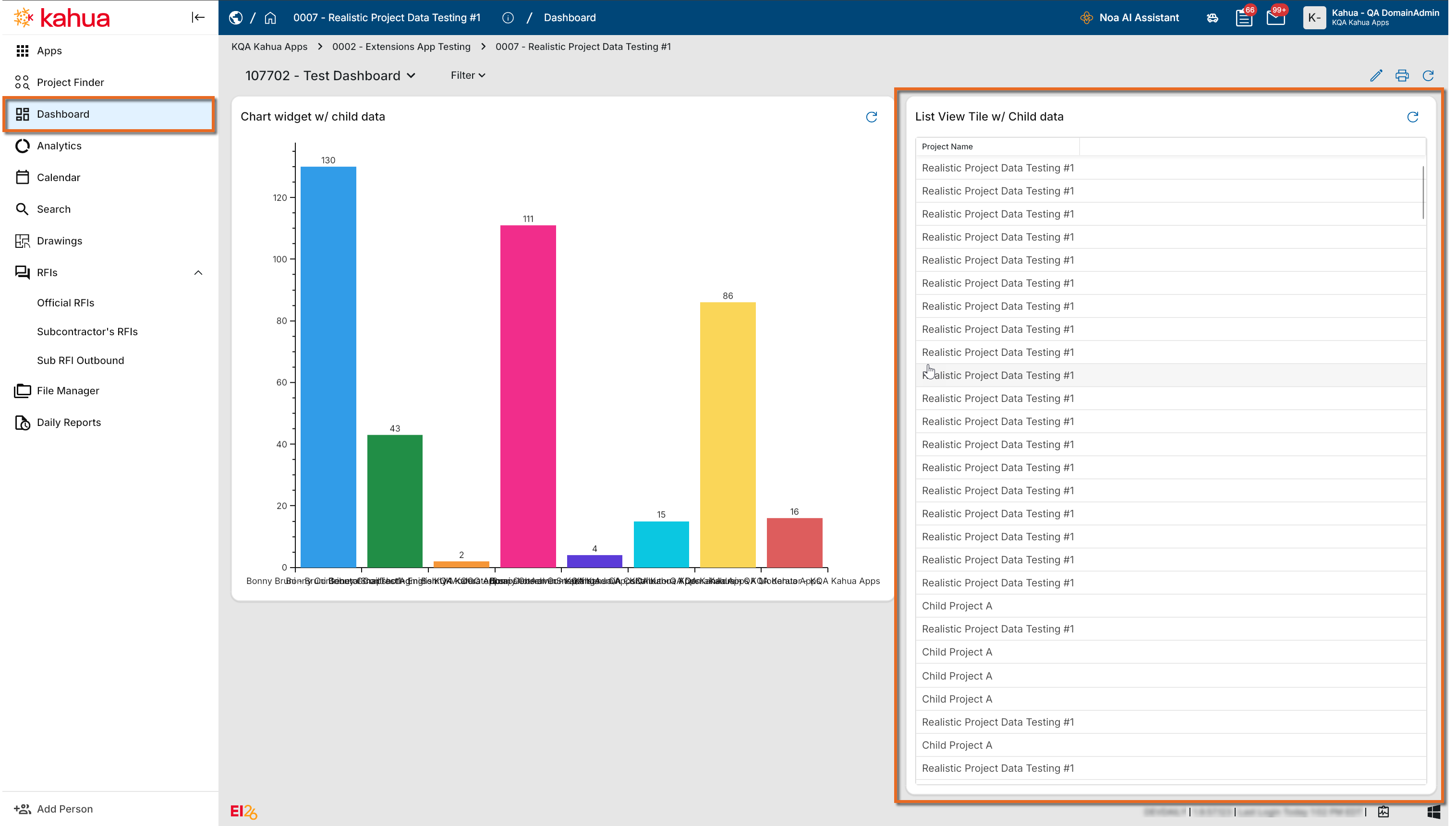
Dashboards app – Improved "List View" widget
We have improved the List View widget type to now return all the records that match configured filters, instead of limiting the results to the first twenty records. You can scroll through the widget to view all the available results.
Additionally, we removed the Expand/Open App action from List View widgets that are configured to include data from child partitions. As this action opens the app in the current partition only, it would exclude any child-partition data that appears in the widget. Removing this action from widgets configured to include data from child partitions helps prevent confusion when reviewing those results.
Discussions – Updated notifications and settings
Notifications, messages, and emails related to discussion posts now include a preview of the post content, making it easier to understand the conversation without opening it.
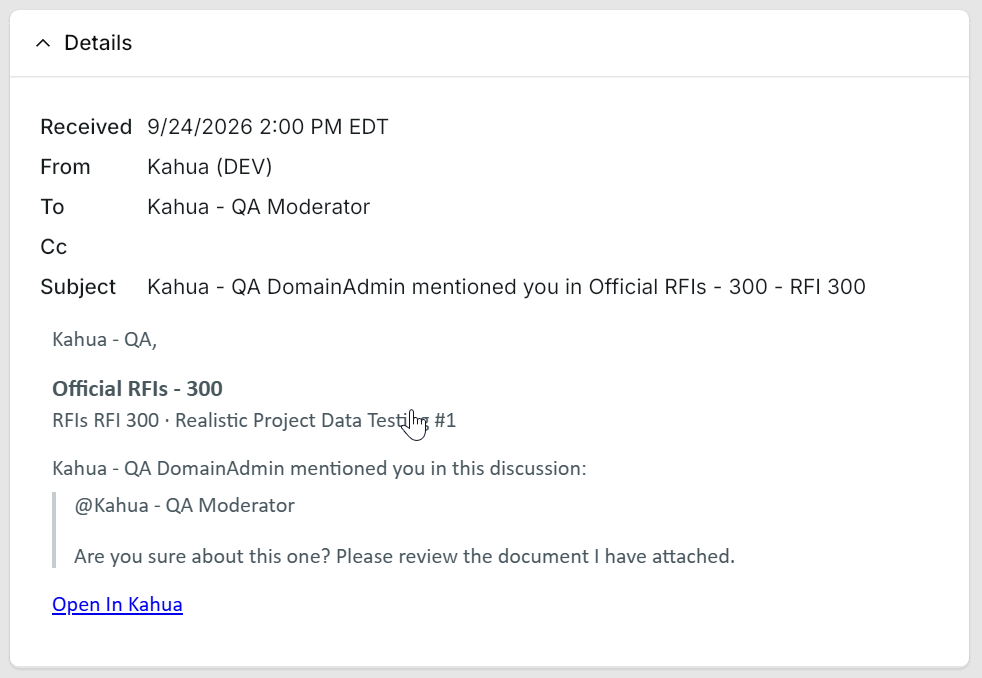
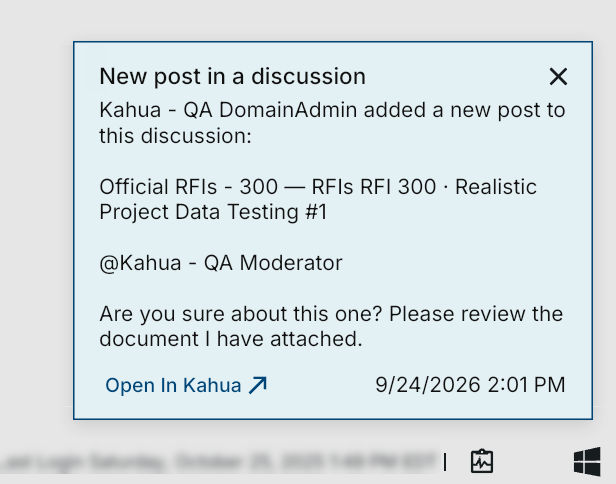
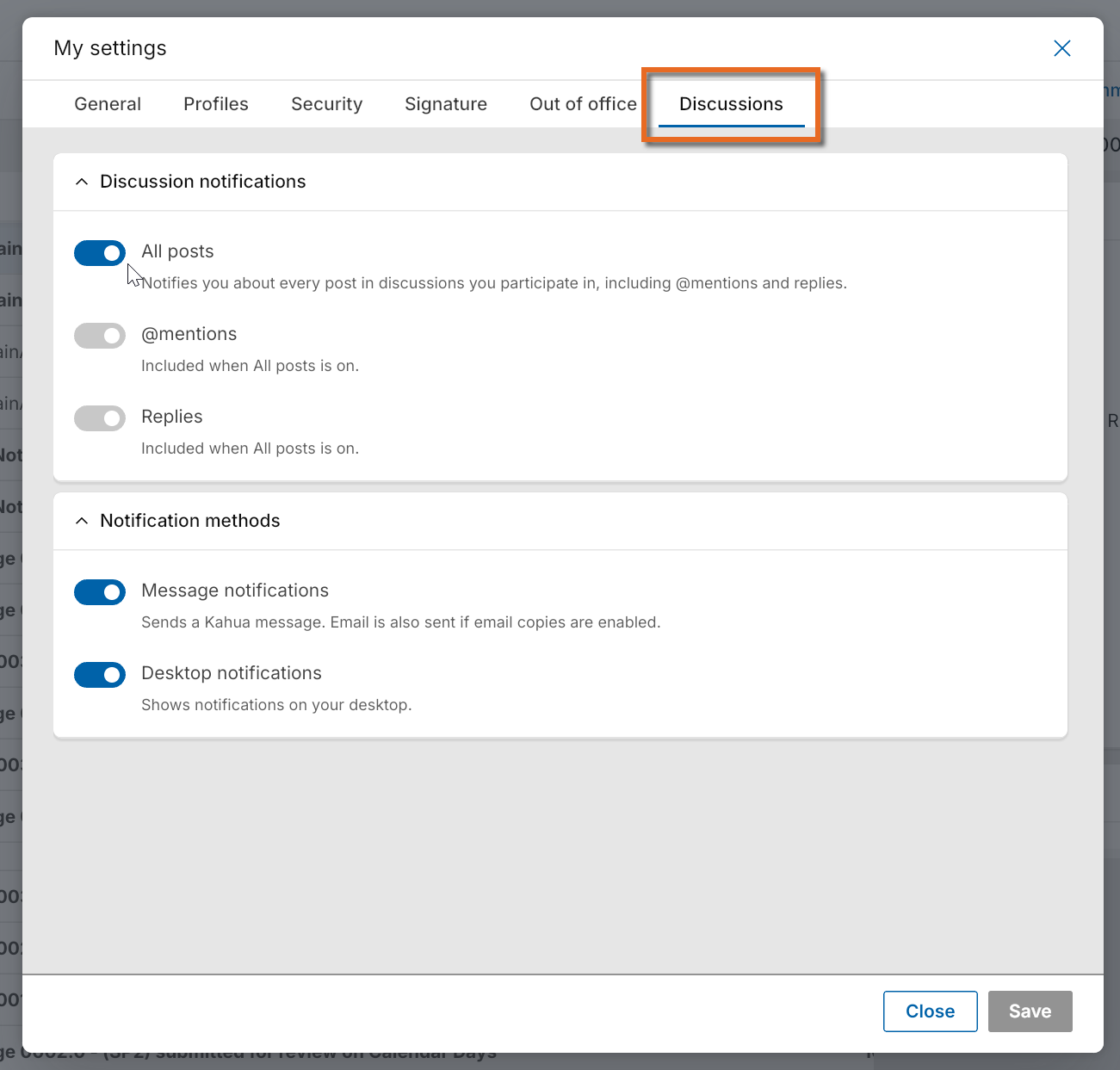
Additionally, we have updated the My Settings > Discussions tab to clarify the purpose of each discussion notification option and improved the notification logic to ensure users receive the alerts selected in their preferences.
Draft Records – Added ability to save and resume records before publishing
We have added a Drafts feature, allowing you to begin creating a record and save your work as a draft, returning to it later to complete your work without losing your progress.
Drafts are saved privately and are available across desktop and mobile devices, so you can start a record in the field, finish it at the office, and publish it when you're ready.
Each supported application has a dedicated Drafts area, separate from the official records log. Previously, you had to complete a new record in one session. Now, you can save your work and return to it as needed without creating an official record.
To create and publish a draft, complete the following steps:
-
Open a supported application, such as RFIs, and select New.
-
Enter the available information and select Save as Draft. You do not need to enter values into required fields, and a record number is not assigned until the record is complete and published.
-
To continue working, open the application's Drafts area and select your draft. You can resume editing from desktop or mobile.
-
When the record is complete, select Publish to create the official record. The draft is removed from the Drafts area, added to the application's records log, and assigned a record number.
Drafts remain private to the person who created them until they are published. They persist across sessions and devices, allowing you to return to unfinished records without starting over. Draft creation, subsequent edits, and publication are captured in the record's History, providing a record of the complete lifecycle.
The Drafts feature is available in supported applications on desktop and mobile. The workflow is consistent across platforms, although the interface may vary slightly.
File Uploads and Downloads – Improved file navigation with remembered folder locations
You can now upload and download files more efficiently in the Kahua Windows desktop client and web application. File dialogs automatically open to your last-used folder, reducing the need to navigate to the same location repeatedly.
Previously, file dialogs opened to the system or browser's default location. Now, Kahua remembers your last-used folder across sessions, even after you restart the application or reopen your browser. The saved location is associated with your Kahua login, so each user maintains a separate folder preference.
If your last-used folder is unavailable, such as when a folder is deleted or a drive is disconnected, the dialog opens to the system default location instead.
This enhancement applies to all file upload and download dialogs in the Kahua Windows desktop client and web application.
File Viewer – Improved rendering
With this release, we have introduced an improved high-fidelity file viewer.
Across Kahua, the viewer now provides a clearer, more consistent document-rendering experience as users zoom and pan through files. Instead of displaying a blank screen while a document is being re-sized, the viewer continues displaying the document at full fidelity and shows a “Rendering” message while it processes the updated view.
Integrated dashboards – Added to additional applications
In the previous release, we introduced an integrated dashboard in the in-app Summary section of the RFIs app. The dashboard appears above the log view and provides quick visibility into actionable items, including open, overdue, and aging items, Ball-in-Court (BIC) assignments, schedule risk, and response activity, without leaving the log view.
We expanded the availability of integrated dashboards to additional applications through maintenance releases over the past several months. In-app summary dashboards are now available in the following applications:
-
Facility Condition Assessments (FCAs)
-
Field Observations
-
Punch List
-
RFIs
-
Submittal Items
-
Submittal Packages
For more detailed information about in-app summary dashboards, refer to Using in-app summary dashboards.
Language Support – Improved translations and added Ukrainian and Italian
We improved our translation system to provide higher-quality translations and more reliable translation updates across Kahua. We also added support for Ukrainian and Italian, giving you more options for working in your preferred language.
You can select Ukrainian or Italian anywhere a language selector is available, including the sign-in page, My Settings > General > Regional Settings > Default Language, anonymous-access web pages, and other areas of the product where you can choose a language.
Log Views – Added ability to directly customize log views
We have added the ability to customize log views directly from the log view itself, without opening the Manage Views dialog. This enhancement makes it easier to organize columns, apply filters, and manage how your data is displayed.
You can now make the following changes directly from a log view:
-
Drag and drop columns to change their display order.
-
Apply filters, sort data, or freeze individual columns.
-
Easily see which search and filter criteria are currently applied and remove them as needed.
-
Use View Actions to add or remove columns, manage groupings and indicators, or lock the view.
We've also updated the Project Finder app to support the new log view customization functionality. You can now create custom log views in Project Finder using any field from your project records, including the ability to sort and filter by those fields. Kahua Domain Administrators (KDAs) can also designate a custom log view as the default Project Finder view for their domain.
The new log view customization functionality operates separately from the existing Manage Views dialog. As a result, changes made using the new functionality may not be fully reflected when you open the same view in Manage Views. The Manage Views dialog will remain available in this release. We plan to retire it in a future release after all its functionality has been incorporated into the new log view management experience.
Log views – Improved navigation after closing record detail view
We have improved navigation in Kahua log views by preserving your position after you close a record’s detail view. This makes it easier to continue working through a log without having to find your previous location again.
When split-screen functionality is unavailable, such as in the Drawings or Specifications apps, or when Split Screen is turned off in the Account Panel, Kahua now returns you to your previous position in the log view after you close a record’s detail view.
Messages – Attached files automatically sent as downloadable links
This feature was initially introduced in the Kahua 2026 Q3 release and was made available upon request at that time. As part of the Kahua 2026 Q4 release, it is now automatically available in all domains.
When you send a message that includes a file, Kahua shares a link to the document instead of attaching the file directly. This helps prevent delivery failures caused by email attachment size limits and makes it easier for recipients to access shared content.
The message recipient can select the link to view or download the document.
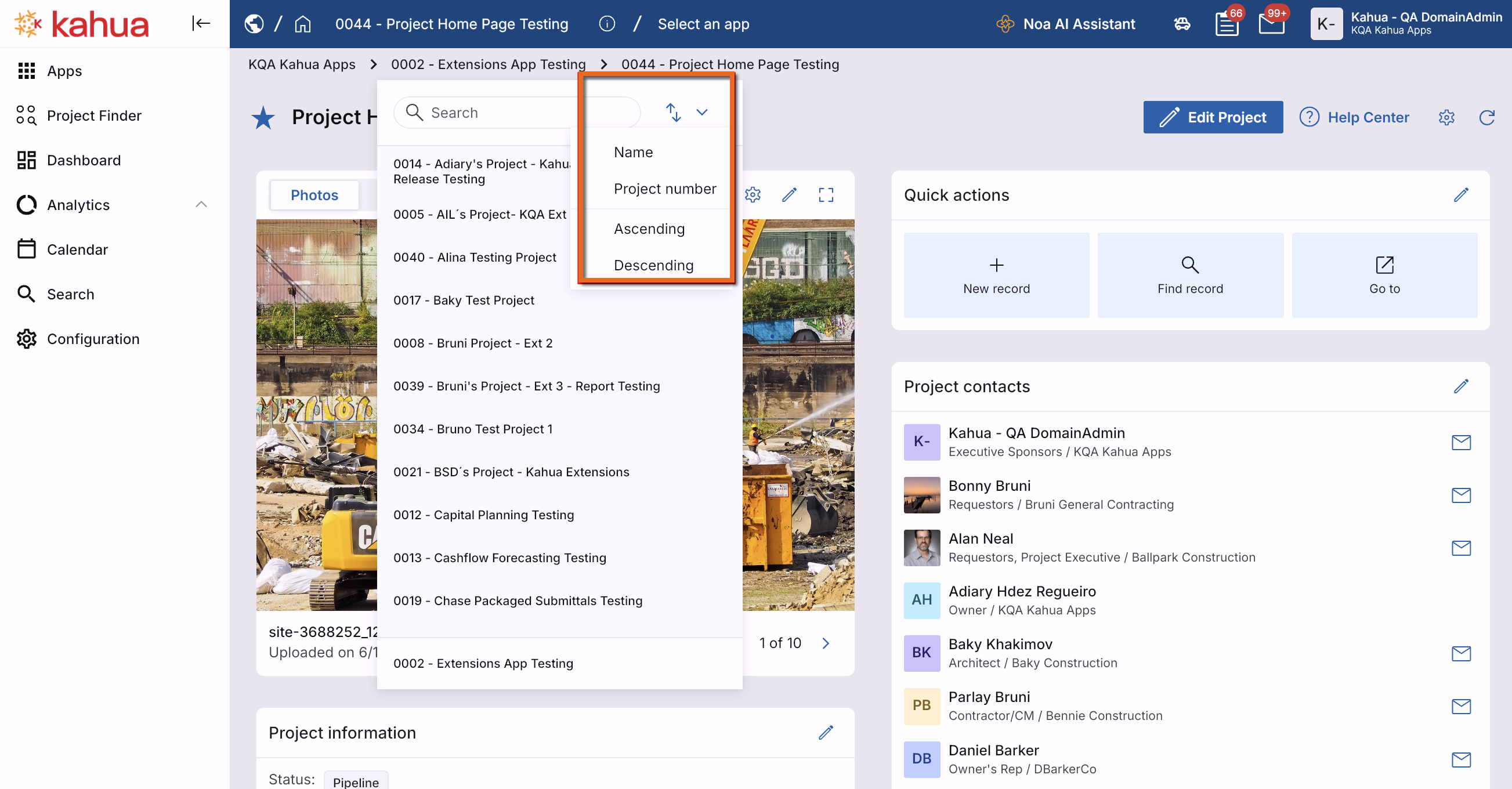
Navigation – Added option to sort the breadcrumb project list by Project Number
You can now sort the breadcrumb project list by Project Number in ascending order, making it easier to find projects by project number. Alphabetical sorting remains the default, and your selected sort order is maintained as you navigate and refresh during your session.
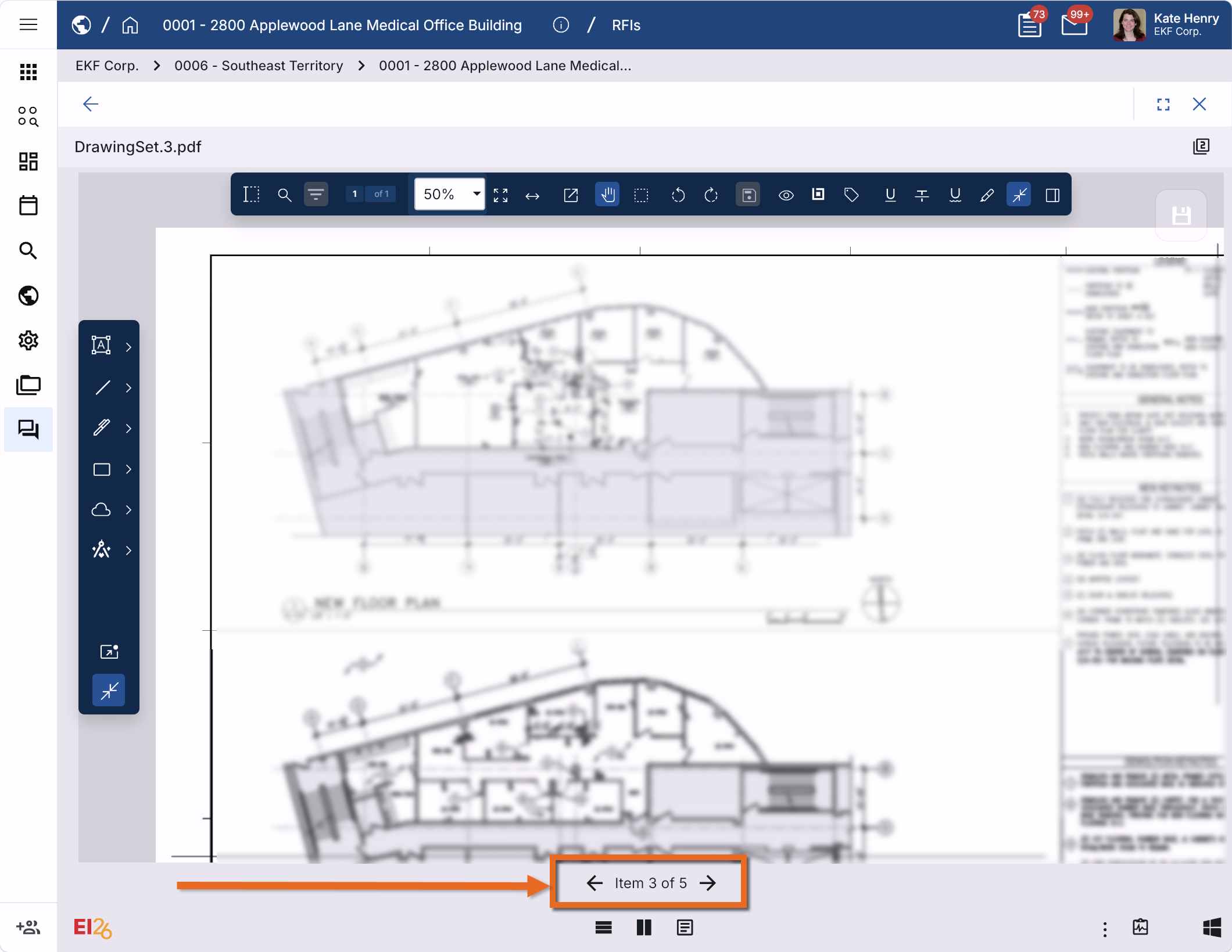
References – Added navigation arrows to file viewer when viewing reference items
We've added navigation arrows when viewing a reference attached to a record or task, allowing you to directly navigate between reference items. You can now view and annotate multiple references without closing and reopening the file viewer.
Schedule Manager – Added new application
This application requires an additional license and is not automatically enabled in your domain. If you are interested in purchasing this app for your domain, reach out to your account representative.
The new Schedule Manager app brings project scheduling information into Kahua, allowing project team members to review schedules, track changes, and evaluate potential delays without requiring access to Primavera P6.
You can import Primavera P6 schedules and view activities in an interactive grid or Gantt chart. Schedule Manager provides tools for analyzing schedule information, comparing revisions, and connecting schedule activities with other Kahua project records.
Key capabilities include:
-
Interactive schedule views – View activities grouped by Work Breakdown Structure (WBS), or use filters and groupings to create customized views, including milestone and look-ahead schedules.
-
Activity details – Select activities in the Gantt chart to review information such as dependencies, costs, and linked Kahua records.
-
Linked project records – Connect schedule activities to RFIs, submittals, and other Kahua records. Identify overdue items directly within the schedule to help recognize issues that could affect project progress.
-
Schedule revision comparisons – Compare schedule revisions using summary dashboards and detailed variance reports to identify changes to key schedule metrics.
-
Scenario planning – Evaluate potential schedule delays by adjusting proposed activity dates and calculating their impact on downstream activities, milestones, the critical path, and the overall project completion date.
-
Schedule review and approval – Review schedule updates and track revisions through the approval process.
Schedule Manager gives project teams greater visibility into project timelines and dependencies, helping them identify potential issues and make informed scheduling decisions.
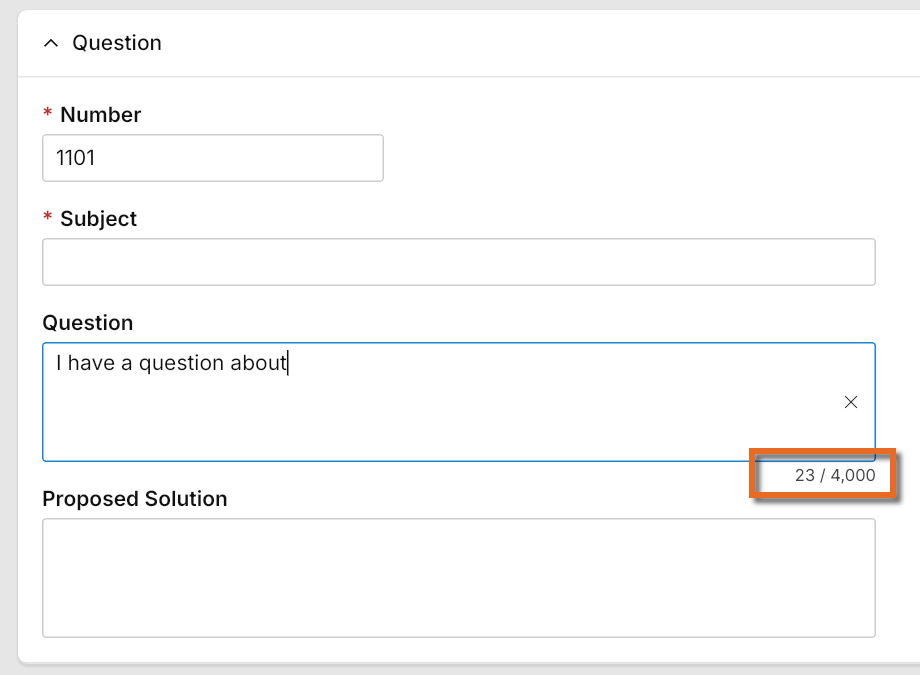
Text Fields – Added character counts
Text fields in Kahua now display the current character count and maximum character limit as users type. This helps users track their remaining space and know when they have reached the field’s limit.
Administration
Contacts – Added ability to deactivate and reactivate contacts
You can now deactivate contacts you no longer need to keep active directly from Contacts > People. This enhancement helps keep contact selection lists and search results current, reducing the risk of assigning tasks or responsibilities to contacts who are no longer involved in your projects while preserving existing records and project history.
If you have permission to add contacts, you can now deactivate a contact with a single action and confirmation. Once deactivated, the contact no longer appears in contact selection fields, standard search results, or when adding new contacts to the Project Directory. Existing assignments, project directory entries, and historical records remain unchanged.
You can reactivate a previously deactivated contact by locating the contact in the archived list in Contacts > People and selecting the reactivation action. Once reactivated, the contact is again available for selection and search. All deactivation and reactivation actions are recorded in the contact's history, including who performed the action and when.
Deactivation is available to users with permission to add contacts. Reactivation requires administrator permissions.
Contacts associated with an active Kahua user account cannot be deactivated. The associated user account must first be removed before the contact can be deactivated. This safeguard helps prevent accidental loss of account access.
Groups – Added controlled group inheritance and Project Directory management
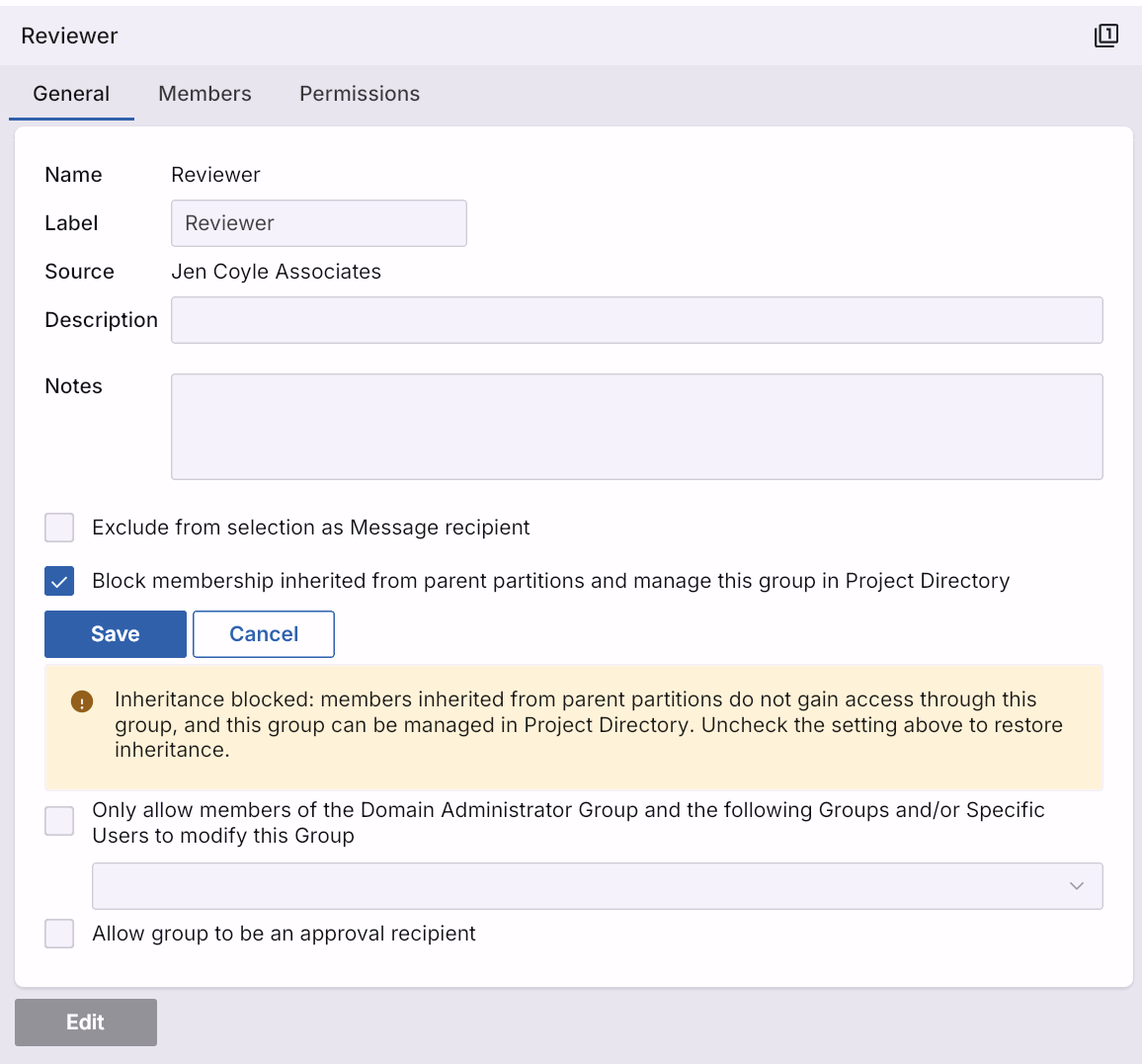
We’ve added the ability to prevent parent-level group memberships from being inherited by selected project groups and manage those groups directly from Project Directory. This enhancement gives you greater control over project access, making it easier to restrict membership to specific users, such as external partners who should only have access to designated projects.
Once the feature is enabled, you can open a group and enable the new inheritance setting to prevent members of parent-level groups from automatically being included. The group then becomes available in Project Directory, where you can add or remove members as needed. Users added directly to the group retain their existing membership type and behavior.
If you disable the inheritance setting for a group, normal inheritance resumes, combining inherited members with members added directly to the group. Members added directly are retained. Changes to the inheritance setting are recorded in the group's History. When you create a project from a template, the group's inheritance setting and membership are carried over to the new project.
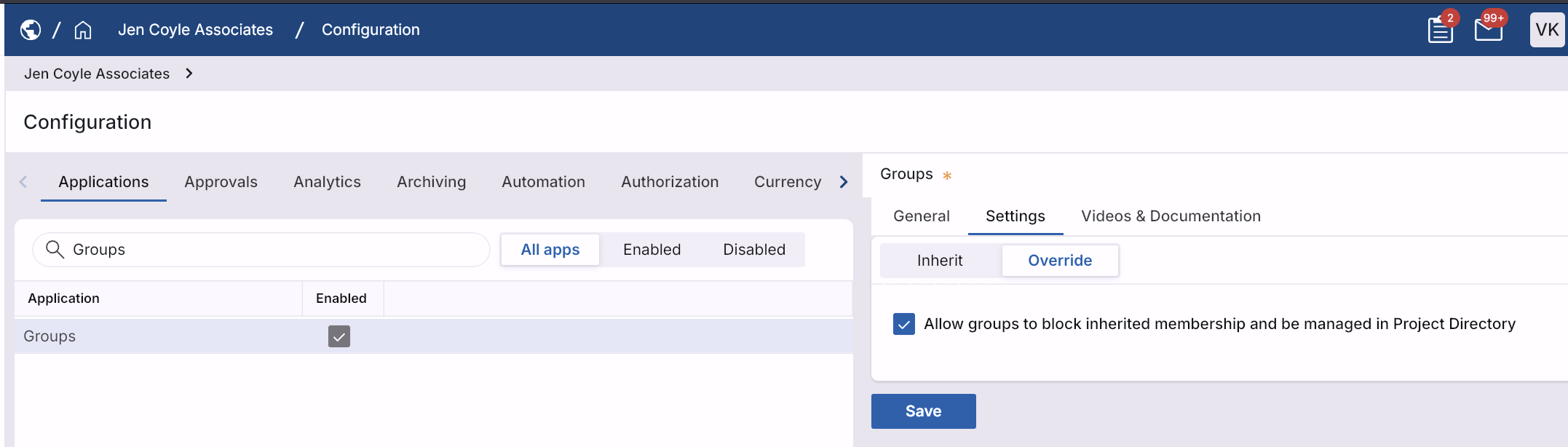
The feature is disabled by default, and enabling it does not change any existing groups. Domain Administrators can enable or disable the feature from the new Settings tab in the Groups app. Once enabled, anyone with permission to edit a group's settings can control inheritance for that group.
You cannot disable the feature at the domain level while any groups have inheritance disabled. If you attempt to do so, Kahua identifies the groups that must have their inheritance settings restored before you can proceed.
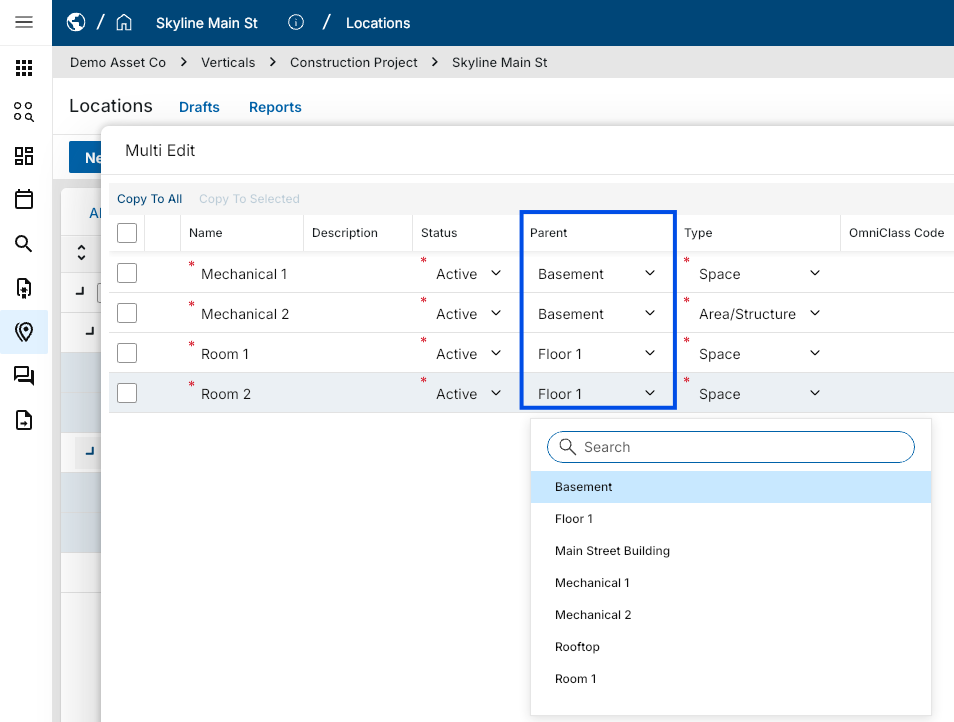
Locations – Added Parent field to Multi-Edit
You can now update the Parent field on multiple location records at once using the Multi-Edit feature. You can select a Parent value for individual records in the multi-edit view, or apply a Parent value to multiple records at once using Copy to All or Copy to Selected.
Hierarchy validation still applies. Each record is checked before your changes are saved, and any update that would create a circular parent/child relationship is blocked.
Project Snapshots – Improved Snapshot filtering and configuration
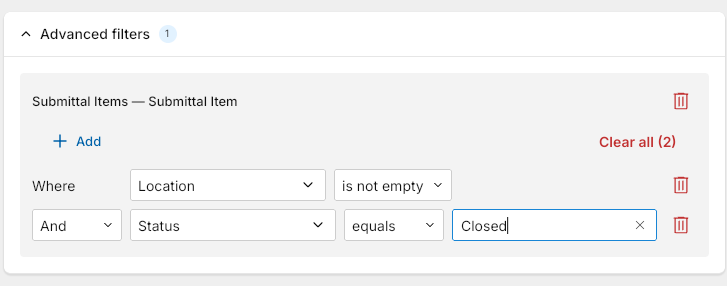
You can now create more focused Project Snapshots by choosing which document types to include and filtering them by document attributes. We also reorganized the Snapshot form and improved snapshot generation to make the process clearer and more efficient.
The Snapshot form is now organized into collapsible File Manager, Filters, Advanced filters, and References sections. Advanced filters allow you to control which documents from selected applications are included in the snapshot. These filters use the same structure as log view filters, so you can define criteria based on specific fields within an application.
Snapshots now also apply portable view conditions prior to downloading. This means that portable views that are not relevant to the specific record are no longer included in the export. For example, the Communications application only includes the Portable View associated with the record type (e.g., a Letter or Fax).
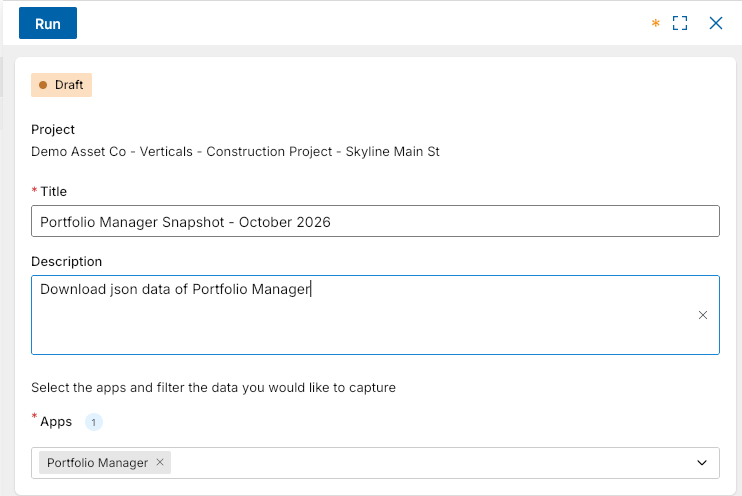
You can also create snapshots from project records in Portfolio Manager. The resulting snapshot contains information for the selected project without including project values from its child projects.
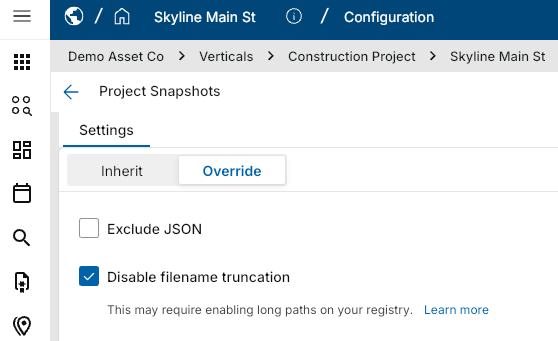
To retain full file names in snapshot output, select Disable filename truncation in the configuration for the Snapshot app. This setting is disabled by default.
Note Full file names may require long paths to be enabled in Windows. For more information, refer to Resolving "Long Paths" error messages.
Project Tasks – Added domain-level permissions for All Domain Tasks
Previously, only domain administrators were able to access the All Domain Tasks view in the Project Tasks app. We have added two new domain-level permissions to the Project Tasks app, allowing you to provide others with access to the All Domain Tasks view.
The two new roles are as follows:
-
Domain Project Task Administrator - Users with this role can access the All Domain Tasks view and delegate all tasks in the view.
-
Domain Project Task Observer - Users with this role can access the All Domain Tasks view, but cannot delegate or modify tasks from the view.
Task Notifications – Added option to include Project Number in email subjects
You can now include the Project Number in the subject line of task notification emails for applications such as RFIs and Submittals. This makes it easier to identify the correct project from your inbox, especially when managing multiple projects with similar names.
When enabled, the Project Number is added to the existing email subject line without changing the other notification details. If a project does not have a Project Number assigned, the subject line remains unchanged, without an empty placeholder or formatting issues.
Users with the appropriate permissions can enable this feature under Configuration > Settings by selecting the Add Project ID to Task notification email subject setting.
This change applies only to newly generated notifications. Previously sent notifications are not affected.
User-Defined Fields – Added advanced configuration for field placement and layout
This functionality is not automatically enabled in your domain. If you are interested in having this functionality enabled in your domain, reach out to Kahua Support or your account representative.
You can now control which forms display your User Defined Fields (UDFs), arrange related fields side by side, and manage field settings across multiple views. These enhancements give you greater flexibility in how you collect and display your organization's information without changing standard application fields.
To add and manage UDFs, open an existing record and select the User Defined Fields icon in the action bar. The editor opens with the workflow and view you started from. You can use the Workflow and View Definition selectors to switch to another supported form.
The editor provides the following options:
-
Create fields – Select Fields > New, choose a field type, such as Boolean, Lookup, Text, Date, Contact, or Company, and drag the field onto the form or select Add.
-
Reuse existing fields – Select the Existing tab to access all UDFs in the application, including fields not currently used on a form. Fields already on the selected view are marked Applied to this view.
-
Arrange fields – Drag fields side by side to create compact rows, or use the three-dot menu to select Move left, Move right, Move to new group, Join group above, or Join group below. You can also set Field Width to Small, Medium, or Large.
-
Manage field properties – Settings such as Label, Required, and Lookup Values apply wherever the field appears. The Read Only setting under For this view applies only to the selected form.
-
Remove or delete fields – Use Remove from this view or Remove from all views to remove a field from forms without deleting the field or its stored values. Delete Field permanently deletes a field that has no stored data.
When you select Save, the editor remains open so you can continue making changes. After saving, selecting Close closes the application so it can load the updated configuration. Reopen the application to access your updated forms.
UDFs are also supported on certain task forms. In supported workflows, such as Submittal Items Official Review, you can collect UDF values through the task form, and the response is returned to the original record.
Some forms share a common layout. For example, New, Edit, and Preview forms based on the same form definition are updated together. A notice identifies any other views affected by your changes.
The following limitations apply:
-
Standard application fields cannot be moved.
-
Text and Unlimited text fields always occupy a full row.
-
You cannot change a field's Name after its first save or change its field type.
-
Preview-only forms always display UDFs as read-only.
-
Lookup fields support only one selection.
-
New UDFs are not automatically added as columns in the application log.
User Invitations – Added ability to cancel a sent registration invitation
You can now cancel a sent invitation before the recipient completes registration, giving you a safe way to recover from an invitation sent in error.
Previously, a sent invitation couldn't be edited or deleted once it was tied to the onboarding workflow, leaving no way to stop it. Now, administrators can cancel a sent invitation to revoke it, stop any in-progress registration, and clean up the partially created onboarding data - while preserving the audit history for that invitation. Once cancelled, you can immediately reissue a corrected invitation without leftover or orphaned onboarding artifacts.
This action is available to Domain Administrators in the Invites app in User Management.
User Management > Access – Added ability to archive, delete, and restore Access records
You can now archive or permanently delete User Management > Access records you no longer need, keeping your active Access lists organized while preserving historical information when needed. Access records that have never been used can be permanently deleted, while records previously used in an invitation workflow can be archived to preserve their configuration for audit and reference.
To manage Access records, open the Access list and select Delete for unused records or Archive for records that have been used. Deleted records are permanently removed, while archived records move to the Archived Access view. From there, you can search, filter, review archived Access details, and select Restore to return a record to active use. When restoring a record, Kahua automatically checks for name conflicts with existing Access records.
If invitation activity prevents safe removal, Kahua blocks the Archive or Delete action. All archive, delete, and restore actions are recorded in the audit log.
You must be a Domain Administrator to archive, delete, or restore Access records.
Reporting
Portable View Templates – Added conditional content support for CUI
We added CUI-aware conditions so you can tailor document output based on the document's CUI state and protect restricted attribute values.
You can use IsRestricted to control content for Restricted documents and IsRestrictedAttribute to control individual attributes, including attributes in child records. You can use these conditions with conditional sections, tables, lists, and supported attribute tokens.
The following example displays a section only for Restricted documents and masks the Description value with ****** when that attribute is restricted.
[StartConditionalSection(Name=restrictedDetails,Source=Attribute,Conditions=@(<IsRestricted Type="IsTrue" />))]

[Attribute(Path=Description,VisibleWhen.Conditions=@(<IsRestrictedAttribute Path="Description" Type="IsFalse" />),DefaultValue="******")]

[EndConditionalSection]
You can also use the Clearance token to show whether a document's CUI status is set as Restricted, Sensitive, or None. Templates can hide restricted values or replace them with asterisks, while Sensitive and None documents continue to render normally.
CUI must be enabled for the domain, and the template must use the supported conditions.
Portable View Templates – Added conditional sections for Word templates
We added support for Conditional Sections in Word template Portable Views. You can now control whether paragraphs, tables, lists, and other template content appear in a generated Portable View based on a condition defined in Hub. This enhancement gives you greater flexibility to customize document content based on record data.
When creating a Word template, you can use a Conditional Section to identify content that should appear only when a specified condition is met. For example, the following Conditional Section includes approval details only when the record's Status is "Approved":
[StartConditionalSection(Name=ApprovedDetails,Condition=@(<Data Path="Status" Type="EqualTo" Value="Approved" />))]
Approved details
Approval date: [Date(Path=ApprovalDate)]
If the record's Status is not "Approved", the entire Conditional Section is omitted from the generated Portable View.
Existing IF/THEN/ELSE tokens continue to be supported.
Portable Views – Added QR code token for linking to Kahua records
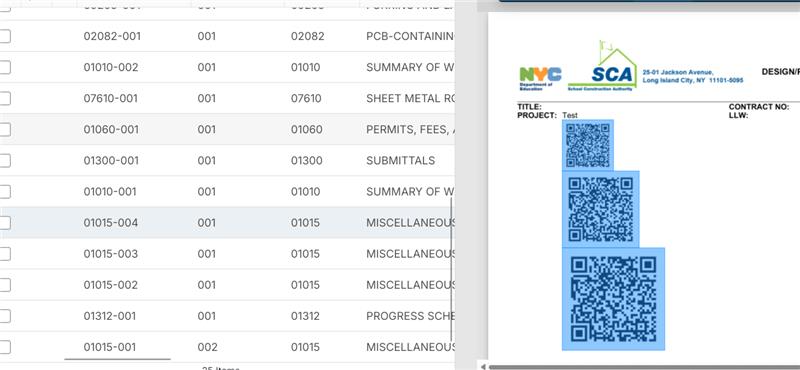
We added a QR code token that you can insert into Word-based Portable View templates. When you scan the QR code or click it in a generated PDF, it opens the related Kahua record.
Copy the EntityQRCode token from the Template Tokens list, choose a size, and paste it where you want the QR code to appear.
Example Add [EntityQRCode(Size=Medium)] to a template.
Document Management
Architect's Supplemental Instructions (ASIs) – Added Snapshot support
You can now include Architect's Supplemental Instructions (ASIs) in Project Snapshots to preserve them alongside your other project records. Each ASI is stored in its own folder, named with the application name, ASI number, and subject, making individual records easy to locate.
Field Observations – Added media transfer when processing into Punch Lists
When you process a field observation into a punch list item, its photos now automatically carry over to the new item. This eliminates the need to add the same photos again and preserves the visual context captured in the field.
Previously, photos from the field observation were not included in the new punch list item. Now, they're automatically transferred and available in the punch list item's media.
File Manager – Added ability to review user folder access
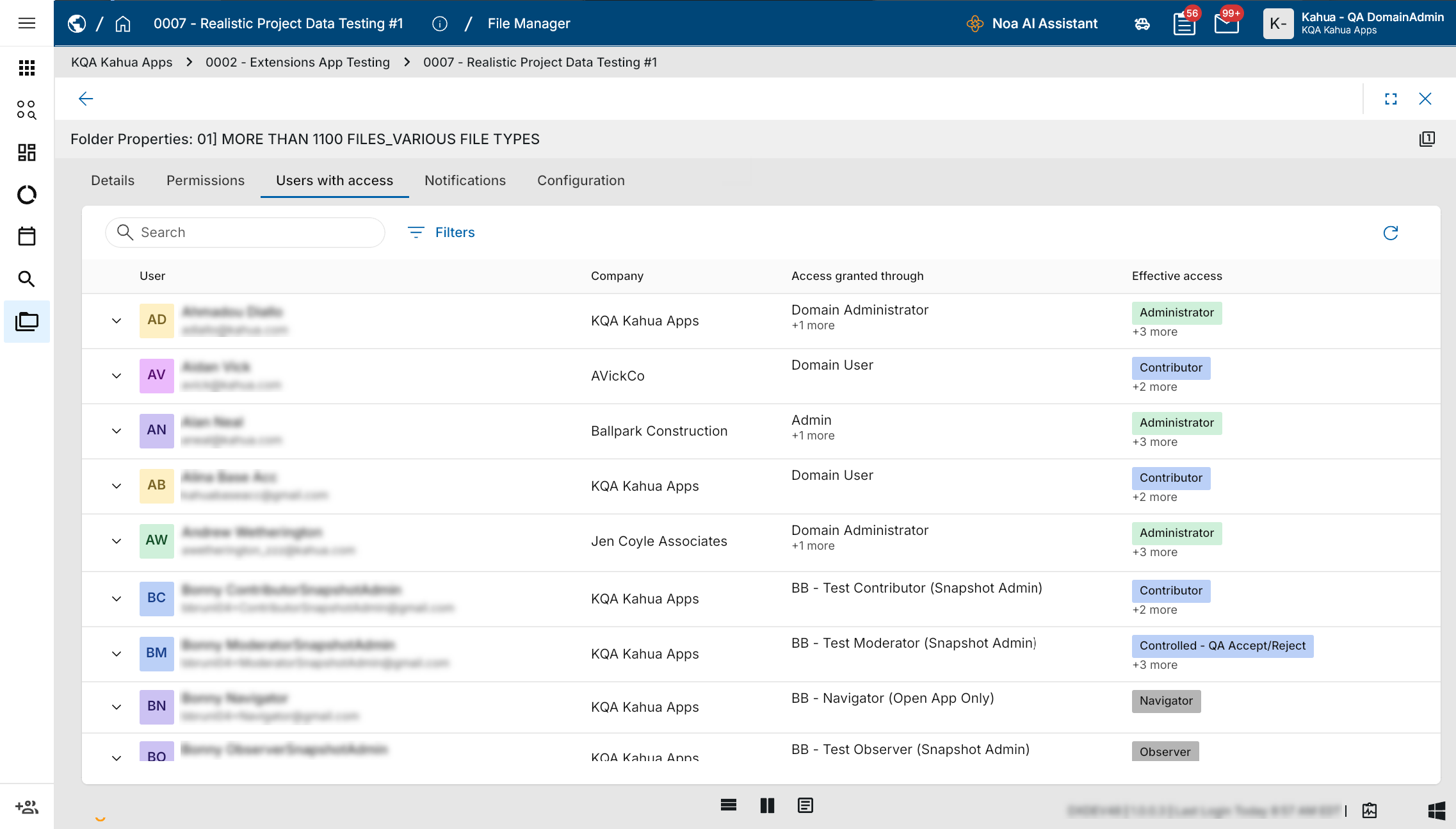
We have added a new Users with access tab to Folder Properties in File Manager. This tab shows all the users that have access to that folder, what level of access they have, and what group membership provided that access.
You must have Contributor-level or higher permissions to the folder to have access to the tab.
File Manager – Added bulk pre-registration of placeholder records for Controlled Folders
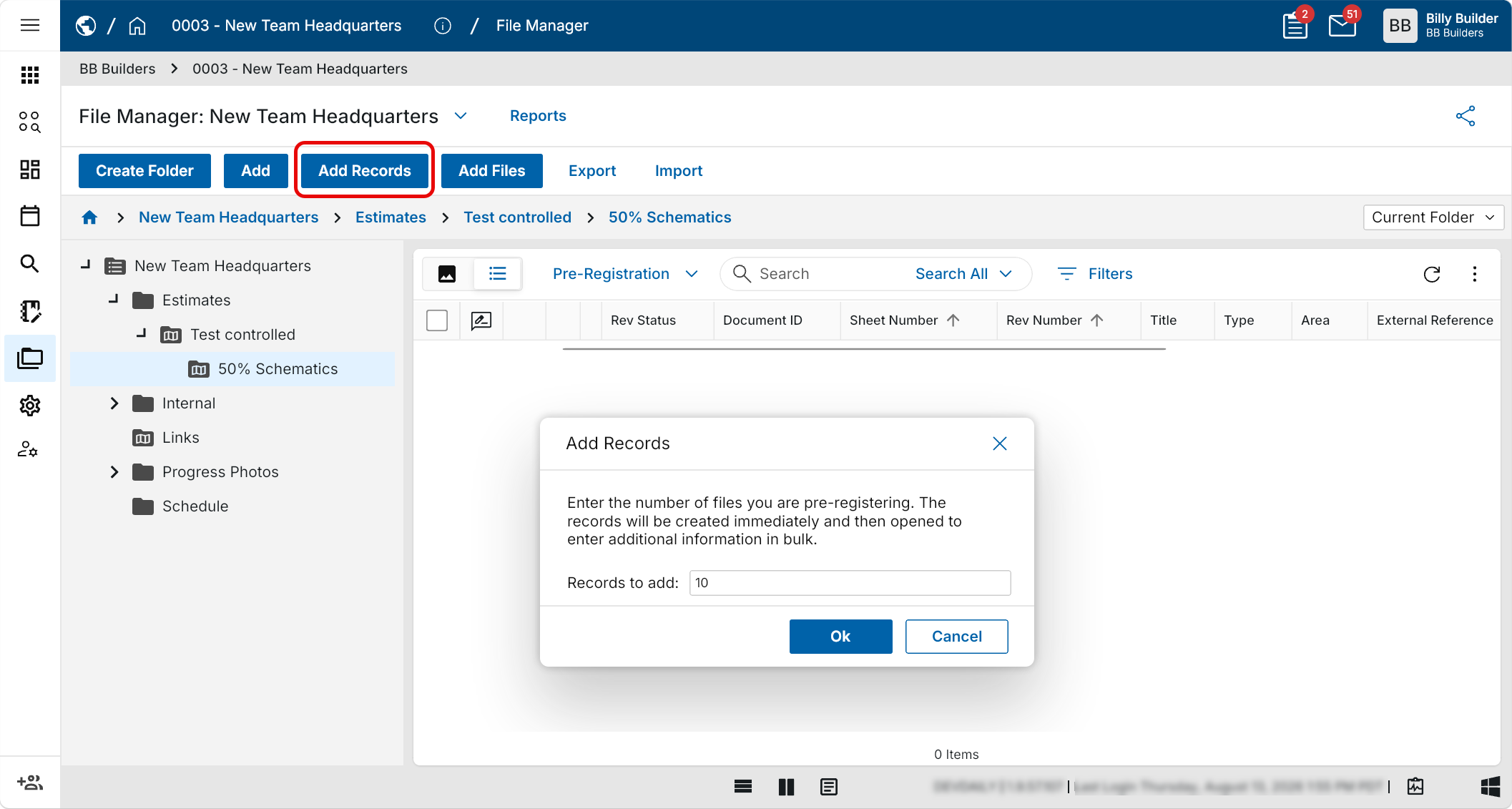
You can now bulk-create placeholder records in a controlled folder with the new Add Records action, saving you from adding files one at a time when you know how many documents are coming.
To use this feature, open a controlled folder in File Manager and select Add Records. Enter the number of files you're pre-registering (up to a value of 100) and confirm. The records are created immediately and opened in a multi-edit view using your active log view. You can enter titles, types, and other metadata in bulk using Copy to All or Copy to Selected. A new Pre-Registration log view is available to allow you to easily enter data commonly entered when pre-registering files.
File Manager – Selecting markup now opens images to full screen with improved markup panel
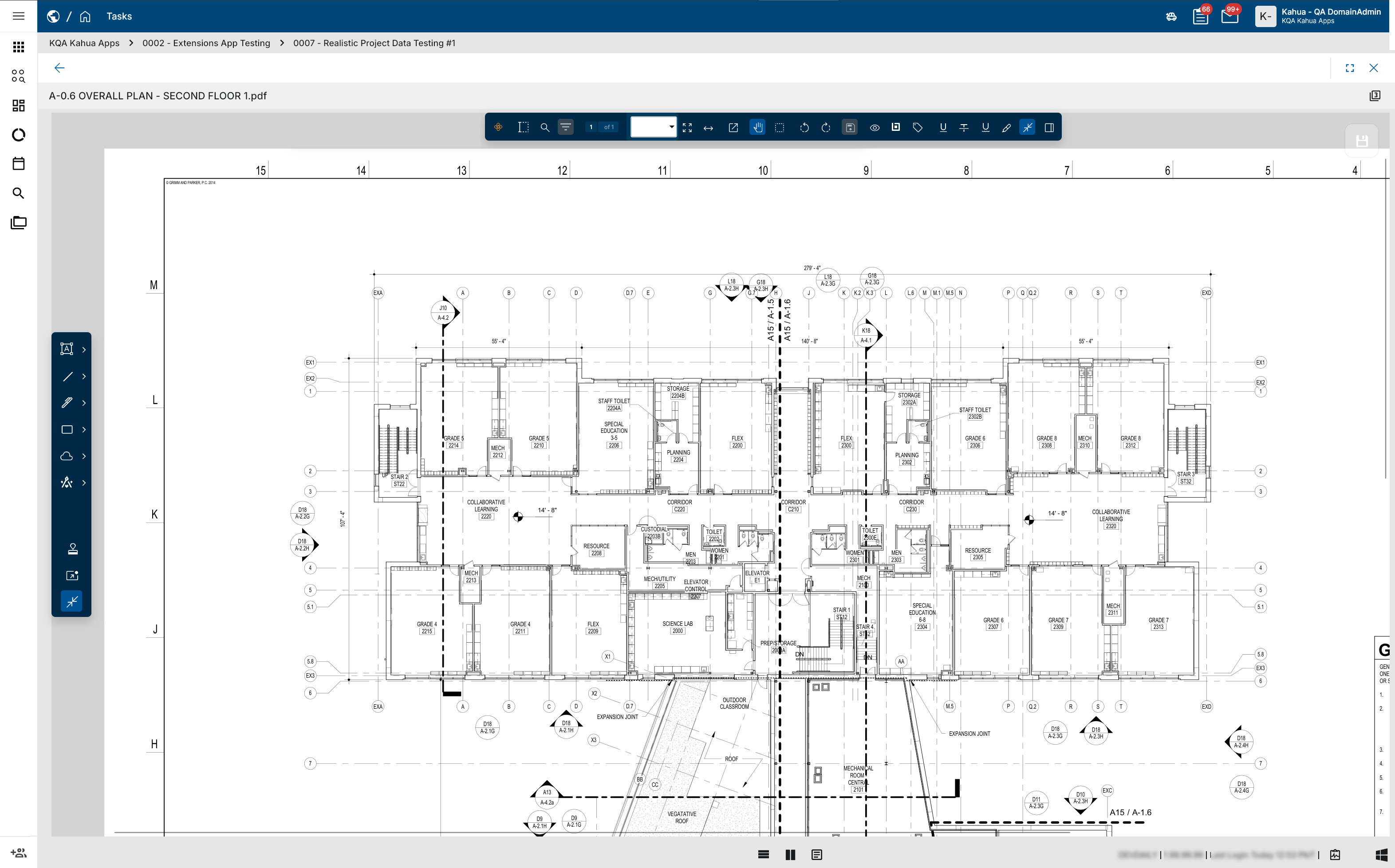
When opening a file in markup mode while viewing Kahua using split screen, the file now automatically appears in full screen. Additionally, the improved markup panel automatically appears. To close the markup panel, click the View icon  on the viewer toolbar and click Show Markup Panel to remove its selection.
File Manager – Upload files in background
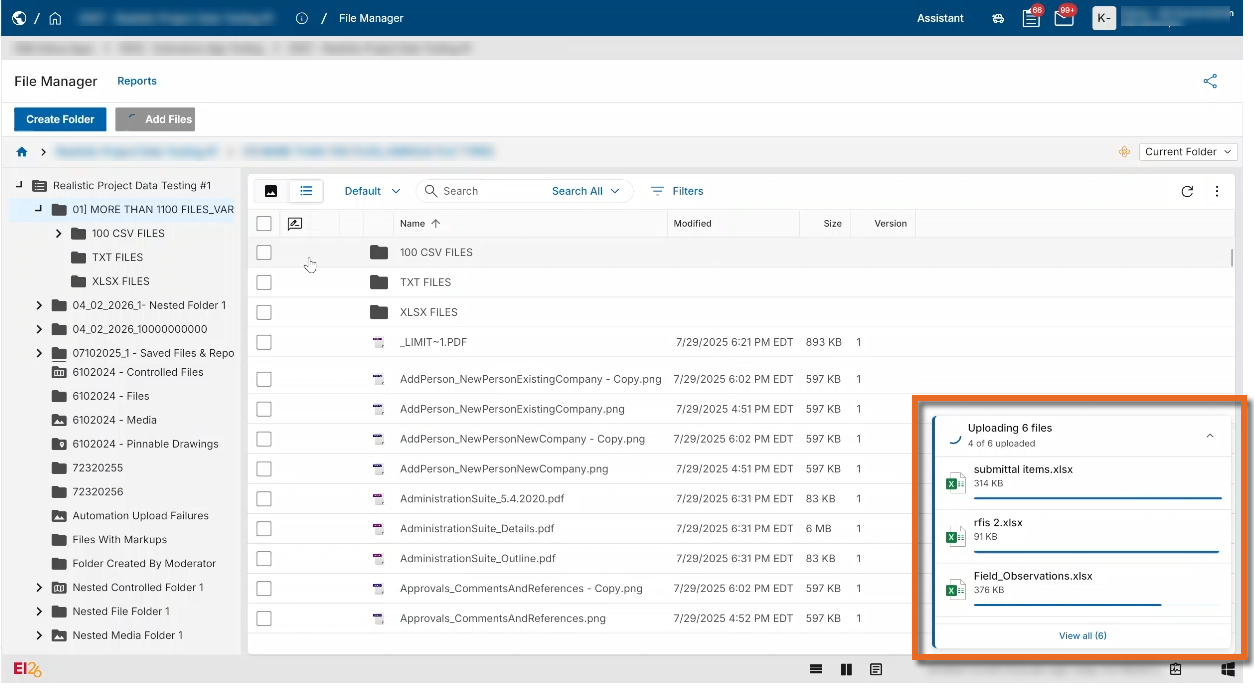
Files added in File Manager now upload in the background, allowing you to continue navigating Kahua and using other features while uploads are processed.
Instead of displaying a blocking modal over File Manager, upload progress now appears in a collapsible floating menu in the bottom-right corner of Kahua. The menu remains available while uploads are processing. You will be notified when your files are ready for review.
Punch List – Improved consistency of app labels
The Punch List Items app now has the same name throughout Kahua, making it easier to find and recognize, even when it doesn't appear under the Punch List menu.
Previously, the app was labeled Punch List Items in some places but simply Items in others, which could be confusing when the app wasn't listed under Punch List. Now, you'll see Punch List Items in your installed apps, in the app menu, and within the app itself.
RFIs – Added secondary responder status indicators
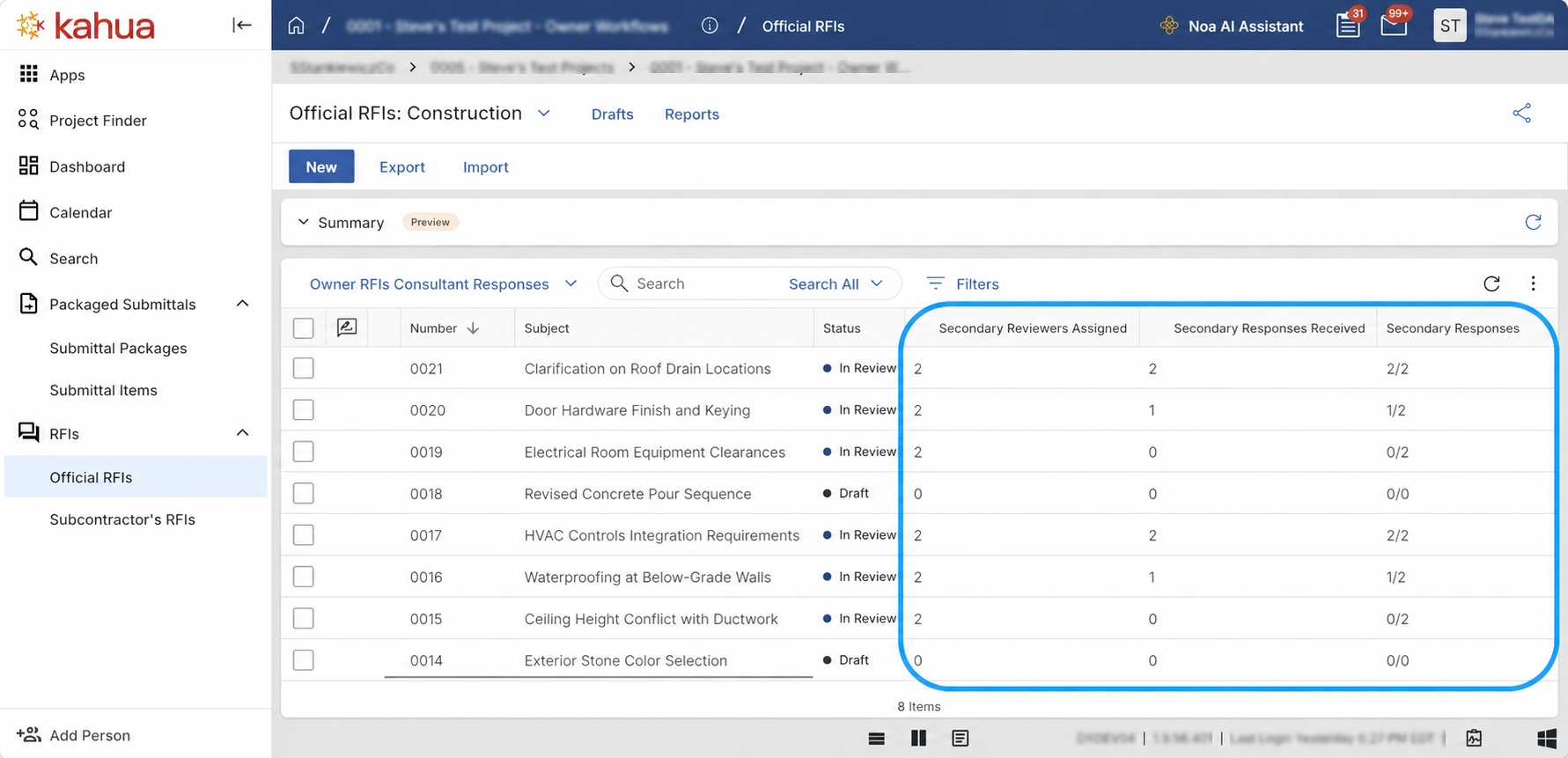
You can now see secondary review progress for RFIs directly in the log. You no longer need to open individual RFIs to check how many secondary reviewers have responded, making it easier to track progress and follow up on outstanding reviews.
Previously, secondary responses were available only on individual RFI records. We added three calculated fields to the RFIs application:
-
Secondary Reviewers Assigned – The number of secondary reviewers the RFI has been sent to.
-
Secondary Responses Received – The number of secondary reviewers who have responded.
-
Secondary Responses – A combined progress indicator. For example, 3/5 means the RFI was sent to five secondary reviewers and three have responded.
You can add all three fields as columns or filters in List View Builder. The fields are also available in the datastore for reporting and as tokens in Portable Views.
A secondary reviewer counts as assigned only when a sent date is recorded and as responded only when a response date is recorded. Reviewers without the corresponding dates are not included in those counts.
Submittal Items and Submittal Packages – Added consultant responder status indicators
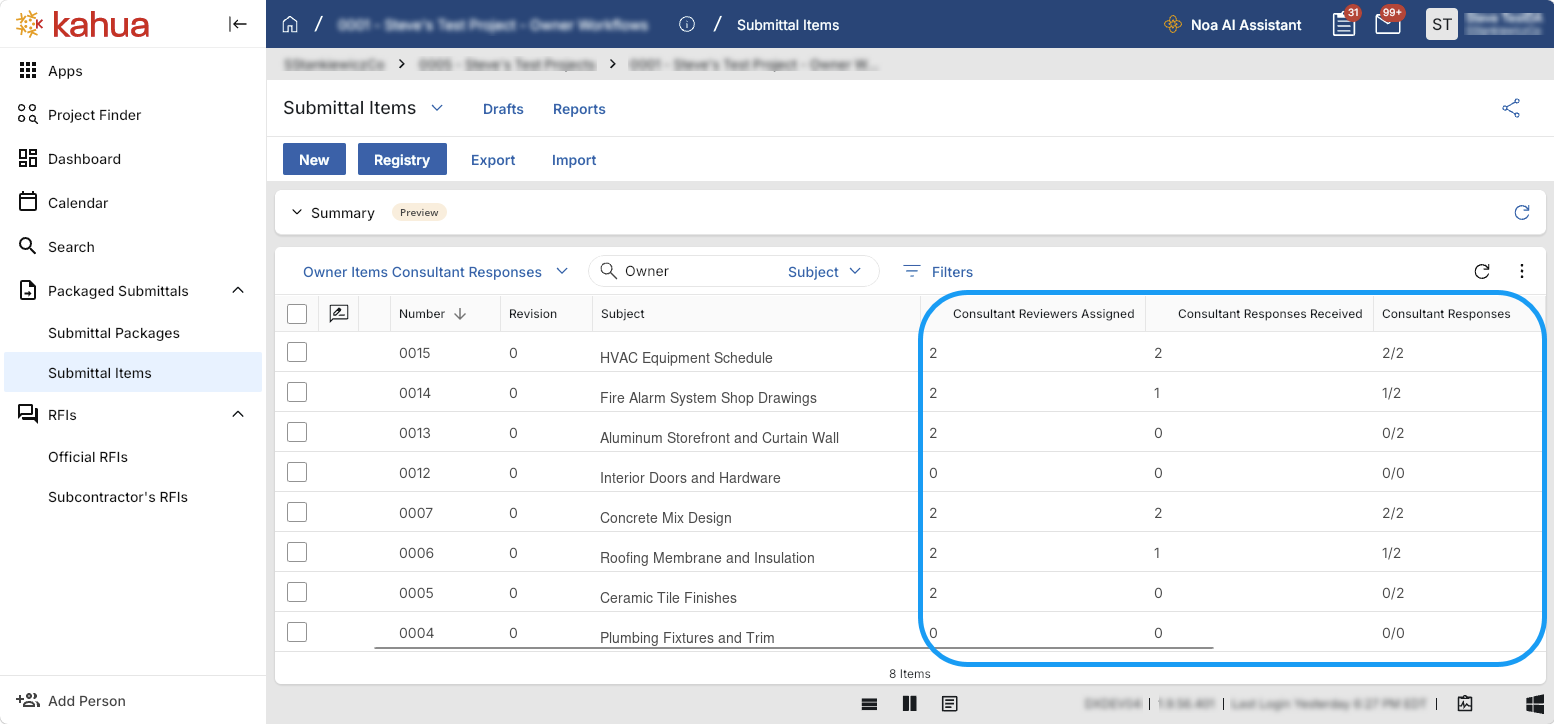
You can now see consultant review progress for Submittal Items and Submittal Packages directly in their respective logs. You no longer need to open individual records to check how many consultants have responded, making it easier to track progress and follow up on outstanding reviews.
Previously, consultant responses were available only on individual Submittal Item and Submittal Package records. We added three calculated fields to both applications:
-
Consultant Reviewers Assigned – The number of consultant reviewers the item or package has been sent to.
-
Consultant Responses Received – The number of consultant reviewers who have responded.
-
Consultant Responses – A combined progress indicator. For example, 3 of 5 means the item or package was sent to five consultant reviewers and three have responded.
You can add all three fields as columns or filters in each app's respective log view. The fields are also available in the data store for reporting and as tokens in Portable Views.
A consultant reviewer counts as assigned only when a sent date is recorded and as responded only when a response date is recorded. Reviewers without the corresponding dates are not included in those counts.
Submittal Items – Added settings to allow company members to submit or respond
You can now allow any member of an assigned contact's company to submit or respond to a Submittal Item on that contact's behalf. This helps keep submittals moving when the assigned contact is unavailable while maintaining a record of who performed the action.
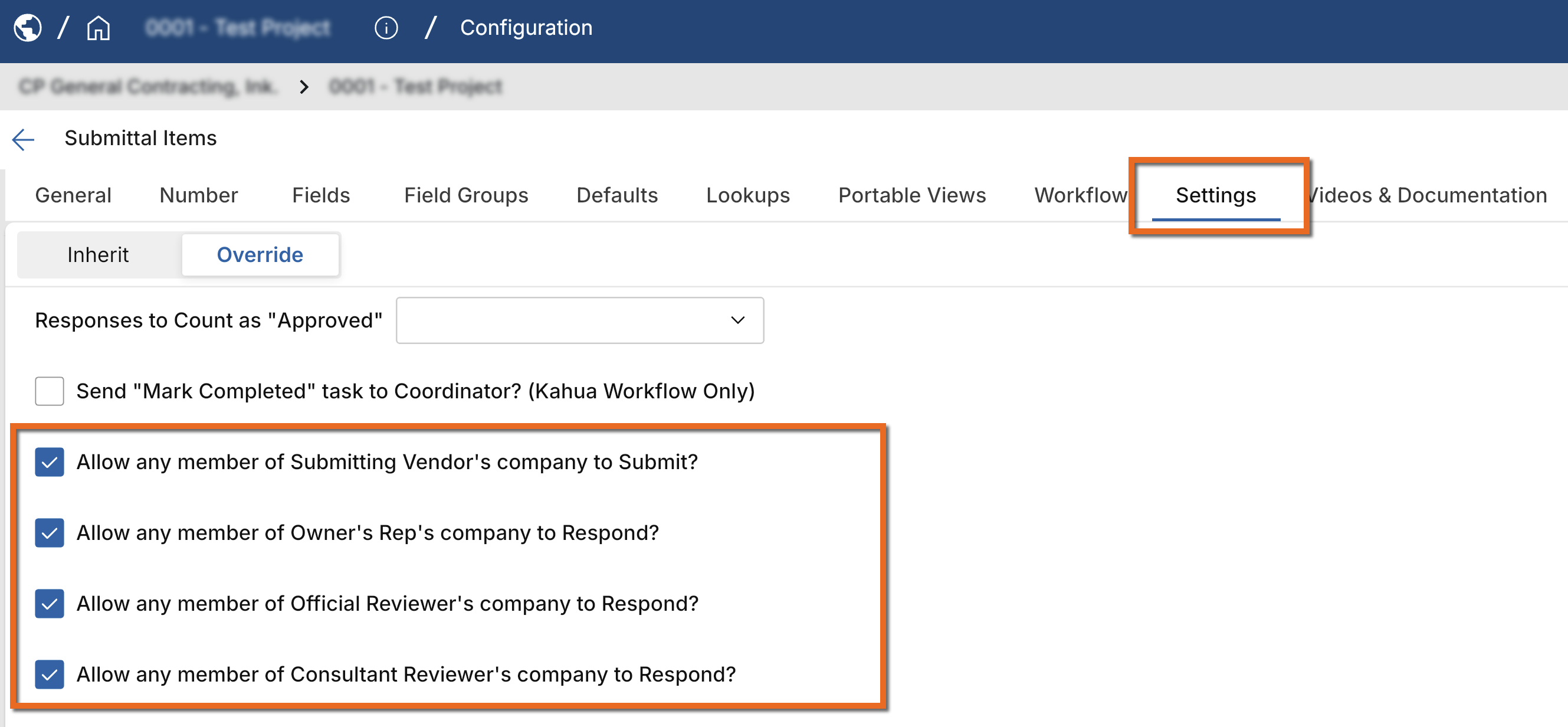
Separate settings are available for four roles: Submitting Vendor, Owner's Rep, Official Reviewer, and Consultant Reviewer. All four settings are enabled by default. When a setting is disabled, only the assigned contact can submit or respond, as before.
When enabled, company members can open a Submittal Item with an active task and access the assigned contact's submission or response form. They can add notes, media, and references, then select Save, Submit, or Respond. Saving leaves the task open, while submitting or responding closes the assigned contact's task. Company members acting on behalf of an assigned contact cannot delegate the task.
For Consultant Reviewers, this applies only to the individual consultant's task. Responding closes that task without affecting other consultants' tasks.
Kahua automatically records who performed the action in the appropriate field: Submitted by, Owner's Rep Response by, Final Response by, or Consultant Response by.
To manage these settings, navigate to Configuration > Submittal Items > Settings and select or clear the checkbox for each role.
Work Packages – Added role-based workflow support
This feature will not be available by default at this time. If you are interested in having this feature installed in your domain, reach out to Support or your account representative.
The Work Packages app now provides greater flexibility when assigning responsibilities and configuring workflow defaults. Contact selectors support individual contacts, Project Roster positions, and Project Directory roles, allowing users to select the most appropriate person or role for each responsibility.
Administrators can configure applicable Work Package fields—such as the Primary Responder for an RFI—using an individual contact, roster position, or directory role. Contact selectors organize these choices into All Contacts, Roster, and Directory options, making it easier to find and select the right assignment.
Single-select fields support one contact or role, while multi-select fields support multiple contacts, roster positions, and directory roles. Selected values clearly identify the associated person and role or roster assignment.
This enhancement is the first step toward broader role-based workflow support across the platform. By allowing responsibilities to be assigned to project roles and roster positions, workflows can better adapt as project teams change, reduce administrative maintenance, and provide more reusable and scalable workflow configurations.
Cost Management
Introducing schedule integration – Use schedule data to build or breakdown contract costs and payment progress
The following applies to the Kahua supplied Schedule Manager, Funding Contract, Expense Contract, SOV Breakdown, Pay App, and Pay Request apps.
At this time, Schedule Integration is available through a pilot program. If you are interested in having this feature installed in your domain, reach out to Kahua Support or your account representative.
Schedule Integration connects Funding Contracts and Expense Contracts to schedule data imported into Schedule Manager. Project teams can use approved Schedule commitment codes, optional loaded costs, and Activity progress to build and maintain Contract commitments, detailed Schedule of Values (SOV) items, and payment progress.
Contracts can be prepared before a schedule is imported, or schedule data can be used to populate contract commitment items. Each contract can use its own schedule, or several contracts can use filtered portions of the same schedule. This allows one schedule to support a funding contract and the related expense contracts performing the work.
Administrators enable Cost Integration for the project and configure the required mappings under Configuration > Schedule > Mapping. Users then link each contract to a schedule and select its synchronization scope, whether to use loaded costs, and any applicable activity filter.
When users run Synchronize Cost from an approved schedule, each contract's Automated Cost Sync setting determines which documents are updated.
Depending on the selected options, synchronization can do the following:
-
Create or update commitment codes and contract commitment items from schedule data.
-
Refresh the SOV Breakdown with contract items, approved change orders, and eligible schedule activity items.
-
Create the next pay app or pay request.
-
Calculate Work Completed This Period from activity percent complete, less Previous Work Completed, and include Material Presently Stored in Total to Date.
-
Record the schedule revision and synchronization date on connected cost documents.
For initial SOV setup, review and approve the contract, then select Process to SOV. Synchronization can then populate or update schedule activity items. New SOV items follow the app's default approval settings; review and approve any remaining Draft items before preparing payments.
Validation checks mappings, commitment totals, duplicate assignments, and existing payment progress. Users can also run Sync Schedule from a linked contract or SOV Breakdown to update that document from the latest approved Schedule.
Key restrictions include the following:
-
Schedule Integration supports SOV-enabled contracts.
-
SOV items with existing payment progress cannot be removed during synchronization.
-
Contracts with change orders must use an SOV-based synchronization option rather than direct contract synchronization.
Cashflow Forecasting – Added batch creation of next-period cashflows
The following applies to the Kahua-supplied Cashflow Forecasting app.
Administrators can now create next-period cashflows for multiple projects in a single batch, eliminating the need to create them individually. You can review each project's source cashflow and proposed next period before creating the new cashflows.
To create cashflows in a batch, open the Cashflow Forecasting app from the parent or root partition and select Batch Create Cashflow from the app menu. Select the projects or partitions, review each project's approved source cashflow and proposed next period, and run the batch. The results identify which cashflows were created and which projects were excluded or failed. To review a newly created cashflow, select the project row, then select Open Project.
Each project must have an Approved cashflow and a next financial period of the same type. Projects that already have a cashflow for the next period are excluded from the batch.
Before using a newly created cashflow, review its Status, dates, and amounts. The Status uses the configured default when one exists; otherwise, it remains blank.
Change Orders – Added automatic inclusion of approved Change Orders in SOV Breakdowns
The following applies to the Kahua-supplied Change Order and SOV Breakdown apps.
You can now automatically add approved Change Orders to their Contract's SOV Breakdown, helping ensure approved work is included when preparing the next Pay Request.
Administrators can enable Automatically Add Approved Change Order to SOV Breakdown under Configuration > Apps > Change Orders > Settings. The setting is disabled by default.
When enabled, each approved Change Order is added to the SOV Breakdown once, using the existing SOV selection rules. Reprocessing an approval does not create duplicate SOV items or grouping rows.
You can continue selecting Change Orders manually. Any Change Order that cannot be added automatically remains available for manual selection.
Change Orders – Added support for approved Change Order Lines as Associated Contract Lines
The following applies to Kahua-supplied Change Orders and Pay Requests for SOV-based Contracts. This functionality is not supported for non-SOV Contracts.
You can now select an eligible approved Change Order line from the same Contract as the Associated Contract Line for a subsequent Change Order item. This makes it easier to reduce, close out, or adjust values introduced by an earlier Change Order.
When selecting an Associated Contract Line, you can search for eligible approved Change Order lines. Searchable document-prefixed labels help you distinguish original Contract items from Change Order lines.
On SOV-based Pay Requests, the selected approved Change Order line serves as the base line, with subsequent associated lines calculated as changes against it.
Non-SOV Contracts and existing Associated Contract Line relationships retain their current behavior. Existing records are not automatically reassigned.
Construction Change Directives (CCD) – Added ability to void CCDs
The following applies to the Kahua-supplied Construction Change Directive workflow.
Authorized users can now void a Construction Change Directive (CCD) that was created in error or is no longer required without deleting the record. Voiding closes active review or signature activity, sets the document and workflow status to "Void", and locks the CCD so it cannot continue through the normal process.
The CCD and its cost breakdown remain available as historical records, and the "Void" status is visible in logs, searches, reports, and audit history.
Construction Change Directives (CCD) – Added "Assigned To" field to CCD log views
The following applies to the Kahua-supplied Construction Change Directive app.
The Assigned To field is now available as a CCD log view column so you can see who is currently responsible for each Construction Change Directive. You can add the column through Manage Views and use it to sort or filter the CCD log.
The value follows the current approval participant as the workflow progresses and is blank when no participant is assigned.
Cost Guards – Updated Activity Code cost summaries to respect WBS permissions
The following applies to Kahua-supplied cost apps that display the Activity Code Cost Summary when Cost Guards are enabled.
Visibility of Funding Total, Expense Total, and Available summary values now follows the existing WBS Open App user permission.
If you can view WBS values but cannot open the WBS app, you can continue selecting Activity Codes and entering cost data, but you will not see the Activity Code Cost Summary or financial amounts in Cost Guard messages. You will receive a simplified message when a guard is triggered.
If you have WBS Open App permission, you will continue to see the full summary and existing detailed messages. Cost Guard calculations, thresholds, and pass/fail behavior are unchanged.
Cost Items – Added automatic Lump Sum assignment for new Tax items
The following applies to Kahua-supplied cost apps that support Cost Item Type, tax items, and item-level Entry Type behavior.
New tax items are now automatically set to Lump Sum, and their Entry Type is locked. This prevents tax items from being treated as quantity-based or Unit Price work in reports and totals.
This behavior applies when you create or update tax items. New non-tax items continue to use the document's default Entry Type.
Existing tax items are not automatically converted or recalculated. Downstream items created from existing tax items continue to inherit the source item's saved Entry Type, preserving existing Contracts and payment sequences.
Cost Items – Added support for importing Cost Item Type values
The following applies to Kahua-supplied cost apps, including Funding Budgets, Budget Changes, Budget Adjustments, Contracts, Contract Change Orders, Contract Change Requests, Purchase Orders, Purchase Order Change Orders, and AEC Invoices.
You can now include Cost Item Type values when importing new or existing cost items, eliminating the need to assign them manually after import.
To import a Cost Item Type, include the CostItemType column in your import file. The CostItemType column matches values to the Description of a Cost Item Type configured under Configuration > Apps > Cost Item Index > Cost Item Indexes. Invalid or unavailable values result in an import error rather than changing the item.
When tax is configured, imported Cost Item Type values follow the existing tax rules and calculations. When tax is disabled, tax-specific Cost Item Types are unavailable and will be rejected during import.
Forecast Curves – Added more control over custom curve points
The following applies to the Kahua-supplied Forecast Curves and Cashflow apps.
You can now define custom Forecast Curves using 1 to 30 points, giving you greater control over how forecast values are distributed over time.
This update also includes the added ability to do the following:
-
Clone an existing system or custom curve as the starting point for a new custom curve.
-
Increase or decrease the number of points in a custom curve.
-
Edit only the active point cells for the selected curve.
-
Use custom curves in standard Cashflow forecasting and Inline Actuals forecasting.
When you reduce the number of points in a custom curve, any points that are no longer applicable are automatically cleared.
Existing custom curves retain their 10-point configuration, and new custom curves default to 10 points unless you select a different value.
Invoices – Added option to start new PO invoices at zero
The following applies to new Purchase Order and Purchase Order Change Order-backed invoices in the Kahua-supplied Invoices app.
We have added an option to have new invoice lines begin with a billed amount of zero and a quantity of zero where quantity applies. Administrators can enable this option by selecting Start New Purchase Order Invoice Items at $0 under Configuration > Apps > Invoices > Settings.
This option makes it easier to prepare partial invoices because you can enter only the quantities or amounts being billed instead of first clearing fully progressed lines. Unit Price information remains available where applicable.
The setting is off by default, preserving current behavior. Existing invoices, previous progress, and remaining balances are unchanged.
Managing Agent – Added Managing Agent as an Approval Actor
The following applies to the Kahua-supplied Contract, Change Request, Change Order, Pay Request, Pay App, Purchase Order, PO Change Order, and Invoice approval workflows.
We added Managing Agent as an available Approval Actor for supported Review and Signature workflows. You can now route approval tasks to the Managing Agent associated with a Contract or Purchase Order, simplifying approval configuration and ensuring tasks are directed to the appropriate contact.
Administrators can select Managing Agent as an Approval Actor under Configuration > Approvals when configuring a supported Review or Signature workflow. For contract-related documents, Kahua identifies the recipient using the Managing Agent field on the associated Contract. For Purchase Order-related documents, Kahua uses the Managing Agent field on the associated Purchase Order.
If the Managing Agent is blank, unavailable, inactive, or duplicated, Kahua follows the existing behavior for other attribute-based Approval Actors.
Existing approval configurations and approval tasks that are in progress or completed are not affected by this update.
Master Service Agreements (MSA) – Added ability to use MSAs across parent and sibling projects
The following applies to the Kahua-supplied Master Service Agreement (MSA), Contract, and Purchase Order apps.
We added configuration options that allow you to select eligible Master Service Agreements (MSAs) from parent and sibling projects within the same project tree. This enhancement gives you greater flexibility to use shared agreements across projects when managing contracts and purchase orders.
The following settings are now available under Configuration > Master Service Agreements > Settings:
-
Allow Parent Project Selection
-
Allow Sibling Project Selection
Each setting can be enabled independently, allowing you to control which projects can share MSAs.
Existing projects retain their current ability to select MSAs from parent and ancestor projects. Allow Sibling Project Selection is disabled by default. Administrators can enable this option when procurement activities in different branches of the same project tree need to use shared agreements.
Existing company, currency, security, MSA availability, and amount-limit rules continue to apply. MSAs from unrelated project trees cannot be selected.
Multi-Project Documents – Added parent and sibling project selection
The following applies to Kahua-supplied cost apps that support Multi-Project Documents.
You can now assign Multi-Project Document items to eligible parent and sibling projects within the same project tree. This enhancement gives you greater flexibility when assigning document items across related projects.
Administrators can enable this functionality under Configuration > Cost > Multi Project Documents. Multi Project Documents must be enabled before you can configure the following settings independently:
-
Allow Parent Project Selection – Allows you to assign document items from a child project to eligible parent projects.
-
Allow Sibling Project Selection – Allows you to assign document items to eligible sibling projects within the same project tree.
By default, project selection remains limited to the current project and its child projects. You can select only projects you have permission to access, and projects outside the same project tree are not available.
Pay Requests and Pay Apps – Added action to recalculate payment sequences
The following applies to Kahua-supplied Expense Pay Requests and Funding Pay Apps for SOV and non-SOV Contracts.
You can now recalculate a Contract's Pay Request or Pay App sequence after a calculation issue or manual change, without having to open and save each subsequent record individually. This helps ensure that prior-period values and dependent calculations remain consistent throughout the payment sequence.
When you run the recalculation action, Kahua processes each subsequent Pay Request or Pay App in chronological order, from earliest to latest. For each record, Kahua carries forward the applicable prior-period values, recalculate dependent amounts, and save the record before proceeding to the next one.
As with the existing Refresh from Previous action, user-entered current-period values, such as Work This Period, are retained, along with the resulting Current Payment Due values. Workflow states, approvals, notes, attachments, and Pay Request lines also remain unchanged. The action does not retrieve new values from the Contract, Change Orders, or SOV.
Before recalculation begins, Kahua checks permissions, workflow state, payment sequence, and active edits. If an update fails, processing stops and identifies the Pay Request or Pay App that could not be updated.
Pay Requests and Pay Apps – Added import and export for faster item updates
The following applies to Kahua-supplied Expense Pay Requests and Funding Pay Apps.
You can now export Pay Request or Pay App items to Excel, update eligible progress values, and import the file back to update the existing items.
The import supports matching an existing item by:
-
ID
-
Number
-
SourceNumber
This means you can use the Pay Request item Number or SourceNumber in the import file without needing the system ID value. Each row uses the first populated identifier in that order. Clear row-level errors are returned when an item cannot be matched or more than one row targets the same item.
Existing quantity, progress, retainage, calculation, validation, and permission rules continue to control which values can be updated.
Change Order billing lines are not currently supported by item export/import. The export includes the Change Order summary row only; you must update individual CO billing values in the Pay Request or Pay App.
Pay Requests and Pay Apps – Added option to display Change Order lines in the items grid
The following applies to Kahua-supplied Expense Pay Requests and Funding Pay Apps for Contracts that do not use an SOV breakdown.
You can now display approved Change Order lines directly in the main items grid of Pay Requests and Pay Apps. This makes it easier to enter billing progress without opening individual Change Order groups. The existing Grouped by Change Order layout remains the default.
To enable this option, go to Configuration > Pay Requests or Funding Pay Apps > Settings and enable Show Change Order Lines on Pay Request Grid.
Existing payment sequences and SOV-based Contracts remain unchanged. You cannot change the selected grid structure after the Contract's first Pay Request or Pay App is created.
This setting changes how Change Order lines are displayed and edited in Kahua. Import and export support for individual Change Order billing lines is planned for a future update.
Pay Requests and Pay Apps – Added Previous Materials Presently Stored values
The following applies to the Kahua-supplied Expense Pay Request and Funding Pay App apps.
You can now access previous materials presently stored values in Pay Requests and Pay Apps, making it easier to compare current values with those from the previous matching item. These read-only values are also available in Portable Views.
We added the following fields:
-
Previous Materials Presently Stored – The stored-material dollar value from the previous matching item.
-
Previous Quantity Materials Presently Stored – The stored-material quantity from the previous matching item for applicable quantity-based Unit Price items.
For lump-sum items, only the previous dollar value is available. Existing records are not updated automatically with these values. The values become available after a record is created, edited and saved, or refreshed.
Current stored-material values and existing totals, rollover, and retainage calculations remain unchanged.
Pay Requests and Pay Apps – Added summary-level retainage rounding
The following applies to the Kahua-supplied Expense Pay Request and Funding Pay App apps.
You can now calculate retainage rounding at the document summary level, helping ensure that item-level retainage amounts reconcile with the document's rounded total retainage and payment due.
When the Calculate Retainage at Summary Level setting is enabled, Kahua preserves the existing item-level retainage calculations and calculates the rounded summary retainage based on eligible work and stored materials. We then compare the two amounts and apply any difference to the first Pay Request or Pay App item as a Retainage Rounding Adjustment.
This adjustment keeps item-level retainage, document Total Retainage, and the current payment due aligned to the same rounded amount.
The Calculate Retainage at Summary Level setting is off by default, cannot be used with Manual Retainage, and does not affect approved records.
Pay Requests and Pay Apps – Added Utilities menu for less frequently used actions
The following applies to the Kahua-supplied Pay Requests and Pay Apps.
We've added a new Utilities menu to the action bar in Pay Requests and Pay Apps. This change makes less frequently used actions easy to find while reducing clutter on the action bar, so you can focus on everyday tasks.
The following actions have been moved to the new Utilities menu:
-
Refresh from Previous
-
Refresh from SOV
-
Refresh from Contract
-
Recalculate Later Pay Requests / Pay Apps
To access these actions, open a Pay Request or Pay App and select Utilities from the action bar. Select the appropriate action from the menu to perform the same operation as before.
The functionality of these actions has not changed. Their availability continues to depend on your permissions, the document's status, and your configuration.
Planning Budgets and General Invoices – Added modern K4X workflows
The following applies to the Kahua-supplied Planning Budget, Planning Budget Adjustment, and General Invoice apps, including standard and Multi-Project documents, when their K4X capabilities are enabled.
We updated these apps with a consistent K4X cost-document lifecycle, including configurable review and signature workflows, manual status actions, and Lock, Unlock, Restart, and Void actions. These enhancements provide more consistent document management and greater control over review and approval processes.
The update also includes the following enhancements:
-
Planning Budgets – Added configurable Cost Item Type and tax support while preserving the existing Process to Funding Budget functionality.
-
Planning Budget Adjustments – The Process to Funding Budget Adjustment action now creates a linked adjustment in Projected status without changing the source document.
-
General Invoices – Added Cost Guards, Activity Code summaries, and Sources of Funds integration.
When Sources of Funds is enabled, eligible General Invoice values contribute to both Committed and Invoiced actuals.
Existing records remain available without requiring lifecycle data migration. Cost Item Type, tax, Cost Guards, and Sources of Funds functionality depends on configuration. Custom app extensions may require separate updates and compatibility testing before the new K4X functionality is enabled.
Sources of Funds – Added action to recalculate funding allocations
The following applies to the Kahua-supplied Budget, Budget Adjustment, Budget Change, Expense Contract, Change Order, Pay Request, Purchase Order, Purchase Order Change Order, PO Invoice, and General Invoice apps.
Administrators can now recalculate Sources of Funds allocations using the latest Fund Sources and Fund Rules without changing document amounts or approval status. This makes it easier to update funding allocations after funding changes or restore missing allocations without having to reapprove documents.
To update funding allocations, use the Recalculate Sources of Funds action on an eligible document. Kahua recalculates the allocations using the current Fund Sources and Fund Rules and records any allocation changes in History.
The action is available when Fund Source Auto Calculation is enabled.
Sources of Funds – Improved allocation consistency when SOF guards are disabled
The following applies to the Kahua-supplied Fund Sources app.
We improved the Sources of Funds allocation algorithm to provide more consistent distribution of budgets, commitments, and invoices across fund sources and appropriations when SOF guards are disabled.
Allocations continue to follow your configured Fund Rules and allocation sequence, helping to keep funding assignments consistent when your configuration allows funding limits to be exceeded.
SOV Breakdown – Added ability to remove change orders
The following applies to the Kahua-supplied SOV Breakdown app.
You can now remove a change order from an SOV Breakdown, provided none of its associated SOV items have been included on a pay request. This allows you to correct or revise an SOV Breakdown without affecting the original change order.
When you remove a change order, Kahua removes the SOV items and empty grouping rows created when it was added. The original change order remains unchanged and can be selected again later or deleted through its normal workflow.
If any associated SOV item has already been included on a current or historical pay request, removal is blocked and no partial changes are saved.
SOV Breakdown – Added action to refresh all items to the latest values
The following applies to the Kahua-supplied Expense SOV Breakdown and Funding SOV Breakdown apps.
Administrators can now update an SOV Breakdown using a single Refresh All To Latest action. This reduces the steps needed to refresh SOV items, include approved Change Orders, and approve all SOV items.
When you select Refresh All To Latest, Kahua automatically:
-
Refreshes new or updated items from the related Contract and included Change Orders.
-
Adds approved Change Orders that are not yet included in the SOV Breakdown.
-
Sets all SOV items to Approved.
-
Saves the updated SOV Breakdown and refreshes the screen.
The same refresh process can also be triggered through APIs, integrations, and background tasks.
SOV Breakdown – Improved Activity Code display to include description
The following applies to the Kahua-supplied SOV Breakdown apps.
We updated the Activity Code column in the SOV Commitment Items grid to display both the activity code and its description. For example, an activity code that previously appeared as "..01001" now appears as "..01001 Authorized Scope", making it easier to identify the associated scope.
The updated display is available in both the document pane and details pane, providing a consistent experience with the Contract Items grid.
Portable views and exports remain unchanged, with Code and Description maintained as separate fields where applicable.
Assets
Introducing the Facility Condition Assessments (FCA) app
We have added a Facility Condition Assessment (FCA) app to help you inspect facility assets, document their condition and deficiencies, and track repair needs. From this app, you can manage inspection campaigns, complete assessments in the field, capture photo evidence, review results, and centrally manage deficiencies.
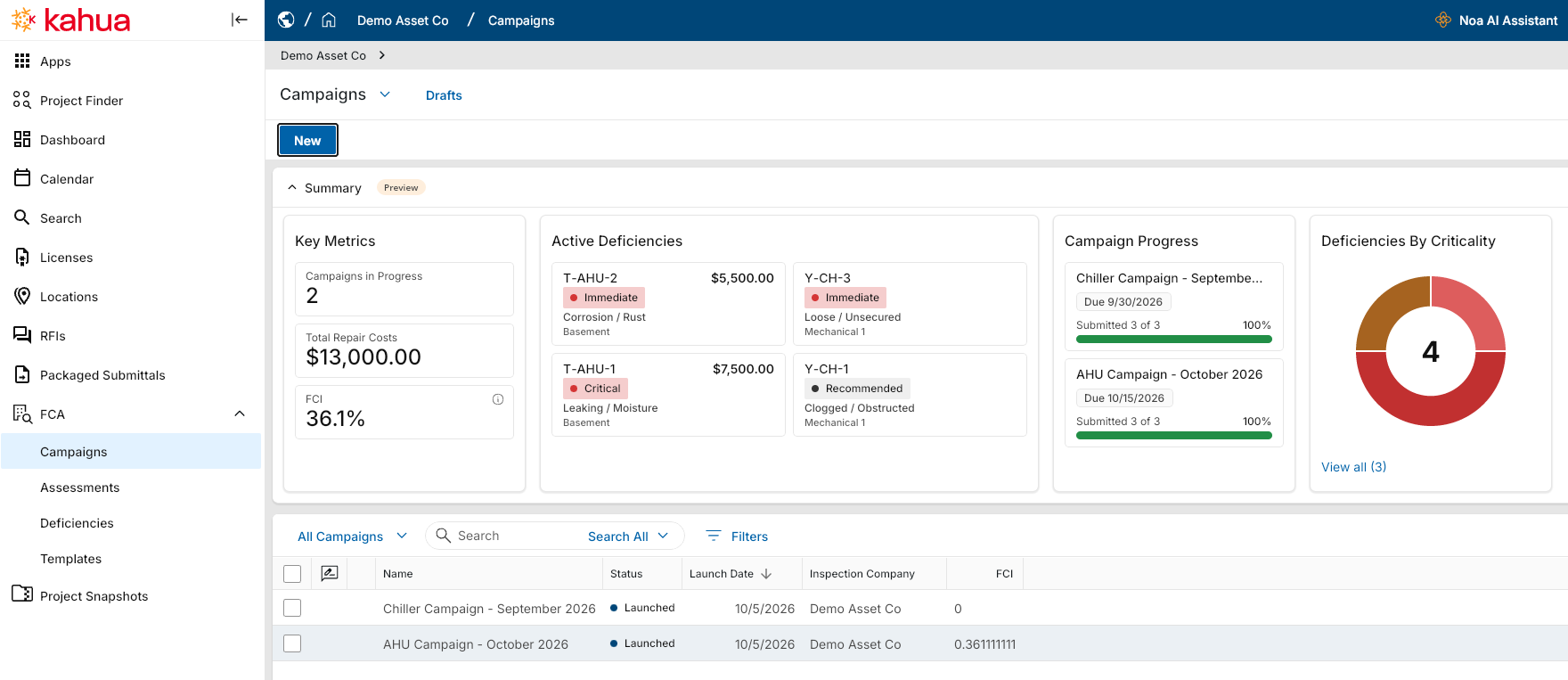
In FCAs > Campaigns, you can define the locations and asset types to inspect and use Discover Assets to identify matching assets. After you enter the due date, inspection company, and reviewer, select Launch to create the assessments for the campaign.
On a mobile device, you can navigate through the campaign, location, and asset to complete an assessment. Select a condition of Excellent, Good, Fair, Poor, or Failed, and indicate whether the asset is Deficient or has No deficiency. For deficiencies, enter the type, criticality, description, and one to three photos for each deficiency. If there is no deficiency, add at least one assessment photo. Select Submit when the assessment is complete.
Reviewers can open assessments with a Pending Review status on desktop or web to review findings, photos, estimated repair costs, recommendations, and replacement cost. Each deficiency requires a recommendation of Repair, Replace, or Defer before approval. When you select Approve, the assessment becomes read-only, the linked asset is updated with its condition and inspection date, and approved values are included in campaign financial summaries.
You can use the Deficiencies area to centrally manage approved deficiencies. The deficiency log includes assigned Deficiency ID values, search and filtering, dashboard summaries, and tracking for status, criticality, actual repair cost, and supporting media.
Administrators can configure FCA permissions and enable optional functionality based on your organization’s inspection process. Options include barcode scanning, nameplate scanning, and automatic replacement-cost population from the Asset or Type attributes. Nameplate scanning functionality is enabled in the Assets application.
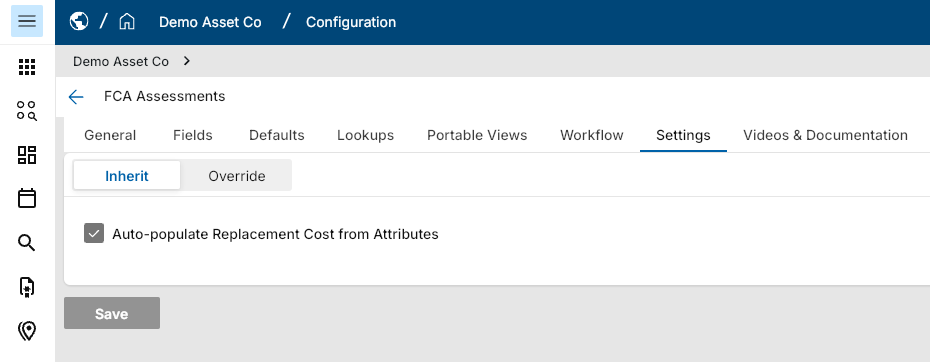
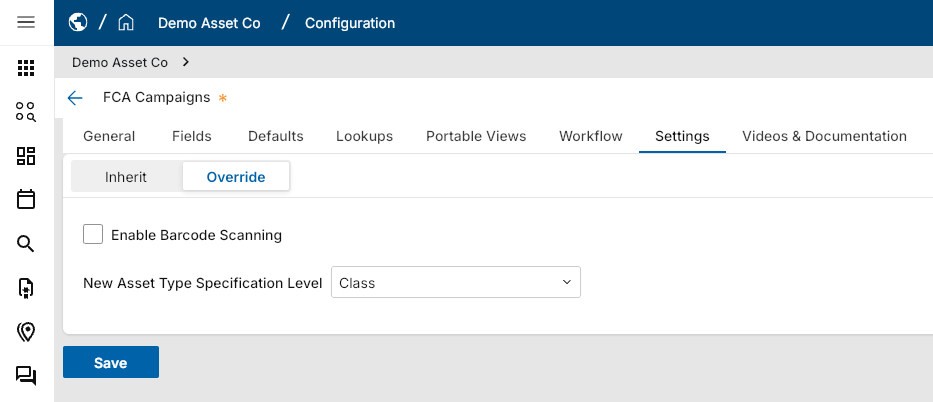
Assets – Added asset lookup by nameplate
You can now find an asset by taking a photo of its nameplate using the Kahua mobile app. Instead of manually searching asset lists or determining which project an asset belongs to, you can use your device's camera to identify the asset and locate its record across all projects you have permission to access. This feature is available on both iOS and Android.
To find an asset, open Asset Manager > Assets in the mobile app and select Find with Nameplate. Take a photo of the asset's nameplate, including its serial number, manufacturer, and model information. Kahua analyzes the image and searches for matching asset records.
Depending on the search results:
-
If Kahua finds a single high-confidence match, the matching asset record opens automatically.
-
If multiple assets are possible matches, a Select Asset list appears, with the most likely matches listed first. You can select the correct asset to open its record.
-
If no matching asset is found or the nameplate cannot be identified, the app displays No matching asset found.
If the matching asset belongs to a different project than the one you currently have open, Kahua prompts you to switch projects before opening the asset record. If you choose not to switch projects, you return to the list of matching assets.
The AI nameplate recognition feature must be enabled for your domain to use this functionality. Search results include only assets in projects you have permission to access.
Asset Extraction – Added automated asset identification and linking
Asset Extraction requires installation and is available only to Asset-Centric Project Management customers. Noa-assisted scanning requires a Noa subscription and separate enablement. Contact Kahua Support or your account representative for access.
We have added the new Asset Extraction app for Asset-Centric Project Management (ACPM) customers. You can now scan drawings in File Manager to identify asset tags and automatically link them to assets in Asset Manager, reducing manual effort and making asset documentation easier to access.
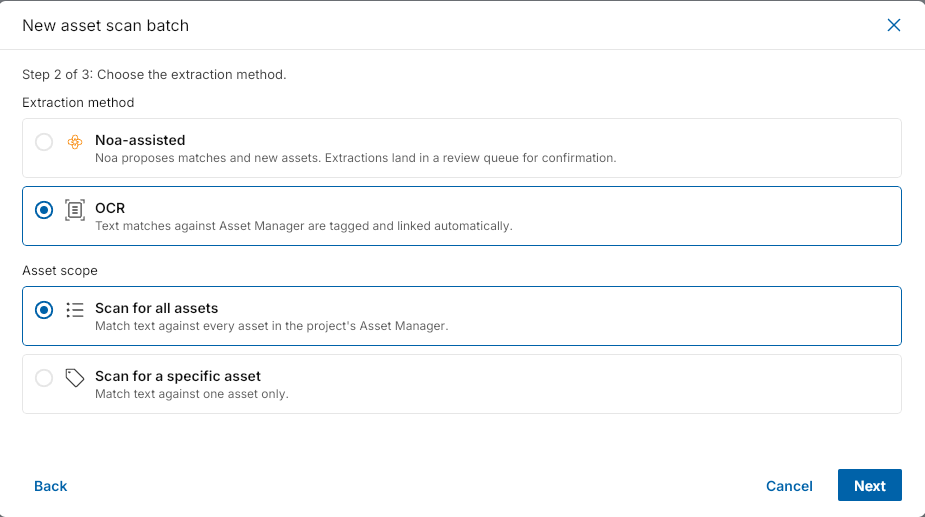
To get started, select Scan for assets, choose the files to scan from File Manager, and queue the scan. By default, Asset Extraction uses OCR to identify tags matching existing assets in Asset Manager. Exact matches are automatically tagged and linked, while matches that differ only in spacing or punctuation require your review. You can select Confirm or Ignore for these matches. Confirmed assets are linked to the drawing, which appears in the asset's Linked Documents section.
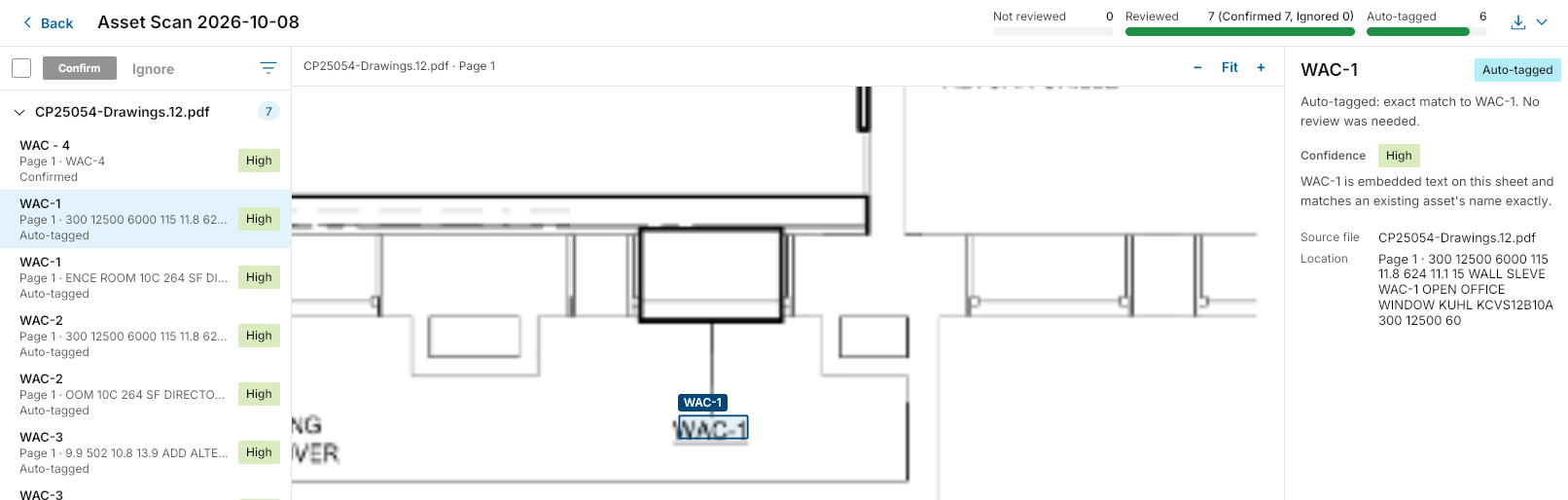
For ACPM customers who have purchased Noa Premium, optional Noa-assisted scanning can also identify new asset tags from drawing callouts and schedules, along with additional equipment references on P&IDs. Confidence ratings help you review the results before confirming.
This app is available on desktop and web hosts only.
Asset Lifecycle Cost – Added lifecycle cost forecasting and planning
We have added Asset Lifecycle Cost functionality to provide greater visibility into asset replacement planning, depreciation, and condition-related risks. Building on Maintenance, Spare Parts, and Facility Condition Assessments (FCAs), these enhancements help you evaluate asset costs and replacement needs using information already available in Asset and Asset Type records.
In Asset records, you can now review key lifecycle information, including asset age, remaining useful life, condition impact, planned replacement year, and current book value. You can also review the source of each calculated value and override certain values, such as replacement year or replacement cost, to evaluate their impact on lifecycle projections.
Asset Type records now include a summary dashboard that provides a broader view of asset lifecycle costs and replacement needs. The dashboard includes the number of assets covered, average remaining useful life, next replacement year, total forecast cost, book value, depreciation, and facility condition.
The calculations support several depreciation methods, including Straight-Line, Double Declining Balance, Units of Production, Sum-of-the-Years'-Digits, and MACRS. You can also trace lifecycle metrics to their sources, including Asset records, FCAs, Maintenance, Asset Type defaults, and assumptions.
Assets with missing information remain visible and are flagged as Incomplete / At Risk rather than being excluded from the results. This helps you identify gaps in asset data and understand which lifecycle projections may require further review.
Kahua Analytics
Kahua Analytics – Enhanced User Experience
We are excited to introduce two new features for Kahua Analytics: filtered views and pop-out capabilities. To support these features and improve the user experience, we have also implemented a redesigned Analytics header.
Key features include the following:
-
Analytics Header - The redesigned header supports filtered views and pop-out capabilities. Information about the next scheduled data model refresh and refresh cadence can be found under the Last Refresh dropdown. Customers with the Refresh Data Model option enabled can access it from the three-dot menu. The reload icon allows users to reload the report without refreshing the underlying data model.

-
Pop-Out Window - Allows users to open Analytics in a separate window or tab, enabling them to continue working in Kahua while keeping their Analytics reports open.
-
Filtered Views - Introduces an additional layer of filtering capabilities to Kahua Analytics. Using a dedicated Filters dashboard page, users can select report-wide filters and save their selections as reusable views. These views can be visible across all other Analytics report viewers or remain personal. Users can navigate between saved views using the View dropdown, similar to log views in other Kahua applications. The Filters page is a prerequisite to saving filtered views. Contact your Kahua representative about getting this functionality.
Filtered Views are distinct from platform-level and dashboard-level filtering and are subject to the following order of magnitude:
-
Platform-Level Filtering: Filters enforced by Kahua based on a user's access and location within a domain, partition, subpartition, or other applicable scope. Platform-level filters are always evaluated first.
-
Report-Level Filtered Views: Private or public preset filters that users can save, apply, and reuse across an entire Analytics report. Filtered Views are evaluated second.
-
Dashboard-Level Filtering: Filters applied by users during an Analytics session to individual dashboards and/or visual elements within a dashboard. In-session dashboard filters are evaluated last.
Note Platform-level filtering and preset report-level filtered view selections may affect the options available within dashboard-level filters.
These enhancements provide users with greater flexibility and control over their Analytics experience, allowing them to customize how they view and interact with their reports.
Asset-Centric Analytics Offering – Added dashboards and enhanced Document Tracking Log
We have expanded the Asset-Centric Analytics package with two new dashboards, FCAs (Facility Condition Assessments) and Materials Tracker, and enhanced the existing Document Tracking Log dashboard. These updates give you greater visibility into asset conditions, documentation completeness, and material procurement progress to support planning and decision-making.
The following enhancements are included:
-
Document Tracking Log: You can now view required and approved submittal counts across your assets. Compare these counts to identify documentation gaps, monitor completion progress, and prioritize outstanding submittals.
-
FCAs (Facility Condition Assessments): This new dashboard provides a centralized view of asset assessments, conditions, and identified deficiencies across facilities and locations. You can evaluate asset conditions, identify maintenance priorities, and use assessment information to support capital planning decisions.
-
Materials Tracker: This new dashboard provides visibility into material procurement progress and schedule performance across projects. You can review individual materials, identify those that are delayed or at risk of delay, and monitor progress through submission, approval, release, delivery, and installation.
General Contractors Analytics Offering – Added dashboards for project and portfolio oversight
We have expanded the Kahua Analytics for General Contractors package with five new dashboards focused on risk management, project costs, safety oversight, and daily project execution. These dashboards help you monitor project activity, identify items requiring attention, and make informed decisions across your projects.
The following dashboards have been added:
Portfolio Analysis
-
Risks Register: You can review risks across projects, including status, ownership, severity, due dates, and trends. This dashboard helps you identify risks requiring attention and monitor risk management activity across your portfolio.
-
Cost Summary: You can review project costs organized by Work Breakdown Structure (WBS). Analyze costs by WBS code and review Summary Node and Activity Node values to gain greater visibility into project financial information.
Project Snapshot
-
Training Register: You can review employee training coverage, monitor onboarding progress, and identify outstanding certification gaps.
-
Toolbox Talks: You can monitor toolbox-talk activity, participation, status, upcoming work, and items requiring follow-up to support safety oversight.
-
Today: You can view relevant current project information in one location, including active work, due dates, recently created or updated records, and workflows requiring attention. This dashboard helps you stay informed about day-to-day project activity.
Subcontractors Analytics Offering – Added Executive Summary dashboard and enhanced Punch Lists
We have expanded the Kahua Analytics for Subcontractors package with a new Executive Summary dashboard and additional visuals in the existing Punch Lists dashboard. These enhancements provide greater visibility into portfolio financial performance and project-level punch list activity, helping you monitor progress and identify items requiring attention.
The following enhancements are included:
Executive
-
Executive Summary: This new dashboard serves as a landing page for the Executive analytics experience, providing a comprehensive overview of project financials across your portfolio. You can review financial performance across projects from a centralized dashboard to support portfolio oversight and decision-making.
Project Management
-
Punch Lists: We have added visuals to the existing dashboard to provide greater insight into punch list activity for each active project. You can review the number, status, and timeliness of punch list items to monitor completion progress and identify outstanding work requiring attention.
App Repository – Added centralized Analytics Report Management
We have centralized the Kahua Analytics self-servicing process in the new Analytics Report Management section of the App Repository. This enhancement provides a single location for managing Analytics files and specifications, version control, and organizational access permissions, helping streamline the report management process.
You can use Analytics Report Management to support the Analytics report lifecycle, including handoff, file submission, review, and installation. The centralized repository helps your organization manage report versions and access throughout the process.
Individual builders, self-servicing organizations, and certified partners can access enablement materials and learn more about the process through the Kahua Analytics Builder certification course.
Integrations
Configuration / SFTP – Added SSH Public Key Authentication
We have added support for SSH public key authentication for SFTP accounts, providing a secure alternative to password-based authentication. You can now connect to Kahua's SFTP service using an SSH key pair, allowing you to retain control of your private key while Kahua stores only the public key.
To configure SSH public key authentication, complete the following steps:
-
Generate an SSH key pair using the recommended Ed25519 algorithm:
-
In the Configuration app, navigate to the user's SFTP credentials and select Override. Set Authentication Method to SSH Public Key, then paste the entire contents of the public key into the SSH Public Key field.
-
Verify the public key using the Fingerprint value beneath the SSH Public Key field.
-
Connect to the SFTP service using your SFTP user name and private key.
Refer to Authenticate with SSH public key for more information.
Kahua Data Feed – Added Endpoints to Kahua REST API for Synchronizing Kahua Data
We are introducing the Kahua Data Feed, a set of three read-only endpoints that allow you to create and maintain a synchronized copy of your Kahua data in an external system, such as a data warehouse, data lake, business intelligence (BI) platform, or reporting database. This provides greater flexibility for integrating Kahua data with your organization's reporting and analytics solutions.
The new Data Feed's endpoints work together to discover, load, and synchronize data:
-
Discover (/schemas) – Retrieve the available entity types and their fields to identify the Kahua data you want to include in your integration.
-
Load (/entityfeed) – Perform an initial bulk load of the current records for each selected entity type.
-
Synchronize (/changefeed) – Retrieve incremental additions, updates, and deletions on a recurring schedule to keep your external data synchronized with Kahua.
After completing the initial discovery and data load, you can configure your integration to periodically retrieve changes. The Data Feed uses markers to track changes and resume synchronization from the last processed point, reducing the need to repeatedly load your entire dataset.
The Kahua Data Feed is a purchased add-on and requires a Data Feed license for each integration account. The account must also belong to the API User group and have valid OAuth 2.0 credentials. Please contact your account representative if you are interested in purchasing this add-on.
Data Feed change markers are retained for approximately 30 days. If synchronization is interrupted beyond this retention period, you must perform a new initial data load before resuming incremental updates. The endpoints also have rate limits and exclude certain internal record types and unsupported field types.
Refer to the Data Feed Overview for more information.
Kahua API - Improved CUI Data Protection
We have enhanced Controlled Unclassified Information (CUI) safeguards across several endpoints to provide greater protection for sensitive project information. These improvements help ensure that records classified as Restricted do not expose protected data when accessed through API integrations, while still allowing integrations to identify and reference those records.
When you retrieve records through the /query, /EntityFeed, and /ChangeFeed endpoints, the information returned depends on the record's CUI classification:
-
None or Sensitive - Record information is returned according to standard authorization rules.
-
Restricted - Protected information is withheld, while designated unrestricted attributes remain available. These include standard record identifiers and any additional attributes explicitly configured as unrestricted.
For example, when retrieving a Restricted RFI, your integration may still receive the RFI number and subject if those attributes have been designated as unrestricted. Other protected fields, such as the description or author, are withheld. API requests also prevent filtering on restricted attributes to protect against indirect exposure of sensitive information.
These safeguards apply to both administrative and non-administrative API users in CUI-enabled domains on the Kahua Government Network (KGN) and Kahua Commercial Network (KCN). Linked records follow their own CUI restrictions, while child items owned by a record inherit the restrictions of their parent.
Data Store endpoints and views, Activity, Files, and User Defined Fields are not included in this update.
Mobile
Apps Selector – Improved app access and navigation
We updated the Apps Selector and navigation in Kahua Mobile to make it easier to find your apps, access frequently used features, and move between screens. These improvements also help preserve your place when navigating, so you can return to where you left off.
The updated Apps Selector opens when you tap the Apps tab and includes the following options:
-
All – Browse your available apps alphabetically. You can star or unstar apps directly from the list.
-
Starred – Quickly access your favorite apps in one place. Star an app to add it to this list, or unstar it to remove it.
-
Search – Find a specific app without scrolling through the list.
-
Scan QR code – Scan a QR code to open its associated record directly.
We also updated the mobile navigation. The Kahua tab is now called Home and takes you directly to your project home page. After opening an app from the Apps Selector, you can use Back to return to the selector or tap Apps at any time to open it again.
We improved Back navigation to preserve your place when returning to a previous screen. Kahua now restores your scroll position, search text, selected tab, and expanded or collapsed sections, allowing you to continue where you left off.
Drawings and Specs apps – Added support for mobile view layout and grouping
Previously, the Mobile View layout tab for log views was not available for the Drawings and Specs apps. We have now added the tab to Manage Views for those apps, giving you more control over how these records appear on mobile devices.
On the Mobile View tab of a log view, select the fields you want to appear for each record when this log view is selected on the mobile app. Each record will appear in its own "card" in the mobile version of the log view.
For more information, refer to Log Views and Log Reporting.
File Uploads – Added automatic conversion of HEIC, HEIF, and JFIF images to JPG on mobile
You can now upload HEIC, HEIF, and JFIF image files from your iOS or Android device using Select File, and Kahua automatically converts them to JPG format. This enhancement makes your images easier to view and work with in Kahua without requiring you to manually convert files before uploading.
When you select a .heic, .heif, or .jfif image using Select File, Kahua automatically converts the image to JPG on your device before uploading it. The converted image is stored as a JPG file, and no additional steps are required. During conversion, Kahua preserves EXIF metadata supported by JPG, including image orientation, capture date and time, GPS location, and camera or device information. Other supported file types continue to upload without conversion.
This enhancement applies only to uploads using Select File in the Kahua iOS and Android mobile apps. Automatic conversion is not yet available in the web or Windows hosts.
If the conversion fails, an error message appears, and no partial or corrupted file is stored.
GPS Coordinate Capture – Added configurable location capture for records
This feature will not be available by default at this time. If you are interested in having this feature installed in your domain, reach out to Support or your account representative.
We have added the ability to capture GPS coordinates when supported records are saved from the Kahua mobile app. Your domain administrator can enable GPS capture for your domain and select a capture mode that balances location accuracy, response time, and device power usage.
When GPS coordinate capture is enabled, Kahua attempts to capture the device's location when you save a supported record from the mobile app. Kahua can use recently cached coordinates that meet the selected accuracy requirements or retrieve the device's current location. If Kahua cannot obtain coordinates that meet the required accuracy, you can still save the record; the GPS coordinates are simply not populated.
GPS coordinate capture is supported for the following applications:
-
Architect's Supplemental Instructions (ASIs)
-
Construction Change Directives (CCDs)
-
Daily Reports
-
Field Observations
-
Issues
-
Punch List Items
-
RFIs
-
Submittal Items
This functionality is managed under Domain Settings > Domain Defaults > Mobile GPS Settings. The Enable GPS Coordinate Capture on Mobile setting is disabled by default. When enabled, you can use GPS Capture Mode to select Precision Mode, Balanced Mode, or Power Efficient Mode. "Balanced Mode" is the default and provides a balance between location accuracy, retrieval time, and device power usage. Select Learn more next to the setting to open the related Kahua help article in your default browser.
Kahua Host Updates
All Kahua hosts have been updated with various enhancements and bug fixes. The Windows host will automatically update upon first launch after the release.
Download the appropriate app for your device:
Release Note Changes
| Date | Revision | Section | Change Description |
|---|---|---|---|
| October 12, 2026 | 0 | All sections | Initial publication |
| October 13, 2026 | 1 | Multiple |
Added "Navigation – Added option to sort the breadcrumb project list by Project Number"; Added "Portable Views – Added QR code token for linking to Kahua records"; Added "Drawings and Specs apps – Added support for mobile view layout and grouping" |
| October 14, 2026 | 2 | Integrations | Added "Kahua API - Improved CUI Data Protection" |
Note Printable versions of these release notes can be downloaded as PDF or MS Word.