Design Review Comments
The Design Review Comments sub-application is where you can manage comments from design reviews.
Key elements of the app include the following:
-
General Comments from design review sets appear here, and comments added to individual drawings or other files.
-
Responsibility for comments can be assigned to individual users.
-
Comments can be submitted to the responsible party for evaluations.
-
When the responsible party completes their evaluation, they submit their response for backcheck.
-
The responsible party's response can be accepted, or the comment can be returned to them for evaluations again.
-
You can respond to comments assigned to you from your Tasks application, or from the Design Review > Comments - Evaluation or Design Review > Comments - Backcheck apps.
Note Users must have access to the Design Review Comments app to have access to the Design Review > Comments - Evaluation or Design Review > Comments - Backcheck apps.
How to . . .
 Review comments from a design review set
To review comments from a design review set, complete the following steps:
-
Review the header to ensure that you are in the correct project or partition.
-
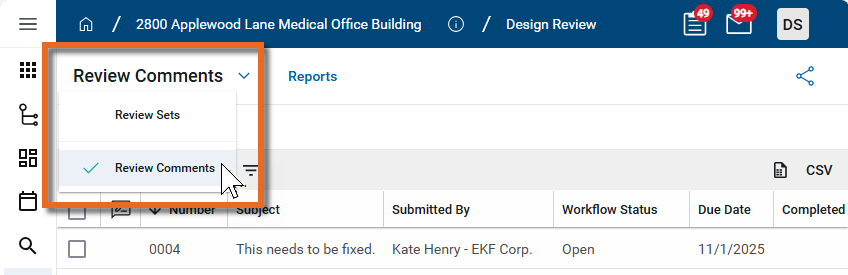
Navigate to the Design Review Comments app (Apps > Document Management > Design Review > Review Comments).
-
Design review comments appear in the log view. If there are multiple design review sets for your project, consider using the "By Design Review Set" log view. Apply a quick filter to filter for comments you are responsible for. Refer to Log Views and Log Reporting.
-
To send comments to be evaluated by another party, such as the architect or design engineer, ensure that they are named in the Responsible field of the comment.
Note You can select multiple comments and then use Multi Edit to assign responsibility to multiple comments at once.
Important Multiple contacts can be assigned as Responsible contacts. Only one contact is required to respond.
Select the comments and click Send for Evaluation in the action bar. The comments will be sent to the designated Responsible contact as a task.
-
Alternatively, you can select Return to Author to send a response to the comment author. You will be required to submit a reason for the return.
Respond to a comment sent to you for evaluation or backcheck
If a comment is sent to you for evaluation or backcheck, it will appear as a task in your Tasks app.
If you have access to the Design Review > Review Comments sub-application, those comments also appear in the Comments - Evaluation and Comments - Backcheck sub-applications, as appropriate.
-
From the Tasks app, select and open the task. For more information on working with tasks, refer to Tasks App.
Alternatively, open the task from the appropriate project in the Comments - Evaluation and Comments - Backcheck sub-applications.
-
To forward this task to another user, select Delegate from the action bar.
-
Complete the following fields:
Note Depending on how this app is configured for your domain, there may be fields or sections listed here that do not appear for you, fields and sections that appear for you which are not listed here, or fields and sections which appear in a different order. If you have any questions, check with your domain administrator.
Field Description Evaluation Response Evaluation Status Make the appropriate selection.
Note This lookup list is managed in the Configuration app. Refer to Lookups.
Evaluation Response Enter an appropriate response
Scope Impact / Cost Impact / Schedule Impact Make the appropriate selections based on your evaluation.
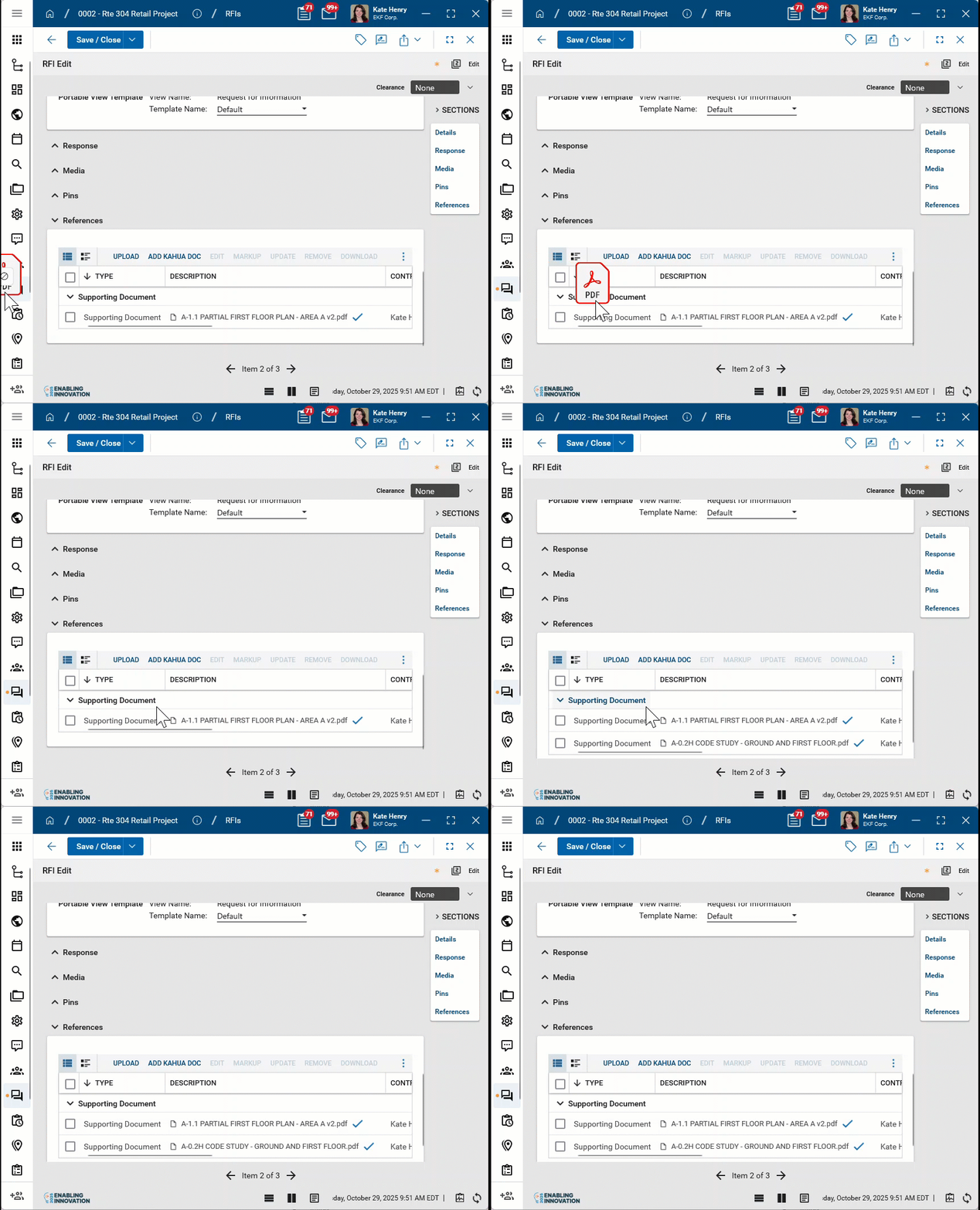
References Upload or select any relevant files or documents. You can use drag and drop to add a file to this section. For more information on using this section, refer to References section.
-
Click Save to save your work as you prepare your response.
-
When your evaluation is complete, select Submit for Backcheck. The comment is returned to the user who originally created the comment. That user can mark it as complete or resend it for evaluation.
Configure the app
Your domain administrator or another user with the appropriate permissions can configure the app in the Configuration application.
Important When working in the Configuration app, it is important to review the header and ensure that you are working at the correct level in the hierarchy, either the root domain or at a partition or project level.
Settings that you establish at the root domain or lower levels will inherit down the hierarchy until they are overridden. For more information on the hierarchical structure of Kahua, refer to Understanding the hierarchical structure of Kahua.
The Configuration app can be accessed directly through the apps list (Apps > Administration > Configuration), or, in some applications, by right-clicking on an application in the launch bar and selecting Configure. When you select Configure for an app from the launch bar, the detail view of the configuration page for that application opens automatically.
For general information on configuring this app in Configuration, refer to Application configuration.
Available application roles
Application roles determine which actions users can perform in the app. Roles are assigned to groups in the Groups app > Permissions tab. Members of the group then have the permissions associated with the roles assigned to the group.
The following roles are available for this application:
| Role | Details |
|---|---|
| Administrator |
Full administration, including add, configure, create lists, edit, import, export, share, view, send, process, remove, and edit view templates. |
| Contributor |
Can add, edit, open, view, send, and process records. |
| Moderator |
Can add, edit, import, export, remove, share, open, view, send, and process records. |
| Observer |
Can open, view, send, and process records. |
| Referencer |
View-only access to records. |
Note To manage these permissions, open the Groups app and assign the appropriate application role to the group. Only users with the appropriate permissions can manage application roles. For more information, refer to Managing Permissions.