Vendor Certifications
The Certifications application defines certifications issued by federal, state, local or other authorities. It describes any certification or permit that needs to be tracked for compliance purposes. This includes disadvantaged or minority business-owned statuses.
By default, Domain Users receive “Referencer” permission to the application, allowing them to associate certifications created in the app to vendor records. The app is visible to Domain Administrators, who can create, edit, and delete certifications and associated data.
How to . . .
 Add a new certification
To add new certification to be used in the Vendors app, complete the following steps:
-
Ensure that you are in the correct project or partition. To have the certifications be available for all projects, ensure that you are in the root domain.
-
Navigate to the Vendor Management > Certifications sub-application.
-
Select New from the action bar.
-
Complete the following fields:
Field Name Description Jurisdiction Select the appropriate jurisdiction from the list. Jurisdictions are set up in the Locations app. Refer to Set up Jurisdictions. Issuing Agency Select the appropriate Issuing Agency from the list. The list is managed in the Configuration app. Refer to Set up Issuing Agencies. Type Select the appropriate certification type. This typically references the program that the certification is a part of, as defined by the Issuing Agency. The list is managed in the Configuration app. Refer to Set up Certification Types. Classification Enter the certification abbreviation, e.g., DBE, SBE, WBE, etc. Description Enter a description for the certification, e.g. Disadvantaged Business Enterprise for DBE. -
Click Save when you are done.
Import a list of Certifications
You can import a list of certifications. To complete an import, you will first need to do an export to obtain the properly formatted Excel workbook. Enter the data according to the instructions on the first sheet of the exported workbook.
Consider entering at least one record to make it easier to understand how the data is organized in the Excel workbook when you complete the export. For more information, refer to Importing records.
-
Ensure that you are in the correct project or partition.
-
Navigate to the Vendor Management > Certifications application.
-
Select More > Export from the action bar.
-
Save the resulting excel file in an accessible location.
-
Open the Excel file and enter the location information according to the information on the first sheet of the workbook.
-
Save the Excel file.
-
Select More > Import from the action bar of the Certificationsapplication and select the saved file.
-
Click Import. Select Close when the import is complete.
Delete a certification
To delete a record, right-click on it from the log view and select Delete, or open the record and click Delete in the action bar.
If a record was deleted in error, it can be recovered from the Recycle Bin application by an administrator. Deleted records are available for restoration for a set number of days as configured in domain settings. For more information, refer to Using the Recycle Bin.
Set up Jurisdictions
Jurisdictions are used in the Vendor Management suite of applications to reference the state or other municipality where your vendors do business. Jurisdictions are related to the certifications, classifications, insurances and bonds that you track for your vendors.
Jurisdictions are entered in the Locations app, with the Type set to "Region" or "Municipality". Location records of both types will appear together in the selection list for the Jurisdiction field where it appears in the Vendor Management apps. By default, records with a type of "Municipality" can track address fields, while those with a type of "Region" do not.
For more information on creating location records, refer to Setting up locations.
Important The location record must have a type of Region or Municipality to be available in the Jurisdiction field in the Vendor Management apps.
Note Set up the Jurisdiction locations at the root domain level to ensure that they are available to all partitions and projects, unless you have a specific reason for doing otherwise.
Set up Issuing Agencies
The Issuing Agency field is a lookup field that is used in the Certifications application to reference the agency issuing the certification, such as the Federal Small Business Administration. The lookup list is configured in the Configurations app, just like any other lookup type field.
To set up a list of Issuing Agencies for the Vendor Certifications sub-app, complete the following steps:
-
Ensure that you are in the root domain. The Vendor Certifications sub-app can only be configured from the root domain.
-
Right-click on the Vendor Management app in the launch bar and select Configure, or open the Configuration app and select Vendor Certifications on the Applications tab.
-
Navigate to the Lookups tab. Select Issuing Agency and Override.
-
Enter an Issuing Agency name and select Add to add it to the list.
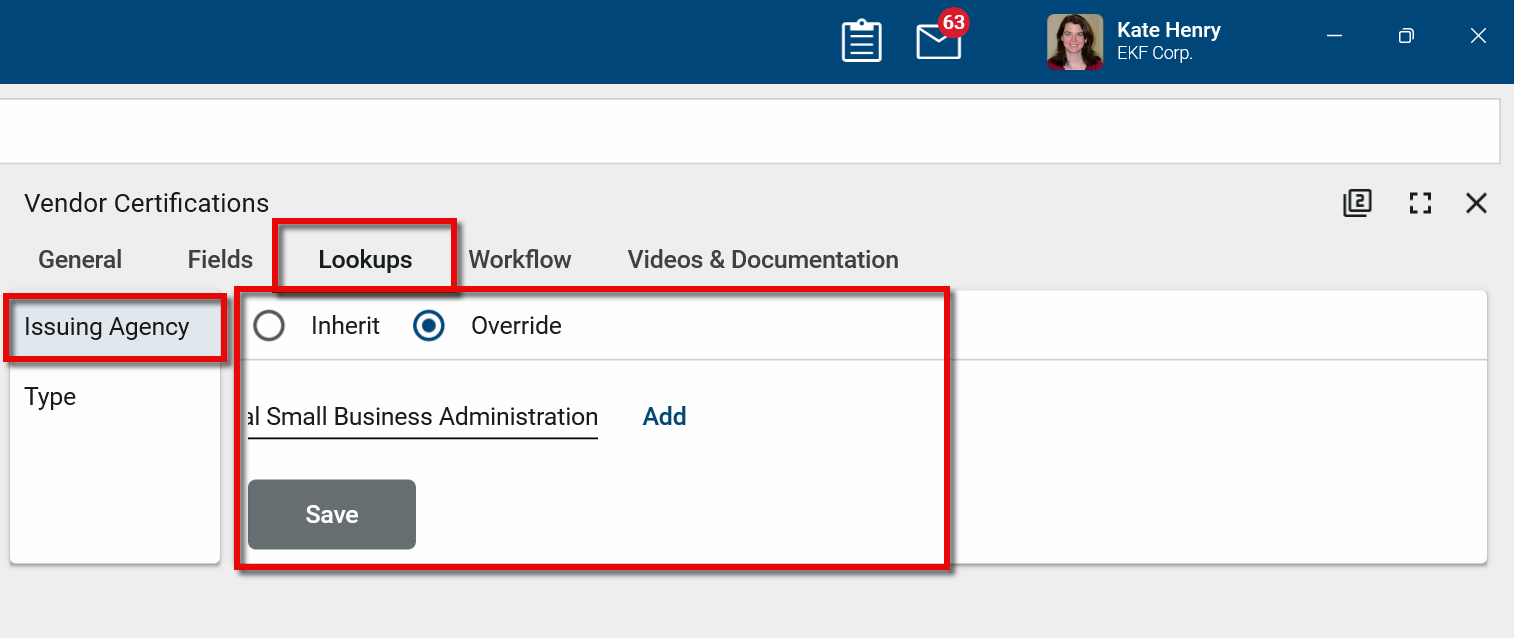
-
Once added to the list, use the arrow icons
 to change the order of an item in the list, the edit icon
  to modify and item and the delete icon
  to remove it.
 -
Click Save when you are done.
Set up Certification Types
The Certification Typefield is a lookup field that is used in the Certifications application to reference the certification type or program from the agency issuing the certification. The lookup list is configured in the Configurations app, just like any other lookup type field.
To set up a list of certification types for the Vendor Certifications sub-app, complete the following steps:
-
Ensure that you are in the root domain. The Vendor Certifications sub-app can only be configured from the root domain.
-
Right-click on the Vendor Management app in the launch bar and select Configure, or open the Configuration app and select Vendor Certifications on the Applications tab.
-
Navigate to the Lookups tab. Select Type and Override.
-
Enter an Type name and select Add to add it to the list.
-
Once added to the list, use the arrow icons
to change the order of an item in the list, the edit icon to modify and item and the delete icon  to remove it.
 -
Click Save when you are done.
Configure the app
Your domain administrator or another user with the appropriate permissions can configure the app in the Configuration application.
Important When working in the Configuration app, it is important to review the header and ensure that you are working at the correct level in the hierarchy, either the root domain or at a partition or project level.
Settings that you establish at the root domain or lower levels will inherit down the hierarchy until they are overridden. For more information on the hierarchical structure of Kahua, refer to Understanding the hierarchical structure of Kahua.
The Configuration app can be accessed directly through the apps list (Apps > Administration > Configuration), or, in some applications, by right-clicking on an application in the launch bar and selecting Configure. When you select Configure for an app from the launch bar, the detail view of the configuration page for that application opens automatically.
For general information about the Configuration app, including how to set up an approval workflow, refer to Configuration app.
For general information on configuring this app in Configuration, refer to Application configuration.
Available application roles
Application roles determine which actions users can perform in the app. Roles are assigned to groups in the Groups app > Permissions tab. Members of the group then have the permissions associated with the roles assigned to the group.
The following roles are available for this application:
| Role | Details |
|---|---|
| Administrator |
Full administration, including add, configure, create lists, edit, import, export, share, view, send, process, remove, and edit view templates. |
| Contributor |
Can add, edit, open, view, send, and process records. |
| Moderator |
Can add, edit, import, export, remove, share, open, view, send, and process records. |
| Observer |
Can open, view, send, and process records. |
| Referencer |
View-only access to records. |
Note To manage these permissions, open the Groups app and assign the appropriate application role to the group. Only users with the appropriate permissions can manage application roles. For more information, refer to Managing Permissions.