Project Directory
The Project Directory app contains a list of the contacts and companies associated with a project. Throughout Kahua, most contact selection lists can be narrowed down to the contacts in the project directory for the currently open project.
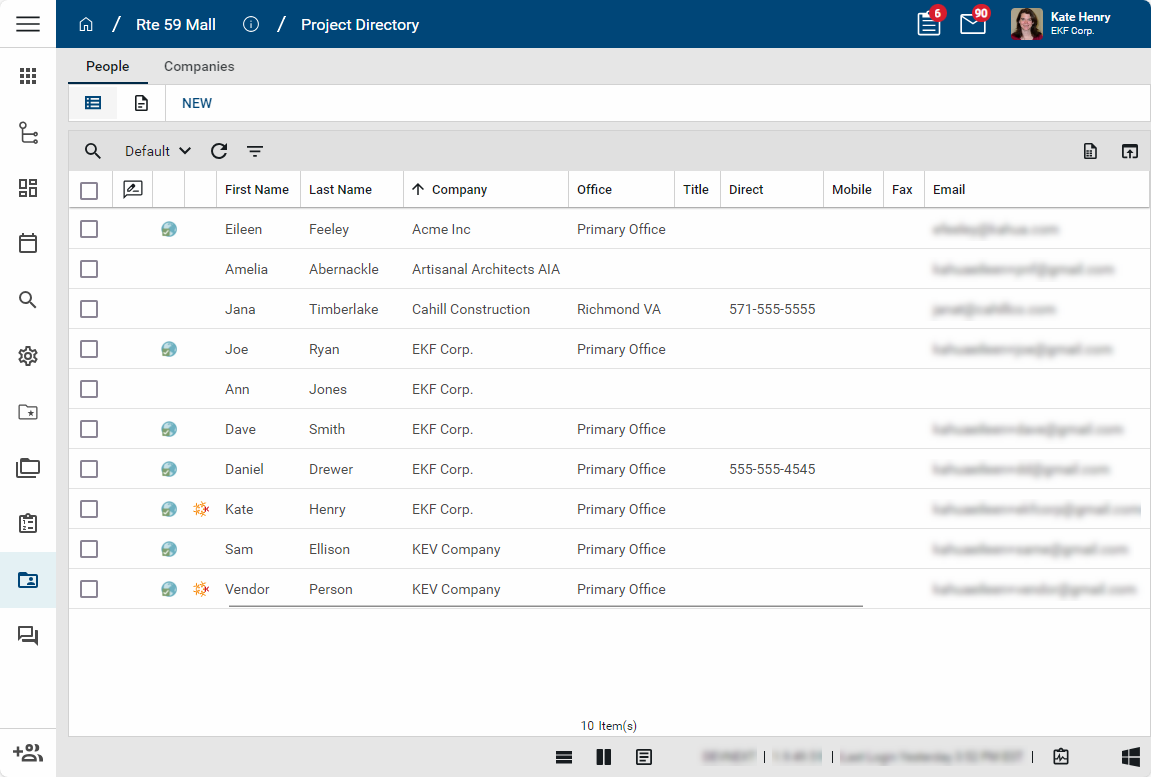
These are some key components of the Project Directory app:
-
The app consists of two tabs - People and Companies.
-
Companies and contacts are first set up in the Contacts application, then added to the Project Directory app.
-
Adding contacts to the project directory will automatically add their associated company to the project directory. Companies can also be added directly from the Company tab.
-
Contacts can be added to the project directory in several ways: one at a time by selecting New on the People tab and completing the appropriate fields; as a group by selecting Add From Group on the People tab; or with their company by updating the Team Contacts section for their company on the Companies tab.
-
You can click on the contact or company name from the detail view to open the record in the Contacts application.
-
You can add contacts to groups from the Project Directory app.
-
Project Directory reports are available for download in multiple formats.
-
Your domain administrator can configure the Project Directory app to only allow contacts who are Kahua users to be added to the People tab of the Project Directory. This makes it easier to have only Kahua users selected on attributes that generate workflow tasks. Refer to Project Directory App Configuration.
-
Your domain administrator can create a "Project Directory Administrator" group. The presence of this group limits who can select contacts that are not part of the project directory to members of that group. In order for this option to function correctly, each project must have contacts added to the project directory. When used in conjunction with the previous setting, it ensures that only Kahua users are selected on attributes that generate workflow tasks. Refer to Project Directory App Configuration.
How to . . .
 Only show people from the project directory in the contact selection fields
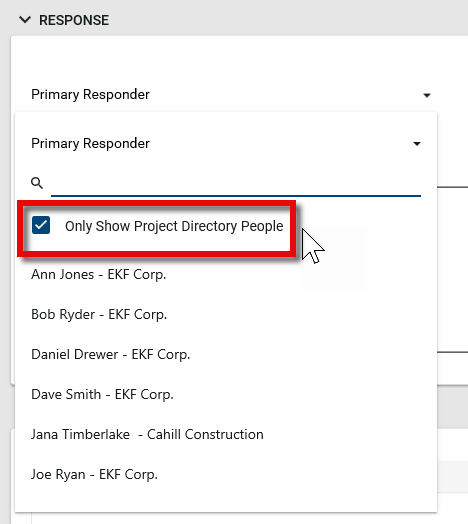
After people have been added to the Project Directory app, the Only Show Project Directory People option will be available on the contact selection fields in all other apps. When selected, only contacts associated with the Project Directory will appear in the selection list. Clear the check box to see all contacts from the Contacts app.
-
If no contacts have been added to the project directory for a project, the check box will not appear and all contacts from the Contacts app will be available for selection.
-
If the domain administrator has added a "Project Directory Administrator" group, the Only Show Project Directory People option will only appear to users in that group. Users who are not in that group will only see members of the project directory in contact selection lists. If no one has been added to the project directory for a project, all contacts will be available for selection. Refer to Project Directory App Configuration.
Add a single contact
To add a single contact to the project directory, complete the following steps:
-
Review the header to ensure that you are in the correct project or partition.
-
Navigate to the Project Directory app (Apps > All Apps > Project Directory).
-
On the People tab, select New from the action bar. The New People page will open.
-
Select the person's Name from the list of contacts in the Contacts application. The Company, Office and contact information fields will automatically populate with data from the Contacts application. If necessary, update the Office selection.
-
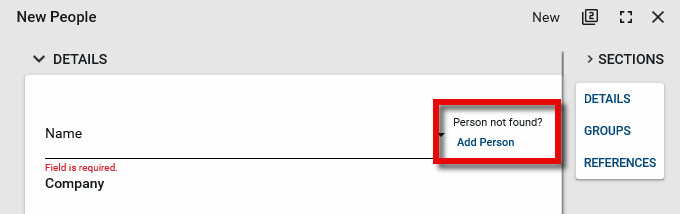
If the person's name is not on the contact list, select Add Person to add them to the Contacts application. This option will only appear if you have the appropriate permissions to add a new contact in the Contacts app.
-
Update the Contact Team Role, Contact Team Function and Status on Project for the person. These fields are for information in the Project Directory application only and do not impact the rest of Kahua.
-
Enter text in the Notes field as desired.
-
Add attachments in the References section as desired.
-
Click Save/Close. The individual's record is saved, and the associated company record is added to the Companies tab.
Add contacts from a group
Multiple contacts can be added to the Project Directory at one time by using Add From Group from the action bar. The group must already exist in the Groups application. For more information on the Groups application, refer to Setting up groups.
To add a pre-selected group of contacts to the project directory, complete the following steps:
-
Review the header to ensure that you are in the correct project or partition.
-
Navigate to the Project Directory app (Apps > All Apps > Project Directory).
-
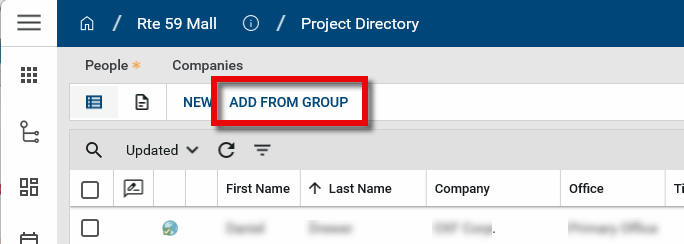
On the People tab, select Add from Group from the action bar.
-
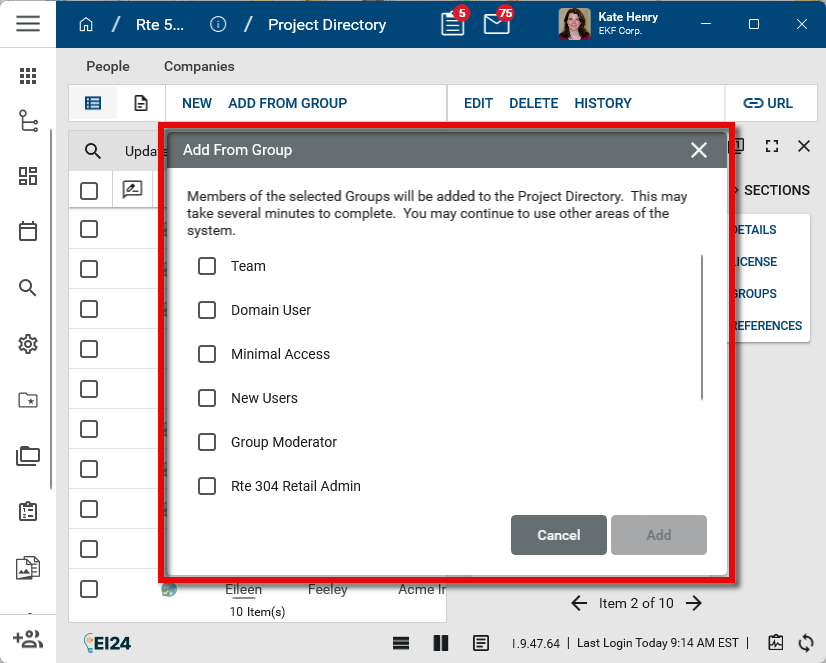
The Add from Group page opens. Select one or more groups to add their members to the project directory for the currently open project. Click Add.
-
The group members are added to the project directory. If there is a large number of contacts, this may take several minutes. Click the Refresh icon
 to view the updated list.
Add a company
To add a company to the project directory, complete the following steps:
-
Review the header to ensure that you are in the correct project or partition.
-
Navigate to the Project Directory app (Apps > All Apps > Project Directory).
-
On the Companies tab, select New from the action bar. The New Company page will open.
-
Select the company Name from the list of companies in the Contacts application. The Office, address, and phone information fields will automatically populate with data from the Contacts application. If necessary, update the Office selection.
-
Update the Status on Project, CSI Code, Project Role, and Project Function for the company as appropriate. These fields are for information in the Project Directory application only and do not impact the rest of Kahua.
-
Select the appropriate Default Groups. Once the default group is set for the company, any person added to the project directory for that company will automatically be added to the default group.
-
Enter text in the Notes field as desired.
-
In the Team Contacts section, click Insert to add contacts. If you have the appropriate permissions, select New Person to add a new contact to the company. The contact will be added to the Contacts application and the Project Directory application.
-
Click Save/Close.
Edit multiple people or companies at one time
Some fields for multiple people or companies can be edited at one time by using the Multi Edit function.
To edit multiple people or company records at once, complete the following steps:
-
Review the header to ensure that you are in the correct project or partition.
-
Navigate to the Project Directory app (Apps > All Apps > Project Directory).
-
On the People or Companies tab, select one or more records from the log view.
-
Select Multi Edit from the action bar.
-
The Multi Edit page opens. Make the appropriate updates. Use Copy to All and Copy to Selected to add values to multiple records at once.
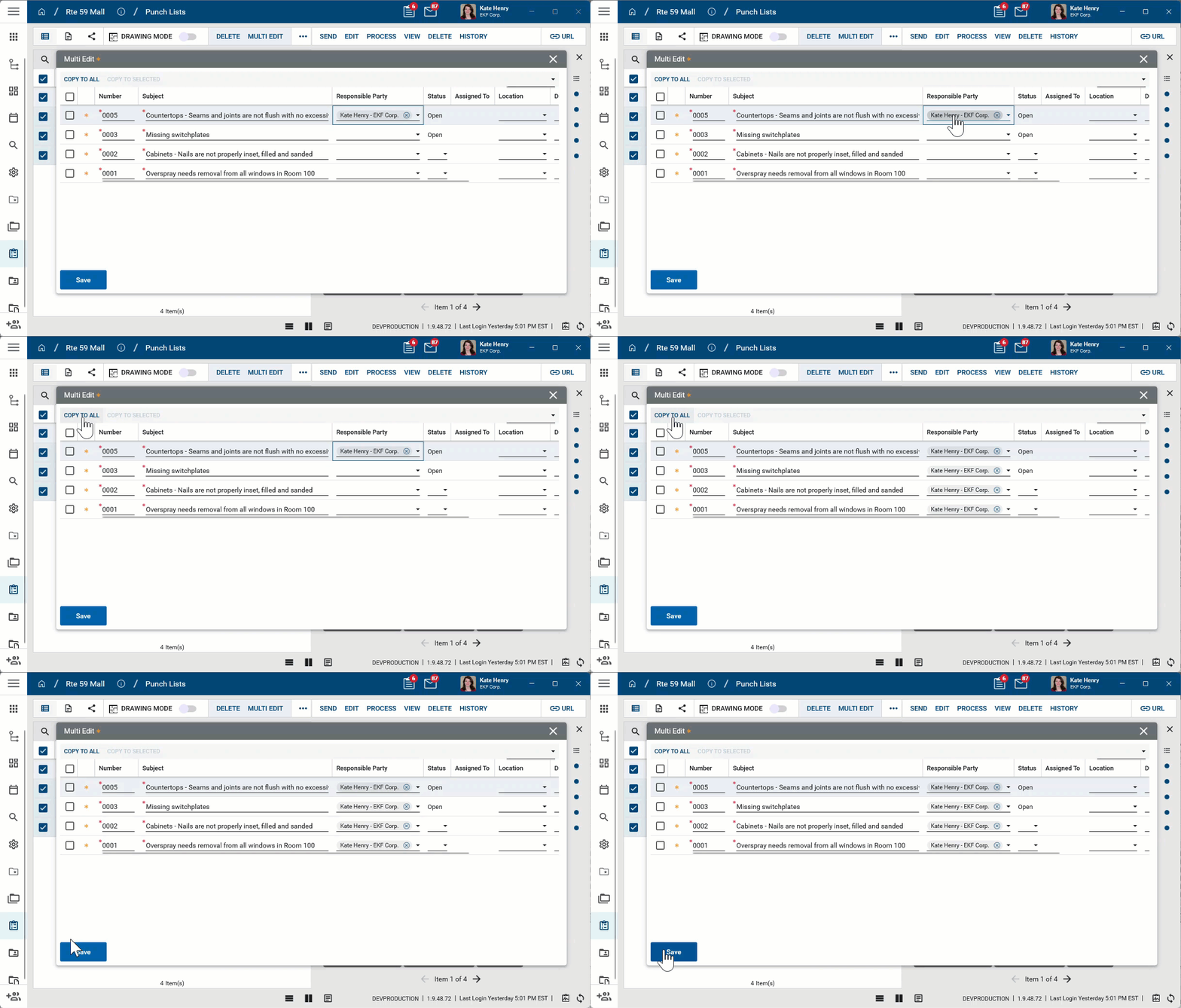
Note The Multi Edit page lists fields from the log view applied when Multi Edit is selected. To update fields which are not present on the default log view, create a new log view that includes all the fields you want to edit and then apply that log view before selecting Multi Edit.
For example, to perform a multi edit on the Terminate Group Membership On field on the People tab, select a log view that includes the field and then select Multi Edit. -
Click Save.
Manage group memberships for people and companies
After people and companies are added to the Contacts app, you can manage their group membership here or in the Groups app. For information on working in the Groups app, refer to Setting up groups.
To modify group membership for a person, complete the following steps:
-
Review the header to ensure that you are in the correct project or partition.
-
Open the detail view for the contact record you want to modify.
-
Scroll down to the Groups section.
-
To add the contact to an existing group, select Add. The Available Groups dialog box appears. Select the group from the drop-down list and click Add.
Note If the Add option is not available, there may not be any additional groups available to add them to.
-
To remove the contact from an existing group, select the check box next to the group name. Select Remove. This will remove the contact from the group.
You can select one or more groups as defaults for new contacts from a company to become members of. To do so, complete the following steps:
-
Review the header to ensure that you are in the correct project or partition.
-
Open the detail view for the company record you want to modify.
-
Select Edit from the action bar.
-
Scroll to the Default Groups field in the Details section. Select the group or groups that you want new Project Directory contacts for this company to automatically become members of. This will be the default, but you will be able to remove a contact from a group manually, either through their contact record or the group record.
-
Click Save when you are done.
Schedule removal from groups
To set an end date for a contact's group membership, you can enter that date into the Terminate Group Membership On field. Removing a user's access to all groups will remove their access to the project. To modify this field for multiple records at once, consider using the Multi Edit function. Refer to Edit multiple people or companies at one time. To update the field for a single contact, complete the following steps:
-
Review the header to ensure that you are in the correct project or partition.
-
Open the detail view for the contact record you want to modify.
-
Select Edit on the action bar.
-
Scroll down to the Groups section.
-
Under Terminate Group Membership, select a date.
-
Click Save when you are done.
Generate a project directory report
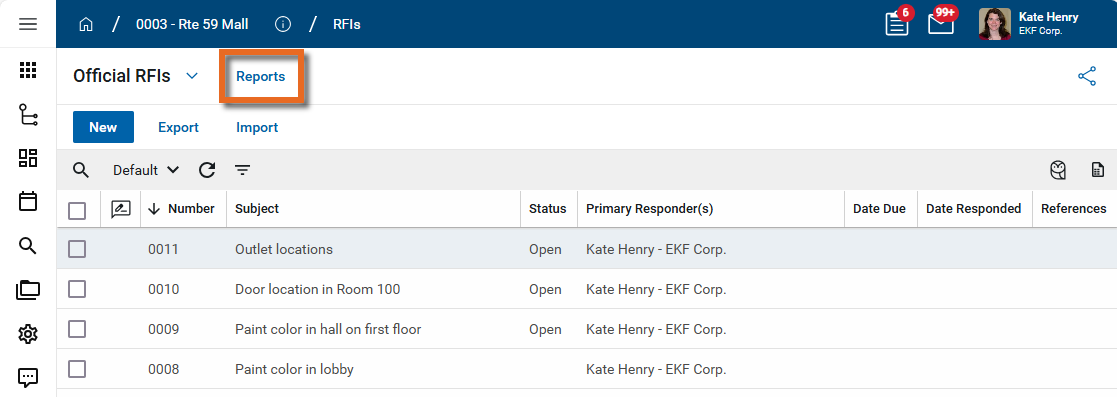
Several project directory reports are available in the Project Directory app. To run a report, click Reports in the application title bar. Select the report and click View or Download. For more detailed information on generating reports, refer to Viewing Reports.
Delete a contact or company from the project directory
To remove a contact or company from the project directory, complete the following steps:
-
Review the header to ensure that you are in the correct project or partition.
-
Navigate to the Project Directory app (Apps > All Apps > Project Directory).
-
On the People or Companies tab, select one or more contacts or companies to be removed.
-
Select Delete from the action bar. Click OK on the confirmation message. Note that removing a company will remove all the people associated with that company.
-
The contacts are deleted from the Project Directory app for this project. They remain in the Contacts app.
Configure the project directory app
Your domain administrator or another user with the appropriate permissions can configure the project directory app in the Configuration application.
Important When working in the Configuration app, it is important to review the header and ensure that you are working at the correct level in the hierarchy, either the root domain or at a partition or project level.
Settings that you establish at the root domain or lower levels will inherit down the hierarchy until they are overridden. For more information on the hierarchical structure of Kahua, refer to Understanding the hierarchical structure of Kahua.
The Configuration app can be accessed directly through the apps list (Apps > Administration > Configuration), or, in some applications, by right-clicking on an application in the launch bar and selecting Configure. When you select Configure for an app from the launch bar, the detail view of the configuration page for that application opens automatically.
For general information on configuring this app in Configuration, refer to Application configuration.
For detailed information on configuring this app, refer to Project Directory App Configuration.