Program Summary
Notice Kahua is a very flexible and customizable platform. In your domain, this application may have been modified to meet your company's needs. The online help uses default field labels for field names and describes standard workflows. Please check with your domain administrator for specific information about working in your organization's domain.
The Program Summary app, in conjunction with the Project Summaries app, allows you to regularly schedule, gather, and distribute a set of reports from multiple projects into a single pdf file. It's typically useful for programs that include multiple projects and have regular reporting needs for upper management.
Note If you are interested in this app and it is not available in your domain, reach out to Support or your account representative for more information.
Key elements of the app are as follows:
-
The Program Summary suite of apps are domain level apps.
-
You can use the Program Summary > Template Setup app to create a template that lists the reports required from each project within a program.
-
The required reports can come from Kahua or be added manually. Kahua reports can be generated automatically.
-
In the Program Summary > Scheduler app, you can determine which projects are included in the report and how frequently it is run.
-
When reports are scheduled and due, the user selected as the Project Manager on the Project Information page for each project is sent a task to complete the project summary for their project.
-
Individual project managers prepare the assigned reports about their projects in the Project Summaries app. Refer to Project Summaries.
-
In the Program Summary > Programs app, you can compile the individual project summaries into a single report for distribution.
-
You can run the Program Summary Status Report to determine which project summaries have not yet been completed and which project manager is responsible for them.
How to . . .
 Create a program template
The program template is the list of reports and files that you want submitted for each project and included in the program summary report. This is a required step prior to setting up the schedule of program summary reports.
To create a program template, complete the following steps:
-
Navigate to the Program Summary > Template Setup application (Apps > All Apps > Program Summary > Template Setup).
-
Click New in the action bar.
-
Complete the following fields as appropriate:
Note Depending on how this app is configured for your domain, there may be fields or sections listed here that do not appear for you, fields and sections that appear for you which are not listed here, or fields and sections which appear in a different order. If you have any questions, check with your domain administrator.
Field Description Details Number Allow Kahua to auto-number the record, or enter a different value.
Note The number format can be configured by your domain administrator. Refer to Number.
Program Name Enter the program name. Template Status Select one of the following options:
-
Draft - Select this status when you are developing the template. Templates with this status are not available for selection in the scheduler.
-
Active - Select this status when you are done creating the template. It will then be available for selection in the scheduler.
Position of Portable View within Project Summary
Items For more information on working with grids, refer to Item grids. Order This field determines the order in which the item appears in the final pdf.
Type Select one of the following options:
-
Report - Select this option to select a Kahua report.
-
File - Select this option to indicate to the person completing the summary that they need to upload a specific file into the report. Information on what file to upload can be added to the Instructions field.
Application Select the app that contains the report you want to include in the Program Summary.
Report Select the report that you want to include in the Program Summary.
This list includes all the reports available in Kahua for the app selected in the Application field. This includes standard and custom reports.
Instructions Enter instructions to the user compiling the report. If "File" was selected in the Type field, use this field to indicate which file should be used here.
-
-
Click Save when you are done.
Create a program schedule
The program schedule determines which projects are included in the report and how frequently it is run. The projects must be part of the same partition, and can be filtered by Project Type and Project Status as desired.
To create a new report schedule, complete the following steps:
-
Navigate to the Program Summary > Scheduler application (Apps > All Apps > Program Summary > Scheduler).
-
Click New in the action bar.
-
Complete the following fields as appropriate:
Note Depending on how this app is configured for your domain, there may be fields or sections listed here that do not appear for you, fields and sections that appear for you which are not listed here, or fields and sections which appear in a different order. If you have any questions, check with your domain administrator.
Field Description Details Program Template Select the appropriate template from the list of active templates.
For more information, refer to Create a program template.
Enabled Select this option to enable the program schedule. Project Criteria Root Project Select the partition level that includes all the projects you want to include in this report. Project Type To filter the list of included projects by project type, select the appropriate one here.
Leave this field blank to include all project types.
Note Project Type is managed on the Project Information page. Refer to Project Information.
Project Status To filter the list of include projects by project status, select the appropriate one here.
Leave this field blank to include all project statuses.
Note Project Status is managed on the Project Information page. Refer to Project Information.
Schedule Begin On, End On Enter the date range the report should be run and the time it should be run. Generate Every Select the appropriate frequency for the report.
At this Time Select the time. Due Date Select the due date.
Reminder / Overdue Notifications
Enter the number of days before and after the due date to send notifications.
-
Click Save when you are done.
Compile the program summary
The program summary contains reports from each project in the program. It includes updates on the project, uploaded photos, selected reports, and any additional files the project manager was asked to upload in the template.
Wheneach of project summaries from all the projects have been compiled and their status set to "Done", you can compile them into a single pdf with a cover sheet.
Note You can run the Program Summary Status Report to determine which project summaries have not yet been completed and which project manager is responsible for them. For more information on running reports, refer to Viewing Reports.
To compile the project summary, complete the following steps:
-
Navigate to the Program Summary application (Apps > All Apps > Program Summary).
-
Select the appropriate Program Summary.
-
Click Edit in the action bar.
-
Complete the following fields as appropriate:
Note Depending on how this app is configured for your domain, there may be fields or sections listed here that do not appear for you, fields and sections that appear for you which are not listed here, or fields and sections which appear in a different order. If you have any questions, check with your domain administrator.
Field Description Details Number / Program Name / Due Date
These values are read-only. Compiled By Your name will be added automatically when you compile the report.
Compile Date This value will be updated automatically.
Cover Page Use this section to enter text that will appear on the Program Summary cover page.
Cover Page Title Enter a title.
Cover Page Date Select the report date.
Cover Page Photo Click Select File to select an image file to include on the cover page.
Cover Page Summary Enter text to appear on the cover page. -
Click Save / Compile Report to save your changes and compile the report. It may take a few minutes for the report to compile.
Review the compiled report
To review the compiled report, complete the following steps:
-
Select the program summary from the log view to open the detail view.
-
Access the compiled report one of the following ways:
-
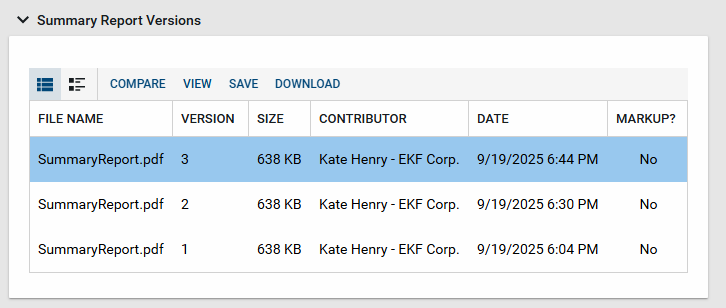
Scroll down to the Summary Report Versions section. Each time you compile the report, a new version is created. The latest version is used when the Program Summary is compiled, but you can view earlier versions if desired. Click on the version you want to open and select View in the header.
-
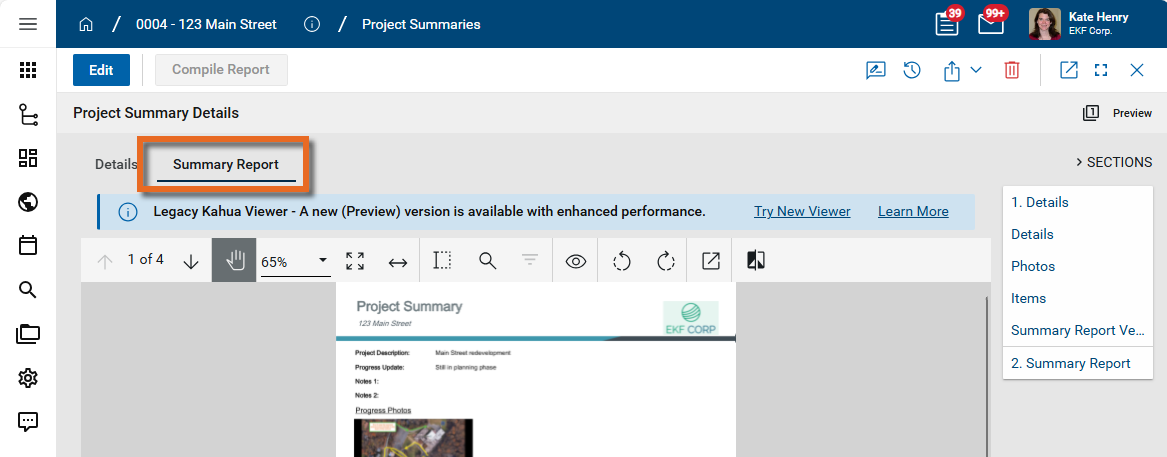
Click on the Summary Report tab to open the pdf file in the viewer. The latest version appears here. For more detailed information on using the File Viewer, refer to Viewing files in File Manager.
-
Distribute the compiled report
To send the compiled report to the appropriate parties, complete the following steps:
-
Select the program summary from the log view to open the detail view.
-
Click on the Send icon
 and select Send.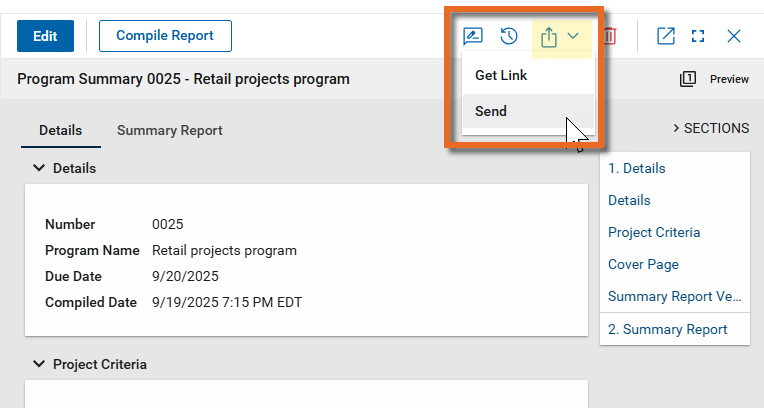
-
A new message appears. Select the appropriate contacts or distribution groups to receive the message. Complete the remaining fields as appropriate. The compiled report is automatically included.
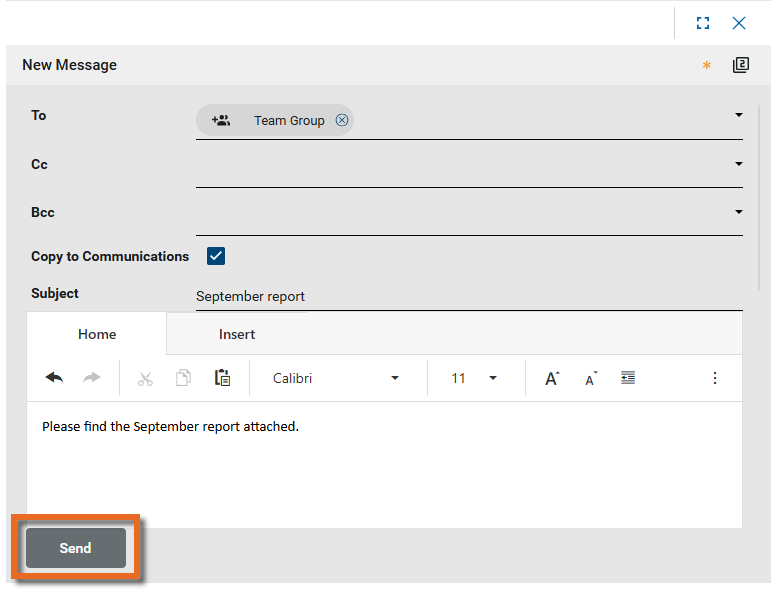
For more information on creating the message, refer to Create and send a new message from other applications in Kahua.
-
Click Send when you are done to send the message.
Configure the app
Your domain administrator or another user with the appropriate permissions can configure the app in the Configuration application.
The Configuration app can be accessed directly through the apps list (Apps > Administration > Configuration), or by right-clicking on an application in the launch bar and selecting Configure. When you select Configure for an app from the launch bar, the detail view of the configuration page for that application opens automatically.
Important When working in the Configuration app, it is important to review the header and ensure that you are working at the correct level in the hierarchy. You must be in the root domain to configure the Program Summary applications. For more information on the hierarchical structure of Kahua, refer to Understanding the hierarchical structure of Kahua.
For general information on configuring this app in Configuration, refer to Application configuration.
Available application roles
Application roles determine which actions users can perform in the app. Roles are assigned to groups in the Groups app > Permissions tab. Members of the group then have the permissions associated with the roles assigned to the group.
The following roles are available for this application:
| Role | Details |
|---|---|
| Administrator |
Full administration, including add, configure, create lists, edit, import, export, share, view, send, process, remove, and edit view templates. |
| Contributor |
Can add, edit, open, view, send, and process records. |
| Moderator |
Can add, edit, import, export, remove, share, open, view, send, and process records. |
| Observer |
Can open, view, send, and process records. |
| Referencer |
View-only access to records. |
Note To manage these permissions, open the Groups app and assign the appropriate application role to the group. Only users with the appropriate permissions can manage application roles. For more information, refer to Managing Permissions.