Navigating Kahua
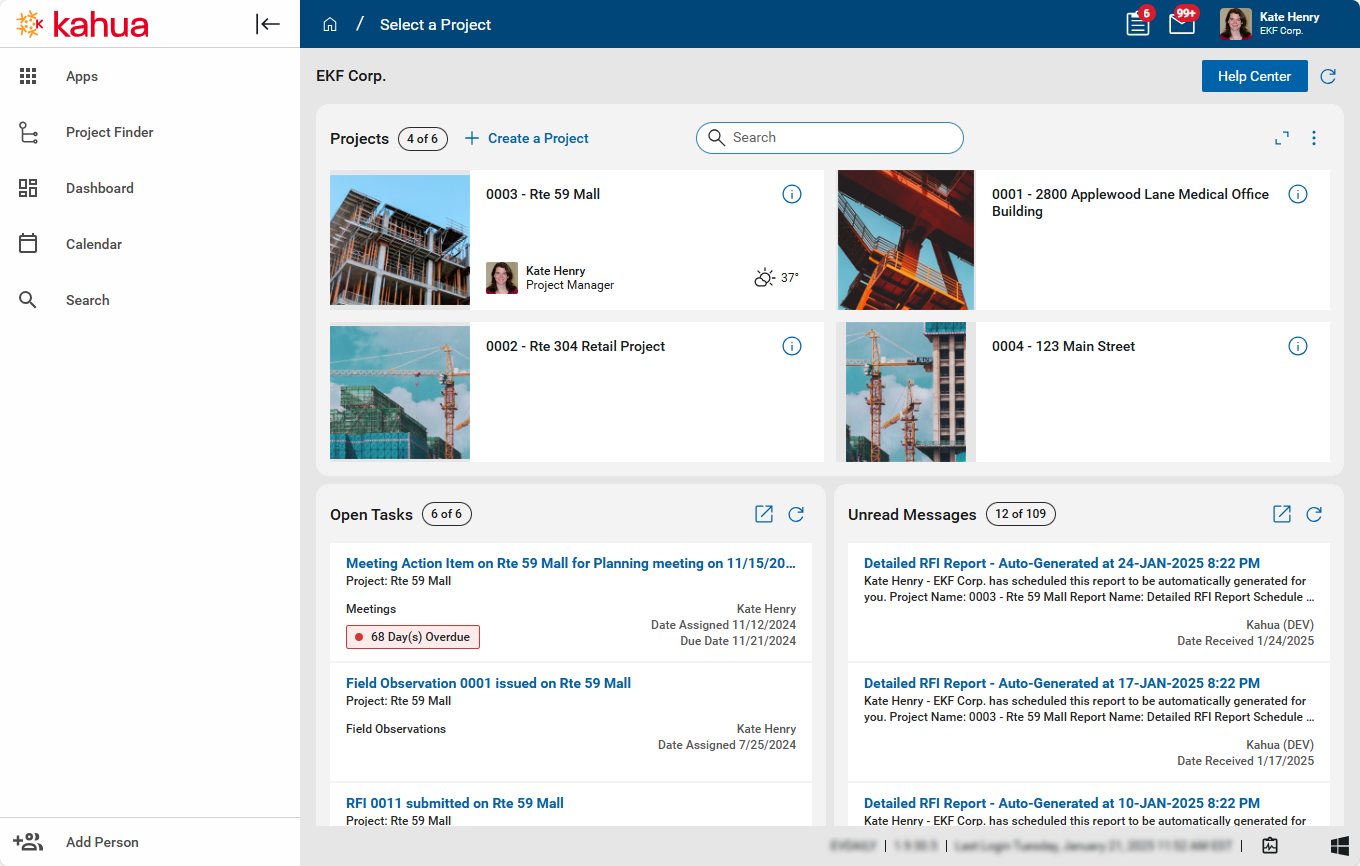
When you log in to Kahua, whether through the desktop host or the web host, the page that opens will look something like this:
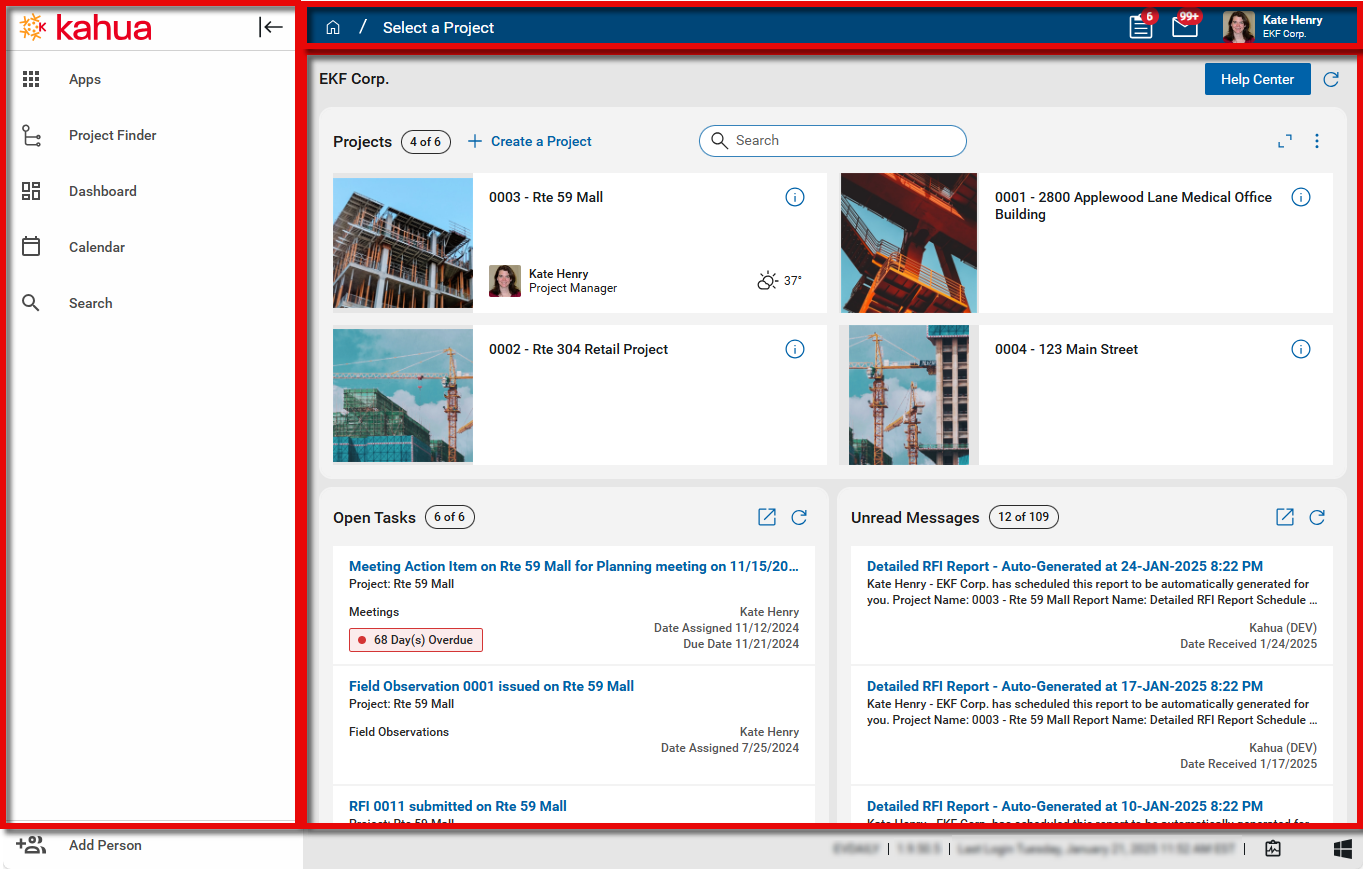
The main areas to navigate are the launch bar on the left, the header at the top, and the home page in the main panel. Each are described below. For information on general app navigation, refer to Navigating Apps.
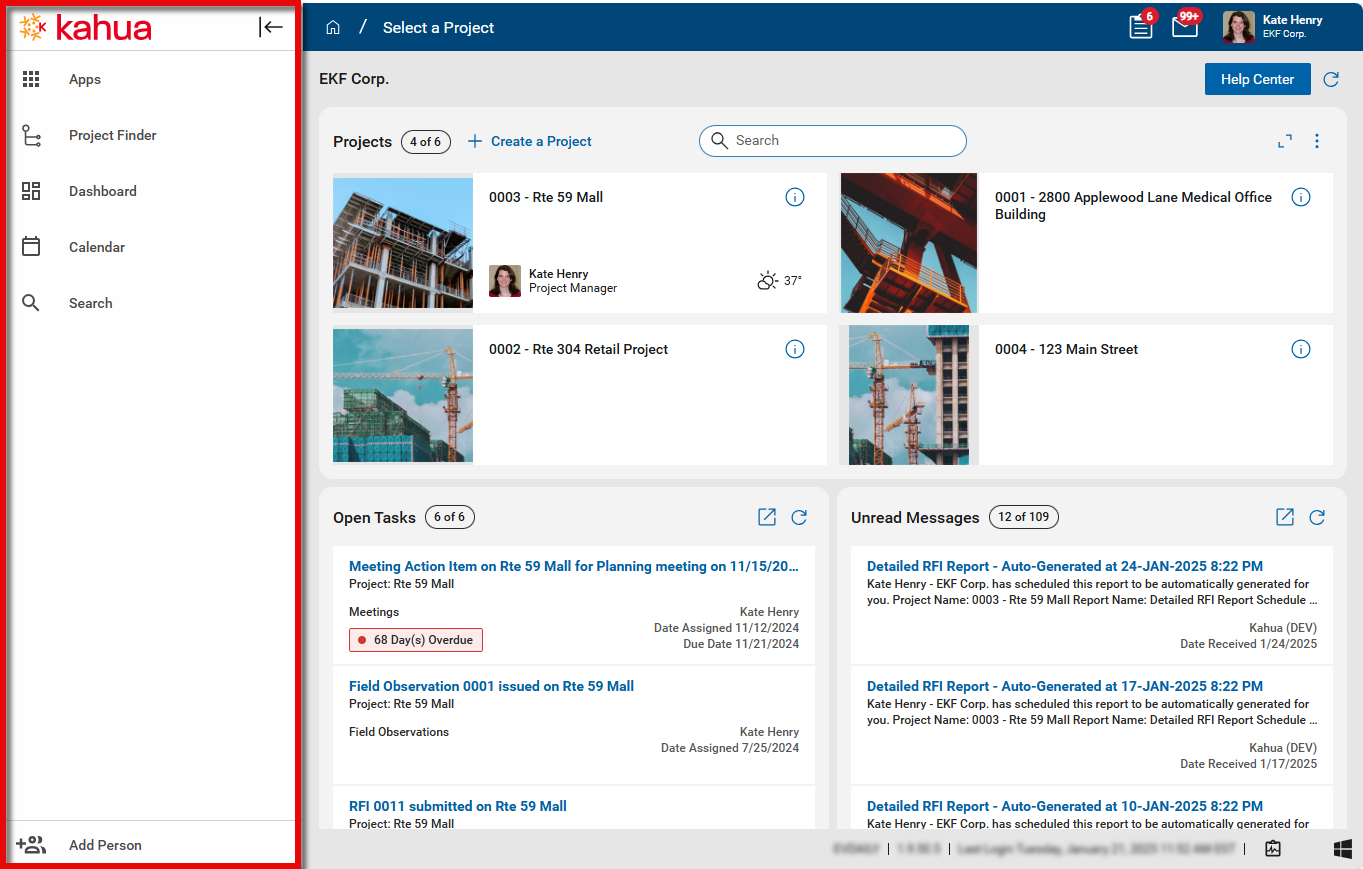
 Launch bar
On the left side of the page is the launch bar, where you can access all the apps available to you. For information about using the Launch Bar, refer to Using the Launch Bar.
Header
The Kahua header provides access to the Kahua home page, your projects and apps, your tasks and messages, and your user preferences and settings.

The following items appear in the header:
Home page icon 
The home page icon is always available in the header. Click on the home page icon to open the Kahua home page. From the home page, you can access your projects, your open tasks, your unread messages, and any alternate domains available to you. For information about the Kahua home page, refer to Kahua Home Page.
Project number and name
The name of project or partition you are currently in will appear here. Hovering over the project name shows where in the hierarchy the project is located. If no project is selected, Select a Project will appear in the header.
Important If the project number does not appear with the project name and you want it to do so, navigate to your user icon in the header and select My Settings > General Tab > Show Project Number. Enable the setting to have the project number appear with the project name throughout Kahua. Refer to Show project number.
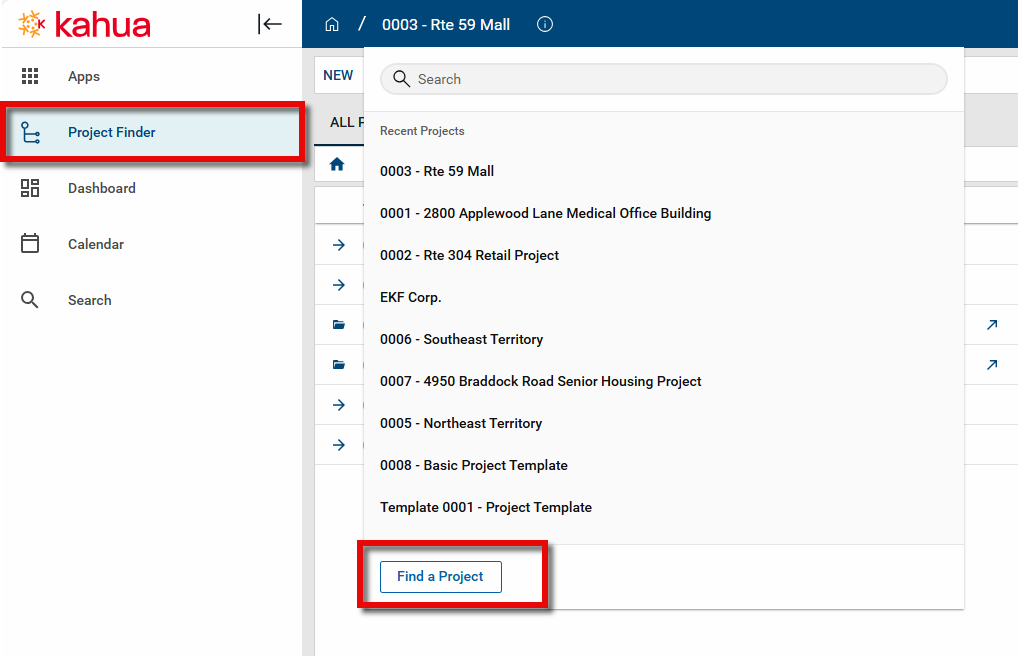
To navigate to another project or partition, click on the name of the current project or partition, or if present, Find a Project. A list of up to twenty of your most recently accessed projects will appear. Select a project or partition from the list to open it.
To search for a project, enter a portion of the project name (or also project number if you have My Settings > Show Project Number setting enabled, refer to Show project number) in the search bar.
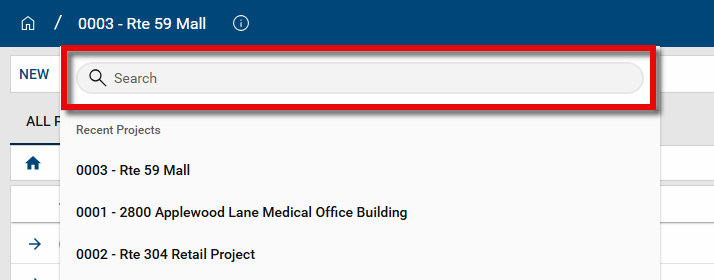
To open the Project Finder app, select Find a Project. Alternatively, you can access the Project Finder app from the launch bar or Apps menu at any time and use it to navigate to another project or partition. Refer to Project Finder.
Project Information icon 
Select the Project Information icon  to open up the Project Information page. Users with the appropriate permissions will be able to edit the project information. Refer to Project Information.
App name
The name of the currently open application appears here.
To open a different application, click on the name of the currently open application in the header. A list of up to twenty of your most recently accessed apps will appear. Select an app from the list to open it. To search the Recent Apps list, enter a portion of the app name in the search bar.
To search for an app not on the list, select Browse All Apps to open the list of all applications.
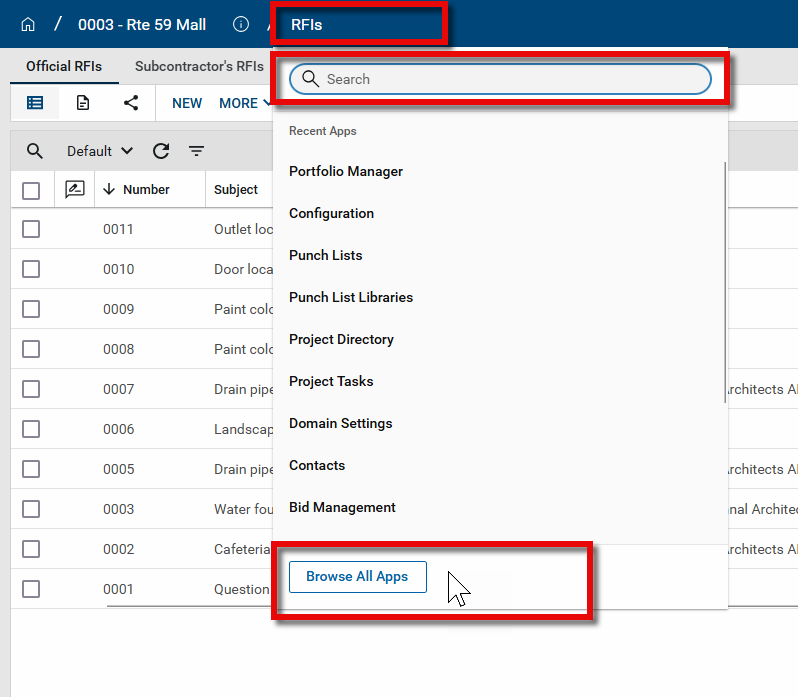
Note Due to their unique nature, the following apps do not appear on the Recent Apps list: Analytics, Dashboards, Messages and Tasks.
Tasks 
You can receive tasks from other users in a number of applications in Kahua. All your tasks from all your projects appear together in the Tasks application. Click on the tasks icon  to open the Tasks app and respond to the task. The number of open tasks appears on the icon. For more information, refer to Tasks App.
Messages 
System messages and messages from other users appear in the Messages application. All your messages from all your projects appear together in the Messages application. Click on the messages icon  to open the Messages app and review your messages. The number of unread messages appears on the icon. For more information, refer to Messages app.
Your user profile
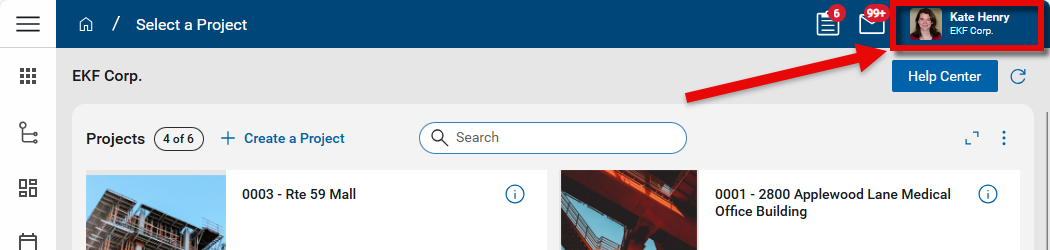
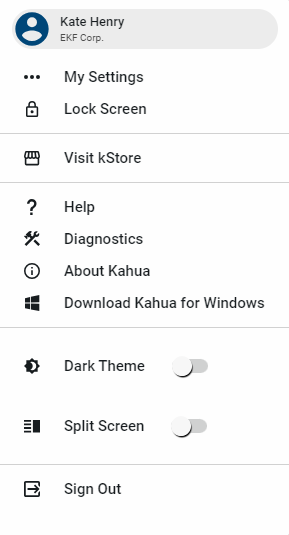
To review all your user settings and preferences, click on your profile icon in the upper right corner of the Kahua screen. For more information on user settings, refer to Your User Settings and Preferences.
Kahua Home page
When you first log in to Kahua, the Kahua Home page will appear. The Home page is a quick and easy way to see and access all the projects you've added to your My Projects list from the Project Finder app, and your most recent open tasks and unread messages. For information about the Kahua Home page, refer to Kahua Home Page.