Work Packages
Notice Kahua is a very flexible and customizable platform. In your domain, this application may have been modified to meet your company's needs. The online help uses default field labels for field names and describes standard workflows. Please check with your domain administrator for specific information about working in your organization's domain.
The Work Packages app allows you to define default values for review processes for records in the Design Review, RFIs and Submittals apps when a work package is selected on a record in those apps.
Note If you are interested in this app and it is not available in your domain, reach out to Support or your account representative for more information.
Key elements of the app are as follows:
-
You can have one or more work packages associated with a project.
-
You can use this app to pre-determine reviewers and distribution contacts for Design Review, RFIs, and Submittals. For RFIs, you must be using the the Kahua RFI Workflow with Owner.
-
You can pre-determine reviewers for Design Review based on document types. For information on setting up document types, refer to Document Types.
-
To use work packages on RFIs, Submittal Items, or Submittal Packages, ensure that the Work Packages field is set to visible on the Fields tab for the app in Configuration. For more information, refer to Fields.
-
When a new work package is selected on an RFI, Submittal Package, or Submittal Item, the Secondary Reviewers and Consultant Reviewers are automatically updated to reflect only the contacts defined in the newly selected Work Package. All reviewers associated with the previous Work Package are automatically removed.
How to . . .
 Create a work package
To create a new work package, complete the following steps:
-
Review the header to ensure that you are in the correct project or partition.
-
Navigate to the Work Packages app (Apps > All Apps > Work Packages).
-
Click New in the action bar.
-
Complete the following fields as appropriate:
Note Depending on how this app is configured for your domain, there may be fields or sections listed here that do not appear for you, fields and sections that appear for you which are not listed here, or fields and sections which appear in a different order. If you have any questions, check with your domain administrator.
Field Description Details Number Enter a number for the work package.
Note The number format can be configured by your domain administrator. Refer to Number.
Title Enter a title for the Work Package.
Description Enter a brief description of the Work Package.
Package Discipline If using, select the appropriate discipline from the list.
Note This lookup list is managed in the Configuration app. Refer to Lookups.
Start Date / End Date Information Manager Select the appropriate contact for the Information Manager role.
The Information Manager is the contact who is notified when documents associated with this work package are submitted for QA check from controlled folders and move through the design review process.
Note For more information on setting up contacts, refer to Understanding the Contacts app.
Package Manager/ Cost Manager / QA Manager / Bid Manager
If desired, select the appropriate contact for each role. This information is for your reference.
Note For more information on setting up contacts, refer to Understanding the Contacts app.
Documents - Contributor Company / Contact
These are the company and contact who are notified when documents associated with the work package are QA Rejected.
Select the appropriate Document contributor company and contact.
Note For more information on setting up companies and contacts, refer to Understanding the Contacts app.
Days to Review IM This is the number of days that a contributing contact has to resubmit a QA Rejected document. Design Review In this section, you can pre-determine the reviewers for design review when the work package is associated with the documents and drawings.
Click on the View Details icon
 to open the details page for the review item.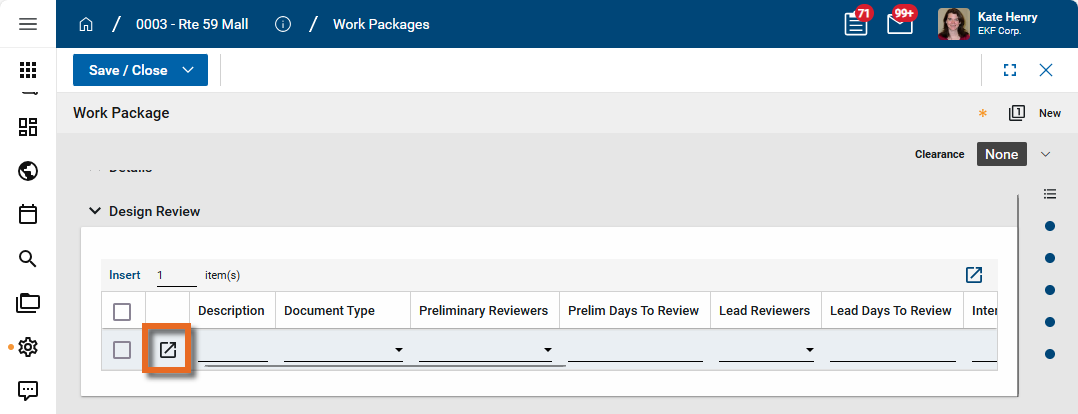
This detailed view includes additional fields.
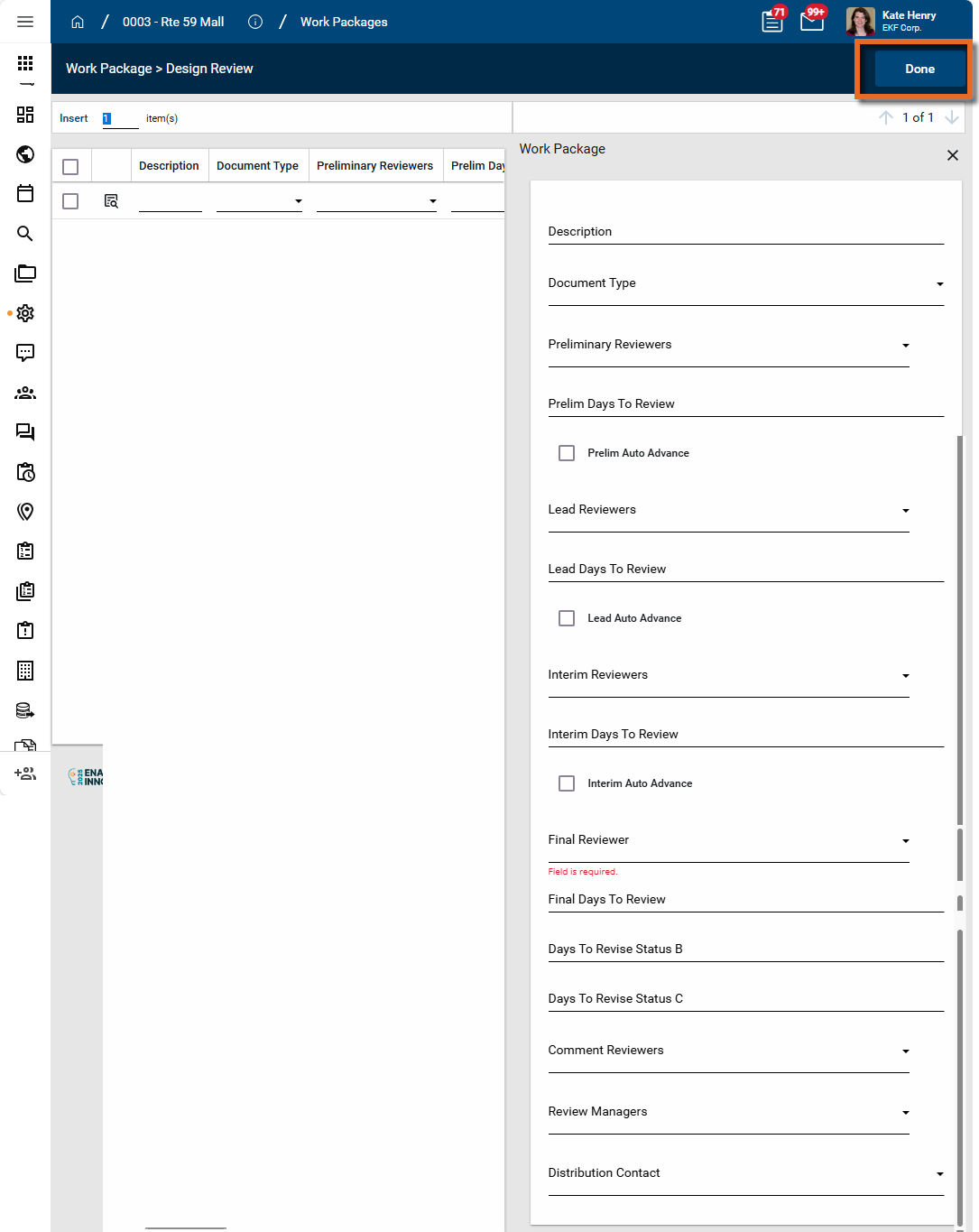
Click Done in the upper right when you are done making edits. You must save the record to save these changes.
For more information on working with grids, refer to Item grids.
Description Enter a description of the review process. For example, if you are defining the drawings review, enter "Drawings" here. Document Type To identify a specific review process based on document types, select the document type here.
Document types are assigned to files when they are added to controlled folders.
For information on setting up document types, refer to Document Types.
Preliminary Reviewers / Prelim Days to Review / Auto Advance
Optionally select one or more reviewers for this step.
Enter the number of days allowed for this review step.
To have the review automatically advanced to the next step once the due date has passed, select Prelim Auto Advance.
Note You must click the View Details icon to open the details page to access the Auto Advance fields.
Lead Reviewers / Lead Days to Review / Auto Advance
Optionally select one or more reviewers for this step.
Enter the number of days allowed for this review step.
To have the review automatically advanced to the next step once the due date has passed, select Lead Auto Advance.
Note You must click the View Details icon to open the details page to access the Auto Advance fields.
Interim Reviewers / Interim Days to Review / Auto Advance
Optionally select one or more reviewers for this step.
Enter the number of days allowed for this review step.
To have the review automatically advanced to the next step once the due date has passed, select Interim Auto Advance.
Note You must click the View Details icon to open the details page to access the Auto Advance fields.
Final Reviewers / Final Days to Review
Select one or more reviewers for this step. By default, this step is required.
Enter the number of days allowed for this review step.
Days to Revise Status B / C Enter the number of days the Contributor Contact has to submit revisions for documents returned with the designated status. Comment Reviewers Review Managers Distribution Contact Select the contacts to be included in the distribution when the design review is completed. RFI Review Coordinator If appropriate, select the RFI Coordinator. Primary Responder Select one or more Primary Responders. Secondary Responders Click Insert to add lines for secondary responders. Select the appropriate contact name. For more information on setting up contacts, refer to Understanding the Contacts app.
To remove a contact, select the check box next to the name and click Delete in the grid header.
For more information on working with grids, refer to Item grids.
Response Distribution Select one or more contacts to be included in the response distribution. CC / Notification Select one or more contacts to be included in the CC / Notification. Submittal Review Official Reviewer / Owner's Rep / Submittal Coordinator / QC Reviewer
Select a contact name for each role as appropriate.
For more information on setting up contacts, refer to Understanding the Contacts app.
Sequential Review Select this option to have the consultant review follow a sequential process, i.e., each consultant reviewer completes their review in turn. Consultant Reviewers Click Insert to add lines for Consultant Reviewers. Select the appropriate contact name. For more information on setting up contacts, refer to Understanding the Contacts app.
To remove a contact, select the check box next to the name and click Delete in the grid header.
For more information on working with grids, refer to Item grids.
Submittal Response Distribution Select one or more contacts to be included in the response distribution. CC / Notification Select one or more contacts to be included in the CC / Notification. References Upload or select any relevant files or documents. You can use drag and drop to add a file to this section. For more information on using this section, refer to References section. -
Click Save when you are done.
Apply a work package to existing drawing records
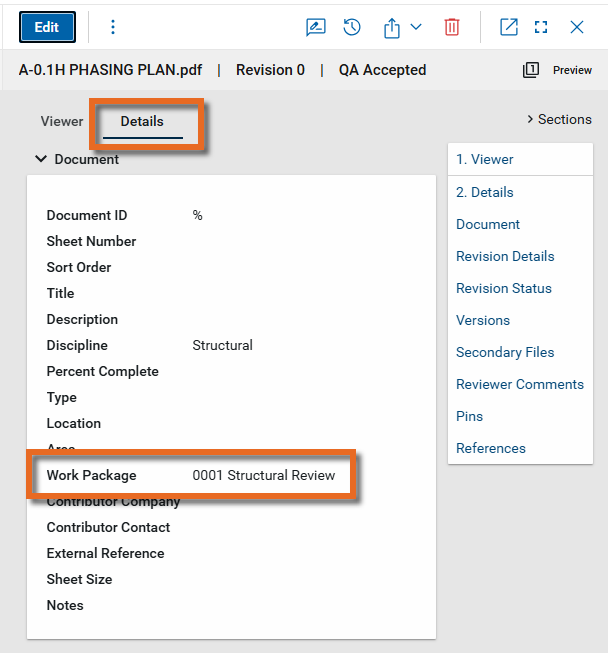
Work packages can be associated with drawings and other file types added to controlled folders in File Manager.
The work package can be selected when the record is first created, or added later by editing the record. The Work Package field appears on the Details tab of the file, in the Document section.
To associate a work package to multiple files using the Multi Edit function, complete the following steps:
-
Review the header to ensure that you are in the correct project or partition.
-
Navigate to the File Manager application (Apps > Document Management > File Manager) and open the appropriate folder.
-
Select the files you want to add the work package to.
Note Consider applying a quick filter, using search, or selecting a different log view to assist in selecting the appropriate file. Refer to Log Views and Log Reporting.
-
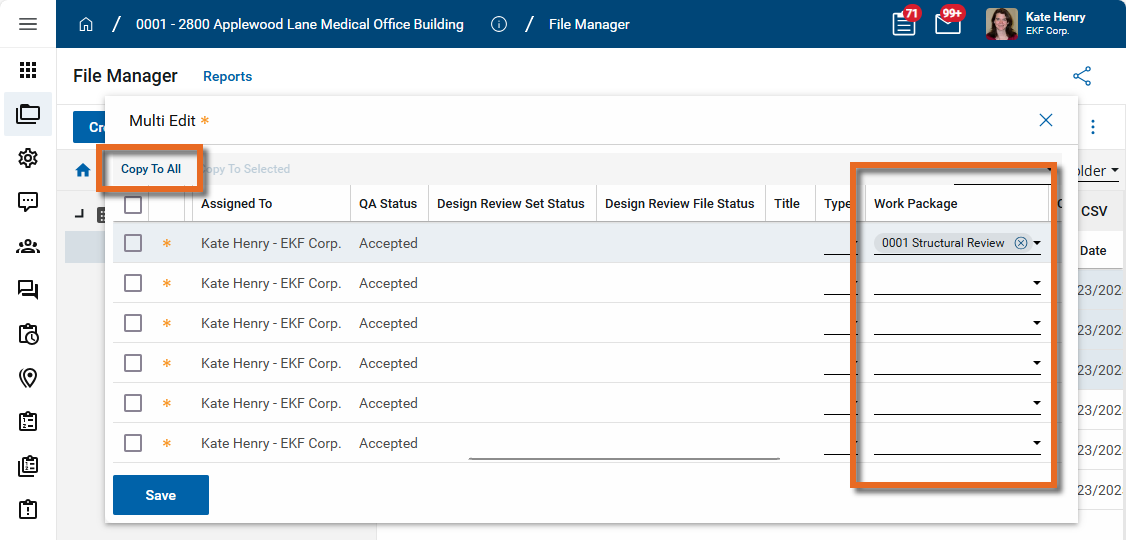
Select Multi Edit in the action bar. The Multi Edit page opens.
-
In the Work Package column, select the appropriate work package.
To apply this work package to all the files, select Copy to All.
To apply the work package to specific files, select the check box next to those files and click Copy to Selected.
-
Click Save when you are done.
Import existing records
If you have existing data that you want to import into this app, you can do so through the import process. Additionally, you can export existing work packages from one project and import them into another project. To do so, clear the RecordKey value on the exported records.
You will first generate an export of an existing record to access the correctly formatted spreadsheet file for the import. Once the exported file is available, add the appropriate values for the records you want to import to the exported spreadsheet. You can then import those records. For more detailed information on the importing process, refer to Importing records.
Generate a log report or other reports
You can generate a report from a selected log view, or use one of the built-in reports available by default in each application. For more information on creating your own reports, including how to set up scheduled reports, refer to Creating ad hoc reports.
Note For information on modifying the logo that appears on reports in your project, refer to Managing report logos.
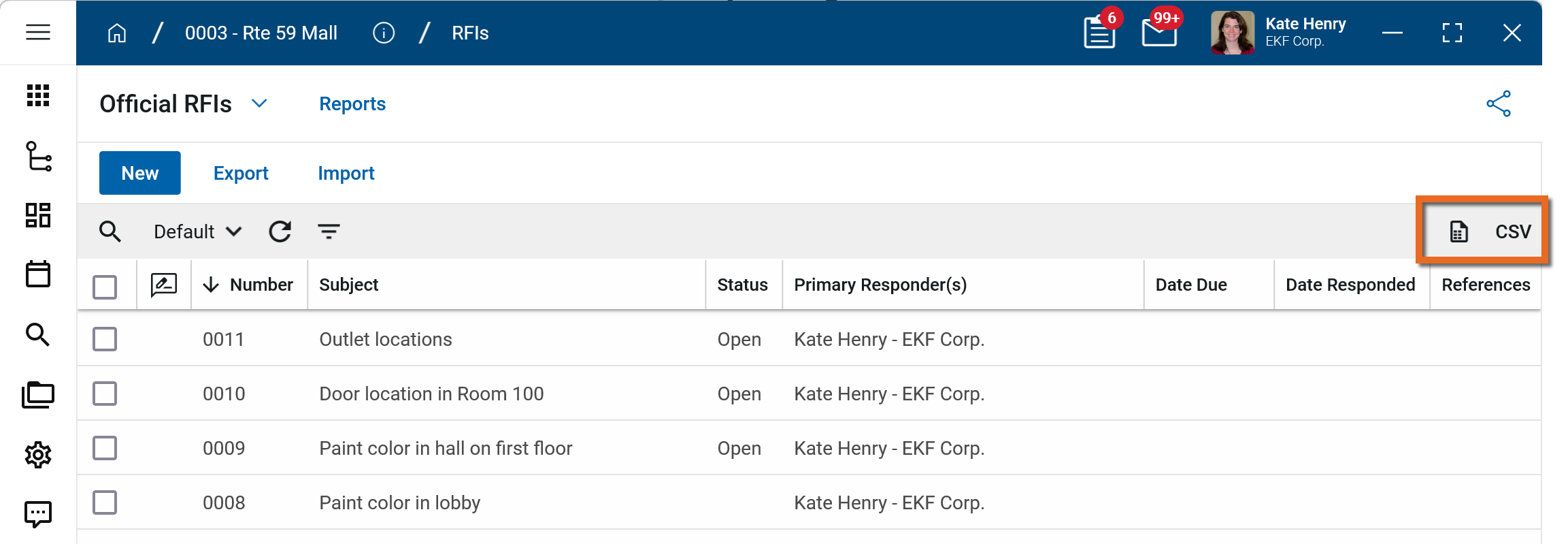
To generate a report from a log view with up to 10,000 records, click the More icon  and select Print. If your log view contains more than 10,000 records, the Print option will be disabled and you can select
  to download the records to a CSV file instead.
To generate an application report, complete the following steps:
-
Navigate to the application.
-
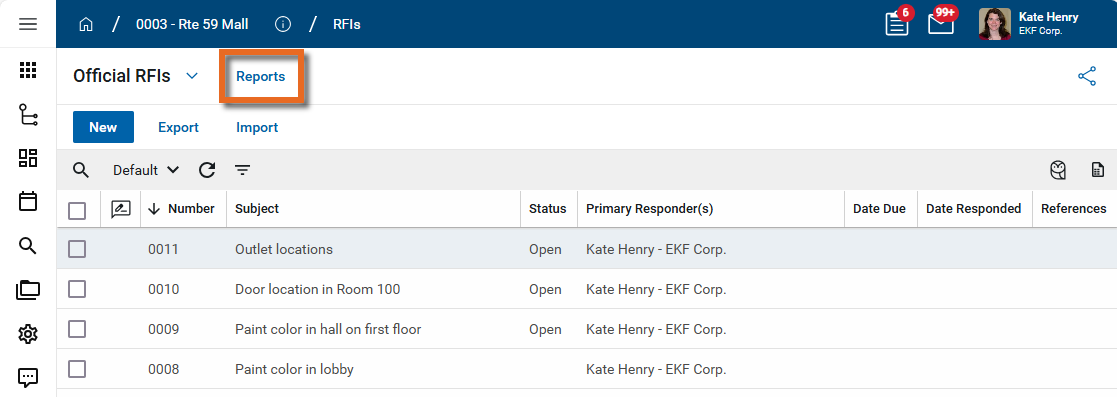
Select Reports in the application title bar.
-
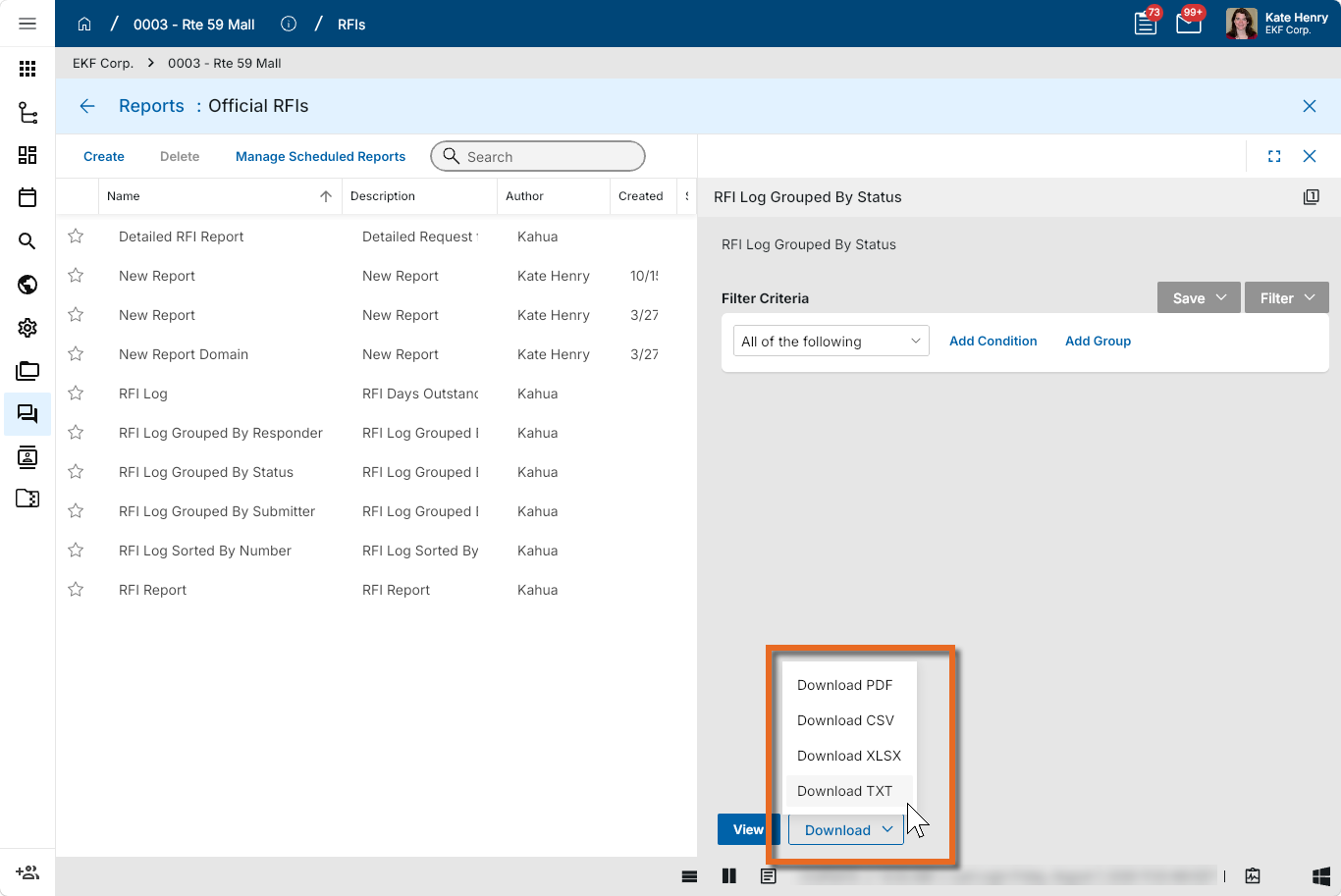
Select the report you want to run.
-
Apply any desired filters.
-
Select View or Download as appropriate. For more information, refer to Viewing Reports.
-
Click the Close icon
 when you are done.
Configure the app
Your domain administrator or another user with the appropriate permissions can configure the app in the Configuration application.
Important When working in the Configuration app, it is important to review the header and ensure that you are working at the correct level in the hierarchy, either the root domain or at a partition or project level.
Settings that you establish at the root domain or lower levels will inherit down the hierarchy until they are overridden. For more information on the hierarchical structure of Kahua, refer to Understanding the hierarchical structure of Kahua.
The Configuration app can be accessed directly through the apps list (Apps > Administration > Configuration), or, in some applications, by right-clicking on an application in the launch bar and selecting Configure. When you select Configure for an app from the launch bar, the detail view of the configuration page for that application opens automatically.
For general information on configuring this app in Configuration, refer to Application configuration.
Available application roles
Application roles determine which actions users can perform in the app. Roles are assigned to groups in the Groups app > Permissions tab. Members of the group then have the permissions associated with the roles assigned to the group.
The following roles are available for this application:
| Role | Details |
|---|---|
| Administrator |
Full administration, including add, configure, create lists, edit, import, export, share, view, send, process, remove, and edit view templates. |
| Contributor |
Can add, edit, open, view, send, and process records. |
| Moderator |
Can add, edit, import, export, remove, share, open, view, send, and process records. |
| Observer |
Can open, view, send, and process records. |
| Referencer |
View-only access to records. |
Note To manage these permissions, open the Groups app and assign the appropriate application role to the group. Only users with the appropriate permissions can manage application roles. For more information, refer to Managing Permissions.