Toolbox Talks
The Toolbox Talk application is a domain level sub-application within the Safety Suite which assists Safety Managers in crafting and delivering Toolbox Talks to field supervisors. For more information on the Safety Suite, refer to Safety Suite.
Important The sub-apps in the Safety Suite are unlike most other apps in that they reside at the domain level, not at the project or partition level. They can be accessed while you have a project or partition open, but the data entered is not linked to that project or partition and instead resides at the domain level.
Key elements of the Toolbox Talks sup-app are as follows:
-
You can create a Toolbox Talk record for each talk assigned. The record can include information about the talk, set a deadline for when the talk should be completed, contain a list of presenters responsible for delivering the talks, and include any PDF files or other supporting documents that presenters would need for the talks.
-
The talks can be assigned as Kahua tasks and sent to any presenters who are Kahua users. For non-Kahua users, you can generate a PDF of the toolbox talk information that includes any reference files. The PDF can then be printed or emailed.
-
When the talk is complete, presenters who are Kahua users can update the task and submit it to automatically update the Toolbox Talk record. Presenters who are not Kahua users can provide the information so the record can be manually updated.
-
The built-in Toolbox Talks Participation report can provide information on participation levels over time.
How to . . .
 Create a new Toolbox Talks record or edit an existing one
All the Safety Suite applications are domain level applications, but they can be accessed from any project or partition in your domain. The records you create are not connected to the project or partition that is open at the time you create the record.
To create a new Toolbox Talks record or edit an existing one, complete the following steps:
-
Navigate to the Toolbox Talks sub-application (Apps > All Apps > Safety > Toolbox Talks).
-
To create a new record, click New on the action bar. The new toolbox talks record detail page opens.
To edit an existing record, select it from the log view to open the detail page. Click Edit on the action bar.
Note To open the detail page in a full page view, click the Display Detail View icon
 at the bottom of the page. For more information, refer to Log view/Split View/Detail View.
 -
Complete the following fields as necessary:
Field Description Details Number Allow Kahua to auto-number the record, or enter a different value.
Note The number format can be configured by your domain administrator. Refer to Number.
Author Select the name of the person overseeing this toolbox talk requirement.
Important This person must first be set up as a person in the Contacts application. Refer to Using the People application.
Date Enter today's date, or another date your organization wants to track, such as when the talk is being assigned. Category Select a category for this Toolbox Talk.
Note .This lookup list is managed in the Configuration app. Refer to Lookups.
Title Enter the Toolbox Talk title. Description Enter a description of the Toolbox Talk. This description will appear on the assigned task sent to presenters. Due Date Enter the date by which the talk should be given. CC/Notification Select people to be notified. You can select one or multiple people.
Important These people must first be set up in the Contacts application. Refer to Using the People application.
Meetings Sent / Meetings Completed This section appears once the Toolbox Talk record is saved. It tracks the number of talks sent as tasks to presenters, and the number currently completed. Toolbox Talks Meetings In this section, you can assign the toolbox talks to other users to present and record their completion. For detailed instructions, refer to Assign and manage Toolbox Talks below. Media Upload any relevant image files.
For more information on using this section, refer to Media section.
Important These files are not included in tasks sent to presenters. If you have an image you want to send to the presenters in a task, include it in the References section instead.
References Upload any relevant files or documents. Files uploaded here will be included when the meeting task is sent to a presenter.
If a file is uploaded to the References section on a Toolbox Talk record, it can be accessed from the portable view by selecting View > View w/ References.
For more information on using this section, refer to References section.
-
When you have entered all the necessary information, click Save.
Assign and manage Toolbox Talks
When you create a toolbox talk, you can assign the talks to a number of presenters. You can then send the toolbox talk information, including any supporting documents in the References section as a Kahua task for the presenter to complete and submit to you. If the presenter is not a Kahua user, you can manually enter the completed meeting information on their behalf.
To assign toolbox talks to presenters, complete the following steps:
-
Navigate to the Toolbox Talks Meetings section.
-
Enter a number and click Insert to add that number of lines to the Toolbox Talks Meeting grid
 .
. Note To enter data in a larger space, select the Expand icon
 . Refer to Item grids.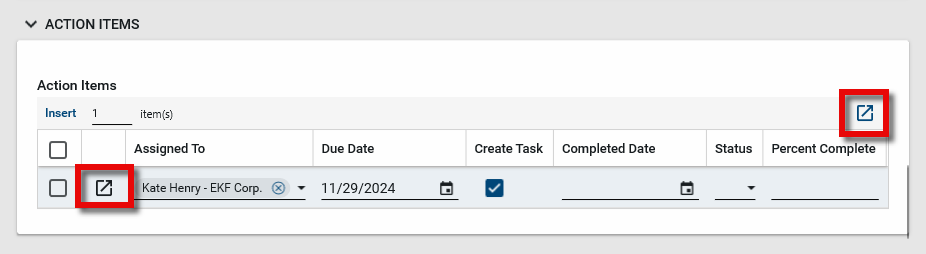
-
Complete the fields as follows:
Field Description Step This is the place in the process for the assigned meeting, such as New or Submitted. Presenter Select a contact from the list.
Note This person must first be set up as a person in the Contacts application. Refer to Using the People application.
Department If you are tracking this information, select the presenter's department.
Note This field is a lookup list that your domain administrator manages in the Configuration app.
Meeting Completed? If a Kahua task was created for this item, the date the task is completed will automatically be added here. Otherwise, this can be entered manually. Meeting Date Enter the date the Toolbox Talk occurred. Attendee Count Enter the number of attendees at the meeting. Meeting Notes Enter any meeting notes. Attendee Notes Enter any attendee notes. -
Click Save when you are done.
-
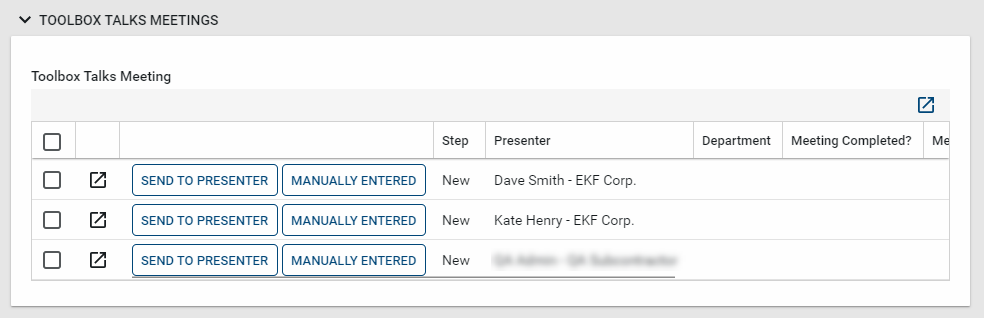
Once saved, you can send the toolbox talk as a Kahua task to each presenter or manually enter in their data after the talk is completed.
-
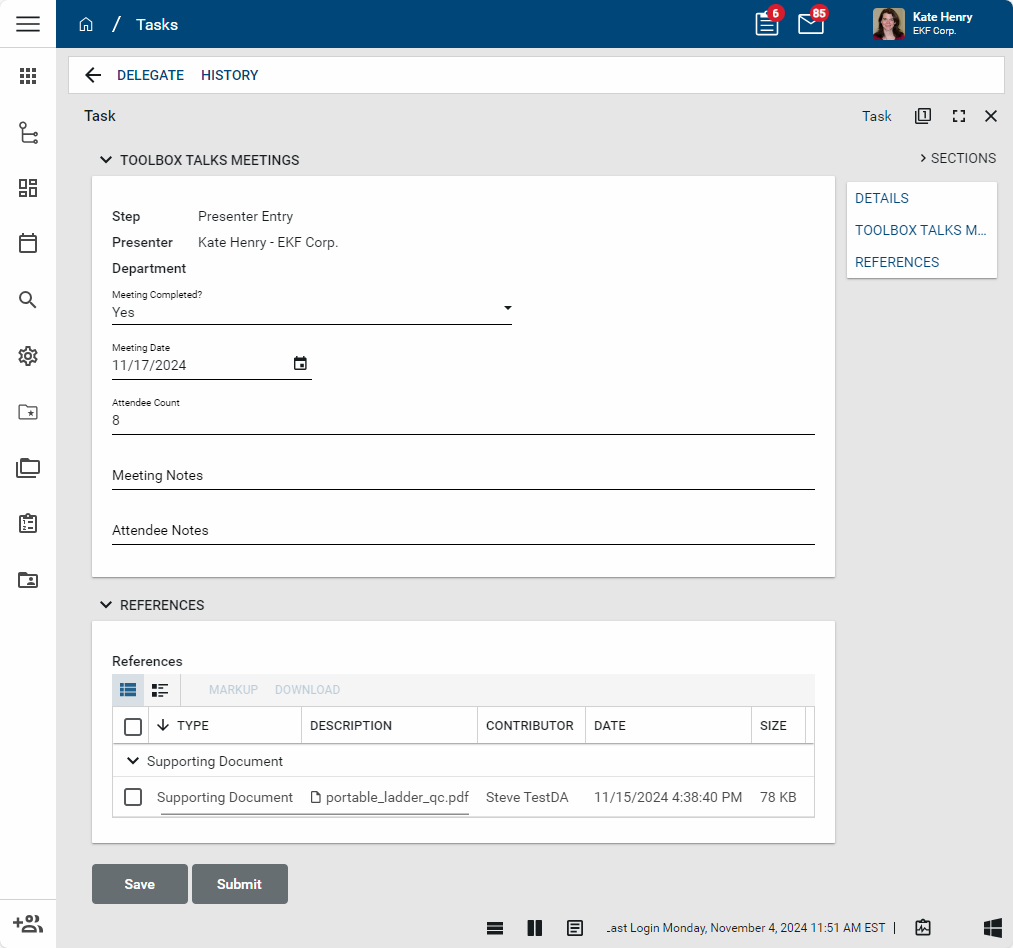
Select Send to Presenter to send the toolbox talk as a Kahua task. The task recipient receives all uploaded files from the References section. When the presenter has completed the talk, they can enter the appropriate information in the Meeting Completed, Meeting Date, Attendee Count, Meeting Notes, and Attendee Notes fields. The completed task can then be submitted back to the sender.
-
If the presenter is not a Kahua user, you can manually enter the meeting information instead of sending it as a Kahua task for the presenter to complete. Select Edit on the action bar for the Toolbox Talk and update the meeting data. Select Save when you are done. Select Manually Entered to remove the Send to Presenter option and indicate that the task was completed.
-
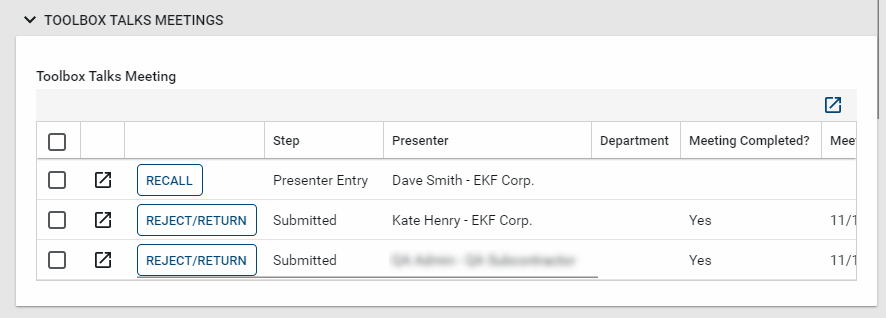
If there is an issue with a task that is sent, such as forgetting to include the supporting material, you can select Recall to recall the task, update the record, and re-send the task. If there is an issue with the completed meeting information, you can select Reject/Return to open it back up for editing.
Generate a Toolbox Talks Detail report
There are two built-in portable views available by default, a detail view and a detail view that includes the supporting reference documents.
To generate a detail report, complete the following steps:
-
Navigate to the Toolbox Talks sub-application (Apps > All Apps > Safety > Toolbox Talks).
-
Select the appropriate record from the log view to open the detail page.
-
Click View from the action bar.
-
Select View for a detail view of the record.
-
Select View w/References for a detail view of the record that includes any files in the References section.
-
-
The report view opens. To generate a PDF of the report, click on the Open PDF icon
 . The PDF file can be printed.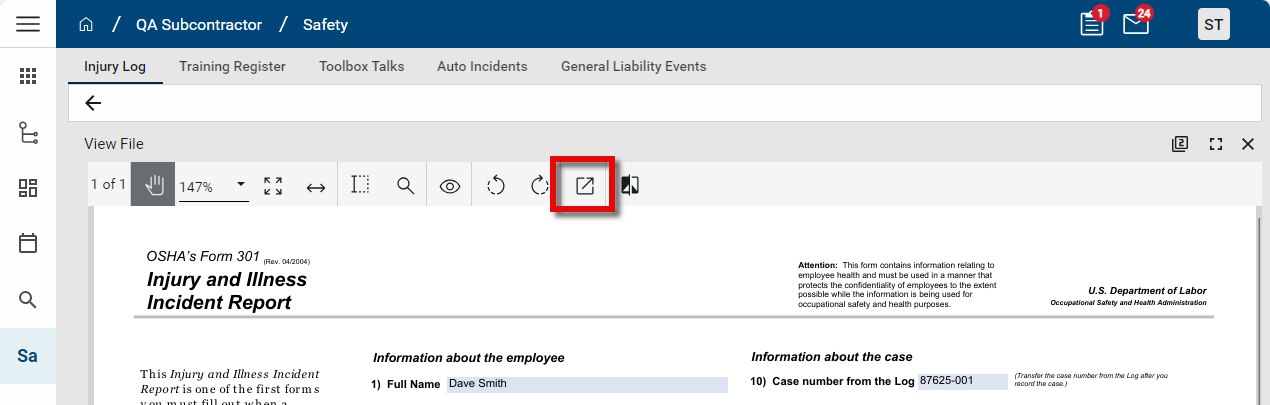
-
Click the Close icon
 when you are done.
Note For more information on portable views, refer to Portable Views.
Generate a Toolbox Talks Participation log report
You can generate a Toolbox Talks Participation log report.
To run this report or any other report that is available to you in the Toolbox Talks sub-app, complete the following steps:
-
Navigate to the Toolbox Talks sub-application (Apps > All Apps > Safety > Toolbox Talks).
-
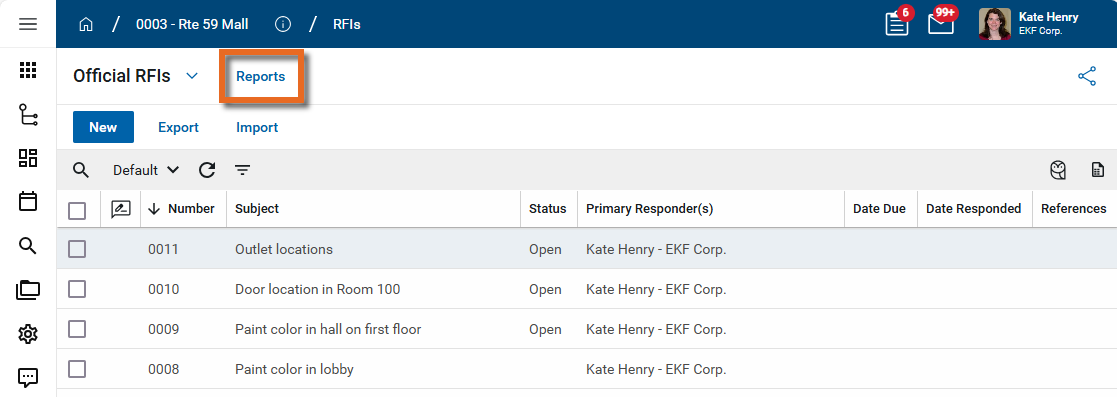
Select Reports in the application title bar.
-
Select the Toolbox Talks Participation report or any other report that is available to you.
-
Apply any desired filters.
-
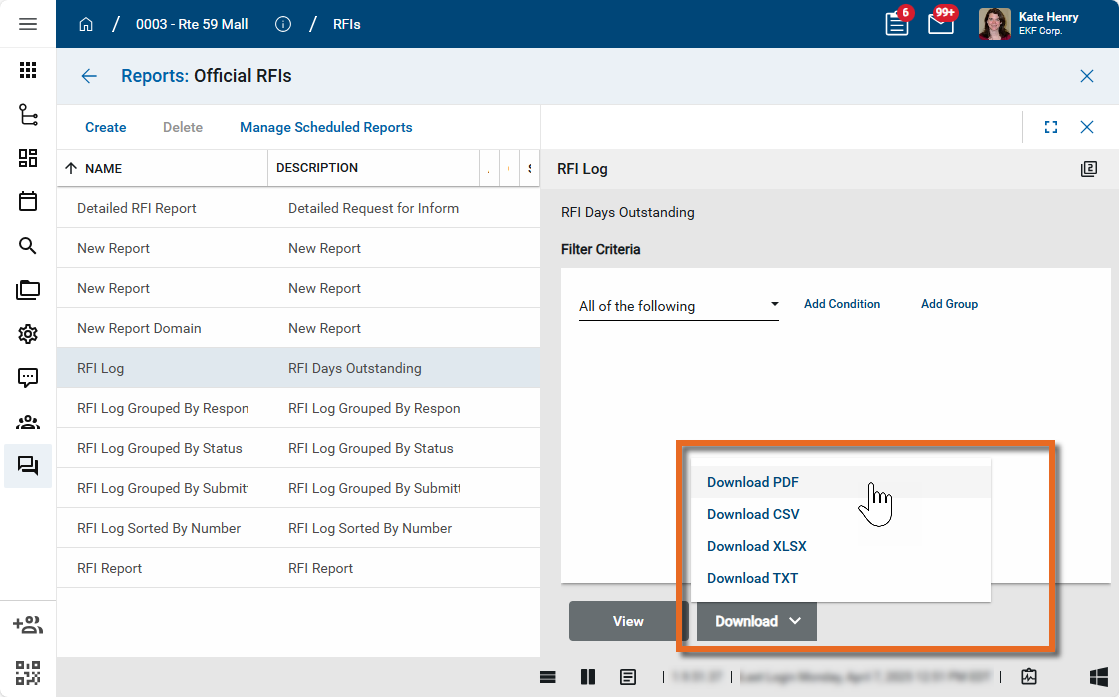
Select View or Download as appropriate. For more information, refer to Viewing Reports.
-
Click the Close icon
when you are done.
Import existing records
If you have existing Toolbox Talks data that you want to import into the Toolbox Talks sub-app in Kahua, you can do so through the import process.
You will first generate an export of an existing record to access the correctly formatted spreadsheet file for the import. Once the exported file is available, add the appropriate values for the records you want to import to the exported spreadsheet. You can then import those records. For more detailed information on the importing process, refer to Importing records.
Perform standard actions on a single record (print, send, view history, delete, etc.)
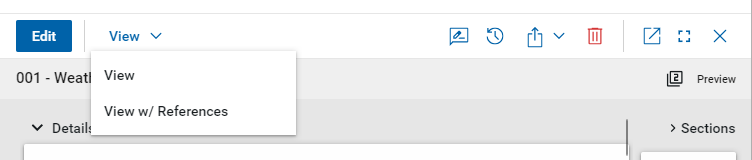
From the detail view of a record, there are several standard actions you can take. Depending on your permissions, some or all of the following options may be available to you:
-
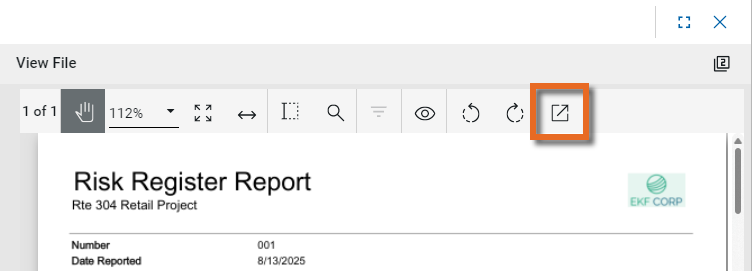
View and View w/References - Select View or View w/References to open a PDF view of the current record. The PDF file can be printed or shared from the viewer by clicking on the Open PDF icon
 .
.
Note Only references where the Include on Send value is set to "Yes" are included in the View w/References.
Additionally, if Include Markup on Send is set to "Yes", any markups on the file are included. -
Discussions
 - Select this icon to open the Discussions panel. If enabled in your domain, the discussions feature allows you to participate in public or private conversations associated with specific records. For more information, refer to Discussions.
 -
View History
 - Select this icon to open the History page for the record. The history page provides details regarding all activity (creation, edits, saves, etc.) performed on the record. Click view edit to drill down into more detail on a specific action. Click hide edit to close the action detail. Click the Close icon
  to close the history page.
 -
Send actions
 - Click this icon to select an appropriate Send action for the record. The following options may be available to you:
-
Copy Link and Copy Portable View Link - Select this option to copy a URL link for the record or record's portable view to your clipboard. This link can be sent outside of Kahua. Users with the appropriate permissions will be able to open Kahua directly to that record or portable view by using the link.
-
Copy QR Code and Copy Portable View QR Code - Select this option to generate a QR code for the currently open record or record's portable view. The QR code can be shared directly from your screen, or copied to your clipboard to be shared as appropriate. This QR code can be shared outside of Kahua. Users with the appropriate permissions will be able to open Kahua directly to that record or portable view by using the link.
-
Send - Select this option to open a new Kahua message with the open record included as an attachment. References with the Include on Send value set to "Yes" are also included. For more information, refer to Messages app.
-
-
Delete
 - Select this option to delete the open record. You must agree to the confirmation message before the record is deleted.
Alternatively, right-click on the record in the log view and select Delete, or select multiple records from the log view and select Delete.
Note If a record is deleted in error, your domain administrator may be able to recover it through the Recycle Bin app. For more information, refer to Using the Recycle Bin.
-
Open in a new window
 - Select this option to open the current record as read-only in a new window (desktop host) or browser tab (web host). This allows you to navigate to other records in the original Kahua instance while keeping the read-only window or tab open for reference. To re-open the record on the read-only window or tab in Kahua, select Open in the header.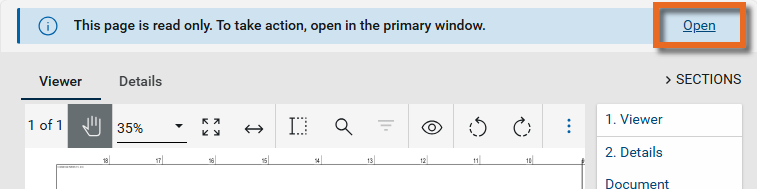
-
Maximize
 and Minimize
  - Select Maximize to open the record to a full screen view. From the full screen view, select Minimize
  to return to the original view.
 -
Close
- Select the close icon to close the currently open item.
Configure the app
Your domain administrator or another user with the appropriate permissions can configure the app in the Configuration application.
Important When working in the Configuration app, it is important to review the header and ensure that you are working at the correct level in the hierarchy, either the root domain or at a partition or project level.
Settings that you establish at the root domain or lower levels will inherit down the hierarchy until they are overridden. For more information on the hierarchical structure of Kahua, refer to Understanding the hierarchical structure of Kahua.
The Configuration app can be accessed directly through the apps list (Apps > Administration > Configuration), or, in some applications, by right-clicking on an application in the launch bar and selecting Configure. When you select Configure for an app from the launch bar, the detail view of the configuration page for that application opens automatically.
For general information on configuring this app in Configuration, refer to Application configuration.
Available application roles
Application roles determine which actions users can perform in the app. Roles are assigned to groups in the Groups app > Permissions tab. Members of the group then have the permissions associated with the roles assigned to the group.
The following roles are available for this application:
| Role | Details |
|---|---|
| Administrator |
Full administration, including add, configure, create lists, edit, import, export, share, view, send, process, remove, and edit view templates. |
| Contributor |
Can add, edit, open, view, send, and process records. |
| Moderator |
Can add, edit, import, export, remove, share, open, view, send, and process records. |
| Observer |
Can open, view, send, and process records. |
| Referencer |
View-only access to records. |
Note To manage these permissions, open the Groups app and assign the appropriate application role to the group. Only users with the appropriate permissions can manage application roles. For more information, refer to Managing Permissions.