Kahua Idea app
Notice Kahua is a very flexible and customizable platform. In your domain, this application may have been modified to meet your company's needs. The online help uses default field labels for field names and describes standard workflows. Please check with your domain administrator for specific information about working in your organization's domain.
The Kahua Idea app is an app you can use to gather, organize, and manage ideas for improving the use of the Kahua platform at your organization. Users with the appropriate permissions can submit ideas and "like" ones submitted by others. Other users can be assigned the ability to review and approve submitted ideas and track their implementation.
Note If you are interested in this app and it is not available in your domain, reach out to Support or your account representative for more information.
Key elements of the app are as follows:
-
The Kahua Idea app is a domain-level app. It doesn't matter what project you are in when you open the app. All the information in the app resides at the root domain level.
-
Users can submit ideas. Ideas can include detailed information and be organized by relevant area of the platform, priority, potential impact, and more. Supporting documents can be uploaded as references.
-
Users can add their support to an idea by adding a "like" to an existing idea.
-
Initial approval of submitted ideas is managed through the approval workflow. Refer to Approval configuration.
-
Ideas can be moved through a workflow by users with moderator (or higher) rights to the app. Ideas can be organized from evaluation through completion. Ideas can also be placed on hold or declined, and re-opened from those statuses if necessary.
How to . . .
 Create or modify an idea
To create a new record, complete the following steps:
-
Navigate to the Kahua Idea application (Apps > All Apps > Kahua Idea).
-
To enter a new idea, click New on the action bar. The new idea detail page opens.
To edit an existing record, select it from the log view to open the detail page. Click Edit on the action bar.
-
Complete the following fields as appropriate:
Note Depending on how this app is configured for your domain, there may be fields or sections listed here that do not appear for you, fields and sections that appear for you which are not listed here, or fields and sections which appear in a different order. If you have any questions, check with your domain administrator.
Field Description Details Number Allow Kahua to auto-number the record, or enter a different value.
Note The number format can be configured by your domain administrator. Refer to Number.
Short Description Enter a short description of your idea.
This is essentially the "title" of your idea and will appear in the log view.
Status As the idea progresses through the review and approval process, this field is updated automatically. Functional Area / Applications Select the appropriate values.
Note These lookup lists are managed in the Configuration app. Refer to Lookups.
Detailed Description Enter a more detailed description of your idea. Supporting material can be added in the References section below. Type / Category / Priority / Impact Select the appropriate values.
Note These lookup lists are managed in the Configuration app. Refer to Lookups.
Total Likes The total number of "likes" for this idea appears here. Requirements High Level Requirements Enter this information as appropriate. Conceptual Solution Enter this information as appropriate. Risks Enter this information as appropriate. Dates and Assignments Assigned To Select the appropriate organization to assign this idea to.
Note This lookup list is managed in the Configuration app. Refer to Lookups.
Responsible Select the appropriate contact. Created Date / Submitter / Last Modified Date / Last Modified By These values are automatically captured. Working Notes New Comment If desired, enter a comment about the idea. All added comments appear in this section. Internal This section only appears to users with at least moderator rights to the app. Use this section to identify the planned release and add internal notes as needed.
Reference Number If applicable, enter a reference number here. Planned Release Select a planned release from the list.
Note This lookup list is managed in the Configuration app. Refer to Lookups.
Planned Date Enter a planned release date. Internal Notes Add a note here. Notes are stored in this section as independent comments. Resolution Completion Date When appropriate, enter a completion date. Outcome If desired, enter notes regarding the outcome. Likes The list of users who "liked" this idea appears here to users with moderator rights to the app.
Additional contact names can be manually added by clicking Insert. For more information on working with grids, refer to Item grids.
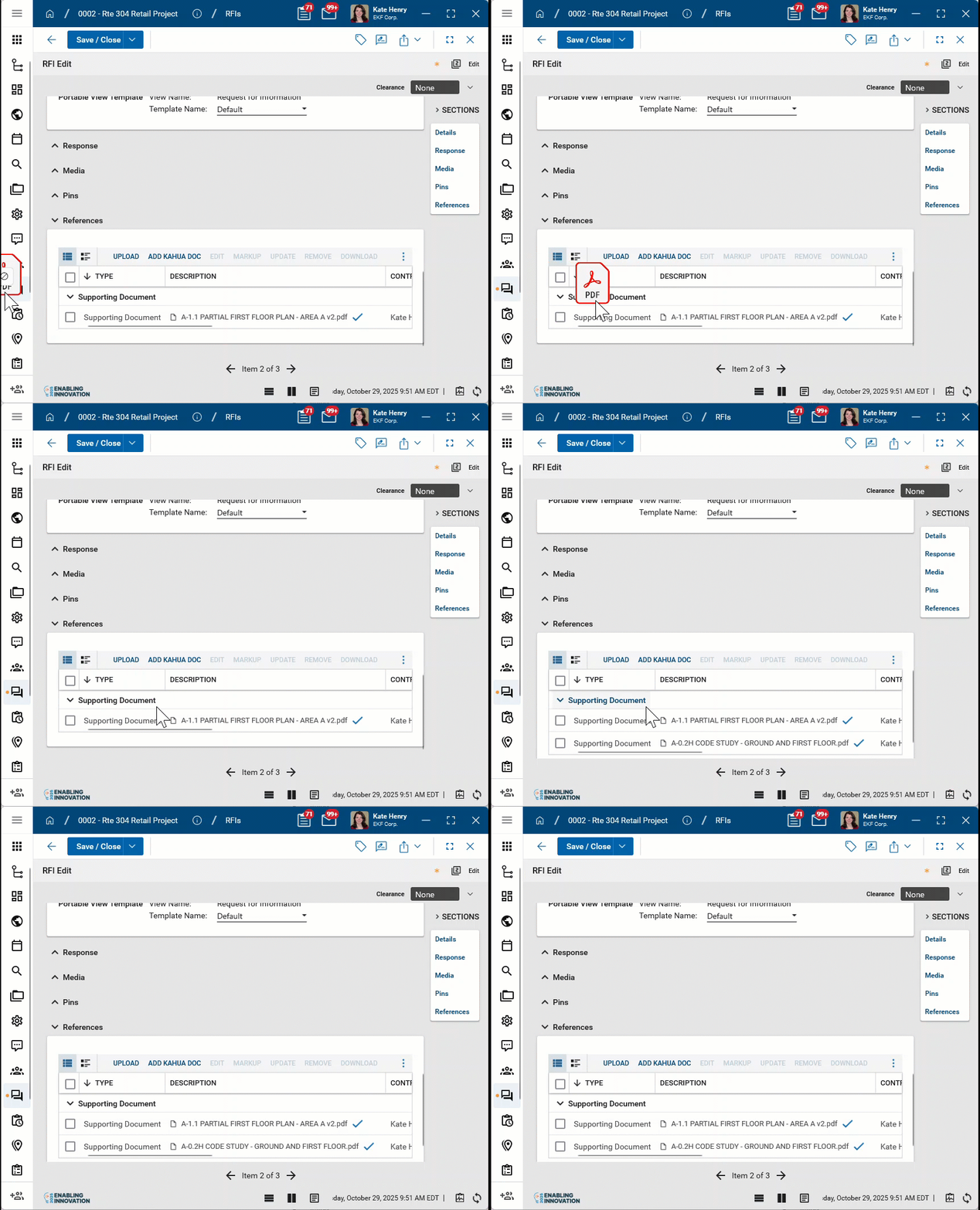
References Upload or select any relevant files or documents. You can use drag and drop to add a file to this section. For more information on using this section, refer to References section.
-
To save your work as a draft version to be completed later, click Save.
If you are ready to submit your idea, select Save and Submit.
To edit your idea after it's been submitted but before it's been acted on, select Recall.
Add a "like" to an idea
Users can review ideas submitted by other users and "like" the idea to indicate their support for it. The number of likes that an idea garners can help administrators determine which ones should be implemented.
Note An idea must be submitted before other users can add likes to them. Likes cannot be added when the idea has a status of "Draft".
To add a "like" to an idea, complete the following steps:
-
Navigate to the Kahua Idea application (Apps > All Apps > Kahua Idea).
-
Click on the idea you want to add a "like" to. The record opens in the detail pane.
-
Click on Like This Idea in the action bar.
Note If necessary, click the More icon
 to show options hidden for space reasons.
 -
The number of likes will increase by one. Your name be added to the list of users who have liked this idea and will appear to users with moderator or higher rights to the app.
Approve an idea
When an idea is submitted, the status changes to "Assessment" and a designated user can approve or reject it.
If you are assigned approver, review the idea and select Approve or Decline from the action bar. If you decline an idea, you will be required to enter a reason. The status will be updated to "Declined" and the reason will be saved as a note.
Users with moderator rights can select Reopen to reconsider an idea that was previously declined.
Important Approvers are set up in the Configuration app > Approvals tab. You can have a multiple approval steps. For more information, refer to Approval configuration.
Manage an idea
Users can review ideas and add their support by adding a "like" to individual ideas. The number of "likes" added to each idea appears in the log view and on the idea record itself. Users responsible for managing ideas can review them and determine which ones to move forward with.
As an idea is evaluated and worked on, users with moderator rights or higher in the app can use the options in the action bar to manage the current state of the idea. The idea can be moved through the following statuses:
-
Evaluation
-
In Progress
-
Deployment Pending
-
Complete
-
On Hold
-
Declined
Ideas can be returned to previous statuses as appropriate. Ideas that were set to "Complete" or "Declined" can be re-opened at any time by selecting Reopen from the action bar.
For information on the fields available for editing as you manage an idea from concept to completion, refer to Create or modify an idea.
Complete general app functions
There are many functions you can perform in the Kahua Idea app that are common to other apps.
Review the sections below for information on completing general app functions:
Edit multiple ideas at once
Users with the appropriate permissions can edit multiple idea records at one time. To do so, complete the following steps:
-
Select the check boxes next to the records you want to edit.
-
Select Multi Edit from the action bar. The Multi Edit page opens.
-
You can edit individual fields. To copy a field value to other records, select the value on the record. Select Copy to All to copy the value to all other records, or select Copy to Selected to copy the value to selected records.
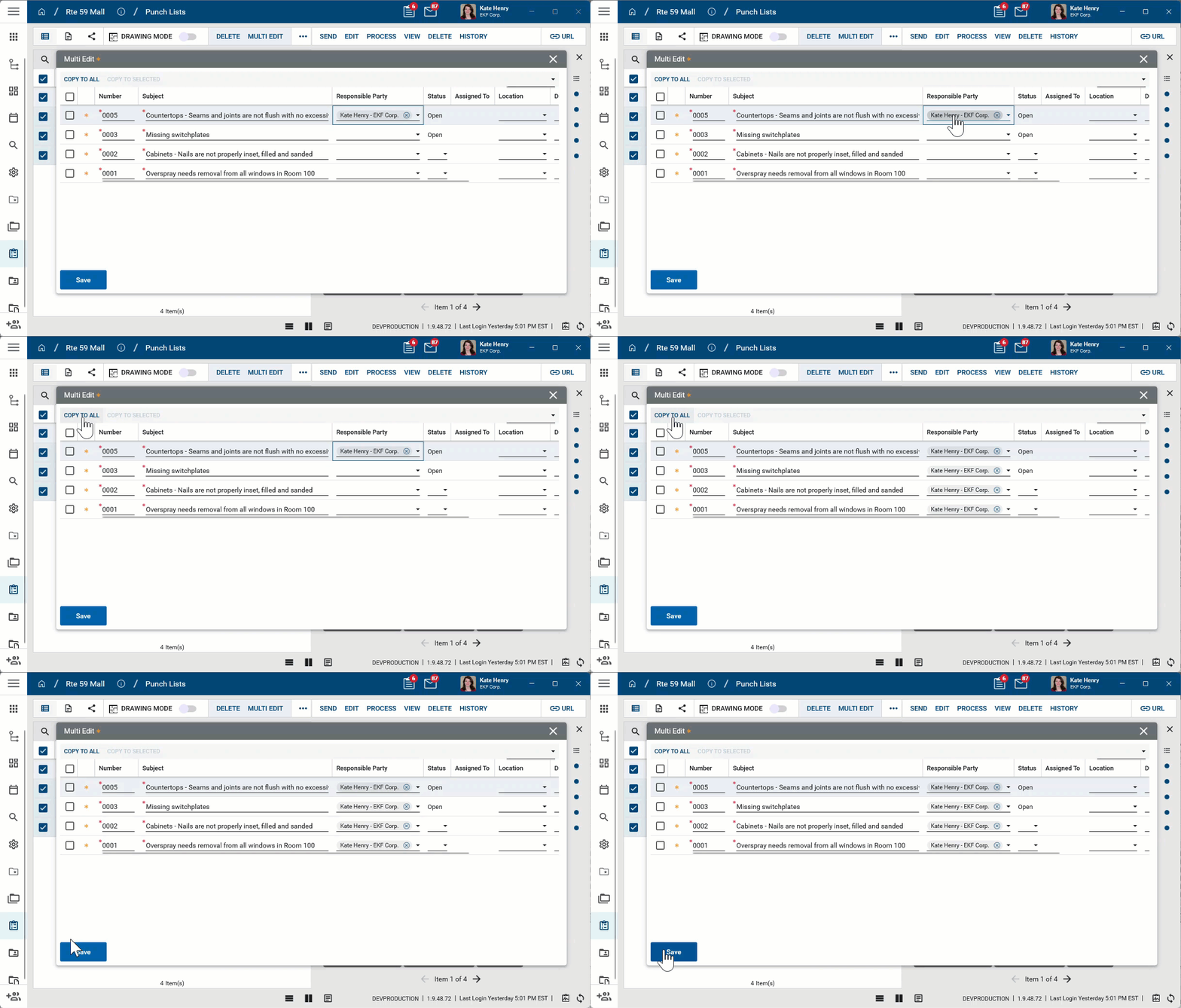
Note The Multi Edit page lists fields from the log view applied when Multi Edit is selected. To update fields which are not present on the default log view, create a new log view that includes all the fields you want to edit and then apply that log view before selecting Multi Edit.
-
Click Save when you are done.
Import existing records
If you have existing data that you want to import into this app, you can do so through the import process.
You will first generate an export of an existing record to access the correctly formatted spreadsheet file for the import. Once the exported file is available, add the appropriate values for the records you want to import to the exported spreadsheet. You can then import those records. For more detailed information on the importing process, refer to Importing records.
Generate a log report or other reports
You can generate a report from a selected log view, or use one of the built-in reports available by default in each application. For more information on creating your own reports, including how to set up scheduled reports, refer to Creating ad hoc reports.
Note For information on modifying the logo that appears on reports in your project, refer to Managing report logos.
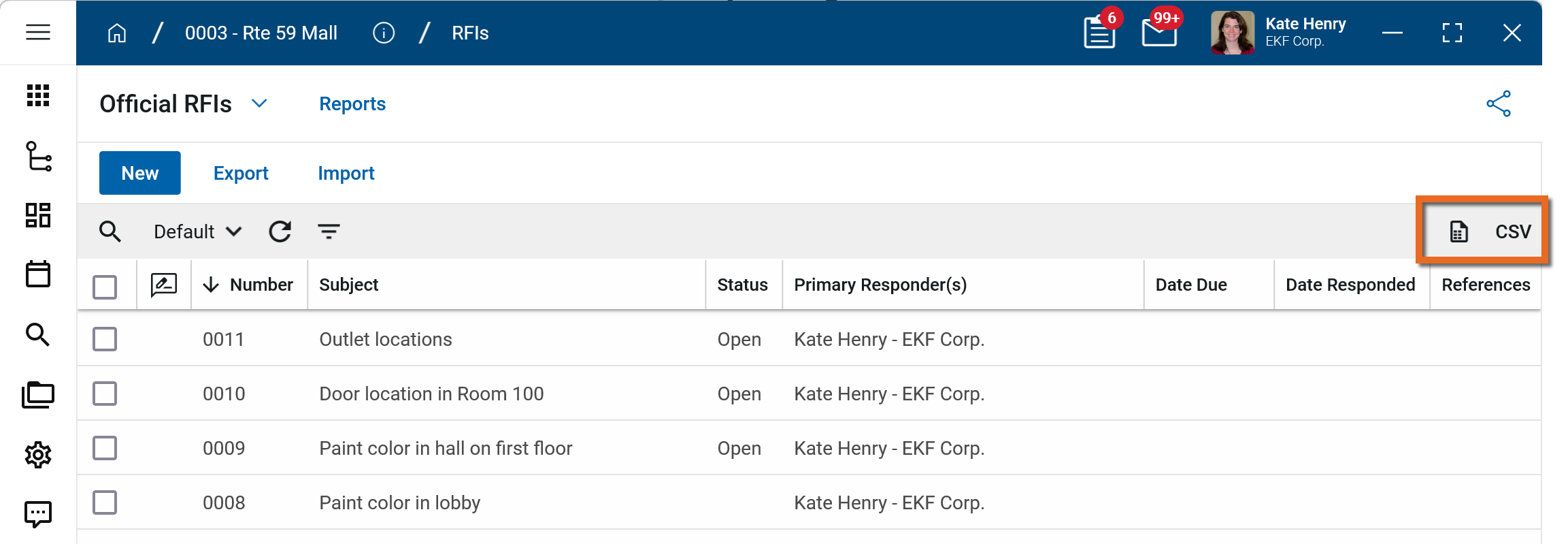
To generate a report from a log view with up to 10,000 records, click the More icon  and select Print. If your log view contains more than 10,000 records, the Print option will be disabled and you can select
  to download the records to a CSV file instead.
To generate an application report, complete the following steps:
-
Navigate to the application.
-
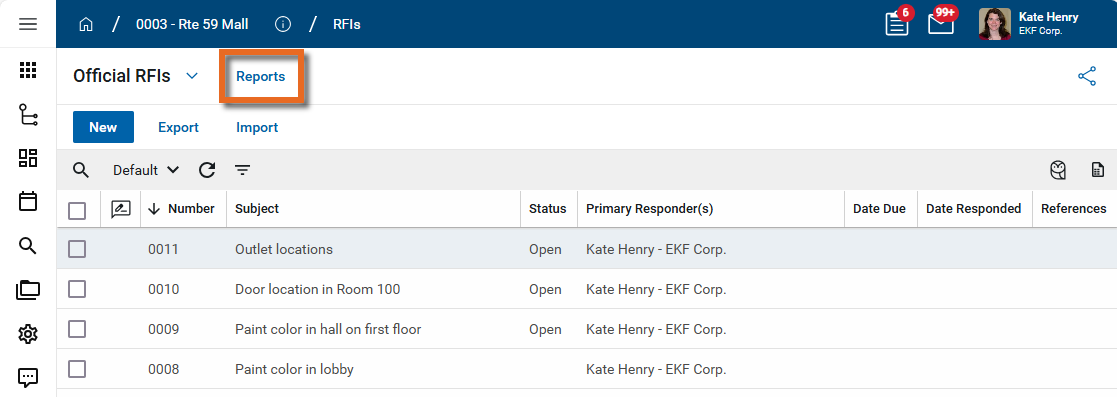
Select Reports in the application title bar.
-
Select the report you want to run.
-
Apply any desired filters.
-
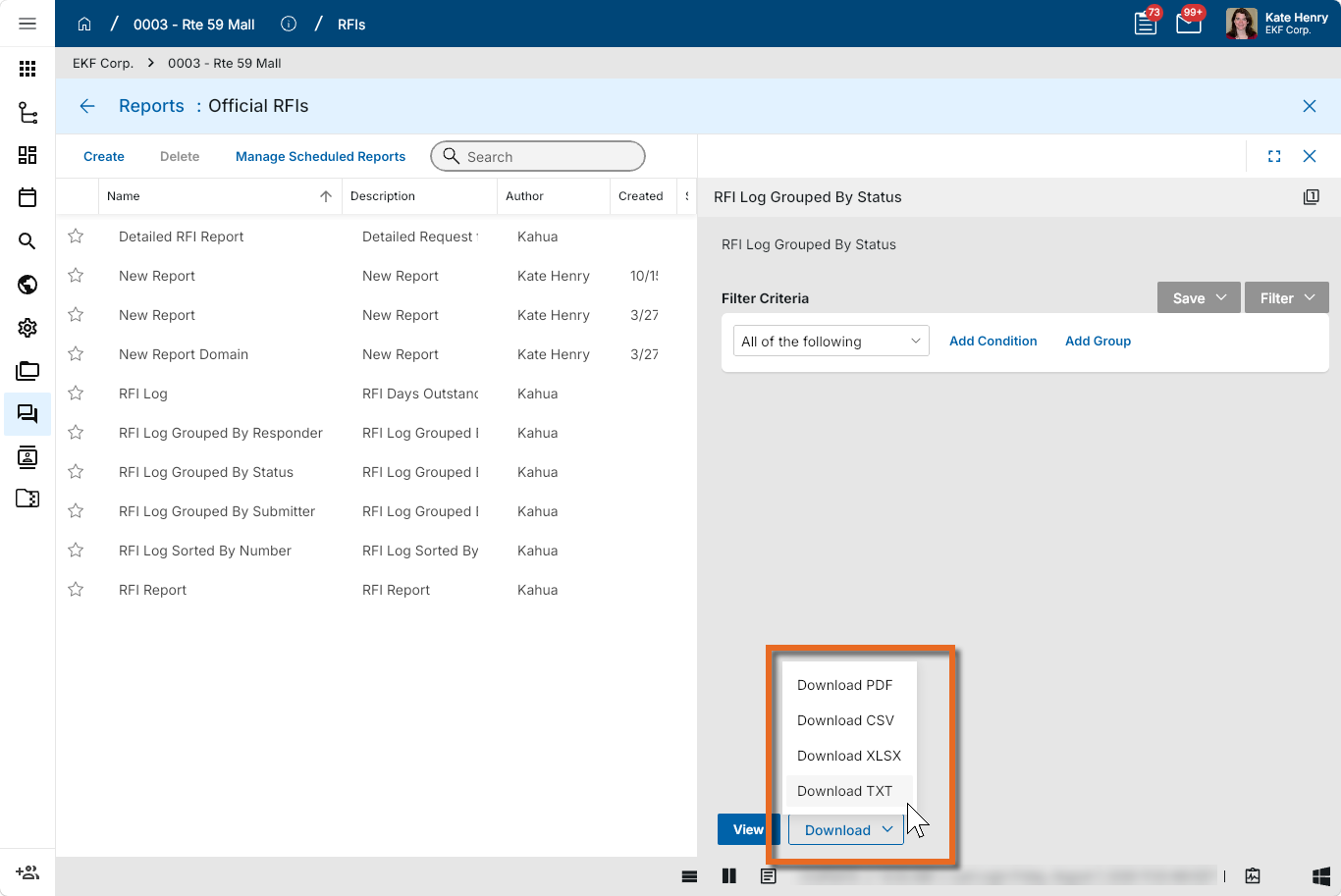
Select View or Download as appropriate. For more information, refer to Viewing Reports.
-
Click the Close icon
 when you are done.
Perform standard actions on a single record (print, send, view history, delete, etc.)
From the detail view of a record, there are several standard actions you can take. Depending on your permissions, some or all of the following options may be available to you:
-
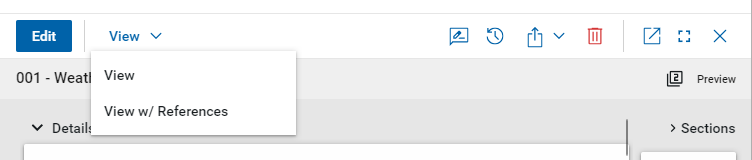
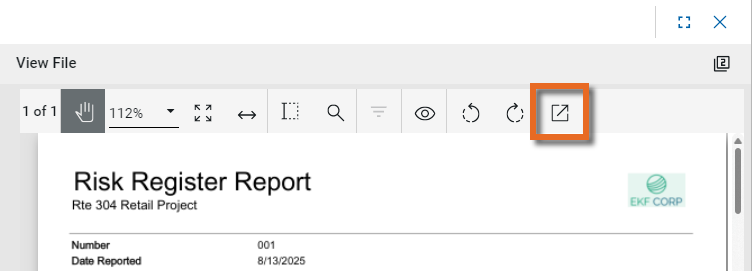
View and View w/References - Select View or View w/References to open a PDF view of the current record. The PDF file can be printed or shared from the viewer by clicking on the Open PDF icon
 .
.
Note Only references where the Include on Send value is set to "Yes" are included in the View w/References.
Additionally, if Include Markup on Send is set to "Yes", any markups on the file are included. -
Discussions
 - Select this icon to open the Discussions panel. If enabled in your domain, the discussions feature allows you to participate in public or private conversations associated with specific records. For more information, refer to Discussions.
 -
View History
 - Select this icon to open the History page for the record. The history page provides details regarding all activity (creation, edits, saves, etc.) performed on the record. Click view edit to drill down into more detail on a specific action. Click hide edit to close the action detail. Click the Close icon
  to close the history page.
 -
Send actions
 - Click this icon to select an appropriate Send action for the record. The following options may be available to you:
-
Copy Link and Copy Portable View Link - Select this option to copy a URL link for the record or record's portable view to your clipboard. This link can be sent outside of Kahua. Users with the appropriate permissions will be able to open Kahua directly to that record or portable view by using the link.
-
Copy QR Code and Copy Portable View QR Code - Select this option to generate a QR code for the currently open record or record's portable view. The QR code can be shared directly from your screen, or copied to your clipboard to be shared as appropriate. This QR code can be shared outside of Kahua. Users with the appropriate permissions will be able to open Kahua directly to that record or portable view by using the link.
-
Send - Select this option to open a new Kahua message with the open record included as an attachment. References with the Include on Send value set to "Yes" are also included. For more information, refer to Messages app.
-
-
Delete
 - Select this option to delete the open record. You must agree to the confirmation message before the record is deleted.
Alternatively, right-click on the record in the log view and select Delete, or select multiple records from the log view and select Delete.
Note If a record is deleted in error, your domain administrator may be able to recover it through the Recycle Bin app. For more information, refer to Using the Recycle Bin.
-
Open in a new window
 - Select this option to open the current record as read-only in a new window (desktop host) or browser tab (web host). This allows you to navigate to other records in the original Kahua instance while keeping the read-only window or tab open for reference. To re-open the record on the read-only window or tab in Kahua, select Open in the header.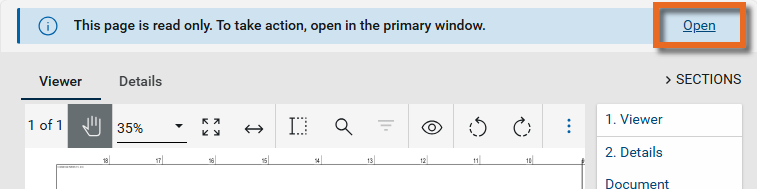
-
Maximize
 and Minimize
  - Select Maximize to open the record to a full screen view. From the full screen view, select Minimize
  to return to the original view.
 -
Close
- Select the close icon to close the currently open item.
Configure the app
Your domain administrator or another user with the appropriate permissions can configure the app in the Configuration application.
Because this is a domain level app, you must first navigate to the root domain in order to access configuration for the app.
Important When working in the Configuration app, it is important to review the header and ensure that you are working at the correct level in the hierarchy, either the root domain or at a partition or project level.
Settings that you establish at the root domain or lower levels will inherit down the hierarchy until they are overridden. For more information on the hierarchical structure of Kahua, refer to Understanding the hierarchical structure of Kahua.
The Configuration app can be accessed directly through the apps list (Apps > Administration > Configuration), or, in some applications, by right-clicking on an application in the launch bar and selecting Configure. When you select Configure for an app from the launch bar, the detail view of the configuration page for that application opens automatically.
For general information on configuring this app in Configuration, refer to Application configuration.
Important Approvers are set up in the Configuration app > Approvals tab. You can have a multiple approval steps. For more information, refer to Approval configuration.
Available application roles
Application roles determine which actions users can perform in the app. Roles are assigned to groups in the Groups app > Permissions tab. Members of the group then have the permissions associated with the roles assigned to the group.
The following roles are available for this application:
| Role | Details |
|---|---|
| Administrator |
Full administration, including add, configure, create lists, edit, import, export, share, view, send, process, remove, and edit view templates. |
| Contributor |
Can add, edit, open, view, send, and process records. |
| Moderator |
Can add, edit, import, export, remove, share, open, view, send, and process records. |
| Observer |
Can open, view, send, and process records. |
| Referencer |
View-only access to records. |
Note To manage these permissions, open the Groups app and assign the appropriate application role to the group. Only users with the appropriate permissions can manage application roles. For more information, refer to Managing Permissions.